Settings
Configure Superwall Agents defaults, environment variables, machines, usage, billing, webhooks, keybindings, and account actions.
Open Settings from the bottom of the sidebar. Settings is where you configure defaults and account-level behavior after the basic chat workflow is working.
General
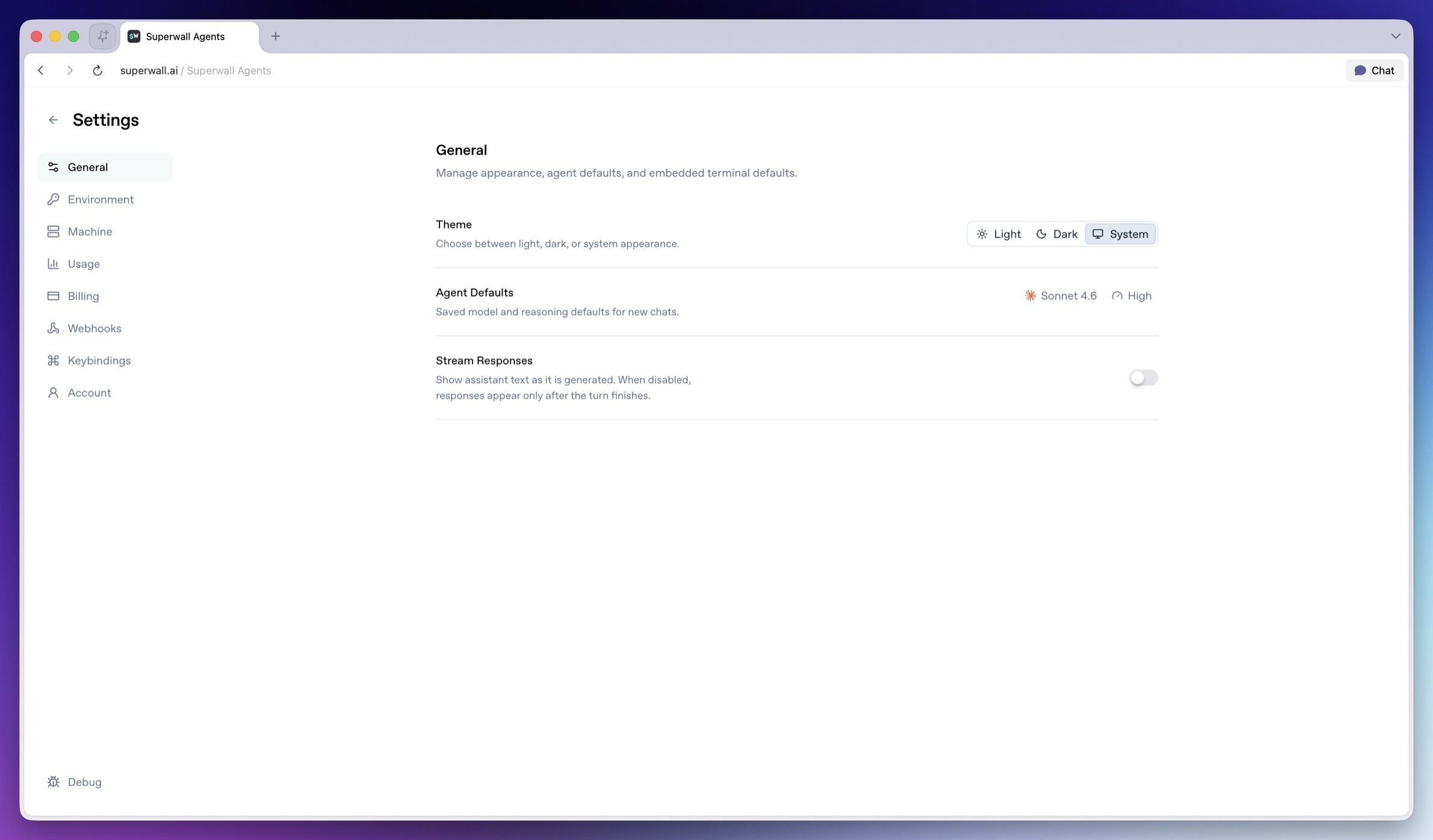
Use General for app-level defaults.
- Theme: Choose light, dark, or system appearance.
- Agent Defaults model selector: Sets the default model for new chats.
- Agent Defaults reasoning selector: Sets the default reasoning effort for new chats.
- Stream Responses switch: Shows assistant text as it is generated. When disabled, responses appear after the turn finishes.
Changing a default does not rewrite old messages. It affects new chats and future turns that inherit the default.
Environment
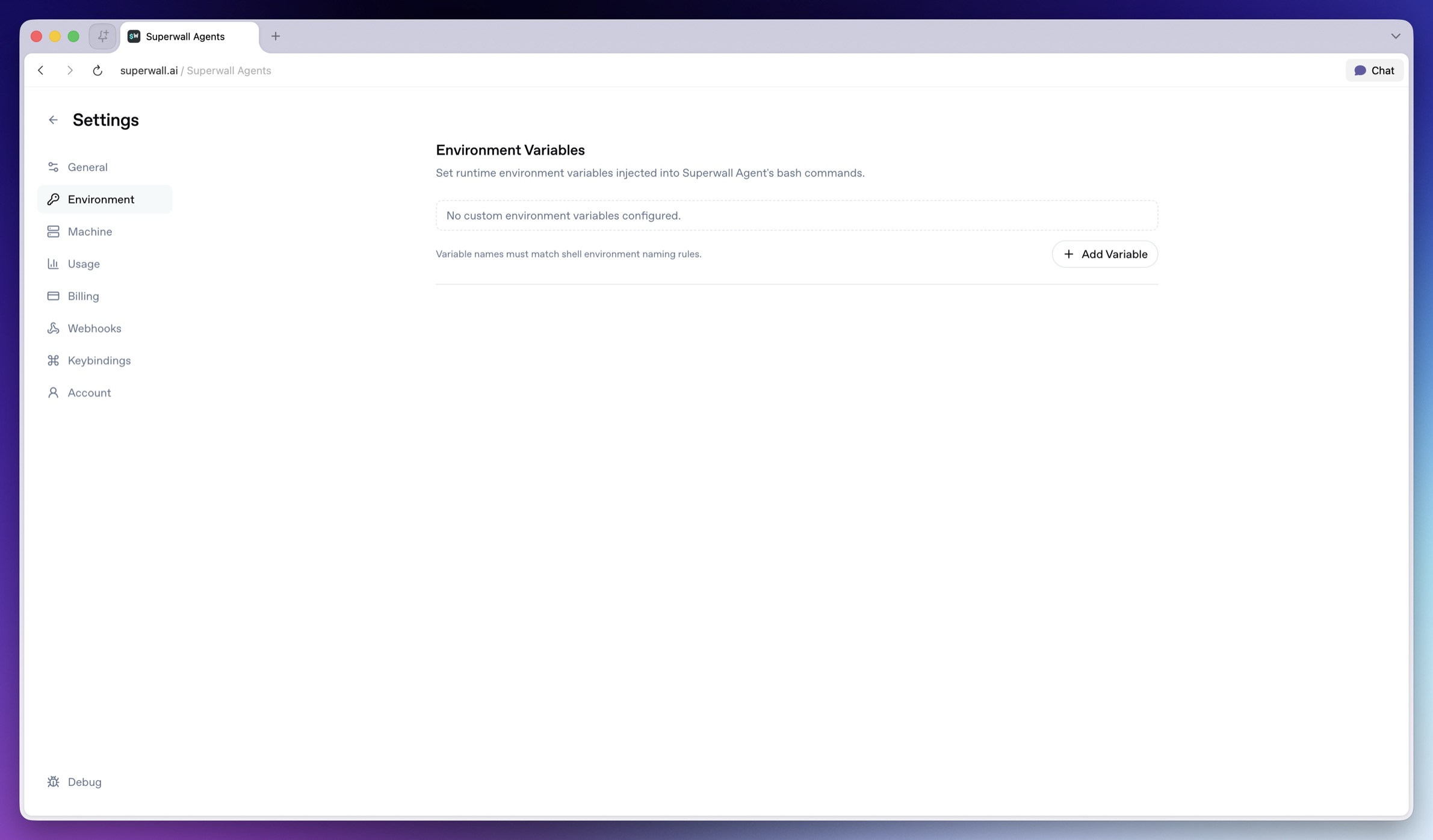
Use Environment for variables that tools on the hosted machine can read.
- Variable name field: Enter a shell-safe variable name such as
OPENROUTER_API_KEY. - Value field: Enter the value to make available to new agent turns.
- Remove variable: Deletes that variable row.
- Add Variable: Adds another name/value row.
- Save: Persists unsaved environment changes.
Some integration variables are reserved. SUPERWALL_API_KEY comes from the organization selector. GH_TOKEN, GITHUB_TOKEN, and SLACK_BOT_TOKEN come from the GitHub and Slack connection flows.
Need a Superwall API key? In Superwall Agents, select your organization in
the chat header. Agents provides a managed organization API key to new turns,
so you usually do not add SUPERWALL_API_KEY here. For an external agent,
custom tool, or local script, create an organization API key in
Settings > API Keys.
Do not use the public pk_ SDK key for server or API access.
Do not paste secret values into chat. Store them in Environment so tools can use them without adding the secret to conversation history.
Machine
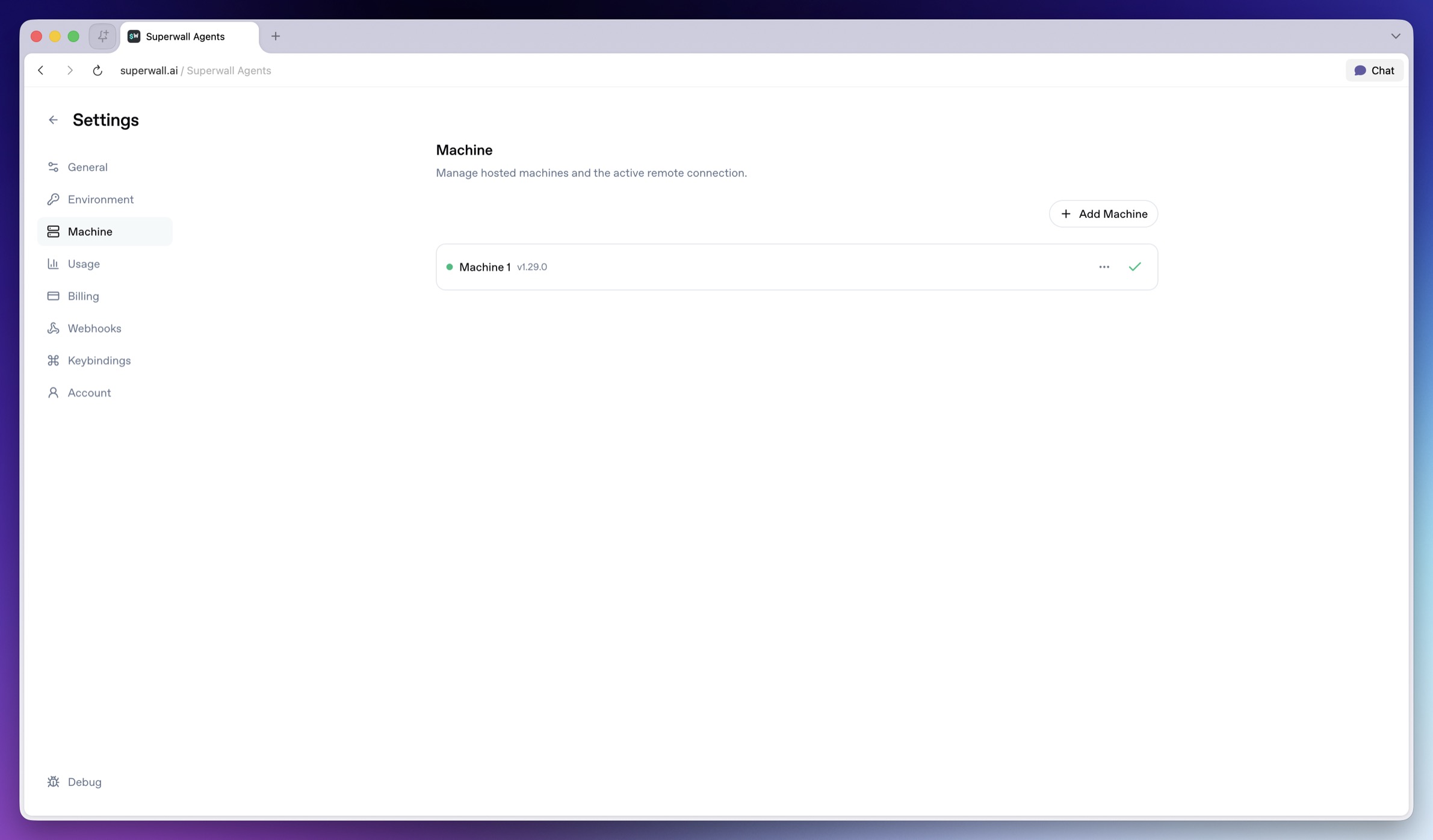
Use Machine to manage the hosted machine where agent tools run.
- Add Machine: Creates a hosted machine.
- Activate machine: Makes a machine active for chat, Files, Terminal, automations, and webhooks.
- Current machine: Indicates the active hosted machine.
- Rename: Renames a hosted machine.
- Reconnect: Reconnects the active machine.
- Update: Updates the active hosted machine when available.
- Delete: Deletes a hosted machine.
The hosted machine has its own filesystem and environment. To work with code or private files, connect GitHub, clone a repo from Terminal, upload files in chat, or add the needed environment variables before asking the agent to use them.
Usage
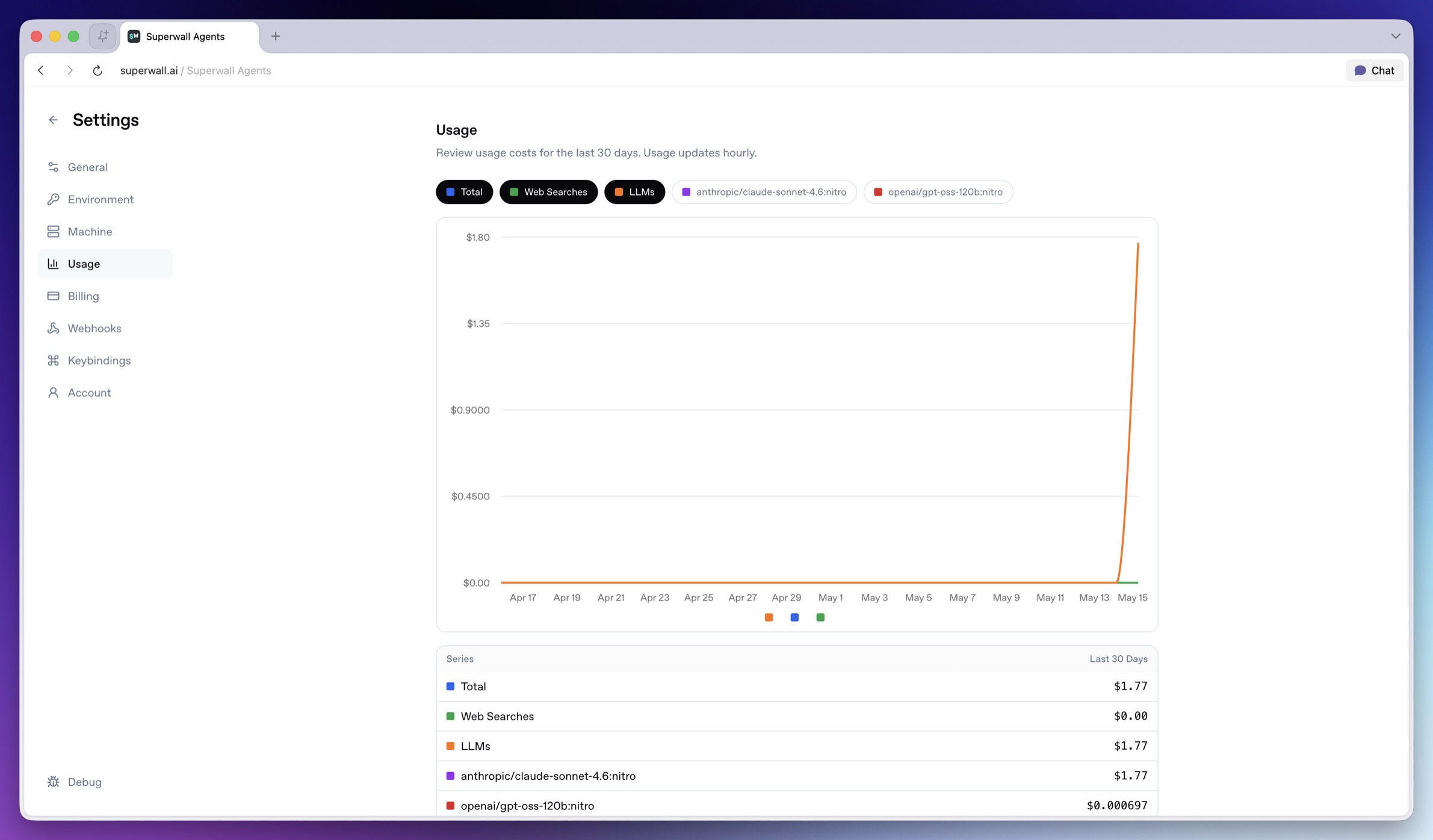
Use Usage to understand recent usage.
- Series chips: Toggle individual usage series on or off in the chart.
- Usage chart: Shows usage over the last 30 days.
- Totals table: Shows last-30-days totals by series.
Usage updates periodically, so treat it as operational visibility rather than a real-time meter.
Billing
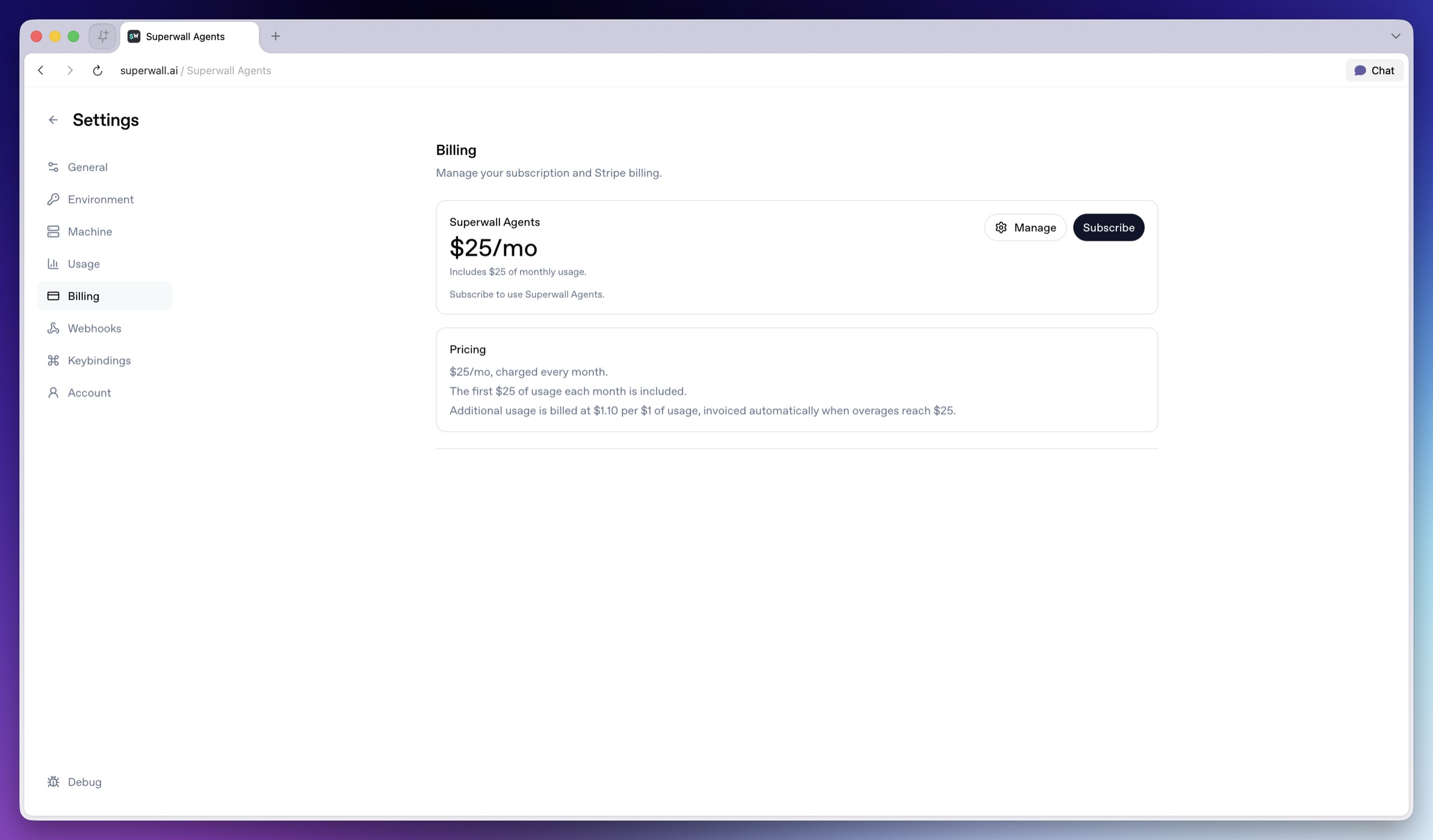
Use Billing to manage the Superwall Agents subscription.
- Manage: Opens the billing portal.
- Subscribe: Starts subscription checkout.
- Subscribed: Indicates the subscription is already active.
See Billing and Usage for more detail.
Webhooks
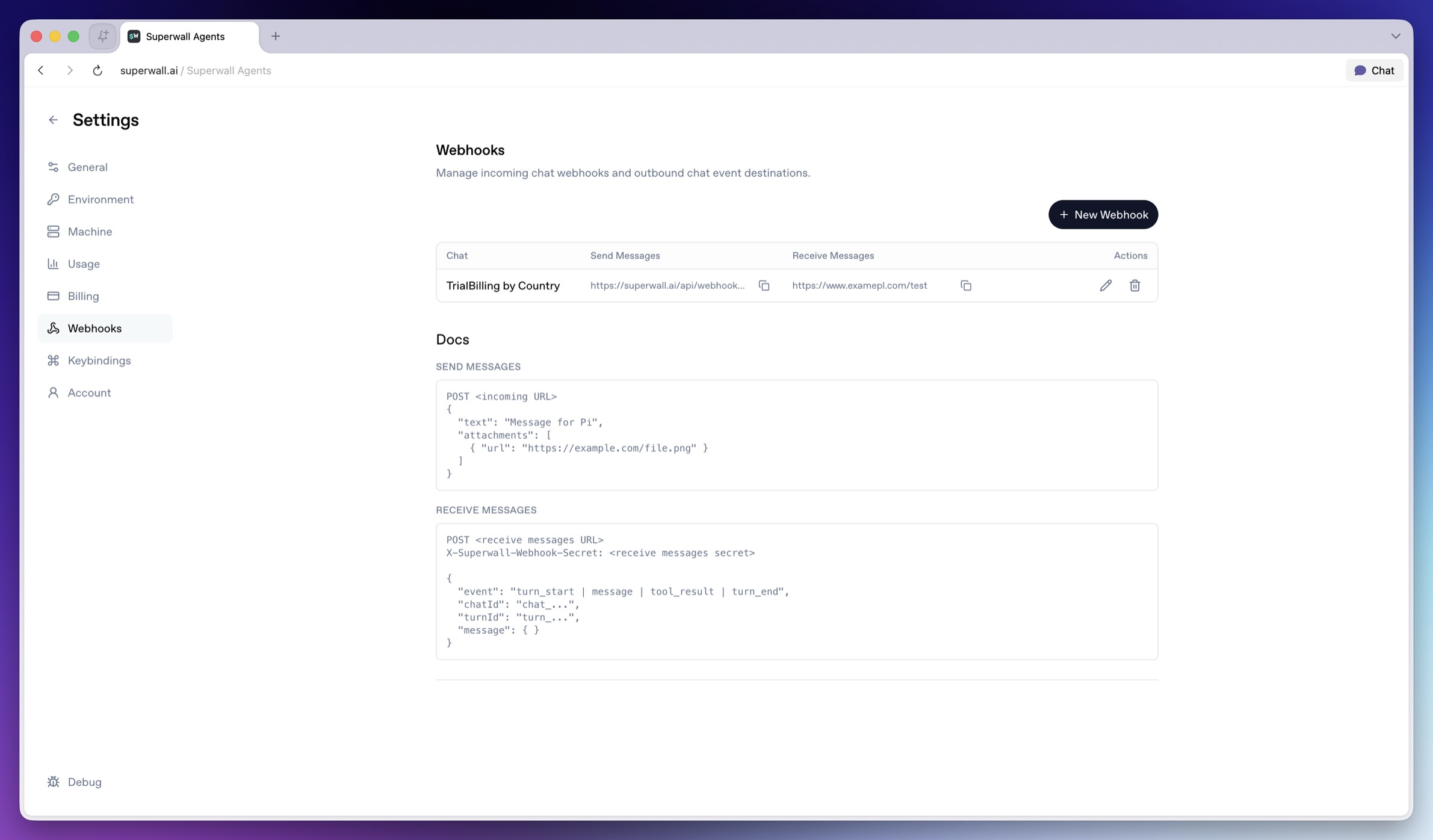
Use Webhooks to connect chats with external systems. See Webhooks for payload examples and more.
Keybindings
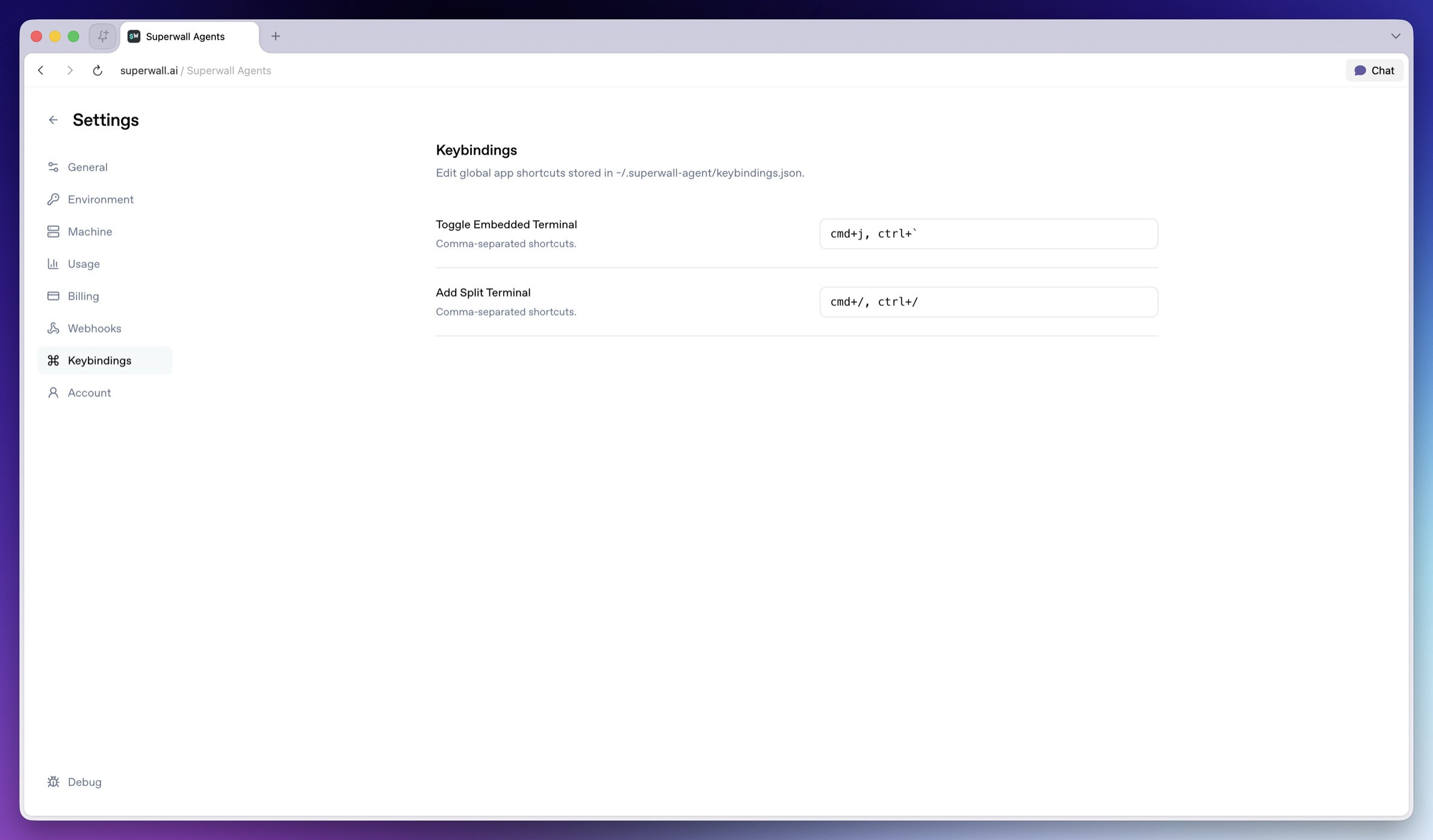
Use Keybindings to customize global app shortcuts. Keybindings are stored in the active keybindings file shown by the hosted machine.
Account
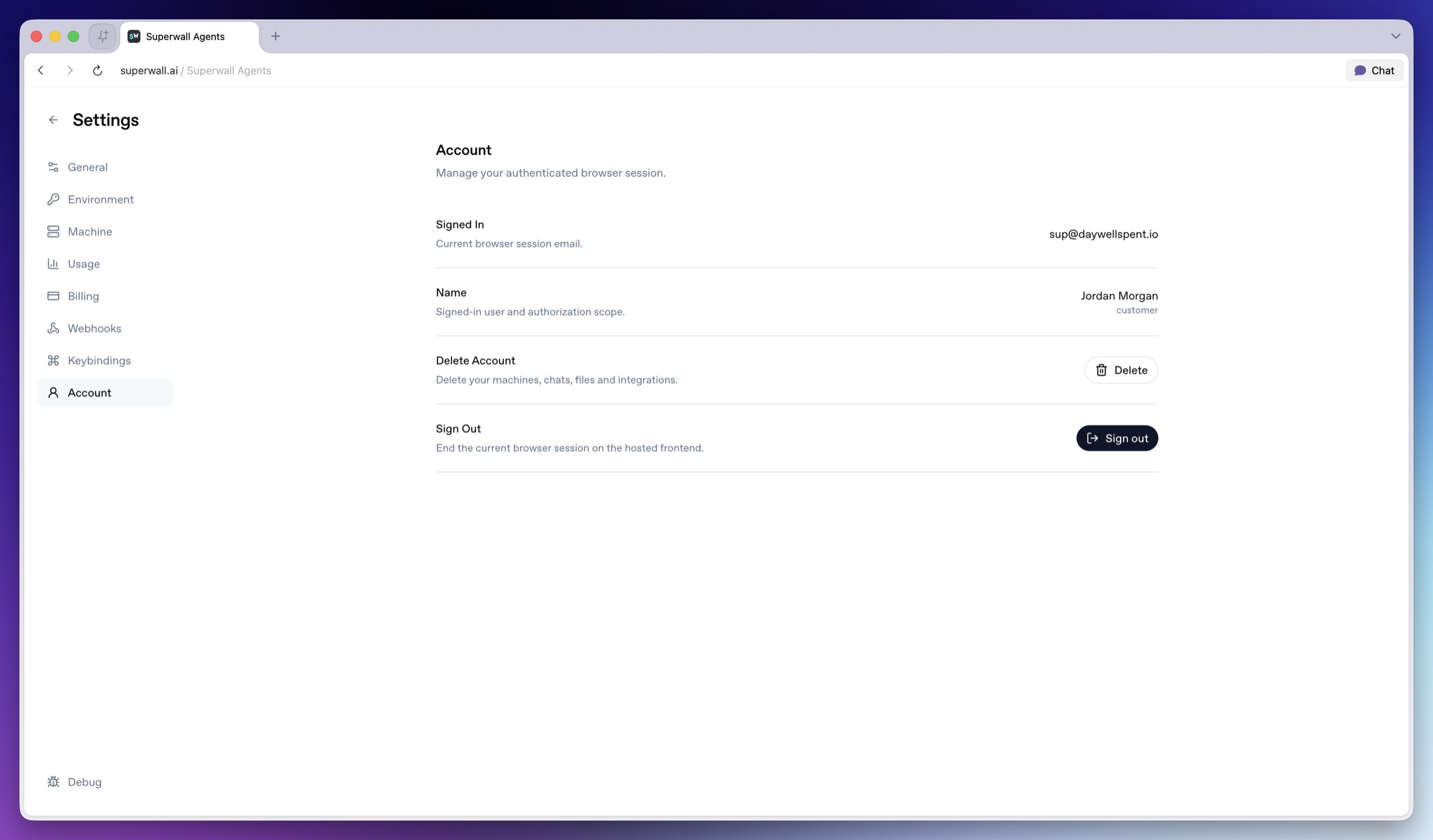
Use Account for browser-session and account actions.
- Signed In: Shows the current browser session email.
- Name: Shows the signed-in user and authorization scope.
- Delete: Deletes Superwall AI account data for the current browser session, including hosted machine records and sandboxes, hosted chats and files, Superwall organization selection, GitHub and Slack integrations, shared chat data, process history, and the current auth session.
- Sign out: Ends the current hosted frontend browser session.
Deleting an account is destructive. Managed provider keys and Superwall organization API keys are preserved.
How is this guide?