Build Paywalls with an AI Agent
Describe a paywall in plain English and let an AI agent build it, preview it in the studio, and ship it to Superwall. No commands to type.
You describe the paywall you want in plain English. An AI agent builds it, shows you a live preview, and sends it to Superwall when you say so. The only command you type yourself is the one that logs you in.
This guide is for people who want to build and test paywalls without writing code: growth, marketing, and design teams. If you're an engineer working in the code directly, start with the Quickstart.
Key terms
| Term | What it means |
|---|---|
| AI agent | An AI assistant that can work with files on your computer, such as the Code tab in the Claude desktop app, Codex, or Cursor. You chat with it, and it does the technical work. |
| The CLI | Superwall's command-line tool. Your agent uses it to work with your Superwall account, and asks before doing anything important. |
| Skills | Instruction packs from Superwall that teach your agent how to build paywalls properly: prices, purchases, safe areas, and languages. |
| Studio | A preview page that opens in your browser and shows your paywall in iPhone, Android, and iPad frames. It runs on your computer, not on Superwall's servers. |
| Push | Save a new version to Superwall. Nobody sees it yet. |
| Promote | Make a saved version the live one. |
| Publish | Push and promote in one step. |
| Campaign | Decides which users see which paywall, the same as for any other paywall. See Campaigns. |
One-time setup
Setup takes about 15 minutes. Your agent does the technical parts, and you approve each step.
- 1
Install an AI agent
For example, the Claude desktop app (use its Code tab), Codex, or Cursor.
- 2
Pick a folder to work in
If an engineer can give you a copy of your app's code, open the agent in that folder. That lets the agent match your app's exact look. See Use your app's real look.
If not, make a new empty folder, for example
Paywallsin your Documents folder, and open the agent there. - 3
Ask your agent to set you up
Paste this into your agent:
Set me up to build Superwall paywalls: install the Superwall CLI and log me in. Explain each step in one plain sentence as you go, and tell me when to quit and reopen this app.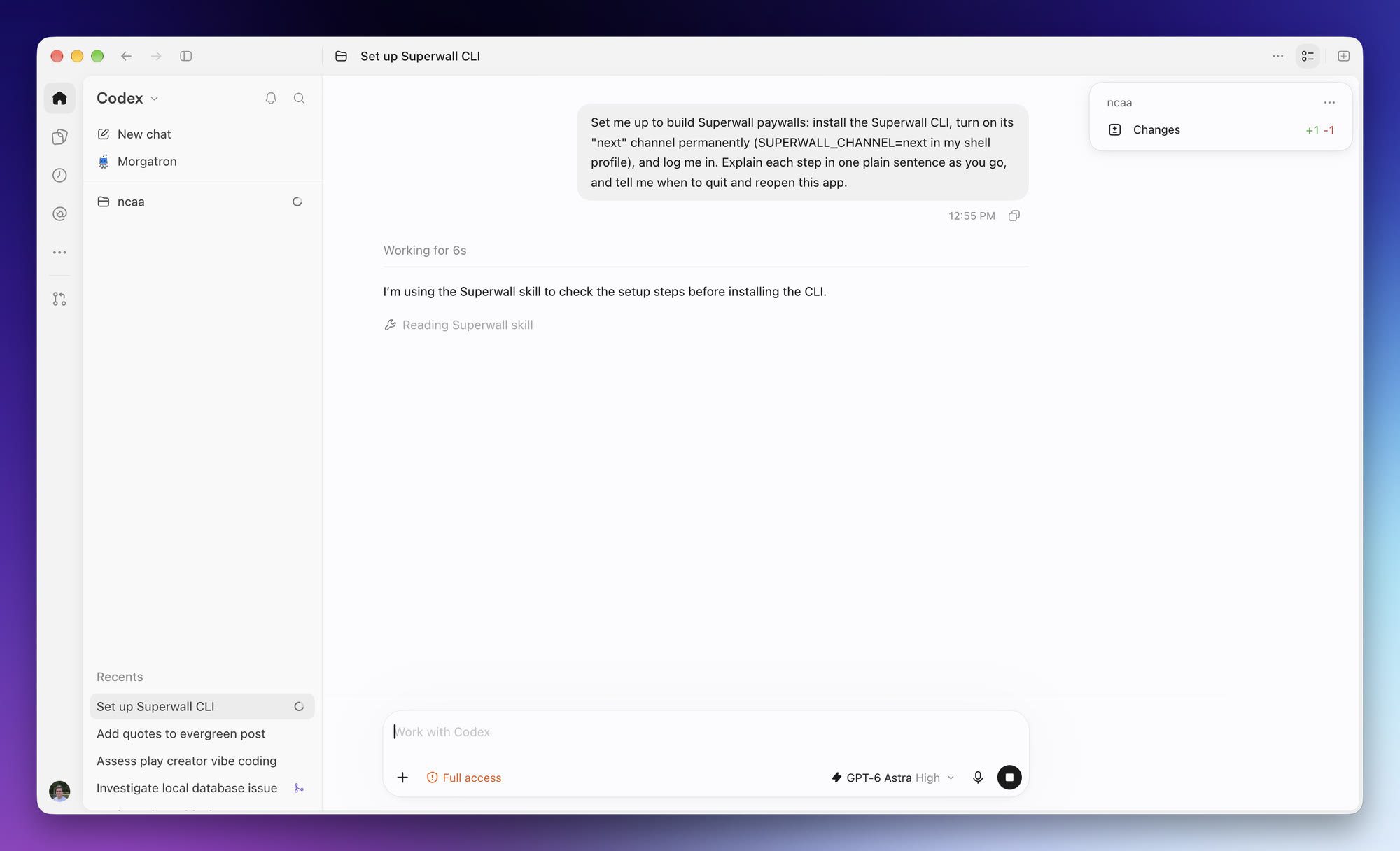
Your agent can't log you in, because logging in opens Superwall in your browser. When it asks, open a new window in the Terminal app, run
superwall login, and approve the sign-in in your browser. Logging in also installs Superwall's skills for your agent.If your computer shows a password prompt, that's your Mac asking, not the agent. Type your password into that prompt, never into the chat.
- 4
Quit and reopen the agent app
Fully quit the app, not just the window. The agent only picks up the skills that logging in installed after a restart.
- 5
Connect to your app and open the studio
Paste this into your agent:
Set up Superwall paywalls in this folder for our existing app "[app name]" and open the preview studio in my browser.This connects to your app that's already in Superwall. It doesn't create a new one. If your app isn't in Superwall yet, tell the agent and it can add it to your Superwall project.
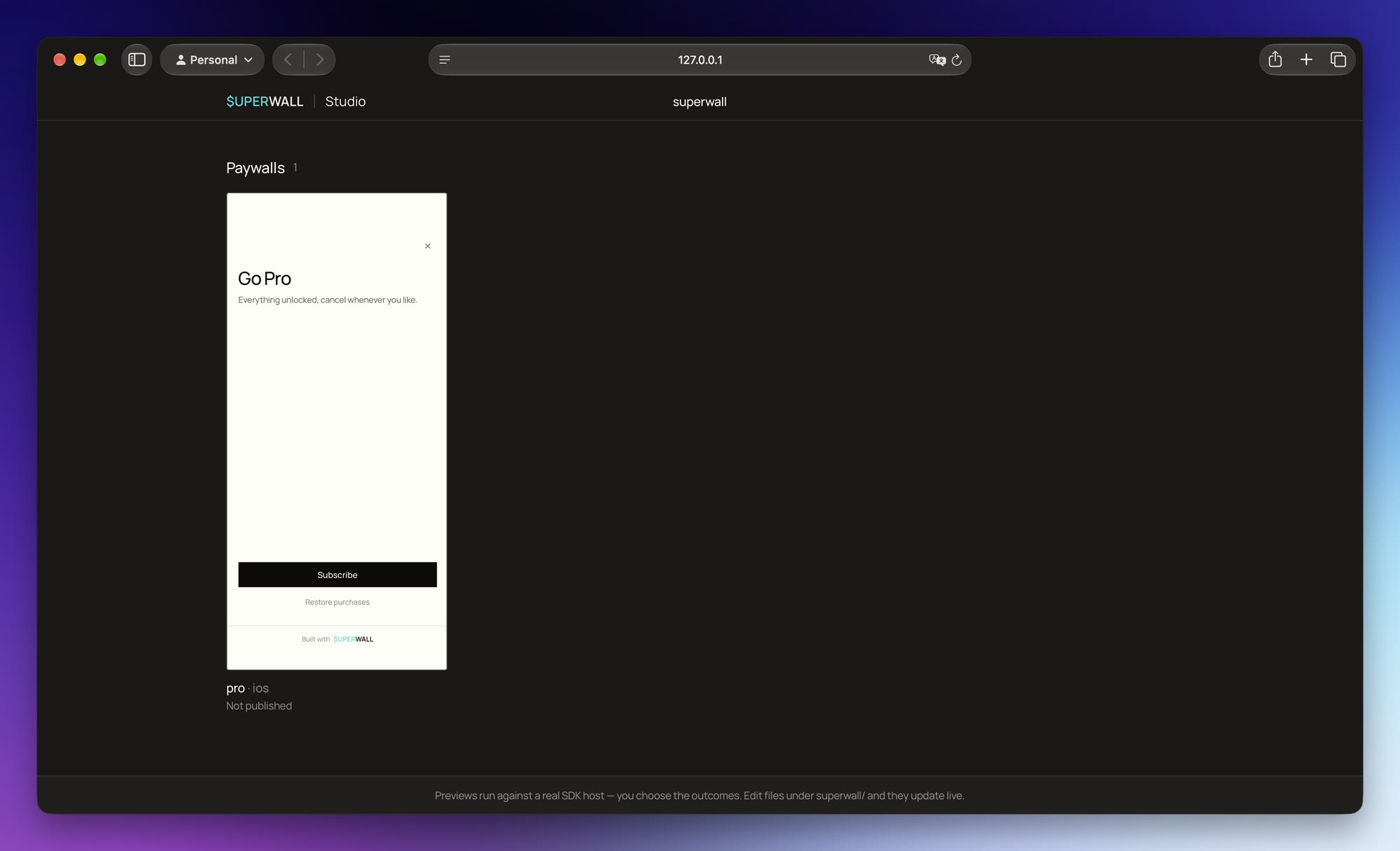
A browser tab opens at an address like
localhost:6100or127.0.0.1:6100. That's the studio. Keep it open while you work.The studio starts with one paywall called pro. That's a starter template Superwall adds to a new project, not one of your paywalls. Your own paywalls show up once you bring one in. You can ask the agent to delete the starter whenever you like.
Everyday workflow
Most projects follow these five steps. Copy the prompts and fill in the parts in brackets.
- 1
Bring in your current paywall
Your agent pulls in your live paywall and rebuilds it as an editable copy. The original stays live and untouched.
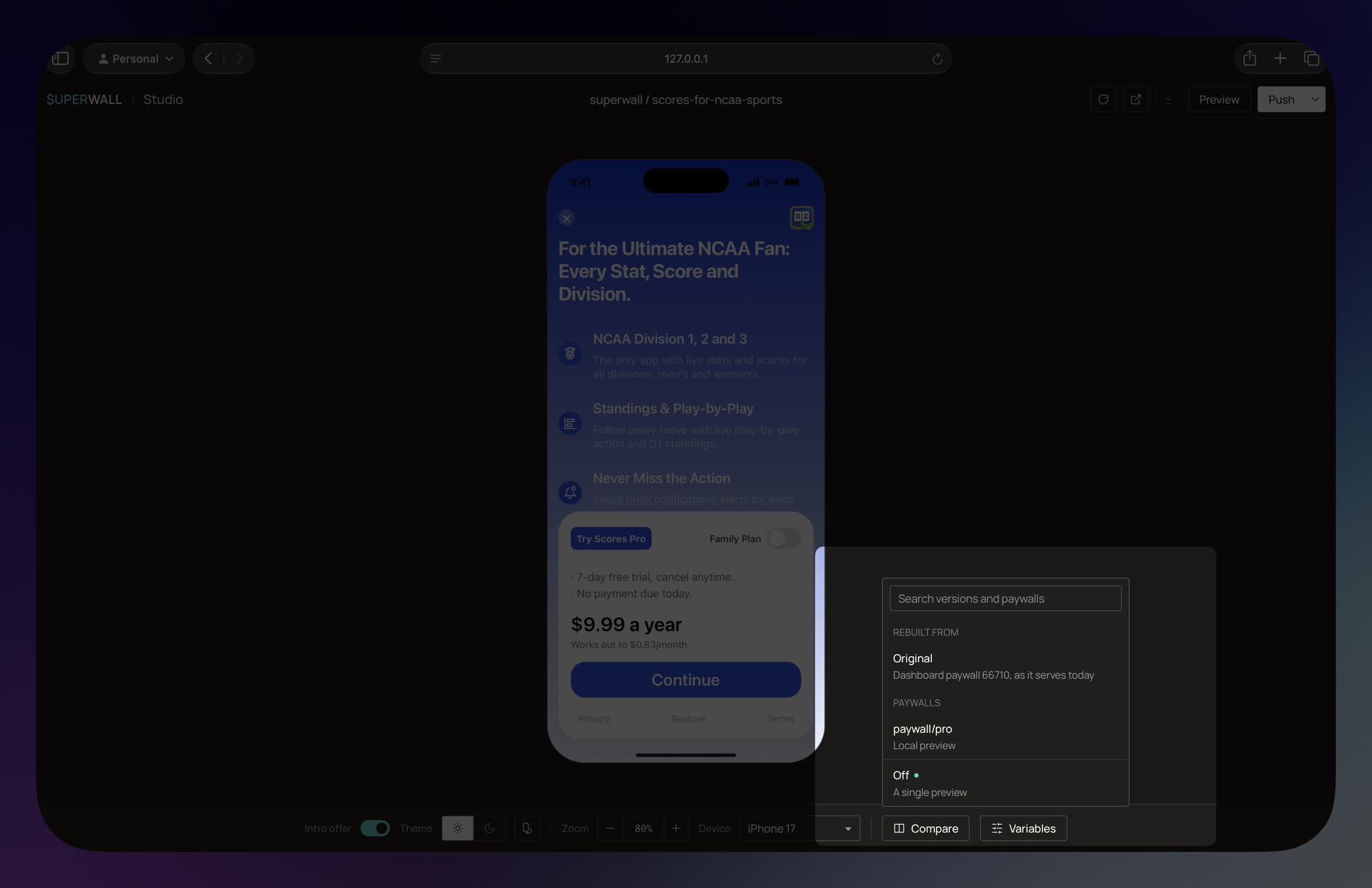
List our Superwall paywalls. Then bring in "[paywall name]": rebuild it as an editable copy in this project and open it in the studio with Compare › Original, so I can see it next to the live one. When it's done, summarize its pages, products, free-trial setup, and copy for me.The rebuild can take a few minutes. When it's done, the studio opens on your copy with the original beside it. If it doesn't, click Compare in the studio toolbar and pick Original. Click through both and tell the agent about anything that doesn't match.
- 2
Come up with ideas
Suggest 3 test ideas for this paywall that keep the same products and free trial. For each one, say what changes and why it could increase conversion. Don't build anything until I pick. - 3
Build
Each idea becomes its own paywall, so you can A/B test it against the original in a campaign.
Build idea 2 as its own new paywall. Keep the same products, free trial, fonts, and colors as our current paywall. - 4
Review and refine in the studio
Click through the paywall like a user would. The studio toolbar switches devices, light and dark mode, language (Locale), and free-trial eligibility (Intro offer). Tapping a buy button asks you to pick what happens (Complete, Abandon, or Fail), so you can see every path.
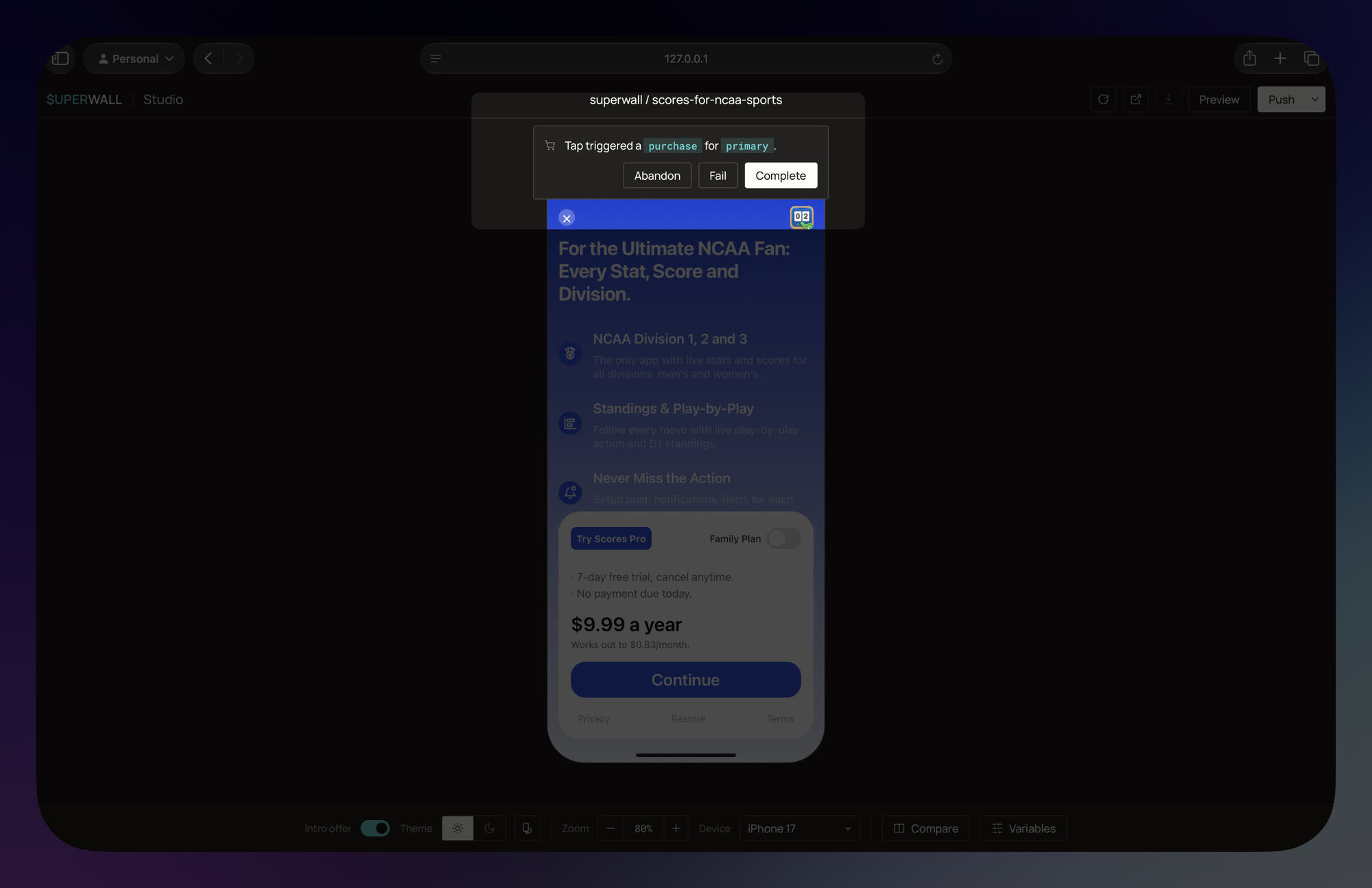
Ask for changes in plain words, for example "make the headline shorter and move the price above the button." When it looks right, ask for a QA pass.
- 5
Ship it
Push, review, then promote (or publish to do both at once), and add the paywall to a campaign. See Push, promote, and publish.
Start from your control paywall
Your control is the paywall new designs are tested against, usually the one currently live in your campaign. It holds decisions a redesign shouldn't quietly drop: which plans you sell, the free trial, which plan is selected by default, and what happens when someone backs out. Give your agent the control's link up front and make it the source of truth.
To get the link, open the paywall in the Superwall dashboard and copy the address from your browser's address bar. If different audiences see different paywalls, copy the campaign's link instead and name the audience.
This is our control paywall: [paste link]. Treat it as the source of truth for pricing and packaging. Before designing anything, list for me:
- every product it sells, with price, billing period, and free trial
- which plan is selected by default
- what users who can't get a free trial see
- any discount or exit offer, e.g. what shows when someone closes the purchase screen
- the order of its pages
- anything that changes per user, such as their name or quiz answers
- its fonts and colors
Once I confirm the list, save it to superwall/AGENTS.md under a "Control" heading, so every new design starts from it.
Then keep each test clean:
- Say what's allowed to change. Start each request with the type of test, for example "design-only test: keep products, trial, and default plan identical" or "pricing test: only the annual price changes." One change per test keeps results readable.
- Don't let the agent simplify your packaging. If the control offers the same plan with two trial options, a redesign shouldn't turn that into monthly vs. annual. Ask the agent to flag any packaging change instead of making it.
- Check the easy-to-miss states. Redesigns most often lose the no-trial version and the exit offer. Preview both in the studio with the Intro offer toggle and the Abandon purchase outcome.
- Let Superwall do the price math. Prices like "$4.16/month" for an annual plan should come from Superwall, never typed by hand, so they stay correct in every currency. See Products.
- Reuse the control's wording for trial terms, renewal, and legal text. Ask the agent where any new copy came from.
- Compare before you push. Ask: "Compare the new design with the control: products, trial, default plan, offers. Flag every difference." Compare › Original in the studio shows them visually.
- Keep the Control section current. When a pricing test wins and becomes the new control, ask the agent to update the section in
superwall/AGENTS.md.
Push, promote, and publish
Getting a paywall live works like a document: save it, make it public, or do both at once.
| Push | Promote | Publish | |
|---|---|---|---|
| What it does | Saves a new version to Superwall | Makes a saved version the live one | Push and promote in one step |
| Who sees it | Nobody yet. You can preview it in the dashboard. | Users in a campaign that shows this paywall, on their next app open | Same as promote |
| Safety checks | Refuses if something's broken or a product doesn't exist in Superwall | None needed, it only switches which version is live | The push checks run first |
| Undo | Nothing to undo | Promote the previous version. It's instant. | Same as promote |
| Use it when | You want to review the real thing before it's live | You've reviewed a pushed version and it's ready | You've already reviewed it in the studio and want it live now |
- Push, check, then promote anything new. After a push, open the paywall in the Superwall dashboard and switch to the version you pushed to see it with your real prices. The dashboard shows the live version by default.
- Publish is the shortcut. It's handy for small, already-reviewed changes like a copy fix, but it skips the review step. To have your agent always check with you first, add that to your team rules.
- A new paywall still needs a campaign. Promoting makes a version live, but users only see the paywall once you add it to a campaign, usually as a test variant next to your current one.
Push the "[paywall name]" paywall to Superwall with the note "[why, e.g. Q4 headline test]". Don't promote it. Give me the link to review it in the dashboard.For how versions work in detail, see Push, promote & publish.
Languages
All your paywall text lives in one file per language. Adding a language means your agent adds one file, with no redesign.
Translate the "[paywall name]" paywall into German, French, Spanish, and Japanese. Keep the same tone, don't put prices in the text, and show me each language in the studio.- The phone picks the language. Users see the language their phone is set to. There's no language menu on the paywall.
- Prices translate themselves. The App Store and Google Play supply local prices and currencies. Never type a price into the copy.
- Check every language in the studio. Use the Locale menu and look for cut-off text, since German and French run long. A label like
paywall.titleshowing on screen means a typo the agent needs to fix. - Treat AI translations as a first draft. Have a native speaker or your localization team review them before you promote.
See Localization for how language files work.
QA and team rules
Superwall's skills already teach your agent the standard checks: every phone size, light and dark mode, every language, users with and without a free trial, completed, abandoned, and failed purchases, restore, and prices that are never typed into the copy. You don't need to write any of that down. Ask for a QA pass before you ship:
Do a full QA pass on the "[paywall name]" paywall before we push, and give me a pass/fail list with screenshots.Agents read a rules file every time they start work. Use it for what only your company knows: your approval process, brand rules, required legal wording, what your subscription is called, and your control's pricing and packaging.
Create superwall/AGENTS.md with our team's rules for paywall work, plus superwall/CLAUDE.md containing only "@AGENTS.md" so every AI tool reads the same rules. Our rules: [e.g. always ask me before promoting or publishing; our subscription is called "[name]"; always include our legal line "[text]"]. Whenever I correct something specific to our brand or business, add it to this file.If your agent misses a general paywall mistake, like text hidden under the notch or a broken purchase path, that's a gap in Superwall's skills, not something for your rules file. Ask your agent to report it with superwall feedback, or tell your account manager, so it gets fixed for everyone.
To share your rules file with your team, ask an engineer to add the superwall folder to your code repository.
Use your app's real look
If your app's code is on your computer, the agent can read your real brand colors, fonts, and button styles, so new paywalls look like your app instead of a template. Ask an engineer for a copy of the app's code and open your agent in that folder.
Find our brand colors (light and dark), fonts, spacing, and button styles in our app's code and set them up for our paywalls. Copy them into the superwall folder rather than linking to the app's files. Then note in superwall/AGENTS.md where they came from, so future sessions use them automatically.- Already have the screen in your app? Ask: "Turn our existing [screen name] screen into a Superwall paywall." The agent finds it in the app code and rebuilds it. See Migrating native screens.
- No access to the app's code? Ask the agent to match the fonts and colors of your current live paywall, and get the actual font files from your design team. Don't accept a "similar-looking" font.
If something goes wrong
| What you see | What to do |
|---|---|
Unknown command: create | Your Superwall CLI is older than the framework. Ask the agent to update it with superwall upgrade, then try again. |
| Prices are blank in the studio | The paywall uses a product that doesn't exist in Superwall yet (the starter pro paywall uses a placeholder), or you're logged in to the wrong Superwall account. Ask the agent to check both. Push refuses a missing product, so fix it before you push. |
| Push refuses a product | That product doesn't exist in Superwall yet. Ask the agent to list your products, then set up the missing one in the dashboard or with your team. |
| Promoted, but users don't see it | Check that the paywall is in a campaign. Users get the new version on their next app open. |
For anything else, ask your agent to explain what went wrong in plain language. If it looks like a Superwall bug, the agent can report it to Superwall for you with superwall feedback. Engineers can find more errors in Troubleshooting.
How is this guide?
Quickstart
Scaffold a Superwall Framework project with superwall create, preview your first code-first paywall in the local studio, then push and promote it to production.
Project Structure
How a superwall/ directory is laid out, the two files the CLI manages, and the rules that keep a project portable.