Campaigns
Campaigns are logical groupings of paywalls to show when certain _events_ are registered and _conditions_ are met. They are an incredibly powerful tool for creating experiments and managing best-in-class monetization flows.
View Campaigns by clicking them over on the left-hand sidebar:
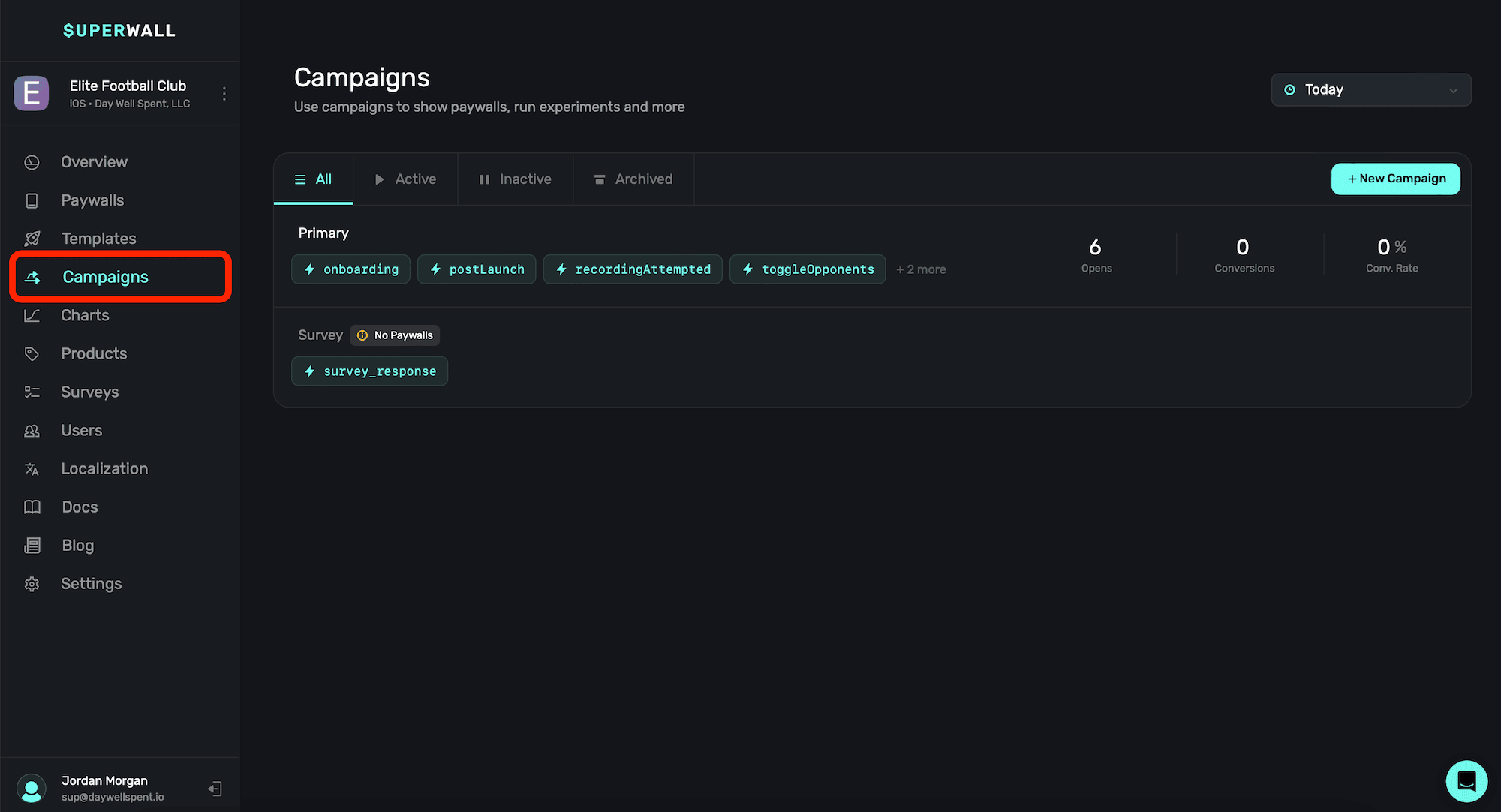
Campaigns consist of three main concepts:
Campaigns are the centerpiece of Superwall. You can use one, or several, campaigns that can run concurrently. To understand campaigns, think of them like this:
- In a campaign, you add placements — which are actions you want to result in a paywall, or might someday want to result in a paywall(i.e.
loggedCaffeine,addedEntry, etc). - Then, as users take actions in your app, those placements are registered in the Superwall SDK.
- When a placement is registered, it's then evaluated by Superwall. Superwall looks at your campaign filters, and may or may not show a matching paywall.
With this setup, you can be incredibly simple or make in-depth, complex filters which determine when (and what) paywall is shown. You can set the percentage of new users that see each paywall, or even configure no paywall (a.k.a. a holdout) to be shown for certain placements.
Toggling campaigns by status
You can toggle between campaigns by their status using the tabs at the top (above the campaigns):
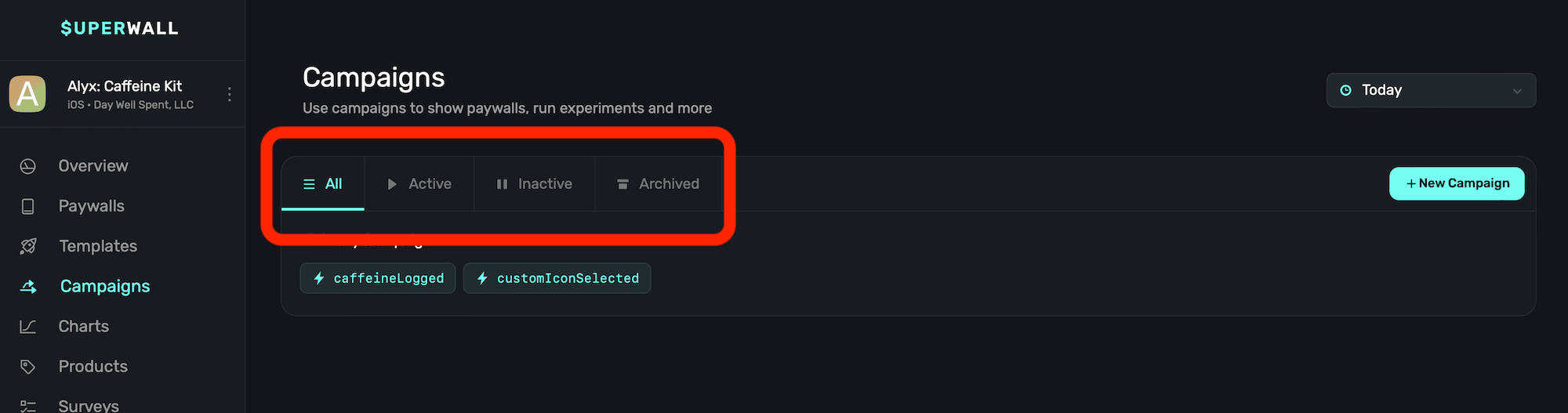
- All: The default view. This shows all of your campaigns, regardless of their status.
- Active: Campaigns being used in production and serving up paywalls.
- Inactive: Campaigns that are not serving paywalls in production, but can be quickly re-enabled.
- Archived: Campaigns that have been archived, and not attached to any campaign. These can be restored.
Viewing campaign top-level metrics
Each campaign will also display its active placements and top-level metrics (if any are available). In this example, the campaign at the top has data, while the one below it doesn't:
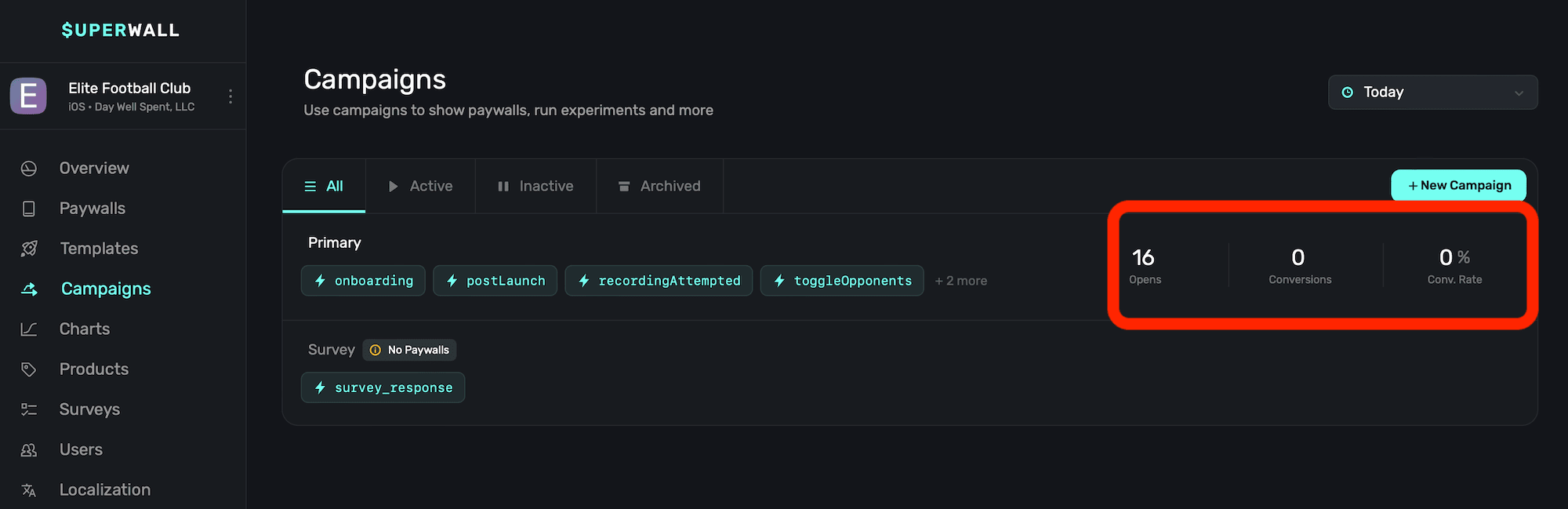
Metrics shown include:
- Opens: The amount of time any of the campaign's placements resulted in a paywall being presented.
- Conversions: The number of conversions produced from any paywall attached to the campaign.
- Conversion Rate: The conversion rate of the current campaign.
If the campaign isn't currently serving any paywalls because none have been attached to it, you'll see a wanting indicating that in this view. In the image above, that's the case for the campaign at the bottom, called "Survey".
Toggling campaigns by date
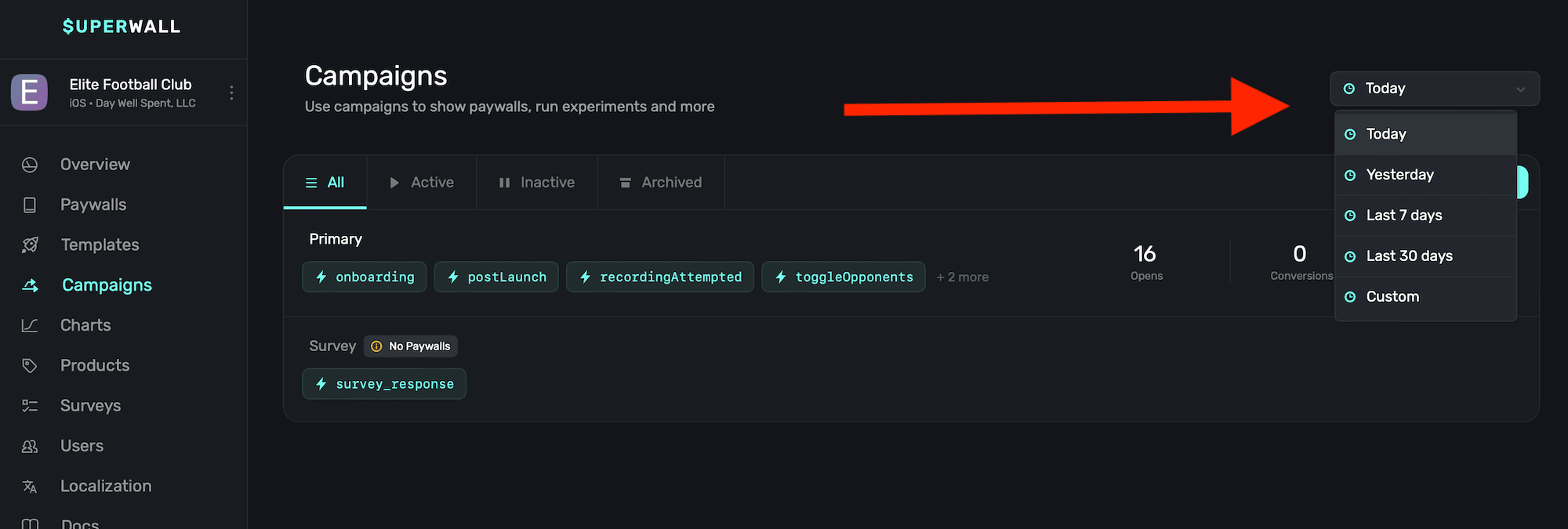
To toggle the date range that the metrics previously mentioned should display within, use the date toggle at the top-right side:
Viewing campaign details
To view more about any campaign, to set up filters, edit placements, paywalls and more — simply click on any campaign listed in the table. Then, campaigns details will be presented. More on that in the next page.
Viewing campaigns on iPhone
The Superwall iOS app shows your campaigns on the go. It requires iOS 26 or later.
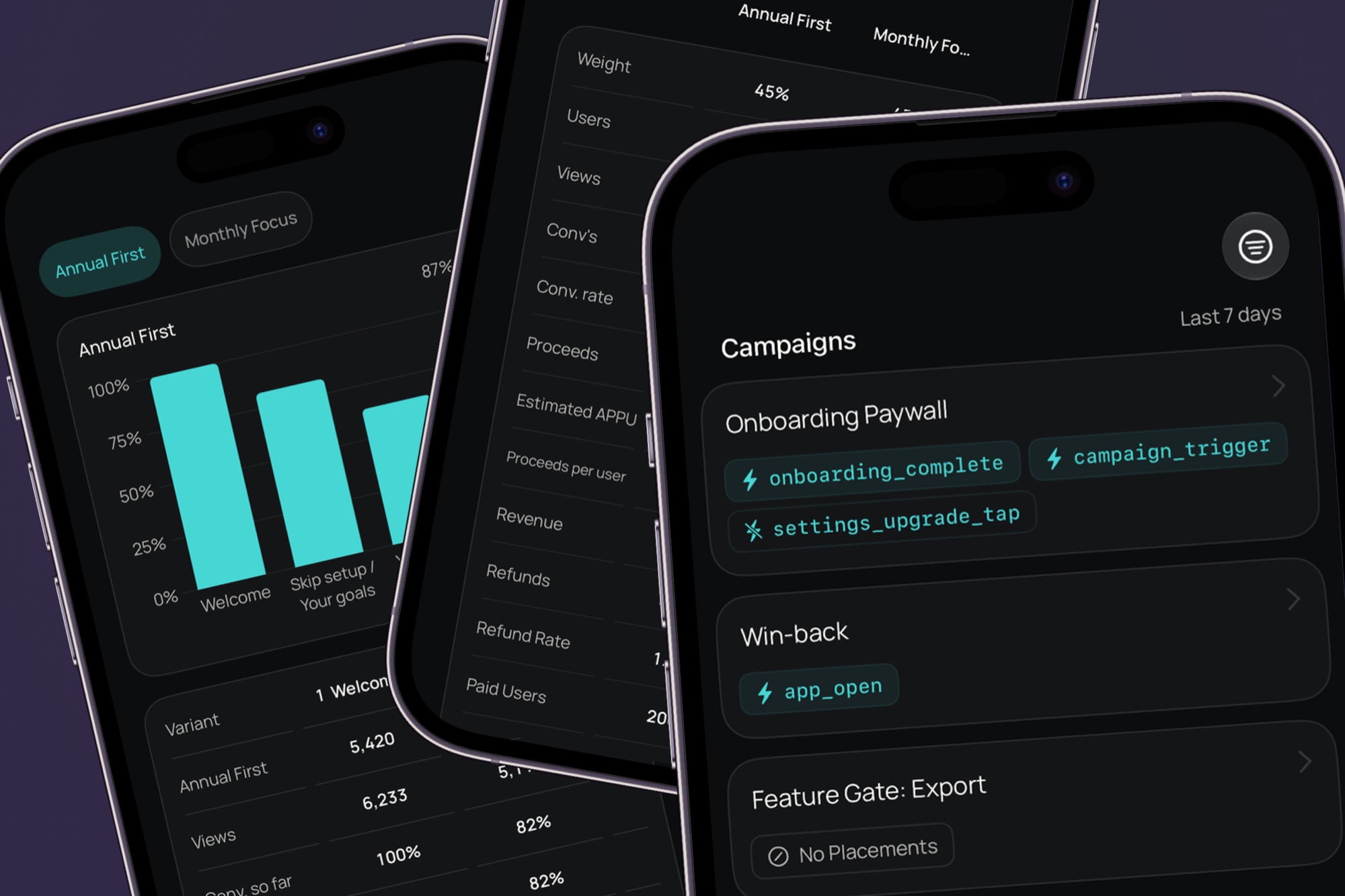
Sign in with your Superwall account, choose an app with the app switcher (your app's icon) at the end of the tab bar, then open the Campaigns tab (the lightning bolt icon). There you'll find:
- Campaigns: Your active or archived campaigns and their placements. Switch between them with the filter in the toolbar.
- Campaign details: Users, conversions, conversion rate, and proceeds for the time range set on the Overview tab, plus the campaign's audiences and placements.
- Audience details: Tap an audience to see its Results, Paywalls with their traffic split, Users and transactions from the last 24 hours, and its Filters.
You can also make a few changes from the app:
- Placements: Swipe left on a placement, or tap its … button, to copy its link or name, pause or resume it, or delete it.
- Audiences: Tap Reorder Audiences below the audiences to change their order. To pause, resume, duplicate, or delete an audience, open it and use the … menu at the top right.
Everything else, like creating campaigns, editing filters, or changing a paywall's percentage, happens in the dashboard. In a campaign, tap the arrow button at the top right to open it on the web.
How is this guide?