Paywall Presentation Styles
Show a Superwall paywall full screen, as a modal, a bottom drawer, a centered popup, or pushed onto your navigation stack. Pick the style per paywall in the editor, with no app update.
Each paywall has a presentation style that decides how it appears on screen: full screen, as a modal sheet, as a drawer from the bottom, as a popup in the center, or pushed onto your app's navigation stack. You set it on the paywall in the editor, so you can change it, or test one style against another, without releasing your app.
Choose a presentation style
In the paywall editor, click Settings in the sidebar, then pick an option under Presentation Style. Publish the paywall to apply it.
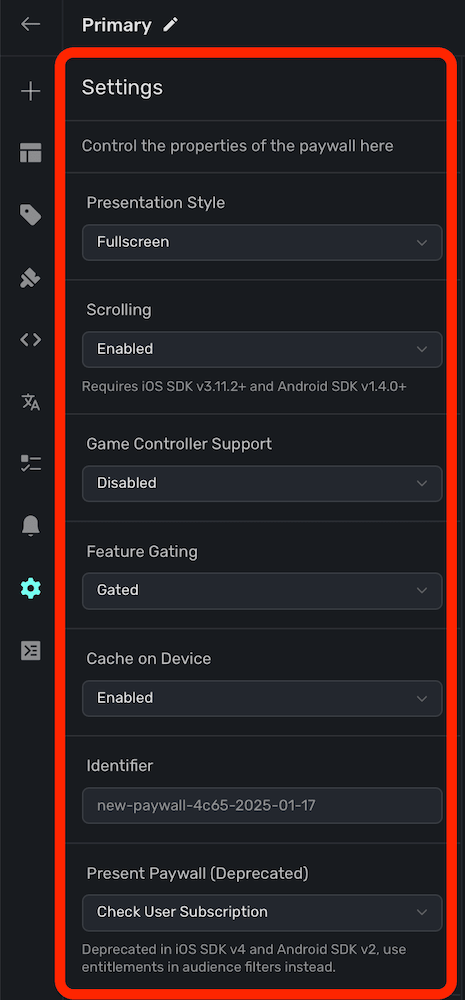
| Style | How the paywall appears |
|---|---|
| Fullscreen | Covers the whole screen. |
| Push | Slides in from the side, as if pushed onto a navigation stack. |
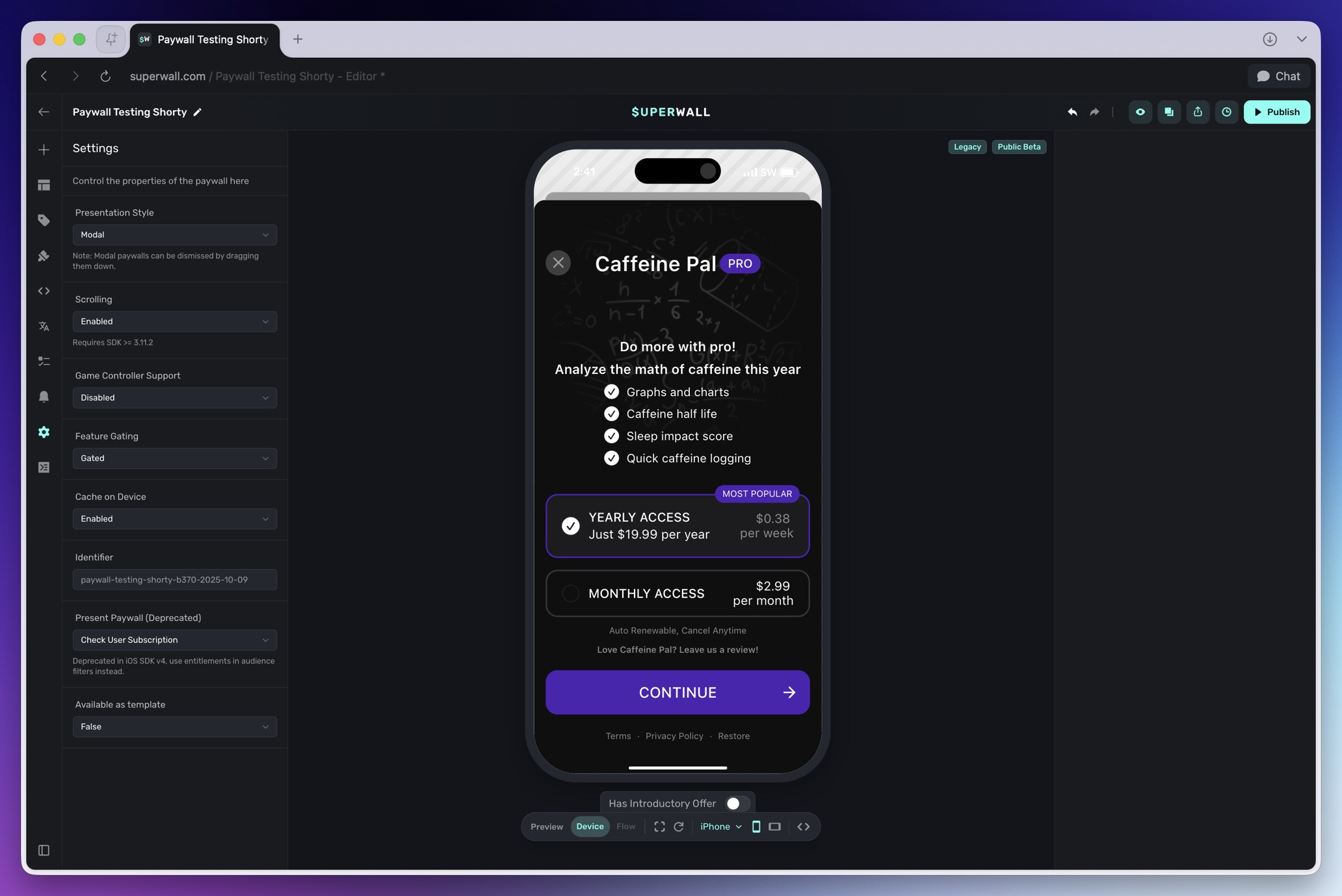
| Modal | Uses the platform's default modal presentation. On iOS this is a page sheet. |
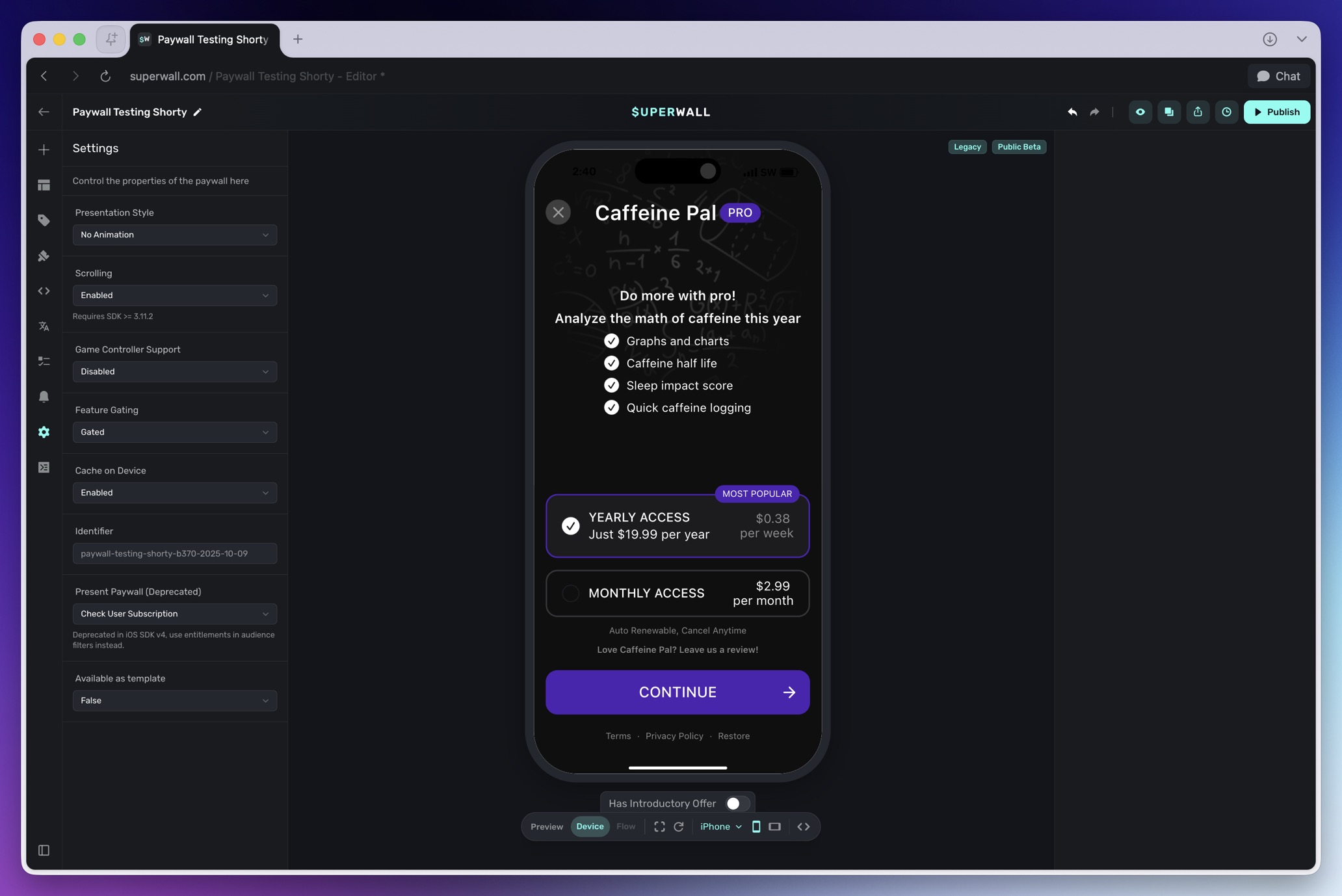
| No Animation | Covers the screen like Fullscreen, without the transition animation. |
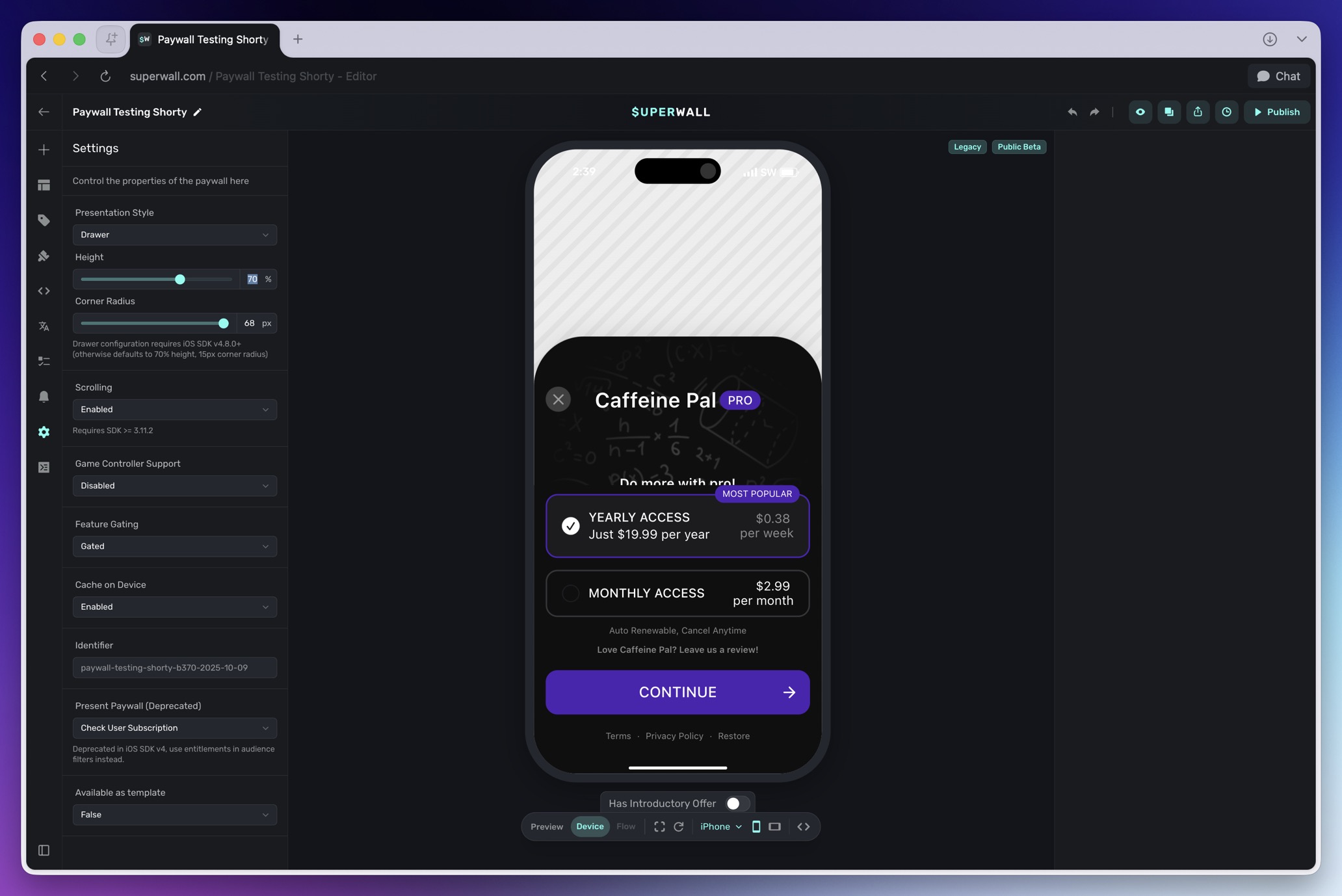
| Drawer | Slides up from the bottom and covers part of the screen. You set its height and corner radius. |
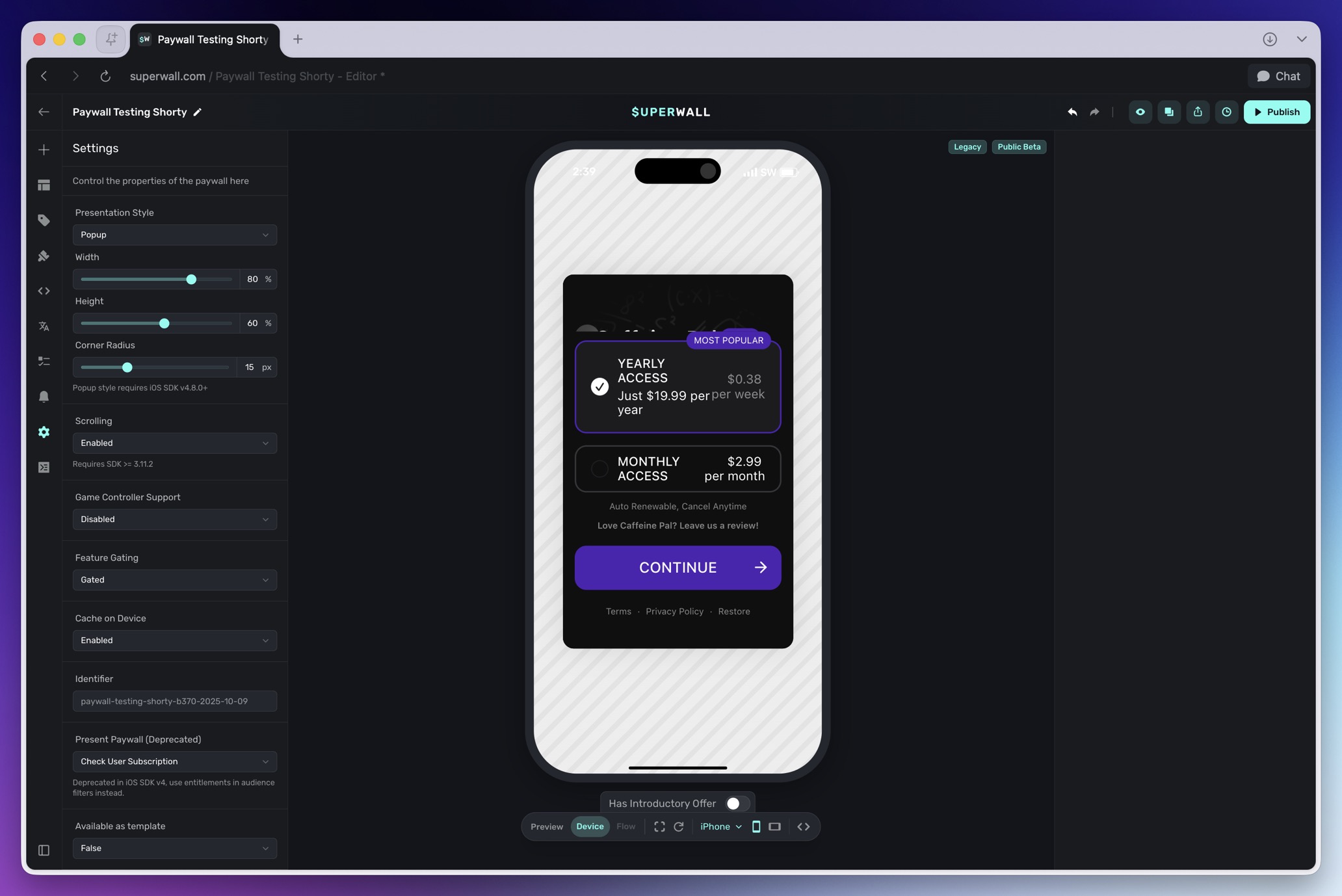
| Popup | Appears in the center of the screen, over your app. You set its width, height, and corner radius. |
Examples
These examples use the same paywall, so the differences are easier to compare.
Fullscreen fills the device screen.
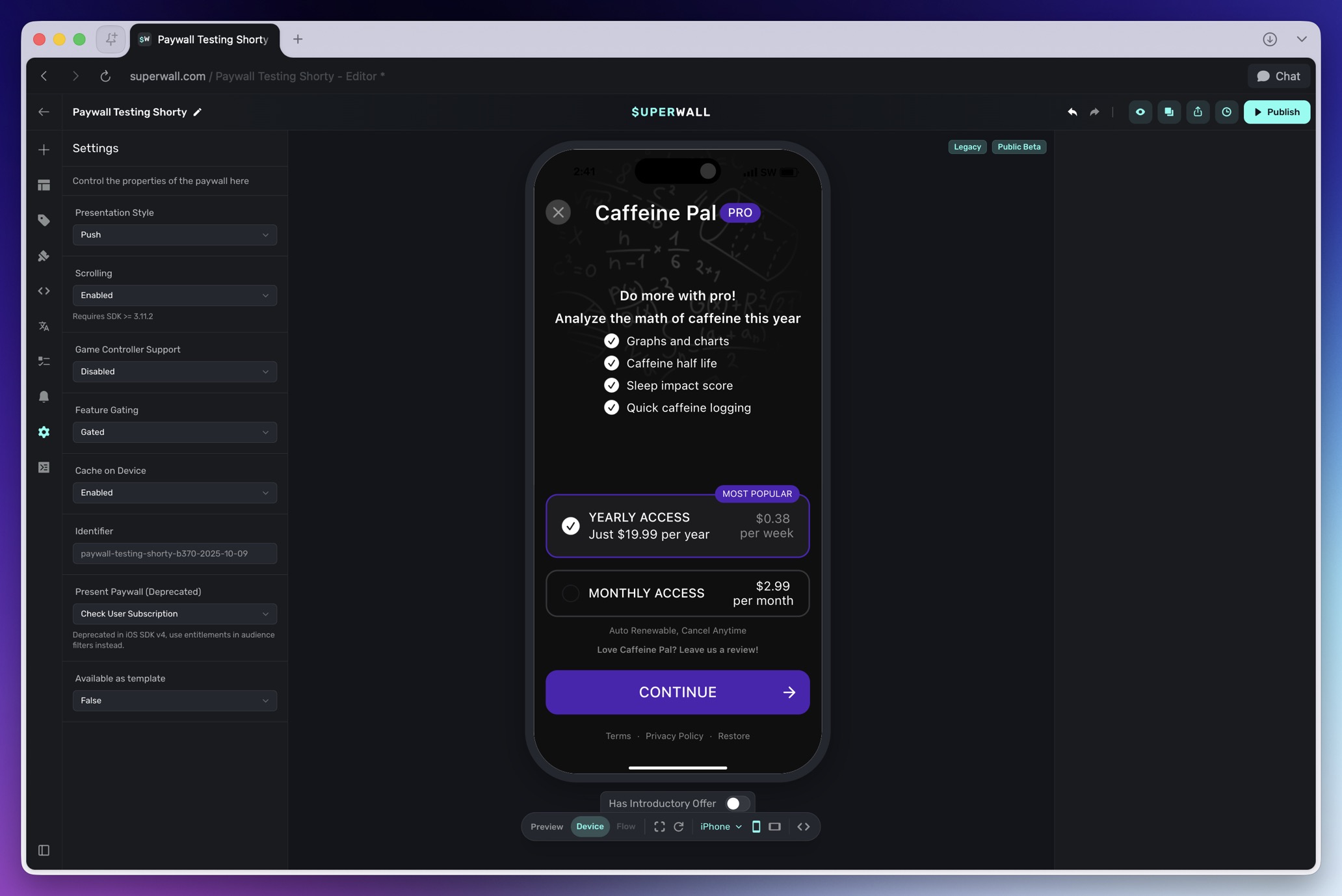
Push slides the paywall in like a navigation push.
Modal uses the platform's default modal presentation.
No Animation presents without the transition animation.
Drawer presents from the bottom of the screen.
Popup presents in the center of the screen with configurable sizing.
Drawer options
When you choose Drawer, you can set:
- Height: The drawer's height as a percentage of the screen. The default is 70%.
- Corner Radius: The radius of the drawer's top corners. The default is 15px.
- Scrolling: Whether the drawer's contents can scroll.
Popup options
When you choose Popup, you can set:
- Width: The popup's width as a percentage of the screen. The default is 80%.
- Height: The popup's height as a percentage of the screen. The default is 60%.
- Corner Radius: The radius of the popup's corners. The default is 15px.
Requirements
- Popup requires iOS SDK 4.8.0 or later, or Android SDK 2.5.3 or later.
- Custom drawer height and corner radius require iOS SDK 4.8.1 or later. Older versions show the drawer at 70% of the screen.
Things to know
- The style belongs to the paywall, not to the campaign. To compare two styles, duplicate the paywall, change the style on the copy, and add both to an audience's experiment.
- On iPad and Apple Vision Pro, Drawer shows as a standard sheet, and its height setting doesn't apply. Modal shows as a sheet in the center of the screen on iPad, not across the full width.
- If you get a paywall with
getPaywalland present it yourself, your code decides how it appears. - To keep a full screen paywall clear of the camera on iPhone Duo, see iPhone Duo Support.
Related
- Paywall settings
- Drawer component, for a drawer inside a paywall rather than a paywall shown as a drawer
- Supported platforms and devices
How is this guide?
iPhone Duo Support
Superwall paywalls work on iPhone Duo. Keep your paywall clear of the front camera and status bar, preview it in the editor, and test it on a device or in the simulator.
Paywall Preloading and Caching
Make Superwall paywalls open instantly. Learn how the SDK preloads paywalls at launch, how to prioritize or preload specific placements, and how Cache on Device keeps paywalls on the device.