Web Flows
Build web-to-app flows that qualify campaign traffic, personalize offers, and activate users before sending them to your app.
Web Flows are web-based acquisition and conversion flows for web-to-app growth. Use them to qualify users from paid campaigns, collect preferences, personalize the path ahead, attribute traffic sources, present web checkout, and then send users to download or open your app.
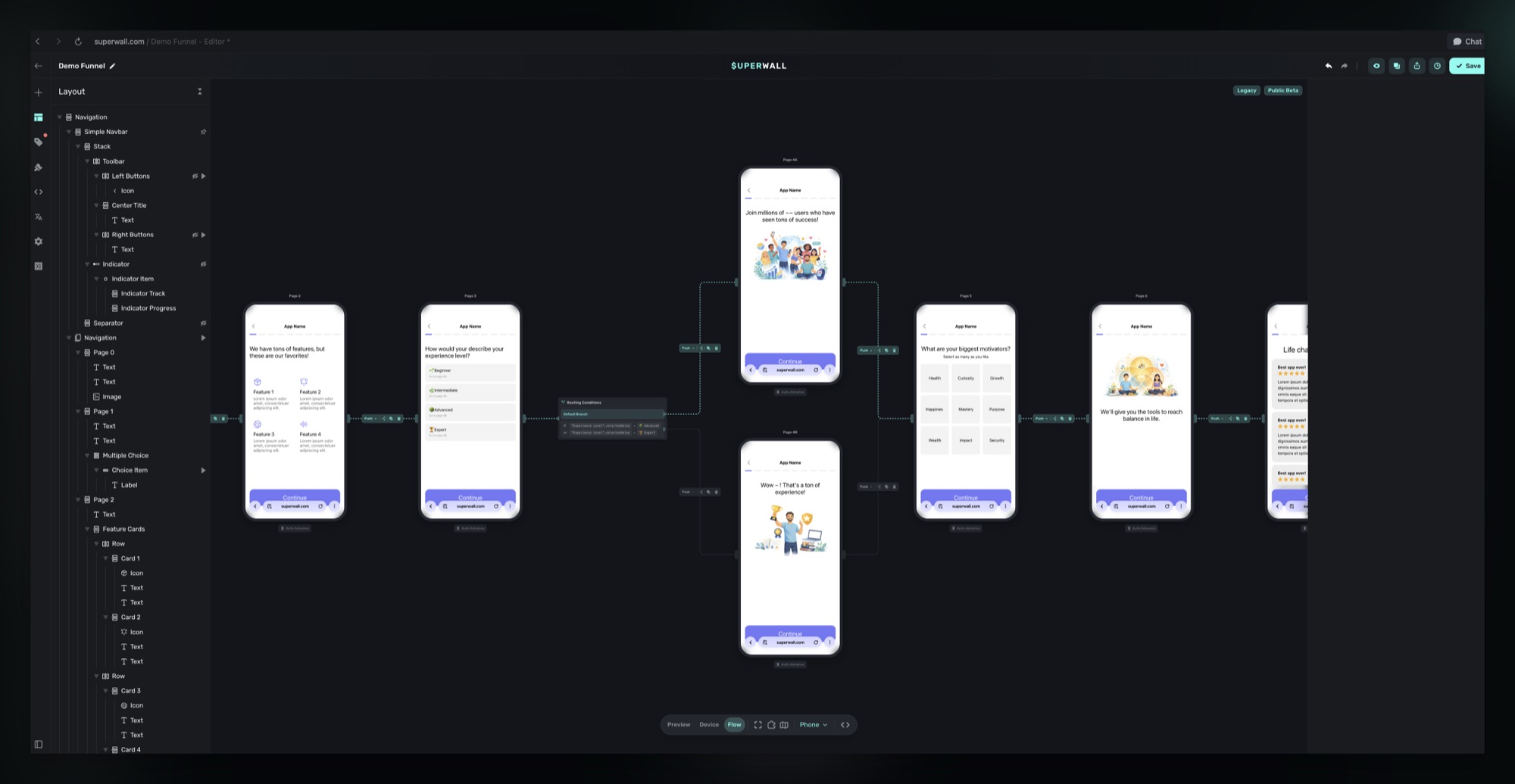
Web Flows are part of Superwall's Flows feature, adapted for web-to-app journeys. They are designed for the people running growth campaigns. If you are building in-app onboarding after install, start with app Flows. If you are sending traffic from Meta, TikTok, search, influencers, lifecycle email, or landing pages into a web-to-app journey, start here.
Web funnels are a function of Web Flows. In Superwall, the product capability is Web Flows: the same underlying editor and navigation system as Flows, used for web-based acquisition, ad attribution, targeting, web checkout, and app handoff.
Here is an example of a live Web Flow built from the flow shown above. The user enters from a web URL, moves through the personalized steps, and then continues toward checkout, app download, or app activation.
Web Flows vs. app Flows
Web Flows and app Flows share editor concepts, but they solve different jobs:
| Use case | App Flows | Web Flows |
|---|---|---|
| Primary audience | Product and app teams | Growth and marketing teams |
| User context | User is already in the app | User starts on the web before app activation |
| Common entry point | SDK placement, app install, feature moment, account setup | Ad click, social link, search campaign, influencer link, email, landing page |
| Main goal | Onboard, educate, collect preferences, request permissions, set user attributes | Qualify traffic, personalize the offer, track attribution, convert on web, send to app |
| Technical focus | App permissions, user attributes, native app behavior | Campaign URLs, query parameters, audience filters, web checkout, attribution |
When to use Web Flows
Use Web Flows when the first meaningful step in the user journey happens on the web:
- Paid acquisition flows that start from Meta, TikTok, Google, social, search, influencer links, email, or a campaign landing page.
- Quiz-style onboarding that collects goals, experience level, preferences, or intent before app install.
- Personalized plan builders that branch users into different recommendations before checkout or download.
- Web checkout flows that let users purchase on the web, then redeem or activate access in your app.
- Web-to-app funnel workflows where Web Flows power the flow, checkout, targeting, testing, and app handoff from Superwall.
How Web Flows work
A Web Flow combines campaign routing, flow screens, and web checkout:
- Web Checkout links make each campaign placement available as a URL, such as
https://yourapp.superwall.app/start. - Flow-style navigation defines the multi-step experience, including pages, routes, branching, transitions, and analytics.
- Campaigns, audience filters, and query string parameters let you target and personalize the flow for each traffic source.
When a user visits the URL, Superwall presents the paywall or Flow assigned to that placement. From there, the Flow behaves like any other route-based Flow: buttons can move users between pages, routes can branch based on conditions, and Flow Journey analytics can show where users drop off.
If the Web Flow includes a purchase, use Web Checkout to sell subscriptions or one-time products through Stripe. After checkout, use your configured post-purchase behavior to send the user to your app, a redemption flow, or a custom redirect URL.
Create a Web Flow
Need help setting up your first web funnel with Web Flows? We have options to help. Reach out to us at support@superwall.com.
1. Set up Web Checkout
Create and configure your Web Checkout app first, even if your first version only sends users to download the app:
- Create a Web Checkout app.
- Configure Stripe keys and settings.
- Add Stripe products if the flow will include a purchase.
- Create a campaign and placement URL.
2. Plan campaign targeting
Decide how each traffic source should enter the flow. You can use separate placements for major campaigns, or use query string parameters for campaign details:
https://yourapp.superwall.app/start?utm_source=meta&utm_campaign=python-beginner&utm_content=video-aUse those parameters in audience filters or as paywall variables to change copy, route users into different branches, or compare performance by source.
3. Build the flow screens
Open the paywall assigned to the web placement and build the Web Flow:
- Add a Navigation element.
- Switch the editor to Flow view.
- Add pages for the flow steps, such as welcome, goals, preferences, commitment, offer, checkout, and app handoff.
- Connect pages with routes.
- Use conditional branching to personalize the path based on what the user selects.
For the full editor walkthrough, start with Getting Started with Flows.
4. Design the web-to-app handoff
The final pages should make the next step clear. Depending on your setup, that might be:
- Starting Stripe checkout.
- Redirecting to the App Store, another app download page, or your own install instructions.
- Opening your app with a deep link or universal link.
- Sending the user through Superwall's web checkout redemption flow.
- Redirecting to your own account creation or activation page.
If you are using Redeem mode, make sure your app is ready to handle the post-checkout deep link. See SDK setup for Web Checkout.
Attribute and target campaign traffic
For growth teams, the Web Flow URL is part of the campaign. Treat each URL as a trackable entry point:
- Use UTM parameters for traffic source, campaign, ad set, creative, and keyword.
- Pass known identifiers, such as
emailorapp_user_id, when you already have them. - Use audience filters to show different flows or offers by placement parameter.
- Use paywall variables to personalize headlines, quiz copy, offer framing, and handoff pages.
This keeps the acquisition workflow separate from in-app onboarding. A marketer can reason about traffic sources, targeting, creative, checkout, and drop-off without needing to think through native permission prompts or app state.
What is different from app Flows?
Most editor behavior works the same way on the web. The main difference is context: a Web Flow runs in a browser, before the app can use native app capabilities.
That means app-only tap behaviors will not work in a Web Flow. Avoid actions that require the installed app or native permissions, such as requesting location, camera, contacts, photos, or notification permissions. If you need those permissions, ask for them later inside the app after the user installs or opens it.
Web Flows are best for web-safe steps:
- Multi-step education and onboarding.
- Multiple-choice questions.
- Personalization and branching.
- Ad attribution and campaign-specific targeting.
- Web checkout.
- Campaign-specific messaging.
- App download, app open, or account activation calls to action.
Track performance
For route-based Flows, Superwall tracks Flow page views so you can inspect the user journey and identify drop-off. See Flow Journey analytics for details.
For acquisition campaigns, add query string parameters to the Web Checkout link and use them in audience filters or paywall variables. This is useful for paid ads, creator campaigns, lifecycle email, and other sources where you want the flow to adapt to the traffic source. See query string parameters in Web Checkout links.
Related docs
How is this guide?