Flows Analytics
Understand Flow Journey analytics, drop-off, page transitions, and how users move through multi-page flows.
Flows Analytics help you understand how users move through a flow after it is live. Instead of only seeing whether a paywall opened or converted, you can inspect each step in the journey, see where users drop off, and compare how different flow variants perform.
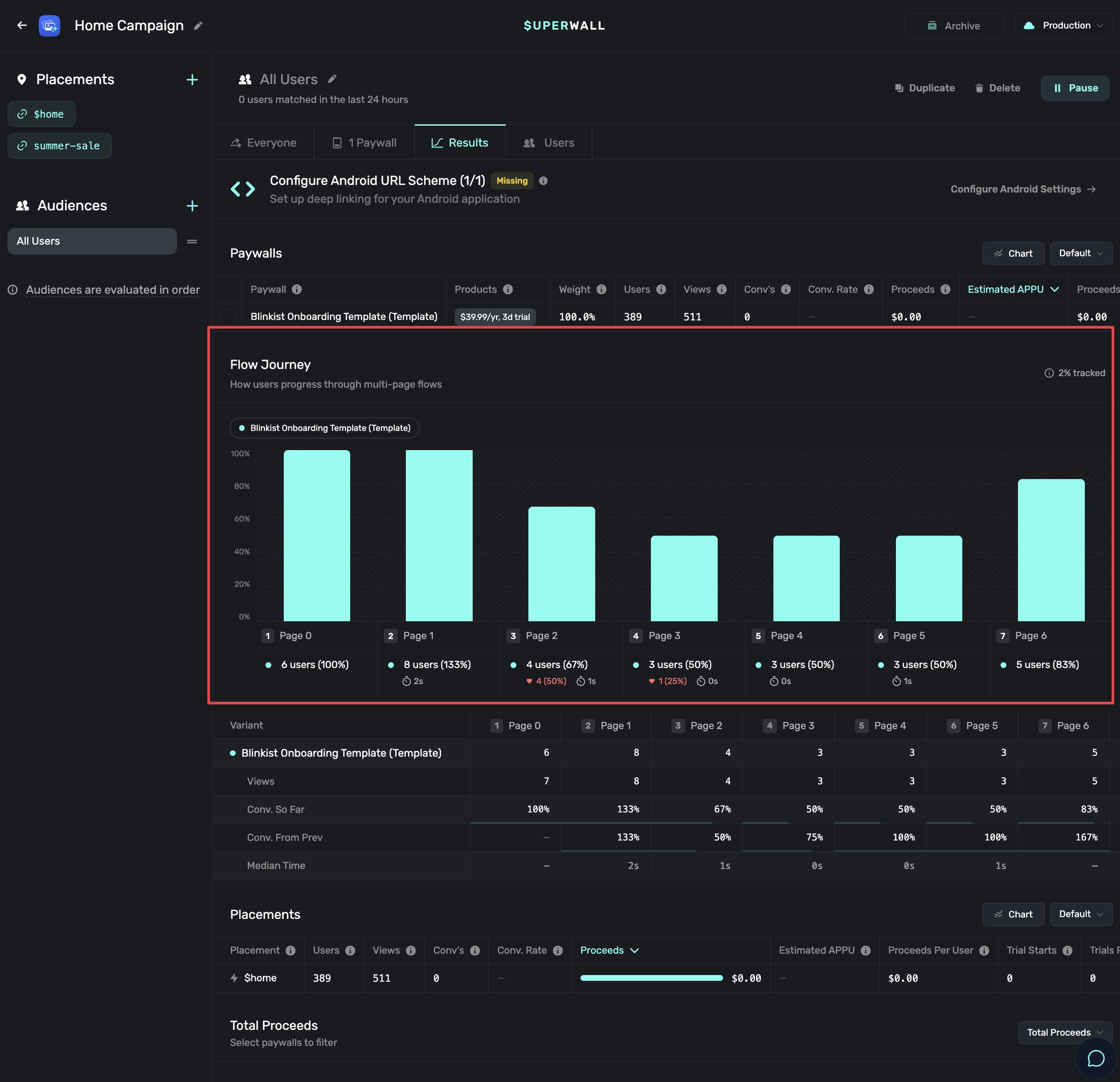
You will find Flows Analytics in experiment results for flows. The section is called Flow Journey.
What Flow Journey Shows
Flow Journey is built around page views inside a multi-page flow. Each time a user reaches a page, Superwall records the page, its position in the flow, how the user got there, and how long they spent on the previous page.
Use it to answer questions like:
- Which page has the largest drop-off?
- Are users reaching the paywall page in the flow?
- Which branch performs better?
- Do users spend too long on a particular step?
- Are different variants producing different journey shapes?
Flow Journey is only available for flows that use route-based navigation. Standard single-page paywalls and older index-based navigation do not produce Flow Journey page-view data.
Viewing Drop-Off
The drop-off chart shows how many users reach each step in the flow. Each step represents a page position in the active route, not the order of pages in the editor sidebar.
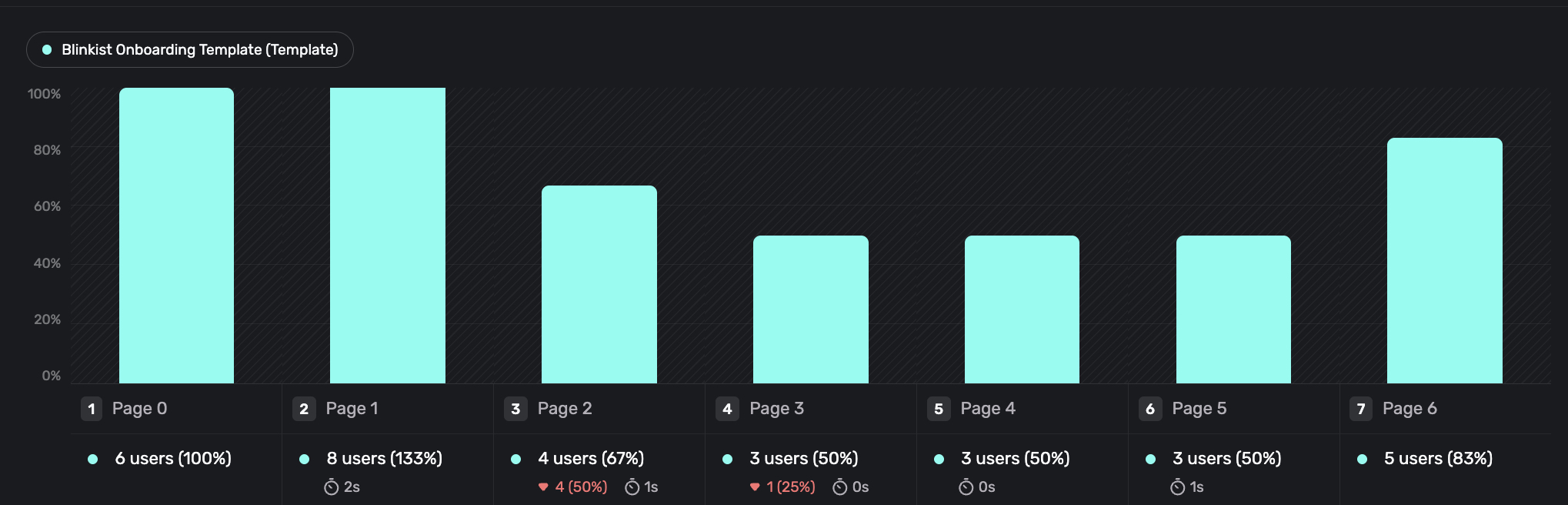
The chart is useful for quickly finding the step where the most users leave. For example, if Step 1 has strong volume but Step 2 drops sharply, inspect the transition between those pages. The issue might be unclear copy, a missing Navigate Page action, an unexpected branch, or a page that asks too much too early.
The hourglass value under each step shows the median time users spent on that page before continuing, which can help you distinguish normal reading time from friction.
If your flow has multiple variants, you can compare them in the same view. This is useful when testing different onboarding lengths, survey questions, product positioning, or paywall placement inside a flow.
Reading Flow Steps
Flow steps are based on the route a user takes through the flow:
- Step 1 is the page reached from the flow entry point.
- Later steps follow the active route and branch conditions.
- Branches can cause different pages to share the same step position.
- Unlinked pages do not appear unless users can reach them through a route.
This means the analytics view follows the user journey, not the visual arrangement on the Canvas.
If the analytics view does not match what you expected, return to the Canvas and check the flow entry point, route connections, branch rules, and Navigate Page actions.
Branching View
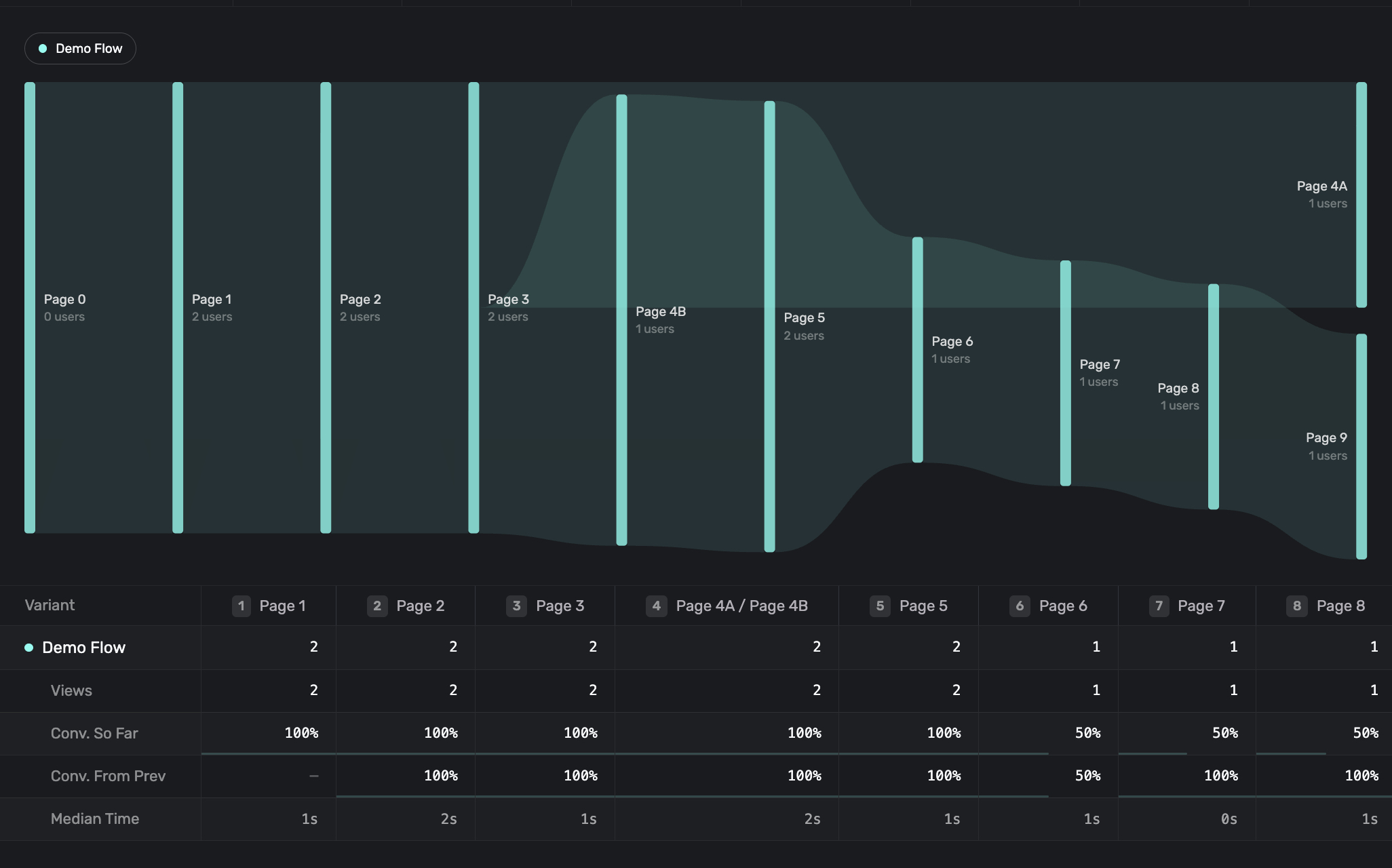
When a flow includes branching, Flow Journey can show a branching view. This is a Sankey-style chart, which means wider paths represent more users moving between pages. It helps you see how users split across different routes and where they go next.
Use this view when your flow has conditional paths, such as:
- Different onboarding paths based on a multiple choice answer.
- A skip path and a setup path from the same page.
- Different post-purchase or post-permission outcomes.
- Survey responses that route users to different offers.
The branching view is most useful when you want to understand branch distribution. For example, if most users select one path but that path converts poorly, you may want to adjust the offer, shorten that branch, or route those users to a different page.
Time on Previous Page
Flow Journey also tracks how long users spend before moving to the next page. This can help you spot pages that create friction.
Longer time is not always bad. A page with a video, product comparison, or detailed survey question may naturally take longer. But if users spend a long time on a simple transition page, check whether the CTA is visible, whether the copy is clear, and whether the next action is obvious.
Coverage
You may see a coverage notice when some paywall opens do not have Flow Journey page-view data.
This can happen when some users open a flow from an SDK or runtime that does not emit page-view events, or when an older flow setup does not use route-based navigation. When coverage is incomplete, use Flow Journey directionally and avoid treating it as a perfect count of every open.
Best Practices
- Make sure every route has a reachable Navigate Page action, unless the page uses auto-advance.
- Name flow pages clearly so analytics labels are easy to read later.
- Keep branch conditions simple enough that the branching view remains understandable.
- Use indicators in longer flows so users understand how much of the journey remains.
- Compare variants by both conversion and drop-off, not conversion alone.
For help building the flow structure that powers this reporting, see Linking Pages and The Canvas.
How is this guide?