Creating Projects
Projects are how Superwall groups the same app together across platforms.
A project groups the same app across platforms. It can have one iOS app, one Android app and one web app. In the new dashboard at app.superwall.com, you create a project and its first app together in the create project dialog, which then walks you through setting the app up.
Open the dialog
Use any of these:
- In the sidebar, open the project switcher at the top and click Create project.
- On your organization's Projects page, click Create project.
- In the command palette, search for Create project.
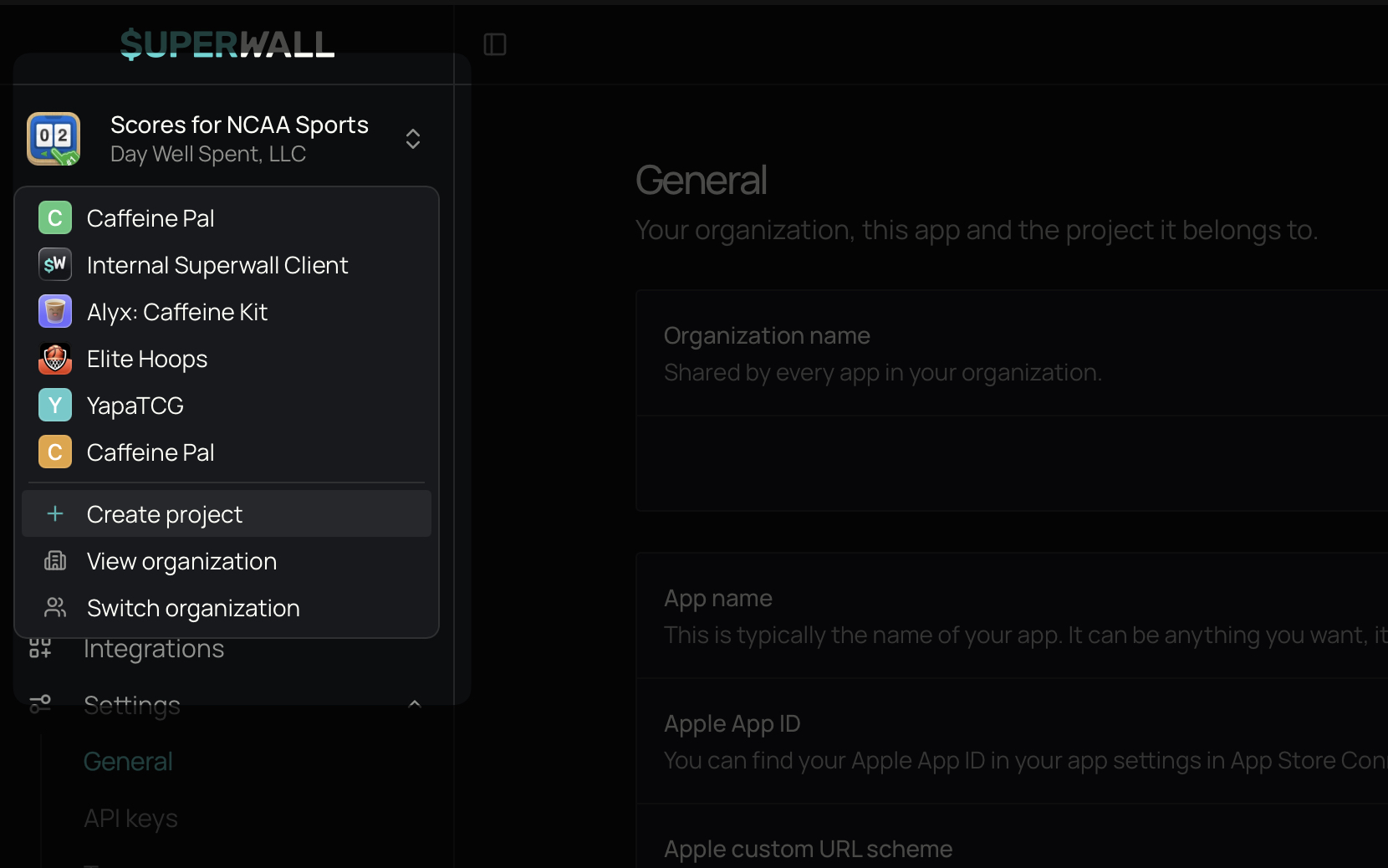
Create a project
- 1
Say where your app is today
Choose the closest match:
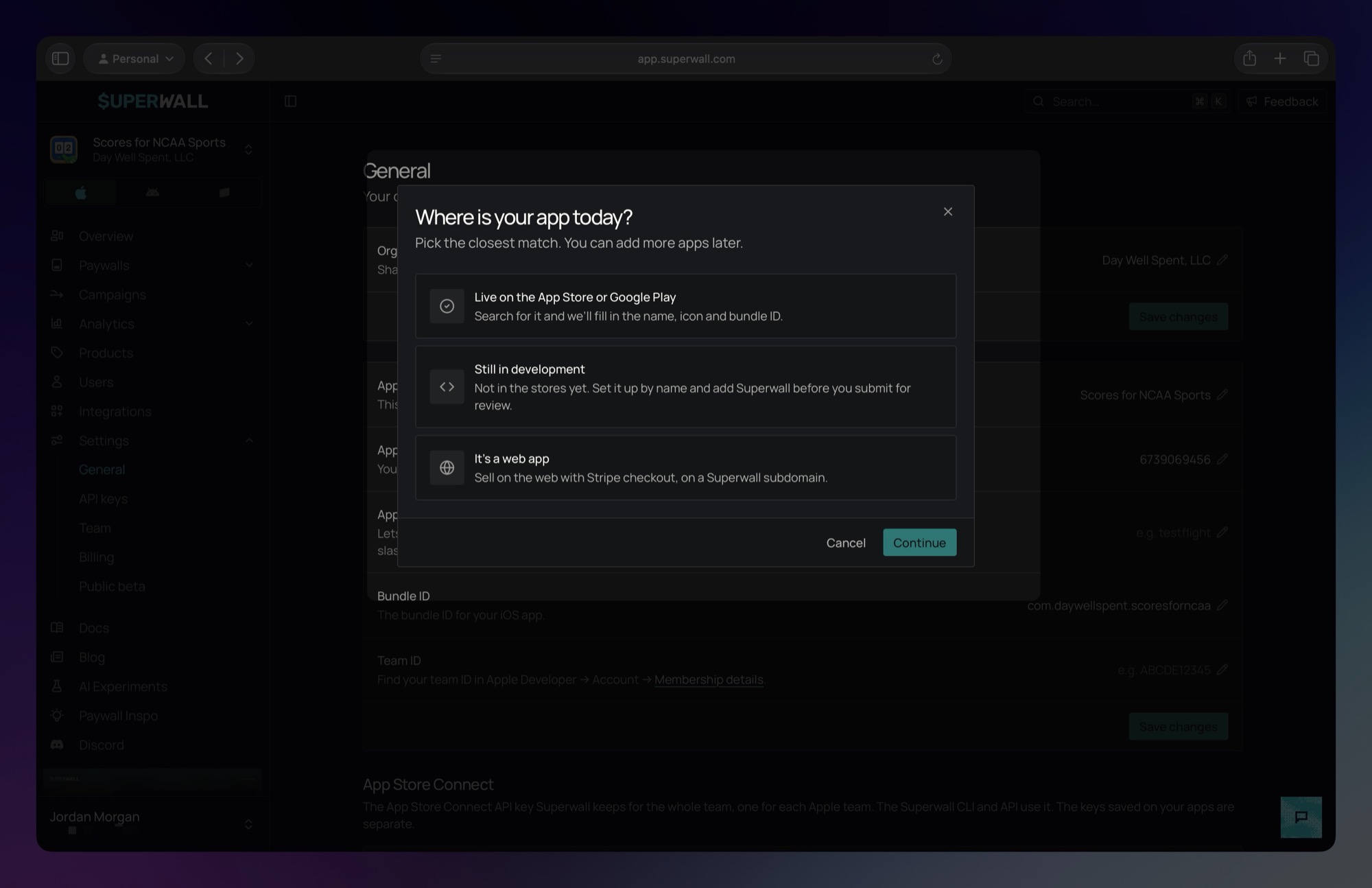
- Live on the App Store or Google Play: search both stores by app name or App Store ID, then pick your app. Superwall fills in its name, icon, bundle ID and package name. If your app is in both stores, the project gets an iOS app and an Android app. If the search finds nothing, click Create "your search" manually to enter it by hand. If it lists other apps but not yours, go back and choose Still in development.
- Still in development: choose iOS, Android or Both iOS & Android. Then enter the App name and, if you have them, the bundle ID or package name. If an ID matches an app that's already in a store, Superwall shows that listing. Click Not my app if it's the wrong one.
- It's a web app: enter the App name and a Domain, the subdomain your web paywalls are served from. The domain can't be changed after the app is created.
- 2
Create it
Click Create project.
A web app opens on its dashboard right away. An iOS or Android app continues with setup in the same dialog.
Set up the new app
The setup steps depend on the platform. Some steps have Skip for now, and you can come back to them later.
iOS apps:
- Saved Apple keys: if your organization already has Apple keys saved and the app has a bundle ID, Superwall tries the keys on the new app. A key is imported only when Apple confirms it works for the app's bundle ID. If both keys are imported, the Apple steps are skipped. See Organization.
- Set up App Store Connect automatically: sign in with your Apple Account and Superwall creates the keys and sets the server notification URL. See Set up with Apple.
- Add your App Store Connect API keys and In-app purchase configuration, for any key that's still missing.
- Set up revenue tracking: choose App Store Connect, RevenueCat or From your server. This step is skipped when Superwall's server notification URL is already set on your Apple app, whether by the Apple sign-in or with a key Superwall imported or you entered.
Android apps:
- Set up revenue tracking: choose Google Play or RevenueCat.
- If you chose Google Play, the Google Play steps follow. See Connect from signup or the create project dialog.
Apps on iOS and Android: you go through the Apple steps first. Then Set up revenue tracking offers App Store Connect / Google Play, RevenueCat and From your server (iOS). With the store option, the App Store Connect forwarding step comes next, then the Google Play steps. If Superwall's server notification URL is already set on your Apple app, the revenue question and the forwarding step are skipped, and the Google Play steps come next.
Then, for every app:
- Choose your SDK. Superwall saves your choice, so the app's quickstart shows that SDK's code.
- Integrate with AI. Copy the prompt for your coding agent, then click Finish setup.
You can close the dialog at any point. Before the app is created, nothing is saved. After it's created, closing the dialog takes you to the new app, and the steps you finished stay saved.
Add a platform to a project
To add an app for a platform your project doesn't have yet:
- In the sidebar, hover over an empty platform in the platform switcher and click the + that appears.
- On the Integrations page, a revenue tracking row for a platform the project doesn't have shows Create iOS app, Create Android app or Create web app.
The dialog searches only that platform's store and offers only the platforms the project is missing. Click Create app to add it, then finish setup as above.
Who can create projects
Owners, Admins and Users (Legacy) can create projects and apps. Other roles see the dialog, but creating fails. To add an app to a project you have Restricted access to, you also need the Admin project role for that project. See Access Controls.
How is this guide?