RevenueCat Revenue Tracking
Send RevenueCat's subscription events to Superwall with a RevenueCat webhook, so your revenue charts count RevenueCat's purchases, renewals and refunds.
If RevenueCat handles your app's purchases, it can send its subscription events to Superwall. Superwall uses them for revenue metrics, so purchases, renewals, cancellations and refunds show up in your charts.
You set this up with a webhook in RevenueCat that points at your app's Superwall URL. Superwall shows the URL on the app's Revenue tracking page.
Requirements
- An iOS or Android app in Superwall, with your role allowed to change the app. The webhook URL carries a token, so members who can only view the app can't see or create it.
- A RevenueCat project with your app in it. RevenueCat lists webhooks as a Pro plan feature. See RevenueCat's webhooks documentation.
Set up the webhook
- 1
Choose RevenueCat as the revenue provider
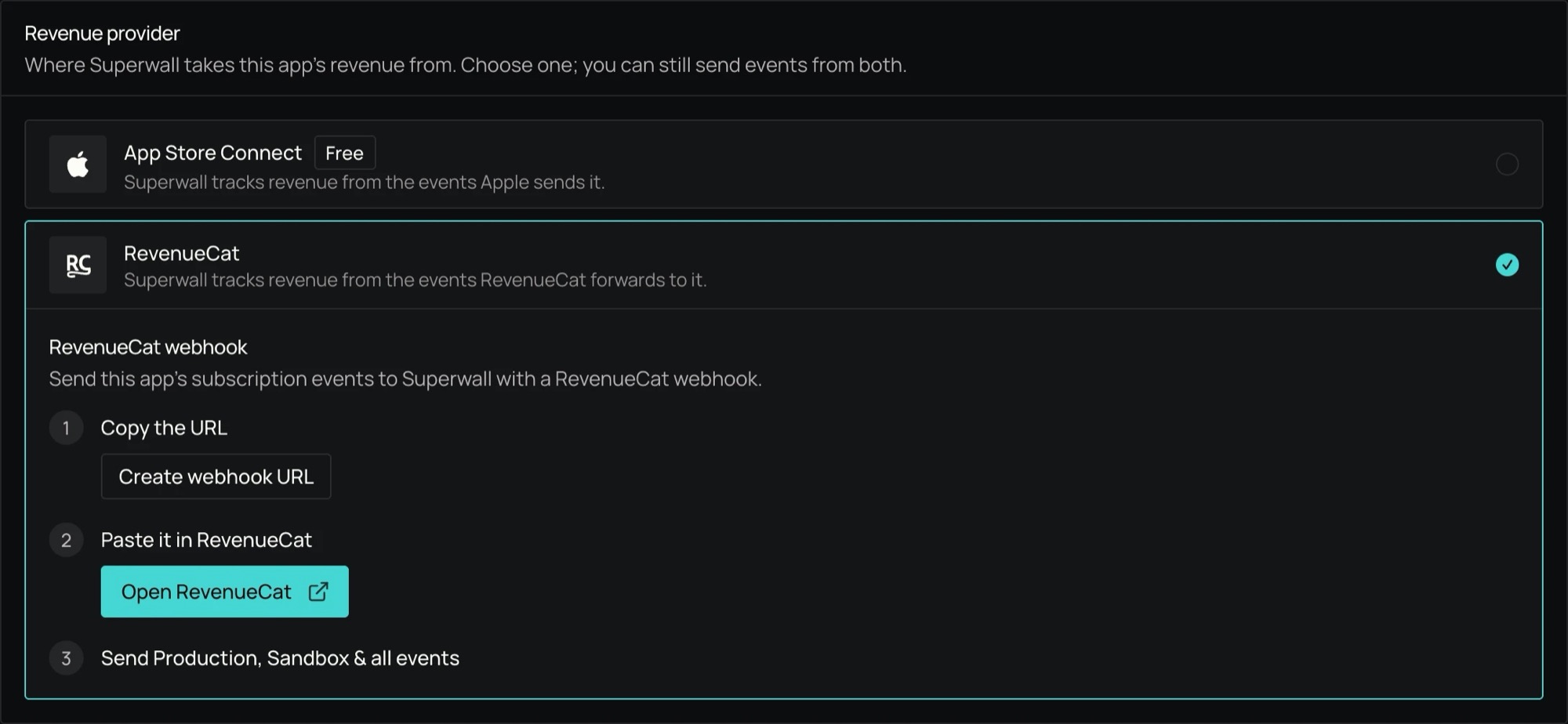
In Superwall, open your app and click Integrations in the sidebar. Under Revenue tracking, open the app's revenue tracking page. In the Revenue provider card, choose RevenueCat.
If the app already has a revenue provider, or another source has been sending events, Superwall asks you to confirm first. See Choosing a revenue provider.
The RevenueCat option opens and shows three steps under RevenueCat webhook.
- 2
Copy the URL
If the app doesn't have a URL yet, click Create webhook URL. Then click the copy button next to the URL.
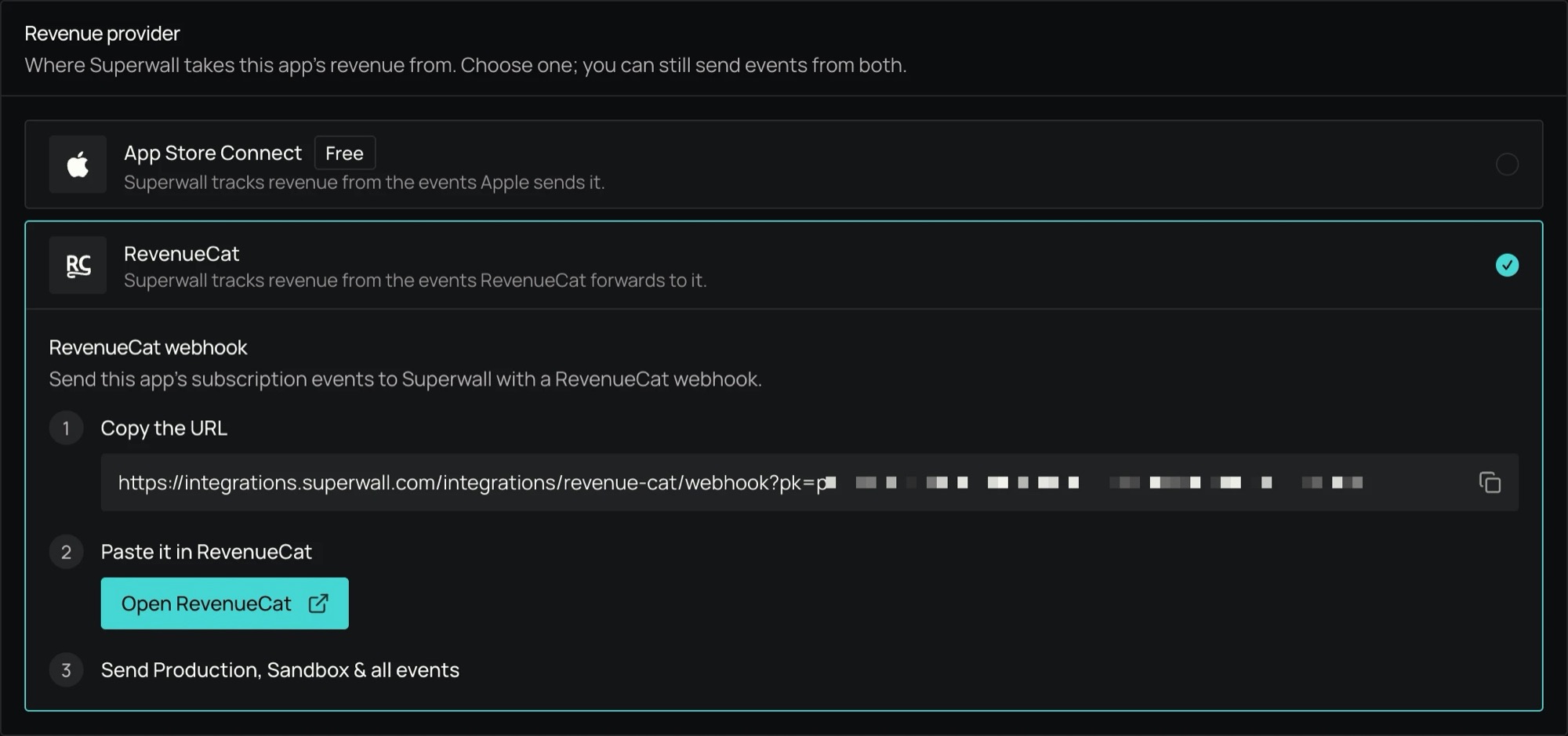
The URL looks like
https://integrations.superwall.com/integrations/revenue-cat/webhook?pk=<token>. The token at the end is the same one RevenueCat's old Superwall integration used, so an app that had one keeps it. Treat the URL like a secret. - 3
Add the webhook in RevenueCat
Click Open RevenueCat. It opens RevenueCat's form for a new webhook, which asks which project to add it to. Choose the project your app is in.
You can also get there yourself: open the project in RevenueCat, go to Integrations, choose Webhooks, then Create new webhook.
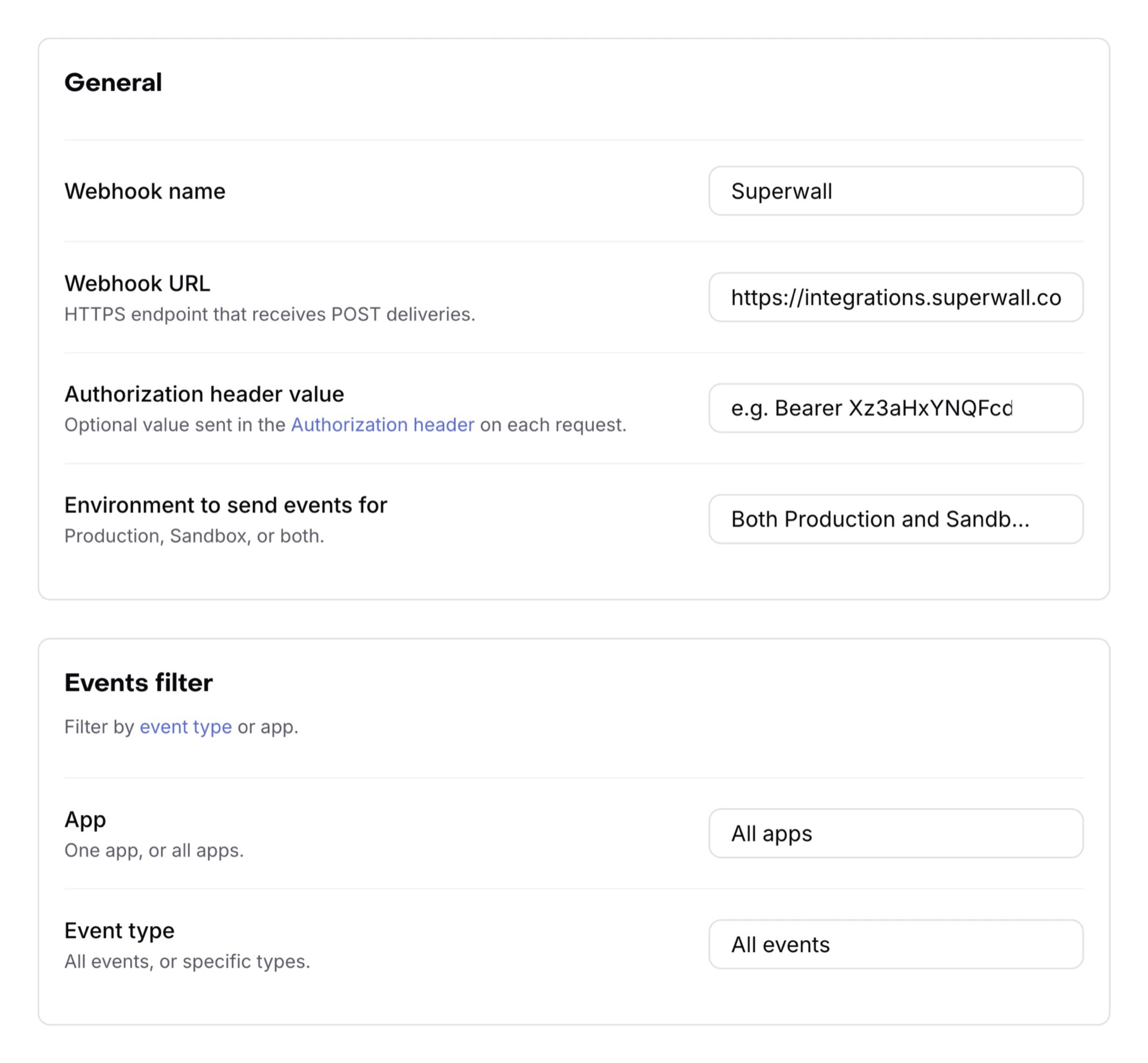
Fill in Webhook name, such as "Superwall", and paste the URL you copied into Webhook URL.
Leave Authorization header value empty. The token is already in the URL, and Superwall reads that header first, so a value there stops the webhook from reaching your app.
- 4
Send Production, Sandbox and all events
Set Environment to send events for to Both Production and Sandbox, and Event type to All events. Leave App on All apps, unless your RevenueCat project holds both an iOS and an Android app (see below). Then click Add webhook.
iOS and Android apps in one RevenueCat project
Each Superwall app has its own webhook URL. If one RevenueCat project holds both your iOS and Android app, you'll have two Superwall apps. Add a webhook for each, and filter each one to its own app:
- Copy the URL from the iOS app's Revenue tracking page in Superwall. Add it as a webhook in RevenueCat, and set App to your iOS app.
- Do the same with the Android app's URL, and set that webhook's App to your Android app.
Don't add both URLs without an app filter. Each event would then be sent to Superwall twice.
Keep both Superwall apps in the same project. To add the second app to a project, see Add a platform to a project. If both apps already exist, see Projects.
When you create a project for both platforms and choose RevenueCat under Set up revenue tracking, the setup shows both URLs, each named by its platform, with these same steps.
Check that it works
After the next purchase, renewal or cancellation, RevenueCat's events appear under Recent events on the Revenue tracking page. Sandbox purchases count.
Limitations
- The webhook sends RevenueCat's own events, not Apple's App Store Server Notifications. Some Superwall features, such as webhooks and integrations, need Apple's own notifications. If RevenueCat's URL is in App Store Connect, have RevenueCat forward them to Superwall. See Forward Apple's Notifications from RevenueCat.
- Choosing RevenueCat as the revenue provider only changes what your revenue metrics count. Apple's notifications keep arriving, and webhooks and other integrations still use them. See Server Notifications.
Related
How is this guide?
Google Play Revenue Tracking
Send Google Play purchase events to Superwall with a service account key and real-time developer notifications.
Forward Apple's Notifications from RevenueCat
Keep RevenueCat's URL in App Store Connect and have RevenueCat forward Apple's App Store Server Notifications to Superwall.