App Store Connect API Key and In-App Purchase Key
Connect an iOS app to Superwall with an App Store Connect API key and an In-App Purchase key. Create both automatically with Set up with Apple, import them from another app, or enter the Key ID, Issuer ID and .p8 file by hand.
An iOS app in Superwall needs two keys from App Store Connect:
- App Store Connect API key: Superwall uses it to read your app and its products, and to check where Apple sends your server notifications.
- In-App Purchase key: Superwall uses it to track purchases and process refunds, including Refund Protection.
You add both in Settings → Revenue Tracking, on the Required card. Both keys belong to your Apple team, not to one app, so one pair of keys can serve every app on that team.
To save keys, you need an Owner, Admin, or User (Legacy) role in Superwall. Editors, Readers, and Analysts can't save changes here. If your project access is Restricted, you also need the Admin project role for the app's project. See Access Controls.
Set up with Apple
Set up with Apple creates both keys in App Store Connect, saves them to Superwall, and sets your app's server notification URL. You need an Apple Account that is an Admin or the Account Holder on the Apple team that owns the app.
- 1
Start the setup
On the Required card, click Set up with Apple.
- 2
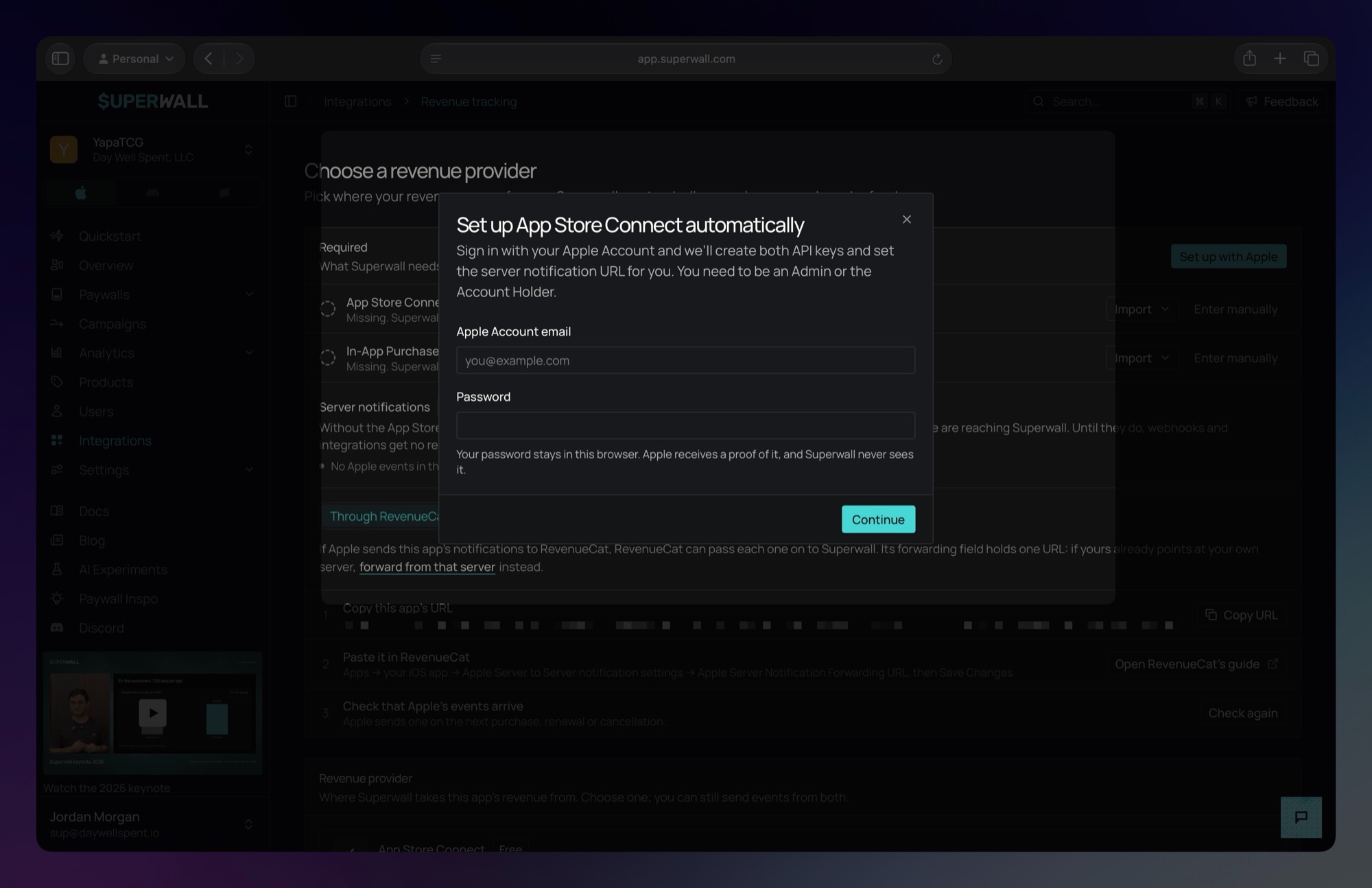
Sign in with your Apple Account
Enter your Apple Account email and password, then click Continue. Your password stays in your browser. Apple receives a proof of it, and Superwall never sees it.
- 3
Enter the verification code
Enter the code Apple sends you. If Apple sent it to your trusted devices, you can click Text it to … instead to get it by text message.
- 4
Confirm your app
Superwall looks for your app on your Apple teams by its bundle ID.
If it can't find it, it shows We couldn't find your app. Pick the app you meant from your team's apps, or create the app in App Store Connect and try again. Picking an app changes this app's bundle ID and App Store ID in Superwall to that app's.
- 5
Let Superwall set it up
Superwall does the rest on its own, and each step shows as it finishes. It creates an App Store Connect API key with the App Manager role and an In-App Purchase key, both named "Superwall", and saves them to your app. It then sets your app's server notification URL for production and sandbox.
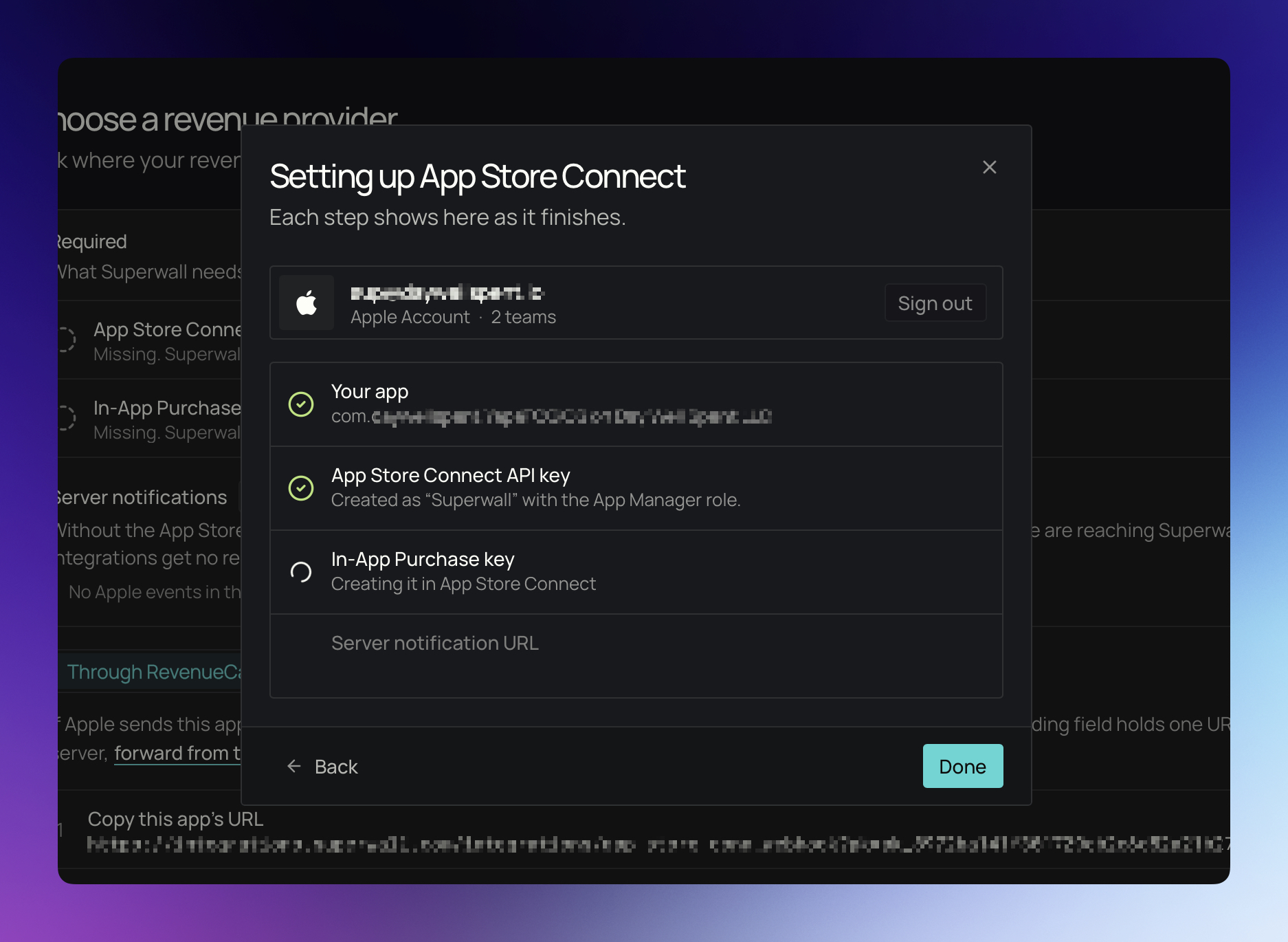
When every step is done, click Done.
A few things change how the setup runs:
- If a key is already saved on the app, Superwall checks it with Apple and keeps it if it still works. Otherwise, Superwall creates a new one.
- If Apple asks you to accept new agreements, the setup lists them. Only the Account Holder can accept them.
- If Apple already sends your app's notifications to another server, Superwall asks before replacing that URL. Whatever receives them now stops getting them, and Superwall can't put the old URL back.
- If the app's revenue provider is RevenueCat, the setup leaves the server notification URL as it is.
- If Superwall creates a key but can't save it, the key's form opens filled in, so you can save it from there.
Setting the URL during this setup doesn't change your revenue provider.
Import a key from another app
Both keys belong to your Apple team, not to one app. An App Store Connect API key saved here is also kept as your organization's key for its Apple team, if the organization doesn't have one yet. If another app in your organization already has a key saved, that key's row on the Required card shows Import. Click it and pick the app to import from. Each app is listed with its key ID.
Apple checks the key before Superwall saves it:
- If Apple no longer accepts the key, for example because it was revoked, Superwall shows This key can't be copied with the reason.
- If an App Store Connect API key works but its Apple team has no app with your app's bundle ID, Superwall asks Copy this key anyway? This happens when you haven't created the app in App Store Connect yet, and also when the key belongs to a different Apple team. Click Copy anyway to save it.
- An In-App Purchase key from a different Apple team can't be copied. Superwall shows This key can't be copied with the reason.
If your app has no bundle ID in Superwall, Superwall asks for it first, so it can check the key:
- In-App Purchase key: pick or enter the bundle ID, then click Save and copy key.
- App Store Connect API key: pick or enter the bundle ID, then click Save, check and copy. To copy the key without saving a bundle ID, click Copy without checking.
The bundle ID list starts with the bundle IDs your app's SDK has reported to Superwall. If the bundle ID saves but the key isn't copied, click Try the copy again. The bundle ID isn't saved a second time.
Enter a key by hand
To create a key yourself, click Enter manually on a missing key's row. To change a saved key, click Replace on its row. If other apps in your organization have keys, Replace opens a menu: choose Enter a new key, or pick an app to import from.
The form asks for the key file, the Key ID, and the Issuer ID. Apple checks the key before Superwall saves it. If you choose a key file with the name App Store Connect gave it, such as AuthKey_ABC123DEFG.p8, Superwall fills in the Key ID for you.
In-App Purchase key
- 1
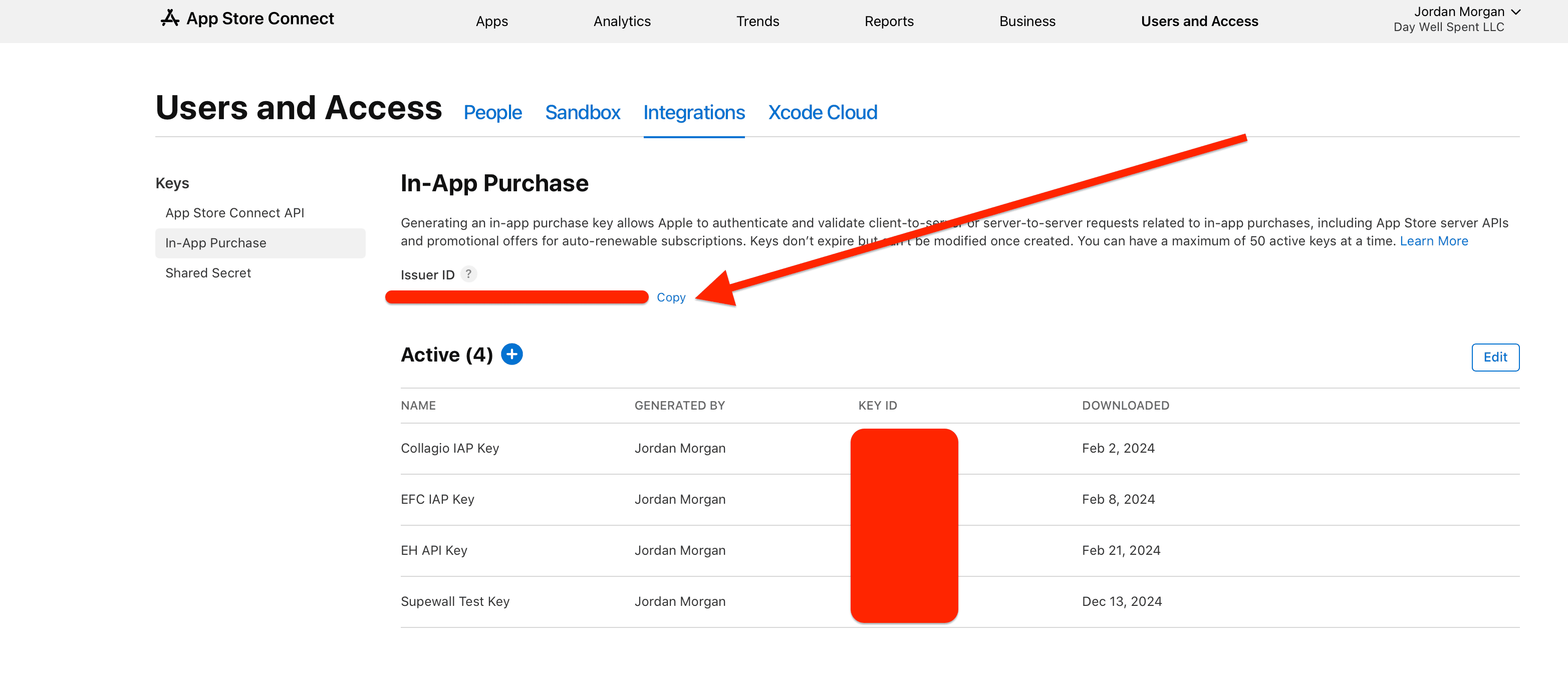
Open In-App Purchase keys in App Store Connect
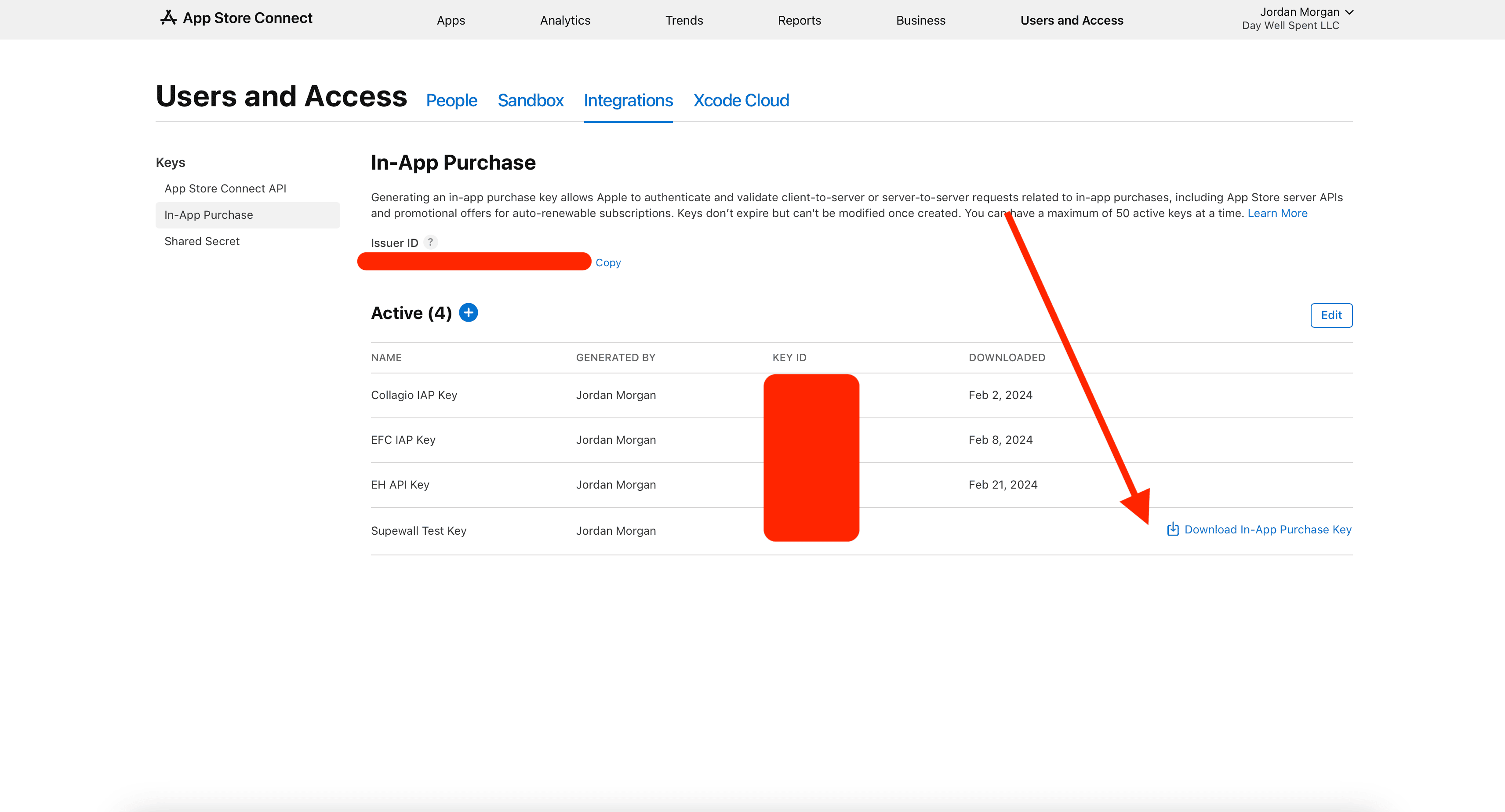
In App Store Connect, go to Users and Access → Integrations. Under Keys, choose In-App Purchase.
- 2
Create and download a key
Click Generate In-App Purchase Key, or the + button if you already have a key. Give it a name and click Generate. Then click Download Key next to the new key, and click Download in the dialog.
You can download the key file only once. Save it in a secure location.
You can reuse the same key for every app under the same App Store Connect account, as long as you still have its key file. If you don't, create a new key.
- 3
Fill in the form in Superwall
On the In-App Purchase key row, click Enter manually.
-
Click Choose key file and select the key file you downloaded.
-
In Key ID, enter the key's ID from the Key ID column in App Store Connect.
-
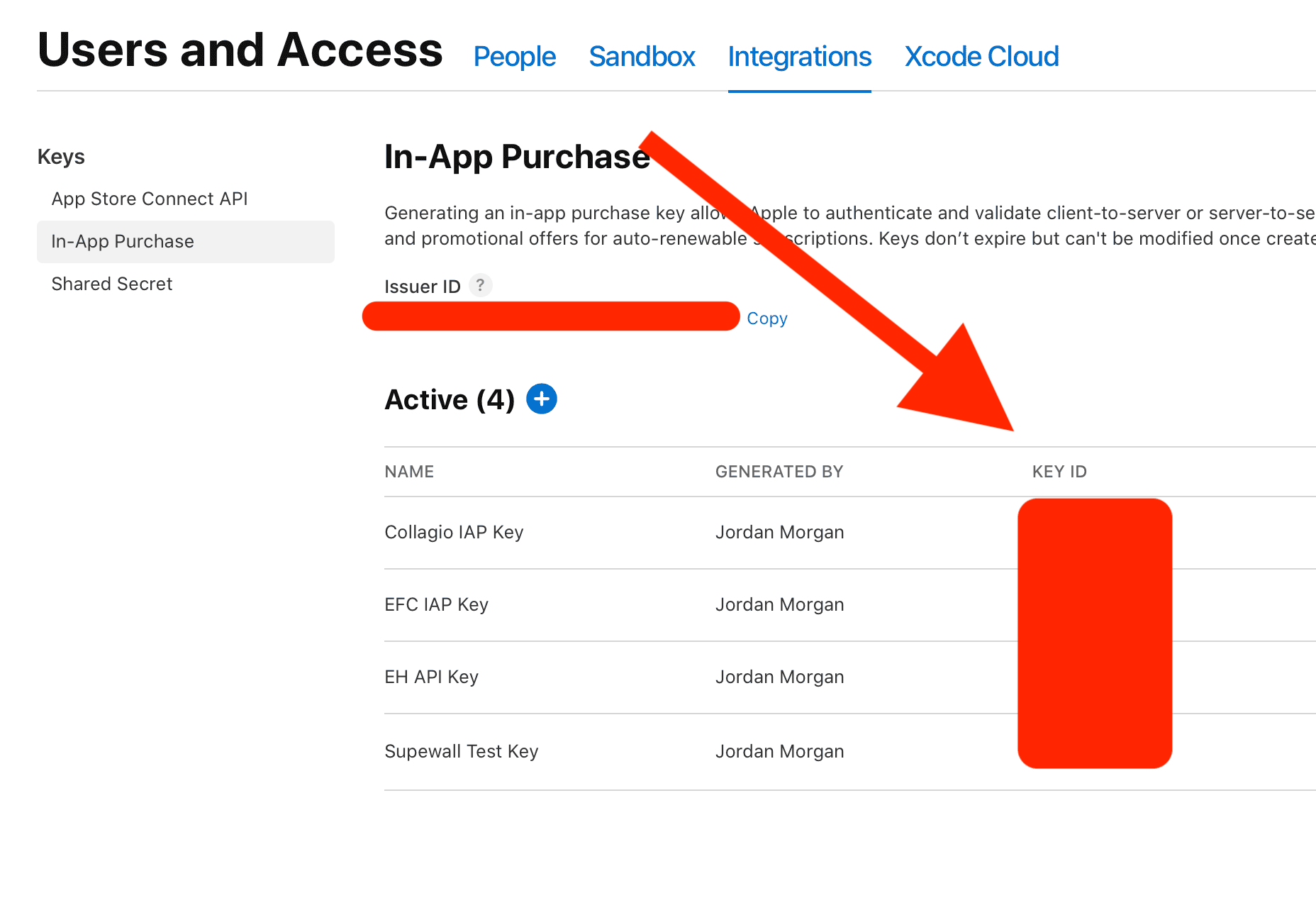
In Issuer ID, enter the value shown at Users and Access → Integrations → In-App Purchase in App Store Connect.
Superwall saves an In-App Purchase key for one bundle ID, your app's:
- If your app has a bundle ID in Superwall, the form shows it, with a Change it in Settings link.
- If it has none, pick or enter one. The button becomes Save key and bundle ID, and Superwall saves both together. If Apple refuses the key, neither is saved.
Bundle IDs are case-sensitive. Enter the bundle ID exactly as it appears in App Store Connect or Xcode. For example,
com.Company.Appandcom.company.appare different bundle IDs. -
- 4
Save the key
Click Save key, or Save key and bundle ID.
App Store Connect API key
- 1
Open App Store Connect API keys
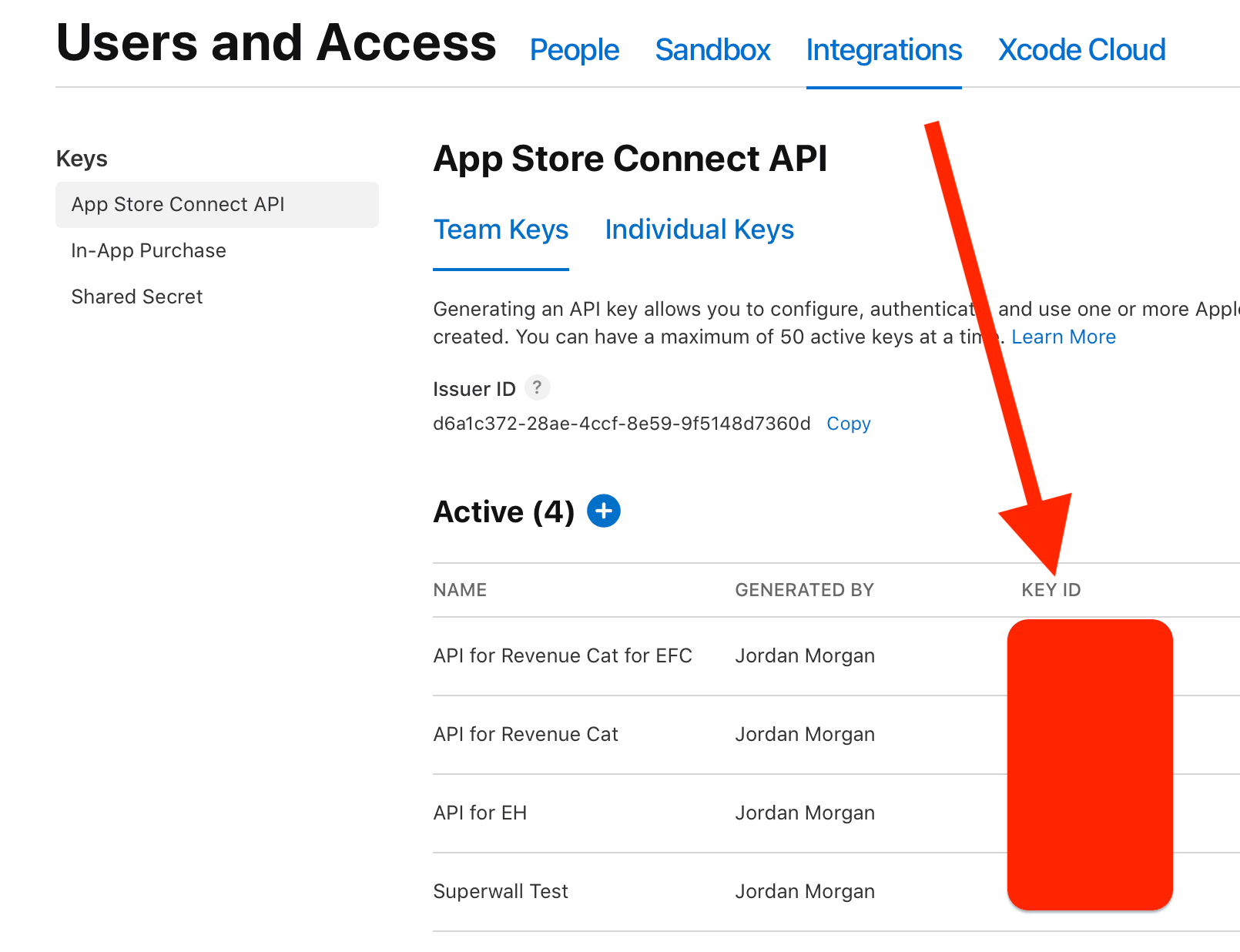
In App Store Connect, go to Users and Access → Integrations. Under Keys, choose App Store Connect API.
- 2
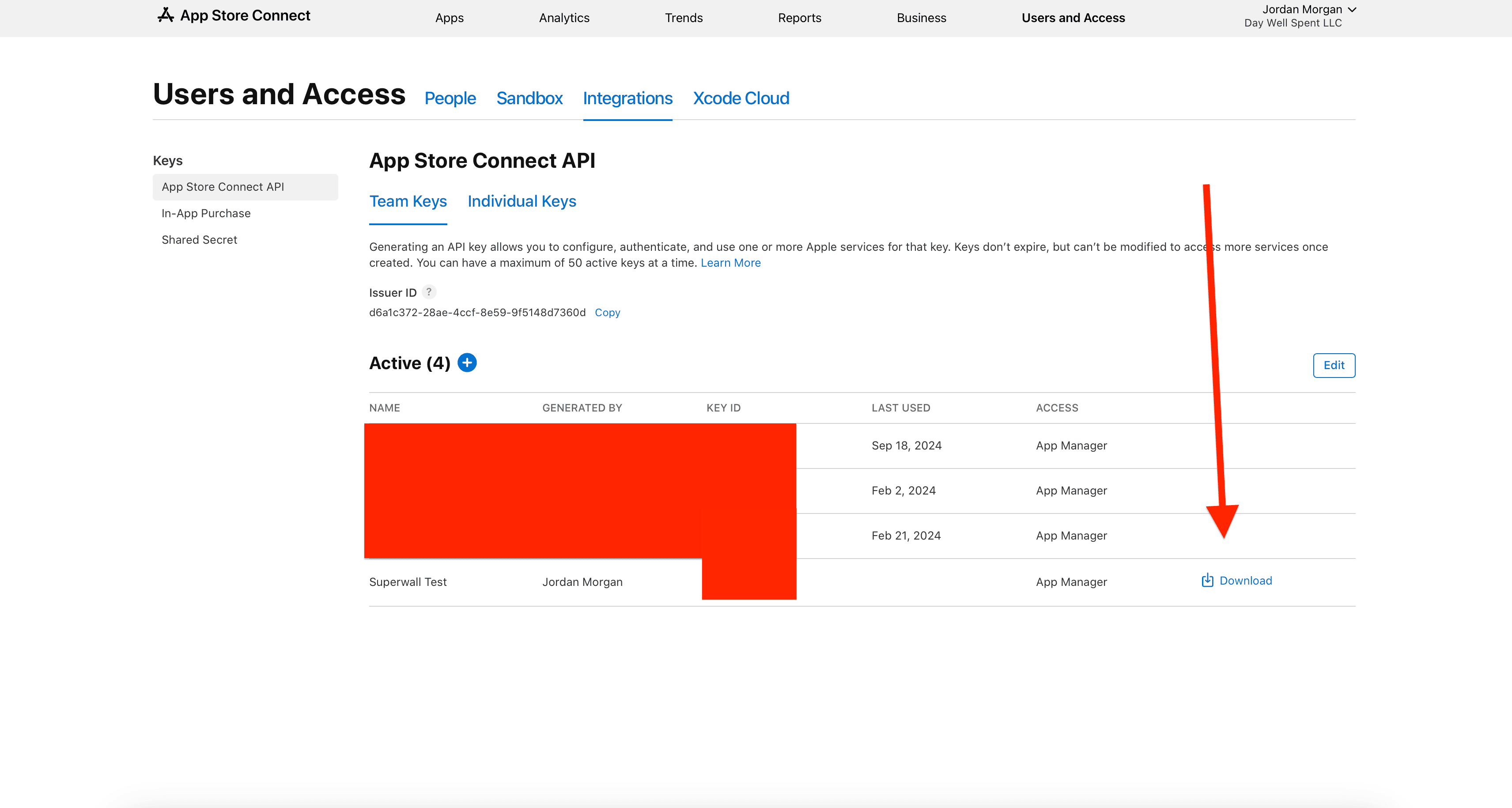
Create and download a team key
Make sure Team Keys is selected, then click Generate API Key or the + button. Give the key a name, choose App Manager under Access, and click Generate. Then click Download API Key next to the new key.
You can download the key file only once. Save it in a secure location.
- 3
Fill in the form in Superwall
On the App Store Connect API key row, click Enter manually.
-
Click Choose key file and select the key file you downloaded.
-
In Key ID, enter the key's ID from the Key ID column in App Store Connect.
-
In Issuer ID, enter the issuer ID shown at Users and Access → Integrations → App Store Connect API in App Store Connect.
-
- 4
Save the key
Click Save key.
Remove a key
On a saved key's row, click Remove, then click Remove key. The key stays active in App Store Connect, and the app's other key stays as it is. Your organization's copy of an App Store Connect API key stays too. See Organization.
- Without the App Store Connect API key, Superwall can't read your app's products or check its server notification URL.
- Without the In-App Purchase key, Superwall can't track your app's purchases or process refunds.
Save a key again to turn these back on.
Related
How is this guide?
Revenue Tracking
Connect App Store Connect, Google Play or RevenueCat to Superwall to track subscription revenue. Set up API keys, server notifications and Small Business rates.
App Store Server Notifications
Send Apple's App Store Server Notifications to Superwall. Find your app's Superwall URL, set it in App Store Connect for production and sandbox, or forward notifications through RevenueCat or your own server.