App Store Server Notifications
Send Apple's App Store Server Notifications to Superwall. Find your app's Superwall URL, set it in App Store Connect for production and sandbox, or forward notifications through RevenueCat or your own server.
Apple sends App Store Server Notifications whenever something happens to a subscription: a purchase, renewal, cancellation, refund or billing issue. Superwall needs them for revenue metrics, webhooks and integrations. Apple sends an app's notifications to one URL per environment, so you choose one route for them: straight from Apple, through RevenueCat, or through your own server.
You'll find this under Settings → Revenue Tracking, in the Server notifications section of the Required card. Set up with Apple sets the URL for you while it creates your keys.
To change the server notification URL, you need an Owner, Admin, or User (Legacy) role in Superwall. Editors, Readers, and Analysts can't save changes here, and Superwall can't read the URL for them. See Access Controls.
Check whether notifications reach Superwall
The Server notifications section, under the key rows, says where Apple sends your app's notifications and whether they're reaching Superwall.
Superwall reads the URL from App Store Connect with your saved App Store Connect API key, so the app needs that key and a bundle ID. Whether notifications are reaching Superwall comes from the Apple events it received in the last 30 days. If the last one arrived 7 or more days ago, the section says how many days ago instead.
| Badge | What it means |
|---|---|
| Set | Apple sends your app's notifications to its Superwall URL. |
| Reaching Superwall | Apple's notifications are arriving at Superwall, but Superwall can't confirm that Apple sends them to your app's URL. You'll see this when RevenueCat or your server forwards them. |
| Another server | Apple sends your app's notifications to another server, and they aren't arriving at Superwall. |
| Not set | Apple has no server notification URL for your app. |
| Needs the API key | Save the App Store Connect API key so Superwall can read the URL. |
| Needs the bundle ID | Save your app's bundle ID. The section shows a bundle ID picker with a Save button, and checks again once it's saved. |
| Couldn't check | Superwall couldn't read the URL from App Store Connect. |
Send notifications to Superwall
When notifications aren't reaching Superwall, the section offers the ways to fix it that fit your setup. When there's more than one, they're tabs:
- Straight from Apple: set your app's Superwall URL in App Store Connect.
- Through RevenueCat: RevenueCat's URL stays in App Store Connect, and RevenueCat forwards each notification to Superwall.
- Through your server: your server receives Apple's notifications and forwards each one to Superwall.
Once nothing is left to do, the section folds your app's URL under Show this app's URL. Changing the URL from this section doesn't change your revenue provider.
Straight from Apple
Click Configure URL for me. Superwall sets your app's URL in App Store Connect for production and sandbox, using the API key you saved. If Apple has another server's URL, Superwall asks before replacing it, because that server stops receiving your app's notifications.
To set the URL yourself, click Copy URL, or open Set it by hand:
-
Copy this app's URL.
-
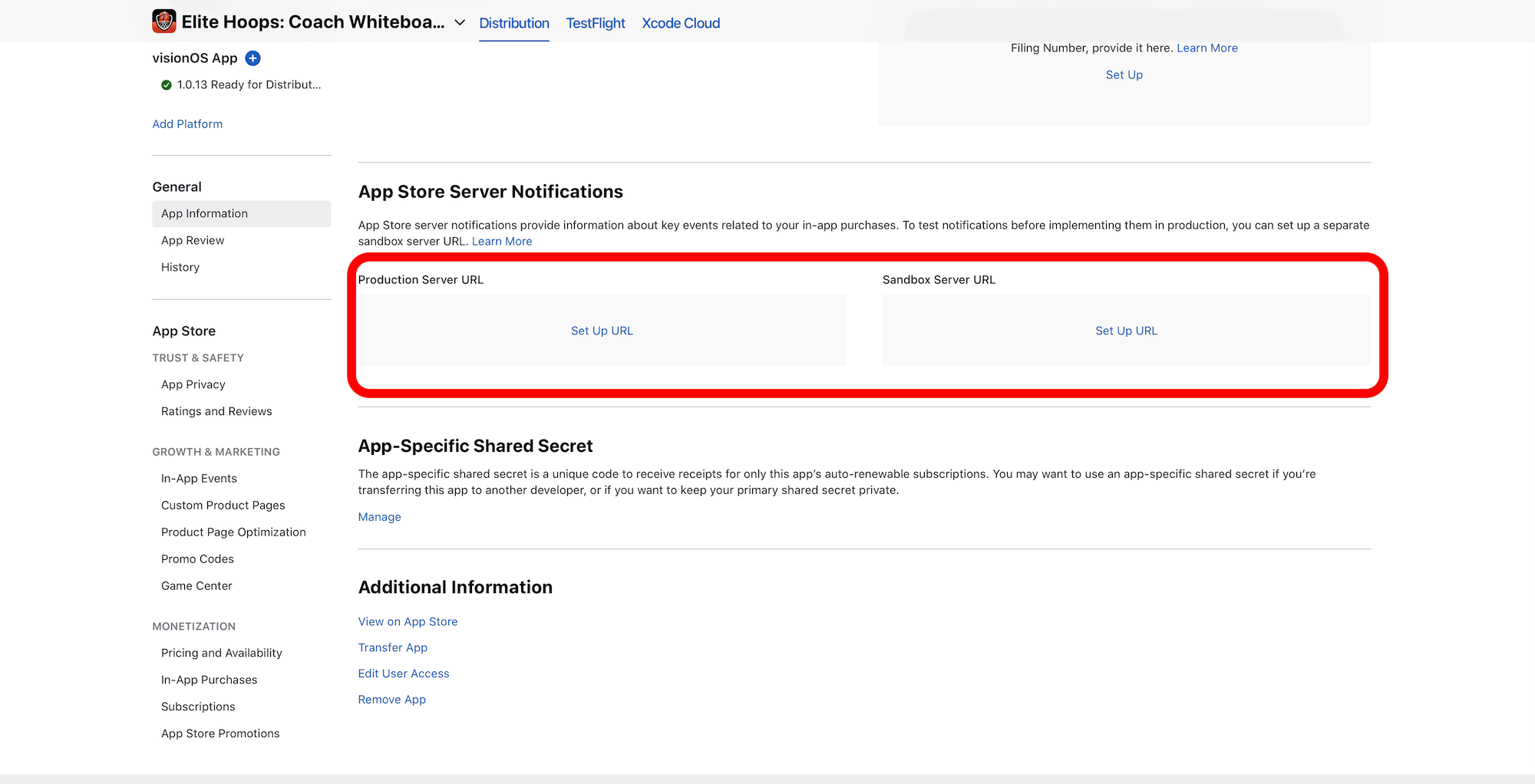
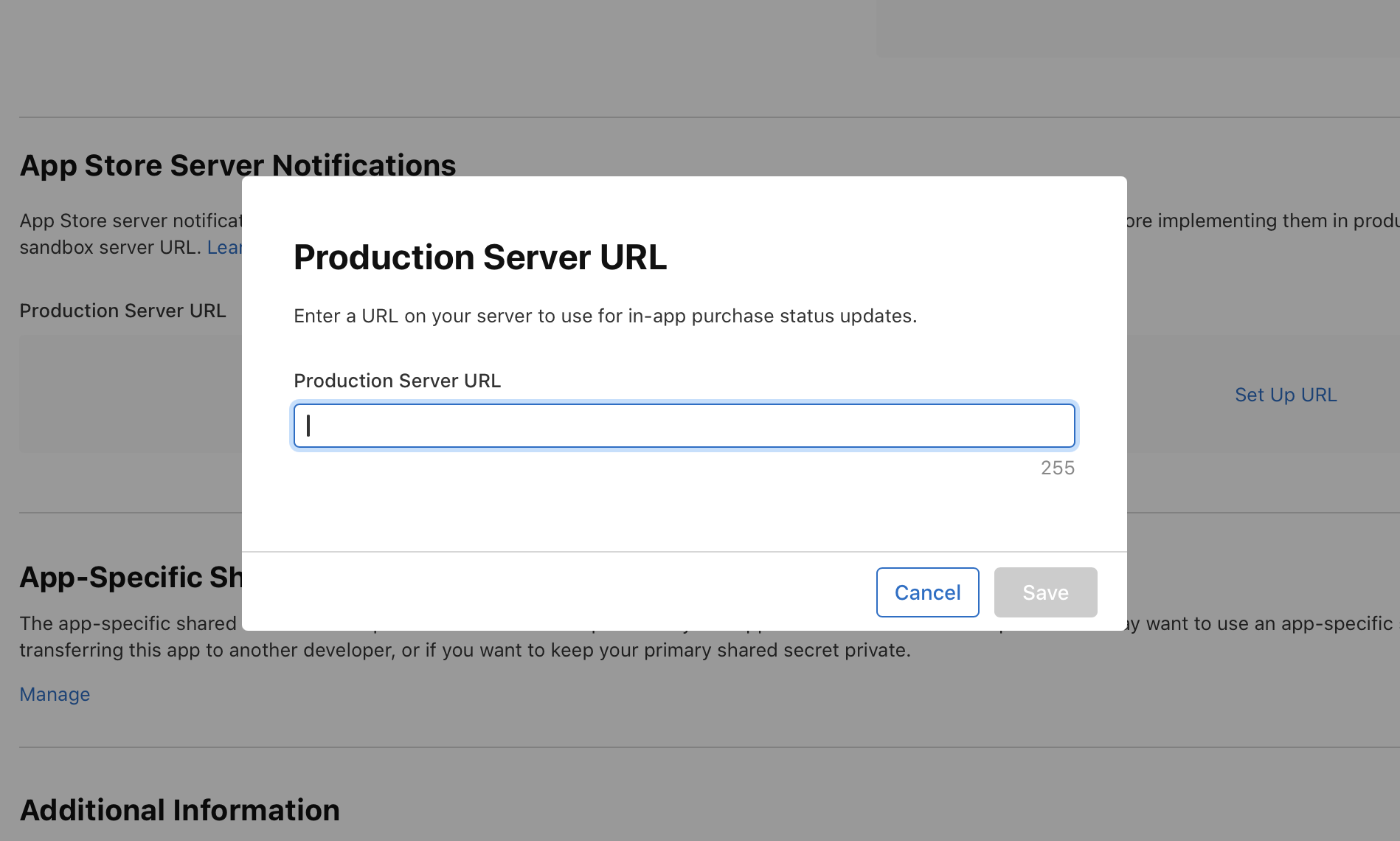
In App Store Connect, open your app's App Information. Under App Store Server Notifications, paste the URL into both the production and sandbox URL fields, choose Version 2 notifications, and click Save. Open App Store Connect in this step opens your app's page there when Superwall has the app's App Store ID, and App Store Connect's home page otherwise.
-
In Superwall, click Check again. Superwall reads the URL back with your saved API key.
Without an API key, Superwall can't set or read the URL, so the section shows only the steps to set it by hand.
Through RevenueCat
If RevenueCat's URL is in App Store Connect, keep it there and have RevenueCat forward each notification to your app's Superwall URL. The tab's steps are to copy your app's URL, paste it into RevenueCat, and click Check again after the next purchase, renewal, or cancellation. See Forward Apple's Notifications from RevenueCat for the full steps.
Through your server
If your server receives Apple's notifications, from Apple or forwarded by RevenueCat, forward each request to Superwall unmodified, before any other logic. Nothing changes in App Store Connect.
The Through your server tab has this snippet with your app's URL filled in. It also has a Prompt for your coding agent you can copy, which asks the agent to add the forward to your server.
request.post(
  {
    url: "https://integrations.superwall.com/integrations/app-store-connect/webhook?pk=YOUR_APP_TOKEN",
    headers: { "Content-Type": "application/json" },
    body: JSON.stringify(req.body),
    timeout: 5000,
  },
  (error, response, body) => {
    if (!error && response.statusCode == 200) {
      console.log("Successfully forwarded to Superwall")
    } else {
      console.error("Failed to send notification to Superwall", error)
    }
  }
)
Related
How is this guide?
App Store Connect API Key and In-App Purchase Key
Connect an iOS app to Superwall with an App Store Connect API key and an In-App Purchase key. Create both automatically with Set up with Apple, import them from another app, or enter the Key ID, Issuer ID and .p8 file by hand.
Google Play Revenue Tracking
Send Google Play purchase events to Superwall with a service account key and real-time developer notifications.