Audit Log
Review organization activity in Dashboard v2.
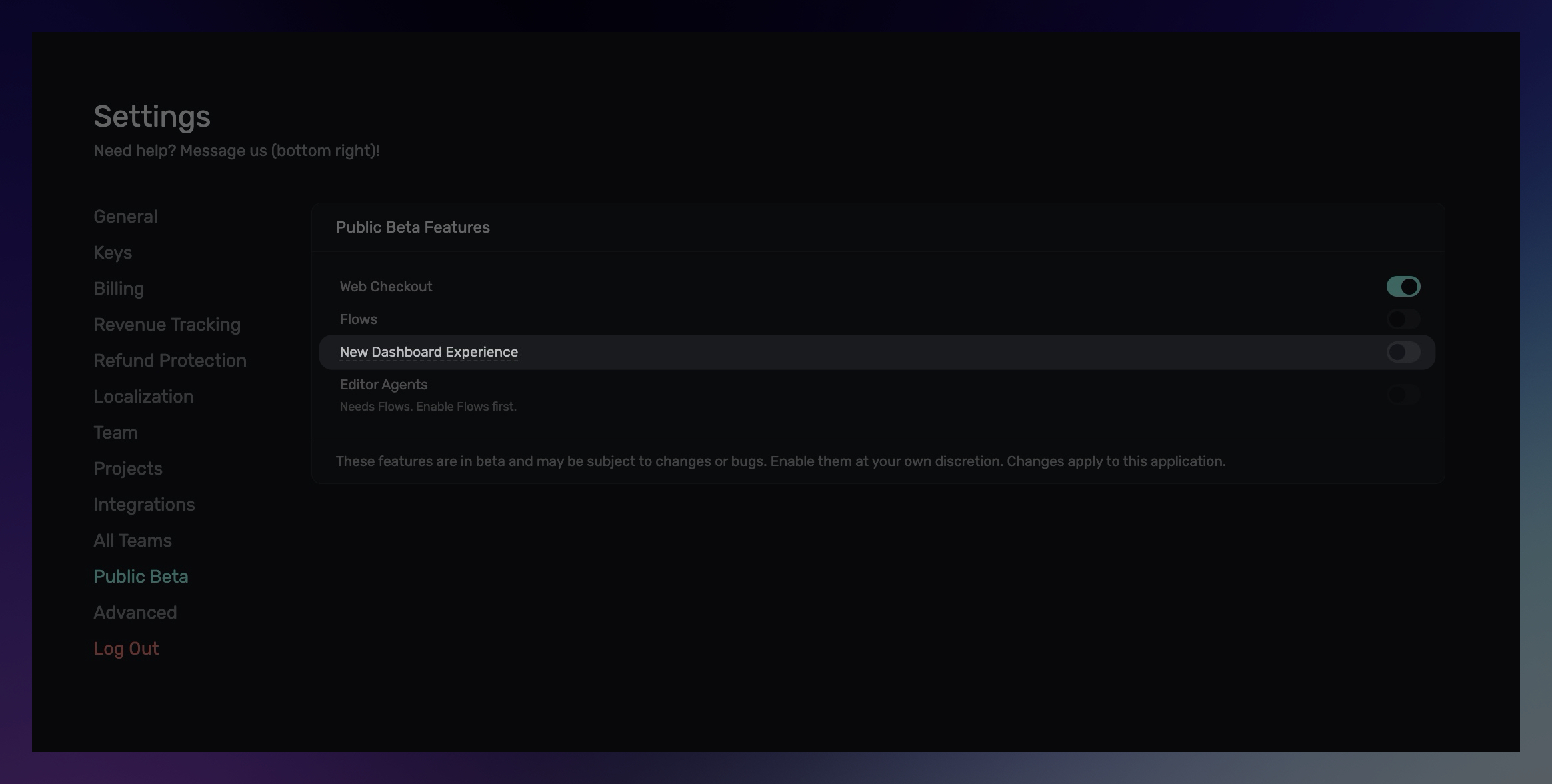
Audit Log is available in public beta when you enable New Dashboard Experience for the application you are working in.
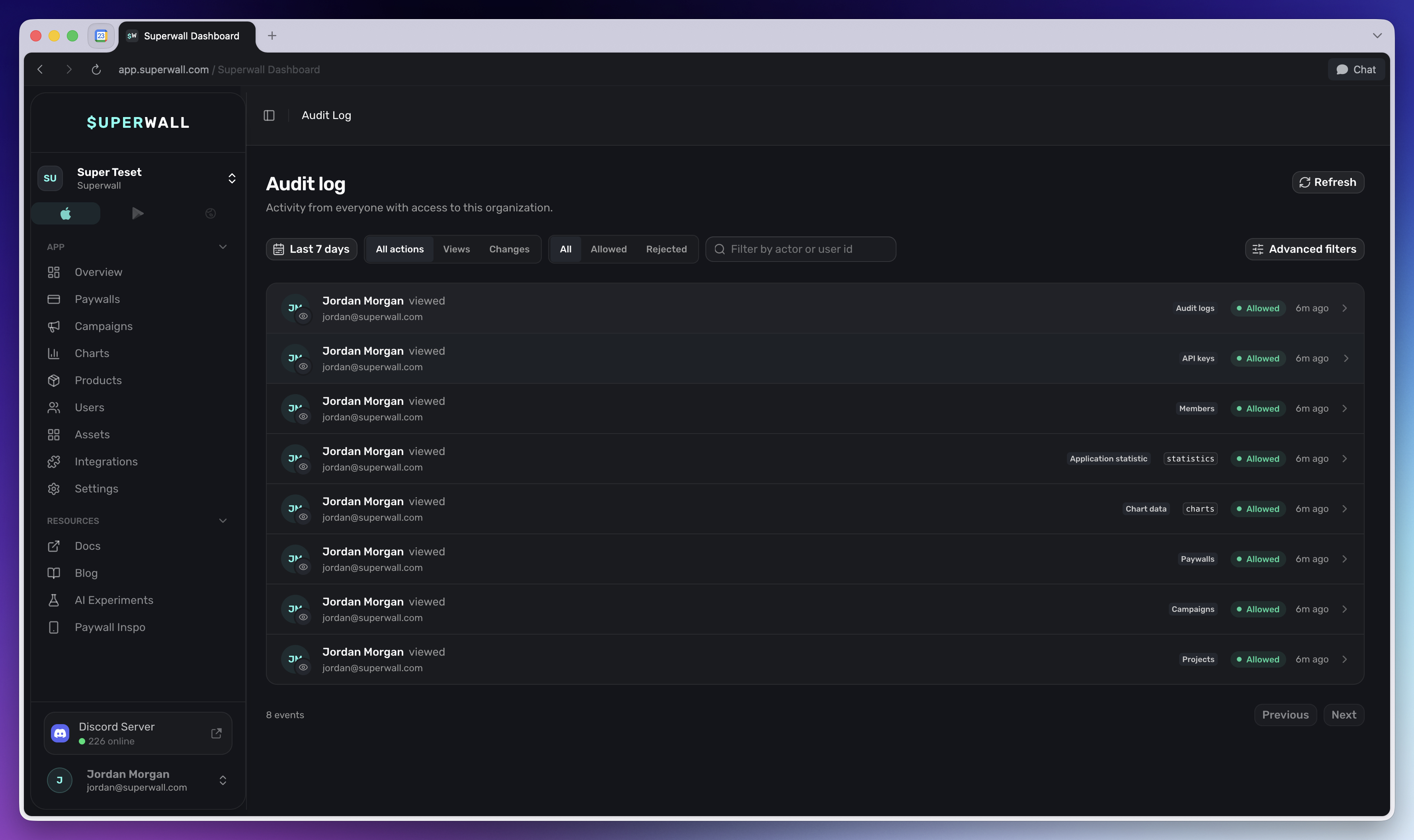
Use Audit Log to review recent organization activity across the Superwall dashboard and V2 API. It shows who made a request, what they did, whether it was allowed or rejected, and the request context Superwall recorded at the time.
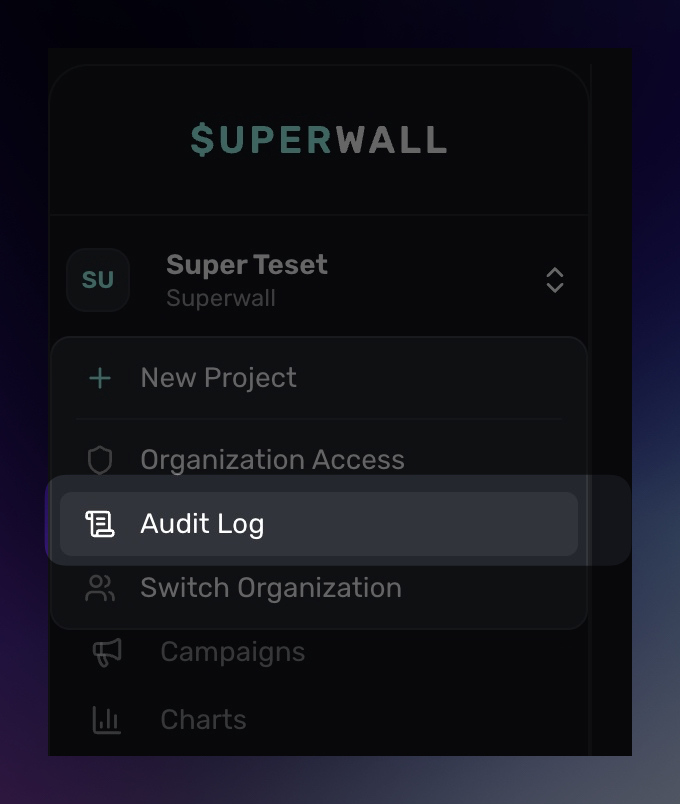
Audit Log is organization-wide. It is useful when you need to confirm who changed a resource, investigate a denied API request, or follow activity from one dashboard session. You can find it in the leading sidebar by clicking the app switcher:
Before you start
To use Audit Log:
- Enable New Dashboard Experience from Settings > Public Beta.
- Use an account role with audit log access.
Owners, Admins, and legacy Users can view the audit log. Editors, Readers, and Analysts do not have audit log access.
Enabling New Dashboard Experience makes Dashboard v2 sections available as they roll out. It does not replace every legacy dashboard page or add Audit Log to the legacy sidebar.
Audit Log is in public beta. The page, filters, and event details may change as Dashboard v2 continues to roll out.
Open the audit log
To open the full Dashboard v2 shell, go directly to:
https://app.superwall.comIf you are signed in, Superwall opens the Dashboard v2 organization picker. After you choose an organization, Dashboard v2 opens the first available app dashboard with the new sidebar.
You can also open a specific app dashboard when you know the organization and application IDs:
https://app.superwall.com/{organization_id}/{application_id}/dashboardTo open Audit Log directly:
https://app.superwall.com/{organization_id}/audit-logIf you are already in the full Dashboard v2 shell, you can also open the organization and project switcher in the sidebar, then choose Audit Log. The legacy dashboard sidebar does not show this item.
Audit Log is attached to the organization, not a single app. If your organization has multiple projects or apps, the page shows activity for the organization you are currently viewing.
Audit Log is in public beta. This interface is a work in progress and is subject to change.
Read the event list
Each row represents one recorded request. The list is newest first and includes:
| Field | What it means |
|---|---|
| Actor | The user or API key that made the request. |
| Action | The parsed action, such as viewing, creating, updating, or deleting a resource. |
| Resource | The resource type and ID when Superwall can resolve one. |
| Outcome | Whether the request was allowed or rejected. |
| Time | When the request occurred. |
Rejected requests are marked so you can quickly find permission or authentication failures.
Filter activity
Use filters to narrow the list:
| Filter | Use it to |
|---|---|
| Date range | Show the last 24 hours, last 7 days, last 30 days, or a custom range. |
| Action type | Show all actions, only views, or only changes. |
| Outcome | Show all requests, allowed requests, or rejected requests. |
| Actor | Search by actor name, API key name, or numeric user ID. |
| Advanced filters | Filter by HTTP method, endpoint ID, or failure code. |
Click Refresh to load the latest matching events. Use Next and Previous to move through additional pages when more events are available.
Review event details
Click an event to open its detail sheet.
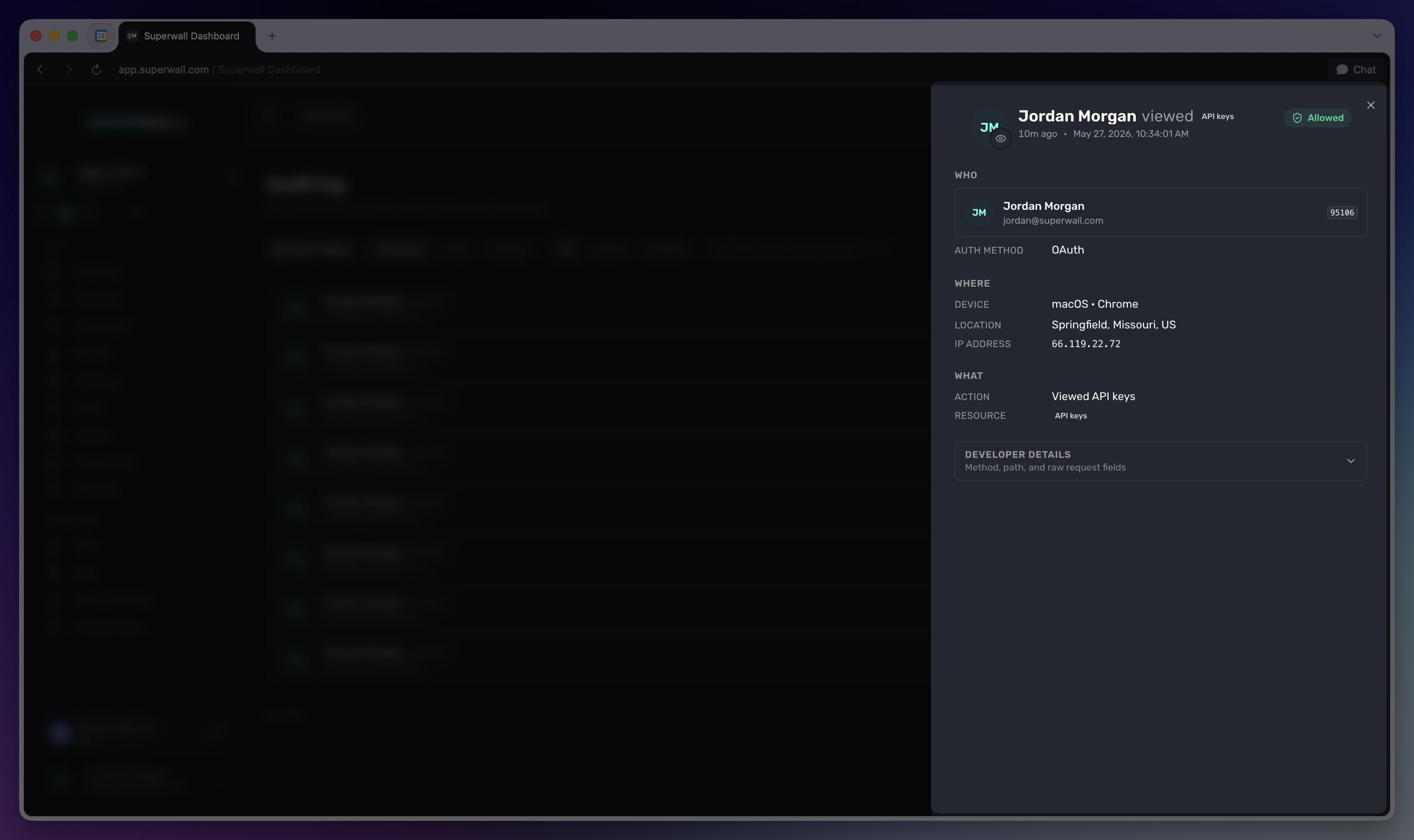
The detail sheet can include:
| Section | What it shows |
|---|---|
| Who | The acting user or API key, authentication method, and session ID when available. |
| Where | Device, location, IP address, and User-Agent context when available. |
| What | The resolved action, resource type, and resource ID. |
| Changes | Before and after values for supported mutations. |
| Why it was rejected | Failure stage, failure code, and status code for denied requests. |
| Developer details | Lower-level request data such as endpoint, method, path, and request ID. |
When a session ID is present, click View this session to filter the list to the other recorded actions from that login session.
What gets recorded
Audit Log records served V2 API requests for the organization. Entries can include dashboard activity and API key activity, depending on how the request was authenticated.
For each entry, Superwall stores the request outcome, the endpoint, the actor, resource details when known, and request context such as IP address and User-Agent. For supported write actions, Superwall can also show a structured before-and-after change list.
Some older entries or read-only actions may not include every detail section. For example, a read request may not have changes, and older entries may not include device or location context.
Related
How is this guide?