Access Controls
Manage organization roles, project access, and scoped API keys.
Use Access Controls to decide who can work inside your organization, which projects they can access, and what organization API keys are allowed to do.
Access controls apply at the organization level. You can give a member or API key access to every project, or restrict it to specific projects.
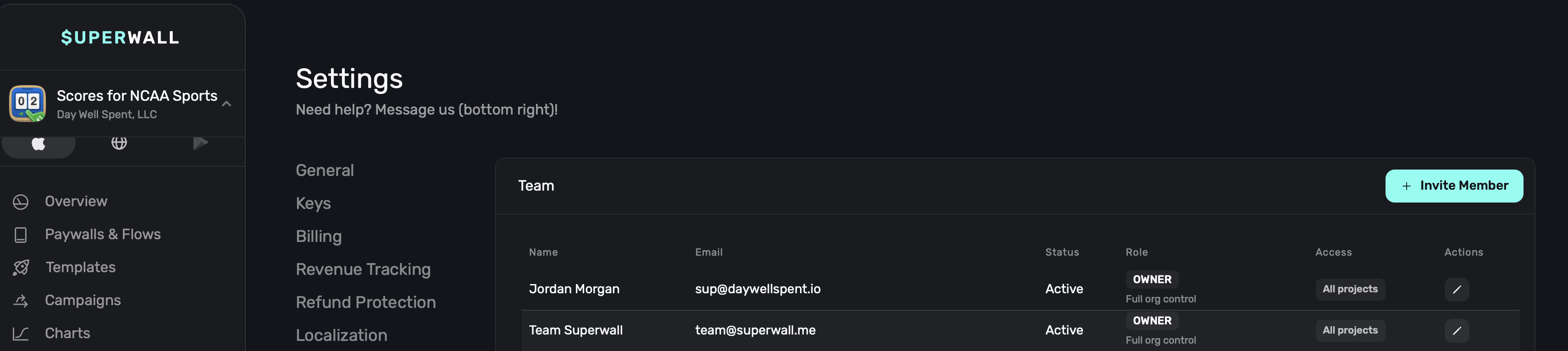
Opening Access Controls
Open an app and go to Settings > Team to manage member roles and project access.
Use these settings pages for access management:
| Page | Use it to |
|---|---|
| Team | Invite teammates, update organization roles, and restrict members to specific projects. |
| API Keys | Create, update, or revoke organization API keys with selected scopes and project access. |
Only Owners and Admins can manage access. Owners can manage any role, including other Owners. Admins can manage most members and API keys, but they cannot assign or manage the Owner role.
If an Admin is restricted to specific projects, they can only manage access for projects they can already access. Restricted Admins cannot grant unrestricted organization access.
Organization roles
Organization roles control the maximum set of actions a member can take. Project access can narrow where those actions apply, but it cannot grant permissions beyond the member's organization role.
| Role | What it can do |
|---|---|
| Owner | Full organization control. Owners can manage billing, settings, access controls, API keys, and other Owners. Owners always have access to all projects. |
| Admin | Full working access and access-management permissions, except for managing Owners. Admins can be restricted to specific projects. |
| User (Legacy) | Legacy Admin-level role kept for backward compatibility. Treat this as full access and reassign it when possible. |
| Editor | Can create and edit paywalls, campaigns, notifications, and assets. Editors can view related resources, but cannot manage access or sensitive organization settings. |
| Reader | Read-only visibility into dashboard resources. Readers cannot create, update, or delete resources. |
| Analyst | Read-only, analytics-focused visibility for stakeholders who need reporting access without edit permissions. |
Project access
Each member has one project access mode:
| Mode | What it means |
|---|---|
| All Projects | The member can access every current and future project allowed by their organization role. |
| Restricted | The member can only access the projects you assign to them. |
When a member is Restricted, assign one role for each project they can access:
| Project role | Use it for |
|---|---|
| Admin | Project-level management access. |
| Editor | Editing resources inside the project. |
| Viewer | Read-only access to the project. |
Project roles are capped by the organization role. For example, a Reader with a Project Admin grant is still read-only because the organization role does not allow writes.
Use the Project access dropdown when inviting or editing a member to choose Restricted. When selected, Superwall shows the project assignments and project role controls for that member.
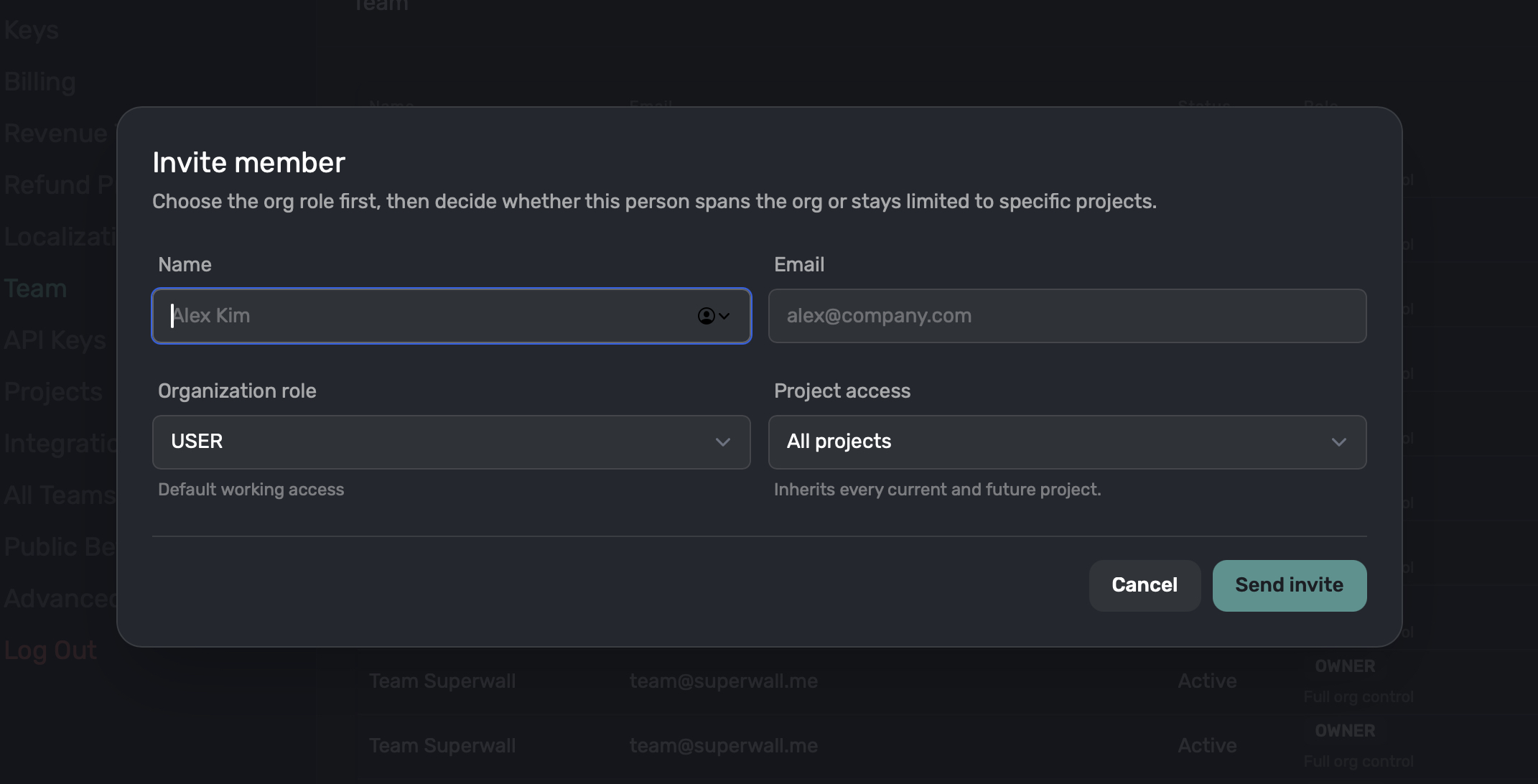
Invite a member
- Open Settings > Team.
- Click Invite member.
- Enter the member's name and email.
- Choose an organization role.
- Choose All Projects or Restricted.
- If restricted, select the projects they can access and choose a project role for each one.
- Click Invite.
The invite appears as pending until the user accepts it.
Update a member
From Settings > Team, click Edit next to a member. You can change their organization role, project access mode, and project assignments.
Owners cannot remove or demote the last Owner in an organization. Admins cannot assign the Owner role or edit existing Owners.
API key access
Organization API keys use the same access model:
| Setting | What it controls |
|---|---|
| Scopes | Which resources the key can read or write, such as paywalls, campaigns, products, webhooks, charts, users, assets, access controls, or ClickHouse analytics data. |
| Project Access | Whether the key can operate across all projects or only selected projects. |
Both checks must pass. For example, an API key with paywalls:write and Restricted access to one project can only update paywalls in that project.
In the create key dialog, choose the scopes first, then use Project access to decide whether the key can access all projects or only selected projects.
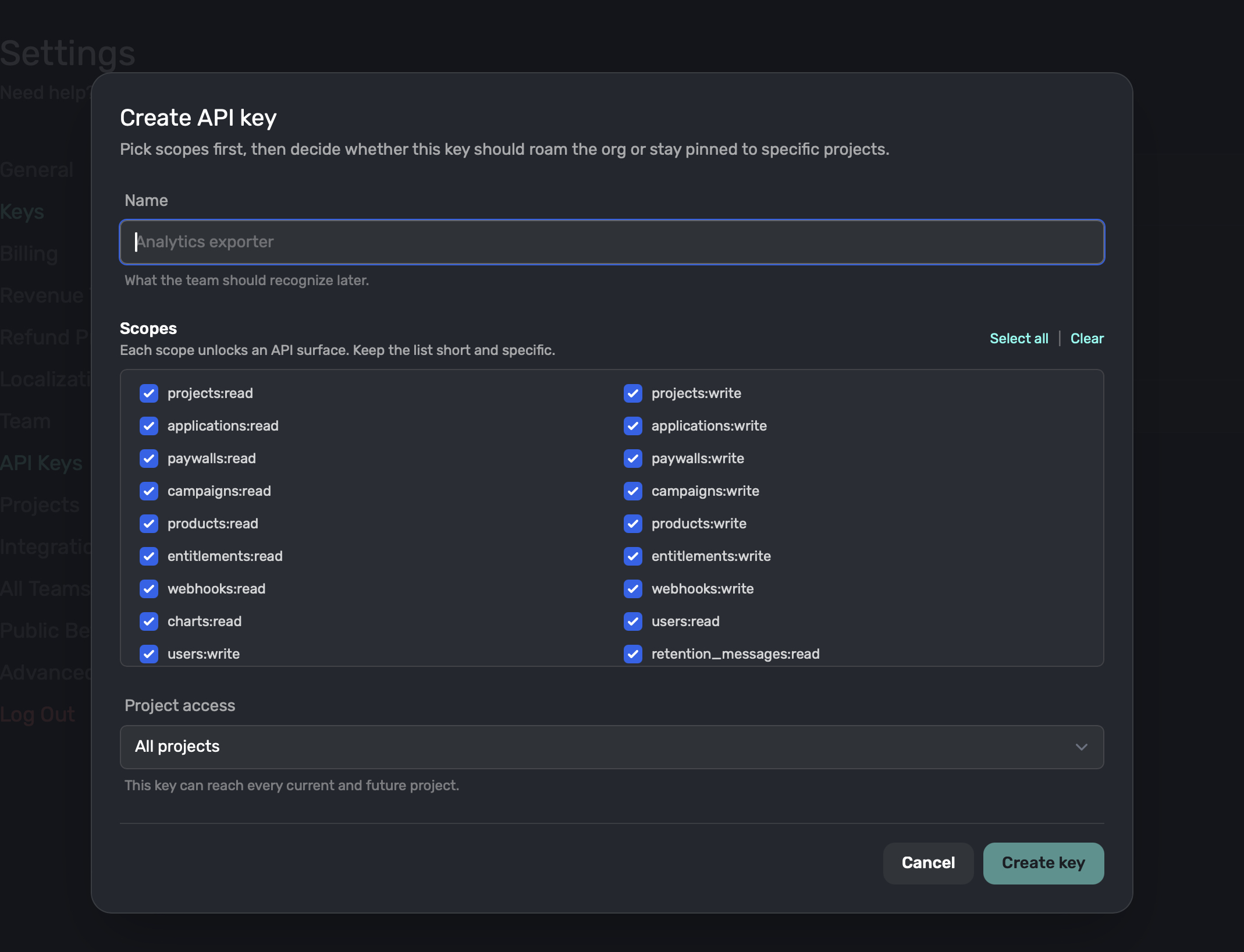
When you create a key, Superwall shows the token once. Copy it before closing the dialog. After that, the dashboard only shows a masked token.
Revoke or update an API key
Use Settings > API Keys to review each key's scopes, project access, creation date, and last-used timestamp. Edit the key to change its scopes or project restrictions, or revoke it when it is no longer needed.
Prefer restricted API keys for automation. Give each service only the scopes and projects it needs.
Keys with data:read can use the ClickHouse query API to run read-only SQL against your organization's analytics data.
Troubleshooting
If a member cannot see a project, confirm that their project access mode is All Projects or that the project is selected in their restricted assignments.
If an API request is denied, check both the key's scopes and its project access. The key needs the correct resource scope and access to the target project.
If you cannot assign an Owner, make sure you are signed in as an Owner. Admins cannot grant or manage Owner access.
Related
How is this guide?