Projects
Group apps by platform and transfer projects between Superwall organizations.
In the Projects section within Settings, you logically group your apps together (regardless of the platform they are on):
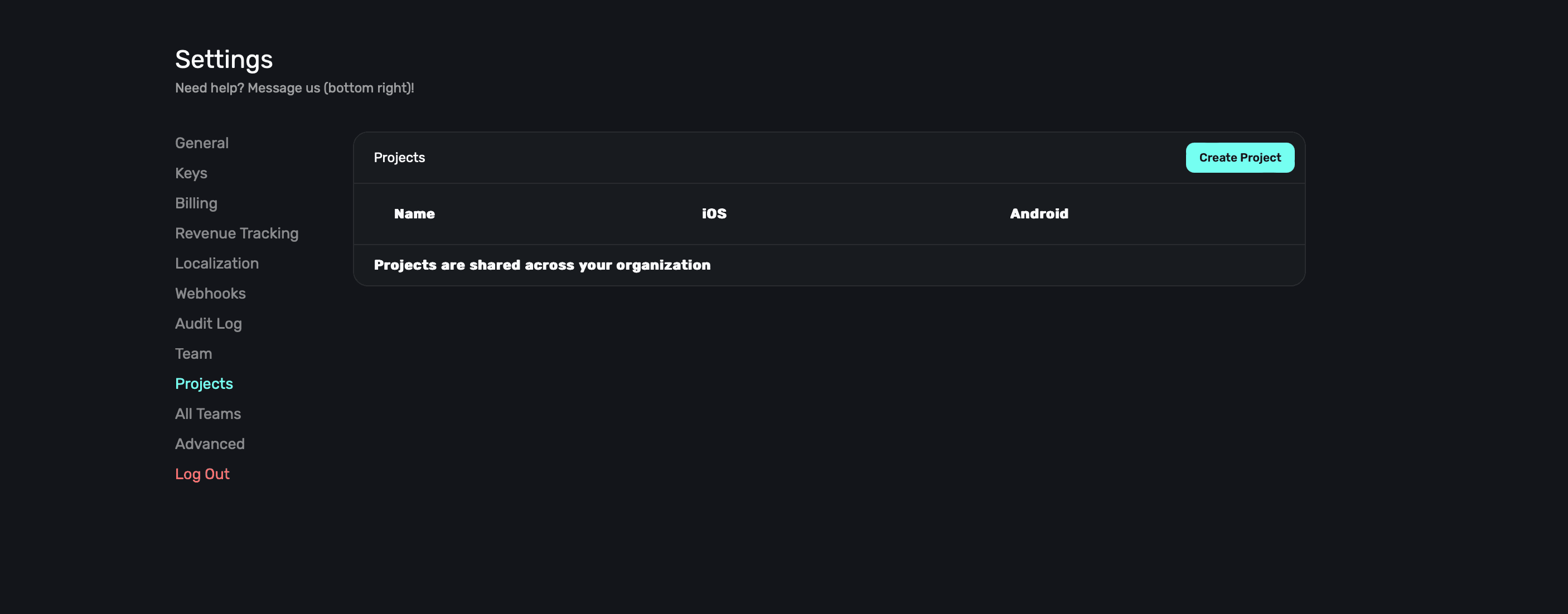
Projects are typically the same app on multiple platforms. That is, the same app on iOS and Android. Grouping them together as a project can help with organization and make reporting a bit easier to manage.
Creating a new project
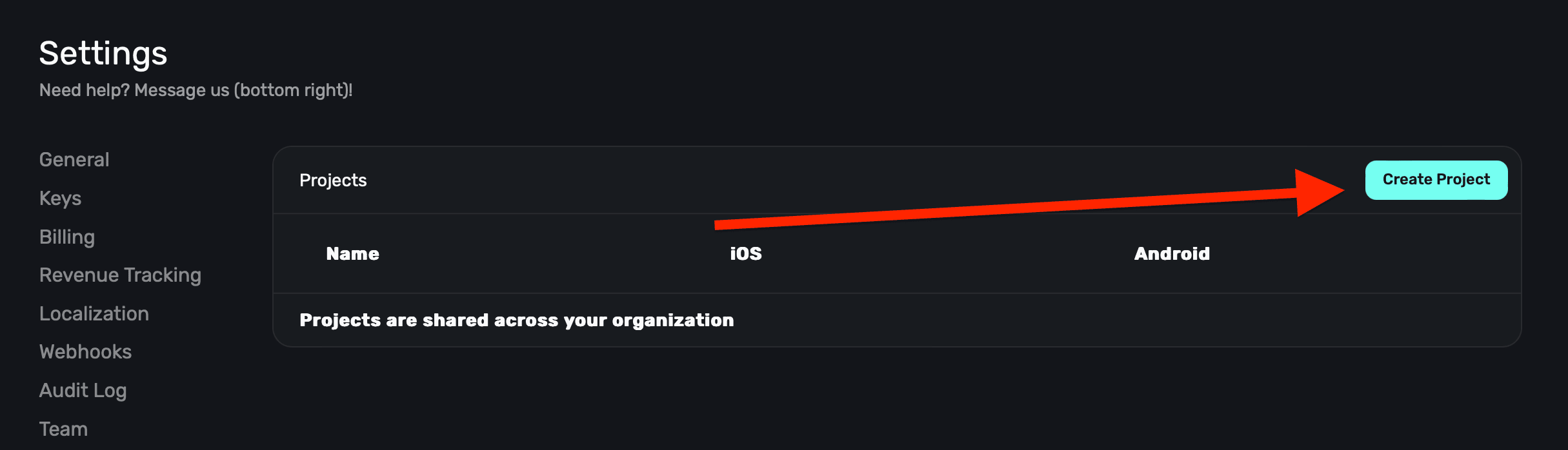
To create a new project, click the Create Project button at the top right:
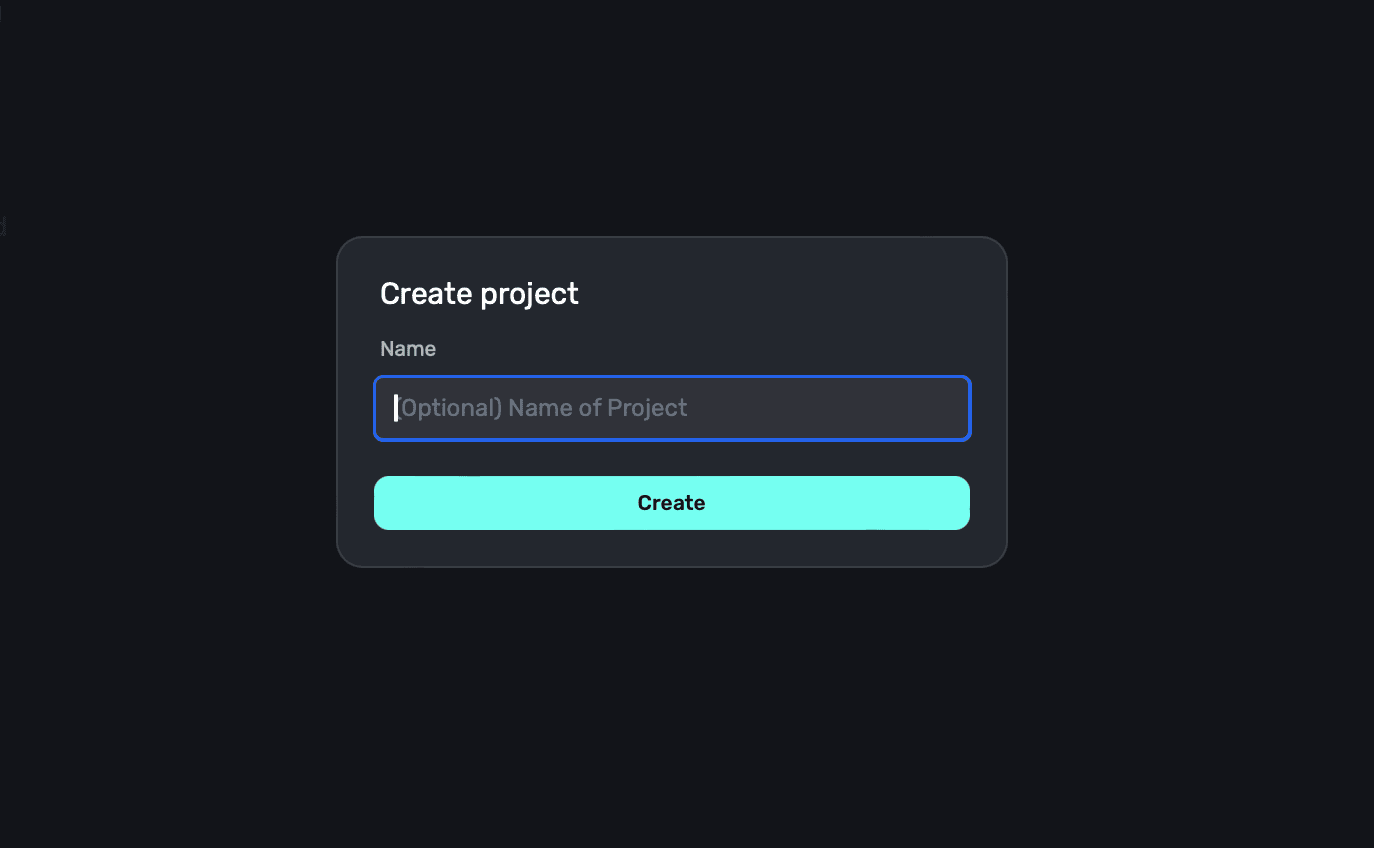
From there, give it a name and click the Save button:
Adding apps to a project
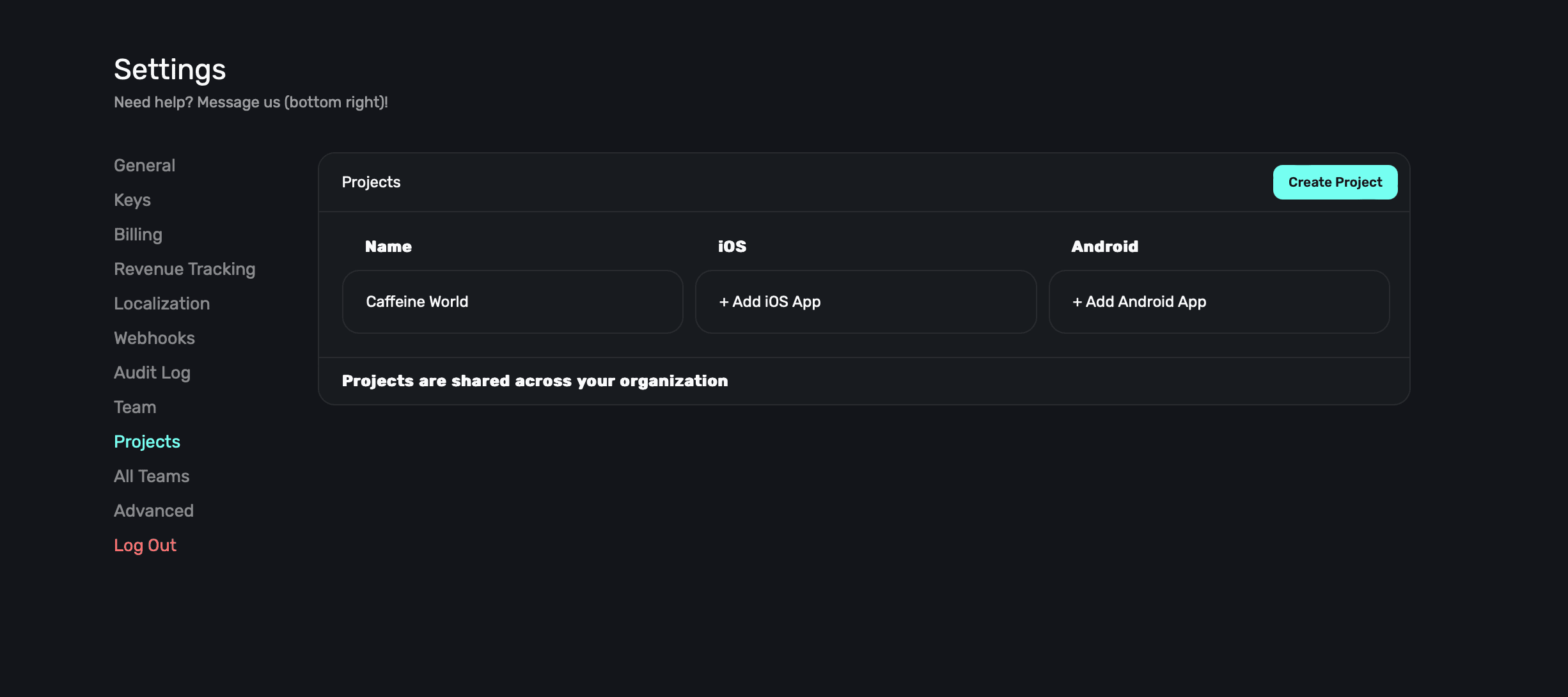
After you've created a project, you can select an app for the iOS and Android platform by clicking their respective buttons:
Transfer a project to another organization
Organization owners can transfer a project, including every app in it, to another Superwall organization. The project stays in the current organization until the recipient accepts the transfer.
Before you begin, confirm that:
- The project contains at least one app.
- The recipient can sign in to Superwall with the verified email address you enter.
- The recipient owns the organization that should receive the project.
The Transfer project section only appears for organization owners, and only on apps that belong to a project. If you don't see it, check your role in the organization and confirm the app is part of a project.
Projects that use an external localization provider or have active localization resources require a manual transfer. Contact Superwall support if the transfer option directs you there.
Send the transfer
- In the new dashboard, open an app in the project and go to Settings → General.
- Scroll to the Transfer project section, just above Danger zone, and click Transfer project.
- Enter the recipient's email address and review the apps that will move.
- Click Send transfer email.
The invitation expires after seven days. While it is pending, you can:
- Resend it to issue a new link and restart the seven-day window. The previous link stops working.
- Cancel it to keep the project in its current organization.
Only one transfer can be pending for a project at a time.
Accept the transfer
The recipient must:
- Open the link in the transfer email.
- Sign in with the verified email address that received the invitation.
- Choose an organization they own. The sending organization cannot be selected.
- Review the transfer and click Accept transfer.
The project and all of its apps move together when the recipient accepts.
Your Superwall SDK integrations, customer purchasing flows, and webhooks continue working normally after the transfer. Only Superwall API requests authenticated with an existing private API key are interrupted: private API keys are revoked when the transfer is accepted. Create a new private API key in the destination organization before resuming private API access.
Project-specific member access from the sending organization is removed. Organization-level App Store Connect and Google Play credentials, along with billing settings, remain with the sending organization and may need to be configured again for the destination organization.
How is this guide?