Custom Fonts on Paywalls
Use your own font or any Google Font on paywalls. Upload TTF, OTF, WOFF or WOFF2 files per weight and style, then pick the font for any text element.
Paywall text uses System Font, the device's own font, unless you choose another one. In the paywall editor you can pick any Google Font, or upload your brand's font files and use them like any other font. This page covers paywalls built in the editor. For paywalls built in code with Superwall Framework, see Custom fonts in Assets.
Requirements
- Font files in
.ttf,.otf,.woffor.woff2format. - One file for each weight and style you want to use, such as Regular, Bold and Bold Italic.
- No SDK setup. The paywall loads the font itself.
Use a Google Font
- In the paywall editor, select a text element.
- Under Typography, open the font menu and search for the font by name.
- Choose the font, then pick a weight. The weight menu only lists the weights the font has. If that weight has an italic style, an italic toggle shows next to it.
Upload your own font
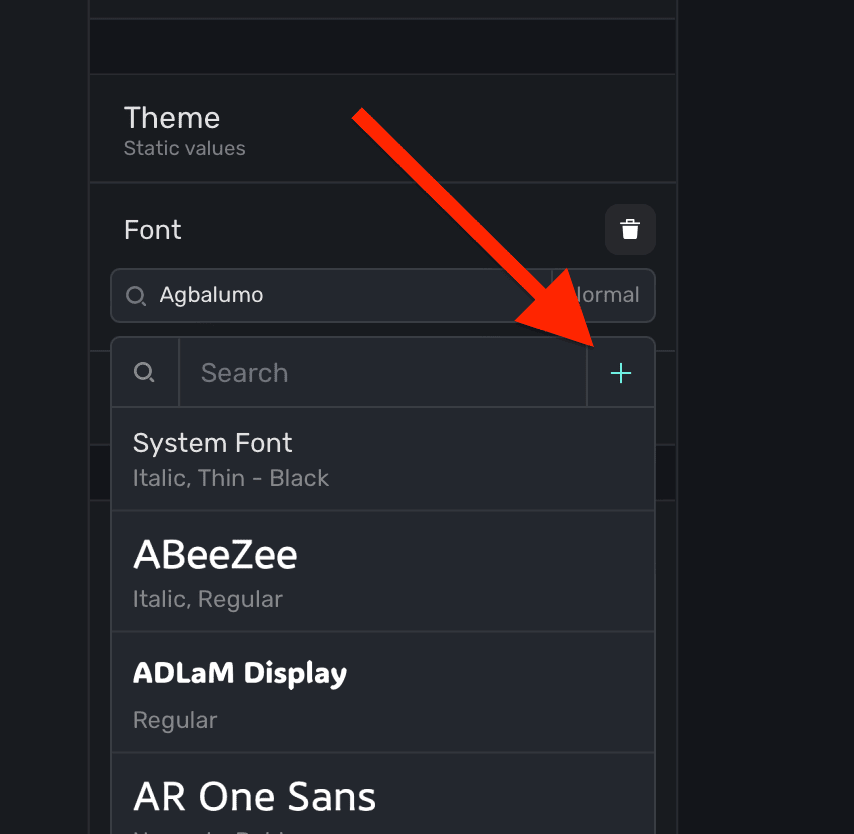
- In the paywall editor, open the font menu and click +. There are two font menus with this button: under Typography when a text element is selected, and the font variable under Theme.
- In Edit Fonts, type the font's name under Font Family Name, such as
Acme Sans, and click Add. - The font opens with one weight, Normal, and two columns, Normal and Italic. Click Upload in a column and choose the font file for that weight and style.
- To add another weight, choose it from Add Variant..., from Thin to Black, then upload its files.
- Close the window. The font now shows in the font menu. Select a text element and choose it under Typography.
- Publish the paywall.
After a file uploads, its button shows the font's name and weight in that font, so you can check you uploaded the right file.
Set a default font for the paywall
The font variable under Theme sets the default font for text elements. Choose your custom font or a Google Font there so you don't have to set it on every text element.
How fonts load
- Fonts you upload are stored by Superwall and shared across your organization, so they show in the font menu of every paywall you edit.
- The paywall loads only the fonts and weights its text uses. Google Fonts load from Google, and uploaded fonts load from Superwall.
- Font files aren't bundled with your app. They download when the paywall loads, like its images.
- If a font file can't load, the text shows in the device's system font instead.
Things to know
- Each weight and style is its own file. If you only upload Normal, the weight menu has no Bold for that font, and there's no italic toggle until you upload an Italic file. Upload the files for every weight and style your design uses.
- Text in System Font uses the device's own font, so it looks different on iOS and Android.
Related
How is this guide?
Video and Lottie Animations on Paywalls
Add video and Lottie animations to a paywall in the editor: upload or link a file, set autoplay, loop, mute and speed, and keep media loading fast.
Haptic Feedback on Paywalls
Play a native haptic when someone taps a paywall button, pick light, medium, heavy, success, warning, error or selection, and turn off the SDK's own haptics.