Data Schema
See every user attribute, device attribute and event your app sends to Superwall, with each event's properties and daily volume, and query any of them.
The Data schema page lists everything your app sends to Superwall: the attributes it sets on users and devices, and the events it fires, with the properties each event carries. Use it to find the exact name of an event or attribute, check that a new event is arriving, or start a query from it.
Data schema is in early access. If you don't see it under Analytics, it isn't turned on for you yet. Data schema and Queries are turned on together.
Open the data schema
Open your app, then click Analytics in the sidebar and choose Data schema.
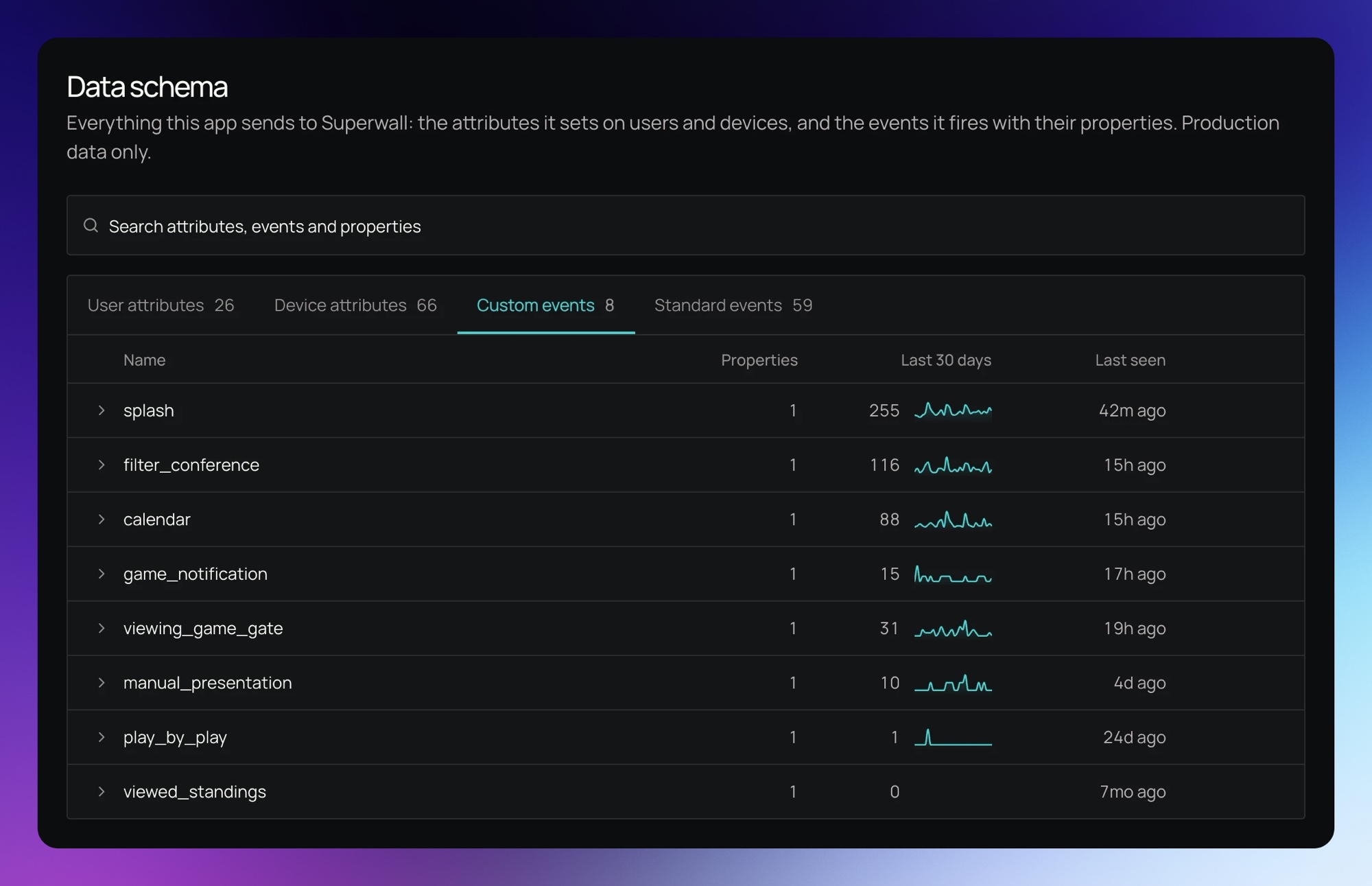
The page shows production data only. Events and attributes that only ever arrived from sandbox aren't listed.
What's on each tab
| Tab | What it lists |
|---|---|
| User attributes | The attributes your app sets on users with setUserAttributes. |
| Device attributes | The attributes the SDK reports about each device. |
| Custom events | Your own events: the placements you register and the events you track. |
| Standard events | Superwall's own events, such as paywall_open and transaction_complete, and events from store and integration webhooks, such as renewal. See Superwall Events for what the SDK's events mean. |
Each tab shows how many items it has.
Attributes show their key, their type, such as String or Int64, and when the key last arrived. A key that has arrived with more than one type shows each one.
Events show their name, how many properties they've carried, how many times they arrived in the last 30 days with a sparkline of each day, and when they last arrived. Today is still arriving, so the end of the sparkline is dashed.
Click a key or event name to copy it. Click an event's row to open it and see its properties, each with its type.
Click a column header, except Type, to sort by it. Long lists show 100 rows at a time, with Show more at the end.
Search
The search box at the top covers all four tabs at once, and every event's property keys too. Each tab's count changes to the number of matches.
When an event matches because one of its properties does, it opens on its own and shows the matching keys, up to 50 per event.
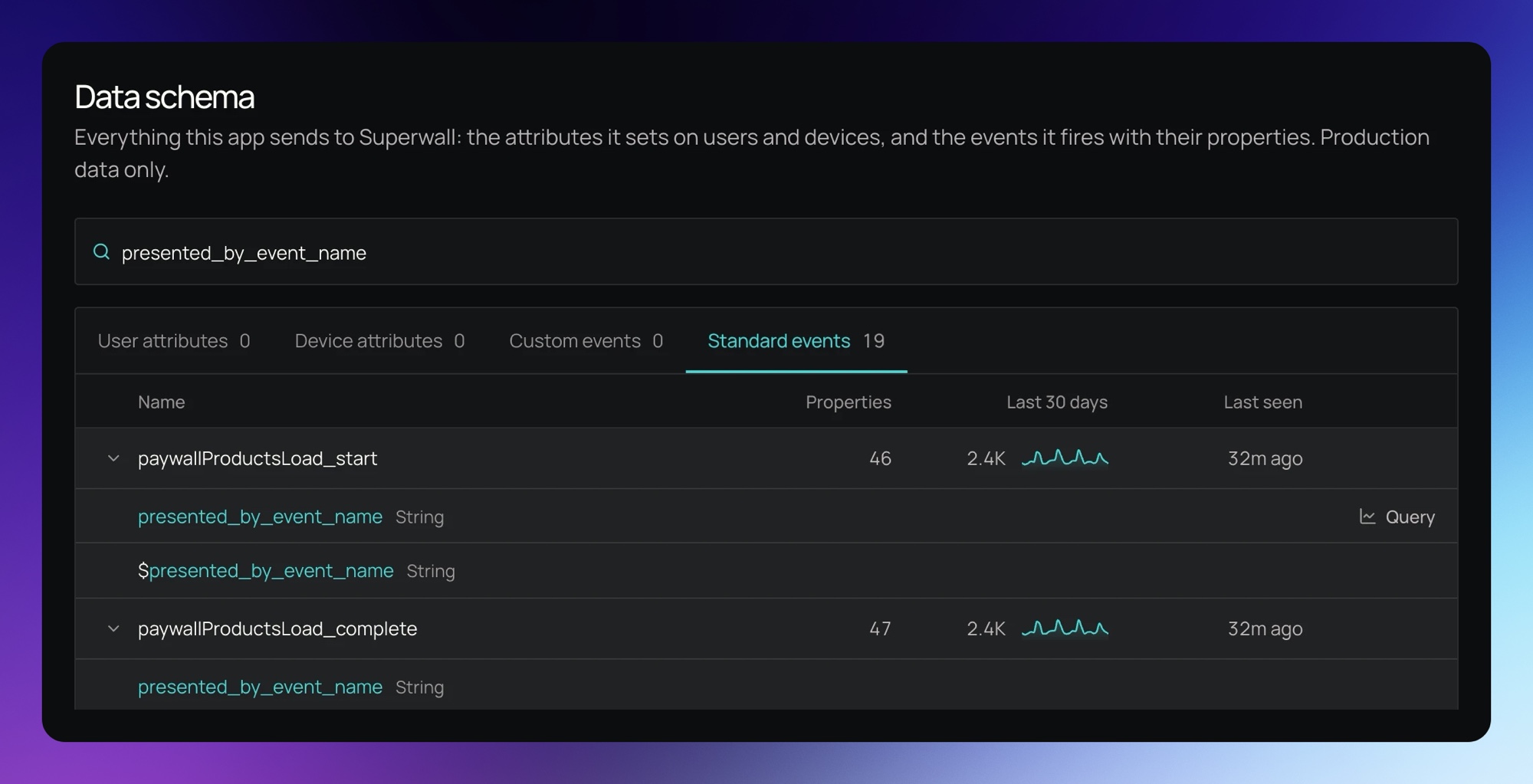
Press Escape to clear the search.
Query an event or attribute
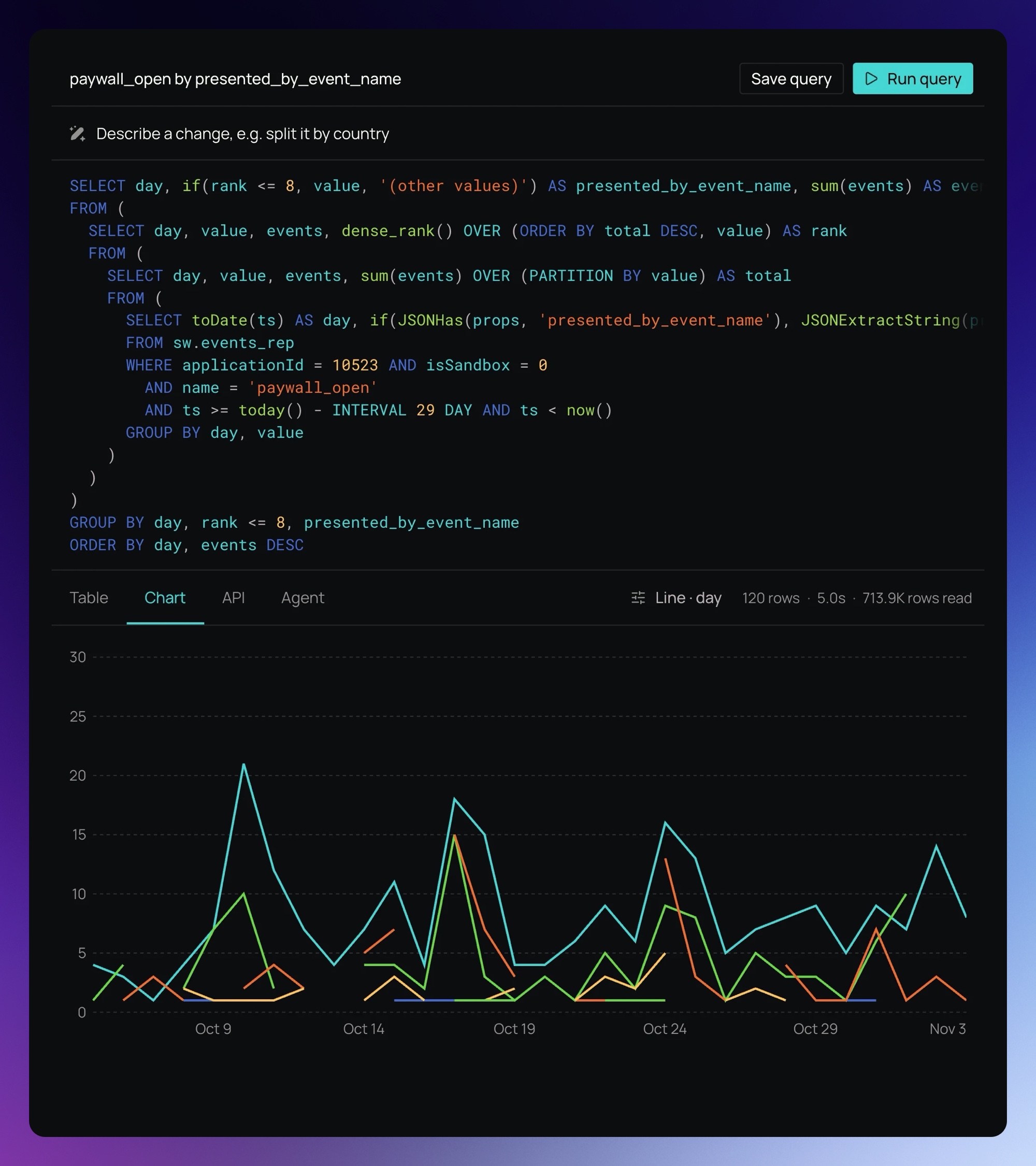
Hover a row and click Query to open it on the Queries page as a chart of the last 30 days, by day:
- An event: how many times it arrived each day. This count is approximate, to within about 1%.
- A property under an open event: the event's daily count, split by the property's values.
- An attribute: how many times the attribute was set each day, split by its values.
A split shows the 8 most common values as their own lines and adds up the rest as (other values). Events that didn't carry the key show as (none).
Superwall writes the SQL for you, runs it and draws the chart. From there you can change the query, save it, or copy it as an API request for your own tools or agent.
Running a query needs the data:read scope with access to every project. Owner, Admin and User roles have it. Editors, Readers, Analysts and members with access to only some projects can browse the data schema, but their queries won't run. See Access Controls.
Limitations
- Each event tab lists at most 1,000 event names, the most recently seen. If your app has sent more, the page says so, and older names aren't listed or searched.
- Each event lists at most 500 property keys, the most recently seen. If an event has carried more, its property list says so.
- The lists can be a few minutes behind the events your app just sent.
Get the data schema from the API
The same lists, and each event's daily volume, are available from the API. See Find event names and property keys in Query ClickHouse.
Related
How is this guide?