iPhone Duo Support
Superwall paywalls work on iPhone Duo. Keep your paywall clear of the front camera and status bar, preview it in the editor, and test it on a device or in the simulator.
Superwall paywalls work on iPhone Duo with any version of the Superwall SDK. On iPhone Duo, the front camera and status bar sit along one edge of the screen, and by default your paywall goes underneath them. If a close button or another control is near that edge, it can end up hidden, and people can't leave the paywall.
You fix this on the paywall itself, in the paywall editor. You don't need to update the SDK or release a new version of your app.
Apps built with Xcode 26 or earlier aren't affected. On iPhone Duo, Apple runs them beside the status bar and camera instead of under them, so their paywalls already stay clear.
Which edge it's on
The edge with the camera and status bar changes as the phone folds and turns:
- Closed: the right edge, with the outer front camera.
- Open, held upright: the top, where the status bar is.
- Open, turned sideways: the right edge.
Keep your paywall clear of the camera and status bar
Each paywall has an iPhone Duo safe area setting. In the paywall editor, click Settings in the sidebar, then choose an option under iPhone Duo safe area. The setting's hints in the editor call this edge the camera strip.
- Full screen (Default): The paywall goes under the camera and status bar. Anything near that edge can be hidden.
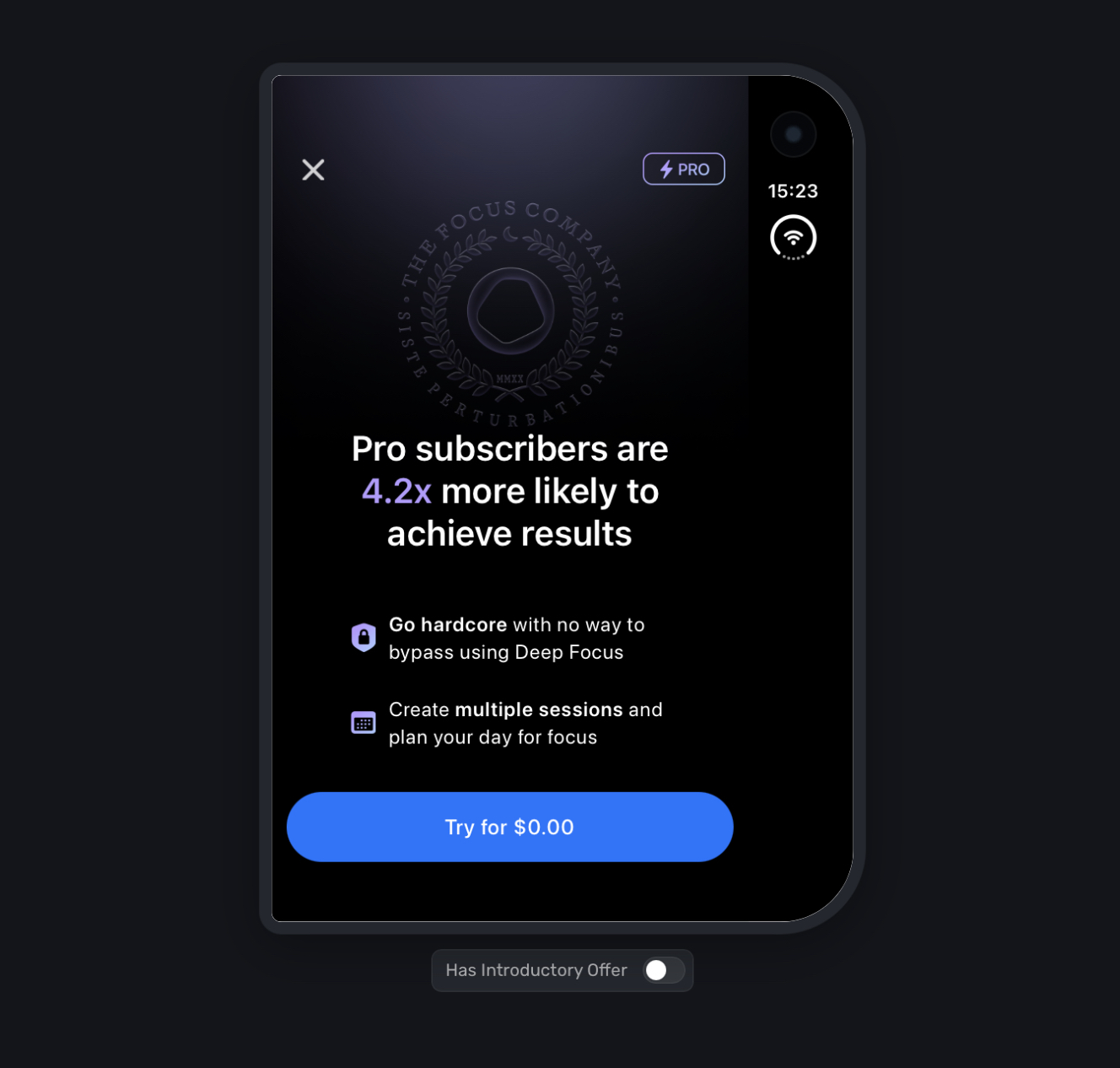
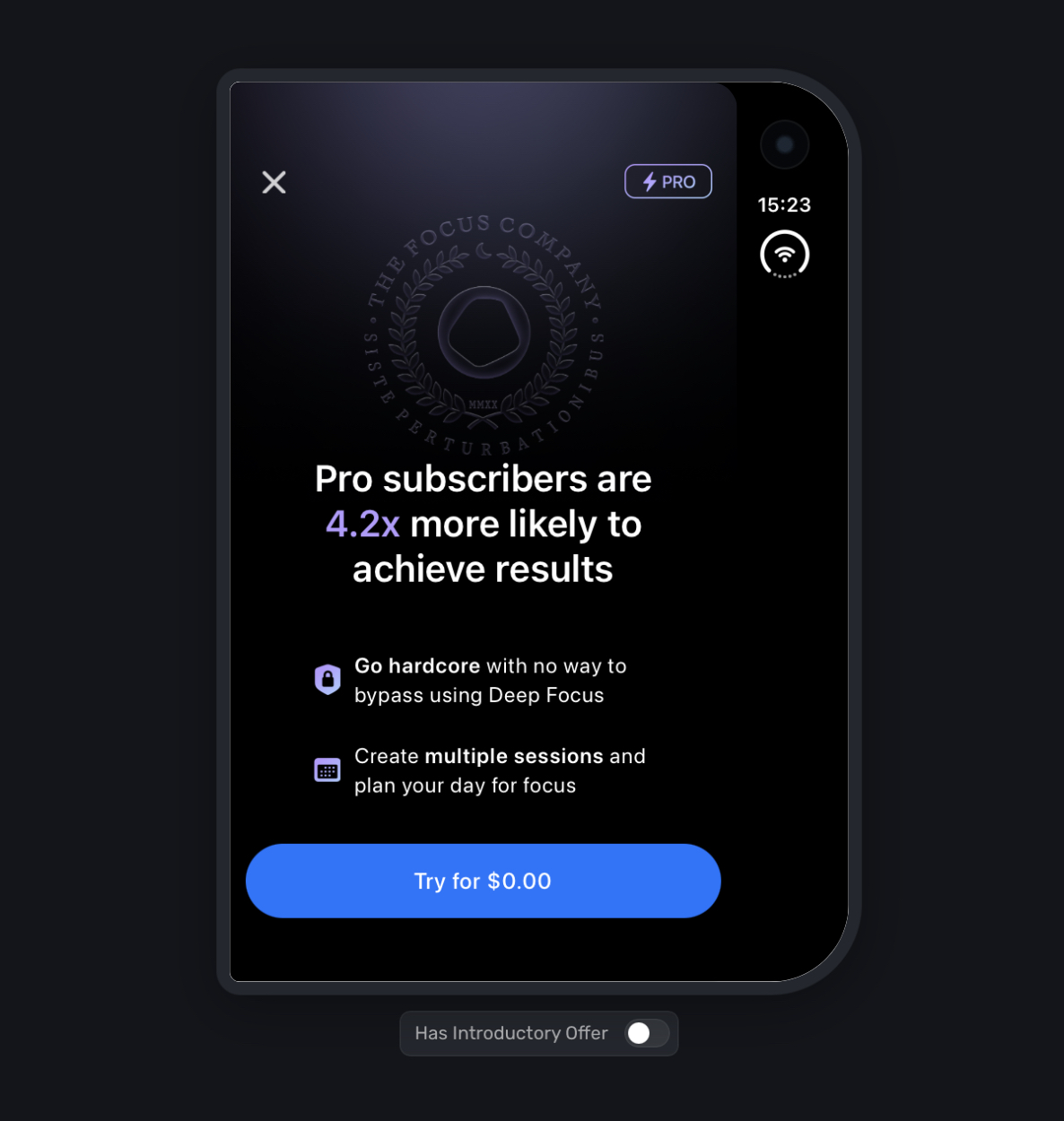
- Fill with background: The paywall stops before that edge, and the space under the camera and status bar is filled with your paywall's background color. Good for solid-color backgrounds.
- Black edge: The paywall stops before that edge, and the space under the camera and status bar is black. The paywall's corners next to it are rounded. Good for image backgrounds.
- Full screen, env() only: The paywall looks exactly like Full screen, but the CSS safe-area variables report how much space the camera and status bar take up. Use this when you want the paywall to stay full screen and only keep a few elements, like a close button, clear of that edge. See Keep a close button clear.
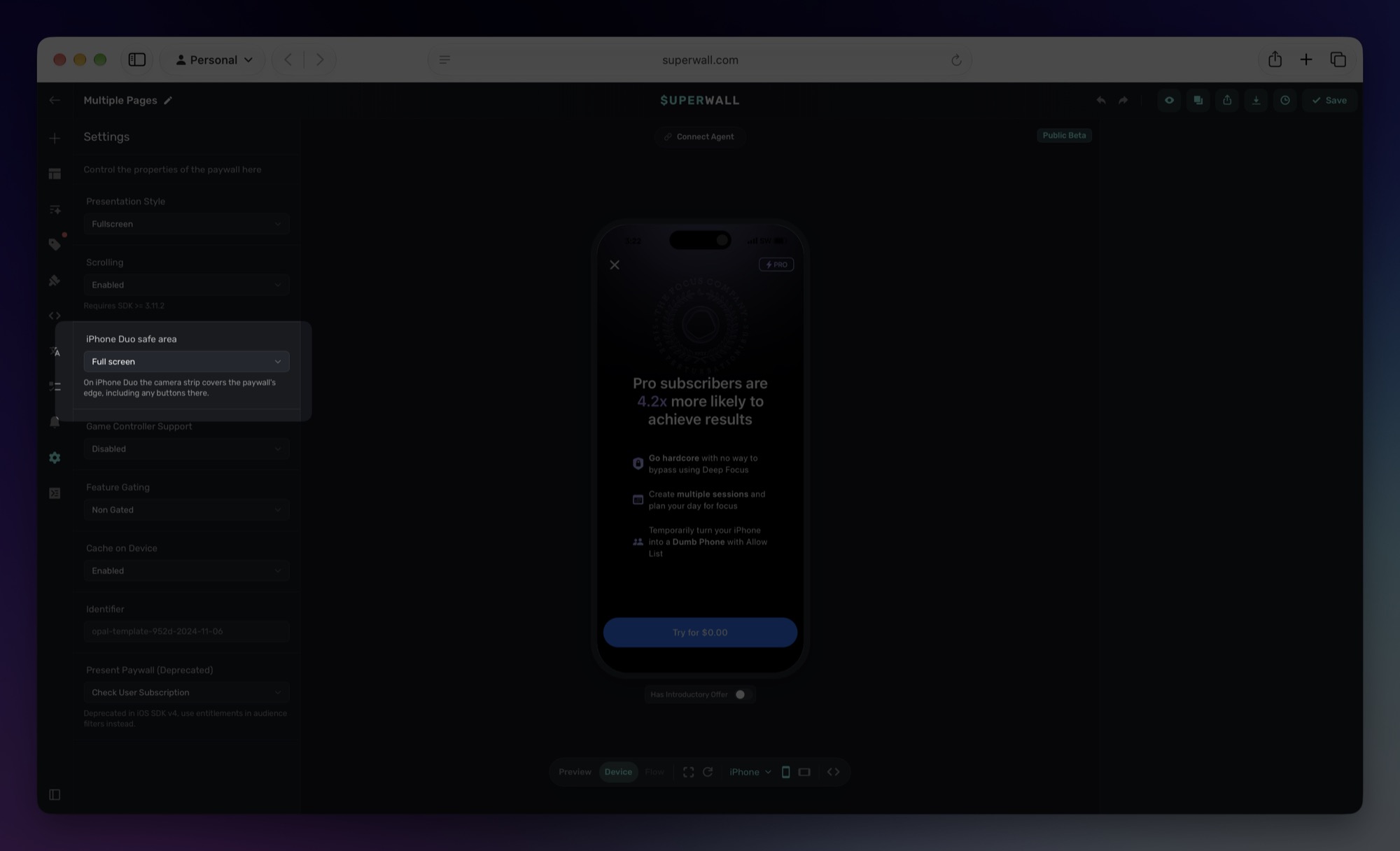
Here's the same paywall in the iPhone Duo (closed) preview with each option:

A few things to know:
- Only iOS apps see this setting.
- It only changes your paywall on iPhone Duo. On every other iPhone and iPad, nothing changes.
- Like other paywall changes, it reaches your users once you publish the paywall.
Keep a close button clear
With Full screen, env() only, env(safe-area-inset-top), env(safe-area-inset-right), env(safe-area-inset-bottom) and env(safe-area-inset-left) give you the size of the camera and status bar edge and the home indicator on iPhone Duo. Add them to an element's position or margin to move just that element.
For example, to keep a close button 16px from the camera and status bar on the closed phone, set its right to:
calc(env(safe-area-inset-right) + 16px)A close button in the top-right corner is next to that edge in every position: the right edge when the phone is closed or open sideways, and the top when it's open upright. Offset it from both edges to cover all of them:
top: calc(env(safe-area-inset-top) + 16px);
right: calc(env(safe-area-inset-right) + 16px);
On every other iPhone and iPad, and in Full screen mode, these values are 0, so the same style is safe everywhere. With Fill with background and Black edge, the paywall already stops before that edge, so the top and side values are 0 and only the bottom one reports the home indicator.
Preview iPhone Duo in the editor
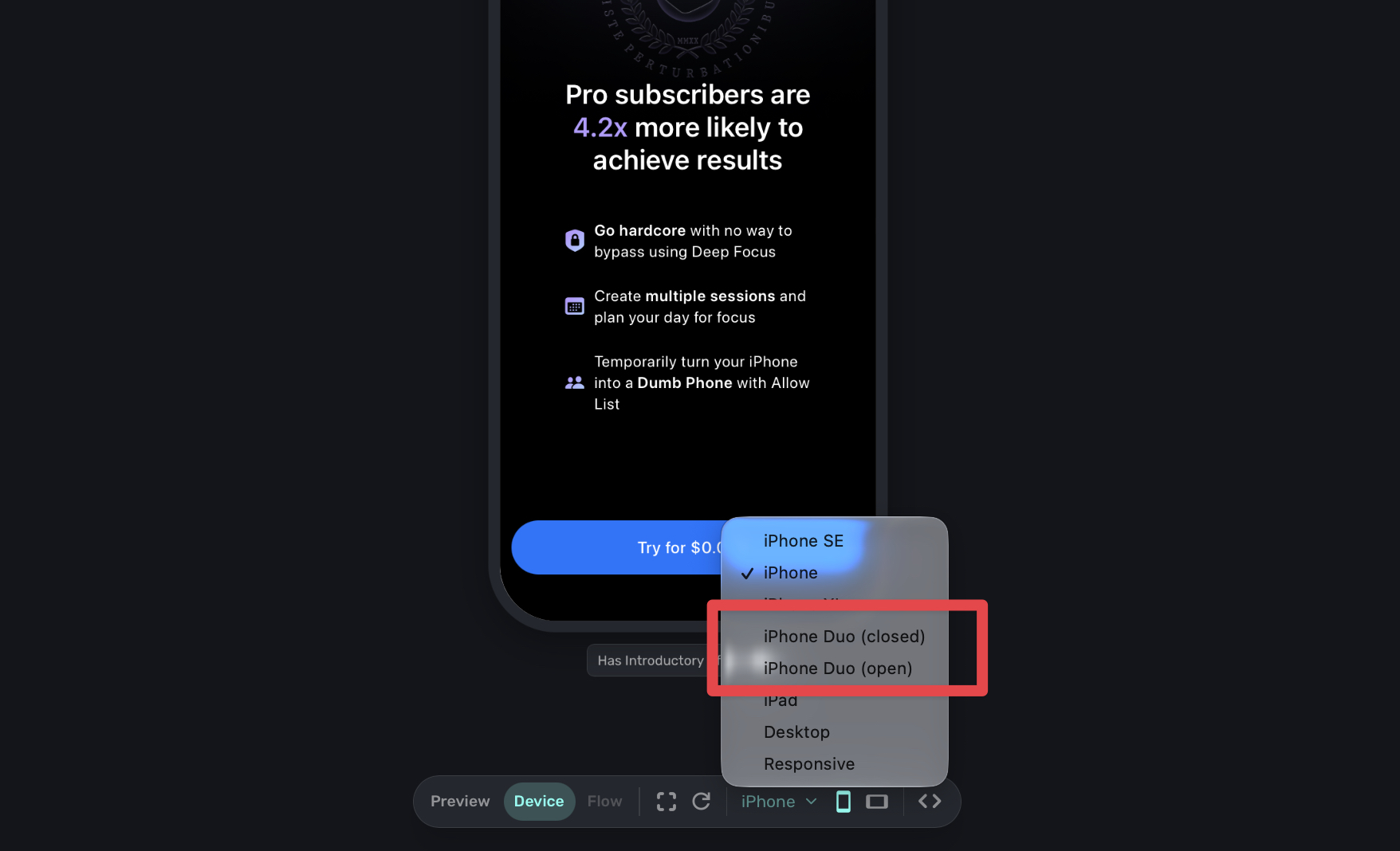
To see how your paywall looks, pick iPhone Duo (closed) or iPhone Duo (open) from the device menu at the bottom of the editor. The preview shows the camera, the status bar and your safe area setting, so it matches what people see on a real iPhone Duo. These options show for iOS apps in Device view and Canvas view, which are the Device and Flow buttons in the editor's toolbar.
If your editor doesn't show the Device and Flow buttons, it's using the legacy preview, which doesn't have the iPhone Duo devices. To switch, turn on Flows under Settings → Public beta in the dashboard, then reopen the paywall in the editor. It's turned on per app.
Test on a device or in the simulator
On a real iPhone Duo, the setting works with the SDK version your app already has.
In an iPhone Duo simulator, the SDK has to report which model the simulator is emulating, and that needs Superwall iOS SDK (SuperwallKit) 4.18.1 or later. With older versions, the simulator shows the paywall as Full screen whatever you choose.
| SDK | Simulator testing |
|---|---|
| iOS | 4.18.1 or later |
| Expo | 1.7.0 or later |
| Flutter | Not in a released version yet |
| React Native | Not in a released version yet |
Other SDKs support it once their iOS side bundles SuperwallKit 4.18.1 or later. Until your SDK supports it, use the iPhone Duo previews in the editor.
Framework paywalls
Paywalls built with Superwall Framework, which is in beta, handle this in code. Lay them out with the inset variables, and the paywall stays clear of the camera and status bar as the phone folds and turns. If a design needs to know about that edge, useDevice().cutout is "strip" on iPhone Duo. The studio has iPhone Duo closed and open devices to check it.
My close button is hidden on iPhone Duo
The paywall is using Full screen, and the close button sits under the camera and status bar. To fix it:
- Open the paywall in the editor and click Settings.
- Under iPhone Duo safe area, choose Fill with background or Black edge. To keep the paywall full screen instead, choose Full screen, env() only and offset the close button.
- Check it in the iPhone Duo (closed) and iPhone Duo (open) previews. If your editor doesn't have them, turn on Flows first. See Preview iPhone Duo in the editor.
- Publish the paywall.
The fix is on the paywall, so it doesn't need an app update.
How is this guide?