Superwall CLI
Set up the SDK, manage products, campaigns, and paywalls, query your analytics data, and call the API from your terminal or coding agent using the Superwall CLI.
The Superwall CLI brings your whole Superwall account to the terminal: set up the SDK in your app, manage products, campaigns, and paywalls, run SQL against your analytics data, and call the Superwall and App Store Connect APIs. It's built for humans and coding agents alike, so everything it can do, your agent can do too.
The CLI is also what powers the skills. Installing the skills teaches your coding agent to use these commands on your behalf, so you rarely need to memorize them. This page is the full reference for when you're driving the terminal yourself, or want to know exactly what your agent can do.
Installation
Install the CLI globally with npm, then log in:
npm install --global superwall
superwall login
You can also run it without installing via npx superwall. The package installs two commands that behave identically: superwall and the shorter sw.
The CLI tells you when a new version is available. Update any time with:
superwall upgradeAuthentication
superwall login opens your browser once, and every command shares that session. The session is stored in ~/.superwall. Where it can't open a browser (a server, or over SSH), it says so: open the URL it prints on any device and approve the code there.
superwall login     # opens the browser
superwall whoami    # shows the logged-in account
superwall logout    # ends the session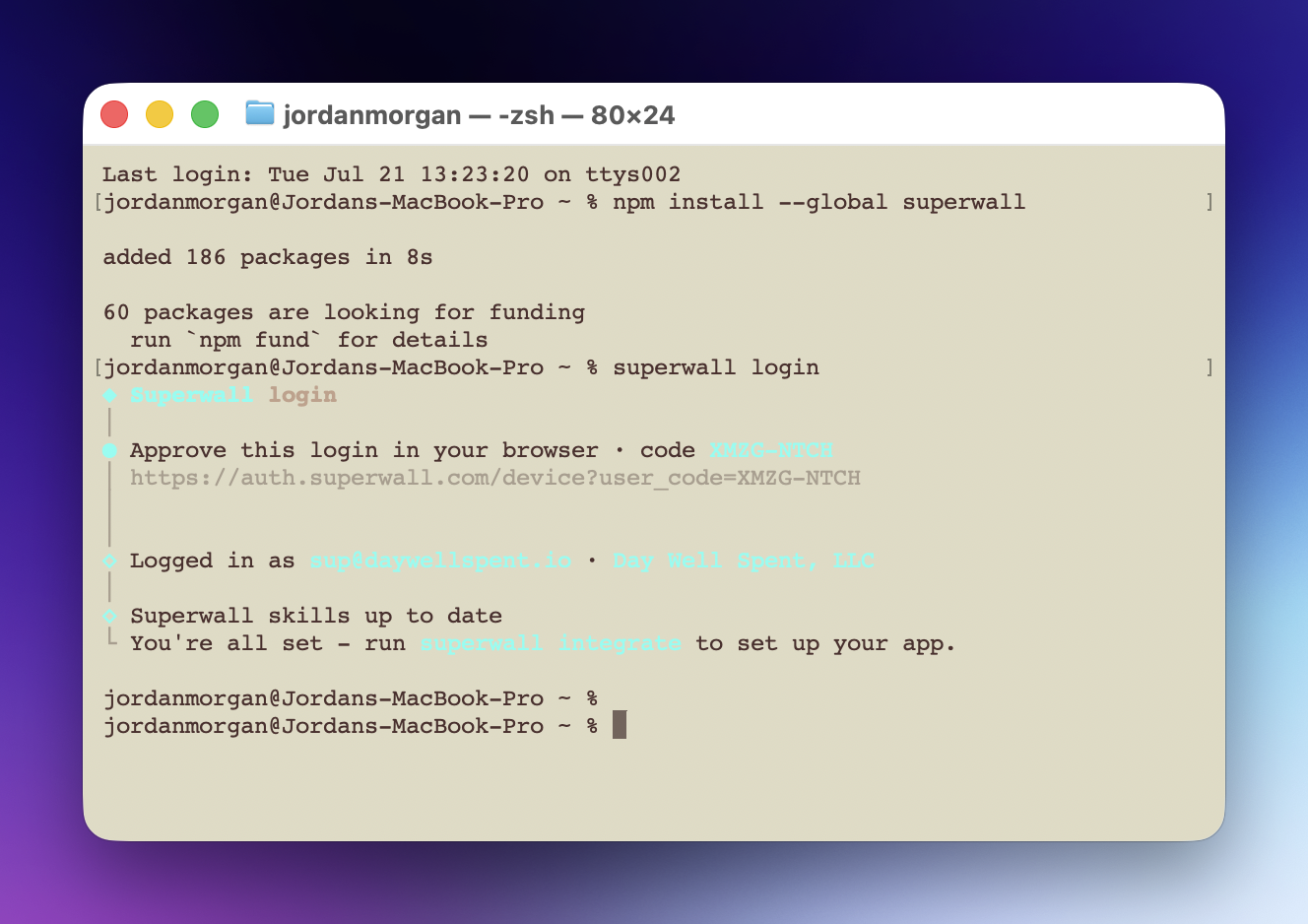
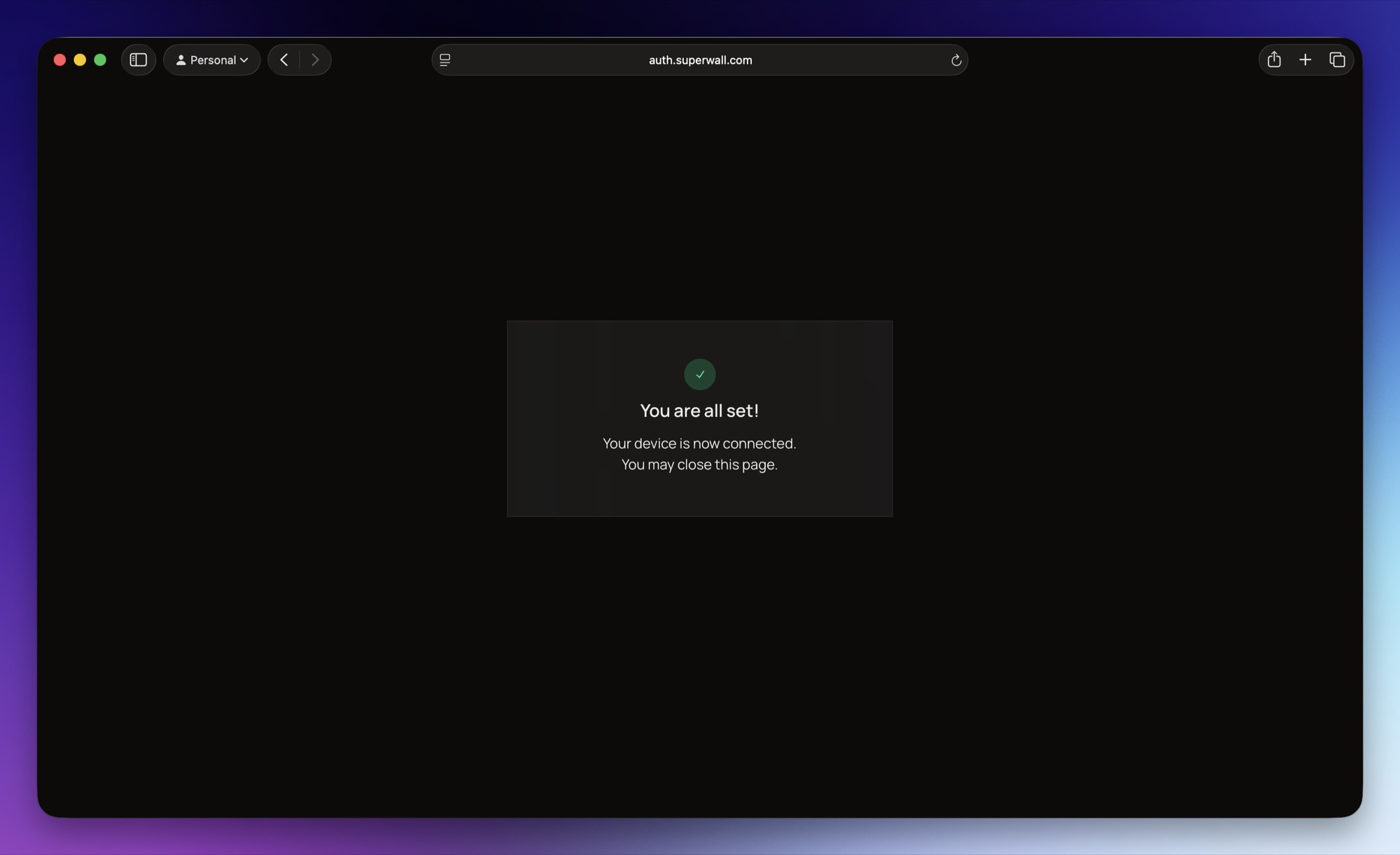
Approve the login on the page that opens, and you're done. The terminal picks it up automatically:
In CI or other headless environments, log in with an API key instead of a browser:
superwall login --api-key <key>SUPERWALL_API_KEY is only ever your organization's secret key (sk_…): set it in CI and push, promote, and publish use it without a login. integrate never reads it. The public key it writes into your app (pk_…) comes from --api-key, or from your project when the SDK is already configured.
There are no organizations to pick. superwall apps list shows every app you can open, grouped by organization, and commands take --app <id> or the app's dashboard link. Commands that work on a whole organization's data, like query, use the organization of that app.
Logging in also installs the Superwall agent skills into your coding agents and keeps them updated. See Install agent skills below.
Set up your app
The CLI's workflow commands handle SDK setup end to end:
npx superwall integrate   # set up Superwall in your app from scratch
superwall migrate         # switch from RevenueCat, Adapty, or Qonversion
superwall review          # audit an existing setup; add --fix to repair issues
superwall doctor          # quick health check
integrate is the fastest way to get started, and it works even before you have a Superwall account: run it in your project directory and it walks you through signing up right from the terminal. It works out what kind of app it's looking at, connects it to your Superwall account, and then runs the coding agent already on your machine (Claude Code or Codex, headless) to install and configure the SDK. From there it walks you through the rest: products, campaigns, placements, paywalls, and verifying everything on a real device.
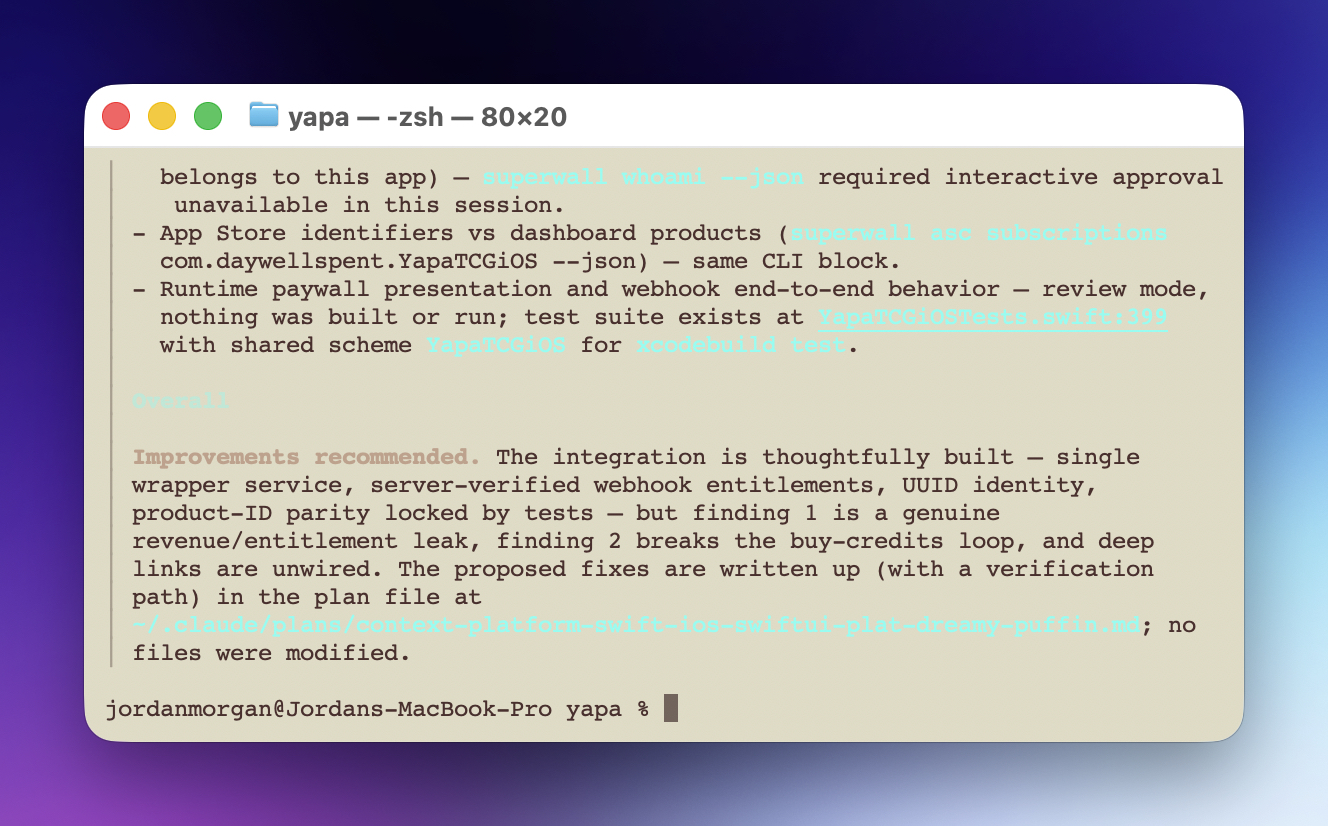
migrate does the same for apps moving off RevenueCat, Adapty, or Qonversion, and review audits an existing integration, with --fix applying verified, safe fixes. Here's the end of a review run against a real iOS app: findings ranked by severity, proposed fixes written to a plan file, and nothing modified without your say-so:
Drive the agent yourself
The CLI normally runs its workflows through a headless Claude Code or Codex on your machine. Add --skill to integrate, migrate, or review and instead of running anything, the CLI prints the exact instructions it would have given that agent: the bundled playbook for the task, composed for your project's framework, so an Expo project gets Expo instructions and never sees Swift ones.
superwall integrate --skill # prints the playbook, runs nothingReach for this when:
- You use a different agent. The CLI only drives Claude Code and Codex headlessly. Paste the playbook into Cursor, Gemini CLI, or any other agent and it can follow the same guided workflow there.
- You want to stay in the loop. A headless run works autonomously and reports back. Running the playbook in your own agent session lets you watch every step, approve each change, and steer as it goes.
- You want to read it first. Review exactly what the agent will be told to do before anything touches your codebase.
Manage your account
Everything in the dashboard, from the terminal. Commands follow the API, the way Stripe's CLI does: superwall <resource> <operation> [ids] [--field value].
superwall apps list
superwall apps get <app>                  # one app: bundle ID, Apple team, keys, notification URL, SDK reports, revenue provider
superwall apps update <app> --team-id <team-id>
superwall products create --identifier pro_monthly --price 9.99 --period month
superwall products storekit               # generate a local .storekit file
superwall entitlements create --identifier pro
superwall campaigns create --description "Onboarding upsell" --placement onboarding_complete
superwall campaigns placements create <campaign> --event-name paywall_trigger
superwall users subscriptions <app-user-id> --app <app>
superwall bootstrap                       # the whole account tree at a glance
<app> is an app's id, its name, or its dashboard link.
| Resource | Operations |
|---|---|
apps | list, get, create, update, use, statistics, transactions, notices |
products | list, get, create, update, delete, impact, storekit |
entitlements | list, get, create, update, delete; grants list, create, delete |
campaigns | list, get, create, update, archive, unarchive, prioritize, counts; placements, audiences and variants |
paywalls | list, get, create, duplicate, publish, archive, unarchive, versions |
users | get, subscriptions, summary, entitlements, attributes, update, aliases, events |
webhooks | list, get, create, update, delete, rotate-secret, attempts, stats |
events | list, get, attempts, retry |
superwall <resource> --helplists its operations, andsuperwall <resource> <operation> --helplists that operation's flags. They're read from the live API reference, so a new API field works without a CLI update.- A flag is a request field:
--event-name xsendsevent_name. Anything else goes in with-d key=value. A flag the endpoint doesn't take is refused before anything is sent. --appfills in the project, app and organization ids, so you never type them into a path.- Creating always takes flags, never positional values. An app's fields, including its bundle ID and revenue provider, change with
apps update. --dry-runprints the request instead of sending it. Deleting, archiving and other changes that can't be undone ask first, and need--yesoutside a terminal.- Every
listtakes--search <text>and--limit <n>.listis the default operation, and--jsonreturns the API's response unformatted.
A paywall's design and settings change in the editor or, for a paywall built as code, in its project, not through paywalls.
Every command that doesn't need your machine is also a tool of the Superwall MCP, with the same inputs and the same --json output.
CLI 2.0 renamed several commands, and the old names are unknown commands now; see Upgrading from 1.x for each replacement.
Query your analytics data
Run SQL directly against your organization's ClickHouse analytics data:
superwall query "SHOW TABLES FROM sw"
superwall query "SELECT count() FROM sw.events_rep"
superwall query --file mrr.sql       # runs a saved .sql file
cat query.sql | superwall query      # or pipe SQL on stdin
Use it for anything you'd build on raw data: ad hoc analysis, custom dashboards, scheduled reports, agent workflows. --json returns ClickHouse's native JSON envelope (leave any FORMAT clause out of the SQL; the CLI requests JSON for you). Your session needs data read access.
Many apps receive revenue from both their store and RevenueCat, so the same purchase can arrive twice. Each app's revenue provider decides which one its dashboard figures count. Pass --app <app> and the query gets it as ClickHouse parameters, {app:UInt64}, {revenue_provider:String} and {revenue_integrations:Array(String)}, so your SQL counts revenue the way the dashboard does:
-- superwall query --file revenue.sql --app <app>
SELECT sum(price)
FROM open_revenue.attributed_events_by_ts_rep FINAL
WHERE applicationId = {app:UInt64}
  AND (integration IN {revenue_integrations:Array(String)} OR source = 'sdk')
  AND NOT (coalesce(integration, '') = 'revenue_cat' AND store = 'STRIPE')
--param name=value passes any other parameter. Change an app's revenue provider with superwall apps update <app> --revenue-provider open_revenue (or revenue_cat).
See Query with ClickHouse for the available tables and schema. To find the event names and attribute keys an app sends, run superwall get /v2/charts/data-schema -d application_id=<app-id>, and for one event's property keys, superwall get /v2/charts/data-schema/event-properties -d application_id=<app-id> -d event=<event-name> (see Find event names and property keys).
Call the API
For an endpoint no resource covers, such as charts, surveys or retention messaging, find it and its exact parameters and body with superwall api docs, which reads the live API reference and needs no login:
superwall api docs                            # every group of endpoints
superwall api docs variant                    # search by keyword
superwall api docs /v2/campaigns/123/audiences/9/variants post   # one endpoint in full
Then make raw, authenticated requests to any endpoint. A request that fails points to its reference entry:
superwall get /v2/products
superwall post /v2/products -d project_id=<project-id> -d identifier=pro_monthly -d name="Pro Monthly" -d 'price[amount]:=9.99' -d 'price[currency]=USD'
superwall delete /v2/products/prod_123
Params follow an httpie-style convention: -d key=value sends a string, key:=value sends typed JSON (numbers, booleans, objects), and key[sub]=value nests. On get and delete, -d params become query parameters.
Connect an app to Apple
One command connects an iOS app to Apple:
superwall setup apple --app <app>It signs you in to Apple, creates the App Store Connect API key and the In-App Purchase key the app doesn't have yet, saves them on the app, and points the app's App Store Server Notifications at Superwall. It also saves the app's bundle ID when Superwall has none, after telling you how many builds the SDK has reported under other IDs would run in test mode.
- Your Apple password goes from your computer straight to Apple. Superwall never receives it, and it isn't saved.
- The Apple Account must be an Admin or the Account Holder, on a team with its agreements signed.
- It never creates a second key of a kind the app already has, never replaces a notification URL another server holds (it reports it and exits non-zero), never revokes a key, and never changes the app's revenue provider.
In a terminal it asks for your Apple Account email, your password (masked) and the verification code Apple sends. Type sms at the code prompt, or pass --sms, to get the code by text. Pass --team <id|name> when the account is on several teams, --bundle-id <id> to create the Superwall app from an App Store Connect app, and --dry-run to sign in and check key access without changing anything.
When the Superwall app has no bundle ID yet, setup apple saves the App Store Connect app's, and says how many builds the SDK has reported under other IDs would run in test mode. When the app already has a different bundle ID, it stops before creating anything; change it first with superwall apps update <app> --bundle-id <id>.
Let a coding agent run it
A coding agent can run setup apple for you if you decide it should. Put the password where the agent's shell can read it, as SUPERWALL_APPLE_PASSWORD; never paste it into a chat. Without prompts it runs in two steps, because Apple sends the code after the sign-in starts:
superwall setup apple --apple-id you@example.com --app <app> --no-interactive   # Apple sends you a code
superwall setup apple --code 123456 --app <app> --no-interactive                # same flags, within 10 minutes
The first run exits non-zero saying a code is required; give the agent the code and it runs the second. Only Apple's pre-verification cookies are kept between the two runs, in ~/.superwall/apple-sign-in.json, for 10 minutes.
One step at a time
Every step of setup apple is also its own command:
superwall apps get <app>                                  # which keys the app has, its notification URL and bundle ID
superwall asc keys import --app <app>                     # reuse a key your organization already has
superwall asc keys create api_key --app <app>             # sign in to Apple and create just this key
superwall asc keys create purchase_key --app <app>
superwall asc notification-url check --app <app>          # whose URL Apple sends purchase events to
superwall asc notification-url set --app <app>            # set it where Apple has none
superwall apps update <app> --bundle-id com.acme.app # save the bundle ID| Command | What it does |
|---|---|
asc keys list --app <app> | The app's API key and In-App Purchase key (key id and issuer id). Without --app, your organization's keys, the ones the signed proxy uses. |
asc keys create <kind> --app <app> | Signs in to Apple, creates a key named "Superwall" and saves it. Does nothing when the app already has one; --replace creates another, and the old one stays valid at Apple. |
asc keys create <kind> --app <app> --key-file <p8> --key-id <id> --issuer <id> | Saves a key you already hold, once Apple accepts it. Without --app it becomes your organization's key. |
asc keys update --team <id> --key-file <p8> ... | Replaces your organization's key for an Apple team, only when Apple confirms the new key belongs to that team. |
asc keys import [kind] --app <app> | Tries the keys your organization already has and saves the first one Apple confirms for this app. --from <app> copies that app's key instead. |
asc keys sources --app <app> | The keys on your other apps that import could use. |
asc keys delete <kind> --app <app> | Removes a key from the app. Nothing is revoked at Apple. |
asc notification-url check --app <app> | For production and sandbox: whether Apple sends to this app, another Superwall app, someone else (such as RevenueCat), or nowhere. Changes nothing. |
asc notification-url set --app <app> | Sets this app's URL where Apple has none. Never replaces another server's URL. |
<kind> is api_key or purchase_key. asc keys import exits non-zero when a key is still missing, so you can fall back to creating one:
superwall asc keys import api_key --app <app> || superwall asc keys create api_key --app <app>A key file created at Apple that Superwall couldn't save is written next to you as ./AuthKey_<id>.p8 or ./SubscriptionKey_<id>.p8, because Apple releases a key only once.
Server notification URL
Apple sends an app's purchase events to one URL per environment. superwall apps get <app> shows the app's Superwall URL. check asks Apple with the app's saved API key and says, for production and sandbox, whose URL it has:
| Owner | Meaning |
|---|---|
this_app | This app's Superwall URL, in either address Superwall has issued |
superwall_app | Another Superwall app's. Named, with its URL, when you can read that app; otherwise its token is shown as REDACTED |
other | Someone else's, such as RevenueCat or your own server |
none | Apple has no URL |
It also reports one status for the app:
| Status | Meaning |
|---|---|
set | set only: Superwall just wrote this app's URL where Apple had none |
already_set | Apple already sends this app's notifications to Superwall |
not_set | Production, sandbox, or both are empty, and no other server holds either |
conflict | Another server or another Superwall app holds production, sandbox, or both |
skipped | The app has no API key or no bundle ID saved, so Apple can't be asked |
failed | Apple couldn't be asked. The message says why: Apple refused the saved key (it may have been revoked), the key can't see an app with this bundle ID, or a key saved in the last few minutes isn't active yet |
set fills whichever environment is empty and never replaces another server's URL. If RevenueCat receives Apple's notifications today, keep it there and forward them from RevenueCat. If your own server does, forward from your server.
set leaves the revenue provider alone; pass --set-revenue-provider to also count revenue from the store. check and set work with a superwall login session or an API key with applications:write.
App Store Connect
The entire App Store Connect API, proxied and signed by Superwall with the keys above, with no .p8 file or JWT to manage locally. You can call any endpoint in the ASC API. The CLI is schema-aware: it keeps a copy of Apple's own OpenAPI spec (fetched on first use, refreshed in the background) and knows every endpoint, field, and enum.
Look up the exact schema for anything, without hunting through Apple's docs:
superwall asc docs                          # browse every resource
superwall asc docs "introductory offer"     # search by keyword
superwall asc docs /v1/subscriptions post   # required fields, enums, relationships
Write with flat params. The CLI assembles the JSON
body for you and validates it locally, so a mistake comes back as a precise fix instead of one of Apple's opaque409 errors:
superwall asc post /v1/subscriptions \
  -d name="Premium Monthly" -d productId=com.acme.pro \
  -d subscriptionPeriod=MONTHLY -d group=<groupId>
✗ Invalid POST /v1/subscriptions body:
• subscriptionPeriod "MONTHLY" not allowed — use ONE_WEEK|ONE_MONTH|…|ONE_YEARFix the value and it goes through. Anything the commands below don't cover is asc get|post|patch|delete /v1/.... If your organization has more than one ASC team connected, scope with --team <id>.
asc get, asc post, asc patch, asc delete and asc docs warn when an endpoint is one Apple has replaced, and name the replacement: the v1 subscription and in-app purchase localizations, the v1 product submissions, subscriptionAvailabilities, the old in-app purchase and version-submission endpoints, and screenshot and preview sets.
Subscriptions and in-app purchases
What an app sells has its own commands, each on Apple's current endpoints. They take the App Store app as its id or its bundle ID, and flags named after Apple's own fields:
superwall asc apps                                       # your apps at Apple
superwall asc products com.acme.app                      # everything the app sells
superwall asc subscription-groups create --asc-app com.acme.app \
  --reference-name Pro --display-name "Acme Pro"
superwall asc subscriptions list com.acme.app
superwall asc subscriptions get <id>                     # localizations, prices, offers, availability, what's missing
superwall asc iaps create --asc-app com.acme.app --product-id coins.100 --name "100 Coins" \
  --in-app-purchase-type CONSUMABLE --price 0.99 --display-name "100 Coins"
asc subscriptions create does everything Apple asks for before review, in order: the subscription, its localization, where it's sold, its price in one territory equalized to every other, and a free trial if you want one. It ends by reading the subscription back and saying what's still missing:
superwall asc subscriptions create --group Pro --asc-app com.acme.app \
  --product-id com.acme.pro.monthly --name "Pro Monthly" --subscription-period ONE_MONTH \
  --price 9.99 --display-name "Pro" --description "Everything, monthly" --trial ONE_WEEK
The details have commands of their own:
| Command | Operations | What it covers |
|---|---|---|
asc subscription-groups | list, get, create, update, delete | Subscription groups and their localizations |
asc subscriptions | list, get, create, update, delete | Auto-renewable subscriptions |
asc iaps | list, get, create, update, delete | Consumables, non-consumables, and non-renewing subscriptions |
asc localizations | list, add, update, delete | The App Store name and description of a subscription, group, or in-app purchase |
asc prices | points, list, set | Apple's price points, and a price set in one territory and equalized everywhere else |
asc offers | list, create, update, delete | Introductory offers: free trials and discounted first periods, in every territory |
asc availability | get, set | The territories a subscription or in-app purchase is sold in |
asc screenshots | upload | The App Review screenshot |
asc submit | Submits subscriptions, groups, and in-app purchases for App Review |
superwall asc localizations add --subscription <id> --locale de-DE --name "Pro"
superwall asc prices set --subscription <id> --price 12.99 --preserve-current-price
superwall asc offers create --subscription <id> --offer-mode FREE_TRIAL --duration TWO_WEEKS
superwall asc availability set --iap <id> --available-territories USA,CAN
superwall asc screenshots upload --subscription <id> paywall.png
superwall asc submit --asc-app com.acme.app --group <id> --subscription <id>
Every change takes --dry-run: it prints each request it would send, bodies included, and changes nothing. Deletes ask first, and need --yes outside a terminal. Apple reviews an app's first subscriptions and in-app purchases only together with an app version, so submit those with asc release submit.
Releases
The steps of an App Store release have commands too. A version is its id, or its version string with --asc-app (and --platform for a platform other than iOS):
superwall asc versions create --asc-app com.acme.app --version-string 1.3.0 --release-type MANUAL
superwall asc builds list com.acme.app --version-string 1.3.0 --processing-state VALID
superwall asc builds attach <build> 1.3.0 --asc-app com.acme.app
superwall asc metadata update 1.3.0 --asc-app com.acme.app --locale en-US --whats-new "Faster sync"
superwall asc release submit 1.3.0 --asc-app com.acme.app --subscription <id>
superwall asc release status 1.3.0 --asc-app com.acme.app      # state, build, review submission, phased release
superwall asc release release 1.3.0 --asc-app com.acme.app     # once it's pending developer release
superwall asc release phased pause 1.3.0 --asc-app com.acme.app| Command | Operations | What it covers |
|---|---|---|
asc versions | list, get, create, update, delete | App Store versions. delete works only while a version is still editable |
asc builds | list, get, attach, expire | Uploaded builds, and which version each is attached to |
asc metadata | list, get, update, add | A version's text per locale: What's New, description, keywords, promotional text, URLs |
asc release | submit, release, phased, status | Submits a version for review with any --subscription, --iap, or --group alongside, releases it, and starts, pauses, resumes, or completes its phased release |
asc versions delete, asc builds expire, and asc release release ask first.
Revenue provider
An app can receive purchase events from its store (App Store Connect or Google Play, sent straight to Superwall) and from RevenueCat. Both keep arriving and being stored. The revenue provider decides which of them every revenue figure in the dashboard counts:
superwall apps get <app>                                      # what is counted, and what each source sent in the last 30 days
superwall apps update <app> --revenue-provider open_revenue   # count the store's own events
superwall apps update <app> --revenue-provider revenue_cat    # count RevenueCat's events
A change moves your revenue numbers, so the CLI asks first. In a terminal it prompts; anywhere else it changes nothing and exits non-zero unless you pass --yes. --dry-run says what would change. Setting the value the app already has does nothing.
Changing the provider changes no key, no notification URL, and no stored event, and you can switch back. See Choosing a revenue provider. Your own SQL counts revenue the same way when you pass --app, see Query your analytics data.
Apple Search Ads
The entire Apple Ads Campaign Management API (v5), proxied by Superwall, with no client secret, OAuth token, or org id to manage locally. The CLI uses the credentials you connect in the dashboard (open the app → Integrations → Apple Search Ads → Advanced) and finds the connected app on its own, or takes --app <id>.
superwall asa campaigns list
superwall asa campaigns find --field status --op EQUALS --values ENABLED --all
superwall asa keywords create --campaign 123 --adgroup 456 \
  --text "grammar checker" --match-type EXACT --bid 1.25
superwall asa reports campaigns --start 2025-01-01 --end 2025-01-31 --group-by countryOrRegion
Every resource follows the same shape, asa <resource> <action> [id], scoped with --campaign, --adgroup, or --adam-id. The catalog is the documentation:
superwall asa docs                          # every endpoint, grouped
superwall asa docs keywords                 # one resource: usage, flags, Apple links
superwall asa docs campaigns create         # Apple's own page: fields, enums, examples
Writes take typed flags (money flags pick up the account's currency), -d key=value for any other field, or --body for the whole payload. Anything not covered is asa get|post|put|delete /path, sent straight to Apple with your access token and org context attached.
Install agent skills
Logging in installs the Superwall agent skills into your coding agents automatically and keeps them updated. To reinstall them (or a subset) manually:
npx superwall skillsThe CLI shows a picker with every skill pre-selected, so pressing Enter installs them all, globally, for every coding agent detected on your machine (Claude Code, Cursor, Codex, Gemini CLI, Copilot, Windsurf, and more). To skip the picker or force a refresh:
superwall skills --skill superwall        # install specific skills by name
superwall skills --force                  # reinstall even if already up to date
For agents and scripts
Pass --json to any command: stable output shape, structured errors, and it never prompts. --no-interactive keeps the human-readable output but drops the prompts.
superwall products list --json
superwall query "SELECT count() FROM sw.events_rep" --json
Upgrading from 1.x
CLI 2.0 makes every command follow the API, with one way to do each thing. A removed command is an unknown command, so a script that still uses one fails loudly instead of doing something else. The table below maps each one to its replacement.
| 1.x | 2.0 |
|---|---|
orgs list, orgs use | Not needed: apps list shows every app by organization, and commands take --app <id|name|link> |
apps create "My App" --platform ios --bundle <id> | apps create --name "My App" --platform ios --bundle-id <id> |
apps bundle-id --app <app> | apps get <app> |
apps bundle-id <id> --app <app> | apps update <app> --bundle-id <id> |
revenue-provider [get] --app <app> | apps get <app> |
revenue-provider set <provider> --app <app> | apps update <app> --revenue-provider <provider>; query --app passes it to SQL |
products create <id> | products create --identifier <id> |
entitlements create <id> | entitlements create --identifier <id> |
campaigns create "<desc>" <placement> | campaigns create --description "<desc>" --placement <placement> |
campaigns placement <campaign> <name> | campaigns placements create <campaign> --event-name <name> |
asc keys --app <app> | asc keys list --app <app> |
asc keys set | asc keys create --key-file ...; a team's organization key is asc keys update --team <id> ... |
asc keys copy <kind> --from <app> | asc keys import <kind> --from <app> |
asc keys rm | asc keys delete |
asc notification-url [get] --app <app> | apps get <app> |
asc /v1/... | asc get /v1/... |
asc docs refresh | asc docs --refresh |
asc subscriptions <bundle-id> | asc subscriptions list <bundle-id> |
asc iaps <bundle-id> | asc iaps list <bundle-id> |
asc apps, asc products <bundle-id>, asc notification-url check and set, asc keys create, import and sources, setup apple, asa, query, and the raw get, post, patch and delete keep their 1.x syntax, though their flags may have changed: check --help.
Coding agents pick up the new syntax from the 2.0 agent skills: run superwall skills after superwall upgrade.
Feedback
Something broken, confusing, or missing? Send feedback straight to the team:
superwall feedback "migrate crashed on Expo"Telemetry
The CLI sends fully anonymous usage events (which workflow ran and whether it succeeded, never emails, IDs, file paths, SQL, prompts, or error messages). Opt out with SUPERWALL_TELEMETRY_DISABLED=1 or DO_NOT_TRACK=1.
Related
- Skills: Give your coding agent live Superwall docs and this CLI.
- Superwall MCP: Manage your account from MCP-compatible AI tools.
- Query with ClickHouse: The analytics tables behind
superwall query. - Editor MCP: Connect an agent to the paywall open in your editor.
- Framework CLI reference: The
create,dev,push,promote, andpublishcommands for building paywalls as code. - Use Superwall with AI: Every AI tool for Superwall, and which one to pick.
How is this guide?
Superwall MCP
Manage your Superwall apps, products, campaigns, paywalls, analytics, App Store Connect and Apple Search Ads from AI tools like Claude, Claude Code, Codex and Cursor using the Superwall MCP.
Skills
Give AI coding agents up-to-date Superwall docs, authenticated API access, and hands-on control of the paywall editor using the Superwall Skills.