Paywall Settings
Set paywall-wide behavior in Superwall: presentation style, scrolling, iPhone Duo safe area, game controllers, feature gating, caching and back button handling.
To configure settings for your paywall, click the Settings button from the sidebar:
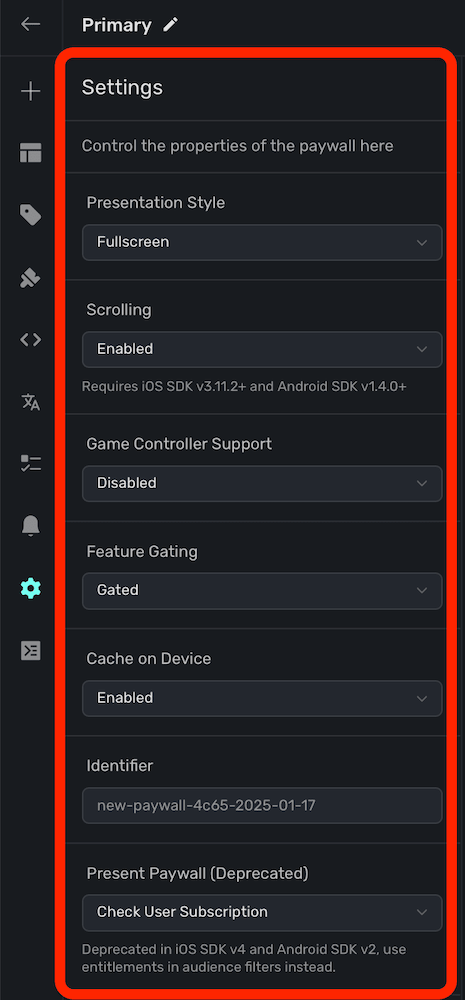
Use this menu for paywall-wide presentation and behavior settings. The fields shown can vary by platform and account features, but each setting starts with a default value.
Presentation Style
Choose how the paywall appears: Fullscreen, Push, Modal, No Animation, Drawer or Popup. Drawer and Popup have their own size and corner radius settings.
For examples of each style, their options, and SDK requirements, see Paywall Presentation Styles.
Scrolling
Toggle the scrolling behavior of your paywall. Available options are:
- Enabled (Default): The paywall can scroll its contents when presented on a device.
- Disabled: Disables all scrolling behavior on the paywall.
Requires iOS SDK v3.11.2+ and Android SDK v1.4.0+
iPhone Duo Safe Area
On iPhone Duo, the front camera and status bar sit along one edge of the screen. By default, your paywall goes underneath them, so a button near that edge can end up hidden. Use iPhone Duo safe area to keep your paywall clear of them. The options are Full screen (Default), Fill with background, Black edge and Full screen, env() only. Only iOS apps see this setting, and it only changes your paywall on iPhone Duo.
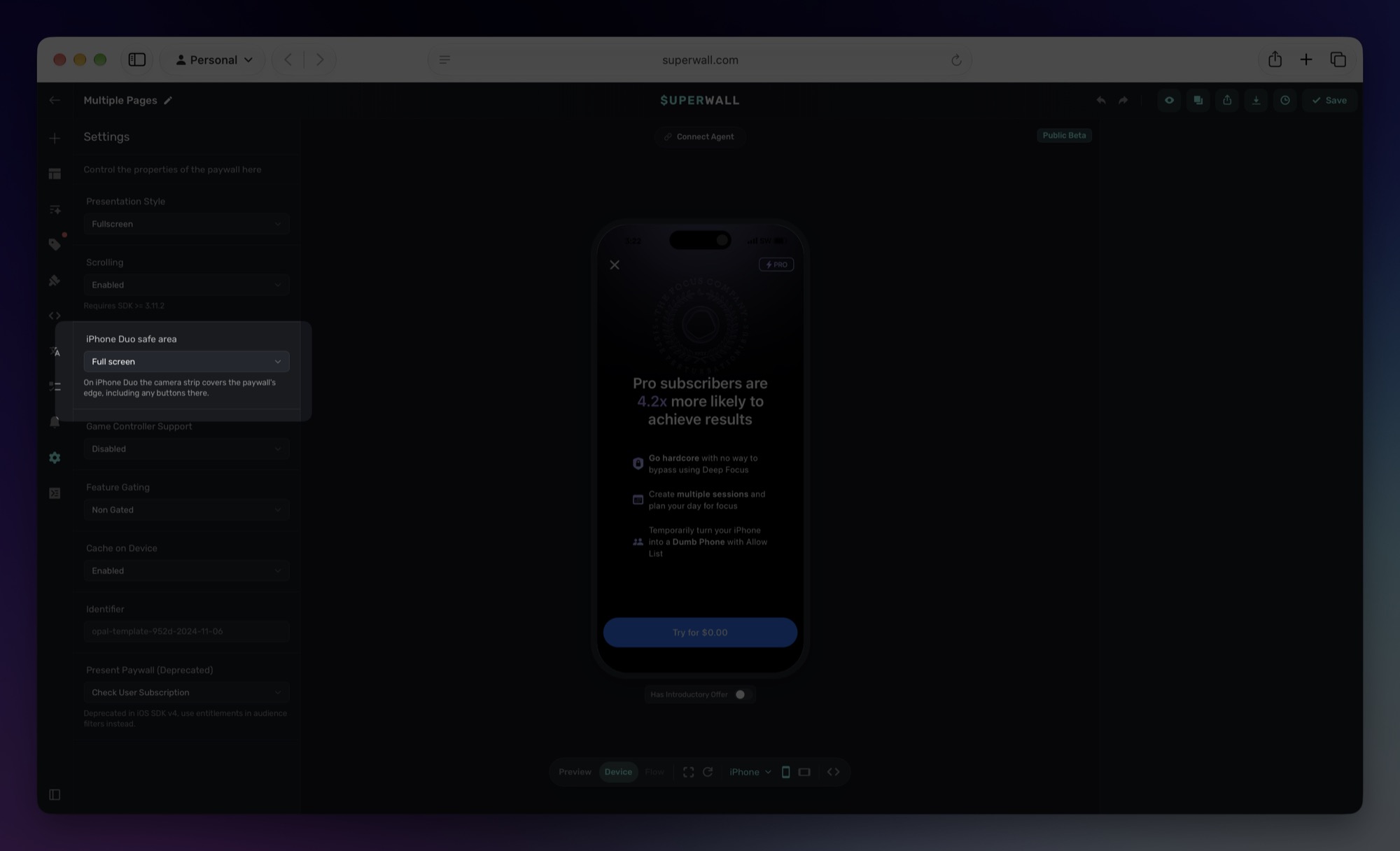
For what each option does, how to keep a close button clear, and how to preview and test on iPhone Duo, see iPhone Duo Support.
Game Controller Support
Toggle game controller support for paywalls — obviously, ideal for paywalls shown in games where controllers may be in use. Available options are:
- Enabled: The paywall receives game controller input your app forwards to Superwall.
- Disabled (Default): The paywall ignores game controller input.
Your app also needs to turn on game controller support in the SDK and forward controller events. Learn more about game controller support here.
Feature Gating
Choose whether the paywall blocks the feature behind its placement until the user pays:
- Non Gated (Default): The feature runs once the paywall is dismissed, whether or not the user paid.
- Gated: The feature runs only if the user pays.
For examples and when to use each, see Feature Gating: Gated and Non-Gated Paywalls.
Cache on Device
If enabled, the SDK keeps the paywall's web content on the device after it first loads, so later presentations don't wait on the network. This helps paywalls with large assets, such as a video.
For how caching and preloading work together, see Paywall Preloading and Caching.
Identifier
The identifier for the paywall. Non-editable.
Present Paywall
This is now deprecated in iOS SDK version 4 and above, and version 2 and above for all other SDKs. Instead, use the entitlements feature when creating campaign filters.
You can have a paywall present under two different conditions when a placement is matched:
- Check User Subscription: Present the paywall only if the user's subscription is not active.
- Always: Present the paywall regardless of the user's subscription status.
Reroute back button
If enabled, allows you to run custom logic on back button press and consuming the event.
To use it, once the option has been enabled, use the PaywallOptions.onBackPressed and return true to consume the back press event or false to let the SDK handle it.
How is this guide?
Trial Reminder Notifications
Remind users before their free trial ends with a local notification scheduled from the paywall. Set the title, body and how many days before the trial ends it fires.
Debugger
Use the Superwall paywall debugger to see the raw CSS and evaluated variables for a selected component, so you can track down layout and design quirks.