Paywall Localization
Localize a Superwall paywall with AI-powered simple localization or .strings files. Also covers period lengths, dynamic values, reviewing updates and testing.
To localize your paywall, click on the Localization button from the sidebar:
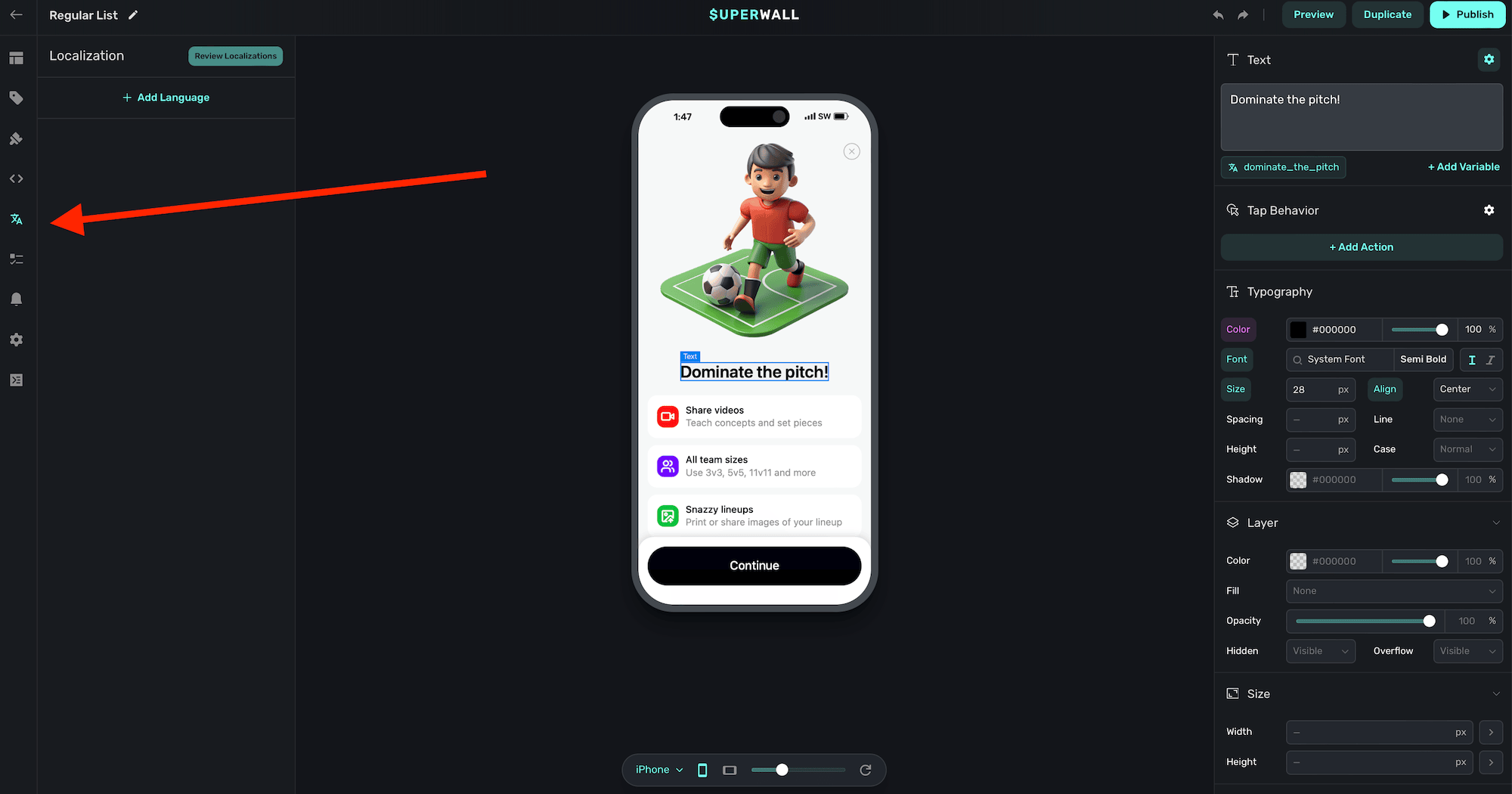
There are two ways to localize your paywall:
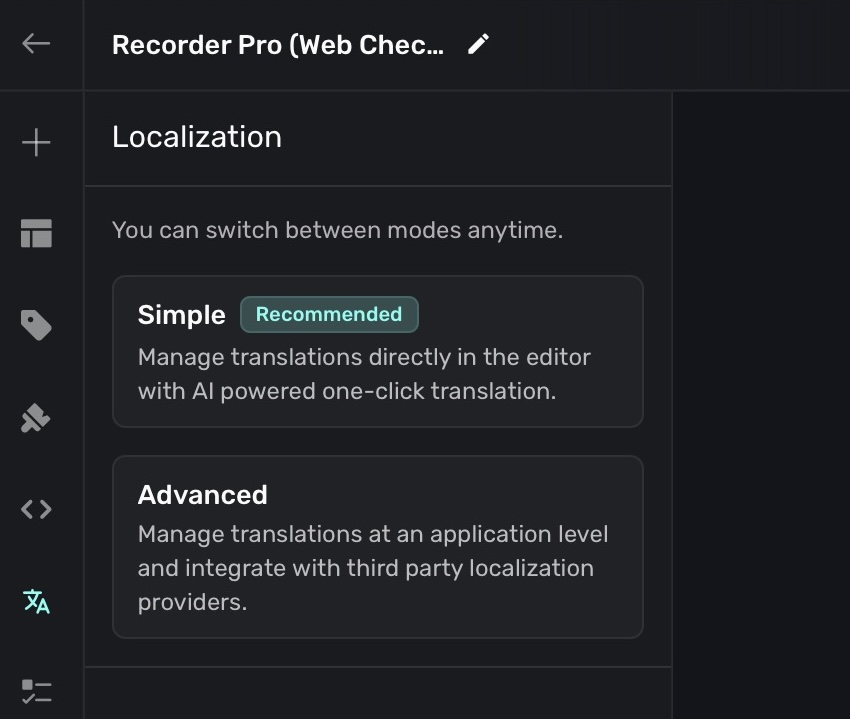
- Simple: Here, you can use AI to localize your paywall into any language. You can manually refine each value at any point. Quick and accurate.
- Advanced: User external .strings files to localize your paywall. This is ideal when you are using external localization services.
Simple localization
Simple localization covers all translatable content on your paywall, including text elements and multiple choice labels. Choice labels are treated the same as text: they appear in the translation panel, are included in CSV exports, and are covered by AI auto-translate.
Once enabled, a new side panel will present to help you localize you paywall:
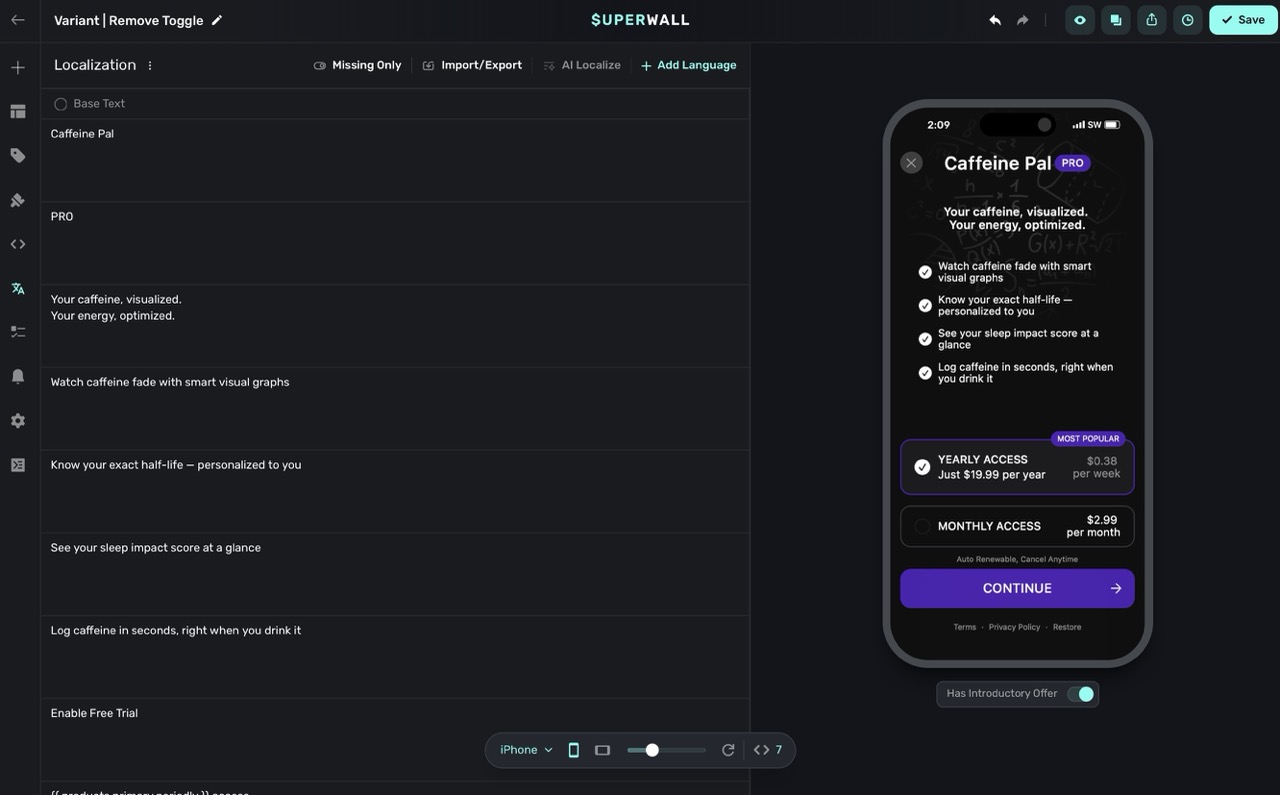
You can control localization with the options at the top:

Here's what each options does, left-to-right:
| Name | Description |
|---|---|
| Localization | Opens a menu with options to access AI localize settings, switch to advanced localizations, or clear all localizations. |
| Missing Only | Filters the list to show only keys that have no localized value. |
| Import/Export | Allows importing or exporting localization data as a .csv file. |
| AI Localize | Starts the AI-powered localization process for selected keys. |
| Add Language | Lets you specify a new language to add for localization. |
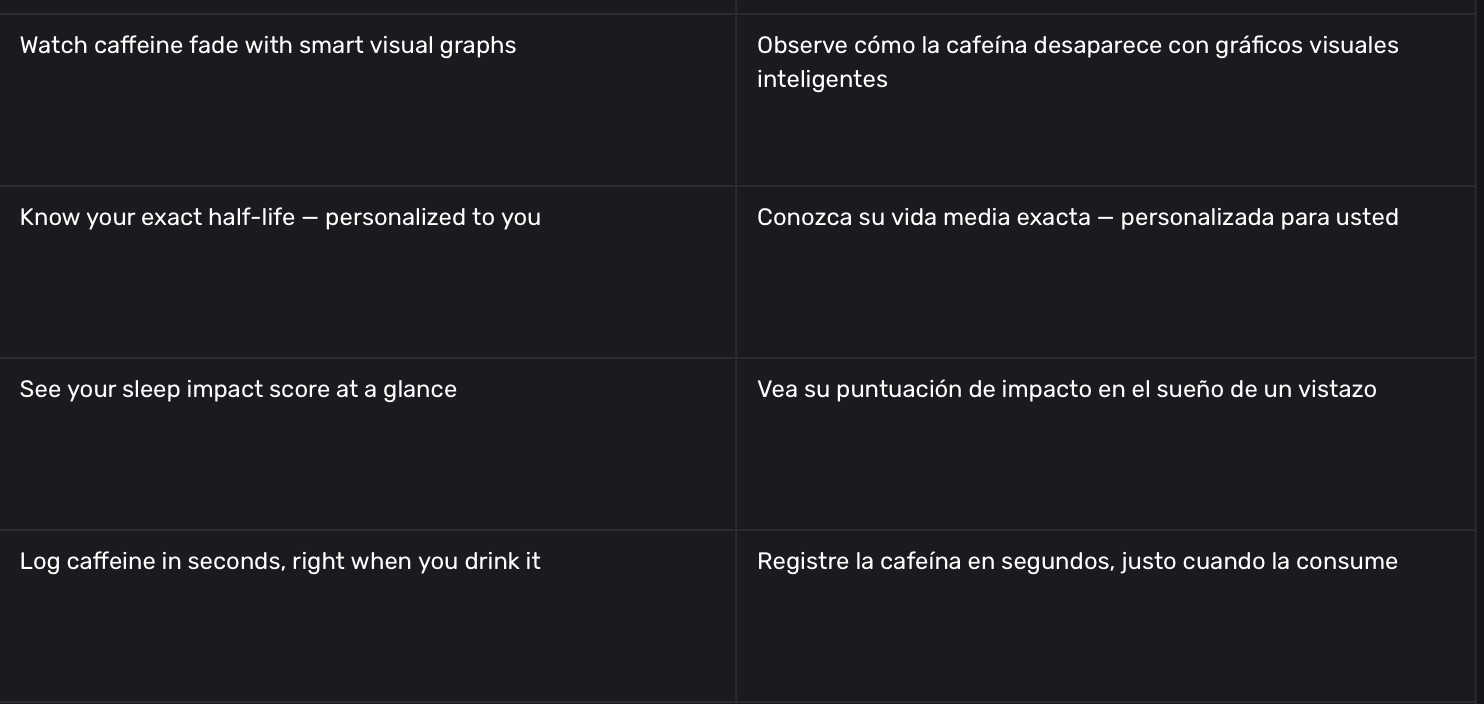
To start the AI localization process, click on the Add Language button. Then, choose AI Localize. Superwall will being to localize each value, while respecting the AI Localize settings in place:
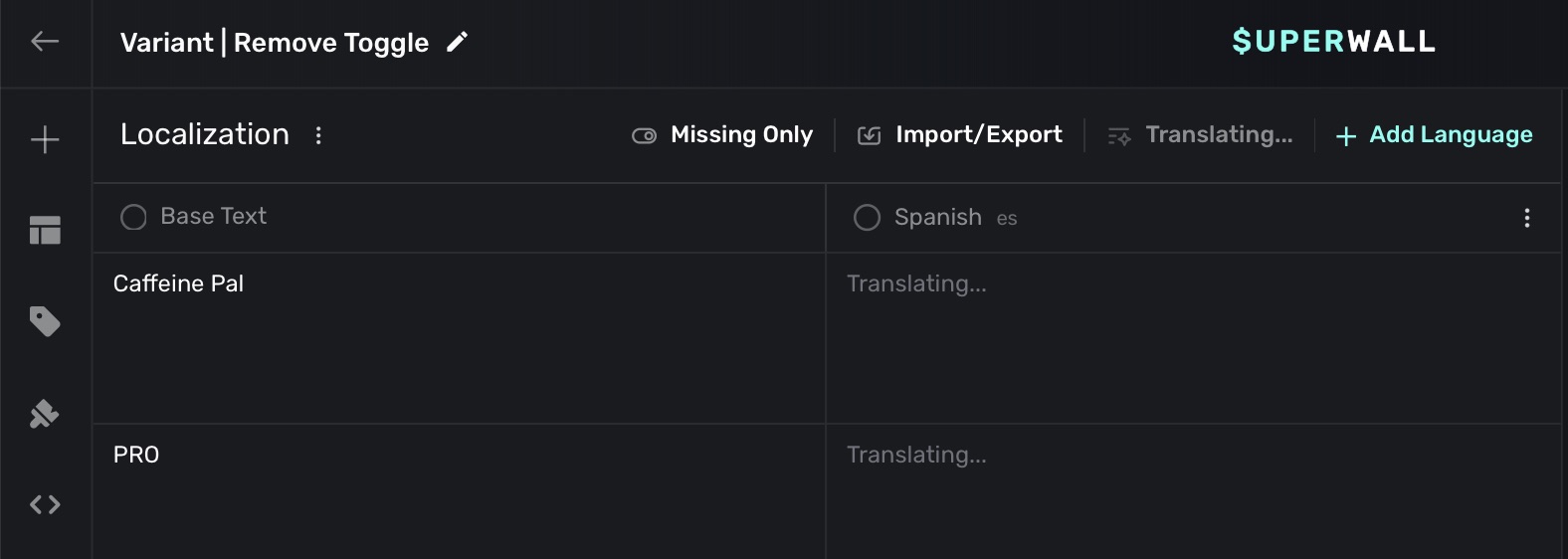
Once finished, you'll see all localized values:
AI localization settings
You can customize how AI localization behaves by changing the settings in the AI Localize Settings menu:
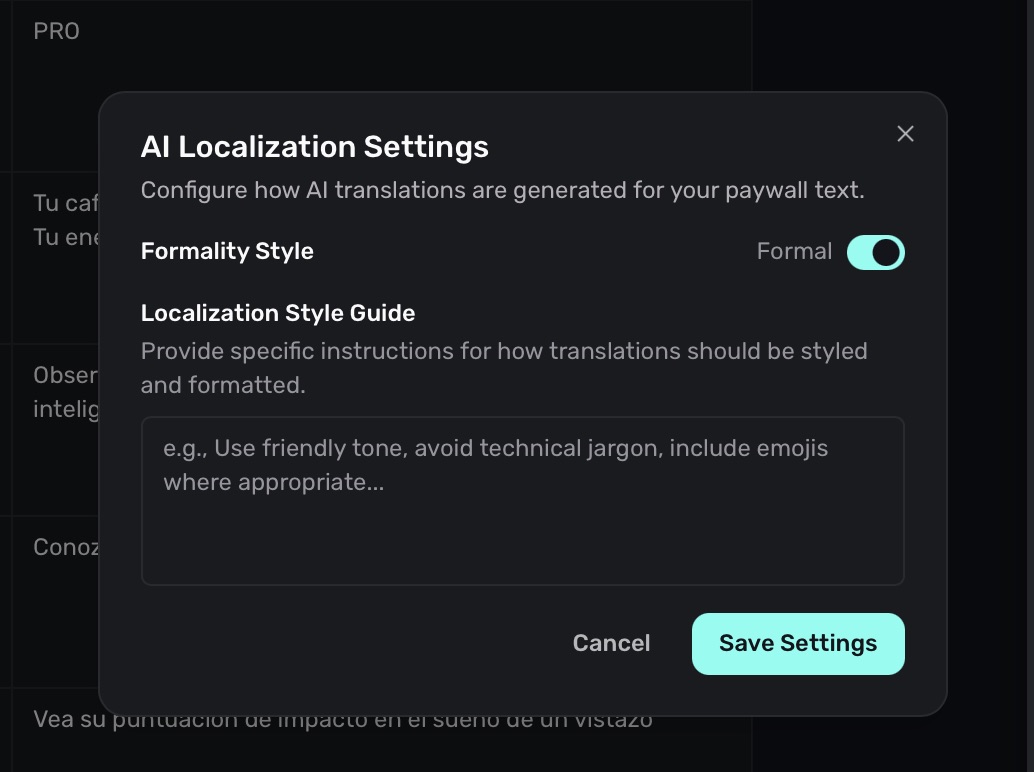
The Formality Style lets you toggle between formal and informal language. Use the Localization Style Guide to provide specific instructions to your brand's voice accurately.
Managing languages
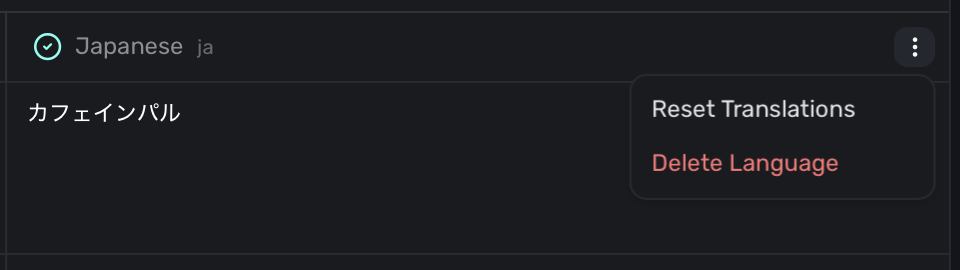
To remove or reset a language, click on the three dotts button next to the language:
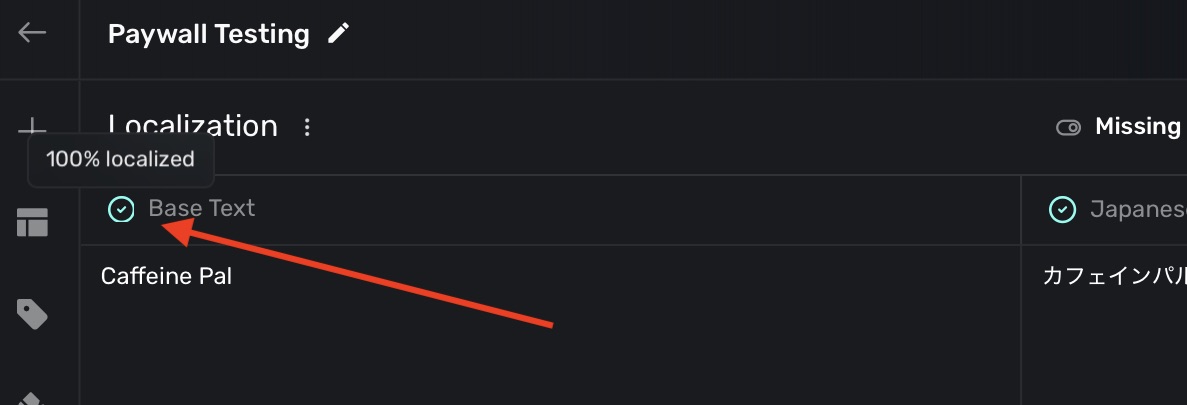
To switch back and forth between languages, simply click the language at the top:
Advanced localization
After opening the localization panel referenced above, click on the Add Language button. Choose the language identifier of the locale you're localizing for, and click on Add:
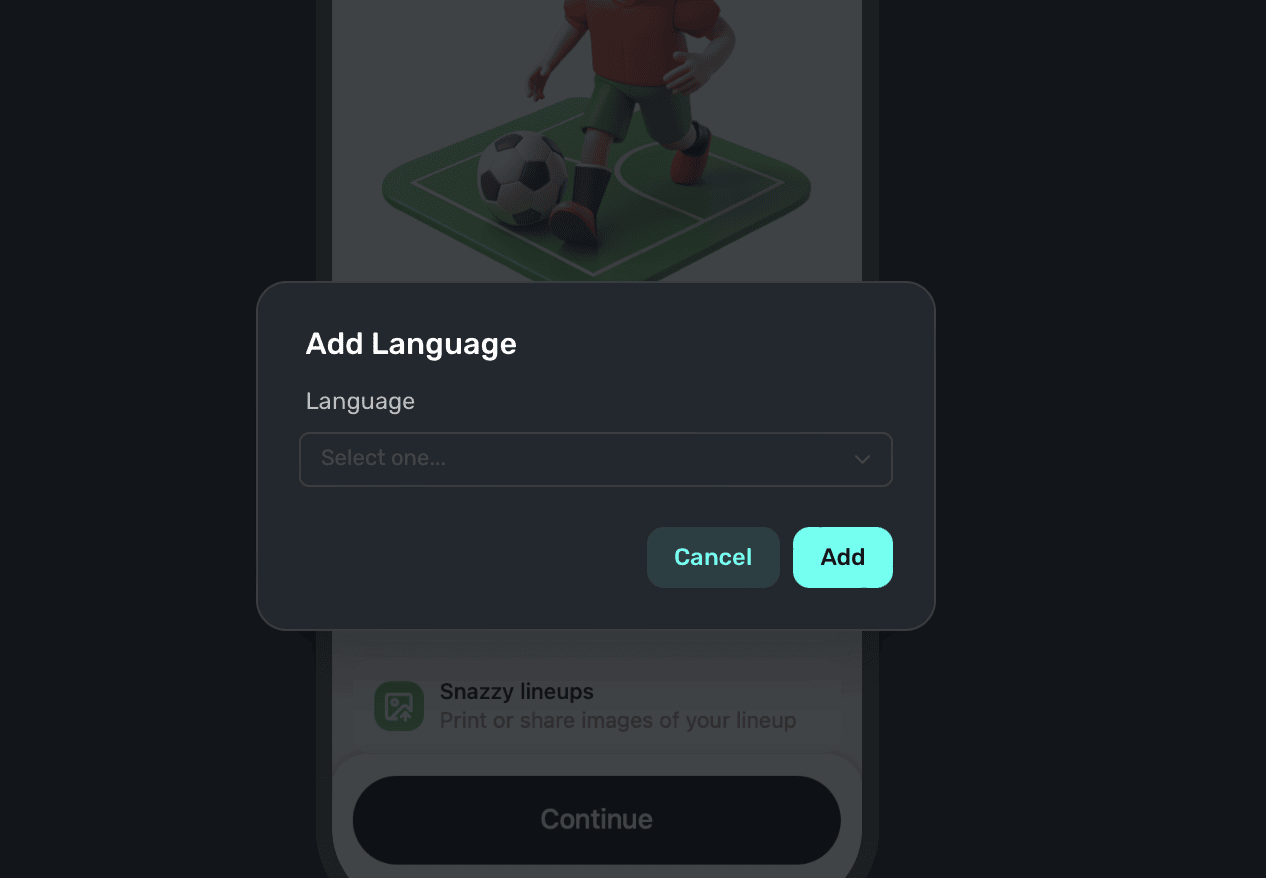
If there are any existing text components on your paywall, all of them with currently unlocalized strings will populate in the sidebar (in this example, we're localizing our text for Spanish speakers):
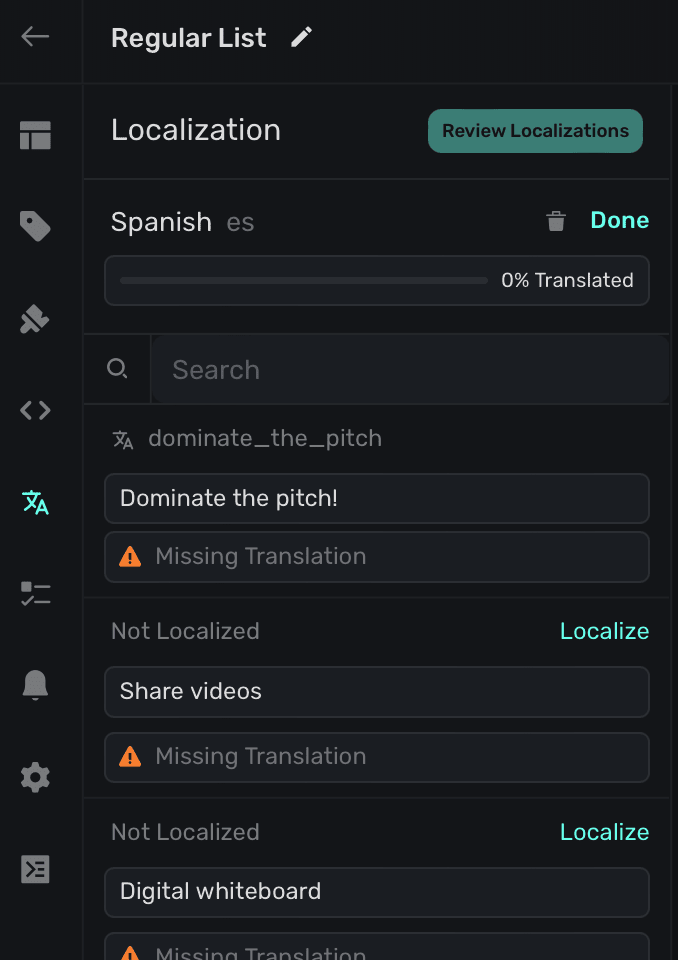
Click on the Localize button on any of them to enter in localized values. When you're done, click Save:
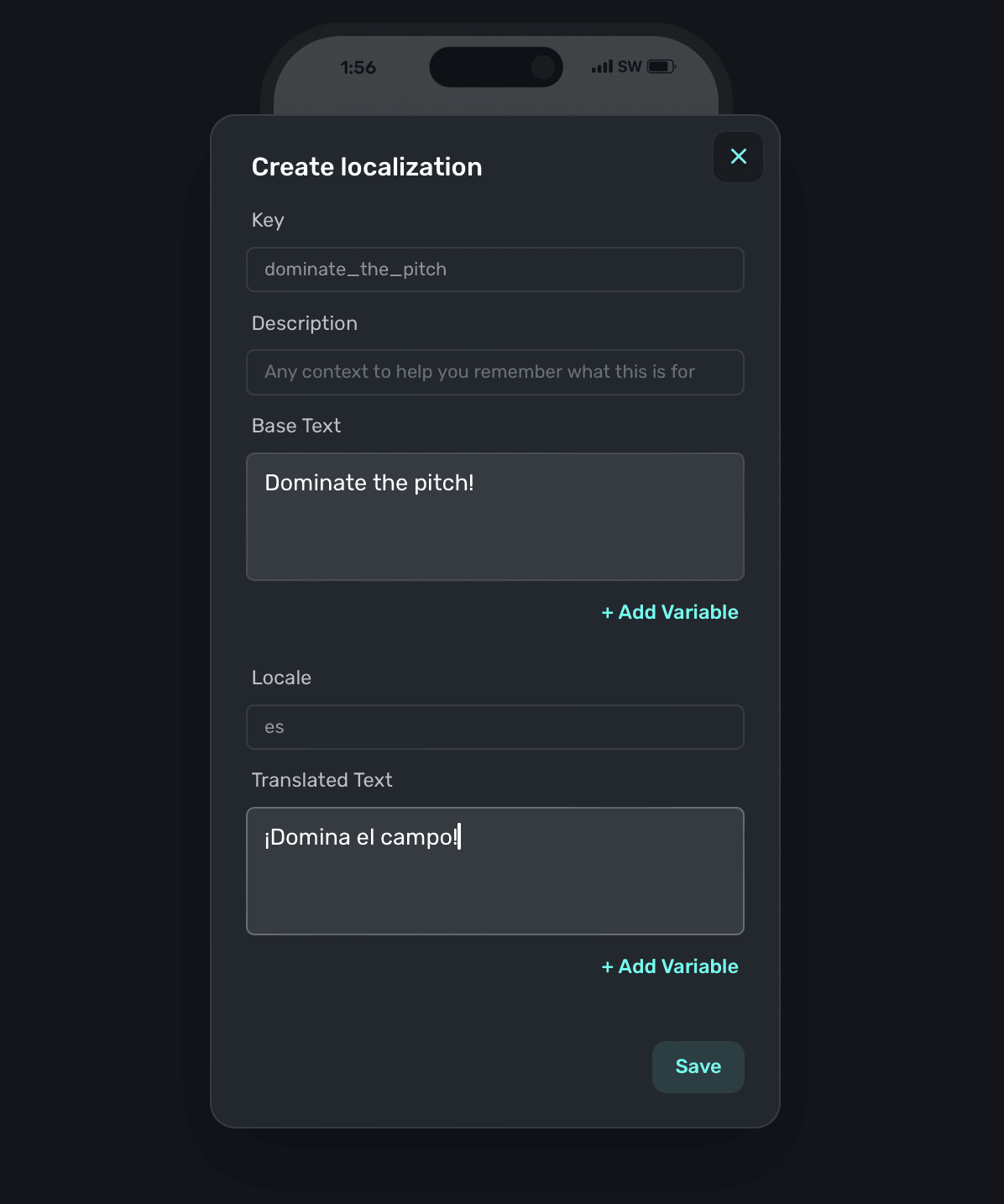
From there, go through and localize all of the values. Keep an eye on the progress bar at the top to see how far along you are. Remember to click on the Publish button at the top right of the editor to commit any localization edits.
When you are localizing strings, the editor will reflect the locale you're editing against so you can see a live preview of how the text will appear.
Associating localized strings to new or existing text components
When you add new text components, or need to associate a different localization to an existing one — click the Localize button when the text component is selected. You can either use an existing localized string, or add a new one by clicking the plus button:
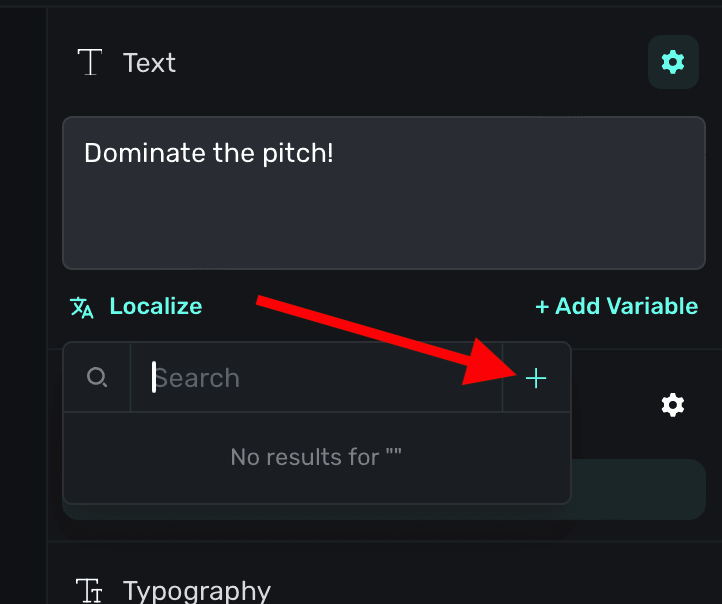
When a text component has a localized string attached to it, you'll see the localized string's key in place of the localize button:
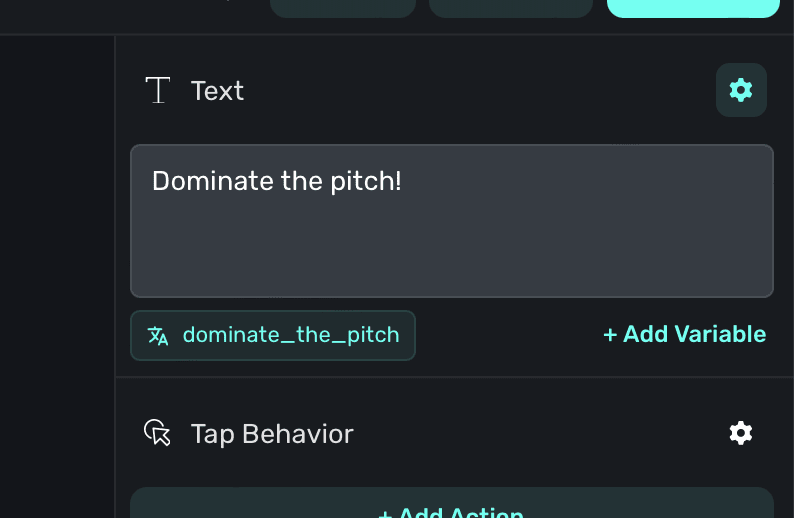
You can use variables with localized strings, too. Simply use liquid syntax within your localized string values to access any variable. Currently, variables themselves are not able to be localized. Learn more about using variables here.
Using .strings files
You can download and import .strings files to speed up your translations. This is ideal when you are using external localization services or have a large number of strings to localize.
Exporting .strings files
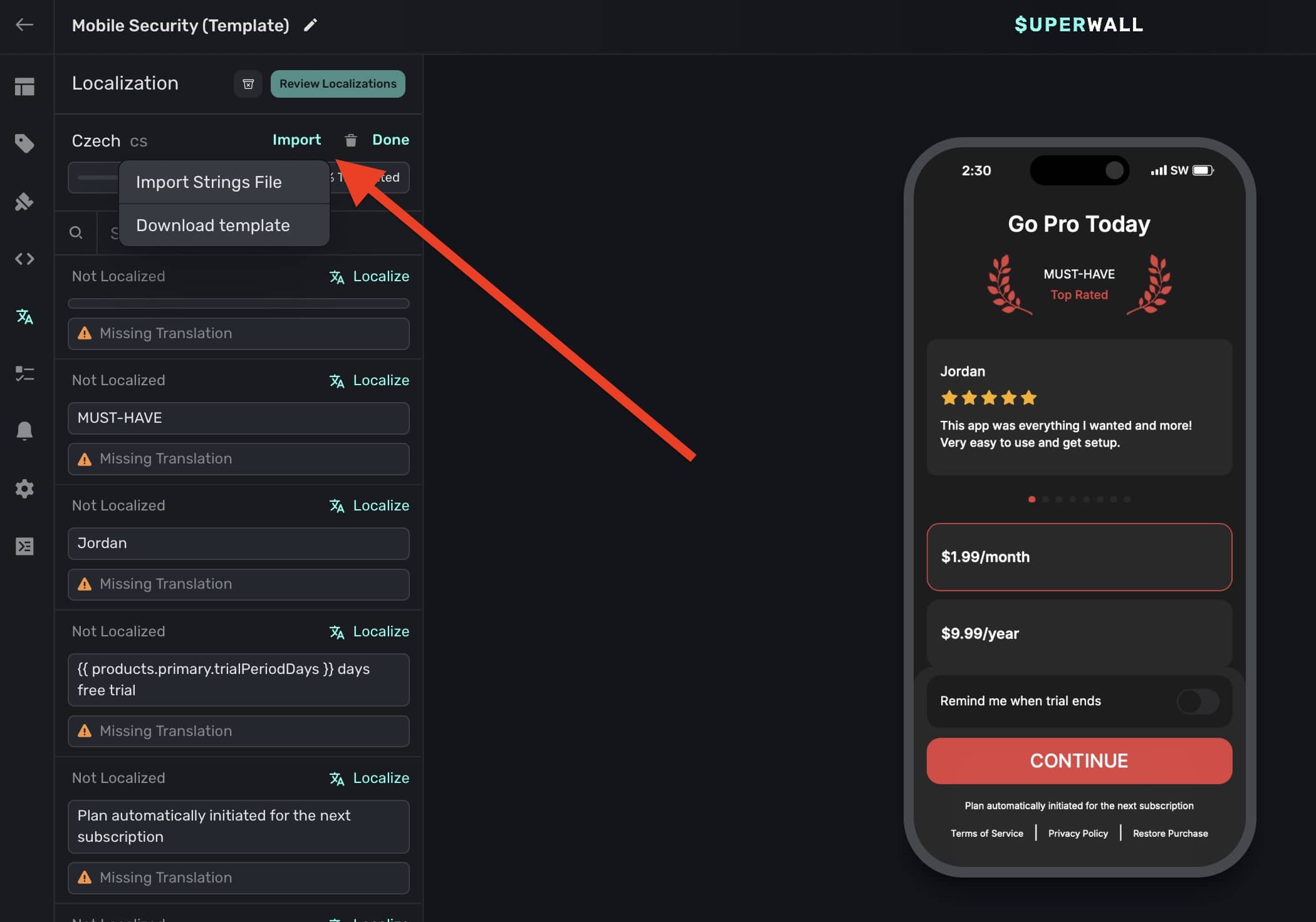
Select Localization from the left sidebar, click on the Import button. Choose "Download template" and the .strings file will be downloaded with all of your currently localized strings:
Importing .strings files
Select Localization from the left sidebar, click on the Import button. Choose "Import Strings File" and select your local .strings file to upload. Then, all of the updated values will be reflected in the editor.
Localizing period lengths
Superwall will automatically localize period lengths for products. Simply use any of the period-based variables in your text:
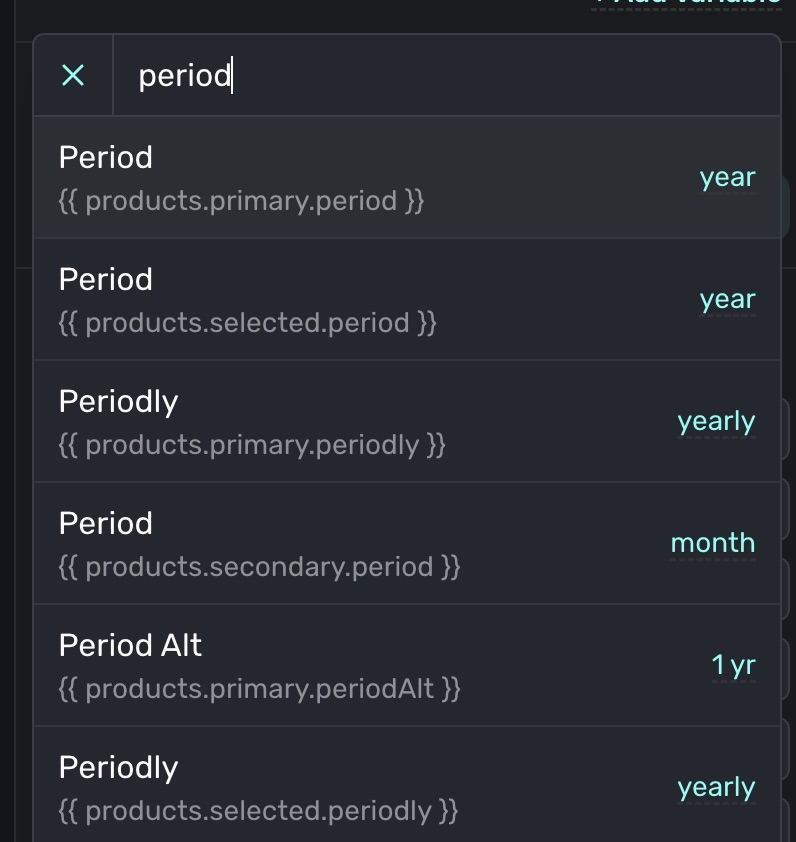
For example:
Analyze the math of caffeine this {{ products.primary.period | locale: "en" }}

// English, French, and any or any other localized regions you support...
Analyze the math of caffeine this year
Analysez les chiffres de la caféine ce année
You can override and remove auto-localization on specific items by setting a locale filter:
Analyze the math of caffeine this {{ products.primary.period | locale: “en” }}

// Now, it'll show in English in every language
Analysez les chiffres de la caféine ce year
Localizing with dynamic values
You can localize your paywall text for multiple languages using dynamic values in the paywall editor. This approach uses the device's locale to conditionally display different text for each language, and works on any Superwall plan.
How it works
The paywall editor exposes device.deviceLocale (e.g. en_US, fr_FR) and device.deviceLanguageCode (e.g. en, fr) as built-in variables. By combining these with dynamic values, you can set up rules that show different text depending on the user's language.
Set it up
- Open your paywall in the editor and click on the text component you want to localize.
- Click on the text property in the component editor, then choose Dynamic from the dropdown. This opens the dynamic values editor.
- Click Add Value, then configure a rule:
- Set the if condition to
device.deviceLanguageCodeequals your target language code (e.g.frfor French). - Set the then value to the translated string for that language.
- Repeat this for each language you want to support. Use the otherwise value for your default language (typically English).
- Set the if condition to
- Apply the same approach to every text component on your paywall that needs localization.
- Click Publish to save your changes. The paywall will now display the correct text based on the user's device language.
For example:
| Condition | Then value |
|---|---|
device.deviceLanguageCode equals fr | Commencez votre essai gratuit |
device.deviceLanguageCode equals es | Comienza tu prueba gratuita |
| Otherwise | Start your free trial |
Use device.deviceLanguageCode (e.g. en, fr) when you want to match broadly by language. Use device.deviceLocale (e.g. en_US, en_GB, fr_FR) when you need region-specific variants.
Test it
To test your localized paywall, change your device's language in the system settings and reopen the paywall. The dynamic values will evaluate based on the updated locale.
You can also preview different language states directly in the editor by temporarily changing the value of device.deviceLanguageCode in the Variables sidebar.
This approach is separate from the built-in localization feature available on the Startup plan, which provides AI-powered translations and a dedicated localization management UI. If you need to localize many paywalls or manage translations at scale, consider using the built-in localization tools instead.
Reviewing localization updates across paywalls
When you make changes to a localized string referenced across more than one paywall, or one is changed via a localization platform provider — you can review those changes by clicking on the Localization button from the sidebar:
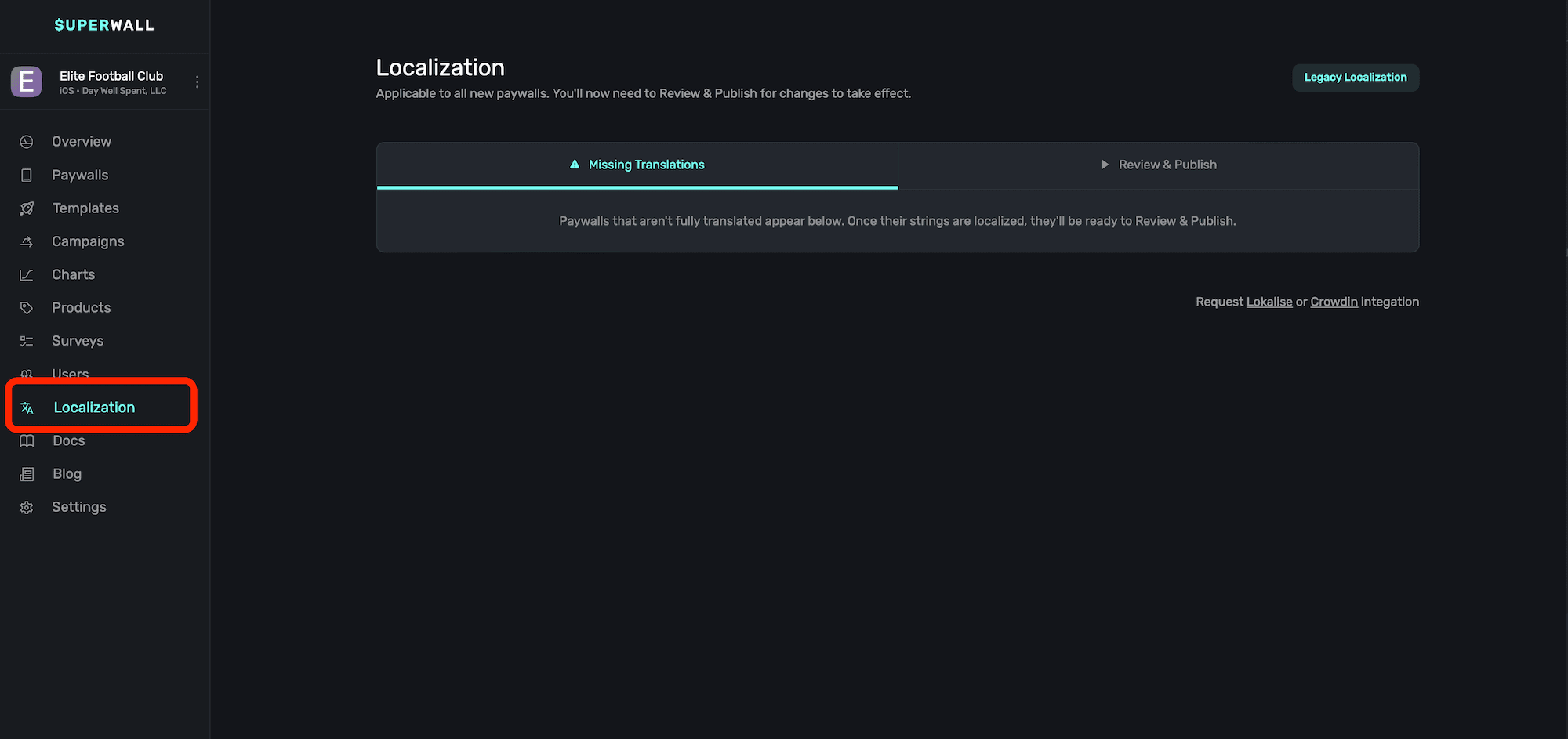
You can also use the ⌘+5 keyboard shortcut to open the Localization page from the Overview
screen.
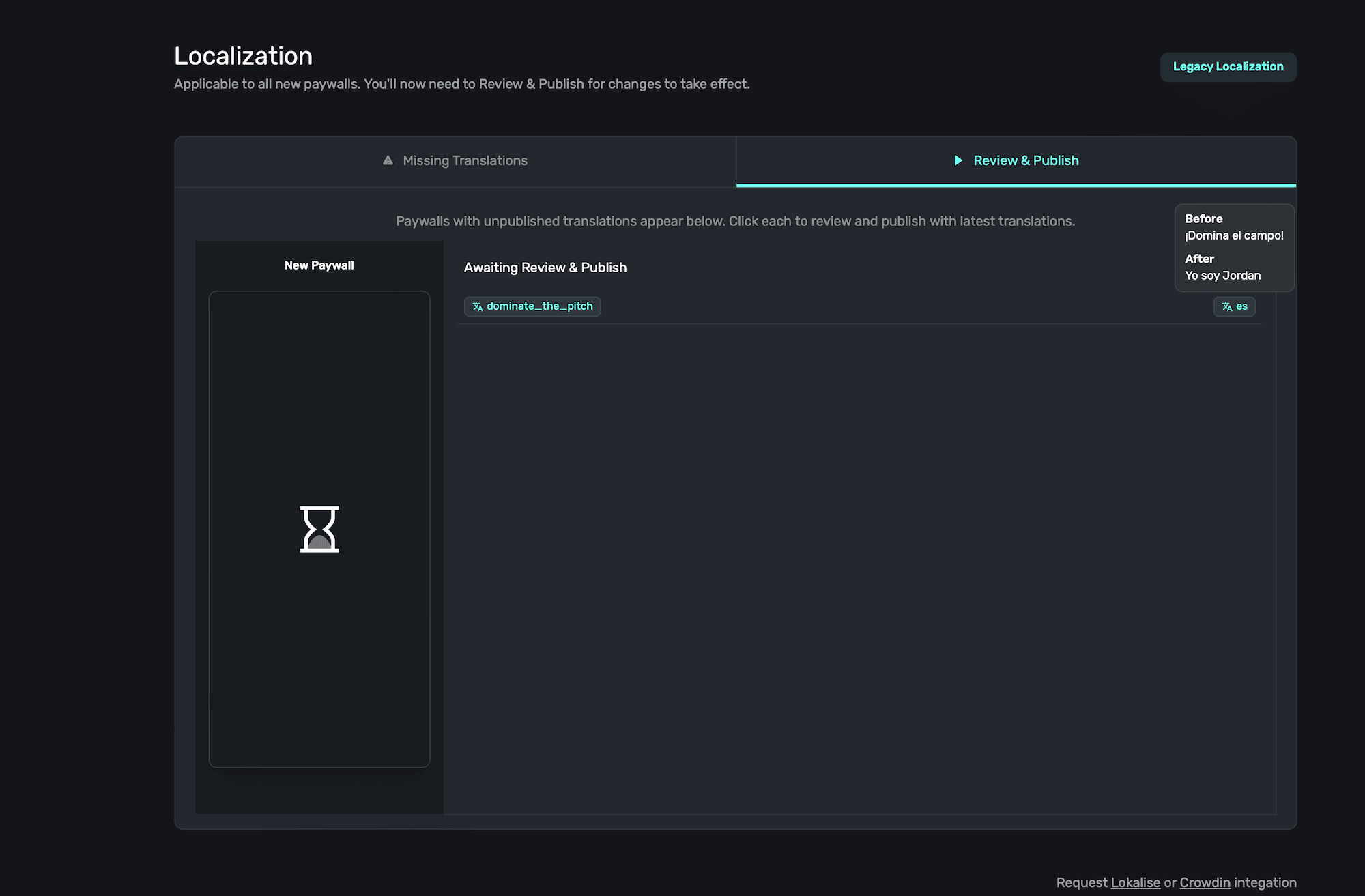
When you open the Localization page, you'll see two primary sections:
- Missing Translations: Any keys that are missing a localized value will show up here to address.
- Review & Publish: Any localizations that have changed which are used on multiple paywalls (or changed from an external localization provider) show up here. Paywalls using any edited localization key here will continue to use the "old" value it had before it was changed, and you can publish the updates live for the other paywalls after reviewing them.
For example, here the key dominate_the_pitch had its value changed on Paywall A and it's now live. But, here, Paywall B also references the key dominate_the_pitch, so you can hover over each locale identifier and see its old and new value. From there, you can either ignore those changes or put them live for each paywall.
Testing localized strings
You can preview how localized strings will appear on device. To set this up:
- Make sure you've got in-app previews configured.
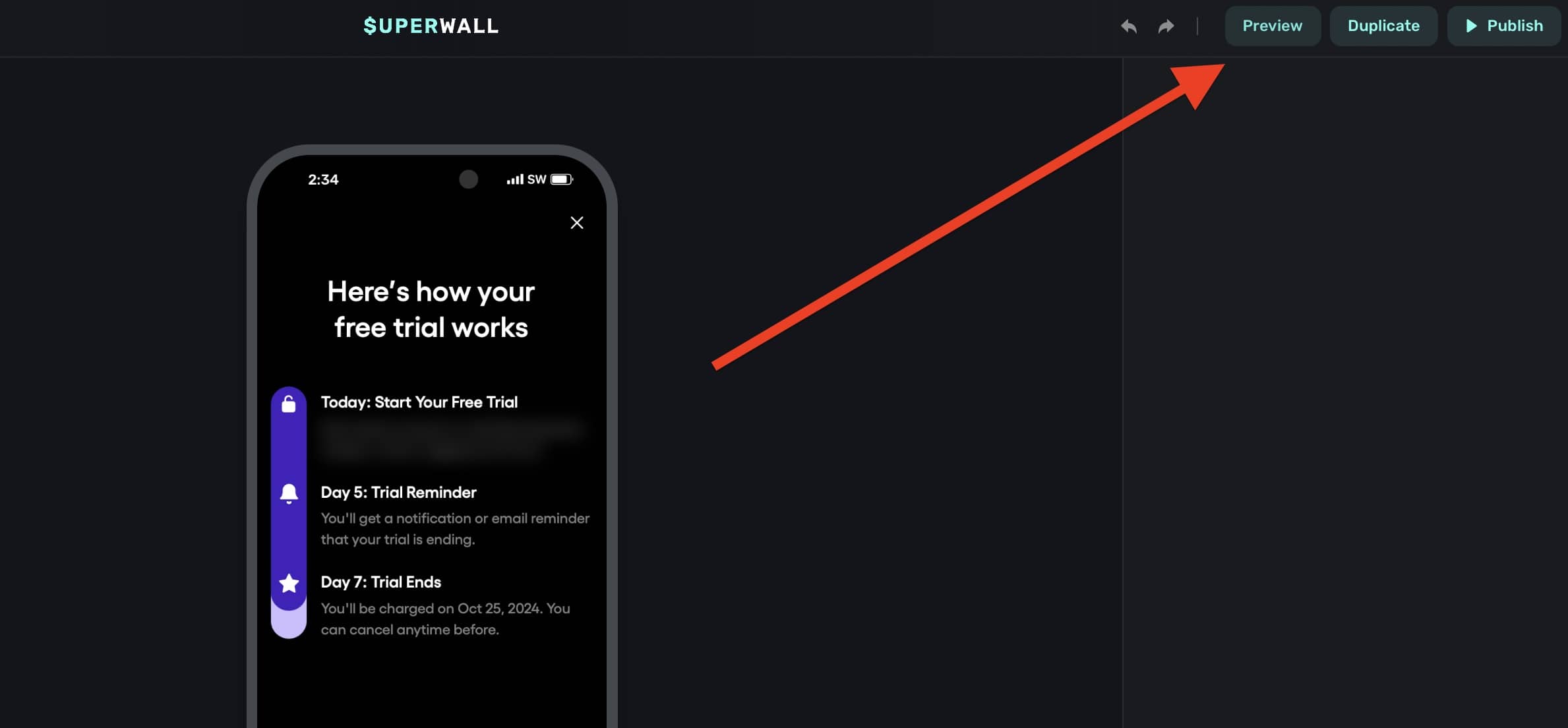
- Open the paywall editor and click "Preview":
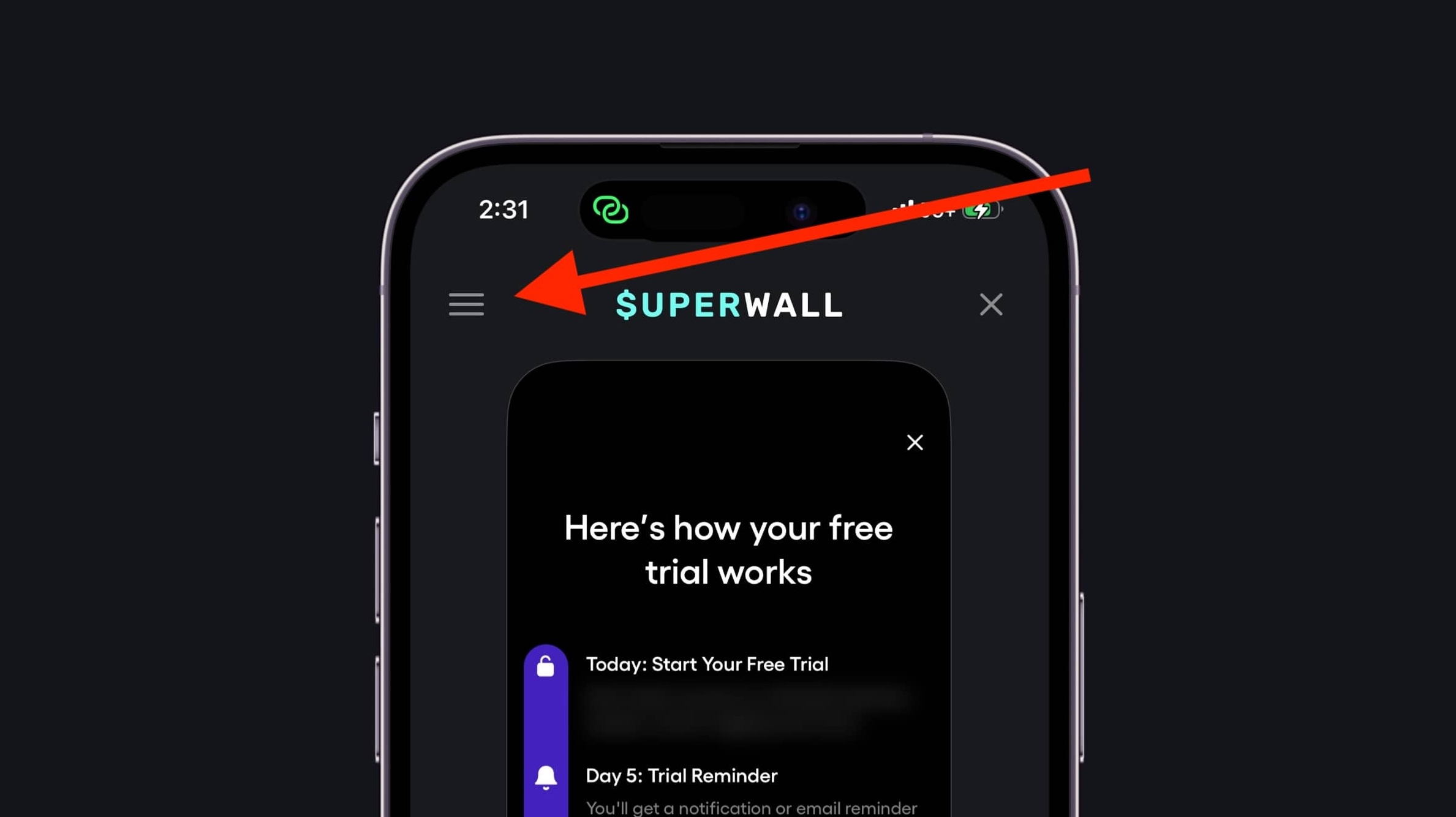
- When it opens, tap the menu located at the top left and choose "Localization":
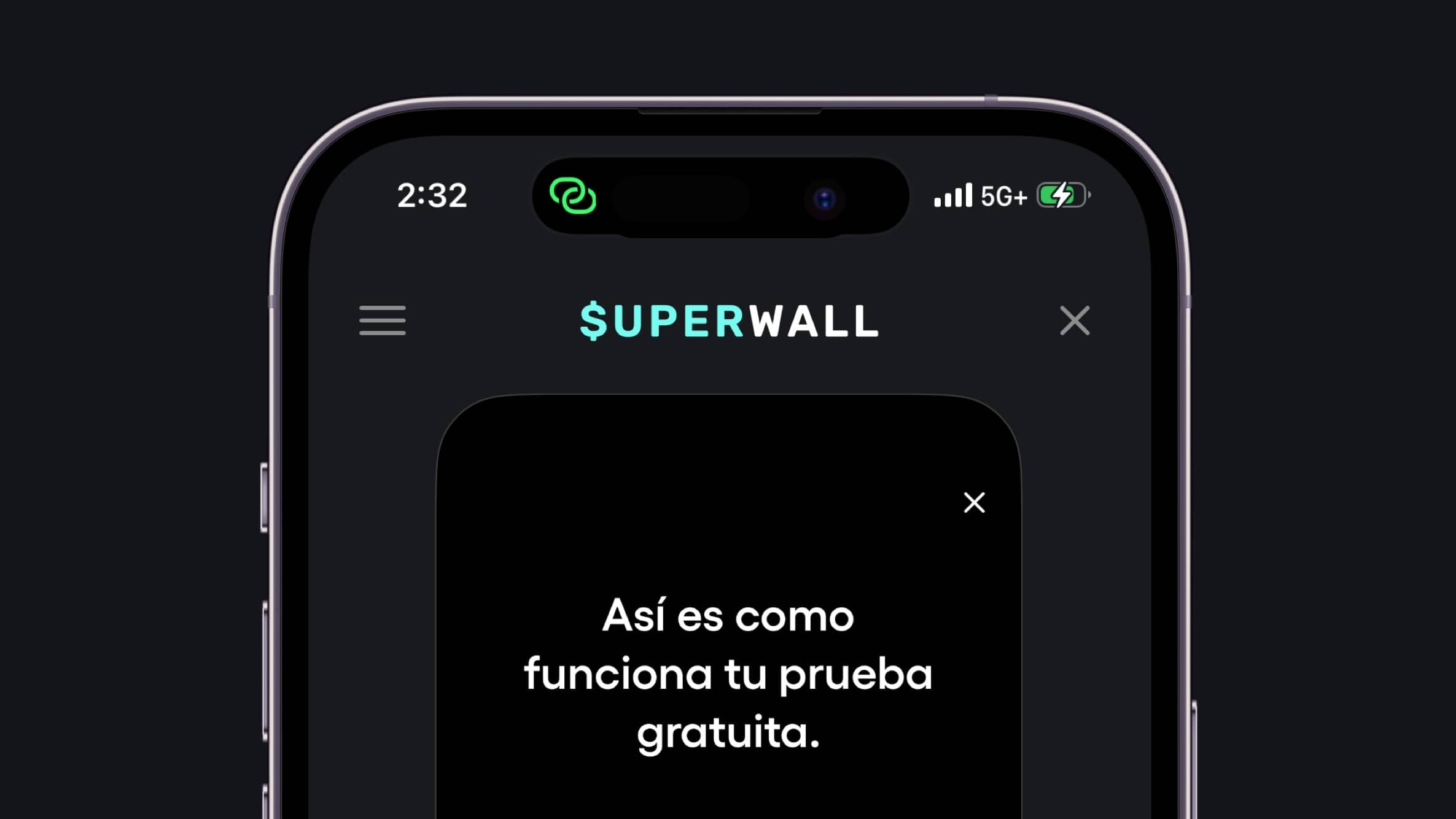
- Then, select the language to display and the preview will reload with it:
How is this guide?
Liquid
Format paywall text with Liquid in Superwall: filters, product prices, two-decimal formatting, Liquid in image URLs, and custom date and countdown filters.
Surveys
Attach a close survey or a post-purchase survey to a Superwall paywall from the editor's Surveys menu, and open the survey editor to create new ones.