Paywall Editor Surveys
Attach a close survey or a post-purchase survey to a Superwall paywall from the editor's Surveys menu, and open the survey editor to create new ones.
To set up a survey to show users when they close a paywall or perform a purchase, click the Surveys button from the sidebar:
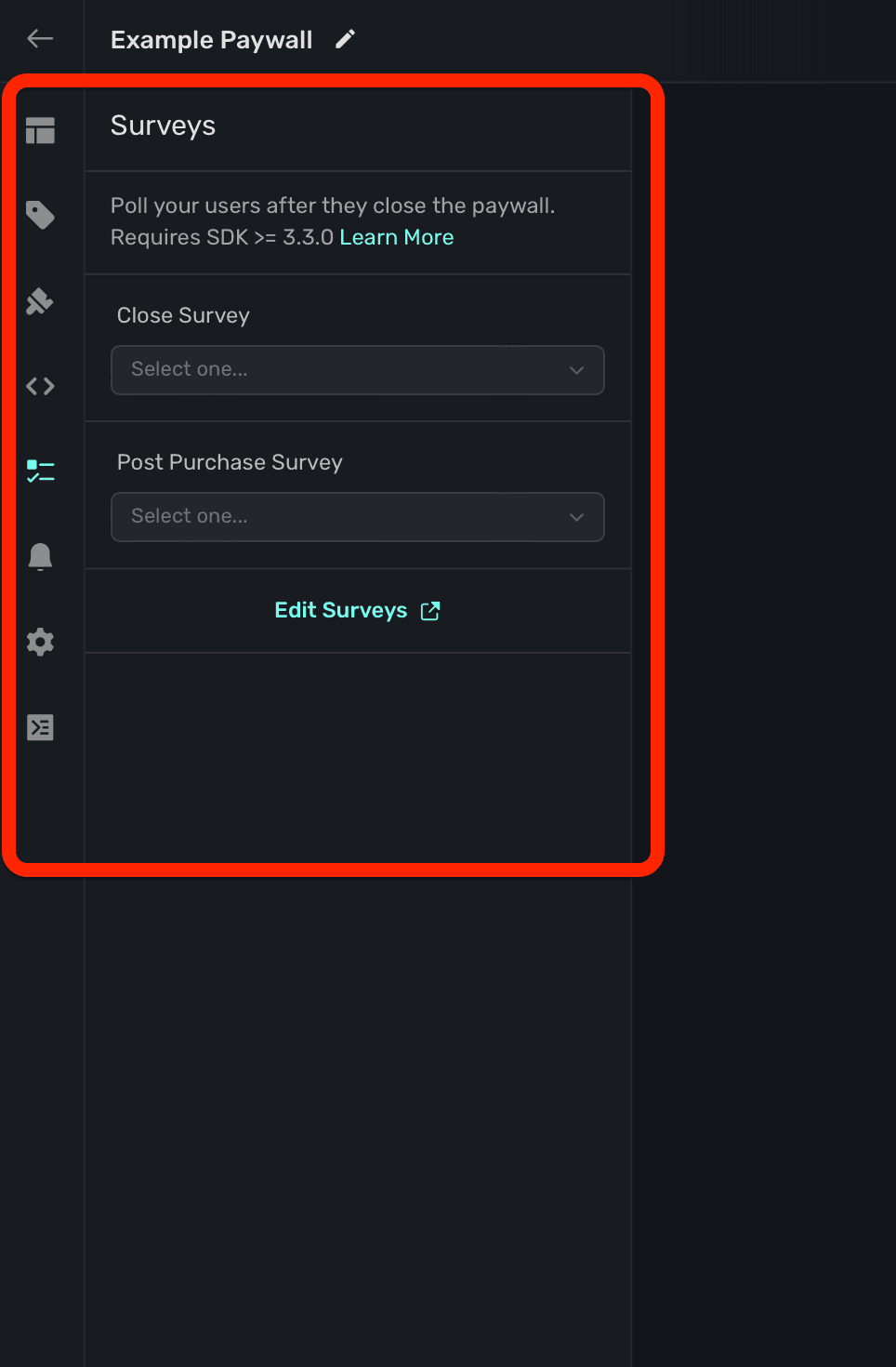
Every survey you've created for your app will be selectable in this section. Superwall's surveys display natively on the platform it's presented on. For example, on iOS, it will present as an action sheet.
Close Survey
Select a close survey to present when a user closes a paywall and does not purchase a product or start a trial:
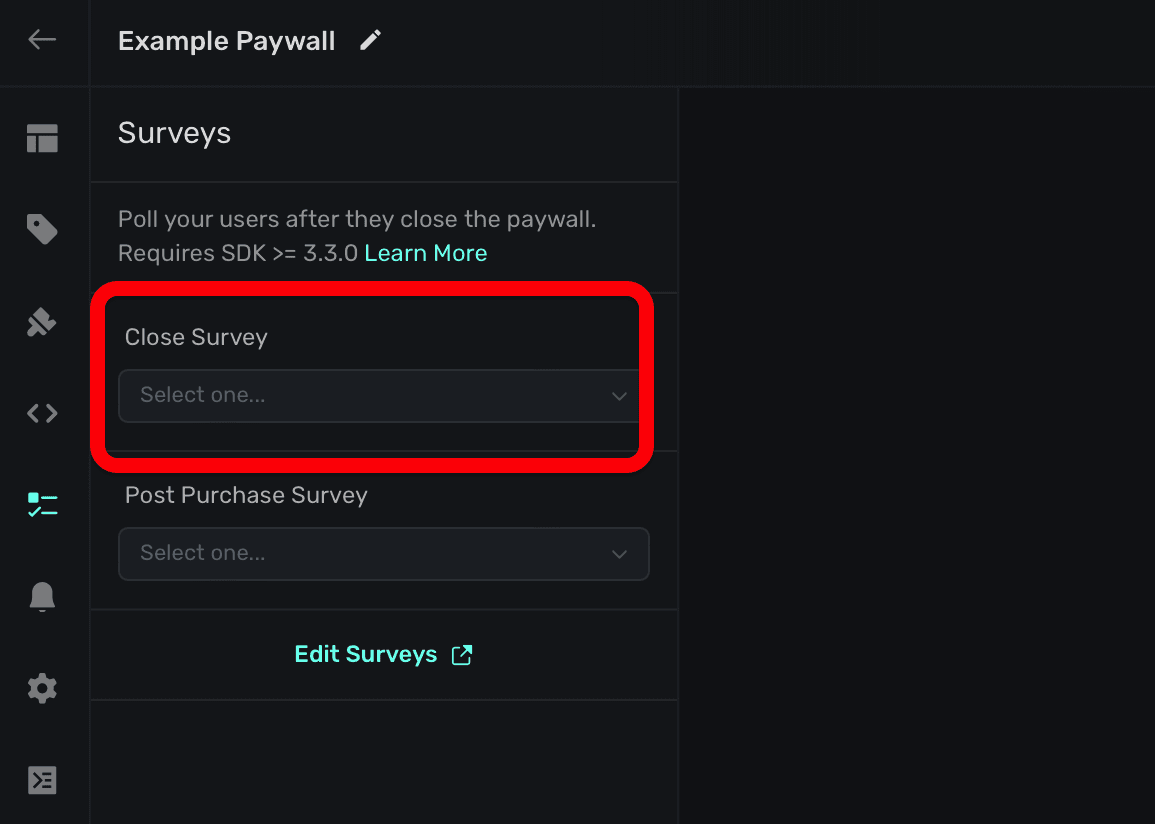
Ideally, you'd use these to discover why users aren't willing to pay or become a trialist. By default, Superwall's survey template is a good place to start.
Post Purchase Survey
Select a post purchase survey to present after the user starts a trial or performs a purchase:
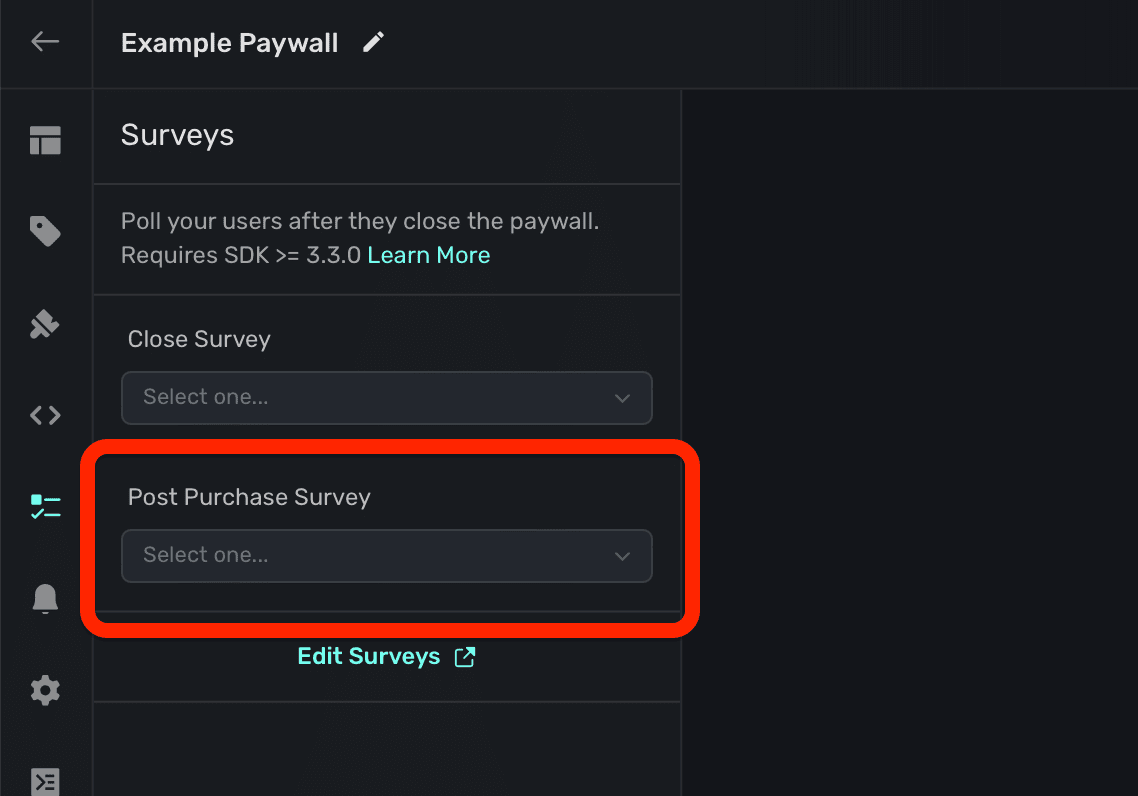
These are useful to hone in on what's working, or gain insights about the types of users who are paying.
Creating or editing surveys
You can open the survey editor from the survey section by clicking Editing Surveys:
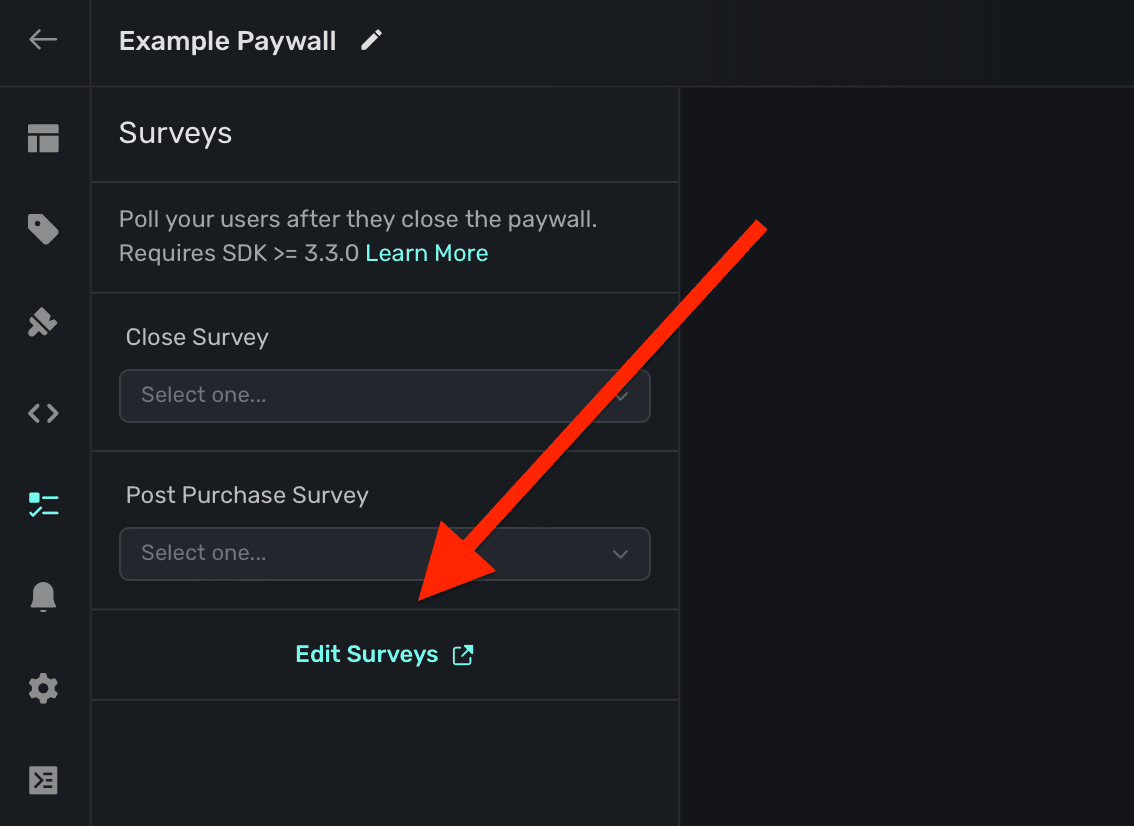
To learn more about creating a survey, view the docs here.
How is this guide?
Localization
Localize a Superwall paywall with AI-powered simple localization or .strings files. Also covers period lengths, dynamic values, reviewing updates and testing.
Trial Reminder Notifications
Remind users before their free trial ends with a local notification scheduled from the paywall. Set the title, body and how many days before the trial ends it fires.