App Store Screenshot
Download a screenshot of your paywall sized for App Store Connect, ready to attach to a subscription's review information.
App Store Connect requires a review screenshot for every subscription you submit. The editor can make that file for you.
Click the Download App Store screenshot button (the download icon) in the top-right of the editor, next to Share:
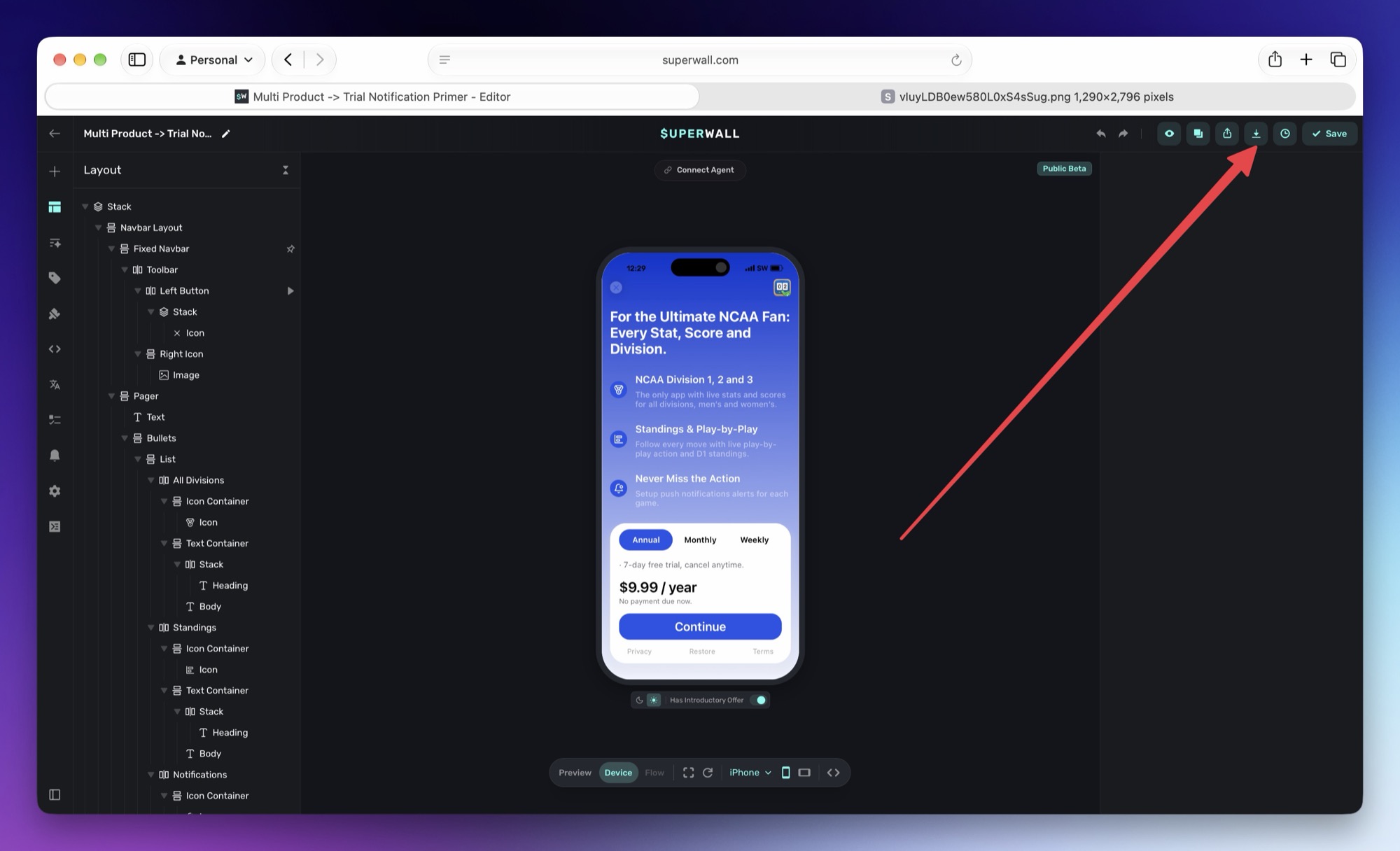
You get a 1290 x 2796 PNG of your paywall. That's the 6.7"/6.9" iPhone screenshot size Apple accepts, so you can upload it to your subscription's Review Information in App Store Connect without resizing it. Depending on your browser, the file either downloads or opens in a new tab for you to save:
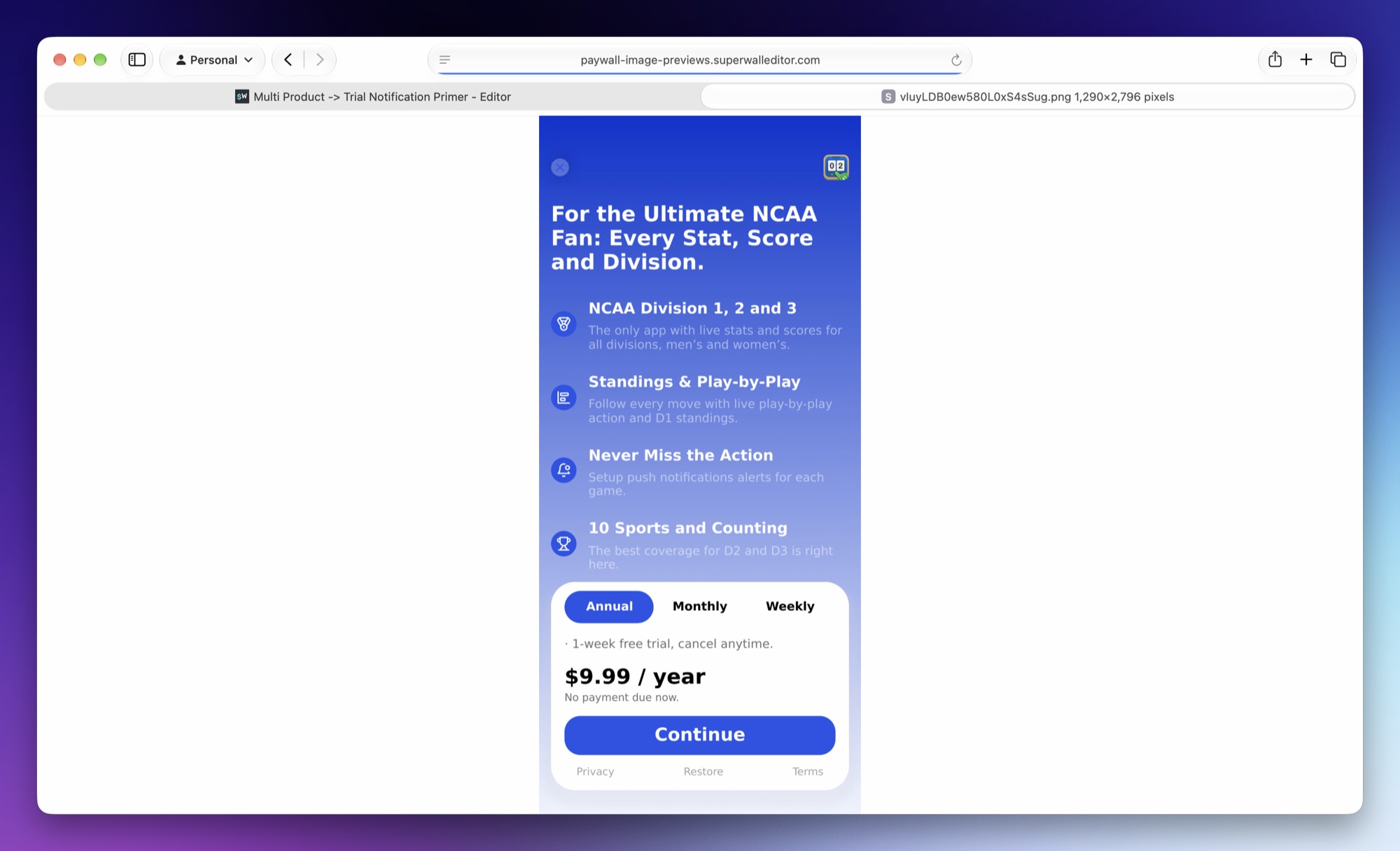
The screenshot is taken from the published version of your paywall, not unsaved edits. Publish your latest changes first by clicking Save, or Publish if the paywall is in a campaign. The first download after a publish can take a moment while Superwall captures the paywall. If that capture can't render at the App Store size, you get a standard-size screenshot instead, so check the image dimensions before you upload it.
How is this guide?