Input
Capture typed responses from users with the input element for names, emails, feedback, and more.
The input element lets users type a response directly into your paywall or flow. Use it to capture names, email addresses, feedback, or any custom text input.
Adding an input element
To add an input element:
- In the left sidebar, click + to add a new element.
- Choose Input under the "Onboarding" header.
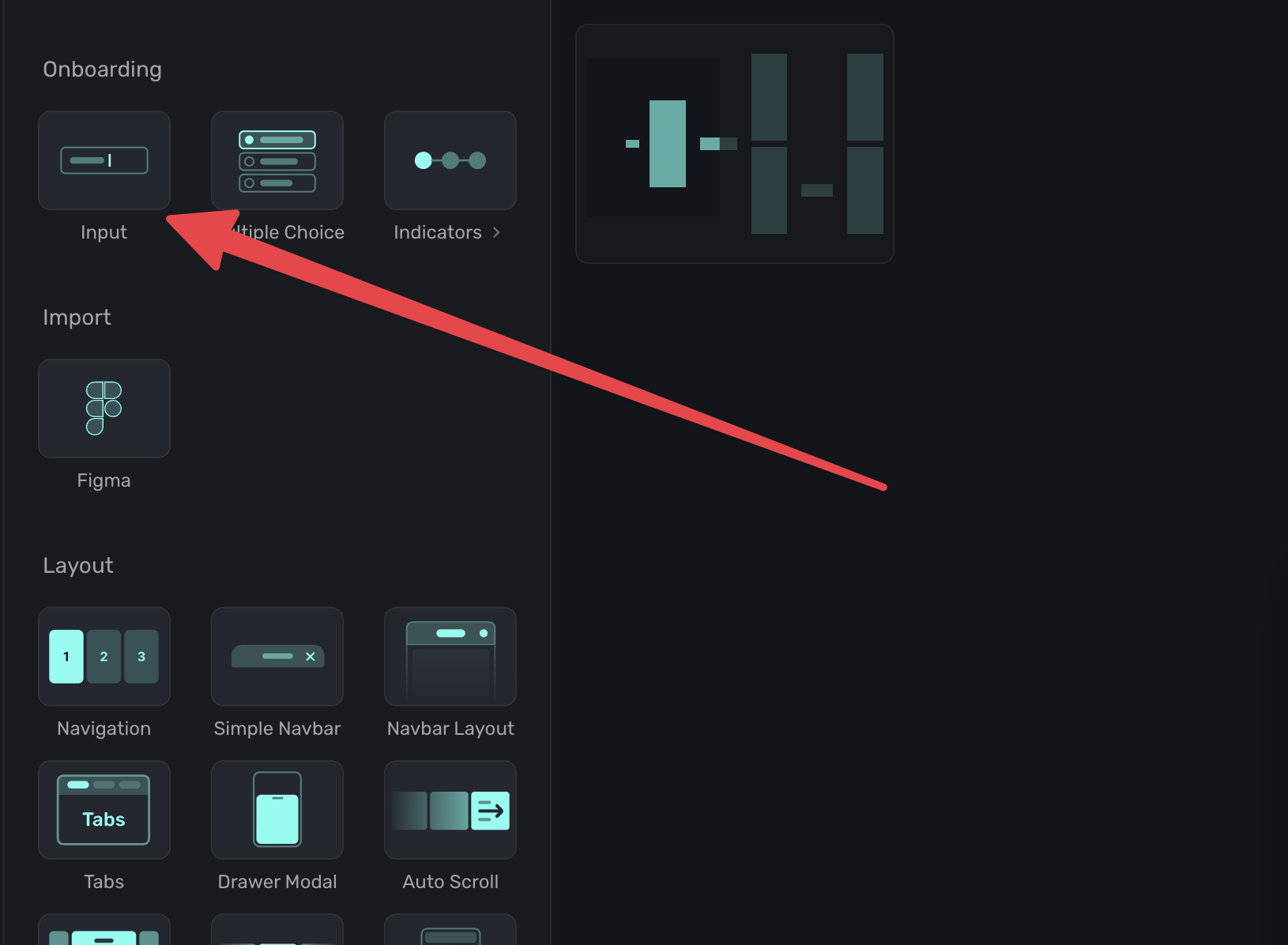
Placeholder text
Set placeholder text to give users a hint about what to enter. The placeholder appears inside the input field before the user starts typing.
Try to make the placeholder text contextual to the type of input you expect:
- "Enter your name"
- "you@example.com"
- "Tell us what you think"
Keyboard type
Choose the appropriate keyboard type to make input easier for users:
- Text: Standard text keyboard. This is the default.
- Email: Keyboard optimized for email addresses (includes @ and . keys).
- Number: Numeric keypad for number-only input.
- Telephone: Phone number keypad.
- URL: Keyboard optimized for entering URLs.
- Password: Text keyboard with secure text entry enabled.
- Search: Text keyboard with a search-style return key.
Selecting the right keyboard type improves the user experience and reduces input errors.
Using responses
The text users enter can be stored as a user attribute, used as a variable, dynamic values, and more. Any multiple choice item is available as a variable. You can view variables either from the left side variables menu, or via the floating toolbar. Either case, it's exposed via Element -> Input.
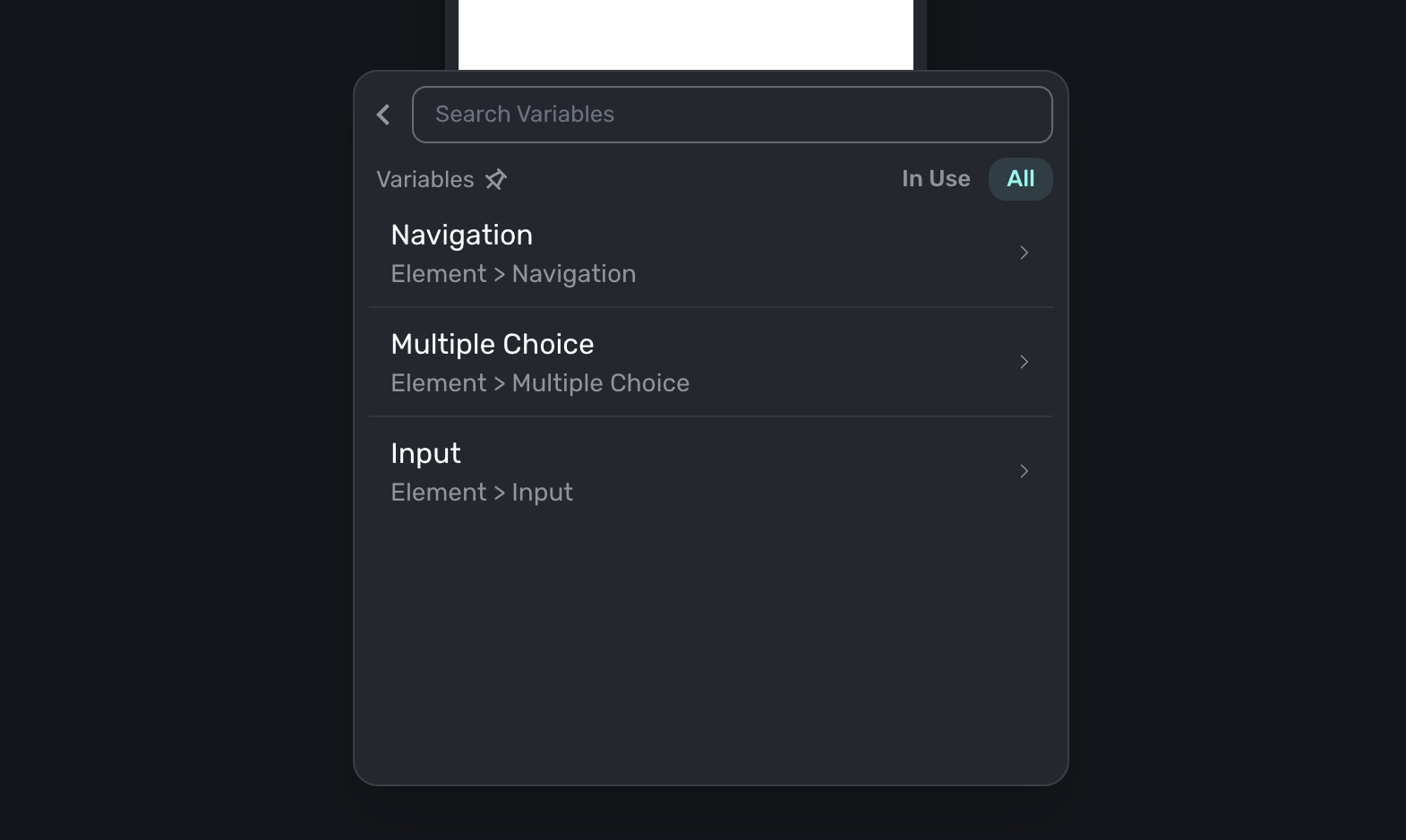
This is useful for:
- Personalization: Use the user's name on later pages (e.g., "Welcome, Sarah!").
- Email capture: Collect email addresses during onboarding for follow-up.
- Feedback collection: Gather open-ended responses for product insights.
- Backend integration: Pass the value to your backend via webhooks or the SDK.
Using input values in dynamic content
After a user enters text, you can reference it elsewhere using dynamic values. For example, if you store the input under the key user_name, you can display it on the next page with a personalized greeting.
Input elements work well paired with a "Continue" button that has a Navigate Page action. The user enters their response, then taps to proceed.
How is this guide?