Local Resources
Use images, videos, and other media bundled in your app for faster paywall loading and offline support.
Local resources let you reference media files (such as images and videos) that are bundled directly in your app rather than hosted on a remote server. This means faster load times, no network dependency for those assets, and a smoother experience for your users.
Local resources require iOS SDK v4.13.0+ or Android SDK v2.7.7+. They are not available on other platforms at this time.
How it works
Instead of pointing an image or video to a URL, you can point it to a local resource ID. This ID maps to a file that the developer has registered in the native SDK. When the paywall loads, the SDK intercepts the request and serves the file directly from the device. No network call is required.
Set up those resource IDs in your app first by following the SDK Local Resources guide.
The editor discovers which resource IDs are available by looking at device attribute events your app has reported in the last 7 days. This means at least one device running your app with the SDK configured must have reported its local resources before they appear in the editor.
Setting a local resource on an image
To use a local resource for an image component:
- Select the image component in the Layout tab or on the canvas.
- In the component editor, find the image source property.
- Click the + Add Local Resource button.
- A dropdown will appear listing all resource IDs that devices have reported recently. Select the one you want.
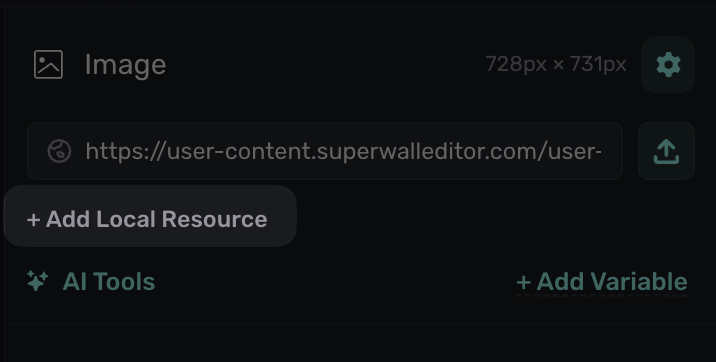
The image source will update to use the selected local resource. You can still provide a regular image URL as a fallback. If the local resource is unavailable (for example, in the web preview or on a device that hasn't registered that resource), the paywall will fall back to the remote URL automatically.
Setting a local resource on a video
The same flow applies to video components. Select a video, click + Add Local Resource, and choose the resource ID from the dropdown. A fallback URL is recommended for the same reasons as images.
Fallback behavior
When a local resource is set, the paywall rendering follows this order:
- Try the local resource. The SDK attempts to load the file from the device using the registered resource ID.
- Fall back to the remote URL. If the local file isn't available (not registered, missing from the bundle, or running in the web preview), the regular image or video URL is used instead.
This means you can safely set a local resource without breaking the paywall for users on older SDK versions or other platforms.
Availability in the editor
The resource ID dropdown is populated from device attribute events sent by your app. If you don't see any resource IDs:
- Make sure at least one test device is running your app with the local resources configured in the SDK. For setup instructions, see the SDK Local Resources guide.
- The device must have opened a paywall or otherwise triggered a device attributes event within the last 7 days.
- Only iOS and Android platforms support local resources. The dropdown will not appear for other platforms.
If a resource ID hasn't been reported by any device in the last 7 days, the editor will show a warning. This usually means no active devices have that resource registered, so double-check your SDK configuration.
When to use local resources
Local resources are a great fit for:
- Onboarding videos or hero images that are critical to the first paywall experience and shouldn't depend on network conditions.
- Large media files where you want to avoid CDN costs or ensure instant loading.
- Offline scenarios where users may not have a reliable connection when the paywall is presented.
For smaller or frequently changing images, remote URLs are still the simpler choice since they don't require an app update to change.
Related
- SDK Local Resources Guide: How to register local resources in supported SDKs.
- Styling Elements: General component styling and image editing.
- Liquid inside Image URLs: Using dynamic URLs for images.
How is this guide?