AI Chat Builder
Use AI Chat in the paywall editor to build, inspect, and refine paywalls with natural language.
AI Chat is built into the paywall editor. Use it when you want Superwall to build a new paywall section, change copy, adjust layout, wire up products, add variables, or inspect why part of a design is not behaving the way you expect.
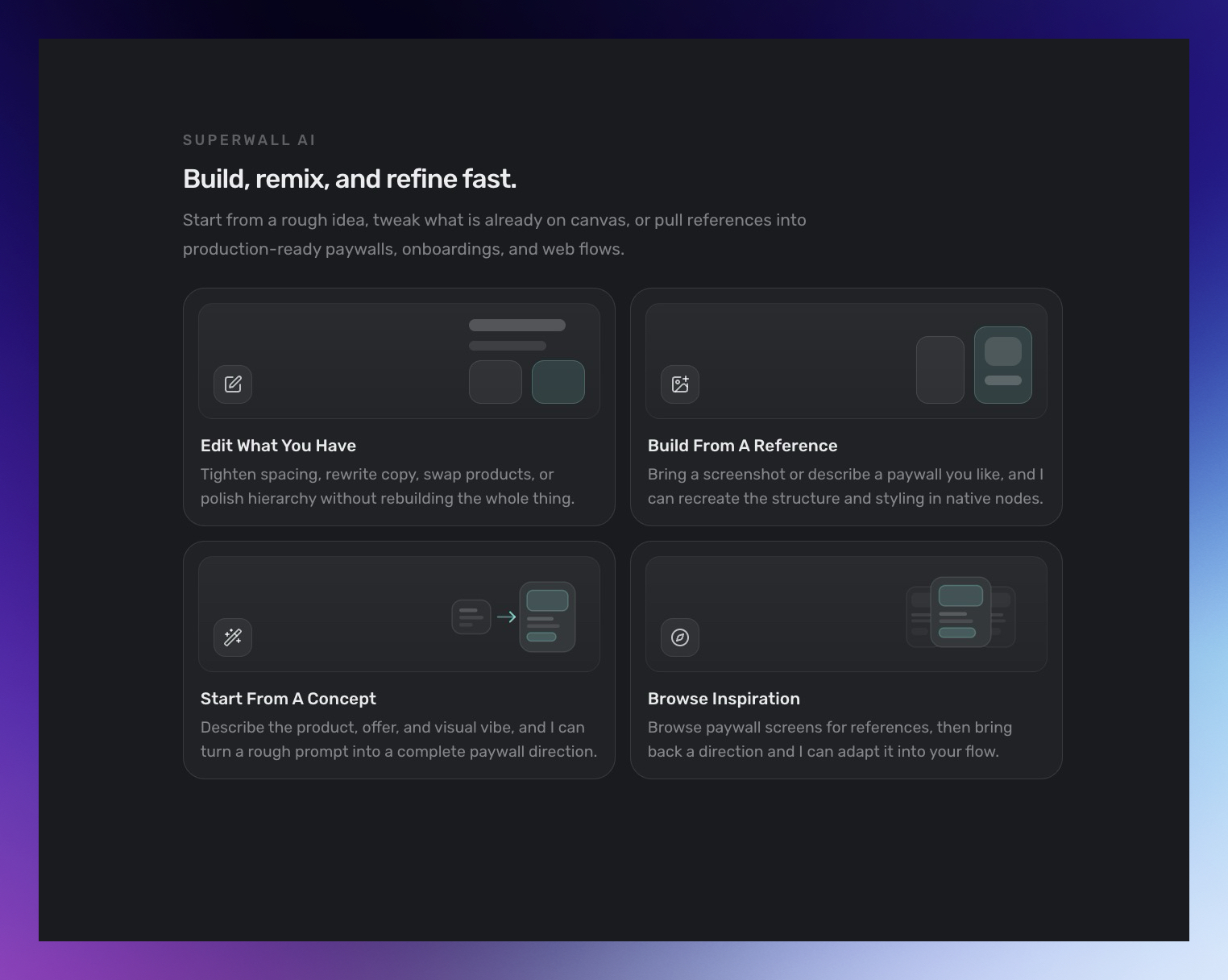
To get an idea of what AI Chat can do, build, or modify, try choosing one of the starter prompts:
Open AI Chat
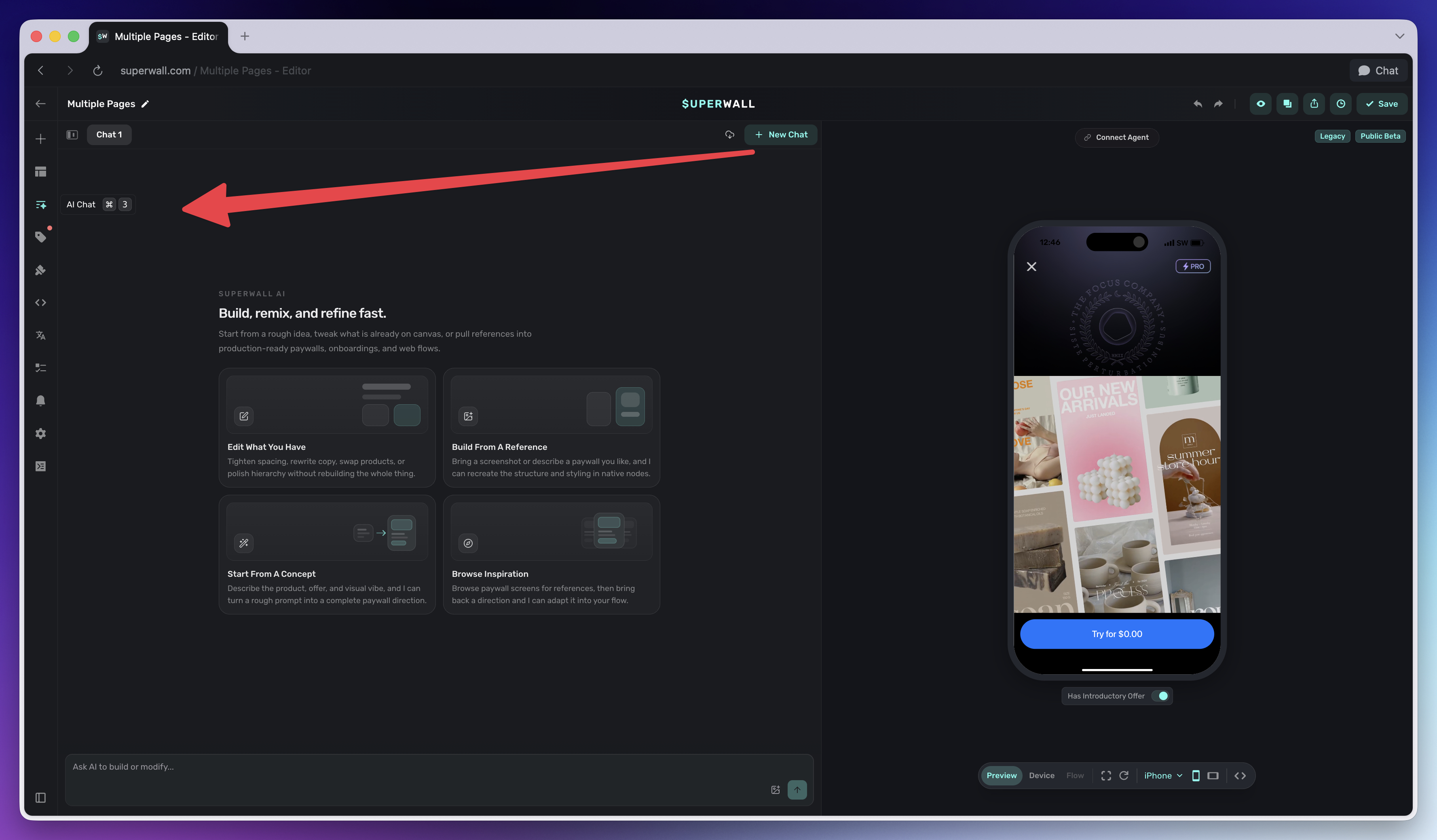
Open a paywall, then click AI Chat in the editor sidebar.
AI Chat works on the paywall currently open in your browser. It can read the editor state, inspect the layout tree, look at screenshots, and make changes through the same editor tools you use manually.
Ask for a change
Type what you want the assistant to do, then press Enter or click Send. Use Shift + Enter for a new line.
Good prompts include the specific page, element, product, or behavior you want changed:
Create a three-plan product selector with annual highlighted, monthly secondary, and lifetime below it.Make this onboarding paywall feel more premium, keep the same products, and add a short trust row under the CTA.Find why the restore button looks off-center on small devices and fix it.AI Chat can make multiple tool calls during one response. You can watch tool activity in the chat while the editor updates.
Give the chat context
Select one or more elements on the canvas or in the Layout tab before sending a message. The selected elements appear above the composer and are sent as context with your prompt.
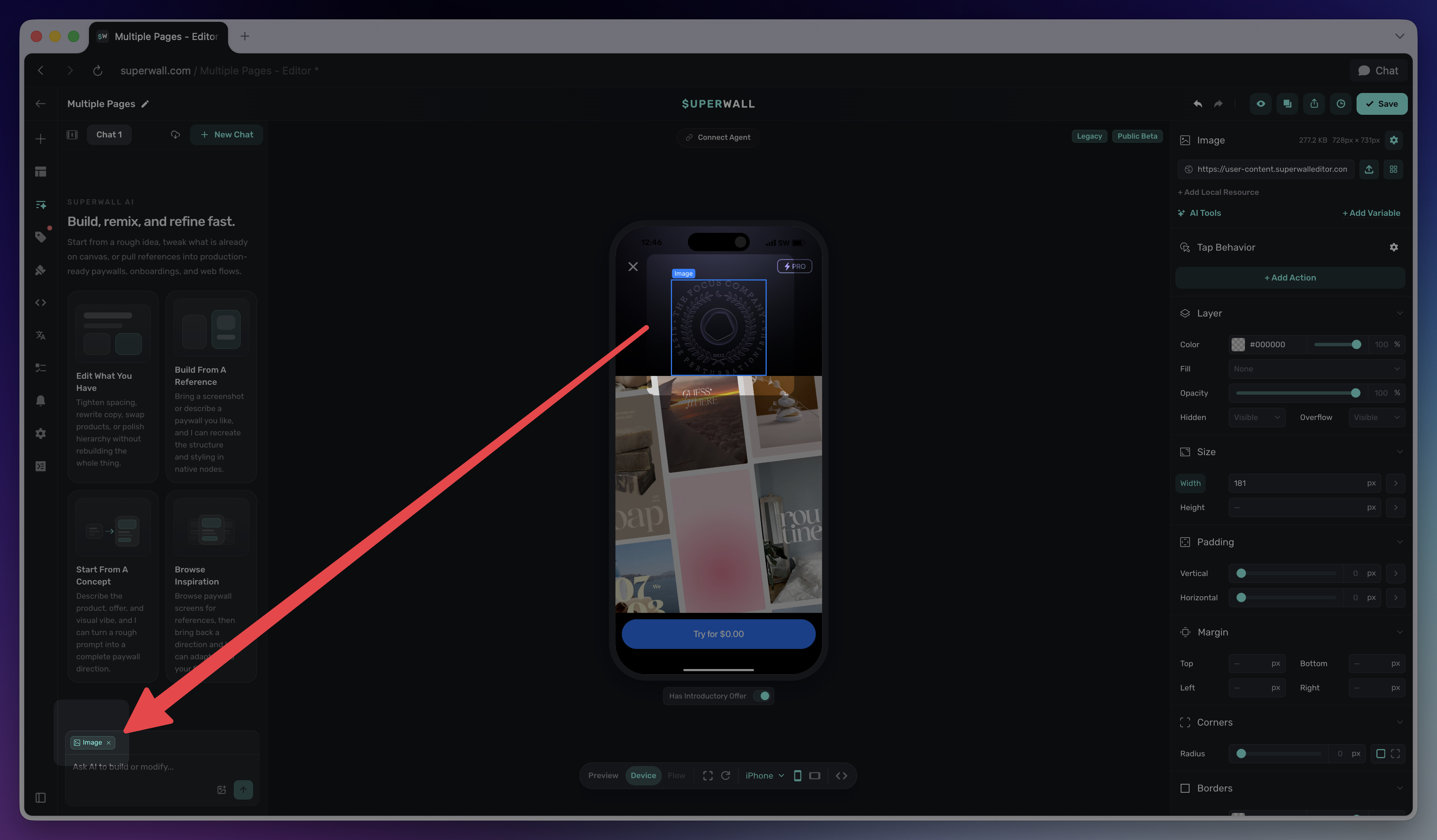
You can also attach images by clicking the image button, dragging an image into the chat, or pasting an image from your clipboard. Supported image types are JPEG, PNG, GIF, and WebP.
Use image attachments when you want the assistant to match a design, compare against a reference, or critique a visual result.
Manage chats
AI Chat keeps separate chat sessions for the current application and paywall.
- New Chat: Starts a fresh conversation for the current paywall.
- Chat tabs: Switch between previous conversations.
- Copy Session ID: Copies a chat session ID from the tab context menu.
- Import Chat: Imports a chat by session ID.
- Archive Chat: Removes a chat from the current session list.
- Layout toggle: Switches between the full-width chat and the two-panel view.
Only one chat run can be active at a time. If a run is taking too long or moving in the wrong direction, click Stop.
Review and publish
AI Chat changes the draft in the editor. Review the result before publishing:
- Use the canvas and device preview to check layout, copy, and interactions.
- Use History or undo if you want to roll back a change.
- Preview on device when purchase, navigation, permission, or callback behavior matters.
- Click Publish when the draft is ready to go live.
AI Chat does not publish for you. Changes are only live after you publish the paywall.
What AI Chat can edit
AI Chat uses the editor's live tool surface, so it can work across most of the same paywall areas you can edit manually:
- Build and refine the design: AI Chat can edit layout, element hierarchy, names, text, styles, ordering, images, and videos. It can also inspect screenshots and computed styles when you ask it to diagnose or polish a visual result.
- Connect paywall data: AI Chat can work with products and product references, theme tokens, style modes, token bindings, variables, current values, initial values, and dynamic values. Use it when a design needs to stay connected to the same data and products you would wire up manually.
- Configure behavior and flows: AI Chat can update tap behaviors, purchase actions, navigation actions, haptics, animations, routes, transitions, branching, localization, and trial-started notifications. It can also use search and find/replace when a change needs to touch more than one element.
AI Chat is best for iterative building and refinement. For account-level setup, such as creating applications, campaigns, products, or webhooks, use the Superwall MCP or Superwall Skill. To connect your own external agent directly to the open editor, use Editor MCP.
How is this guide?