Priority Placements
Preload your most important campaign's paywalls before the rest of your app's campaigns.
By default, Superwall's SDK preloads every paywall attached to your campaigns when the app launches. For most apps, this works seamlessly. But if you have a paywall that needs to appear immediately — like an onboarding paywall shown right at first launch — you can tell the SDK to preload that campaign's paywalls first.
That's what Priority Placements do. This feature is also referred to as prioritized placements or prioritized campaign preloading. When you mark a campaign as prioritized, the SDK fetches and caches that campaign's paywalls before anything else. Other campaign paywalls are still preloaded afterward in the background.
Only one campaign per app can be prioritized at a time. If you prioritize a new campaign, the previously prioritized one is automatically deprioritized.
When to use it
Prioritizing a campaign is most useful when:
- You show a paywall on first launch or during onboarding — the paywall needs to be ready the moment the user hits the placement, with zero loading delay.
- A placement is triggered very early in a session — such as
session_startorapp_open— and you want to guarantee the paywall appears instantly. - You have many campaigns and want to ensure one specific campaign's paywalls take precedence during preloading.
If your app only has a few campaigns, preloading happens quickly enough that you likely won't need this. It's most impactful when you have several campaigns and want to control the order they load.
How to prioritize a campaign
In the campaign editor, look for the flag icon next to the Placements header:
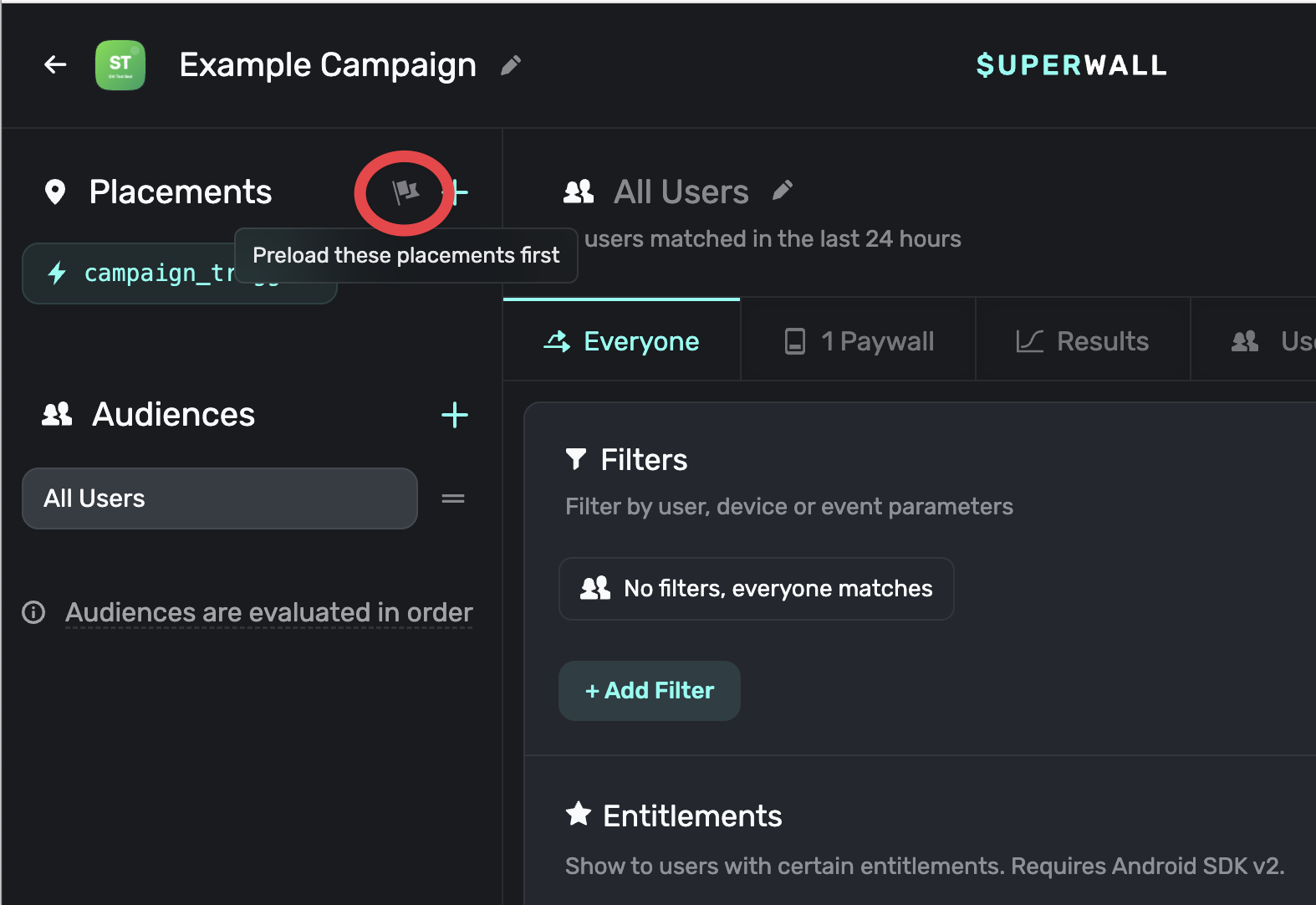
Click the flag to prioritize the campaign. The flag turns green to indicate the campaign is now prioritized. The dashboard describes this action as prioritizing campaign preloading.
To deprioritize, click the green flag again — it will revert to its default state.
Switching between campaigns
If another campaign is already prioritized and you click the flag on a different campaign, a confirmation dialog will appear:
Switch prioritized campaign? "[Other campaign name]" is currently prioritized. Only one campaign can be prioritized at a time. Switching will deprioritize it.
Confirm to switch, or cancel to keep the current priority.
How it works under the hood
When the SDK fetches its configuration and sees a prioritized campaign:
- Phase 1 — Prioritized preload: The SDK identifies all paywalls belonging to the prioritized campaign and preloads them first.
- Phase 2 — Remaining preload: After a 5-second delay, the SDK preloads all remaining campaign paywalls in the background.
This two-phase approach ensures the most important paywalls are cached and ready before others, without skipping preloading for the rest of your campaigns. The prioritized campaign's paywalls will be ready to present with no loading time, while other paywalls continue loading in the background.
Prioritization only affects preload order — it does not change how placements, audiences, or experiments work. Your campaign logic stays exactly the same.
SDK version requirements
Priority Placements require the following minimum SDK versions:
| SDK | Minimum version | Notes |
|---|---|---|
| iOS | 4.14.0 | Full support. |
| Android | 2.7.10 | Use 2.8.7 or later for the fix that limits the first preload batch to the prioritized campaign. Earlier versions could preload every assigned paywall in the first batch. |
| Flutter | 2.4.12 | Full support via bundled iOS SDK 4.14.2 and Android SDK 2.7.11. iOS-only support started in Flutter 2.4.11. |
| Expo | 1.0.11 | Full support via bundled iOS SDK 4.14.1 and Android SDK 2.7.11. iOS-only support started in Expo 1.0.8. |
| React Native | Not yet supported | The current React Native SDK bundles native SDK versions that predate prioritized campaign preloading. |
Priority Placements are fully backward-compatible. Older SDK versions ignore the prioritization flag and preload all paywalls in the default order.
How is this guide?