Test Mode
Simulate in-app purchases without StoreKit using test mode, which lets you test your entire paywall flow end-to-end.
Test mode lets you simulate in-app purchases without involving StoreKit or any external purchase controller. When active, all purchases are faked and product data is retrieved from the Superwall dashboard. This makes it easy to test your entire paywall flow end-to-end, including purchase, restore, and entitlement changes, without needing a StoreKit configuration file or sandbox account.
How it works
When test mode is active:
- Product data comes from the dashboard instead of StoreKit, so you don't need a StoreKit configuration file or App Store Connect products set up.
- Purchases are simulated. Instead of the system payment sheet, a test mode drawer appears letting you choose to complete, abandon, or fail the transaction. All purchase events fire normally, so your analytics and delegate callbacks work as expected.
- Restores are simulated. A restore drawer lets you pick which entitlements to restore.
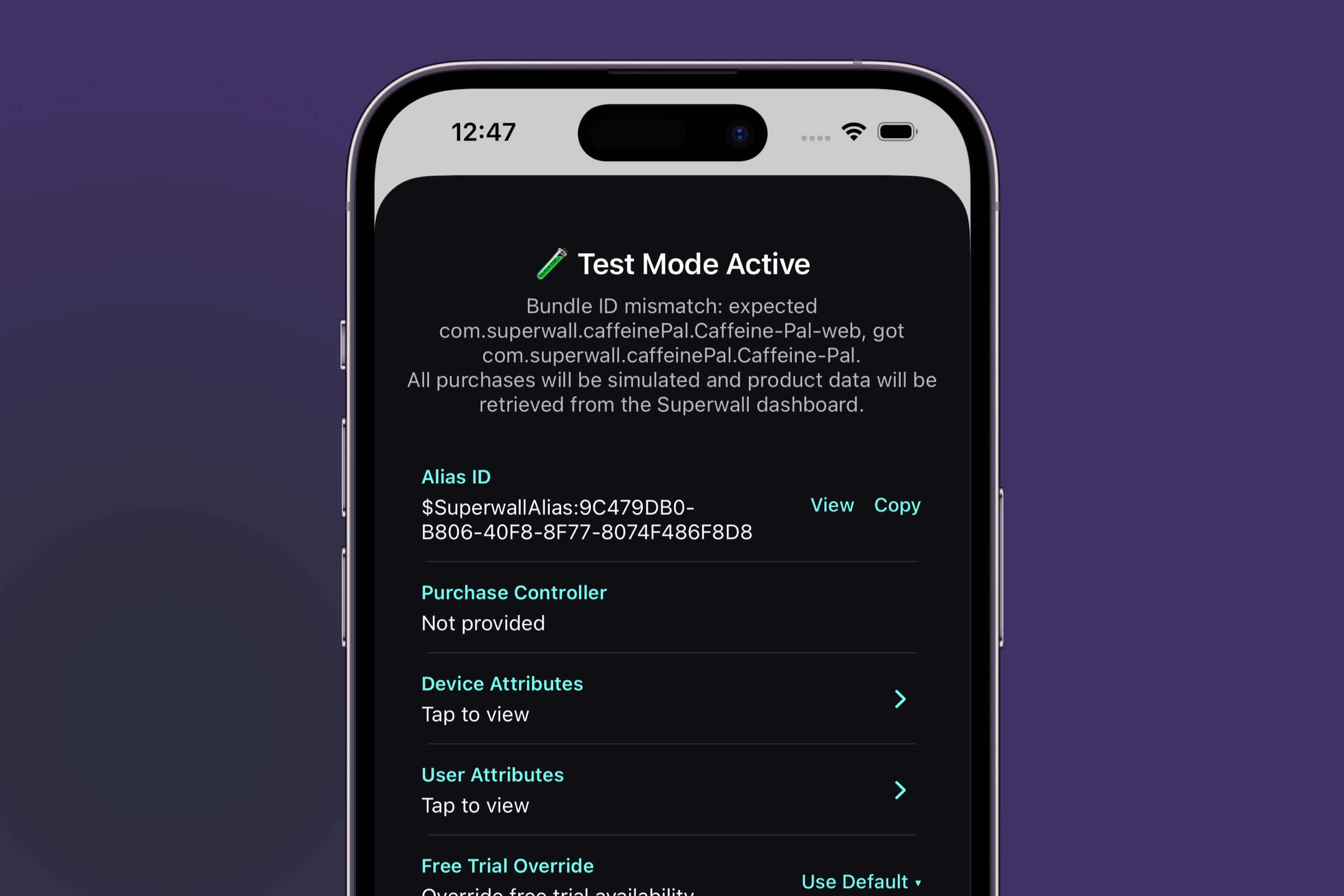
- A configuration modal normally appears on launch showing your User ID, purchase controller status, device and user attributes, free trial override, and starting entitlements. Dev-server mode skips this intro modal.
- All events route to sandbox, so test mode activity won't affect your production data.
Activating test mode
There are two ways to activate test mode:
1. From the dashboard
Mark specific users as test store users in the Superwall dashboard. When the SDK detects that the current user's ID matches a test store user from your config, test mode activates automatically. This is the most common approach.
2. From the SDK
Set testModeBehavior on SuperwallOptions before calling configure:
let options = SuperwallOptions()
options.testModeBehavior = .always

Superwall.configure(apiKey: "your-api-key", options: options)
The available behaviors are:
| Behavior | Description |
|---|---|
.automatic | (Default) Activates when the current user is marked as a test store user in the dashboard, or when the app's bundle ID doesn't match the one configured in the dashboard. Never activates during UI tests. |
.whenEnabledForUser | Activates only when the current user is marked as a test store user in the dashboard. Ignores bundle ID mismatches. |
.always | Always activates test mode, regardless of dashboard configuration. Useful during local development. |
.never | Never activates test mode, regardless of configuration. |
3. From a local dev server
When SuperwallOptions.devServer connects to a running superwall dev server, test mode activates automatically. The dev server also disables paywall preloading and skips the test mode intro sheet, so local paywall edits can be presented immediately. Use .default for a simulator or .url(...) with the server's Device URL on a physical device.
The configuration modal
When test mode activates, a modal normally appears before you interact with any paywalls. Dev-server mode skips this intro modal. It displays:
- User ID: Your current user ID, with a link to view the user in the dashboard.
- Purchase Controller: Whether you've provided a custom purchase controller.
- Device Attributes: Tap to view all device-level attributes the SDK is tracking.
- User Attributes: Tap to view all user-level attributes.
- Free Trial Override: Override free trial availability for all products. Choose Use Default (respects the product's actual trial status), Force Available, or Force Unavailable.
- Starting Entitlements: If you have entitlements configured, you can set each one to Active or Inactive before dismissing the modal. This lets you test how your paywalls behave for users with different entitlement states.
Tap OK to dismiss the modal and begin testing. Your selections persist across sessions. Tap Reset to Defaults to clear all overrides.
Simulating purchases
When you tap a purchase button on a paywall while test mode is active, a drawer appears instead of the system payment sheet:
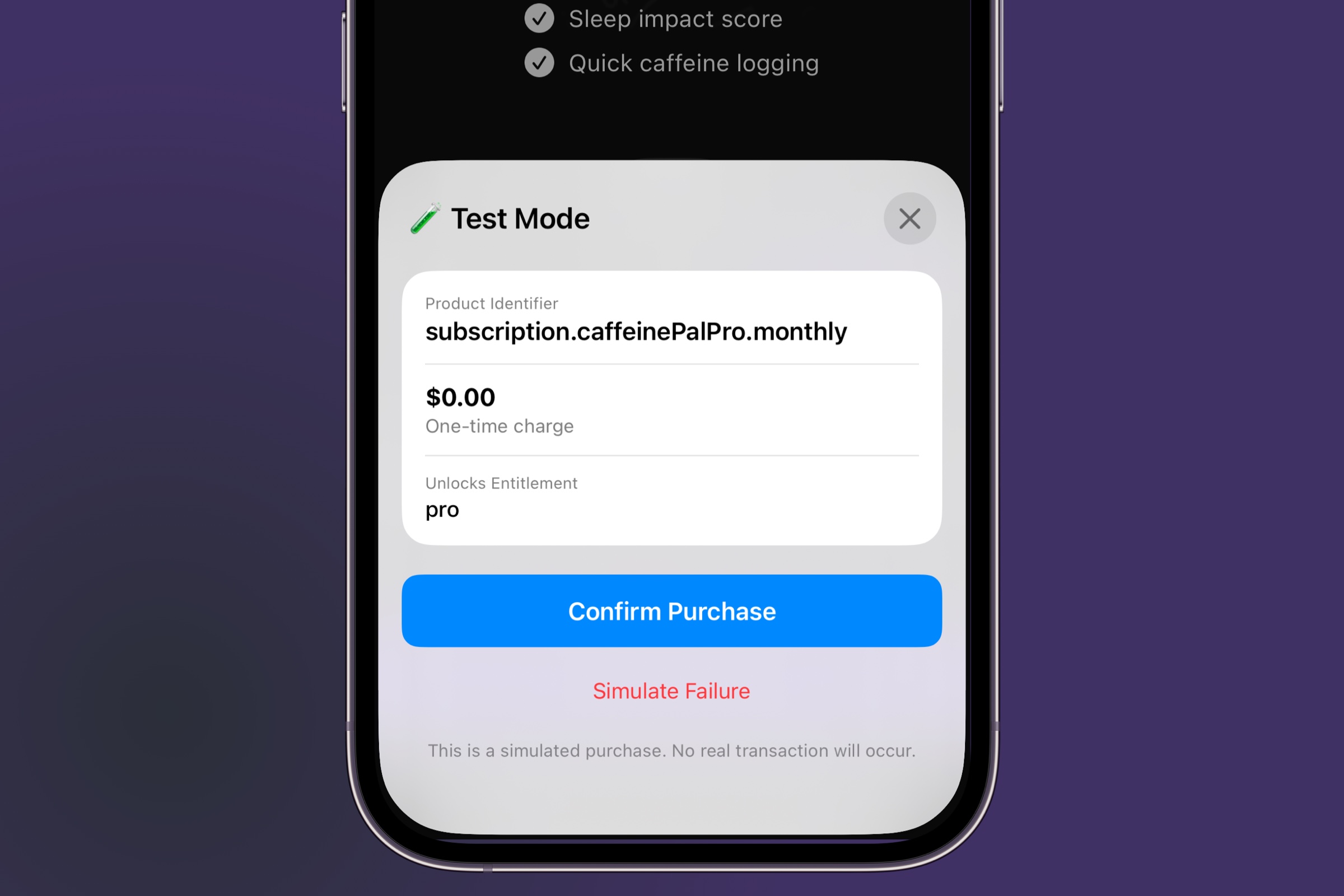
The drawer shows the product details and these options:
- Purchase: Simulates a successful purchase. The product's entitlements are activated and your subscription status updates accordingly.
- Failure: Simulates a purchase failure.
All standard Superwall events (transaction_start, transaction_complete, transaction_abandon, transaction_fail, etc.) fire as they normally would, so you can verify your analytics and delegate callbacks.
Simulating restores
When a restore is triggered while test mode is active, a drawer appears letting you select which entitlements to restore and in what state. This is useful for testing how your app handles different restore scenarios.
When to use test mode vs. StoreKit testing
| Test mode | StoreKit testing | |
|---|---|---|
| Setup | No StoreKit config file needed | Requires a StoreKit configuration file in Xcode |
| Products | Pulled from the Superwall dashboard | Must exist in the StoreKit config or App Store Connect |
| Transactions | Simulated via UI drawer | Real StoreKit transactions in a sandbox |
| Best for | End-to-end paywall flow testing, verifying entitlement gating, testing without App Store Connect setup | Testing real StoreKit behavior, receipt validation, subscription lifecycle |
Test mode is ideal for quickly validating your paywall presentation, purchase flows, and entitlement gating without any StoreKit setup. For testing actual StoreKit behavior, use StoreKit testing in Xcode instead.
How is this guide?