Article-Style Paywalls: Inline with Additional Plans
Embed an inline paywall in a scrollable article and optionally present a second full-screen paywall for additional plans.
Article-style paywalls let you keep readers in the flow of a long-form page while still prompting for upgrade options. You can place an inline paywall inside a scroll view, then present a second, full-screen paywall when users tap “see more plans.”
This pattern is common in paid media and magazine apps: a portion of the article is readable, the rest is blurred or gated, and a footer paywall offers an inline purchase with a “see more plans” option that opens a full-screen paywall. Check out this working example:
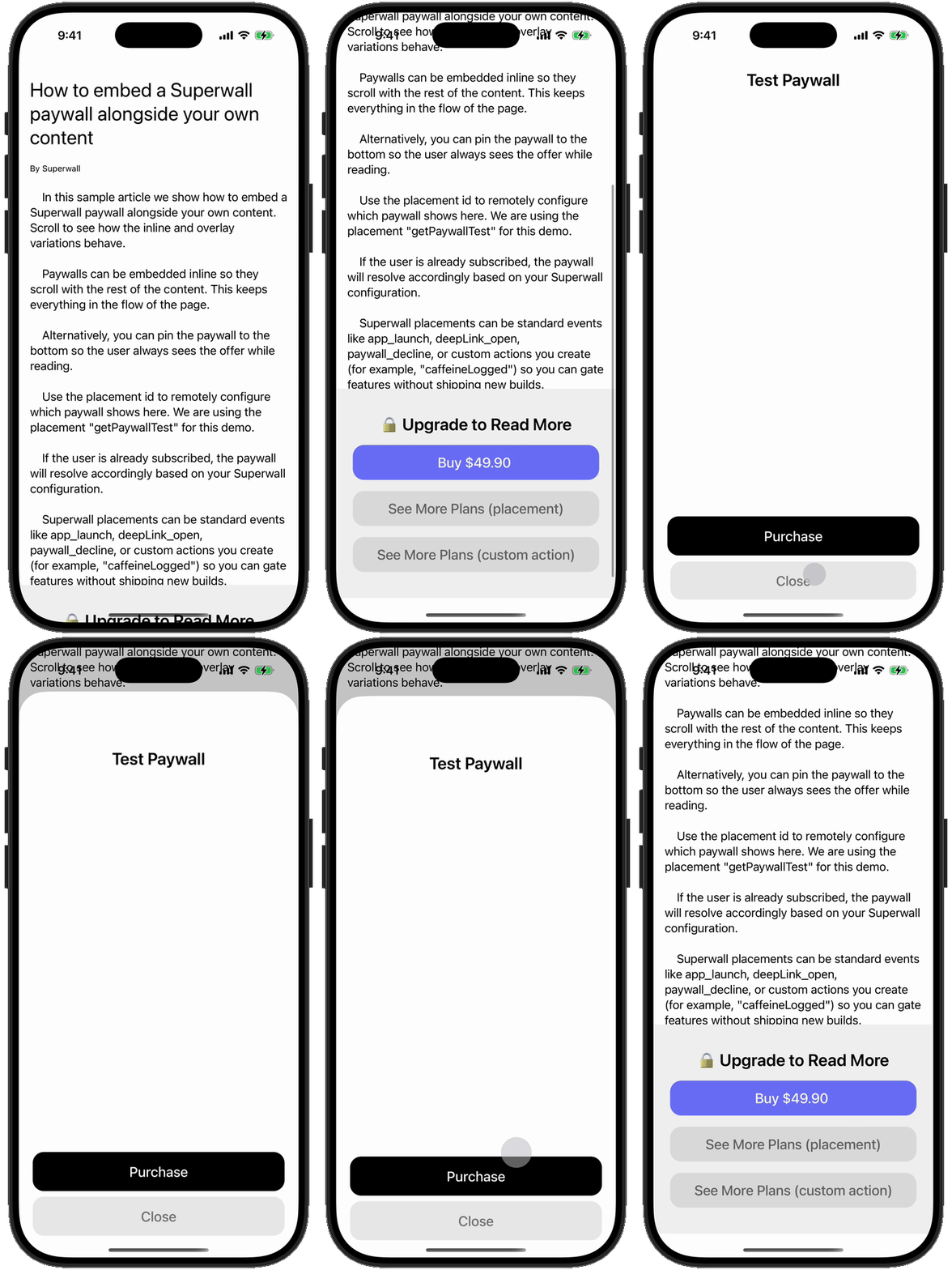
This guide will show you how to build this example by explaining the APIs involved, and then a full code sample. There’s also a live working example in CaffeinePal. Look at the RecipesView to see it in action.
Key APIs
Use getPaywall() to fetch a paywall you can embed inline, and configure it with a placement so you can control which paywall variant shows from the dashboard. For more on presenting paywalls in custom presentations, check out our blog post.
For the second paywall, trigger a custom action from the inline paywall and call getPaywall() again to present the full-screen option.
You're responsible for removing embedded paywall views when users move on. Reusing the same PaywallViewController or PaywallView instance elsewhere can cause a crash. For UIKit, avoid mixing register() and getPaywall() when you embed paywalls.
Presenting a second paywall
To get the inline paywall to trigger a second, full-screen paywall, create a custom action in the paywall editor in the embedded paywall. In this example, a custom action called "showFromLine" is triggered from the "or, view all plans" button:
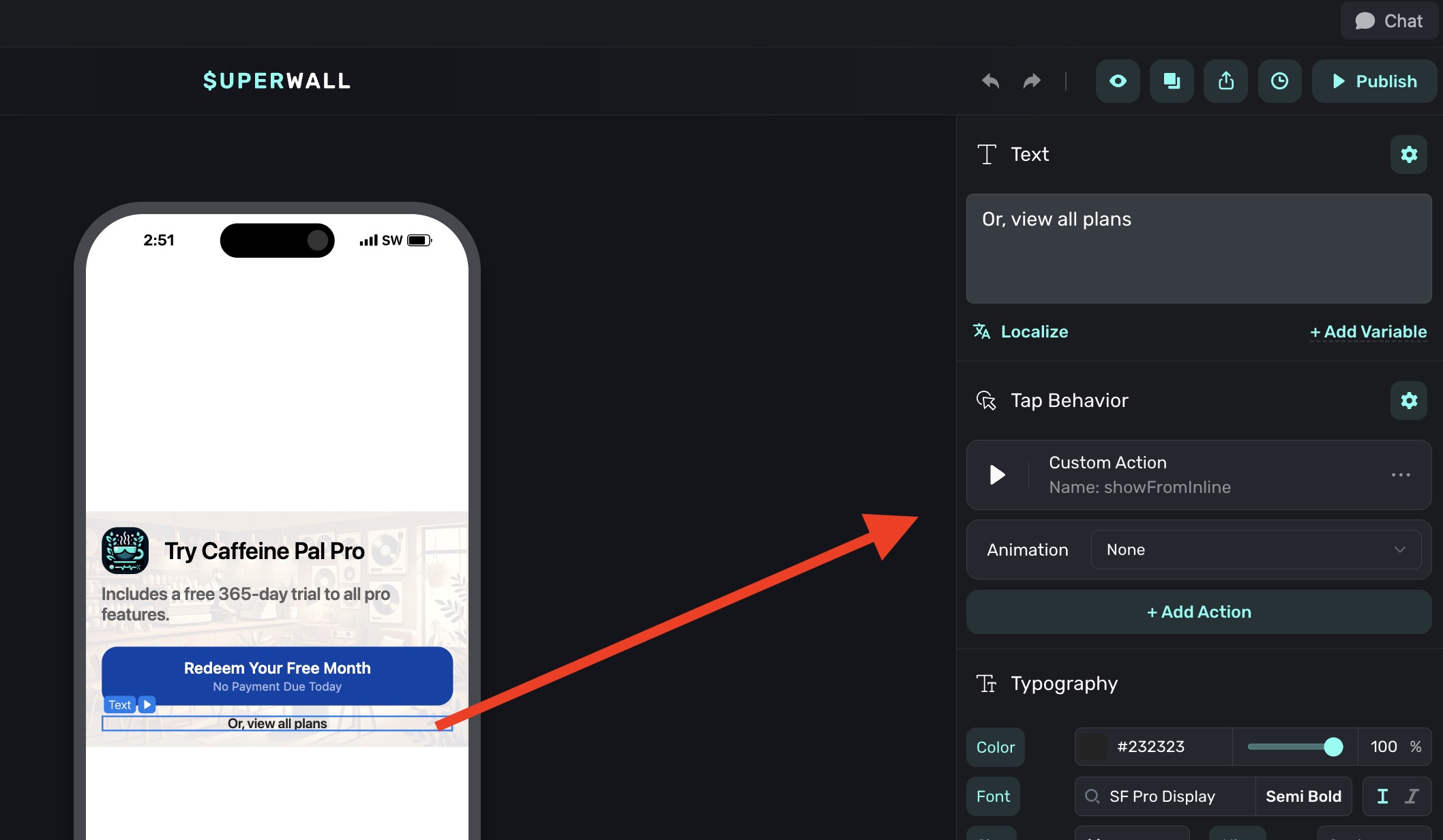
Then, respond to that action in your SuperwallDelegate to retrieve the second paywall and present it. In the code below, our second paywall is normally triggered via the showAllPlansPaywall placement that was setup in the Superwall dashboard within a campaign:
extension MyAppLogic: SuperwallDelegate, PaywallViewControllerDelegate {
    // Custom action comes in
    func handleCustomPaywallAction(withName name: String) {
        if name == "showFromInline" {
            Task {
                await presentAllPlansPaywall()
            }
        }
    }

    // MARK: PaywallViewControllerDelegate

    func paywall(
        _ paywall: PaywallViewController,
        didFinishWith result: PaywallResult,
        shouldDismiss: Bool
    ) {
        if shouldDismiss {
            paywall.dismiss(animated: true)
        }
    }

    func paywall(
        _ paywall: PaywallViewController,
        loadingStateDidChange loadingState: PaywallLoadingState
    ) {
        // Handle loading state changes if needed
    }

    // MARK: Custom Paywall Presentation

    private func presentAllPlansPaywall() async {
        do {
            let paywallViewController = try await Superwall.shared.getPaywall(
                forPlacement: "showAllPlansPaywall",
                delegate: self
            )

            guard let windowScene = UIApplication.shared.connectedScenes.first as? UIWindowScene,
                  let rootViewController = windowScene.windows.first?.rootViewController else {
                return
            }

            var topController = rootViewController
            while let presented = topController.presentedViewController {
                topController = presented
            }

            topController.present(paywallViewController, animated: true)
        } catch let reason as PaywallSkippedReason {
            print("Paywall skipped: \(reason)")
        } catch {
            print("Error presenting paywall: \(error)")
        }
    }
}
This keeps the inline paywall embedded while you intentionally present the next paywall. The entire flow looks like this:
In your dashboard
- Have a paywall setup for your "footer" or bottom paywall.
- Add a custom action to it to present a second paywall over it.
- Make sure both paywalls are active in a campaign, and remember the placements used to trigger them
In your code
- Use
getPaywallandPaywallViewto embed the first paywall in your scrollview. - Users can purchase from there, or tap another button to present a second paywall.
- Handle a custom action fired from a "View all plans" or similar button in a
SuperwallDelegate. - Use
PaywallViewControllerDelegateto manage presentation of the second one.
Here's some code to model your approach, showing the first paywall as either an overlay at the bottom or inline with scrolled content:
enum PaywallEmbedMode {
  case overlay
  case inline
}

struct ArticlePaywallDemoView: View {
  let mode: PaywallEmbedMode
  let placement: String = "getPaywallTest"

  var body: some View {
    ScrollView {
      VStack(alignment: .leading) {
        Text("How to embed a Superwall paywall alongside your own content")
          .font(.title)
        Text("By Superwall").font(.caption)
        Text("...article content...")
          .padding(.vertical, 16)

        if mode == .inline {
          paywallContent
        }
      }
      .padding()
      .overlay(alignment: .bottom) {
        if mode == .overlay {
          paywallContent
        }
      }
    }
  }

  private var paywallContent: some View {
    PaywallView(placement: placement)
      .frame(maxWidth: .infinity)
      .frame(height: 300)
  }
}
If you need to remove the paywall, remove the PaywallView from the view hierarchy and recreate it when you need to show it again.
How is this guide?