Connect an Agent with MCP
Connect Claude Code, Codex, Cursor, or another MCP-compatible agent to the paywall currently open in the Superwall editor.
Editor MCP lets an external AI agent control the paywall currently open in your browser. Use it when you want to keep working in Claude Code, Codex, Cursor, or another MCP-compatible agent while giving that agent live access to the editor.
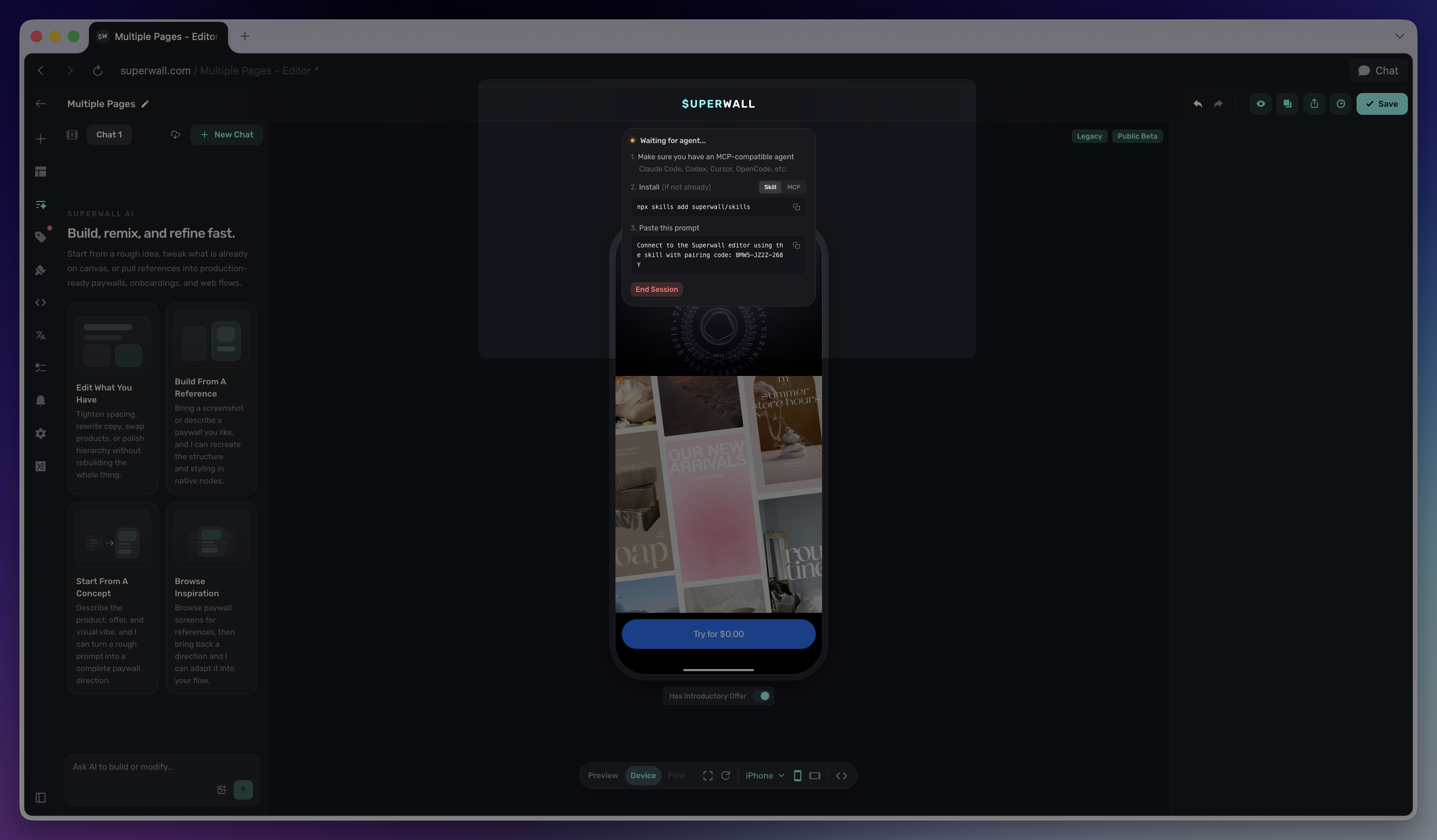
Editor MCP is different from the Superwall MCP. The Superwall MCP manages account resources such as apps, campaigns, products, and paywalls. Editor MCP controls the one paywall editor session open in your browser.
Connect an agent
- Open the paywall you want the agent to edit.
- Open AI Chat in the editor sidebar.
- Click the agent connection pill.
- Choose Skill or MCP.
- Copy the install command shown in the editor.
- Paste the pairing prompt into your agent.
If you choose Skill, the editor shows:
npx skills add superwall/skillsThen paste the generated prompt into your agent:
Connect to the Superwall editor using the skill with pairing code: XXXX-XXXX-XXXXIf you choose MCP, select your client first. The editor generates the right command or configuration for Claude Code, Codex, Cursor, or another MCP client. Use the command shown in the editor because it includes the correct Editor MCP URL for your environment.
The MCP prompt looks like this:
Connect to the superwall-editor MCP with pairing code: XXXX-XXXX-XXXXConnected state
After the agent attaches, the connection pill shows the connected client and tool activity.
For example, this is what it looks like when an agent uses the pairing code to connect to the editor:
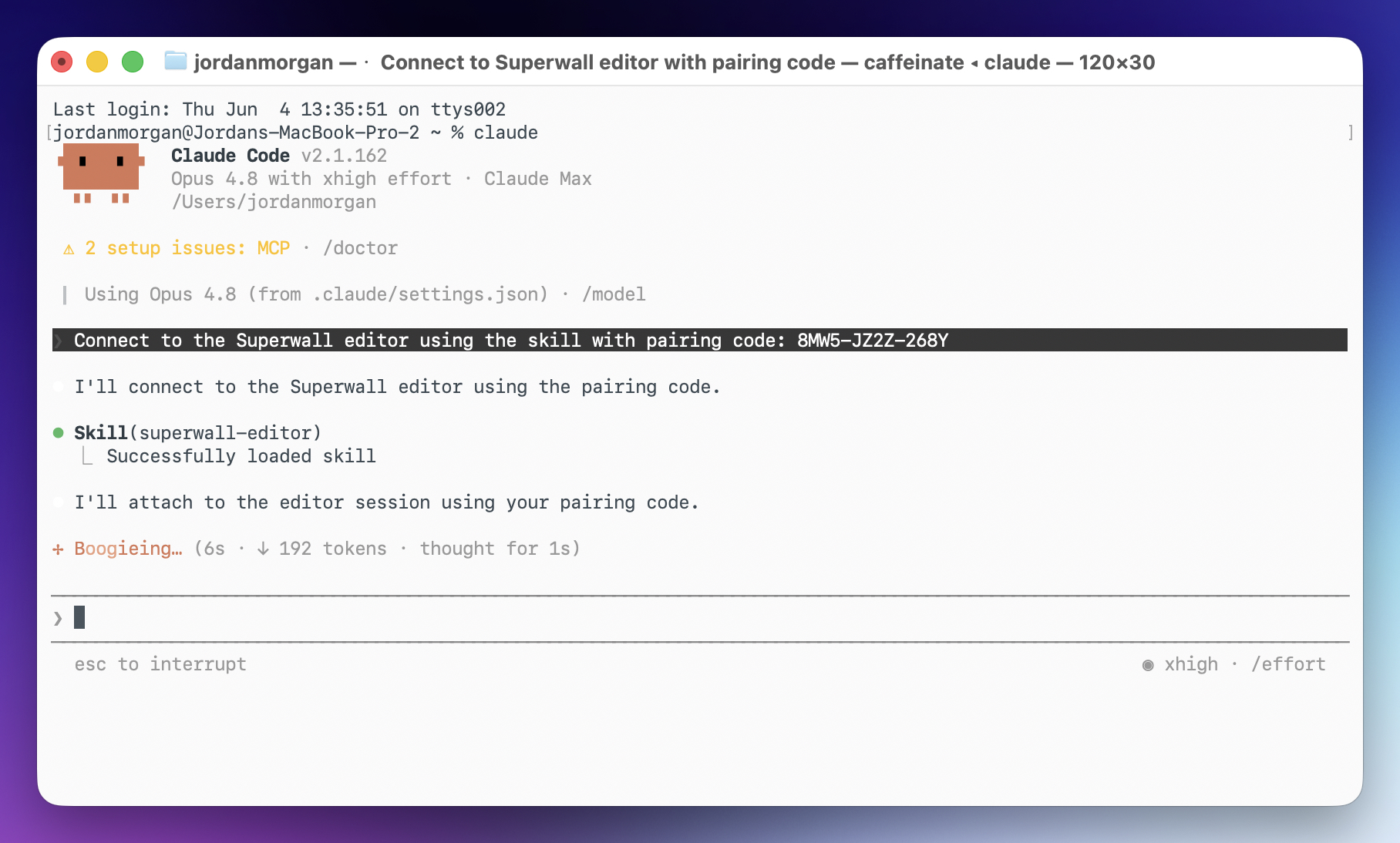
After the connection completes, the editor shows the attached client and recent tool activity.
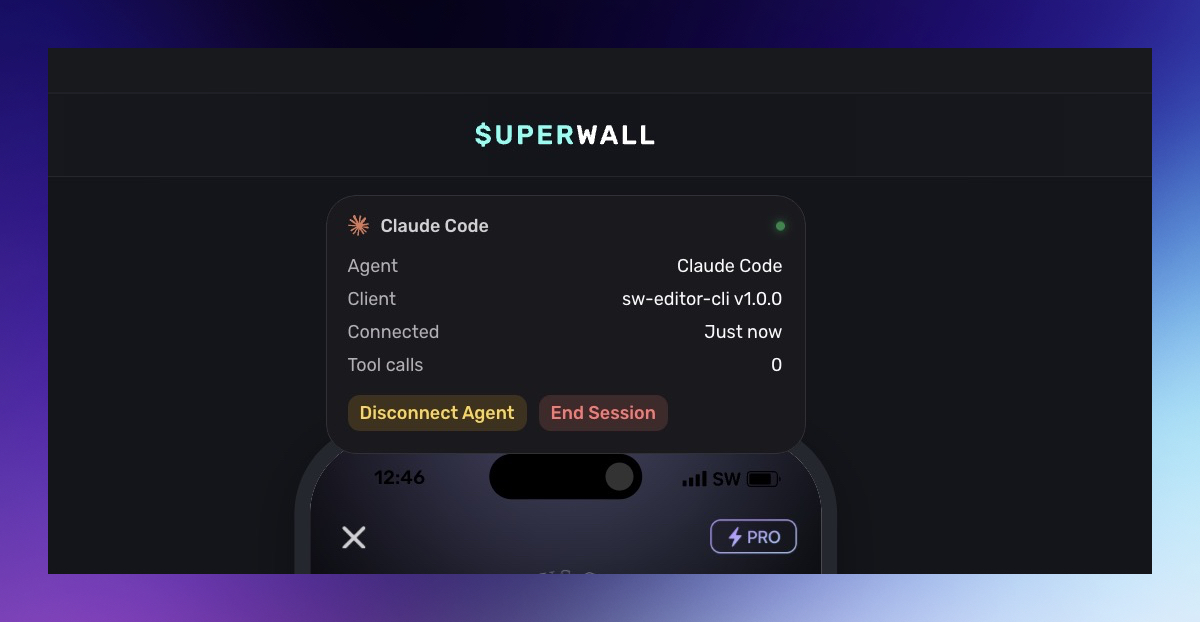
The editor keeps the browser session open while the page is open. From the connection panel you can:
- Disconnect Agent: Release the current agent while keeping the editor session available for another pairing.
- End Session: Close the browser editor session and invalidate the pairing code.
Only one external controller can be attached to an editor session at a time. Disconnect the current agent before attaching a different one.
What agents can do
Attached agents receive the editor's live tool list. The exact list can change as the editor evolves, but today agents can:
- Inspect and edit the paywall: Agents can read the current paywall, selected elements, children, navigation pages, computed styles, and screenshots. They can then update text, styles, names, node order, hierarchy, or write native paywall HTML directly into the editor.
- Work with content and resources: Agents can upload image and video assets, create and edit products, manage style tokens, and update variables, variable values, and dynamic values. They can also add localization languages, run AI localization, and configure trial-started notifications.
- Configure behavior and advanced flows: Agents can add or clear tap behaviors such as purchase, restore, close, open URL, set state, select product, navigate page, request permission, request callback, scroll, focus input, delay, animation, and haptics. They can also edit routes, transitions, branches, advanced native elements, and use search or find/replace to make broader changes.
Session limits
Editor MCP uses pairing codes and session tokens rather than your account-level MCP OAuth flow.
| Limit | Behavior |
|---|---|
| Pairing code lifetime | Pairing codes expire after 10 minutes. |
| Editor session lifetime | Browser editor sessions expire after 24 hours. |
| Tool timeout | Tool calls time out after 30 seconds. |
| Browser reconnect | The browser has a short reconnect window if the page refreshes or briefly disconnects. |
| Failed pair attempts | Too many wrong pairing codes end the session. |
If a pairing code expires, open the connection panel again and use the new code.
Troubleshooting
The agent cannot attach
Check that the paywall editor tab is still open, the pairing code has not expired, and the agent is using the prompt from the current connection panel.
The session says another controller is connected
Only one controller can be attached. Click Disconnect Agent, then attach the new agent with the latest pairing code.
Tool calls fail after a browser refresh
Wait a moment for the editor to reconnect. If calls still fail, end the session and create a new connection from the editor.
The agent edited the wrong thing
Use the editor's undo and history tools to review or roll back changes. Select the exact element you want changed before sending the next prompt so the agent receives that selection as context.
Related
- AI Chat Builder: Use Superwall's built-in chat builder inside the editor.
- Superwall MCP: Manage account resources from external AI tools.
- Skills: Give coding agents Superwall docs, API helpers, and SDK integration guidance.
- Build a Paywall: Every way to build a paywall with AI.
How is this guide?