Facebook Pixel
Track browser-side paywall and checkout events from Superwall web paywalls with Facebook Pixel. This integration injects Meta's client-side Pixel script and maps Web2App events to Pixel events.
Use the Facebook Pixel integration to send browser-side events from Superwall
web paywalls to Meta. This integration injects the standard Pixel script into
the page and maps Web2App events to Meta Pixel events such as ViewContent,
InitiateCheckout, and Purchase.
Note: If you need server-side subscription lifecycle events such as renewals, cancellations, expirations, or refunds, use Meta Conversion API instead. That integration is separate from Facebook Pixel.
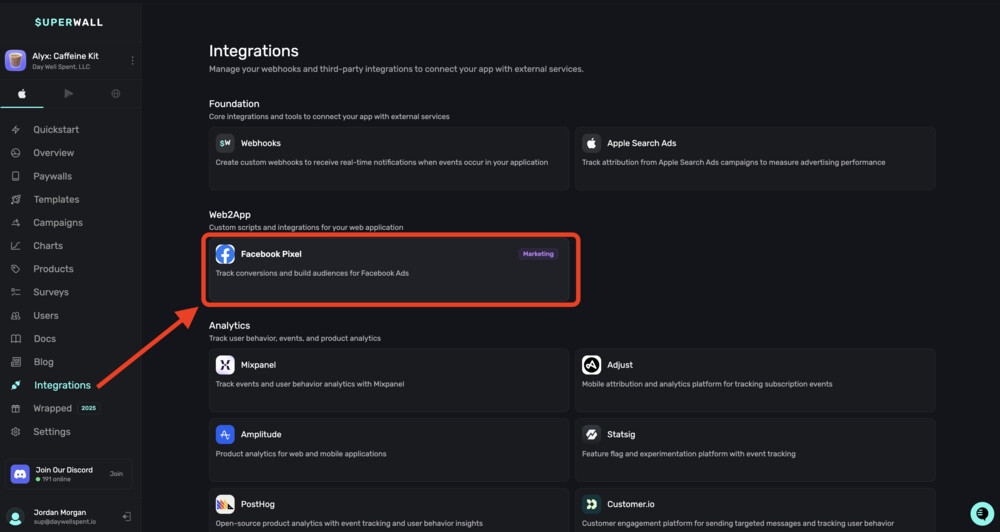
In the Web2App integrations area, you can connect Facebook Pixel in Superwall:
How this integration works
Superwall exposes Facebook Pixel as a Web2App browser integration. When the integration is enabled:
- Superwall injects Meta's
fbqbootstrap script into the page - The Pixel is initialized with your
pixelId - A
PageViewevent is sent when the script loads - Supported paywall and checkout events are forwarded to
fbq
This is browser-side tracking for web paywalls. It does not forward subscription lifecycle events from webhooks, and it does not use Meta's Conversion API.
Set up in Superwall
Set this up from the dashboard UI rather than by editing a config object.
- Open your app in Superwall.
- Go to Integrations.
- Open the Web2App integrations area.
- Add or open Facebook Pixel.
- Enter your Pixel ID.
- Leave Enabled on if you want the integration to start sending events immediately.
- Click Save Integration.
If the integration already exists, the same screen is used in Edit Integration mode.
Fields shown in the dashboard
| UI field | Required | What to enter |
|---|---|---|
Pixel ID | Yes | Your Facebook Pixel ID from Meta Events Manager |
Enabled | No | Turn the integration on or off |
Superwall stores the underlying Web2App integration config for you. You do not
need to manually write integrationId or config.pixelId in the dashboard.
Getting your Pixel ID
You only need the Pixel ID for this integration.
- Go to Meta Events Manager.
- Select your Pixel from Data Sources.
- Copy the Pixel ID shown at the top of the page.
Script bootstrap
When the integration loads, Superwall injects Meta's standard client-side script into the page:
<script>
  fbq("init", "123456789012345");
  fbq("track", "PageView");
</script>
Superwall also adds Meta's noscript image fallback for the same Pixel ID.
Event mapping
The browser integration maps Web2App events to Pixel events as follows:
| Superwall browser event | Meta Pixel event | Notes |
|---|---|---|
paywall_open | ViewContent | Includes content_name, content_id, and content_type: "paywall" |
transaction_start | InitiateCheckout | Includes content_ids and content_type: "product" |
transaction_complete | Purchase | Includes transaction_id, content_ids, and optional value and currency |
paywall_close | trackCustom("PaywallClosed") | Custom event with paywall_id |
manageLink_click | trackCustom("ManageLinkClick") | Custom event with subscription fields |
activateDeviceLink_click | trackCustom("ActivateDeviceLinkClick") | Custom event with subscription fields |
Event payload details
Each mapped event sends a small payload based on the browser event data.
paywall_open -> ViewContent
{
  "content_name": "Main paywall",
  "content_id": "paywall_123",
  "content_type": "paywall"
}
transaction_start -> InitiateCheckout
{
  "content_ids": ["com.app.premium.monthly"],
  "content_type": "product"
}
transaction_complete -> Purchase
{
  "transaction_id": "txn_123",
  "content_ids": ["com.app.premium.monthly"],
  "content_type": "product",
  "value": 9.99,
  "currency": "USD"
}
The value and currency fields are only included when they are present in
the browser event payload.
paywall_close -> PaywallClosed
{
  "paywall_id": "paywall_123"
}
manageLink_click -> ManageLinkClick
{
  "subscription_name": "Premium Monthly",
  "subscription_status": "active",
  "redemption_code": "ABC123",
  "provider": "stripe"
}
activateDeviceLink_click -> ActivateDeviceLinkClick
{
  "subscription_name": "Premium Monthly",
  "redemption_code": "ABC123"
}
Facebook Pixel vs. Meta Conversion API
These integrations are related, but they solve different problems.
| Integration | Tracking mode | Best for | Does it send renewals, cancellations, and refunds? |
|---|---|---|---|
| Facebook Pixel | Browser-side | Web paywall interactions and checkout flow events | No |
| Meta Conversion API | Server-side | Subscription lifecycle and revenue webhook events | Yes |
Use Facebook Pixel when you want client-side behavioral signals from web paywalls. Use Meta Conversion API when you need server-side revenue and subscription lifecycle events.
Testing the integration
Validate the browser-side integration before relying on it in campaigns.
- Enable the Facebook Pixel integration with your Pixel ID.
- Open a web paywall that uses the integration.
- Confirm
PageViewappears in Meta Events Manager. - Trigger paywall and checkout events.
- Verify
ViewContent,InitiateCheckout,Purchase, and any custom events appear as expected.
You can also confirm that fbq is loaded in the browser and inspect network
requests to Meta while exercising the paywall flow.
Common use cases
Track paywall impressions
Use ViewContent from paywall_open to measure paywall views and build
remarketing audiences around paywall engagement.
Track checkout starts
Use InitiateCheckout from transaction_start to see where users begin the
purchase flow but do not complete it.
Track completed purchases in the browser
Use Purchase from transaction_complete to capture client-side checkout
completion on web paywalls.
Track manage-subscription interactions
Use ManageLinkClick and ActivateDeviceLinkClick to understand how users
interact with account and device-link flows.
Troubleshooting
Events are not appearing in Meta
Possible causes:
- The Pixel ID is incorrect
- The browser integration is not enabled
- The page did not load the injected
fbqscript - The paywall flow did not emit the expected browser event
Solutions:
- Verify the Pixel ID in Meta Events Manager.
- Confirm the integration is enabled for the web paywall flow.
- Check that
fbqis available in the page. - Inspect the browser console and network requests during the flow.
Purchase is missing value or currency
Possible causes:
- The
transaction_completeevent did not include those fields
Solutions:
- Verify the browser event payload includes
valueandcurrency. - If you need more complete revenue lifecycle reporting, use Meta Conversion API.
You need renewals, cancellations, or refunds
Facebook Pixel does not send those lifecycle events in this integration.
Use Meta Conversion API for that server-side workflow.
Additional resources
- Meta Events Manager
- Meta Pixel documentation
- Meta Conversion API for server-side subscription lifecycle tracking
How is this guide?
Meta Conversion API
Send subscription lifecycle events from Superwall to Meta's server-side Conversion API. Use this integration to report subscriptions, renewals, cancellations, refunds, and other revenue events to your Meta Pixel.
Adjust
The Adjust integration automatically sends Superwall subscription and payment events to Adjust via the server-to-server (S2S) event API. Configure per-platform app tokens, map individual event tokens, and track subscription lifecycle events with device-level attribution.