Figma Plugin
The Superwall Figma Plugin allows designers to convert Figma designs into fully functional paywalls with one click.
The Superwall Figma Import plugin can automatically import Figma designs into the paywall editor. Each component is imported individually, preserving your design structure.
Auto Layout is required for the entire frame in your Figma files for the import to work.
To see it in action, check out the video demo:
Requirements
Your Figma designs must use Auto Layout for the plugin to correctly interpret and convert them. Frames without Auto Layout won't be imported correctly.
If your design isn't using Auto Layout, select your frame in Figma and press Shift + A to enable it, then adjust your layout settings as needed.
Installing the Plugin
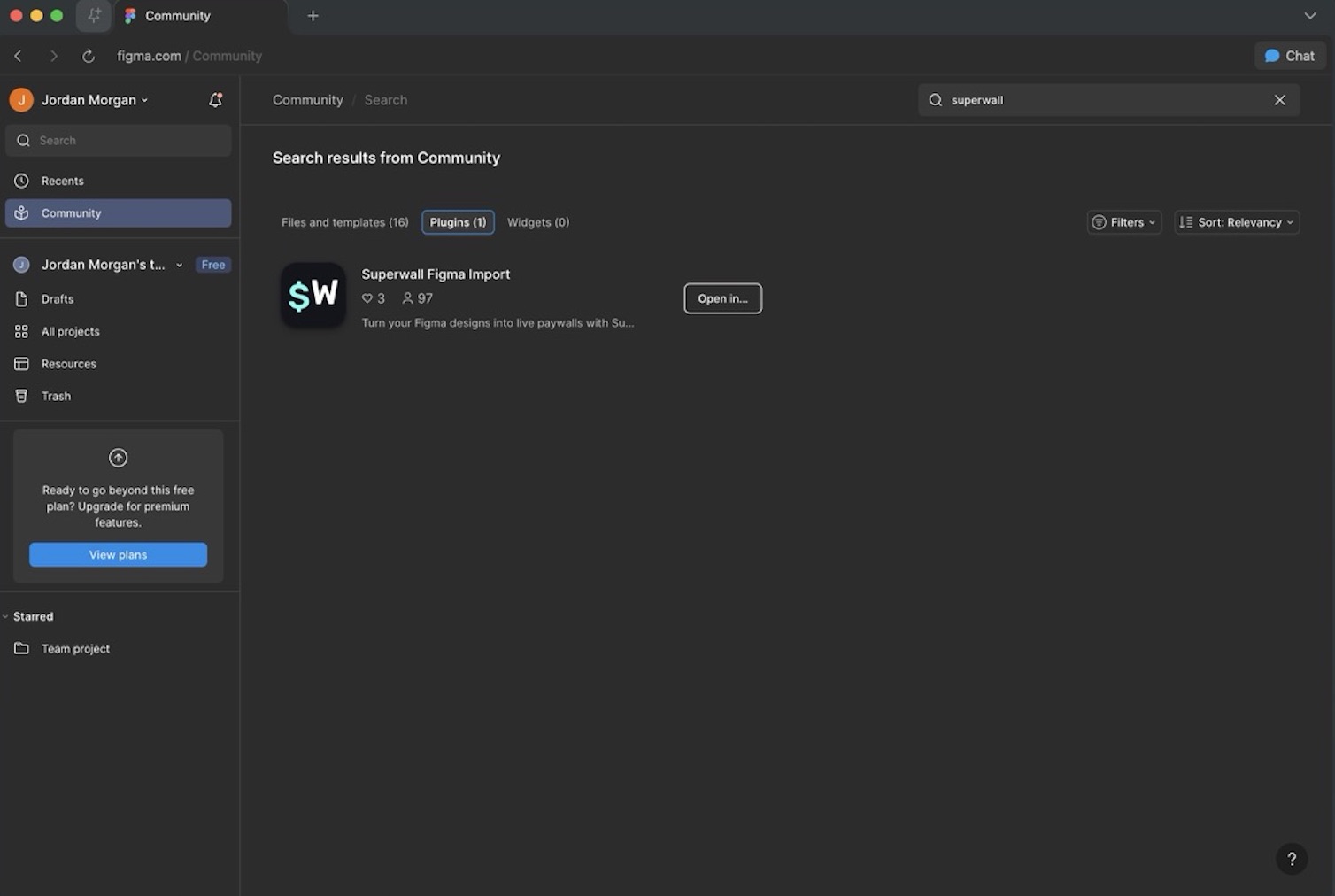
- Open Figma and navigate to Community.
- Search for "Superwall" in the Plugins tab.
- Find Superwall Figma Import and click Open in....
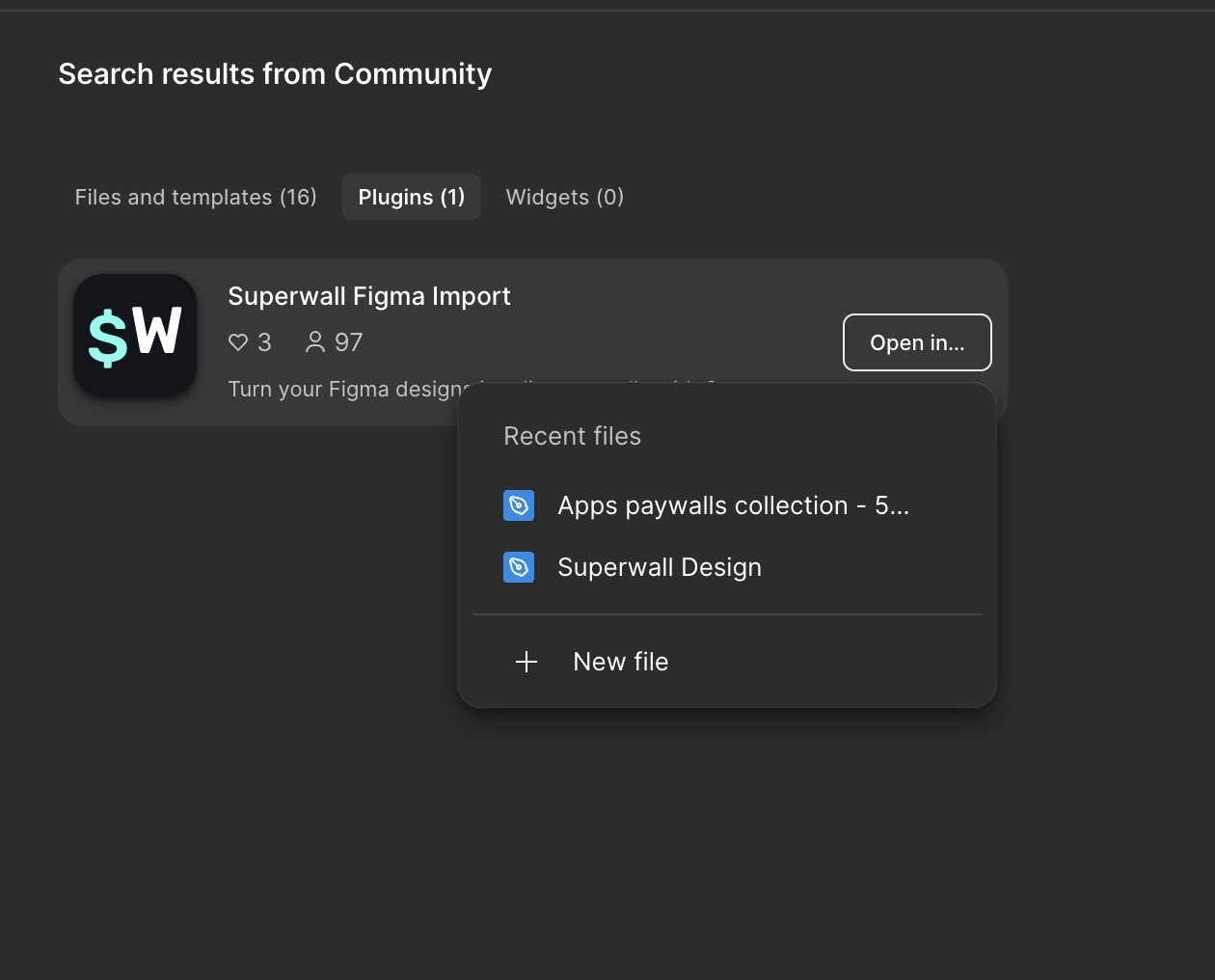
- Choose an existing file or create a new one to add the plugin:
Importing a Paywall
Once the plugin is installed, you can import any Auto Layout frame as a Superwall paywall:
- Open the plugin from Plugins → Superwall Figma Import.
- Select the frame(s) you want to export.
- The plugin panel will prompt you to select a frame to export.
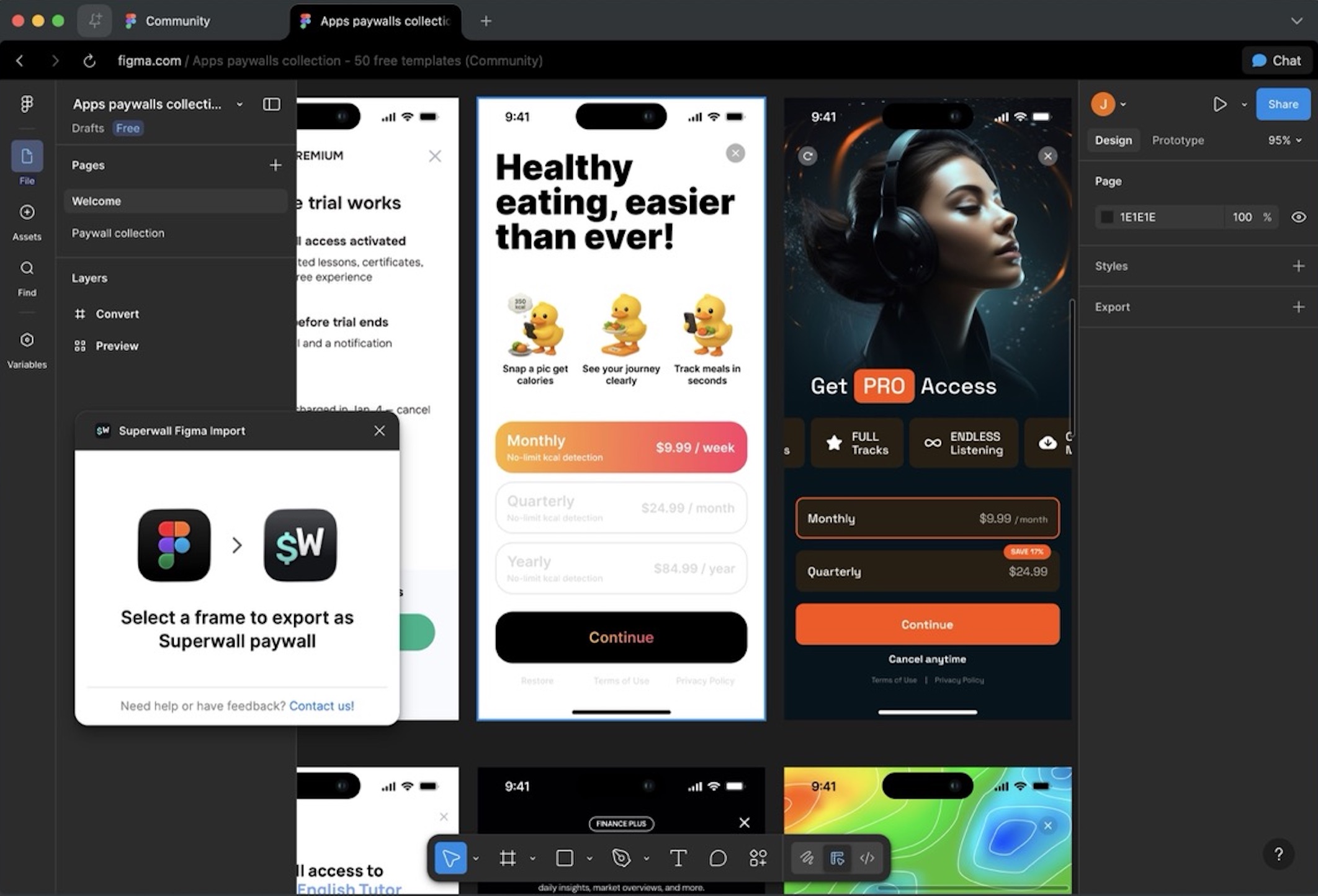
- Click to begin the import and your design will be sent to Superwall:
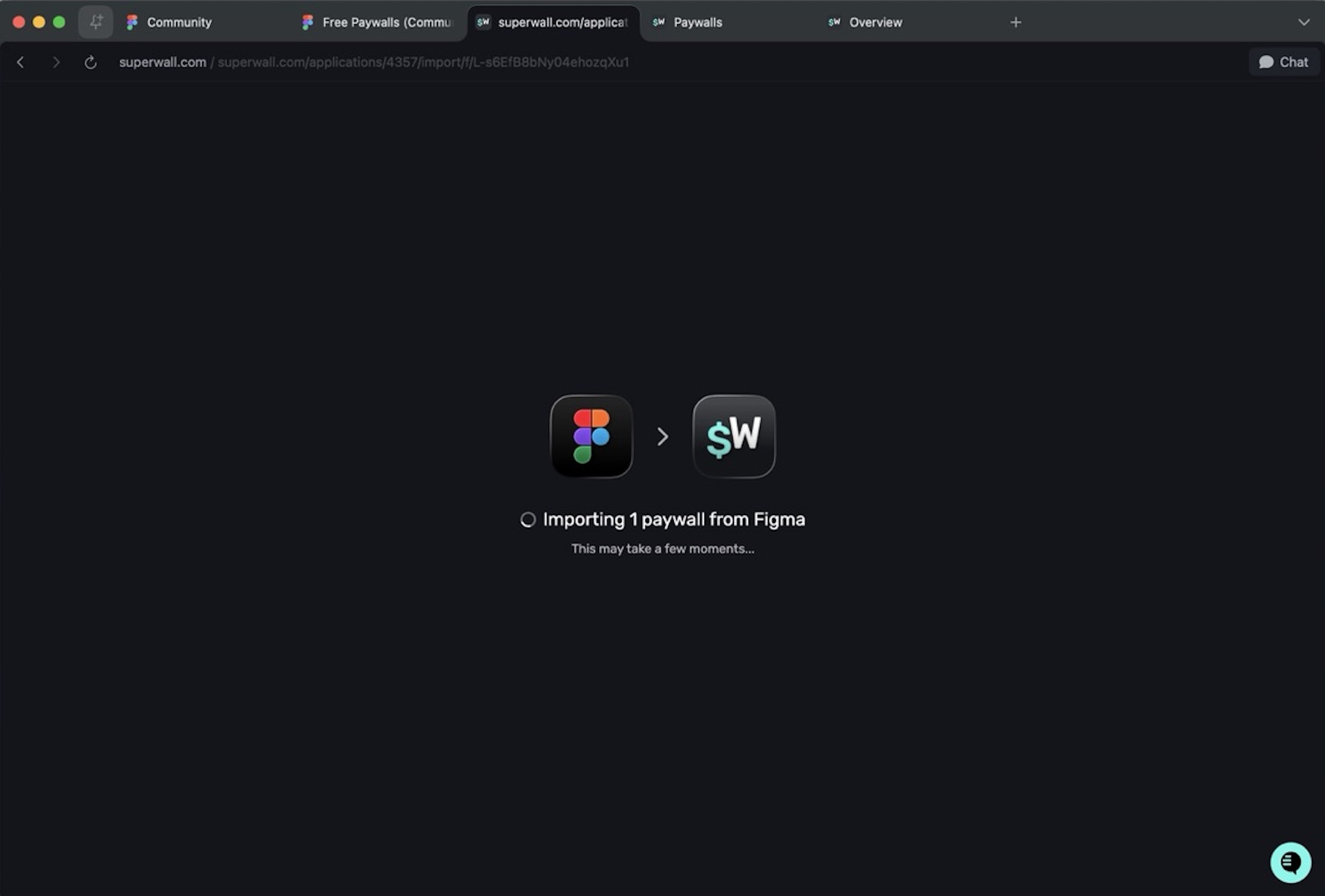
Once complete, Superwall will ask you which project to import the paywall to. Then, your paywall opens in the Superwall editor with each component imported individually, ready for you to wire up products, variables, and actions.
Multi-Page Paywalls
The plugin supports importing multiple frames to create multi-page paywalls:
- Select multiple frames in Figma before running the plugin.
- In the import screen, choose which frames should link together.
- The import will intelligently place them all inside a Navigation component.
This makes it easy to build onboarding flows, multi-step paywalls, or any paywall that spans several screens all from your Figma designs.
Import Options
Click the settings icon in the plugin panel to customize how your design is imported:
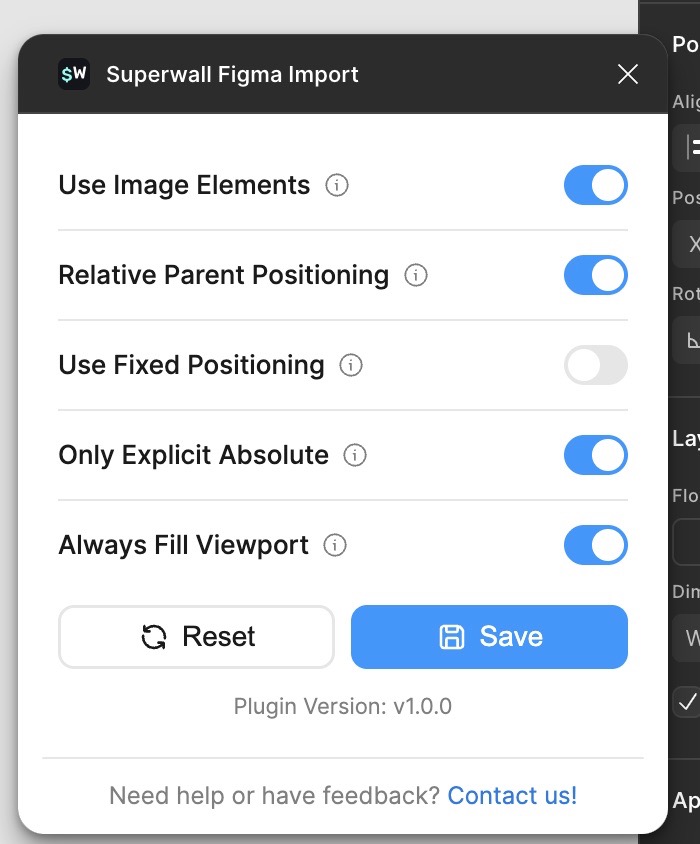
| Option | Description |
|---|---|
| Use Image Elements | Export rectangles with image fills as Image elements instead of stacks with background-image. |
| Relative Parent Positioning | Parent containers with absolutely positioned children get relative positioning for proper nesting. |
| Use Fixed Positioning | Use fixed positioning instead of absolute positioning for manually positioned elements. |
| Only Explicit Absolute | Only apply absolute/fixed positioning to elements explicitly marked as absolute, not to auto-positioned elements in non-auto-layout containers. |
| Always Fill Viewport | Force selected frame to fill entire viewport. When disabled, uses the frame's actual dimensions from Figma. Only recommended for importing single components and elements. |
Adjust these settings based on your design structure. Click Save to apply your preferences, or Reset to return to defaults.
How is this guide?