Meta Qualified Events
Send Meta an extra conversion for only the purchases you want more of, filtered by country, product or user properties and optionally held until the purchase survives a wait.
Qualified events let you send Meta an extra conversion for only the purchases you want more of: trials that aren't canceled within a day, subscriptions from certain countries, purchases of your yearly plan. Point your campaign's optimization at the qualified event, and Meta looks for more people like the ones who made those purchases, instead of everyone who started a trial.
They're part of the Meta Ads integration, where Superwall is your mobile measurement partner, not the Meta Conversion API integration.
A qualified event never replaces its base event, and it's sent whether or not the base event is ticked. By default it has its own custom name, so your existing events and campaigns don't change. The exception is sending it as a Meta standard event the base event already uses. That moves the base event to its sw_ name.
Requirements
- The Meta Ads integration, connected with a dataset and access token (Step 1 and Step 2).
- Access to Meta Events Manager to confirm a custom event name.
Add a qualified event
In your app's dashboard, go to Integrations, find Performance Marketing, click the Meta card, and find the Events to send card:
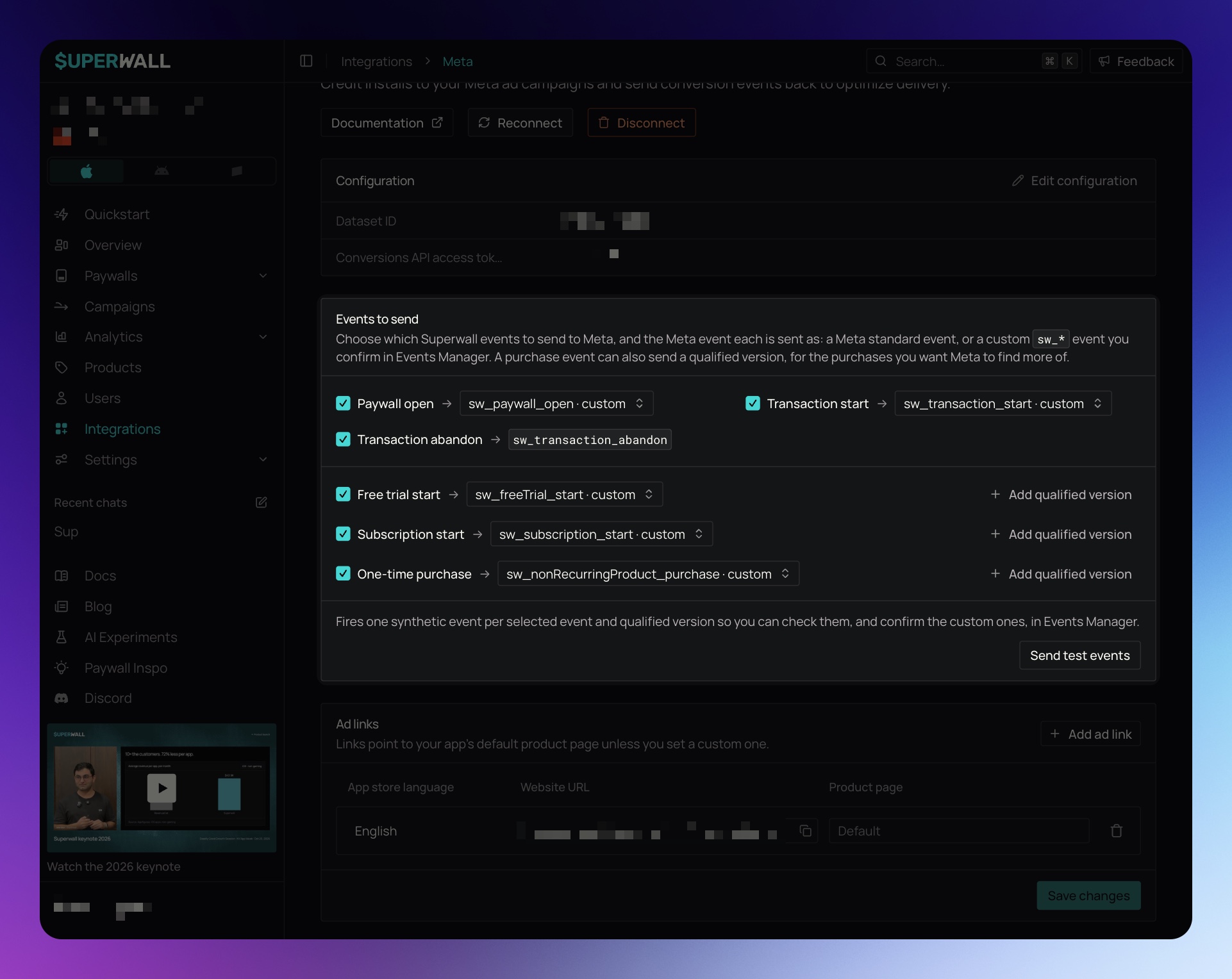
Each purchase event has an Add qualified version button:
| Base event | Default custom name | Meta standard events |
|---|---|---|
| Free Trial Start | sw_qualified_trial | StartTrial |
| Subscription Start | sw_qualified_subscription | Subscribe, Purchase |
| One-Time Purchase | sw_qualified_purchase | Purchase |
Click Add qualified version on the base event you want to qualify. A new qualified version opens under it:
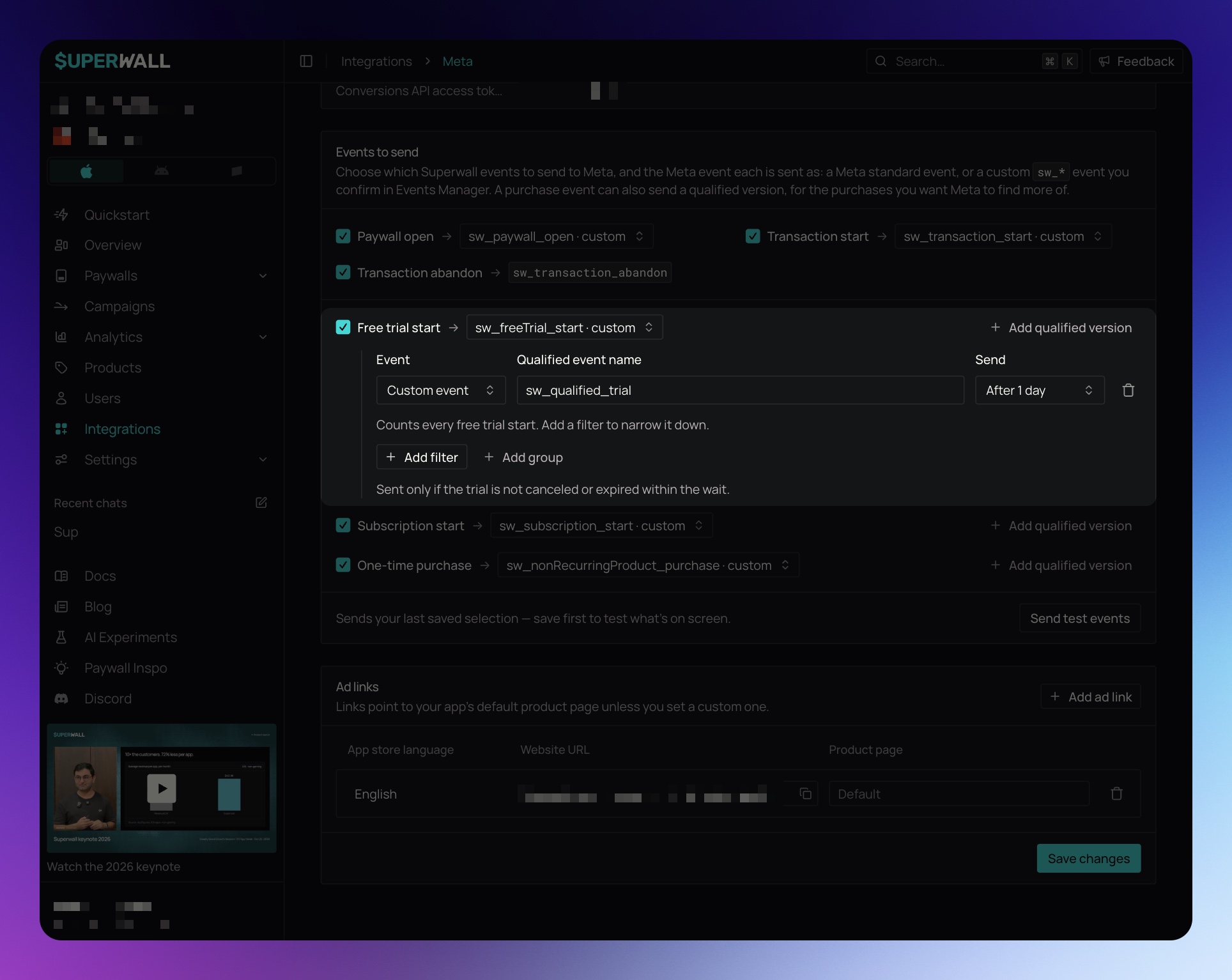
Set its fields:
-
Event: Custom event, the default, or one of the base event's Meta standard events. See Send it as a Meta standard event before you pick one.
-
Qualified event name: shown for Custom event. The event name Meta receives. Up to 40 letters, digits, underscores, hyphens or spaces. It must be different from every other event the page sends, so give each qualified version a name that says what it means, like
sw_trial_us_yearly. -
Filters: which purchases count. The filters use the same editor as campaign audience filters, with and/or groups, over:
- Purchase: Store country (an uppercase two-letter code like
US;usdoesn't match), Store (APP_STORE,PLAY_STOREorSTRIPE) and Product ID. - Attribution, User and Device properties, the same ones campaign filters offer.
With no filters, every purchase of the base event counts.
- Purchase: Store country (an uppercase two-letter code like
-
Send: Send immediately, or wait 30 minutes, 1, 2, 4, 6 or 12 hours, or 1 to 5 days. A new qualified version starts at After 1 day. A delayed qualified event is sent only if the purchase survives the wait:
- Free Trial Start: the trial isn't canceled or expired.
- Subscription Start: the subscription isn't canceled, refunded or expired.
- One-Time Purchase: the purchase isn't refunded.
Turning auto-renew back on before the wait ends counts as not canceled.
Click Save changes at the bottom of the page. You can add up to five qualified versions across the three purchase events. If one has a problem, such as a name another event already uses or a filter without a property, the problem shows under it and Save changes stays unavailable.
Once saved, a qualified version collapses to a summary: its event name, when it's sent and its filters. Click Edit, or one of its filters, to change it. A version you're adding, one with unsaved changes, or one with a problem stays open. A saved version you opened and haven't changed has a Done button to collapse it again.
A qualified version keeps sending until you delete it. To stop one, click its delete button and save. Purchases still in their wait when you delete it are sent anyway, with the name and settings they were held under.
Send it as a Meta standard event
Set Event to a standard event, such as StartTrial · standard, to send the qualified version as that event instead of under a custom name. Use this when a campaign already optimizes for StartTrial, Subscribe or Purchase and you want it to count only your qualified purchases. There's no new custom event to confirm.
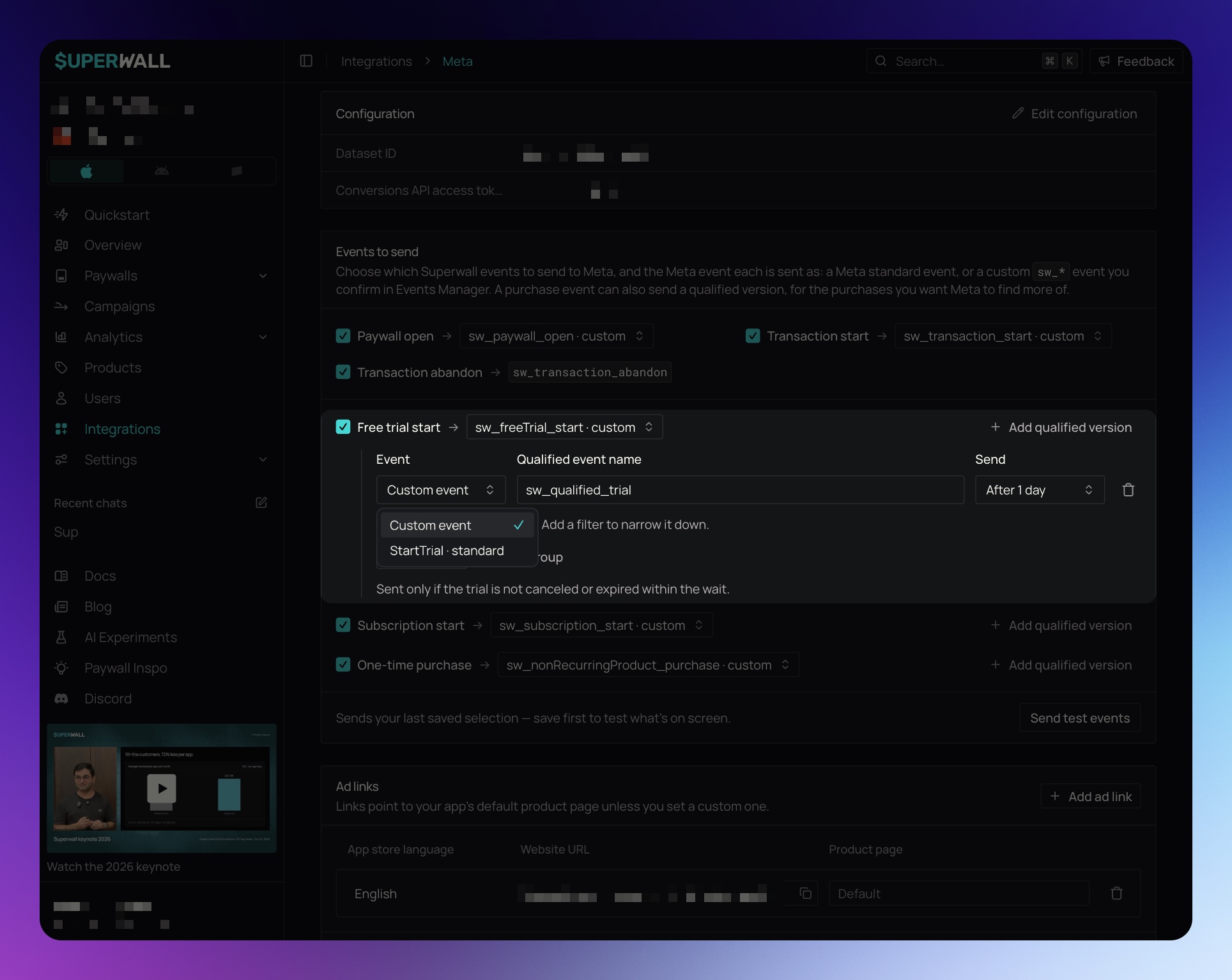
Meta has one event per name, so a qualified version can't share a name with another event the page sends:
- If the base event is sent as that standard event, picking it moves the base event to its custom name in the same step:
sw_freeTrial_start,sw_subscription_startorsw_nonRecurringProduct_purchase. The base event is still sent, under thesw_name, and the standard event then counts the qualified purchases only. - Before you save, if the base event is saved on that standard event, the card shows a warning such as StartTrial will count qualified purchases only, with the name the base event moves to.
- To go back, set Event to Custom event. The qualified version returns to the custom name it was saved under, or the default one (with a number added if it's taken), and a base event that was saved on the standard event returns to it.
- Two events under one name block the save. If you switch the base event back onto the standard event its qualified version uses, the problem under the version reads "Free trial start is also sent as StartTrial, so Meta would count each of these purchases twice. Send one of the two as a different event." The same applies when another event already uses the name, like a qualified subscription set to
Purchasewhile One-Time Purchase is sent asPurchase.
This changes what an existing campaign optimizes for. An ad set optimizing
for the standard event keeps running, but gets only the qualified purchases
once you save, and its counts from before the save include every purchase.
To keep an ad set on every purchase, point it at the base event's sw_ name.
Sending a standard event also means:
- The base event's
sw_name is a custom event. If your app never sent it before, confirm it in Events Manager. - If your website's Meta Pixel, or the Meta SDK, sends the same standard event to this dataset, Meta counts both together, so the event won't hold qualified purchases only.
- Meta requires a
valueandcurrencyonPurchase. A qualified version sent asPurchasefor which Superwall has no price is sent withvalue: 0.
Confirm the event in Meta
A qualified version sent as a standard event needs no confirmation. Meta treats a custom-named one like any other new custom event:
- Click Save changes, then Send test events. It sends one test event for every selected event and for every saved qualified version, even if its base event isn't ticked.
- In Events Manager, confirm the custom event. Look for your qualified event's name; if you renamed it, it may not start with
sw_.
Optimize your campaign for it
In Ads Manager, choose the qualified event as the conversion event when you point the ad set at your dataset. If you send a qualified version as a standard event that an ad set already optimizes for, there's nothing to change in Ads Manager. That ad set's conversion volume drops when you save.
Optimizing for a narrower event gives Meta fewer conversions to learn from. Keep filters and waits loose enough that the qualified event still fires often, and compare its volume with the base event's in Events Manager before switching a campaign over.
How it works
- Filters are checked when the purchase arrives, using the user's properties at that moment. Superwall doesn't re-check filters when the wait ends, so properties that change over time, like days since install, can't undo a purchase that already qualified. Only the wait decides whether it's sent.
- A delayed event keeps the purchase's time. Meta attributes it to the original purchase, not to when it was sent. That's why the longest wait is 5 days: Meta rejects events more than 7 days old.
- Delayed events arrive a little after the wait. Superwall checks for cancellations about 10 minutes after the wait ends, so a purchase with a 1-hour wait reaches Meta roughly 70 minutes after it happened.
- Each conversion is sent once. A qualified event has its own event ID (
qualified-<rule>-<event>), so retries never double-count it in Meta. - Subscription Start includes trial conversions. A trial that converts to paid counts as a Subscription Start, the same as for the base Subscription Start event, and its wait starts when the trial converts. Ordinary renewals never count.
- Sandbox purchases are never sent, the same as the base events.
Limitations
- Up to five qualified versions per app, across Free Trial Start, Subscription Start and One-Time Purchase.
- Filters can only use purchase, attribution, user and device properties. Placement parameters, "time since event" counters and placement occurrence counts aren't available, because a purchase isn't tied to a placement.
- A filter on a property that isn't set for the user only matches is null. Is not and does not contain don't match a missing property, as in campaign filters.
- Properties set after the purchase (for example, finishing onboarding an hour later) aren't seen by the filters.
Related
How is this guide?
Meta Ads
Run Meta ads with Superwall as your mobile measurement partner. Superwall attributes installs to your campaigns and sends conversion events back to Meta.
Google Ads
Run Google Ads with Superwall as your mobile measurement partner. Superwall attributes installs to your campaigns and uploads conversions back to Google Ads.