TikTok Ads
Use Superwall as your MMP for TikTok ads: attribute installs, send conversion events to your TikTok pixel, and import ad spend.
The TikTok Ads integration makes Superwall your mobile measurement partner (MMP) for TikTok campaigns. Superwall generates the links you put in your ads, attributes installs to the campaign, ad group, and ad that drove them, sends your app's events to your TikTok pixel through TikTok's Events API, and imports your ad spend daily. Spend and results show up in charts as ROAS, cost per trial, and cost per paid user.
TikTok Ads is in beta. If the TikTok card under Integrations > Performance marketing shows Coming soon, click Request access and we'll turn it on for you. The card then shows Access requested.
This page describes the new dashboard at app.superwall.com.
Requirements
- An iOS app on SuperwallKit 4.16.0 or later, or an Android app on the Superwall Android SDK 2.9.0 or later. For Expo and Flutter versions, see the Meta Ads requirements.
- A TikTok for Business login with access to the advertiser account you'll run campaigns from.
- A web pixel in TikTok Events Manager on that advertiser account. Superwall sends events to a web pixel, so you don't need a TikTok app or app event source.
- Revenue tracking configured for your app. The Performance marketing cards stay locked until it is.
- If you sell outside of Superwall paywalls, enable observer mode so transactions are tracked.
Attribution only applies to new installs. The SDK matches an install once, shortly after first launch, and only when that first launch happens within 24 hours of the ad click on iOS, or 7 days on Android. Test with a fresh install.
Step 1: Connect TikTok
- 1
Open the integration
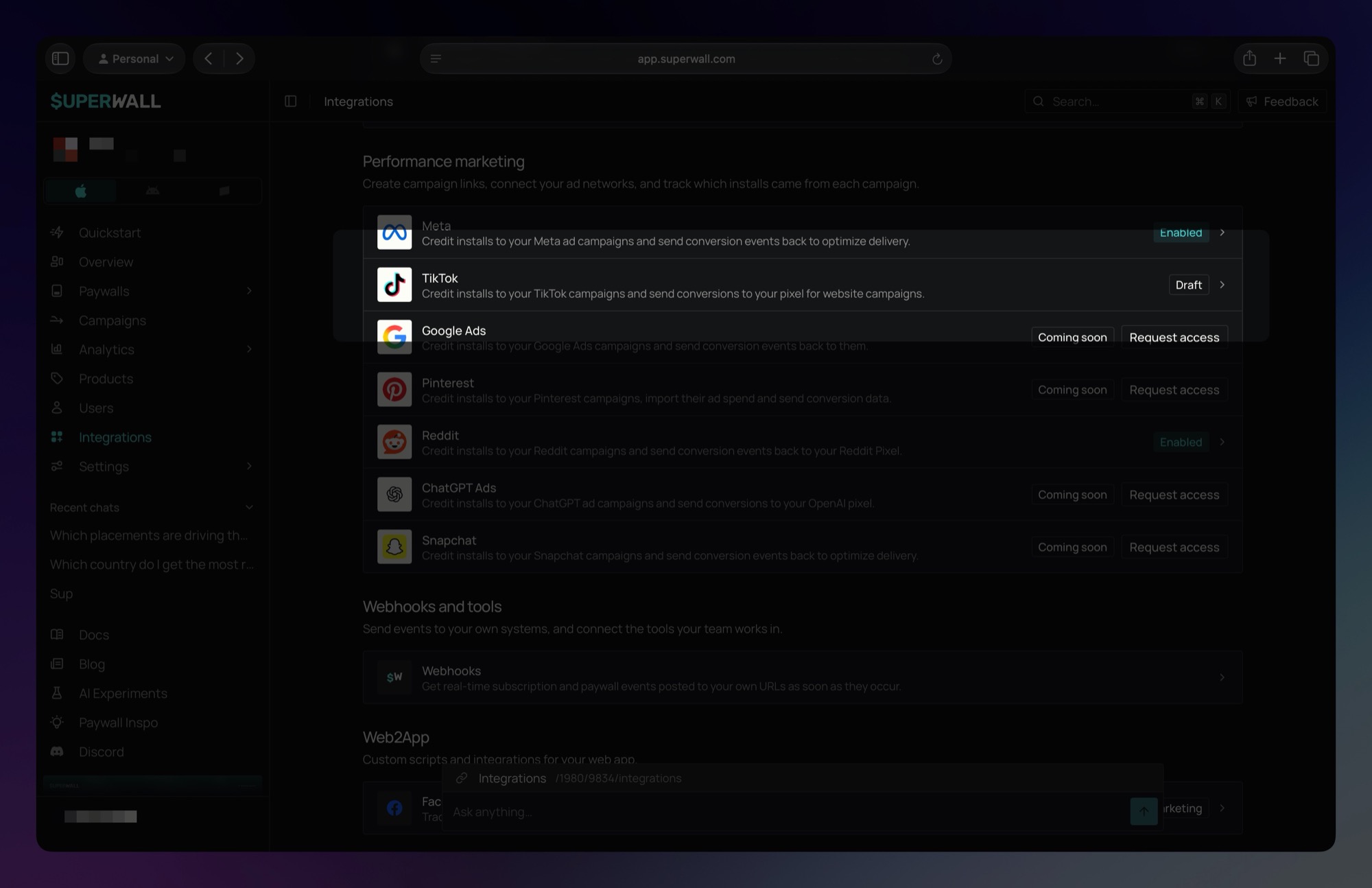
In Superwall, open your app, click Integrations, find Performance marketing, and click the TikTok card.
- 2
Connect your TikTok account
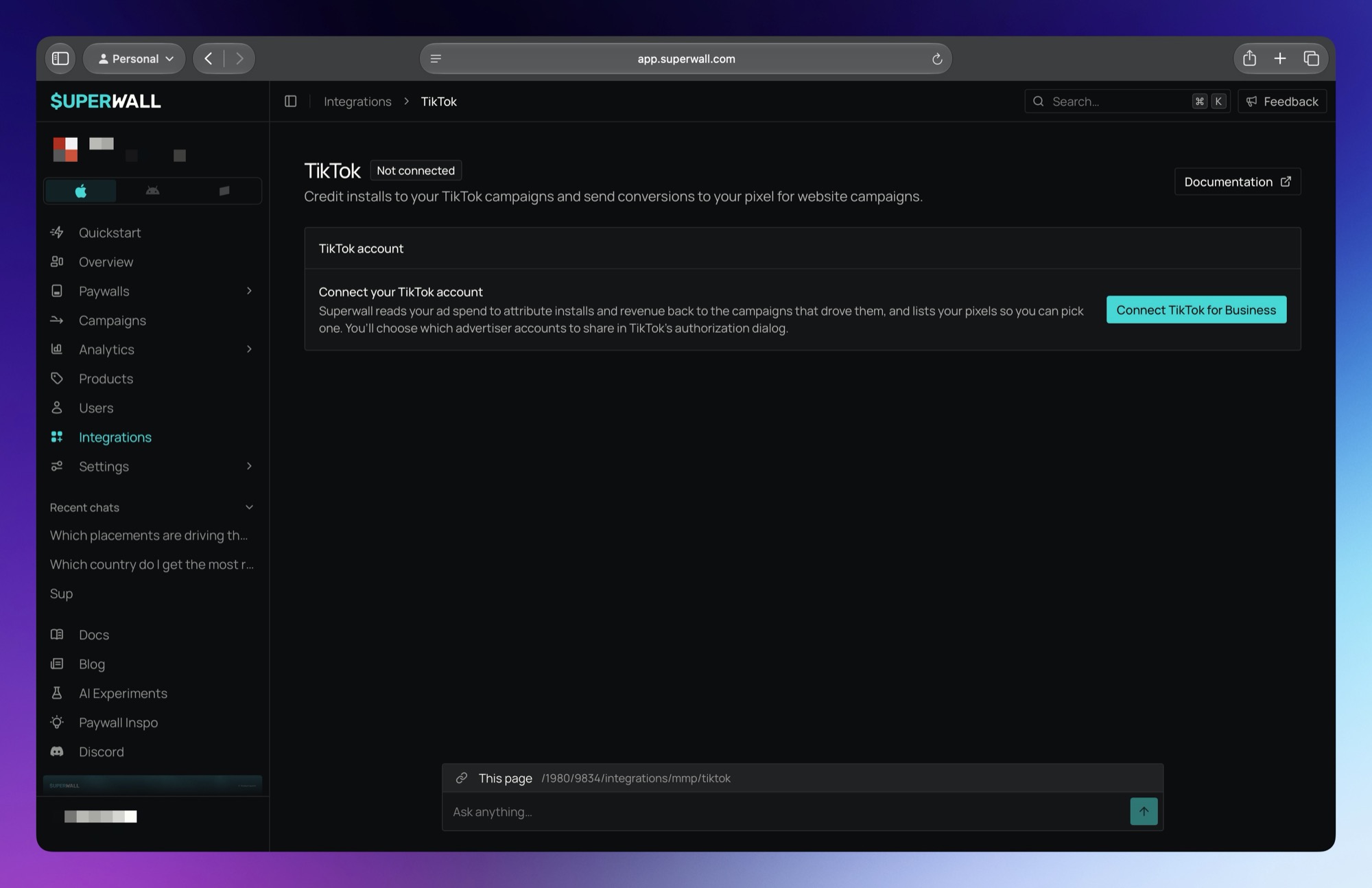
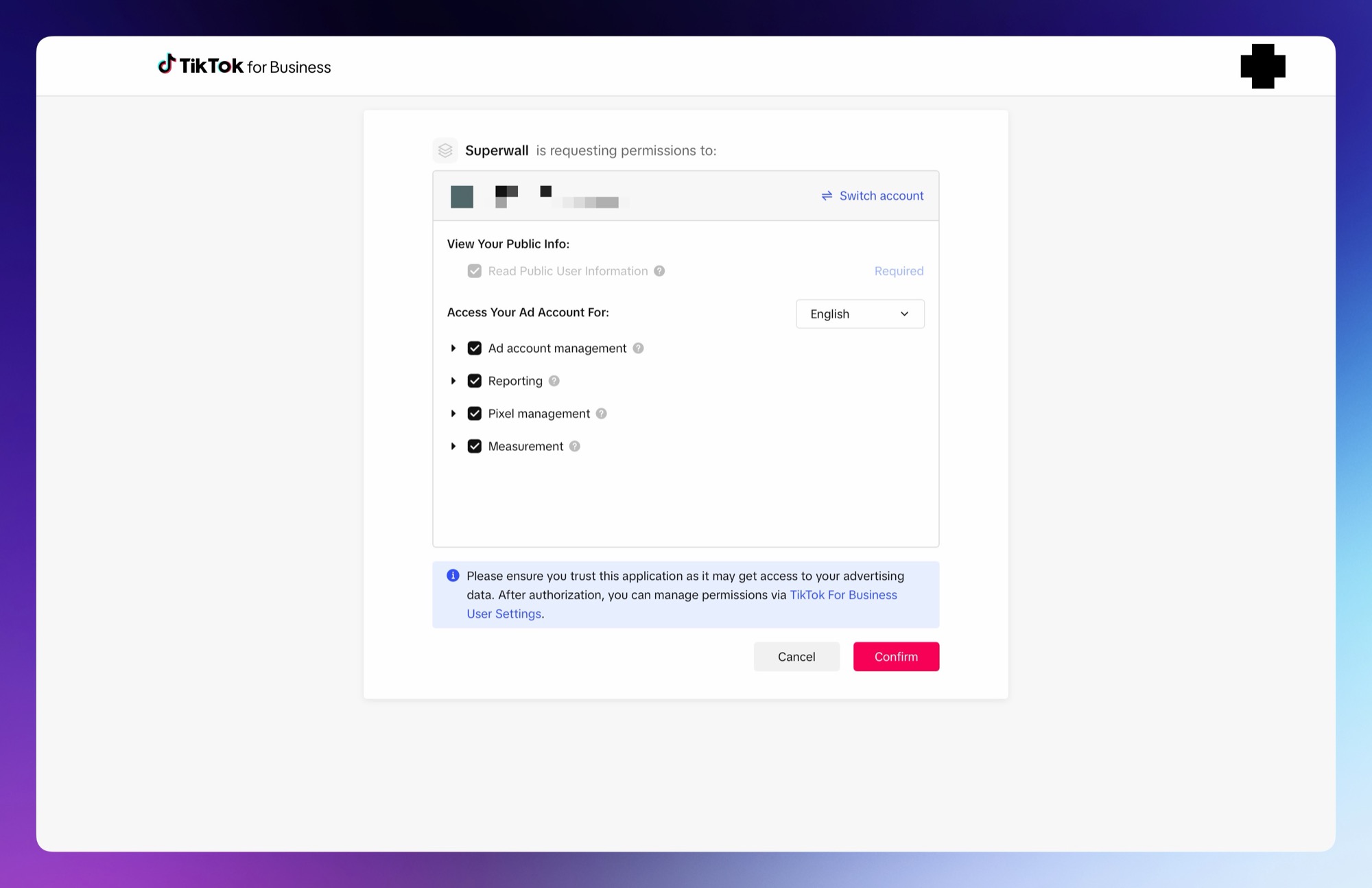
In Superwall, click Connect TikTok for Business and sign in to TikTok in the popup that opens. TikTok lists what Superwall is asking to access. Leave every box ticked and click Confirm.
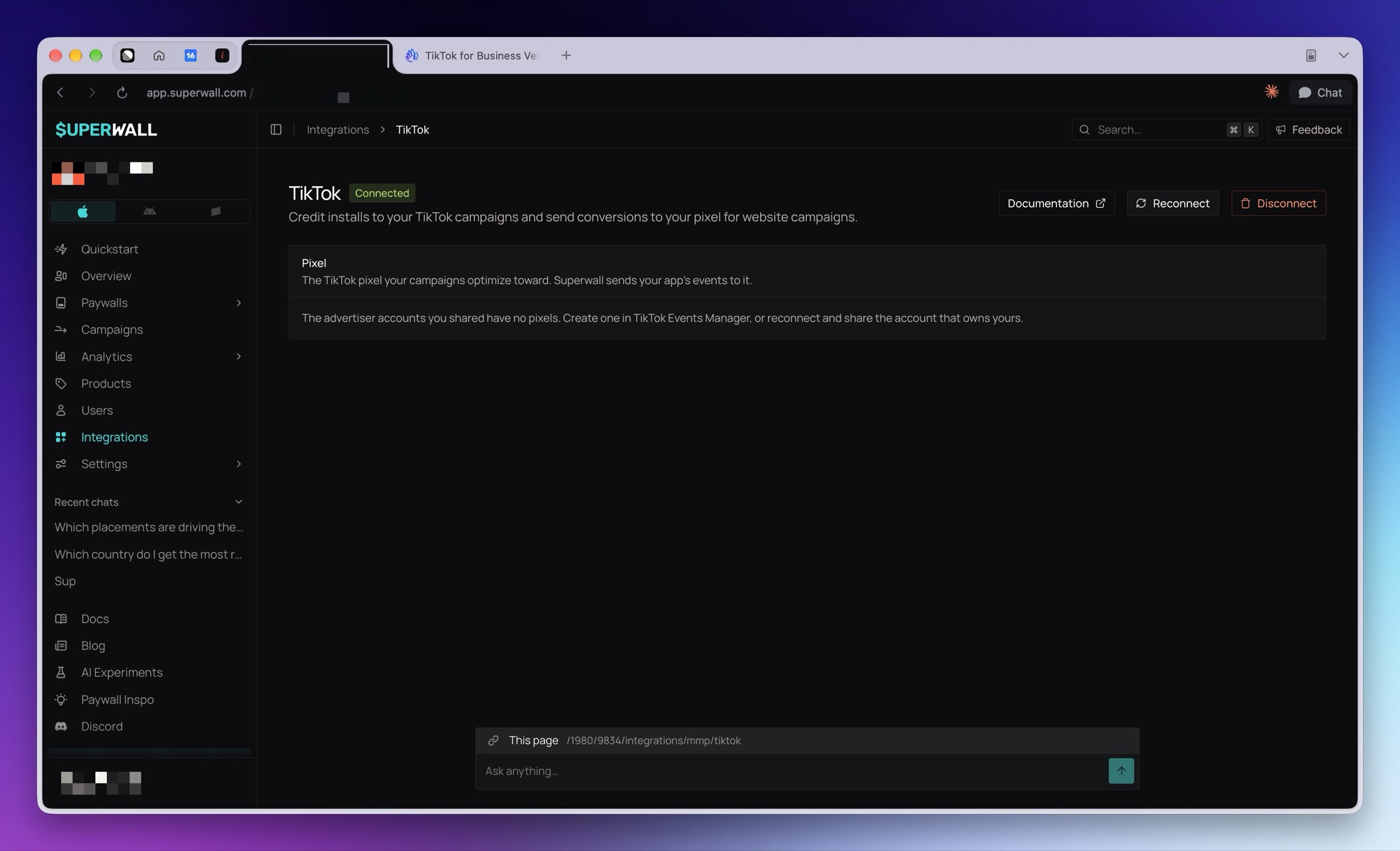
You don't need to paste a token. Connecting is how Superwall sends your events, lists your pixels, and imports your ad spend. Once you're connected, the top of the page shows Connected, next to the Reconnect and Disconnect buttons:
Step 2: Choose your pixel
In Superwall, under Pixel, pick the pixel that should receive this app's events. Superwall checks the pixel with TikTok and saves it. The first time you save a pixel, Superwall also turns on the events marked On by default in the table below, and starts sending them.
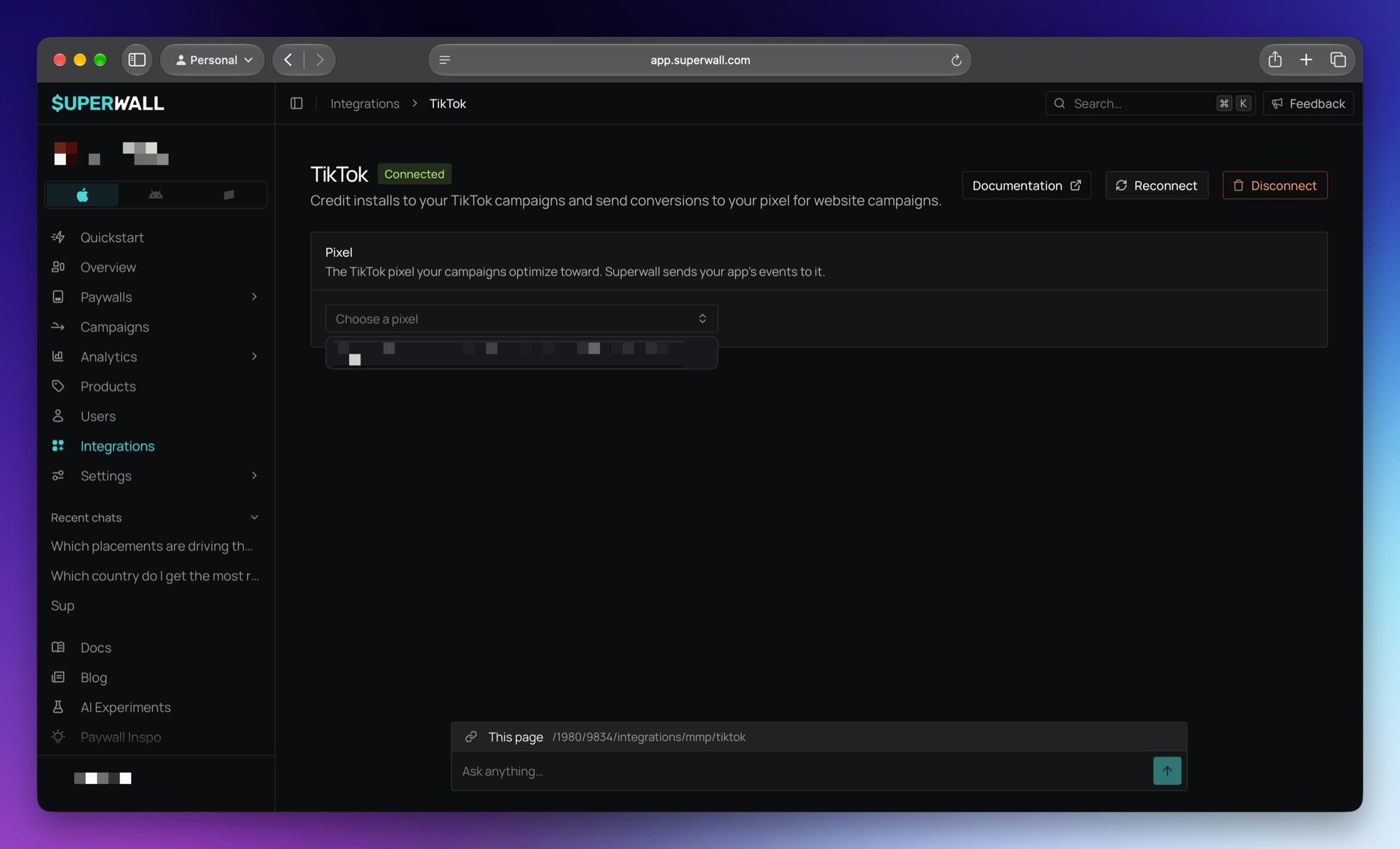
If no pixels are listed, create a web pixel in TikTok Events Manager on one of the advertiser accounts you shared. Or, in Superwall, click Reconnect and share the account that has one.
Step 3: Choose events to send
In Superwall, under Events to send, tick each Superwall event you want to send, and pick the TikTok event to send it as. You can send each one as any of TikTok's standard events: ViewContent, InitiateCheckout, AddPaymentInfo, CompleteRegistration, Subscribe, Purchase, StartTrial, or Lead. The picker shows which campaign objectives each TikTok event works with. Free trial start is sent as Subscribe by default. TikTok only optimizes for StartTrial in Lead campaigns, and you'll run a Sales campaign.
| Dashboard label | Superwall event | Default TikTok event | On by default |
|---|---|---|---|
| Paywall open | paywall_open | ViewContent | Yes |
| Transaction start | transaction_start | InitiateCheckout | Yes |
| Transaction abandon | transaction_abandon | sw_transaction_abandon (custom) | No |
| Free trial start | freeTrial_start | Subscribe | Yes |
| Subscription start | subscription_start | Purchase | Yes |
| One-time purchase | nonRecurringProduct_purchase | Purchase | Yes |
| Initial purchase (no trial) | initial_purchase | sw_initial_purchase (custom) | No |
| Initial conversion (trial or purchase) | initial_conversion | sw_initial_conversion (custom) | No |
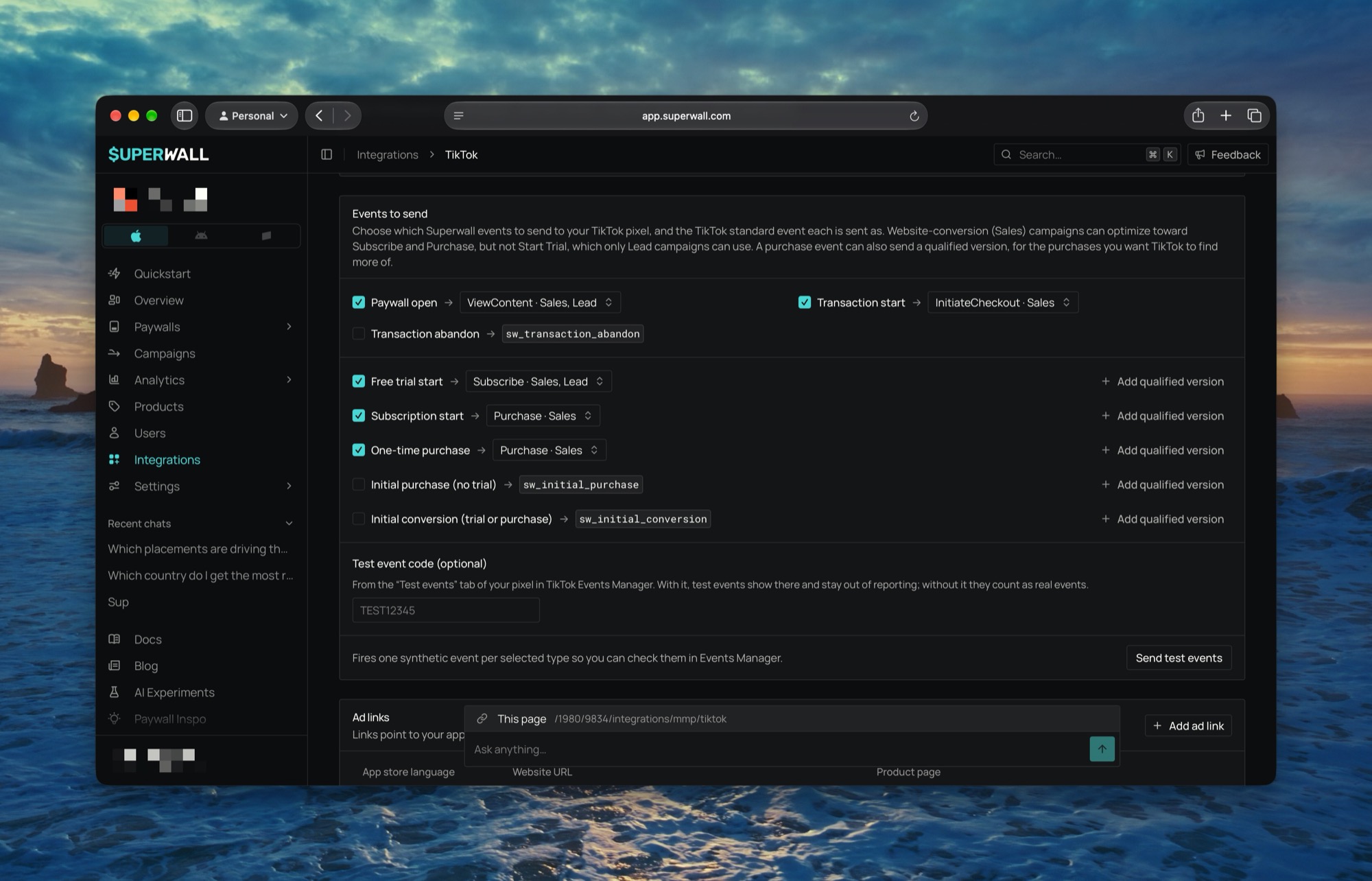
Click Save changes at the bottom of the page to save your events. For what each event contains and when it's sent, see What Superwall sends.
Initial events
The two initial events only fire on a subscription's first transaction, so TikTok can count each new customer once:
- Initial purchase (no trial) is sent when someone's first transaction is a paid one, including an intro offer.
- Initial conversion (trial or purchase) is sent when someone's first transaction is either a free trial or a paid one.
They're sent in addition to the regular event, not instead of it. For example, a free trial sends Subscribe and, if it's ticked, Initial conversion. If an initial event and the regular event are both set to the same TikTok event, Superwall sends that event once, so TikTok doesn't count the purchase twice.
Neither is sent for renewals, one-time purchases, or a trial turning into a paid subscription. Initial purchase always includes the price. Initial conversion includes it for paid starts only, since a free trial has no price.
TikTok campaigns can only optimize for standard events. To optimize for an initial event, send it as a standard event such as Purchase or Subscribe instead of its custom name.
Qualified versions
A qualified version is an extra event for just the purchases you want TikTok to find more of, such as yearly plans or purchases from one country. You can add one to Free trial start, Subscription start, One-time purchase, and both initial events. Click Add qualified version on the row. Each app can have five qualified versions for TikTok in total.
Qualified versions work the same way as they do for Meta. You add filters and choose how long to wait before sending, and Superwall only sends the purchases that pass. For how to set one up, see Meta Ads Qualified Events. A few things are different on TikTok:
- You can send a qualified version as a custom event, or as any TikTok standard event that no ticked row already uses. With the default rows, that leaves
AddPaymentInfoandCompleteRegistrationas the standard events a Sales campaign can optimize for. - A custom name has to start with a letter and use up to 50 letters, digits, underscores, or hyphens.
- Send test events doesn't include qualified versions.
Step 4: Send test events
- 1
Get a test event code
In TikTok Events Manager, click Data sources, open your pixel, and click the Test events tab. Under Test server-side events (Events API), copy the test code. It looks like
TEST80359.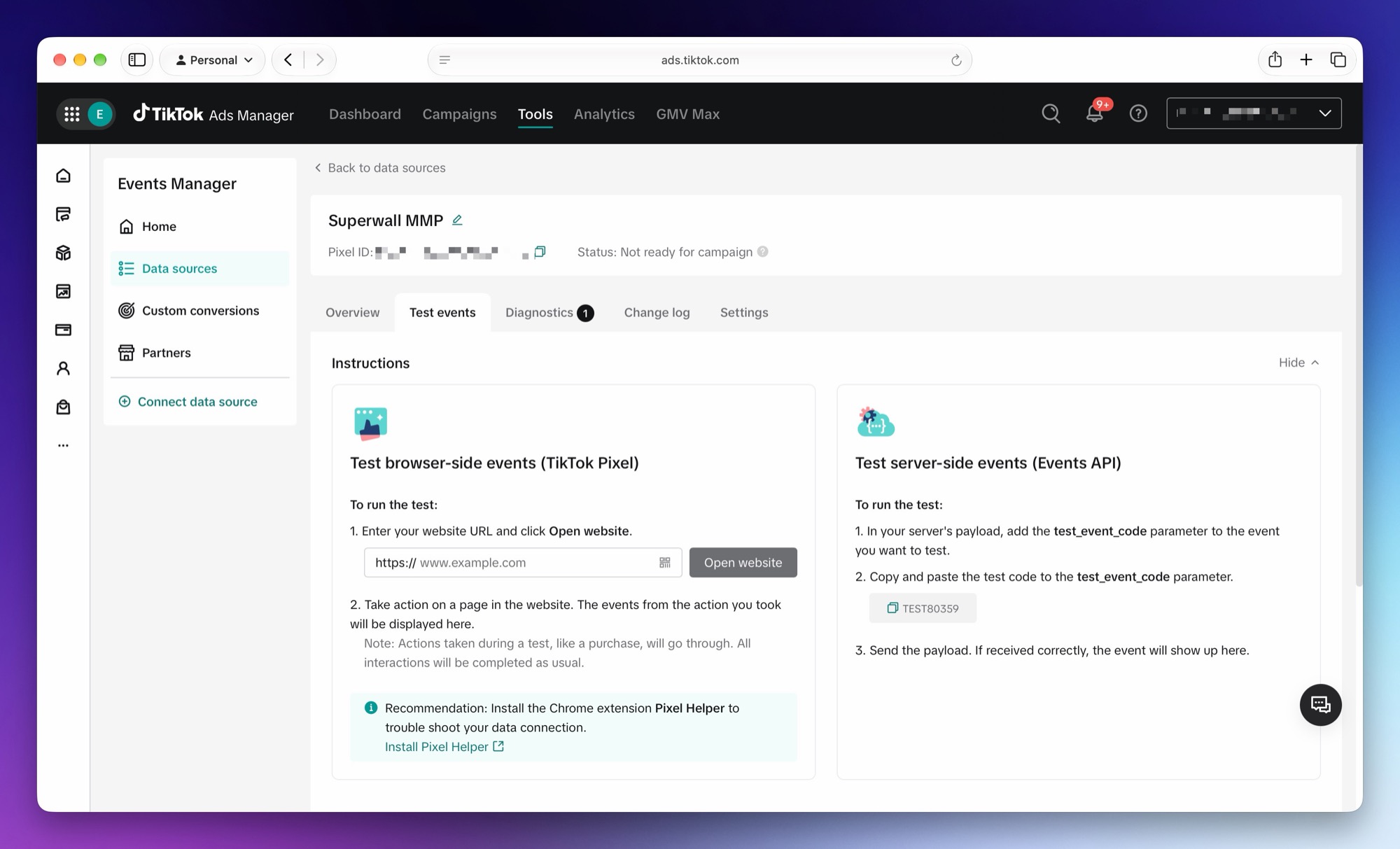
- 2
Send test events
In Superwall, click Save changes if you've changed your events, because test events use the saved ones. Then paste the code into Test event code (optional) and click Send test events. Superwall confirms how many test events it sent:
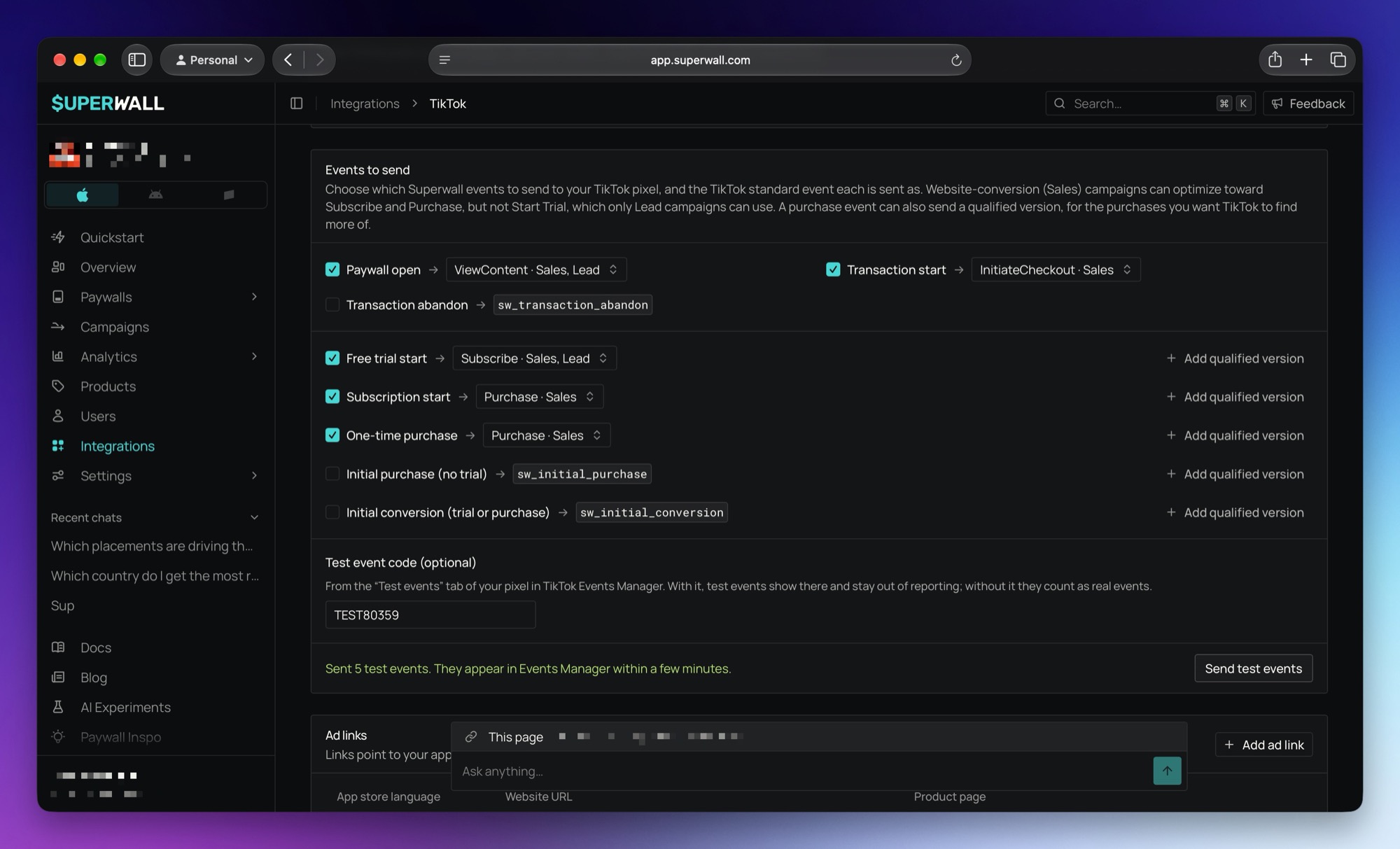
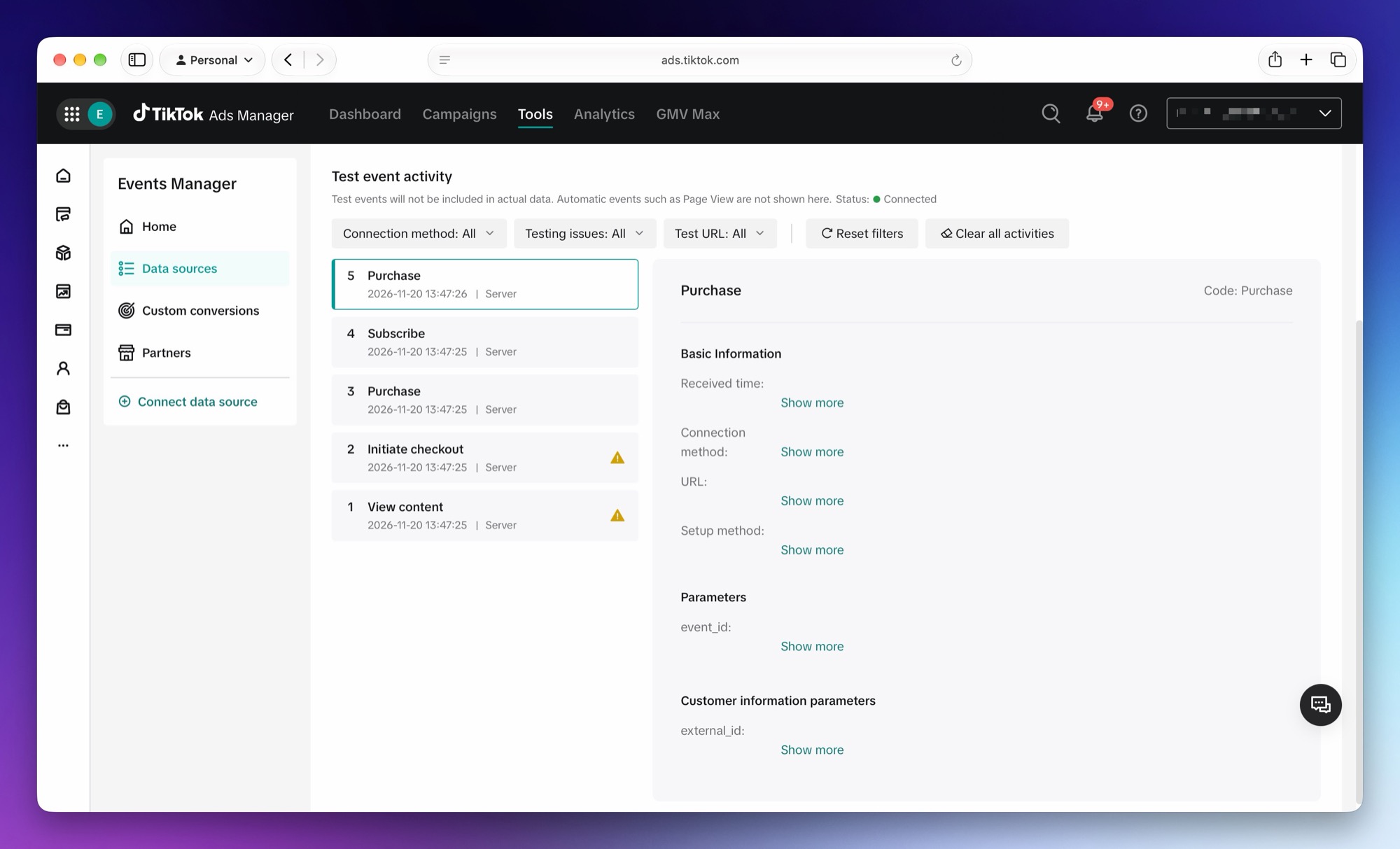
In TikTok, the events appear in the pixel's Test events tab within a few minutes:
Without a test event code, TikTok records test events as real events. Always paste the code before sending test events.
The test event code is only used for these test sends. Live events never carry it.
Step 5: Create your ad link
- 1
Add a link
In Superwall, under Ad links, click Add ad link. The first link is in English and saves right away. Later links save once you pick an App Store language.
- 2
Copy the link
Click the copy button in the Website URL column.
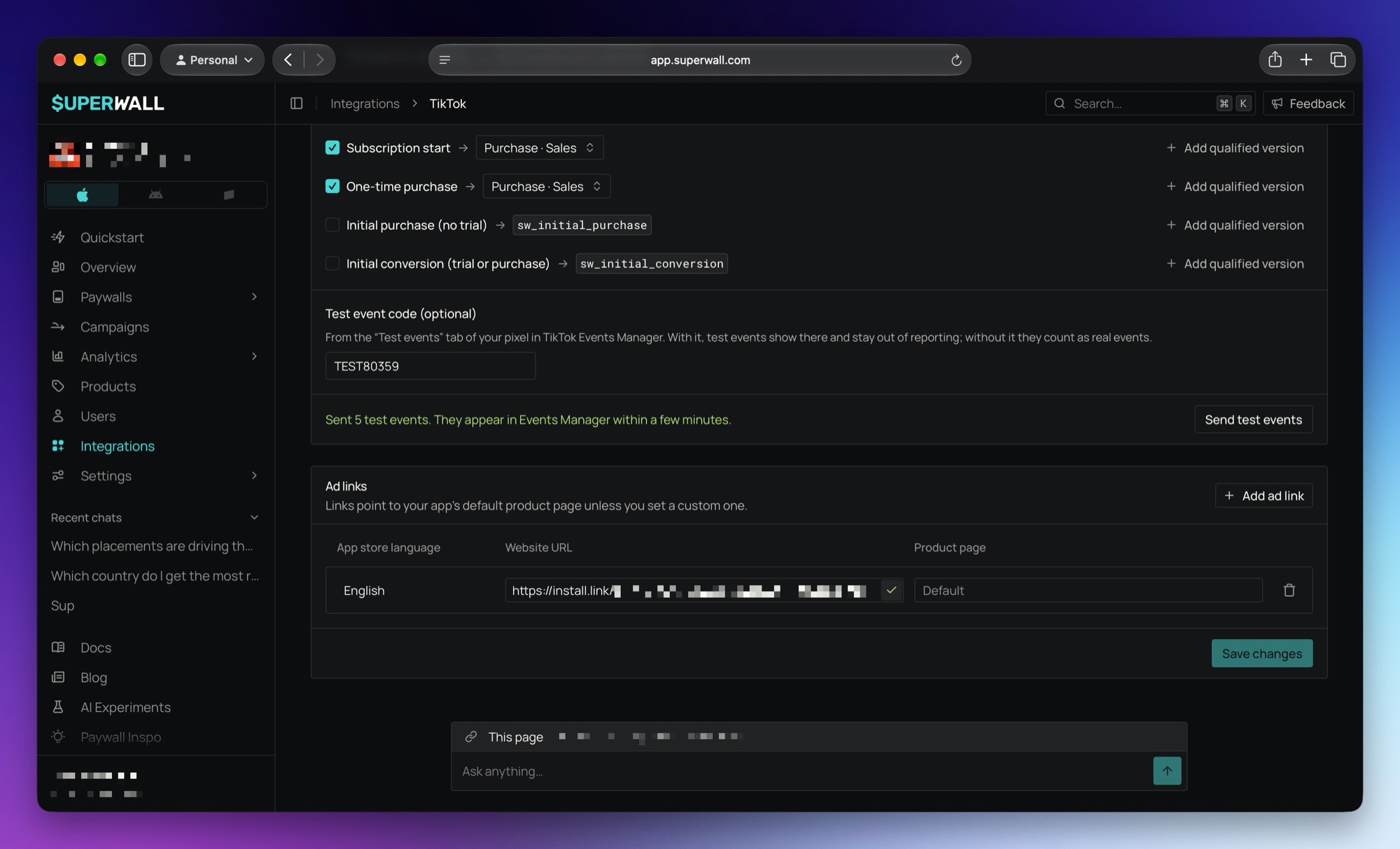
Ad links save by themselves. You only need to click Save changes after you change events, edit a link's product page, or delete a link.
The link carries TikTok's URL macros, which TikTok fills in on each click:
| Link parameter | TikTok macro | Value |
|---|---|---|
placement | __PLACEMENT__ | Where the ad ran |
campaign_name | __CAMPAIGN_NAME__ | The campaign name |
campaign_id | __CAMPAIGN_ID__ | The campaign ID |
ad_group_name | __AID_NAME__ | The ad group name |
ad_group_id | __AID__ | The ad group ID |
ad_name | __CID_NAME__ | The ad name |
ad_id | __CID__ | The ad ID |
TikTok adds its click ID (ttclid) to the URL on each click, so it isn't in the link. Superwall then credits installs and revenue to the campaign the ad belongs to, and compares them with that campaign's spend to work out ROAS.
Step 6: Put the link in a TikTok ad
These screens are from TikTok's guided mode, which new ad accounts start in.
- 1
Create a campaign
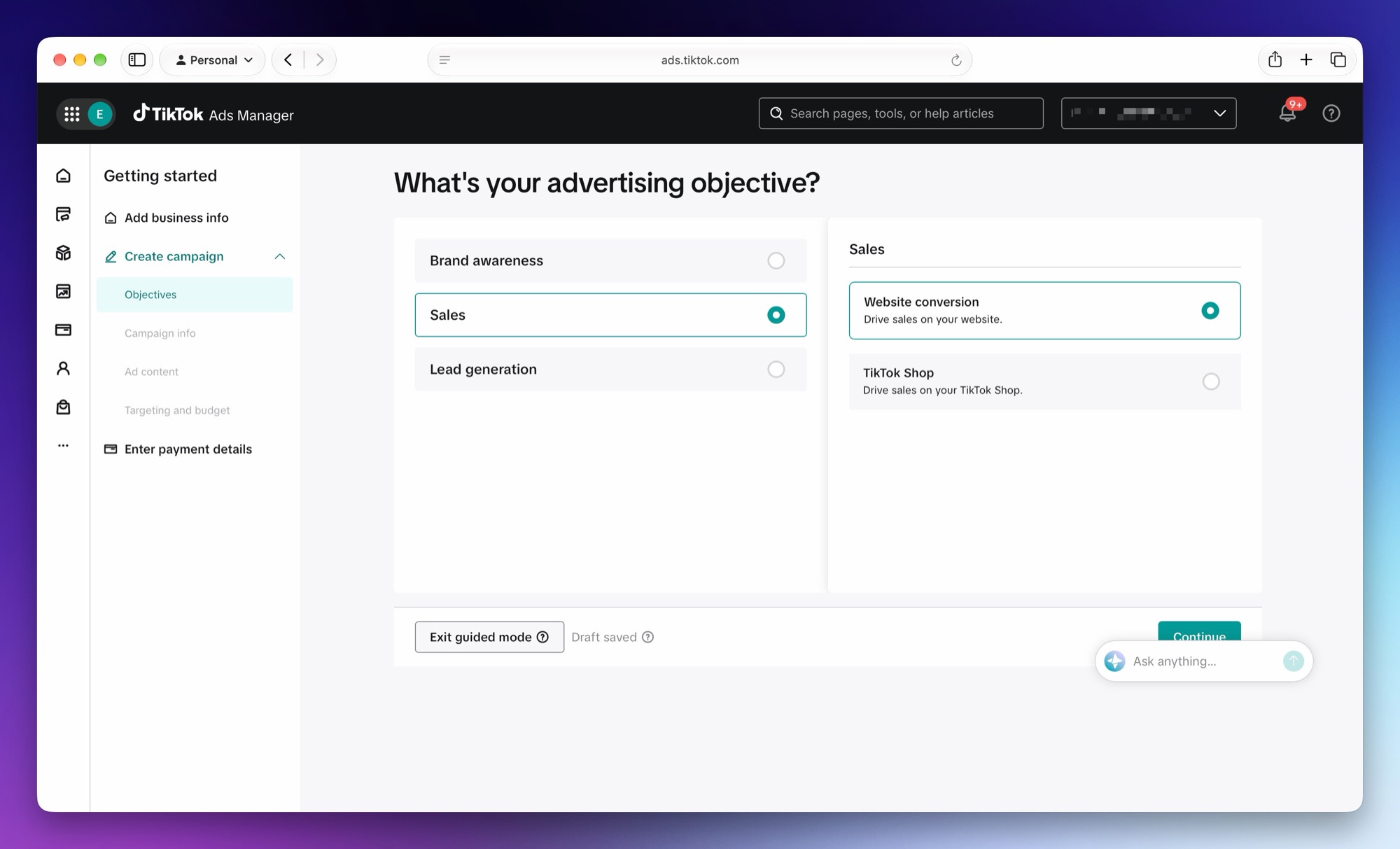
Open TikTok Ads Manager and create a campaign. For the objective, choose Sales, then Website conversion, and click Continue. Superwall's ad links are website links, so the campaign has to be a website campaign even though you're promoting an app.
- 2
Pick your pixel and event
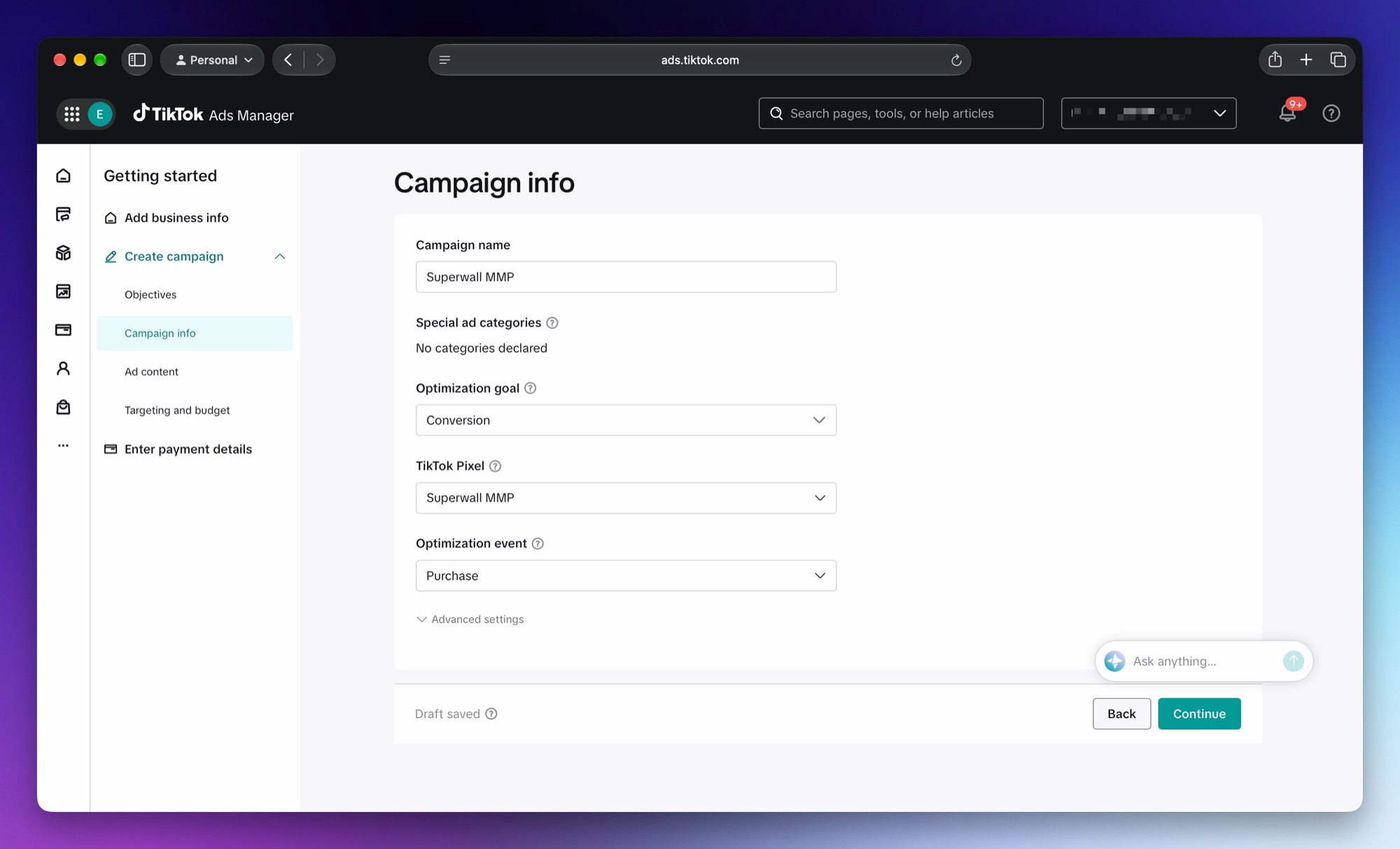
On Campaign info:
- Leave Optimization goal set to Conversion.
- Under TikTok Pixel, choose the pixel Superwall sends to.
- Under Optimization event, choose the event to optimize for. Choose Purchase for paid subscriptions and one-time purchases, or Subscribe for free trials.
Then click Continue.
If TikTok says No activity has been reported for this pixel, the pixel hasn't received a real event yet. Test events don't count. Wait for your app's next real trial or purchase, then click Refresh. TikTok says the pixel can take 5 to 10 minutes to activate.
- 3
Paste the link
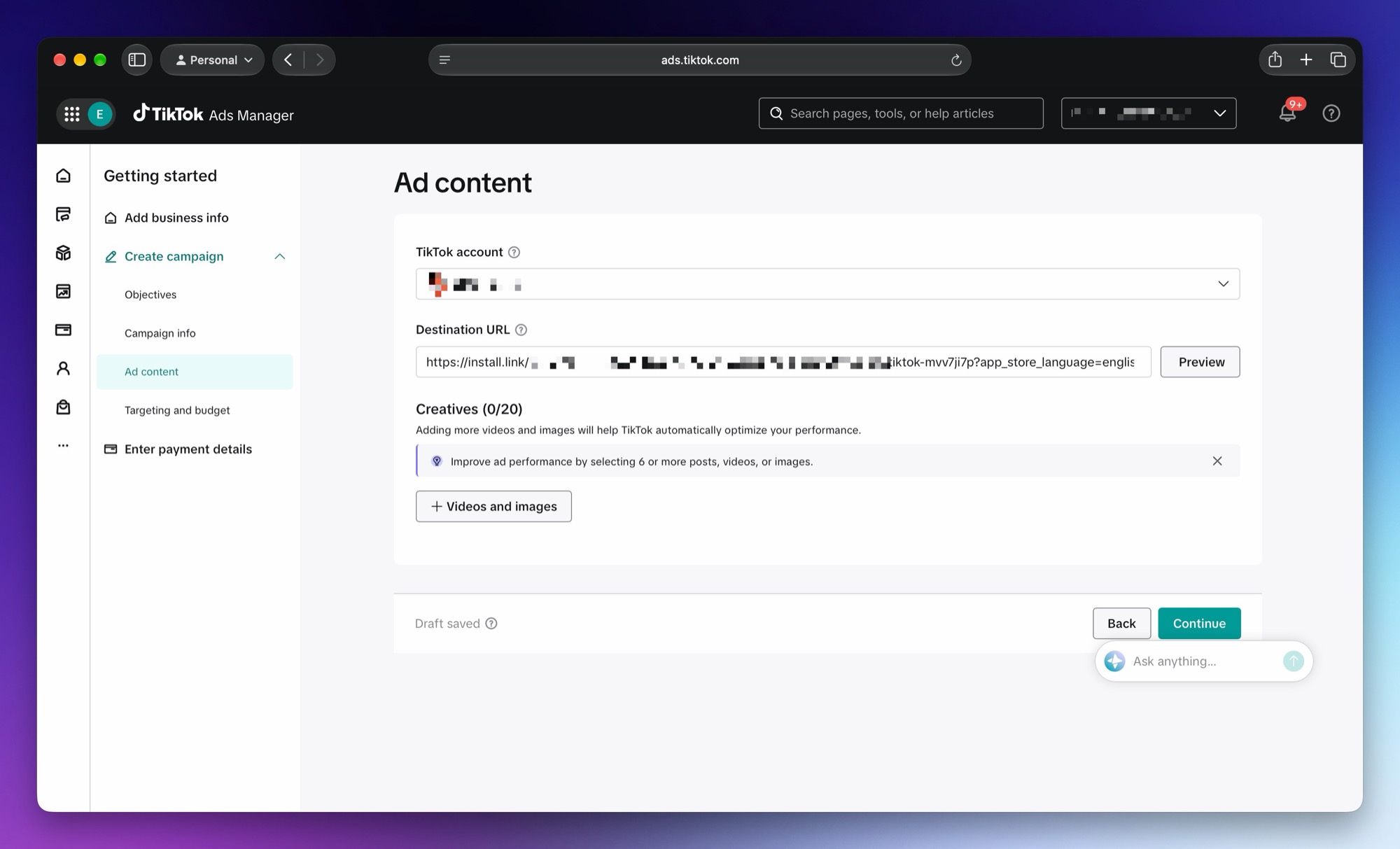
On Ad content, paste the Superwall link into Destination URL. Don't change it. Then add your videos and images and click Continue.
- 4
Finish and publish
Fill in the rest of the campaign, such as targeting, audience, and budget, the way you want. Nothing there is specific to Superwall. Then publish the campaign.
Once you delete a link and click Save changes, any live ads pointing at it break. Keep links in place while campaigns are running.
What Superwall sends
Superwall sends events to your pixel as web events through TikTok's Events API, which is why you need a web pixel.
Who Superwall sends events for
Superwall sends events for every user of your app, not only people who came from a TikTok ad. The extra events help TikTok learn who's likely to buy.
When each event is sent
- Paywall open, Transaction start, and Transaction abandon are sent as soon as your app reports them.
- Free trial start, Subscription start, and One-time purchase are sent when the App Store, Google Play, or Stripe reports the purchase.
- Subscription start is also sent when a free trial turns into a paid subscription.
- Renewals aren't sent, and Superwall doesn't send an install event.
- Sandbox purchases, such as purchases in TestFlight builds, aren't sent.
Which events include a price
Subscription start and One-time purchase include the amount the person paid. Transaction start and Transaction abandon include the product's price.
How TikTok matches people to your ads
If someone installed your app from a TikTok ad, their events include TikTok's click ID (ttclid), so TikTok can connect them to the ad. To help TikTok match everyone else, Superwall also sends:
- A hashed user ID. This is your app user ID, or a device ID if you haven't set one.
- A hashed email and phone number, if you've set the
emailandphoneNumberuser attributes. - The IP address and user agent from the ad click, or from the app when there was no click.
- TikTok's browser cookie (
_ttp) from the ad click, when there is one.
Superwall doesn't send advertising IDs (IDFA or GAID).
People who haven't agreed to share data for ads
If someone hasn't agreed to share their data for ads, Superwall only sends their events if they came from a TikTok ad. Those events leave out the user ID, email, phone number, and IP address. TikTok gets the event, the click ID, the user agent, the price, and the currency.
Reconnecting and disconnecting
In Superwall, open Integrations > TikTok. Reconnect and Disconnect are at the top of the page.
- Reconnect signs in to TikTok again. Use it to share different advertiser accounts, or if TikTok rejects Superwall's access. Your pixel and event selection are kept.
- Disconnect removes your pixel and event selection from Superwall, and stops sending events and importing spend. Superwall asks you to confirm first. Your ad links still send people to your App Store or Google Play page, but TikTok stops getting your events. On SuperwallKit 4.18.0 and later, new installs stop being matched unless another ad network, such as Meta or Reddit, is set up for the app.
Verify it's working
- In TikTok: test events appear in your pixel's Test events tab in Events Manager.
- In Superwall: once ads run, attributed users appear under Users with
acquisition_user attributes set and anattribution_matchevent in their event stream. See How attribution works. - In Superwall: the Advertising charts fill in after spend imports from TikTok, which happens daily.
Charts
Superwall imports your TikTok campaign spend, impressions, and clicks once a day, starting from the day you connected TikTok. To see them, click Charts in Superwall's sidebar and open the Advertising charts: Ad Spend, ROAS, CPM, CPT, CPP, Blended CPT, and Blended CPI.
Each import re-reads the last 7 days, so TikTok's later corrections show up.
To see revenue by campaign, break down a revenue chart by Acquisition network or Acquisition campaign. Installs that didn't come from an ad show as Organic.
Troubleshooting
TikTok's sign-in popup doesn't finish
- If your browser blocks the popup, allow popups for Superwall and click Connect TikTok for Business again.
- If the popup says Connection interrupted, close it and connect again from the same Superwall tab. Keep that tab open until the popup closes.
No pixels are listed
If none of your advertiser accounts has a pixel, the Pixel card says so.
- In TikTok Events Manager, create a web pixel on one of the advertiser accounts you shared.
- In Superwall, click Reconnect and make sure the advertiser account with your pixel is selected in TikTok's dialog.
TikTok can't receive events for this pixel
TikTok rejected the pixel, so Superwall didn't save it. In Superwall, click Reconnect, then choose the pixel again. Check that the pixel belongs to an advertiser account you shared.
Test events show up as real events
Test events sent without a test event code are recorded as real events. Copy your pixel's test event code from TikTok Events Manager and paste it into Test event code (optional) in Superwall before sending.
Events stopped or spend stopped importing
In Superwall, click Reconnect and sign in to TikTok again. Your pixel and event selection are kept.
Installs aren't being attributed
- The app must ship SuperwallKit 4.16.0 or later on iOS, or Android SDK 2.9.0 or later, and the install must be new. Delete and reinstall the app to test.
- The app must be opened for the first time within 24 hours of the ad click on iOS, or 7 days on Android.
SuperwallOptions.eventTrackingBehaviormust not be set to.none. That setting disables install matching entirely.- The ad link must be saved, and pasted into the ad's destination URL unchanged.
No transaction or purchase events
- Sandbox events are never sent to TikTok.
- If you sell outside of Superwall paywalls, enable observer mode.
- Check that revenue tracking is configured.
How is this guide?