Meta Ads
Run Meta ads with Superwall as your mobile measurement partner. Superwall attributes installs to your campaigns and sends conversion events back to Meta.
The Meta Ads integration makes Superwall your mobile measurement partner (MMP) for Meta campaigns. Superwall generates the links you put in your ads, attributes installs to the campaign, ad set, and ad that drove them, and sends conversion events back to Meta so it can optimize delivery. Spend and results show up in charts as ROAS, cost per trial, and cost per paid user.
This integration is separate from Meta Conversion API, which forwards subscription webhook events to a Meta Pixel.
This page describes the new dashboard at app.superwall.com. The Meta page in the legacy dashboard uses different labels and lacks some of the controls described here.
Requirements
- An iOS app using SuperwallKit 4.16.0 or later, or an Android app using the Superwall Android SDK 2.9.0 or later. Install matching works on iOS and Android. On Expo, use expo-superwall 1.2.0 or later and ship a new app build (an EAS Update can't change the native SDK). On Flutter, use superwallkit_flutter 2.5.0 or later. The released Expo and Flutter SDKs bundle an older Android SDK, so on those SDKs installs are matched on iOS only for now.
- Revenue tracking configured for your app.
- A Meta ad account you have admin access to, and access to Meta Events Manager. Confirming custom events in Step 3 requires full control of the dataset in your business portfolio.
- If you sell outside of Superwall paywalls, enable observer mode so transactions are tracked.
Attribution only applies to new installs. The SDK matches an install once, shortly after first launch, and only when that first launch happens within 7 days of the ad click. Users who installed your app before it shipped with SDK 4.16.0 (iOS) or 2.9.0 (Android) are never attributed, so test with a fresh install.
Step 1: Set up your Meta dataset
Superwall sends conversion events to a Meta dataset. Set it up before connecting Superwall.
Use a web dataset, the kind backed by a Meta Pixel. In Meta, your app is itself a dataset, and you can't use it here: Superwall sends its events as website events, and app datasets don't accept them. The dataset picker in Superwall only lists web datasets, so if yours is missing, this is usually why.
- 1
Create a web dataset
Go to Meta Events Manager and click Datasets in the left menu. If you already have a web dataset backed by a Meta Pixel, select it and skip to the next step.
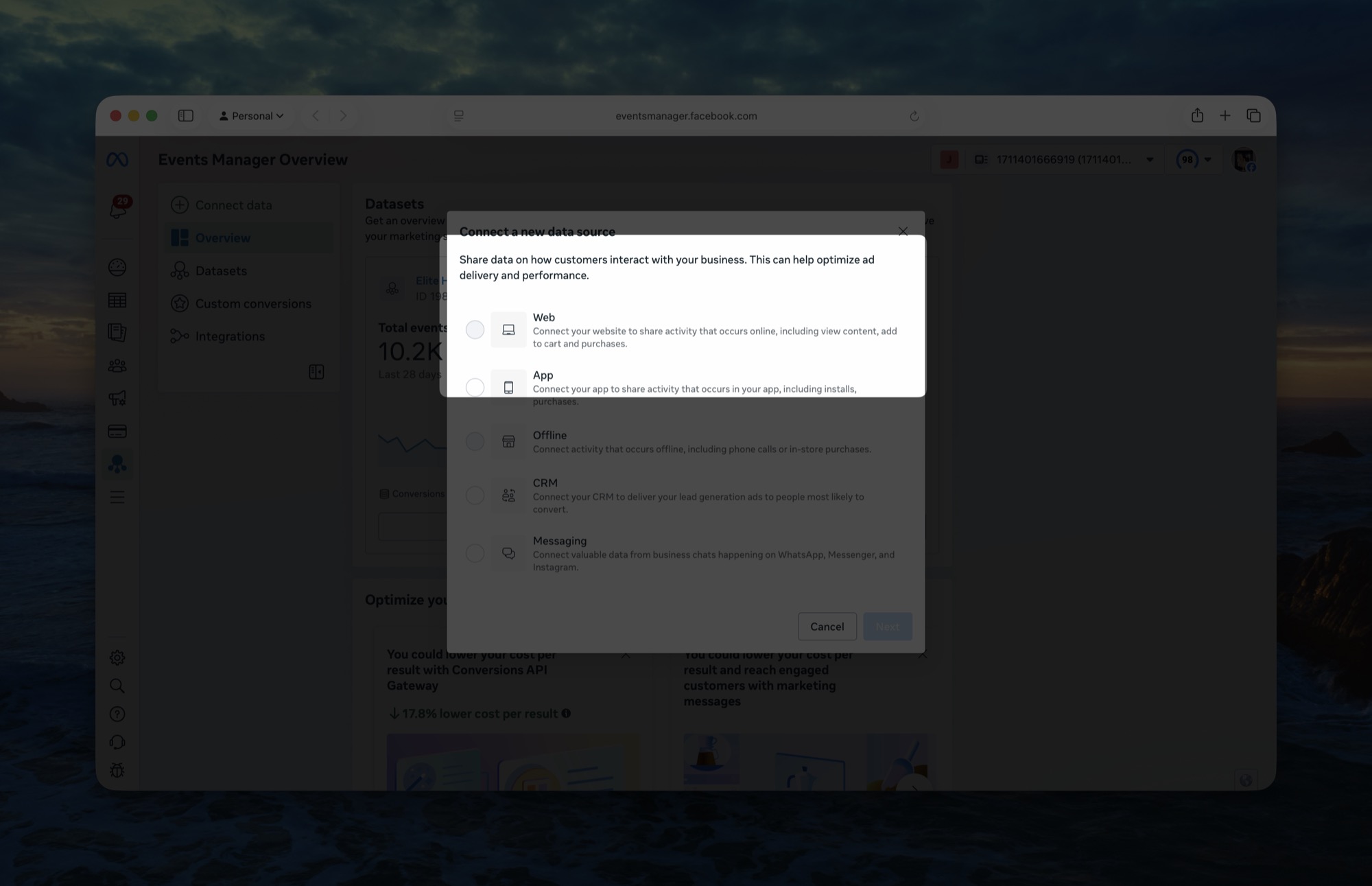
Otherwise, click Connect data, choose Web in the Connect a new data source dialog (not App, even though its description mentions installs and purchases), then follow the prompts to name and create the dataset.
- 2
Link the dataset to your ad account
Link the dataset to the ad account you'll run campaigns from.
- 3
Generate a Conversions API access token
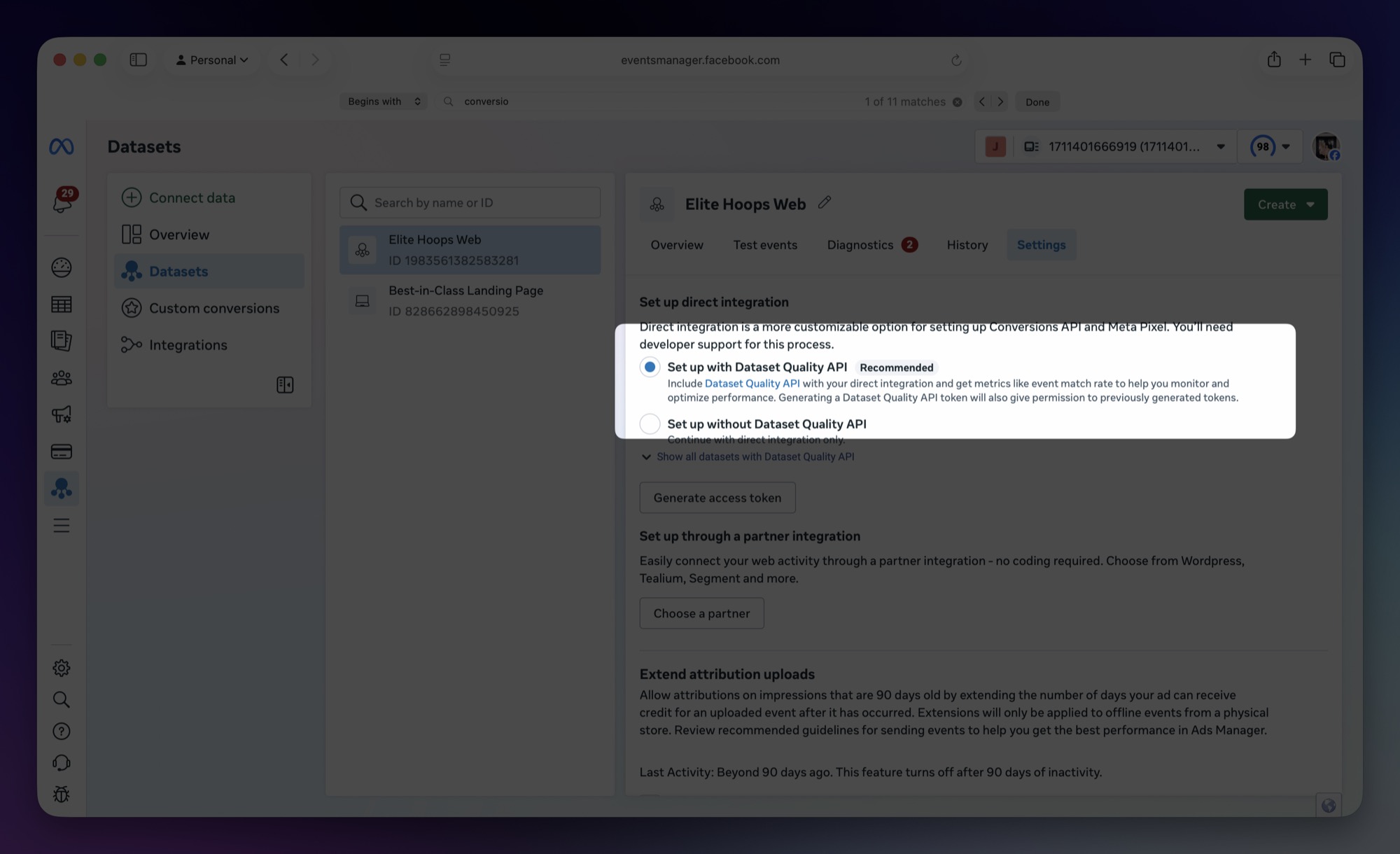
Open the dataset in Events Manager: click Datasets in the left menu, select your dataset, and click the Settings tab. Scroll to the Conversions API section and find Set up direct integration. Leave Set up with Dataset Quality API selected and click Generate access token. Copy the token; you'll paste it into Superwall in the next step.
Events Manager lists other ways to set up the Conversions API, like partner integrations. Skip them. Superwall is the direct integration, and the access token is all it needs.
Step 2: Connect Meta in Superwall
- 1
Open the integration
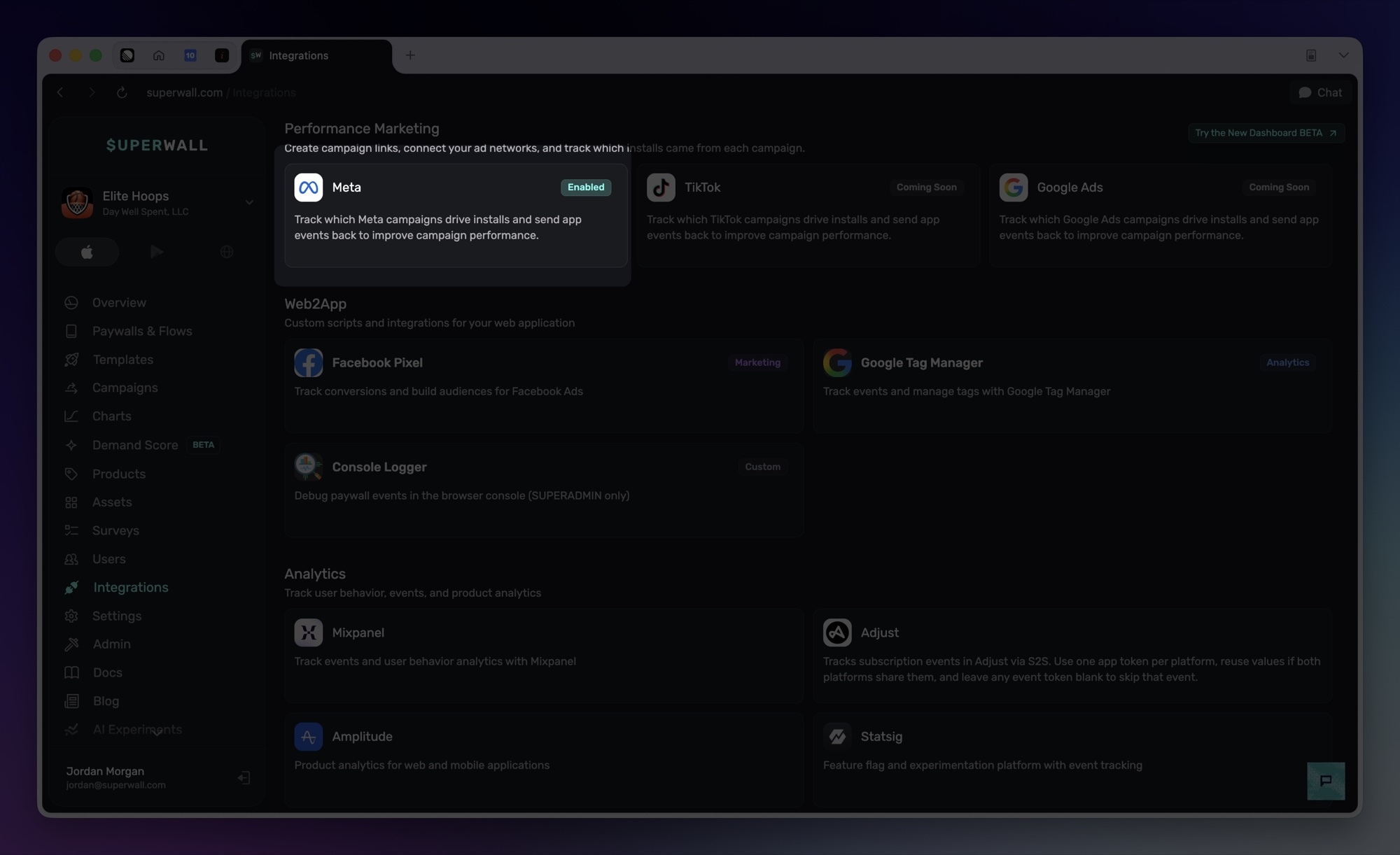
In your app's dashboard, go to Integrations, find Performance Marketing, and click the Meta card.
- 2
Connect your Meta account
Click Connect Meta account and sign in with a Facebook account that has admin access to your business portfolio. Meta's consent dialog is where you choose which ad accounts Superwall may read. There is no separate account picker afterwards.
- 3
Choose your dataset and paste the access token
Pick your dataset from the Dataset dropdown. Options are labelled by the business portfolio or ad account that owns them, so several datasets with similar names are still easy to tell apart. If Superwall can't read the list from the Meta account you connected, a text field takes its place and accepts a dataset ID typed in directly.
Paste the access token from step 1 into Conversions API Access Token and click Save. Superwall checks the pair with Meta first and won't store a dataset and token Meta rejects, showing you what Meta said instead.
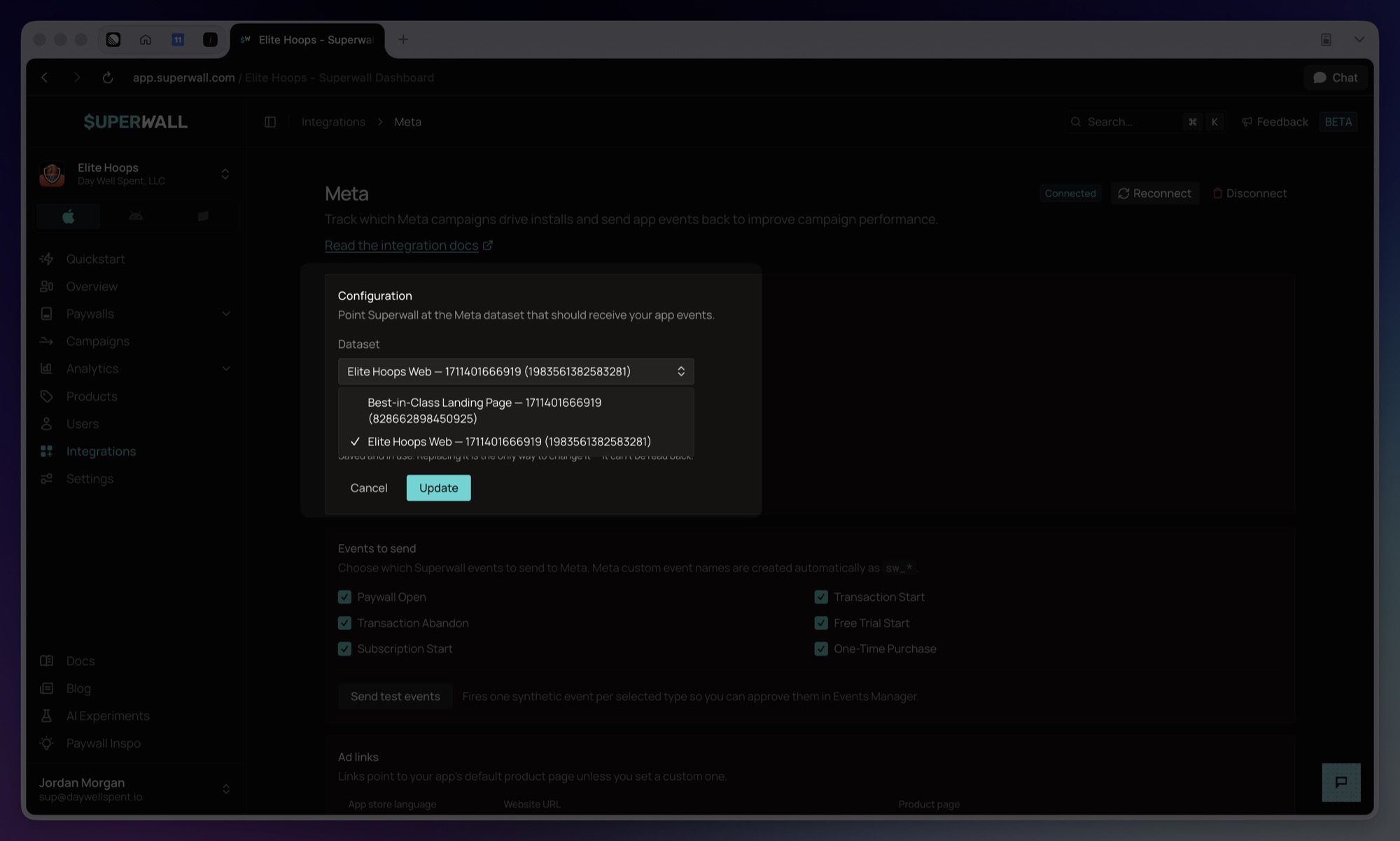
Once saved, the page shows your configuration as a summary and the token as its last four characters. Superwall never sends the token back to your browser, so it can't be displayed or copied. To change it, click Edit configuration and then Replace token; leaving the token alone keeps the stored one. The Events to send and Ad links cards only appear once a dataset and token are saved.
Step 3: Choose events to send
Superwall sends these events to your dataset. All six are on by default; leave them on unless you have a reason not to.
| Dashboard label | Superwall event | Sent to Meta as |
|---|---|---|
| Paywall Open | paywall_open | sw_paywall_open |
| Transaction Start | transaction_start | sw_transaction_start |
| Transaction Abandon | transaction_abandon | sw_transaction_abandon |
| Free Trial Start | freeTrial_start | sw_freeTrial_start |
| Subscription Start | subscription_start | sw_subscription_start |
| One-Time Purchase | nonRecurringProduct_purchase | sw_nonRecurringProduct_purchase |
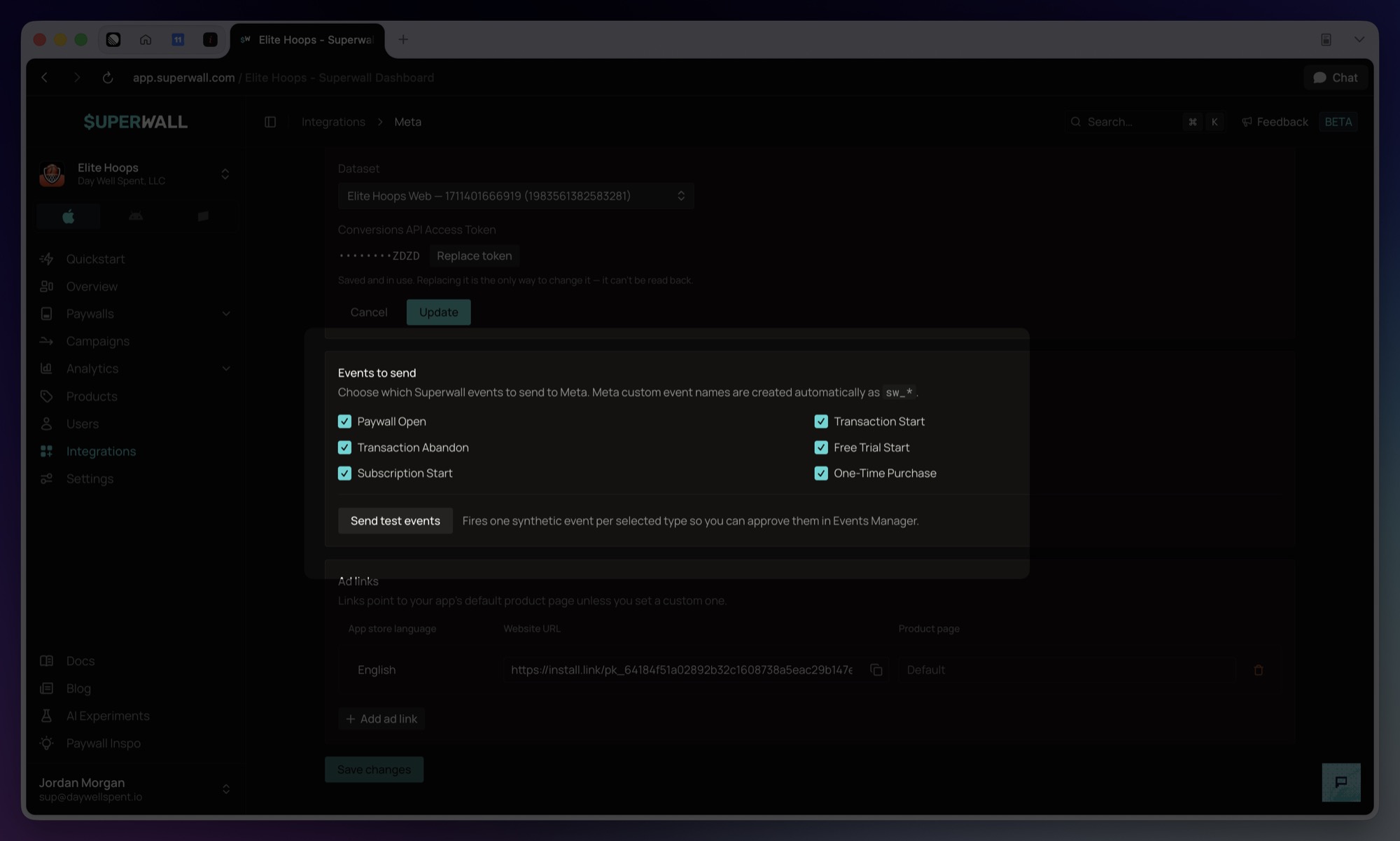
Events are sent for every user, not just users attributed to your ads. Meta uses them for delivery optimization and its own attribution.
Because organic users are included, the dataset's Event Match Quality score in Events Manager reads lower than it would for a pixel on a website. Organic users have no ad click for Meta to match against, so their events carry fewer matching signals. This is expected and doesn't affect attribution in Superwall. To raise the score, set user attributes as described in Improving Event Match Quality below.
When Subscription Start is enabled, a free trial converting to paid also sends sw_subscription_start, carrying the purchase's value and currency plus is_trial_conversion: true in custom_data, so Meta sees revenue at the moment a trial starts paying, not just the trial start. Direct paid signups and trial conversions share one event on purpose: Meta's delivery optimizes per event, and pooling both keeps its volume high. Ordinary renewals (rebills) are never sent.
If you connected Meta before trial-conversion forwarding shipped, it activates the next time you click Save changes on this page.
Meta requires you to acknowledge new custom events and allow the domain they come from:
- 1
Send test events
Click Save changes, then Send test events. Test events are sent from your saved selection, so save first if you've just changed which events are ticked. They appear in your dataset's Test events tab within a few minutes.
- 2
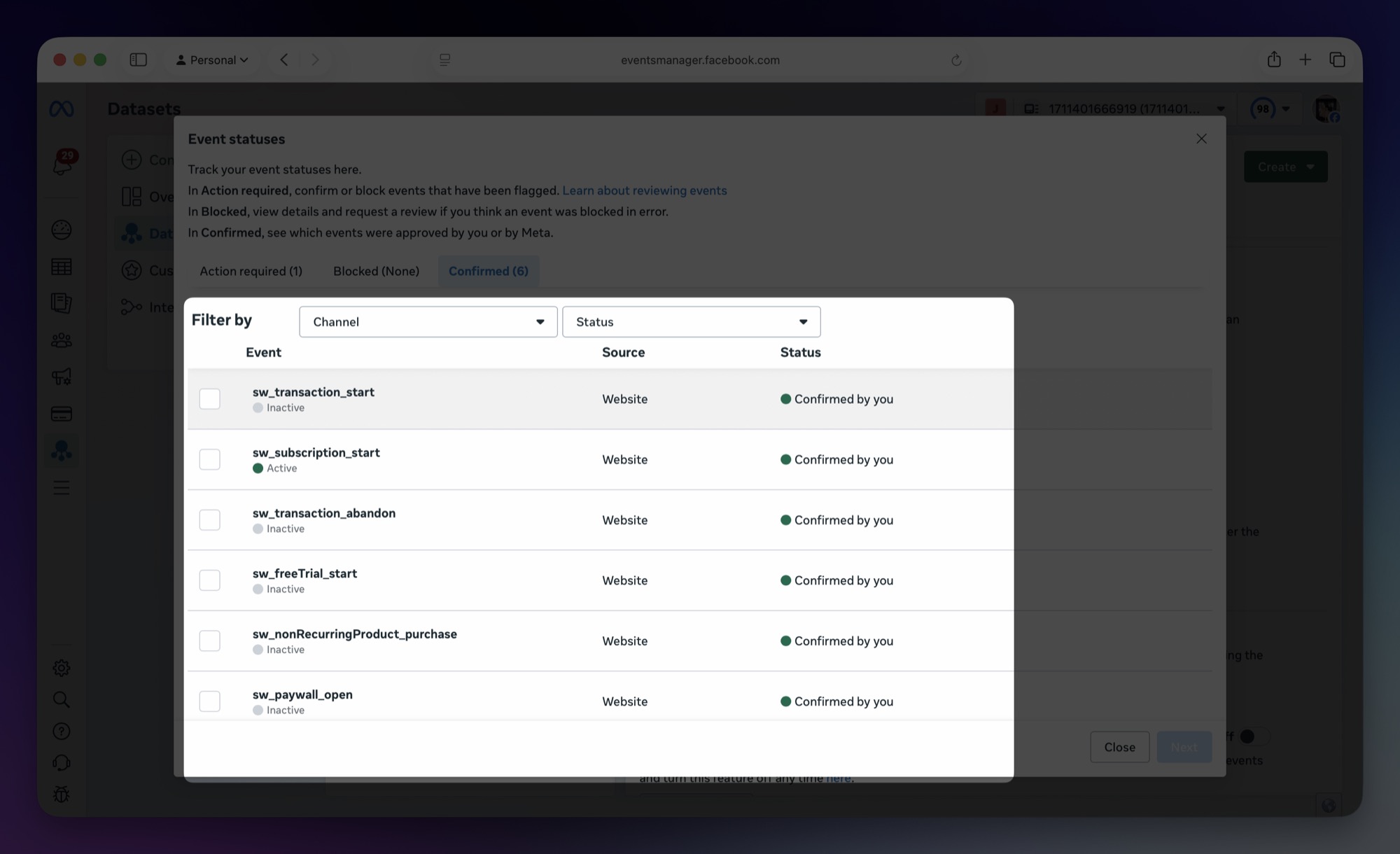
Confirm the custom events
Meta flags new custom events for review. Confirm they belong to you so they can be used in ad campaigns. In Events Manager, open your dataset, click the Settings tab, and scroll to Data controls. Under Manage event blocking, click Review to open the Event statuses dialog. In its Action required tab, select every event that starts with
sw_, click Next, choose Confirm the custom event, click Review, then click Done. The events usually show up here within a few minutes of sending test events.After you confirm them, all six move to the Confirmed tab with the status Confirmed by you:
The Overview tab can also show a Confirm custom event(s) that belong to you warning with a Review events button that leads to the same review. That warning can take up to 30 minutes to appear and sometimes never does, so don't wait for it.
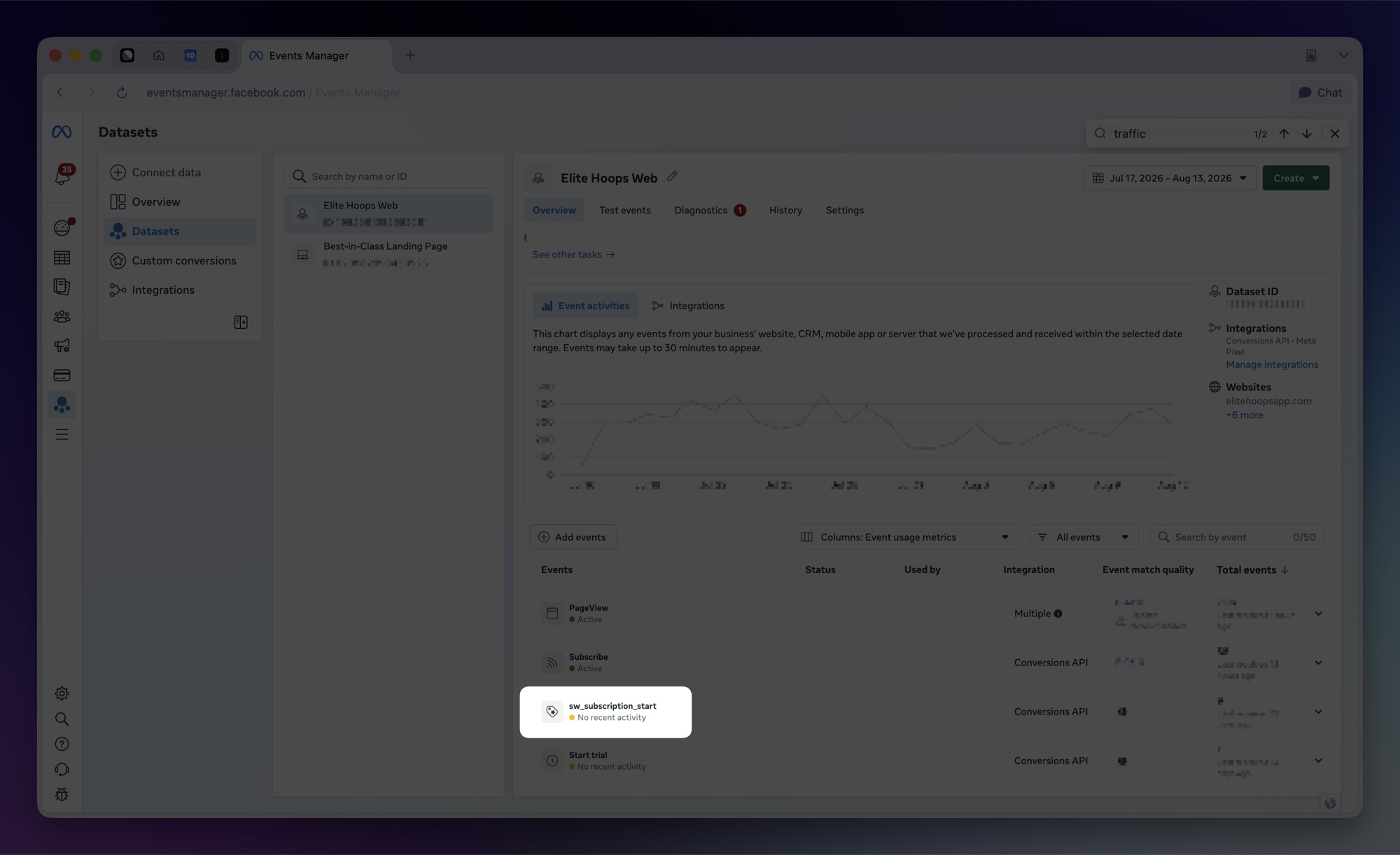
If the
sw_events are already under Confirmed, there's nothing to do. If Meta blocked an event, it appears under Blocked. Select it and click View details to request a review.Confirmed events also stay listed in the Overview events table under the Conversions API integration:
- 3
Allow the install.link domain
In your dataset's Settings, under Traffic permissions - websites, click Create allow list, enter
install.link, click Next, then click Confirm.The domain is
install.link, notsuperwall.com. Superwall sends every event with aninstall.linkURL as its source, so that is the domain Meta checks the allow list against. Previously, setup usedsuperwall.com. If that is the domain you allowed, addinstall.linkas well, or Meta will not accept your events.
Improving Event Match Quality
Meta scores every event on how many signals it can match to a person. Superwall always sends a hashed external_id. Everything else comes from user attributes you set, so setting them as early as you know them is the highest-leverage change you can make:
Superwall.shared.setUserAttributes([
  "email": "someone@example.com",
  "phoneNumber": "+1 555-123-4567",
  "firstName": "Ada",
  "lastName": "Lovelace",
  "city": "London",
  "state": "England",
  "postalCode": "SW1A 1AA",
  "birthday": "1992-05-14"
])
Superwall normalizes each value and hashes it with SHA-256 before it leaves Superwall, the way Meta's Advanced Matching expects. Raw email addresses, phone numbers and names are never sent. An attribute you haven't set is omitted rather than sent empty.
| Attribute | Meta field | Notes |
|---|---|---|
email | em | Lowercased before hashing |
phoneNumber | ph | Must include the country code. Plus signs, spaces and punctuation are stripped, so +1 555-123-4567 hashes as 15551234567 |
firstName / lastName | fn / ln | If you store one whole name under name instead, Superwall splits it on the last space, so Mary Anne Evans becomes Mary Anne and Evans. A single word is sent as the first name only |
city | ct | Accents are folded and everything except letters is stripped, so St. Louis hashes as stlouis |
state | st | Use the two-letter code for the US and Canada and the region name elsewhere, as Meta expects. Superwall lowercases and strips spaces but doesn't convert names to codes |
postalCode | zp | Spaces stripped, so SW1A 1AA hashes as sw1a1aa |
birthday | db | Year, month, day. Separators are stripped, so 1992-05-14 works. Anything that isn't eight digits afterwards is dropped rather than sent |
country | country | Two-letter code. Read for paywall and transaction events only. Purchase events always use the store transaction's country |
Superwall also accepts spellings you may already use: phone_number / phone, first_name, last_name, name / fullName / full_name, region for state, postal_code / zip / zipCode, and dateOfBirth. Paywall and transaction events also read date_of_birth, countryCode and country_code.
Purchase events pick up new attributes immediately. Paywall and transaction events pick them up within about five minutes.
Country is sent whenever Superwall has one. Free Trial Start, Subscription Start and One-Time Purchase use the store transaction's country. Paywall and transaction events use the country attribute when set, otherwise the region of the user's matched install or the device's locale.
If the score stays low, the usual causes are attributes stored under names Superwall doesn't read, a phone number without its country code, or a birthday that isn't in year-month-day order. The last two hash to a value that matches nobody.
Step 4: Create your ad links
Under Ad links, Superwall generates the URL you'll use in your Meta ads.
- 1
Add a link
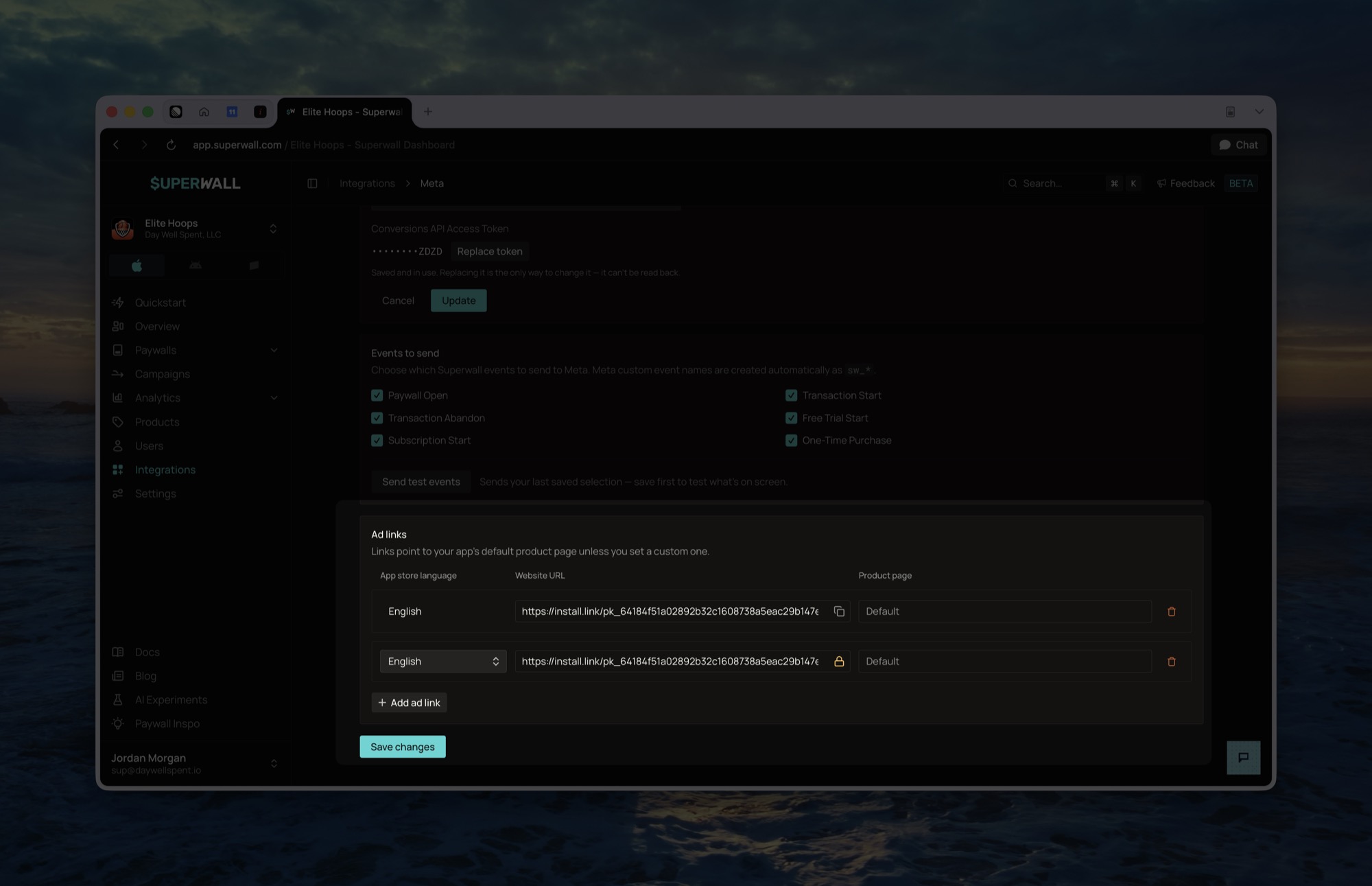
Click Add ad link. The first row is set to English; later rows ask you to pick an App Store language. The Product page column reads Default, meaning the ad opens your app's default App Store listing, so there's nothing else to fill in.
To send the ad to a Custom Product Page instead, click that cell. It opens prefilled with the row's current URL, the default one to begin with, which is the right starting point: a Custom Product Page URL is the default one plus
?ppid=<id>. The cell then reads Custom (<id>). Clearing it returns the link to the default. To use a Custom Product Page to measure how many of your ad installs Superwall attributes, see Send your ads to a dedicated Custom Product Page.You can pick the same language more than once. Add an English link for each Custom Product Page you want to test, and each row gets its own Website URL to use in a different ad. The App Store language is fixed once a row is saved.
Links that share a language are told apart by their Custom Product Page, so the confirmation shown before a save deletes a live link names the row as
English (winter-sale)rather than just its language. When neither row uses a Custom Product Page, rows are named by position instead, asEnglish (#1)andEnglish (#2). - 2
Save to activate
Click Save changes. It saves the whole page, so a change to your event selection and a change to your ad links are picked up together. (The Save/Update button in the configuration card saves the page too, after checking your dataset and token with Meta.)
A link only starts working once it's saved, and stays locked until then: the Website URL shows a padlock rather than a copy button while a row is unsaved, because the URL wouldn't resolve yet.
- 3
Copy the link
Click the copy button beside the URL in the Website URL column. It already includes the parameters Meta fills in with your campaign, ad set, and ad details. For Meta ads, don't edit them.
Deleting or disabling a link immediately breaks any live ads pointing at it. Keep links in place while campaigns are running.
Influencer and affiliate links
You can give a creator a link on your own domain, like yourapp.com/creator, that redirects to an ad link. Create an ad link for each creator. The copied link contains placeholders that only Meta fills in, URL-encoded, so {{campaign.name}} appears as %7B%7Bcampaign.name%7D%7D:
https://install.link/pk_abc123/meta-mfk3x9q2?app_store_language=english&placement=%7B%7Bplacement%7D%7D&campaign_name=%7B%7Bcampaign.name%7D%7D&site_source_name=%7B%7Bsite_source_name%7D%7D&campaignid=%7B%7Bcampaign.id%7D%7D&...Replace them with your own values and remove the ones you don't use:
https://install.link/pk_abc123/meta-mfk3x9q2?app_store_language=english&campaign_name=creator&campaignid=creatorSet campaignid as well as campaign_name. The Acquisition Campaign chart breakdown groups by campaign ID and shows installs without one as Organic. These installs are recorded with meta as the network, so they count toward Meta in charts, including its ROAS.
Reconnecting and disconnecting
The Meta page header shows whether your account is connected, with two controls beside it.
Reconnect runs the sign-in again against the same app. Use it if Meta's access expires or you granted the wrong ad accounts the first time. Your dataset, token and event selection are left alone.
Disconnect clears the Meta account, the dataset, the Conversions API token and your event selection, and stops sending events. It asks for confirmation first, because none of it can be recovered from Superwall: the token isn't readable once stored, so reconnecting means generating a new one in Events Manager and setting the integration up again.
Disconnecting does not delete your ad links, but it does stop events reaching
Meta, so campaigns optimising on sw_ events lose their signal. Your links
keep redirecting and installs keep being attributed.
Step 5: Create your Meta campaign
Superwall ad links are website links. That means you'll run a Sales campaign with a website conversion location, not an App Promotion campaign, even though the goal is installs. When someone taps your ad, the link records the click and sends them straight to the App Store.
- 1
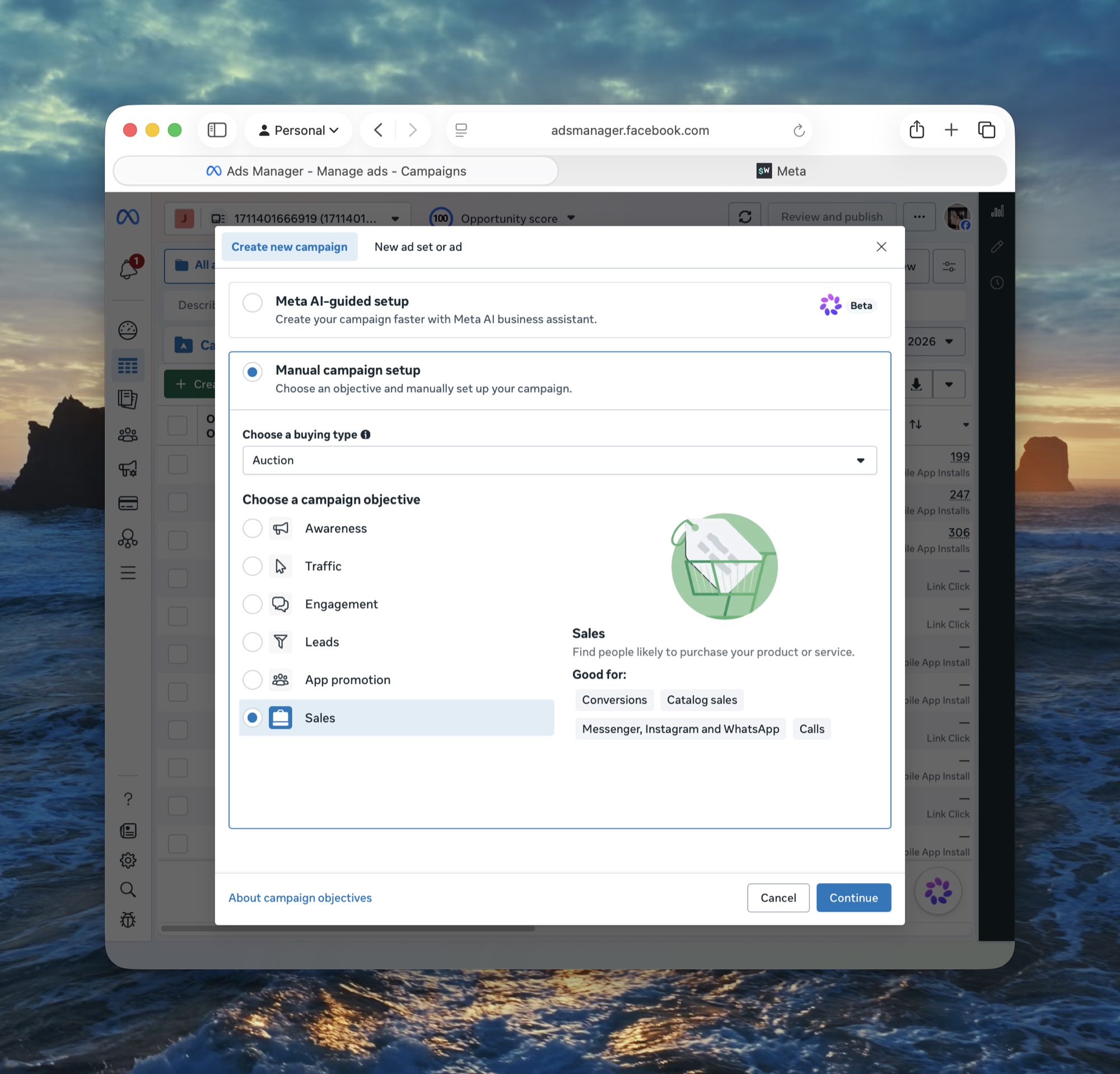
Create a manual Sales campaign
In Ads Manager, click Create and choose the Sales objective. Set the campaign up manually; don't use Meta's AI-assisted setup.
- 2
Point the ad set at your dataset
Set Conversion location to Website. Choose your dataset and the conversion event to optimize for. We recommend
sw_transaction_start, since starting a transaction signals purchase intent.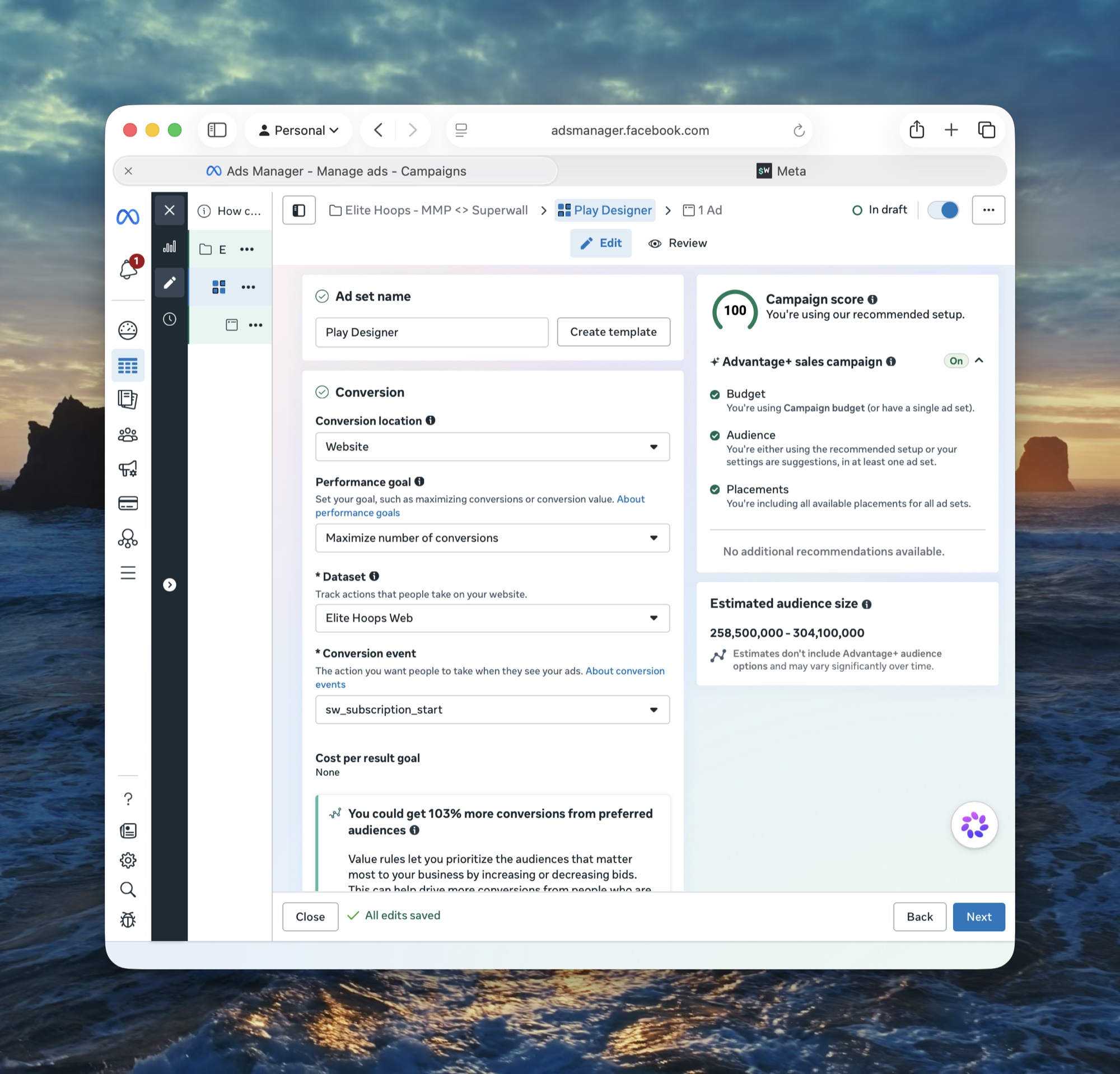
- 3
Restrict placements to iOS
Under Placements, click Show more settings, then limit devices to Mobile and operating systems to iOS, and turn off Audience Network.
- 4
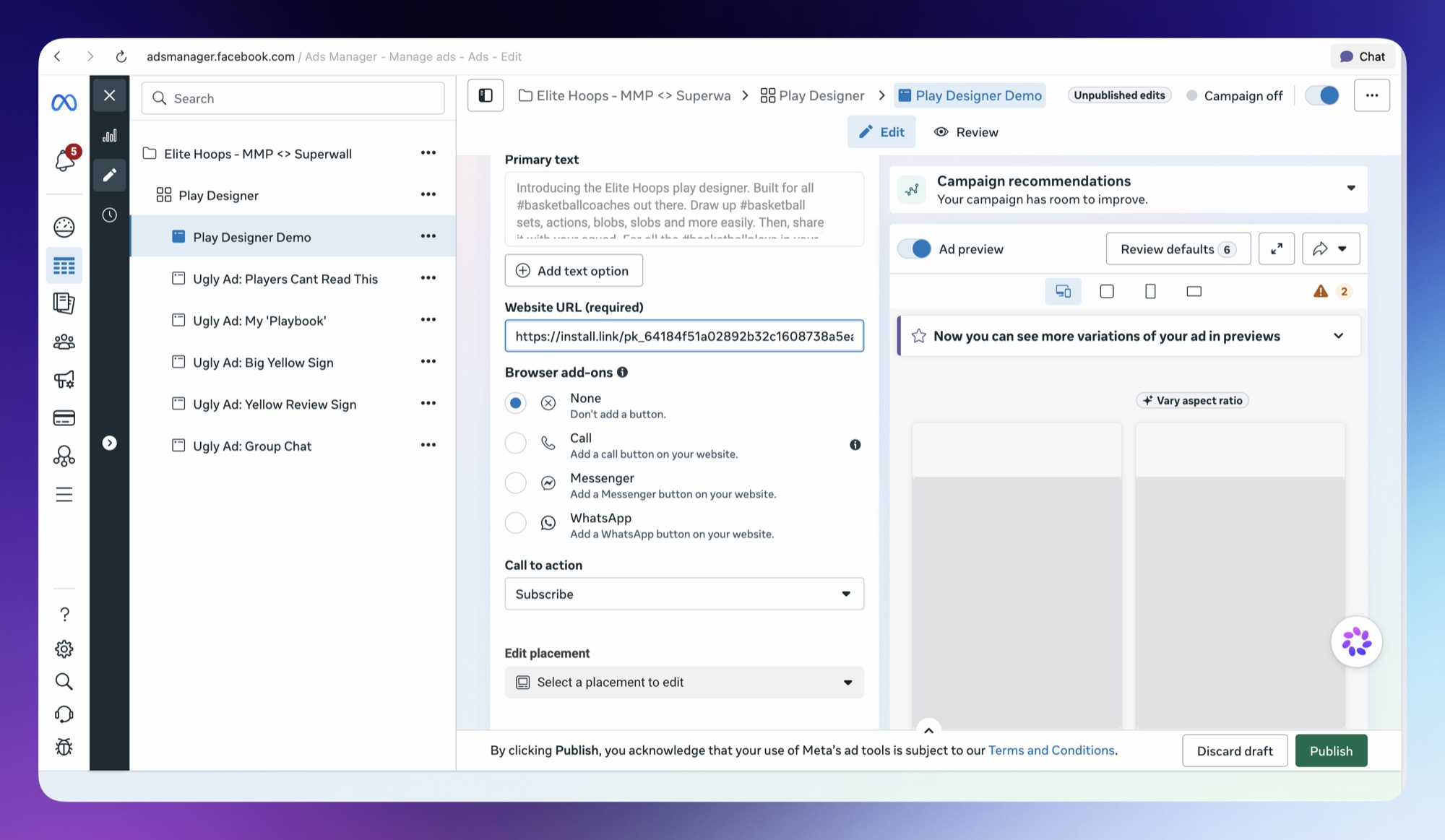
Add the link to your ad
Paste the Superwall link into the ad's Website URL field. Leave URL parameters under the ad's Tracking section empty; the link already carries them.
- 5
Publish the campaign
Click Publish to put your campaign and ads live.
Verify it's working
- Test events appear in the Test events tab of your dataset in Events Manager.
- Once ads run, attributed users appear in Superwall with
acquisition_user attributes set and anattribution_matchevent in their event stream. - The Advertising charts populate after spend syncs from Meta, which happens daily.
How attribution works
When someone taps your ad, Superwall records the click and sends them to the App Store. If they install and open your app, Superwall looks for a recent ad click that may correspond to that install. When a match can be made, the install is attributed to the campaign. Otherwise, it remains unattributed and appears as organic.
- Matching runs once per install, within 7 days of the click.
- No ATT prompt or IDFA is required; matching never uses them.
- Unmatched installs stay unattributed and show as
Organicin charts.
User attributes
A matched install sets these user attributes. Attributes without a value are omitted.
| Attribute | Value |
|---|---|
acquisition_source | The network that drove the install, like meta |
acquisition_network | Same as acquisition_source |
acquisition_channel | Always paid |
acquisition_campaign_name | The Meta campaign name, or the value you set on the link |
acquisition_campaign_id | The Meta campaign ID, or the value you set on the link |
acquisition_ad_set_name | The ad set name |
acquisition_ad_set_id | The ad set ID |
acquisition_ad_name | The ad name |
acquisition_ad_id | The ad ID |
acquisition_placement | The Meta placement that showed the ad |
acquisition_site_source_name | Where the ad ran, like ig or fb |
acquisition_link_id | The Superwall ad link ID |
acquisition_click_id | The matched click ID |
acquisition_matched_at | When the match happened |
acquisition_app_store_language | The link's App Store language. Links that share a language report the same value |
acquisition_product_page_id | The Custom Product Page ID, when the link uses one. Omitted for links on the default listing. To tell two links on the same language apart in every case, use acquisition_link_id |
acquisition_deeplink_id | The link's deep link ID, when set |
Use them as breakdowns and filters in charts, or in audience filters to show different paywalls to users acquired from ads. In the audience filter picker, they appear under Attribution. See Attribution filters.
The attribution_match event
The SDK tracks attribution_match when the match request completes, matched or not.
| Parameter | Value |
|---|---|
provider | mmp, or apple_search_ads for Apple Search Ads attribution |
matched | Whether the install was attributed |
source | The network, like meta |
confidence | high, medium, or low |
match_score | The match score |
reason | matched when the install was attributed. Otherwise no_candidates, below_threshold, ambiguous, or request_failed |
The event and its parameters are available in charts and audience filters. It can't be used to trigger a paywall directly.
Charts
With the integration enabled, Superwall pulls campaign spend from Meta daily and adds an Advertising chart group:
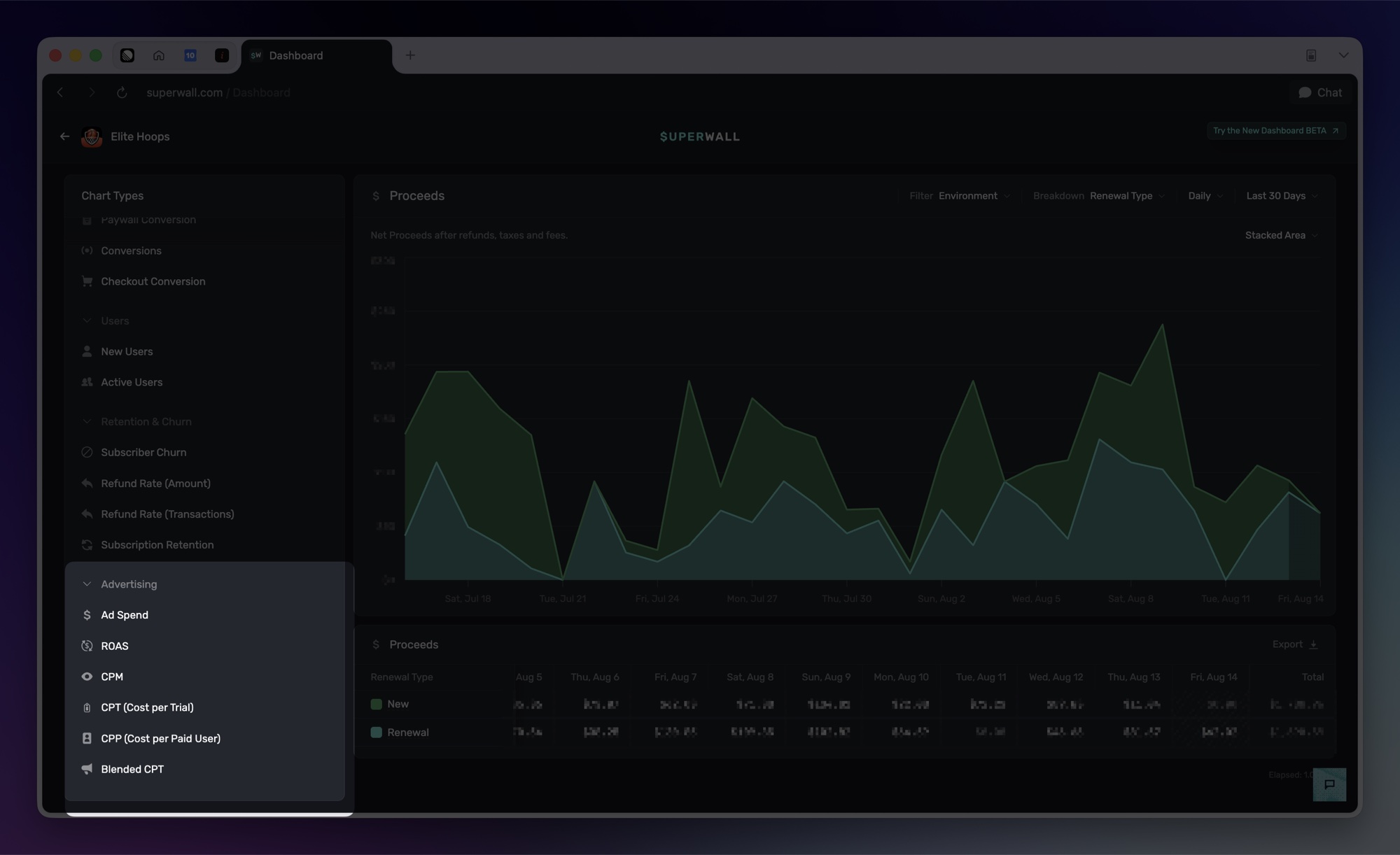
- Ad Spend
- ROAS: proceeds divided by spend
- CPM: cost per thousand impressions
- CPT: cost per trial
- CPP: cost per paid user
- Blended CPT: total spend divided by all trials, including organic
Revenue charts can also be broken down by Acquisition Network and Acquisition Campaign to split any metric by the campaign that acquired the user. Those breakdowns fill in as installs match; unmatched installs group under Organic.
Recommendations
Send your ads to a dedicated Custom Product Page
We recommend pointing your Superwall ad link at a Custom Product Page that nothing else uses. It lets you check how many installs from your ads Superwall attributes, which is otherwise hard to measure.
Meta and Superwall each count installs their own way, so neither can check the other. App Store Connect reports downloads separately for each Custom Product Page. If the only way to reach a page is your Superwall link, that page's downloads are an independent count of installs from your ads, and comparing them with the installs Superwall matched to the link gives you a match rate.
- 1
Create the Custom Product Page
In App Store Connect, go to Apps, select your app, and click Custom Product Pages in the sidebar. Click Create Custom Product Page, or the + button if you already have one.
Give it a reference name you'll recognize in App Analytics, like
Superwall Meta. Choose to copy your existing product page rather than start blank. A page that matches your default listing converts like it, so you're measuring attribution, not a new set of screenshots.Don't add keywords to the page. Keywords let the page show up in App Store search, and downloads from search would be counted with your ad traffic.
See Apple's guide to creating a Custom Product Page for details.
- 2
Submit it for review
Custom Product Pages go through App Review, and until a page is approved, its link opens your default listing instead. Submit the page and wait for approval before you change your ad link.
- 3
Copy the page URL
Open the approved page in App Store Connect and copy the URL under Product Page URL. It's your app's App Store URL with a
ppidadded, likehttps://apps.apple.com/app/id1234567890?ppid=<id>. - 4
Point your ad link at it
In Superwall, open the Meta integration and go to Ad links. Click the Product page cell of the link your ads use, paste the URL, and click Save changes. The cell now reads Custom (
<id>).The link's Website URL doesn't change, so ads already using it keep working and don't need to be edited.
- 5
Keep the page exclusive to this link
The comparison only holds if every visit to the page comes through this one link. Don't use the page in Apple Search Ads, on another ad network, in another Superwall ad link, or anywhere you share links to your app. To measure several links, give each its own page.
Then let your ads run. App Store Connect only shows data for a page once it has at least five first-time downloads, and a week or more of steady spend gives you enough installs for a useful comparison.
To compare, open your app in App Store Connect, click the Analytics tab, and under Acquisition, click Product Pages. Select your page and note its Total Downloads for the dates you're checking.
The two numbers won't match exactly:
- Downloads that are never opened, or opened late, can't be matched. Superwall matches an install at first launch, and only when that launch happens within 7 days of the ad click. App Store Connect counts the download either way.
- Compare totals over a week or more, not single days. App Store Connect counts a download on the day it happens. Superwall counts the match on the day the app is first opened, which can be later, so the daily numbers drift apart while weekly totals line up.
- Leave out the last couple of days. App Store Connect data can take a day or two to fill in.
- Use Total Downloads, not First-Time Downloads. Superwall treats a reinstall as a new install, so it can match redownloads too.
Troubleshooting
Installs aren't being attributed
- The app must ship SuperwallKit 4.16.0 or later on iOS, or the Android SDK 2.9.0 or later, and the install must be new. Delete and reinstall the app to test; updating an existing install never attributes.
- The app must be opened for the first time within 7 days of the ad click.
SuperwallOptions.eventTrackingBehaviormust not be set to.none. That setting disables install matching entirely.- The ad link must be saved and enabled. A deleted or disabled link returns a 404 and records no clicks.
My dataset isn't listed in Superwall
The Dataset dropdown only shows web datasets. If the only dataset you see in Events Manager is your app, create a web dataset as described in Step 1 and use that instead.
If a text field appears instead of the dropdown, Superwall couldn't read the dataset list from the Meta account you connected. Type the dataset ID in directly; saving still validates it against Meta.
Events aren't showing in Meta
- Sandbox purchases are never forwarded. Only production events are sent to Meta; use Send test events to validate before going live.
- Confirm the dataset ID and access token still validate by editing and re-saving the configuration.
- Confirm the
sw_custom events under Settings > Data controls > Manage event blocking in Events Manager. - Add
install.linkto the dataset's website traffic allow list. Allowingsuperwall.cominstead is the most common cause: it is the wrong domain.
No transaction or purchase events
- If you sell outside of Superwall paywalls, enable observer mode.
- Check that revenue tracking is configured. Subscription events come from App Store server notifications.
How is this guide?
Superwall as your MMP
Use Superwall as your mobile measurement partner (MMP). Attribute installs to your ad campaigns, send conversion events back to ad networks, and measure ROAS without adding another SDK.
Google Ads
Run Google Ads with Superwall as your mobile measurement partner. Superwall attributes installs to your campaigns and uploads conversions back to Google Ads.