Apple Retention Messaging
Set up Apple's Retention Messaging API in Superwall, create retention messages for Apple to approve, and choose which subscribers see them.
In the Retention Messaging section within Integrations, you can configure Apple's Retention Messaging API for subscribers who intend to cancel.
Apple must first approve your app for the Retention Messaging API. Superwall can't grant this access. Request access from Apple, and contact Superwall Support to turn on retention messaging for your app. The Retention messaging page walks you through both, including the callback URL to include in your request to Apple.
What the API does
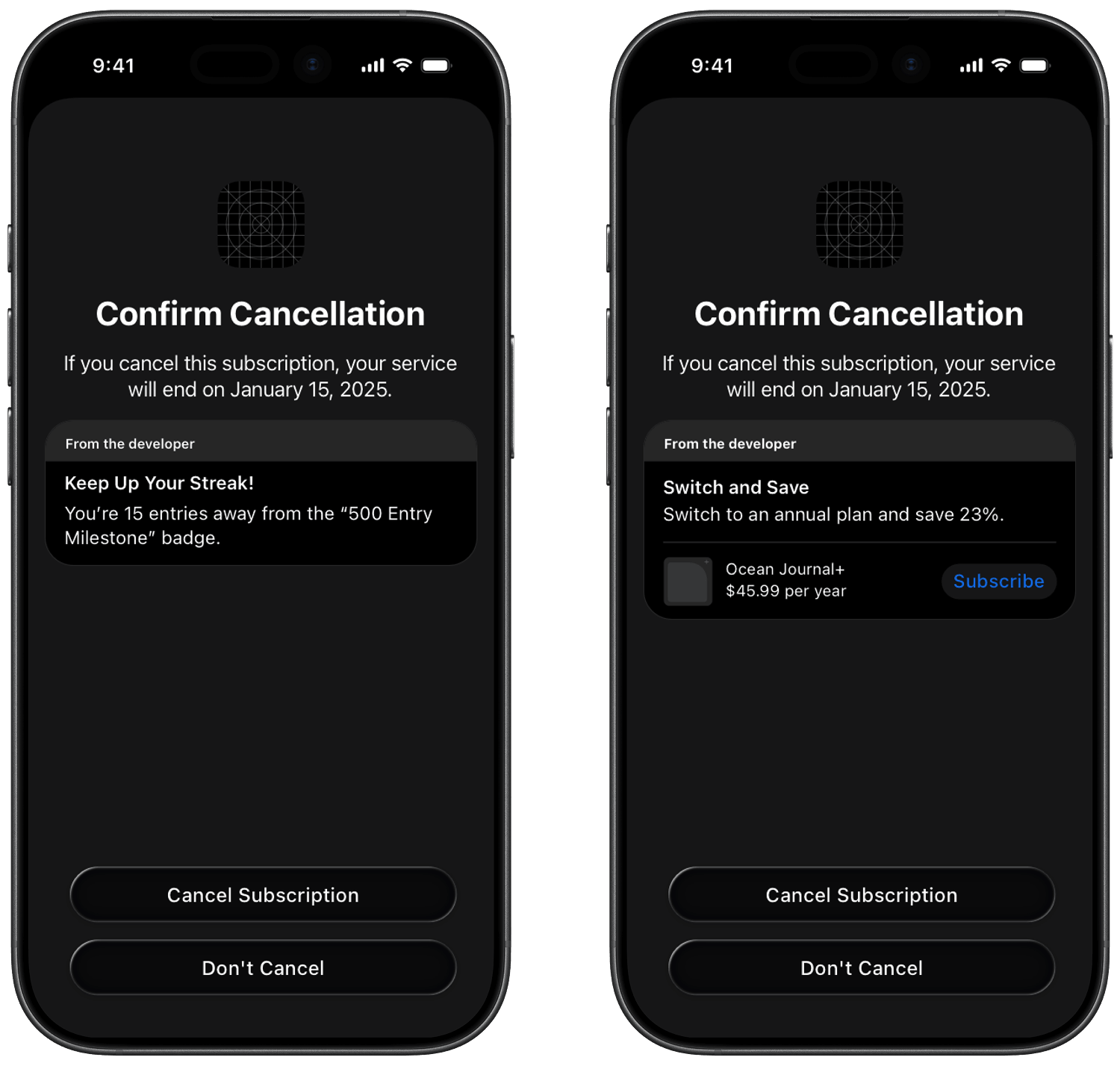
Apple's Retention Messaging API lets you choose which message appears on the App Store's cancellation confirmation screen after a customer taps Cancel Subscription. You can use it to remind subscribers what they keep with their plan, reinforce product value, or present an alternate product or offer that may reduce churn.
Apple supports text-only messages, messages with images, switch-plan messages, and promotional offers. In Superwall, you use this integration to set up the callback URL Apple calls, create retention messages in your Message library, and choose which subscribers see them with retention campaigns.
Examples of retention messaging in the cancellation flow:
Apple Callback URL
The dashboard generates a callback URL using your app's public API key:
https://retention-messaging-api.superwall.com/v1/message/<public-api-key>
Superwall registers this URL with Apple for you. You use the same URL for Apple's sandbox and production environments. Apple requires you to register it for sandbox first and pass a performance test there before you turn it on for production.
Before you start, set up In-App Purchase configuration and the App Store Connect API in Revenue tracking, and add your Apple App ID in your app's Settings. The Retention messaging page checks these in its first step, Configure prerequisites.
After the prerequisites, the Retention messaging page walks you through these steps:
- Get access from Apple: copy the Callback URL, click Request access from Apple and include the URL in your request. After Apple approves your app, click Check access.
- Set sandbox URL: point Apple's sandbox traffic at the callback URL.
- Find sandbox subscription: start a sandbox subscription in your app, then click Find active sandbox subscription. Apple's performance test needs an active sandbox subscription.
- Run performance test: start Apple's sandbox performance test. Results can take a while.
- Set production URL: turn on the production callback after the sandbox performance test passes.
- Create sandbox test message: create a starter message to test the flow in sandbox.
The callback URL doesn't change when you switch between Production and Sandbox in the dashboard. The environment selector applies to messages, campaigns and reporting.
Messages
The Message library holds the messages Apple reviews and approves. You then use them in a retention campaign to show them to subscribers.
Create a message
- Under Message library, click Create message.
- Enter a Reference name. It's only shown in Superwall.
- Under Localized variants, enter a Locale, Header and Body for each language. Click Add locale to add more. The first row is the Default. To add many locales at once, click Import and choose a CSV or TSV file with
locale,headerandbodycolumns. - Click Create and submit. Superwall creates the message and submits it to Apple for review.
Headers can be up to 50 characters and bodies up to 144. Messages belong to the environment selected at the top of the page.
A locale can be exact, such as en-US, or a whole language, such as en. A campaign uses the exact locale if the message has it, otherwise the language. Every locale a campaign covers needs a matching variant. The Default variant isn't used as a fallback in campaigns.
Message status
The Status column shows Apple's review state: Not submitted, Submitting, Failed, Pending, Approved, Rejected or Unknown. A message with several locales shows the status of its least-approved locale. If a submission fails, choose Submit to Apple from the message's menu to try again.
Only messages Apple has approved can be shown to subscribers.
Edit a message
Choose Edit from the message's menu to rename it, add locales, remove locales or set the Default locale. You can't change the header or body of a locale after it's created. To change the text, create a new message. If a retention campaign uses the message, you can't edit or delete it.
Preview a message
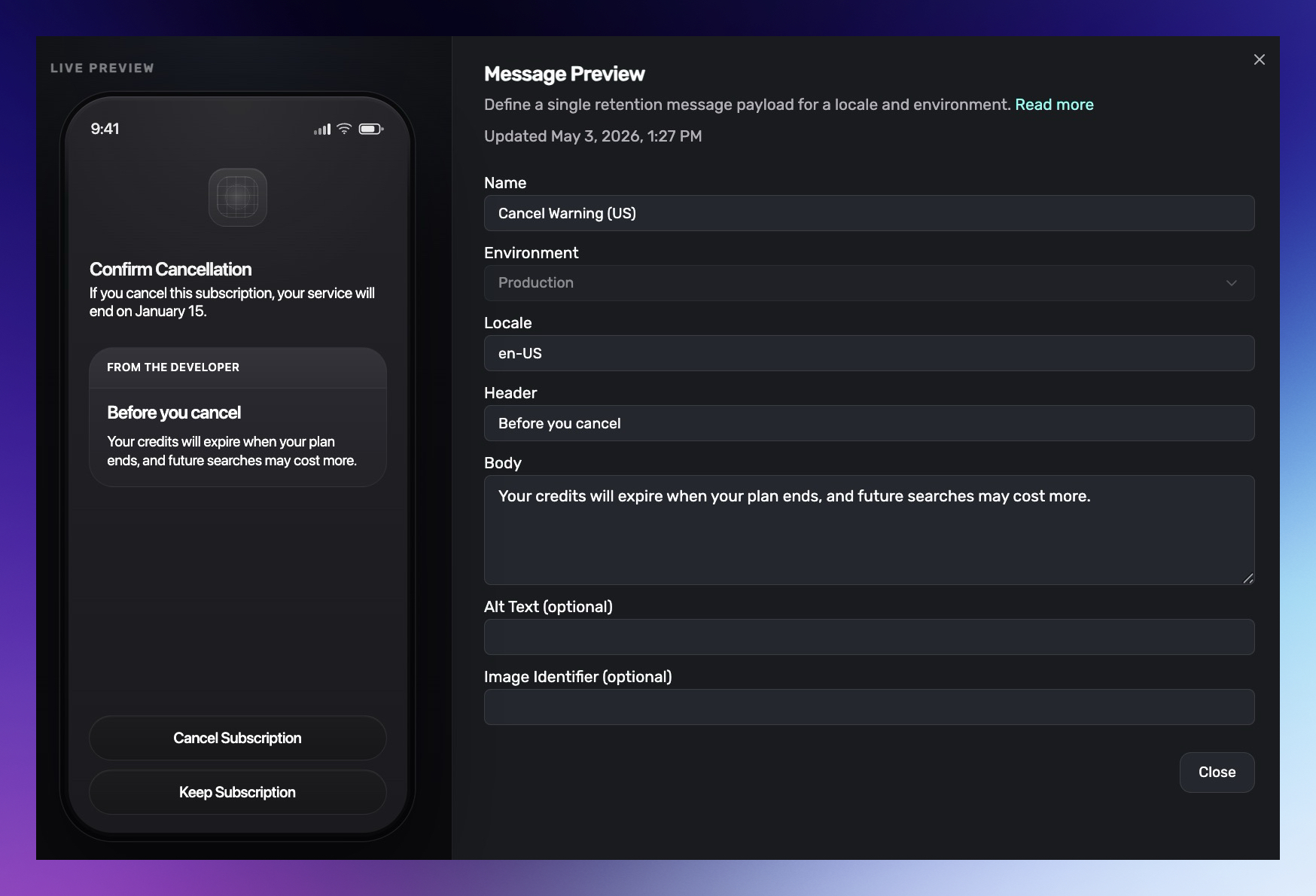
After a message exists, open the three-dot menu in the messages table and choose the preview action to see a live preview. The preview shows the message payload beside an example cancellation screen, so you can check the header, body, locale, image, and alt text before using the message in a retention campaign.
Default Messages
Default messages and real-time configurations are the setup for apps without retention campaigns. If your app has retention campaigns, use a campaign's Fallback and audiences instead. You can't create new default messages or real-time configurations once retention campaigns are on.
Use Default Messages to define fallback message mappings by product and locale.
Use a default mapping when you want Apple to show a specific message whenever there is no matching real-time configuration for that product.
Create a default mapping
To create a default mapping:
- Choose the environment.
- Select one or more products.
- Enter the locale.
- Choose a message. The picker only shows messages for the same environment and locale.
- Save the mapping.
The dashboard lets you create mappings for multiple products in one action.
The UI disables products that already have a default mapping in the selected environment. If a product is unavailable, delete its existing mapping before creating another one.
Real-time Configurations
Real-time configurations are the setup for apps without retention campaigns. With retention campaigns, use audiences instead.
Use Real-time Configurations to map product and locale combinations to the retention message behavior Apple should use at runtime.
Supported configuration types
Two real-time configuration types are supported:
Message: Apple uses the linked retention message.Alternate Product: Apple uses the linked message together with an alternate product.
Create a real-time configuration
To create a configuration:
- Enter a name.
- Choose the environment.
- Select one or more products.
- Enter the locale.
- Choose the type.
- If the type is
Alternate Product, choose the alternate product. - Choose a message. The picker only shows messages for the same environment and locale.
- Create the configuration.
The dashboard lets you create configurations for multiple products in one action.
The UI disables products that already have a real-time configuration in the selected environment. If a product is unavailable, delete its existing configuration before creating another one.
If a real-time configuration exists for a product, Apple uses that behavior instead of the default message mapping. When no real-time configuration applies, Apple falls back to the default message.
Reporting
Superwall reports on the retention messages it serves. Reporting appears in two places: overview cards on this page, and two charts in Charts.
Overview cards
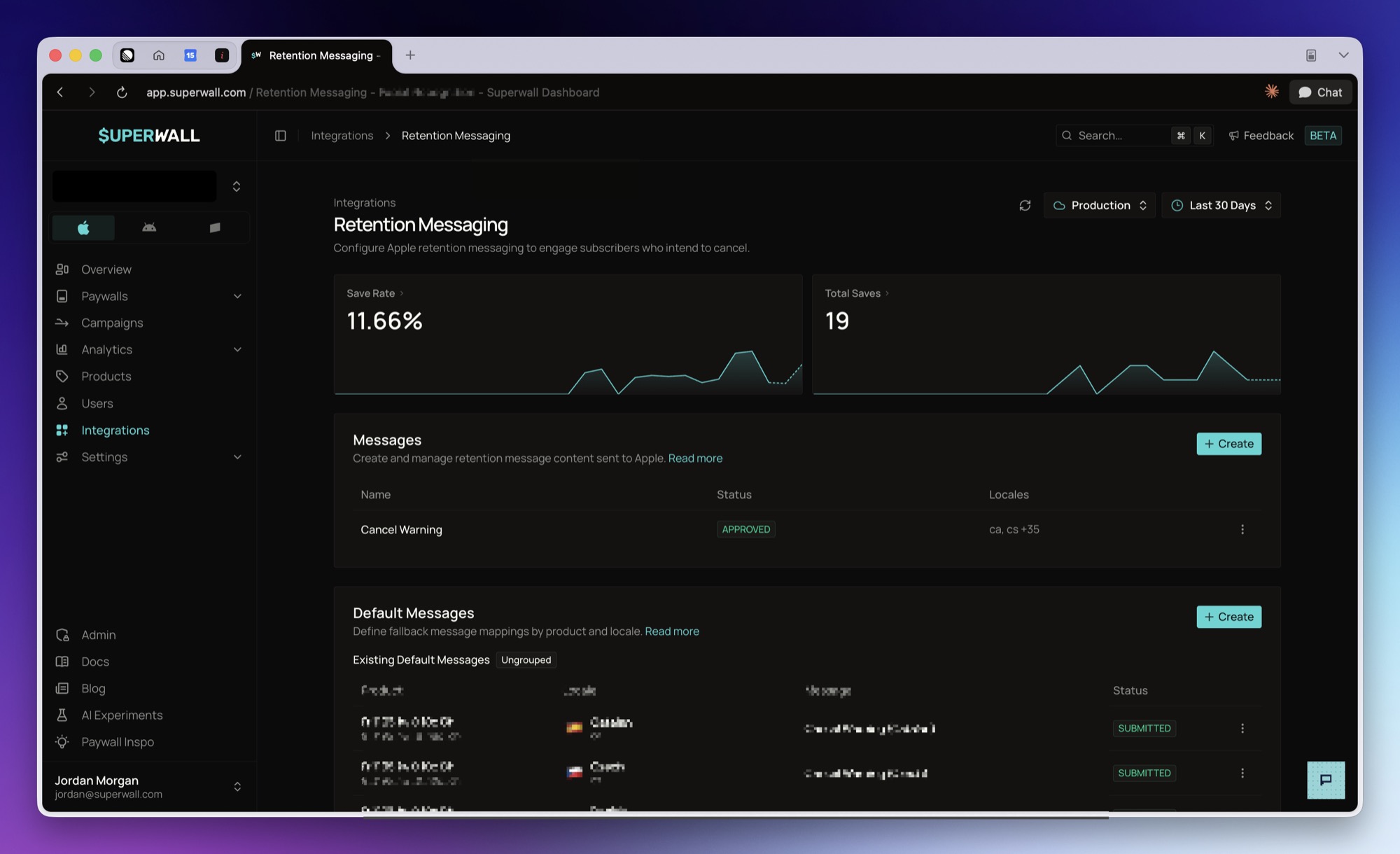
Once an app has retention messaging set up, two cards appear at the top of the Retention Messaging page:
Save Rate: the percentage of retention messages sent where the subscriber did not cancel within 24 hours.Total Saves: the number of those subscribers.
Each card draws a sparkline for the selected period and compares it against the previous period of the same length. Selecting a card opens the matching chart with the same environment and date range applied.
Both cards follow the environment and date range selectors in the page header. The date range defaults to the last 30 days. The comparison is hidden when the previous period had no sends, since there is nothing to compare against.
The cards appear once the app has at least one message, message group, or real-time configuration. Apps that have only configured the callback URL do not see them.
With retention campaigns, the Retention campaigns list below the cards shows each campaign's save rate and saves for the same date range.
Charts
Two charts break the same data down further. Both appear under Retention & Churn in Charts, and only for iOS apps, since Apple's Retention Messaging API is iOS only.
- Retention Messaging Save Rate: percentage of sent messages where the subscriber did not cancel within 24 hours.
- Retention Messaging Saves: count of saved subscriptions, broken down by what the subscriber did next.
Both charts support breakdowns by Product, Environment, Retention Message, Retention Configuration, Response Type, Retention Locale, Retention Campaign, Retention Audience, Retention Variant, Retention Selection, and Save Outcome. Every one of those except Save Outcome can also be used as a filter, along with Retention Message Group and Retention Configuration Group.
How sends and saves are counted
- A message sent is one realtime request from Apple that Superwall answered with a message, a switch plan, or a promotional offer. Requests answered with no match, and requests that errored, are not counted.
- Sends are deduplicated to one per subscription per calendar day in UTC, keeping the last message served that day. A subscription messaged on three separate days counts as three sends.
- A send is a save when no cancellation is recorded for that subscription within 24 hours of the message.
- Rates across a multi-day range are recomputed from the summed counts rather than averaged across days.
Sent means Superwall answered Apple's request. Apple does not confirm that the message was displayed on device, and a request that times out falls back to Apple's own default without reporting it back to Superwall.
The most recent points read high and settle downward. A message sent less than 24 hours ago has not had time to be cancelled against, so it counts as a save until its window closes. Charts draw those points as a dashed tail.
How is this guide?
Apple Search Ads
Integrate Apple Search Ads with Superwall. View details on users acquired via search ads, visualize conversions from Apple Search Ads in charts, and create powerful campaign filters to target users using search ad data. Search ad integration requires 3.12.0 of the Superwall SDK or higher.
Retention Campaigns
A/B test Apple retention messages with retention campaigns. Choose which subscribers see which message, split traffic between messages, and compare save rates.