Google Ads
Run Google Ads with Superwall as your mobile measurement partner. Superwall attributes installs to your campaigns and uploads conversions back to Google Ads.
The Google Ads integration makes Superwall your mobile measurement partner (MMP) for Google Ads campaigns. Superwall generates the tracking templates you put on your campaigns, attributes installs to the campaign, ad group, and ad that drove them, and uploads conversions back to Google Ads so Smart Bidding can optimize on them. Spend and results show up in charts as ROAS, cost per trial, and cost per paid user.
Google Ads is in beta. If the Google Ads card under Integrations > Performance marketing says Coming soon, click Request access on it.
This page describes the new dashboard at app.superwall.com. Google Ads is only available there.
Requirements
- An iOS app using SuperwallKit 4.16.0 or later. Attribution is iOS only for now. On Expo, use expo-superwall 1.2.0 or later and ship a new app build (an EAS Update can't change the native SDK). On Flutter, use superwallkit_flutter 2.5.0 or later. Reporting ad consent needs SuperwallKit 4.18.0 or later, or expo-superwall 1.6.0 or later.
- Revenue tracking configured for your app.
- A Google account with access to the Google Ads account you advertise from, directly or as a client account directly under a manager account it can reach, and permission to create conversion actions in it. The Google Ads account must be active: cancelled accounts aren't listed.
- Auto-tagging turned on in that Google Ads account. It's on by default.
- Enhanced conversions for leads turned on and the customer data terms accepted, in that Google Ads account. Both are in the conversion settings, under Goals > Settings (in some accounts Goals > Conversions > Settings). When asked for a method, choose Google tag: you don't need to install anything, because Superwall uploads conversions through the API. Without this setting, Google rejects Superwall's uploads and Validate fails. Google can take up to an hour to apply the change.
- If you sell outside of Superwall paywalls, enable observer mode so transactions are tracked.
Attribution only applies to new installs. The SDK matches an install once, shortly after first launch, and only when that first launch happens within 7 days of the ad click. Users who installed your app before it shipped with SDK 4.16.0 are never attributed, so test with a fresh install.
Step 1: Create conversion actions in Google Ads
Superwall uploads each event to a conversion action you create in Google Ads. They must be Import from clicks (offline upload) conversion actions; other types can't receive uploaded conversions.
- 1
Start a new conversion action
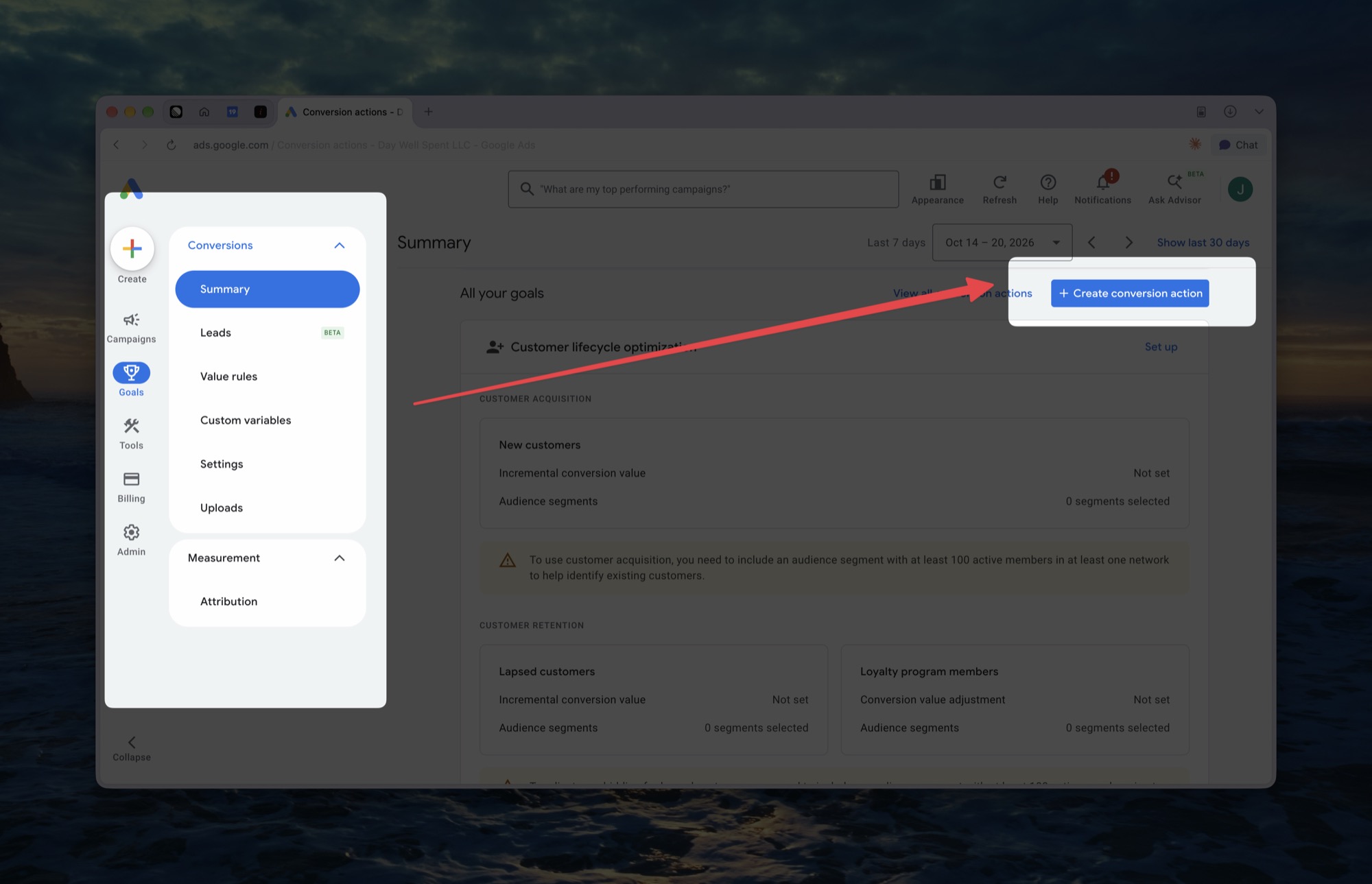
In Google Ads, go to Goals > Conversions > Summary and click Create conversion action.
- 2
Choose Conversions offline
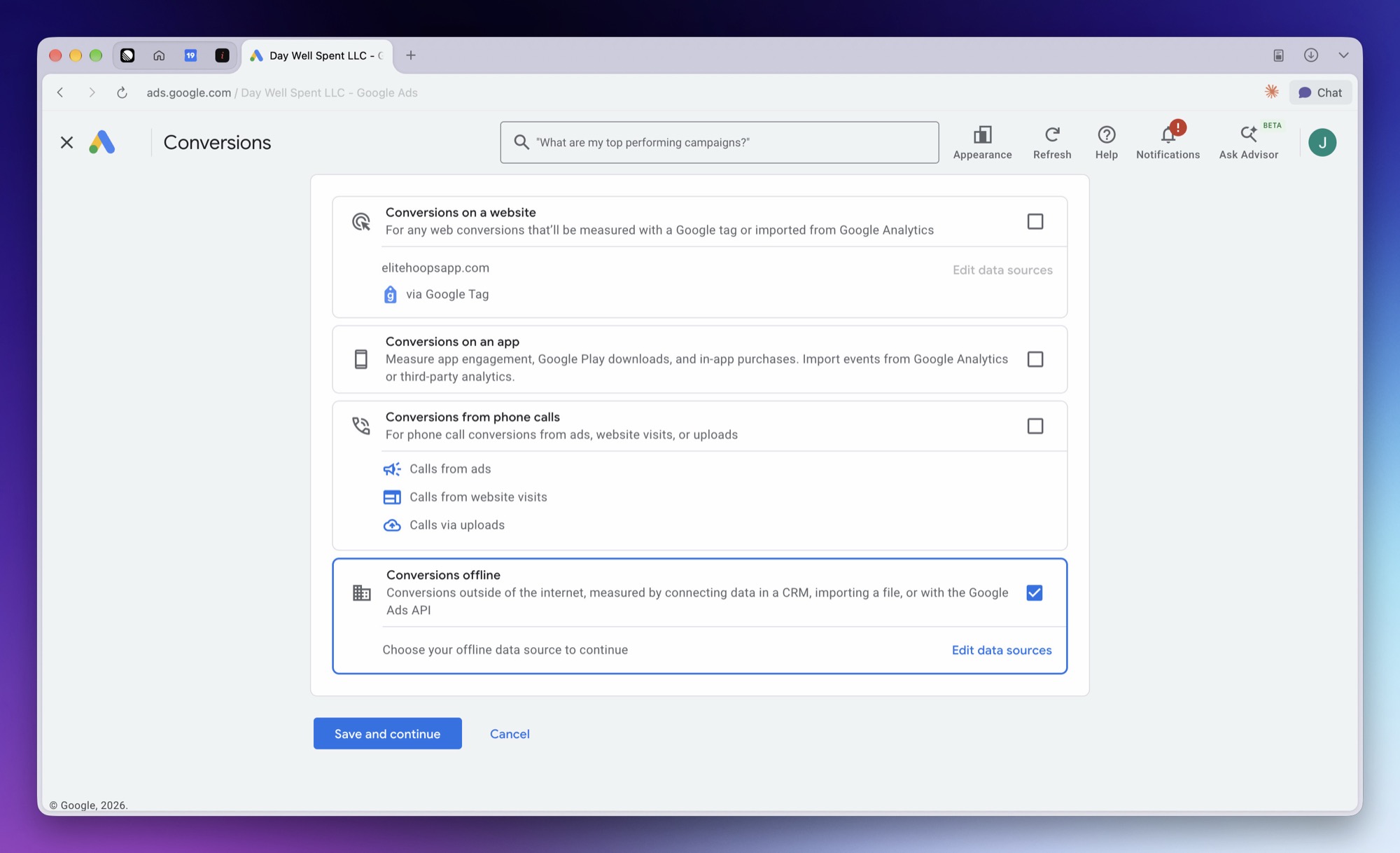
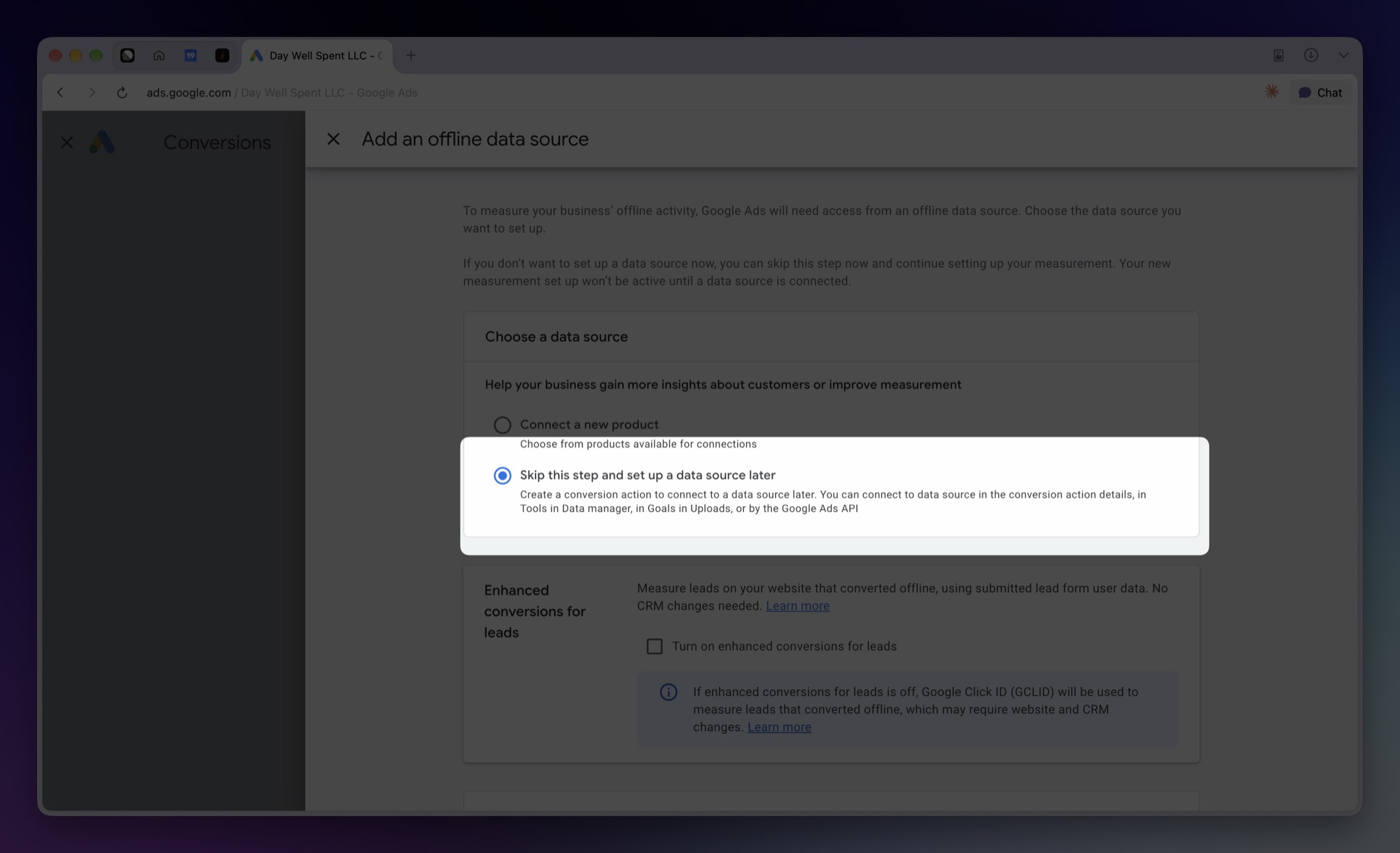
When asked to choose data sources, check only Conversions offline and uncheck the others (website, app, and phone calls). When Google asks for an offline data source, choose Skip this step and set up a data source later. Then click Save and continue.
- 3
Choose a category
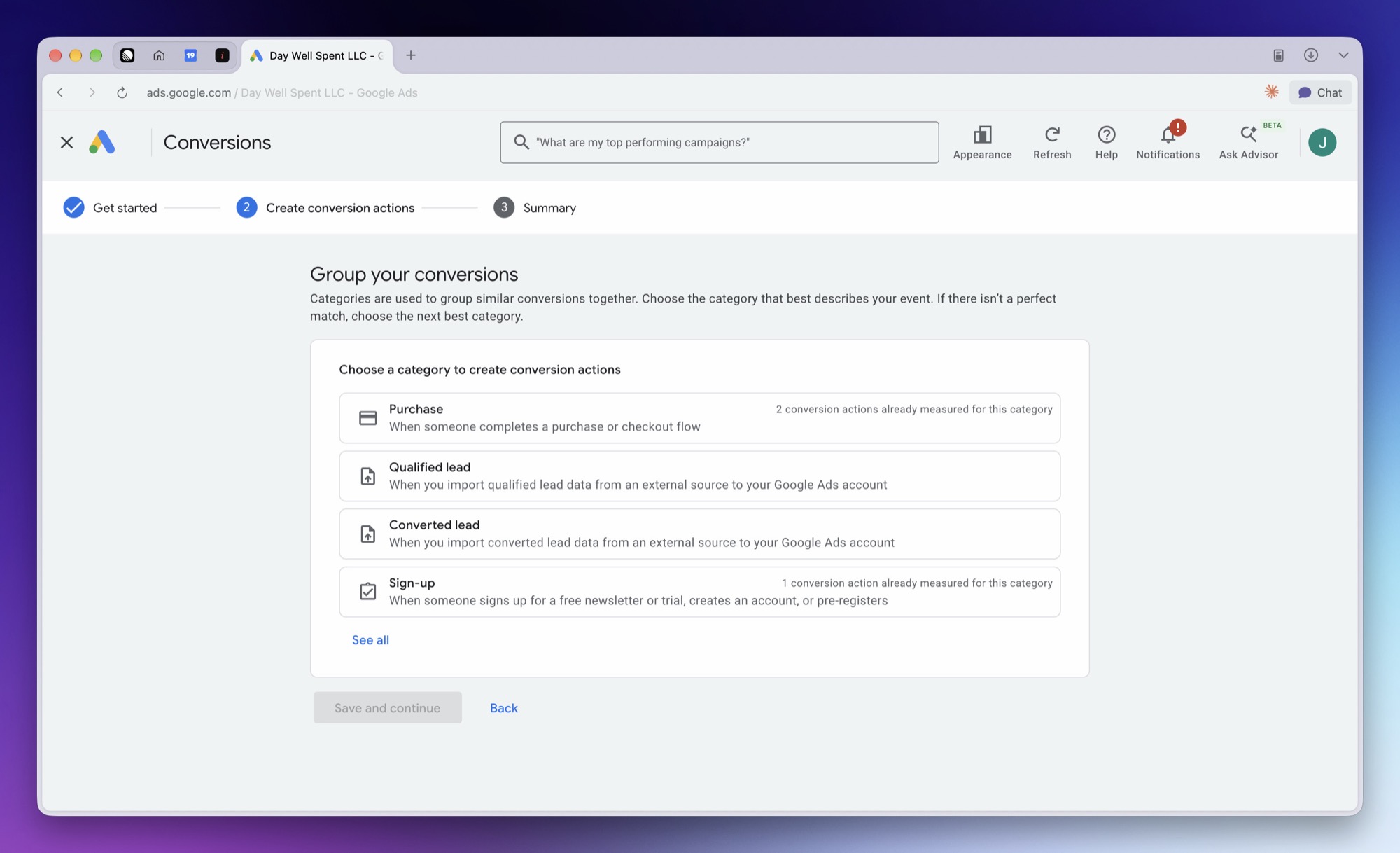
Pick the category that matches the event: Purchase for subscription starts and one-time purchases, Sign-up for free trial starts, Begin checkout for transaction starts, and Page view or Other for paywall opens. Click See all for categories that aren't listed first.
- 4
Name the action
Google creates an action named after its source, like
offline (Upload). Click Edit settings and rename it after the event it will receive, likeSuperwall Subscription Start, so you can find it when mapping events. In Conversion settings, enter the name under Conversion name and click Done. Use Add another category to create the next one.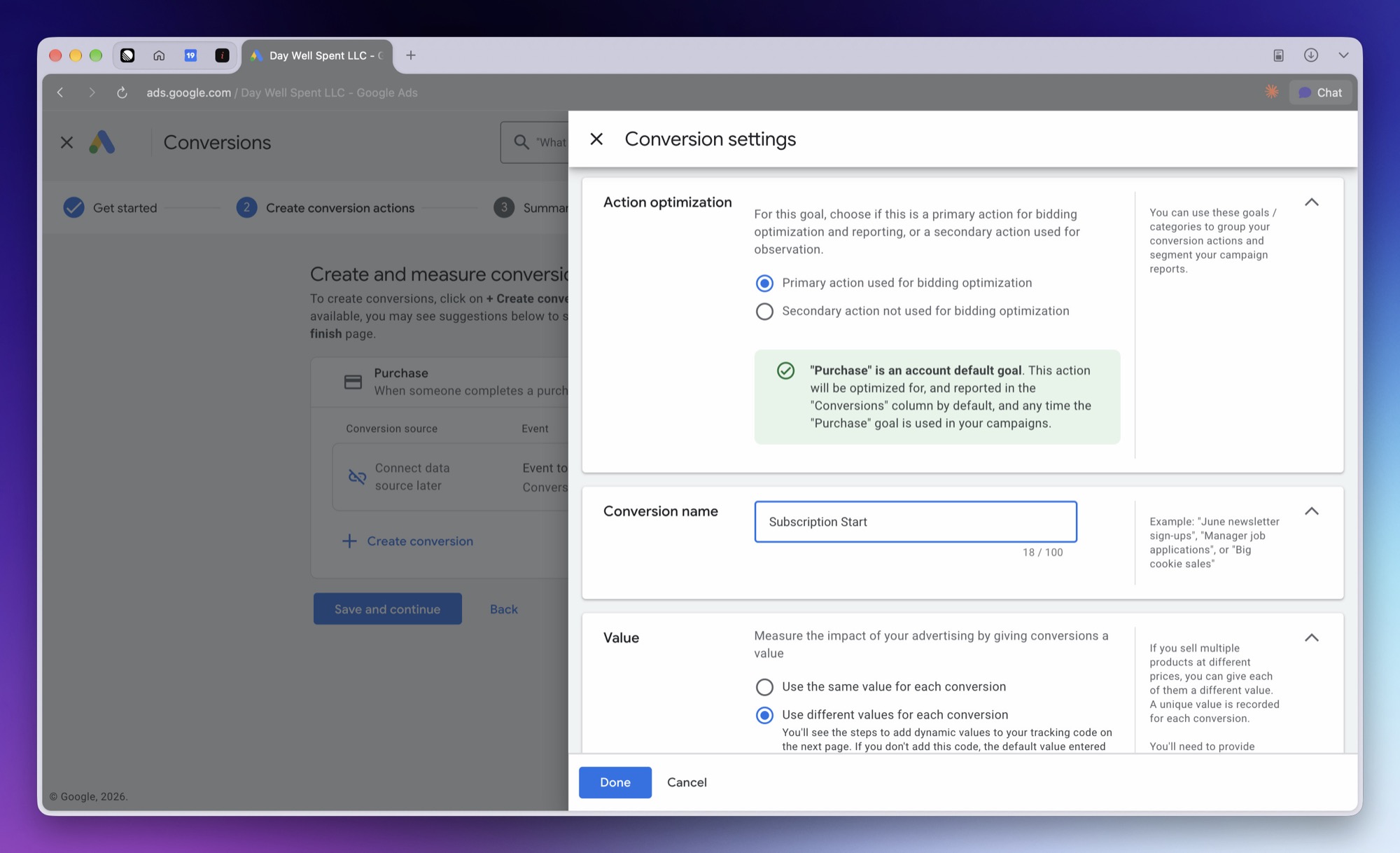
- 5
Finish
Click Save and continue, then Finish. You can skip the data source options on the last page: Superwall uploads conversions itself.
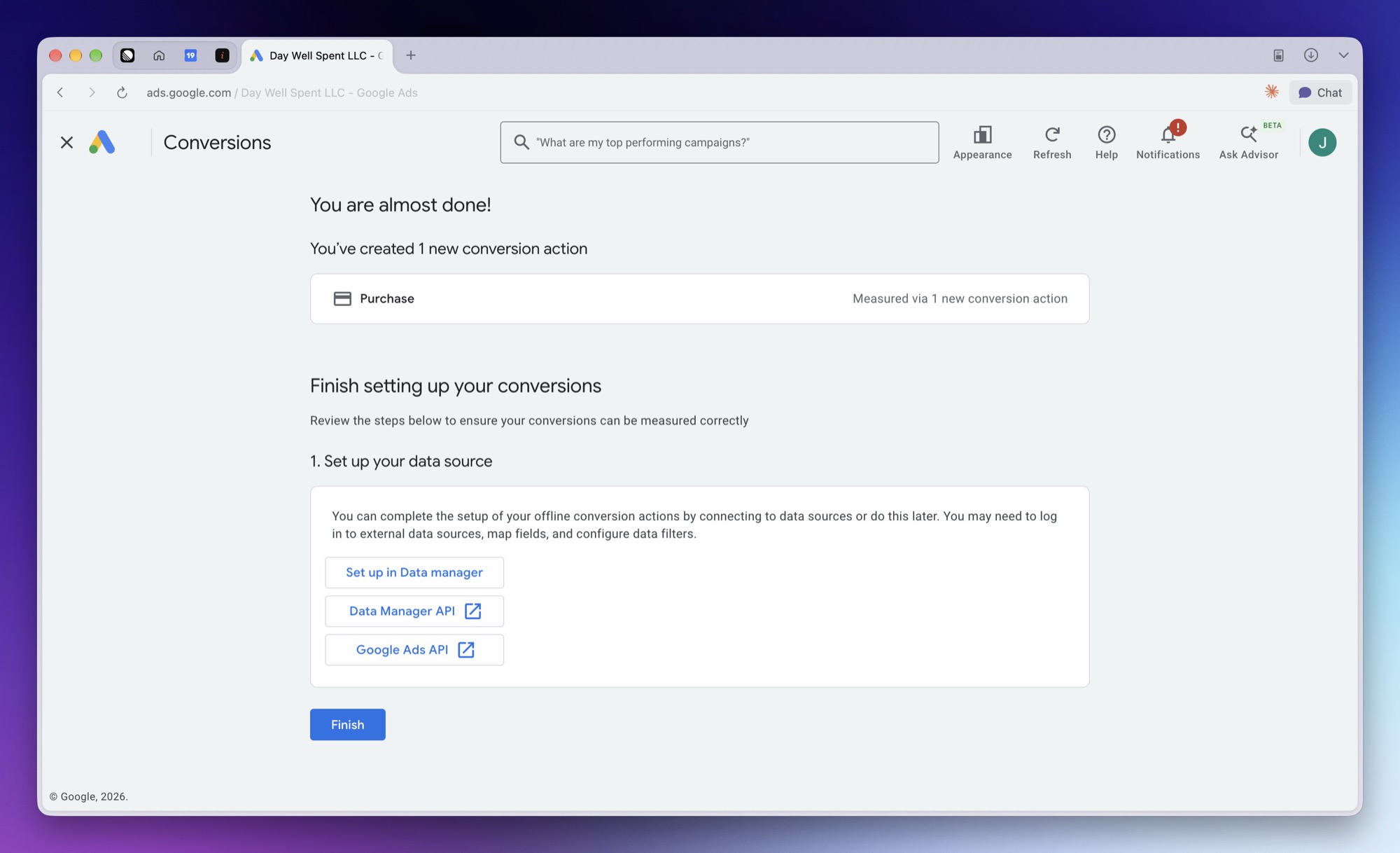
Create one action per event you want Google Ads to see. At minimum, create one for Subscription Start, which is the usual event to bid on.
Google Ads optimizes bidding toward the goals your campaigns use. Keep your account-default goals to the events you want to bid on, like Subscription Start, Free Trial Start, and One-Time Purchase. Funnel events like Paywall Open and Transaction Start are useful for reporting, but if their goals become account defaults, Google bids for paywall views instead of paying users. Check this under Goals > Summary.
Use conversion actions created for Superwall. If another attribution tool already uploads to an action, mapping a Superwall event to it double-counts conversions.
Step 2: Connect Google Ads in Superwall
- 1
Open the integration
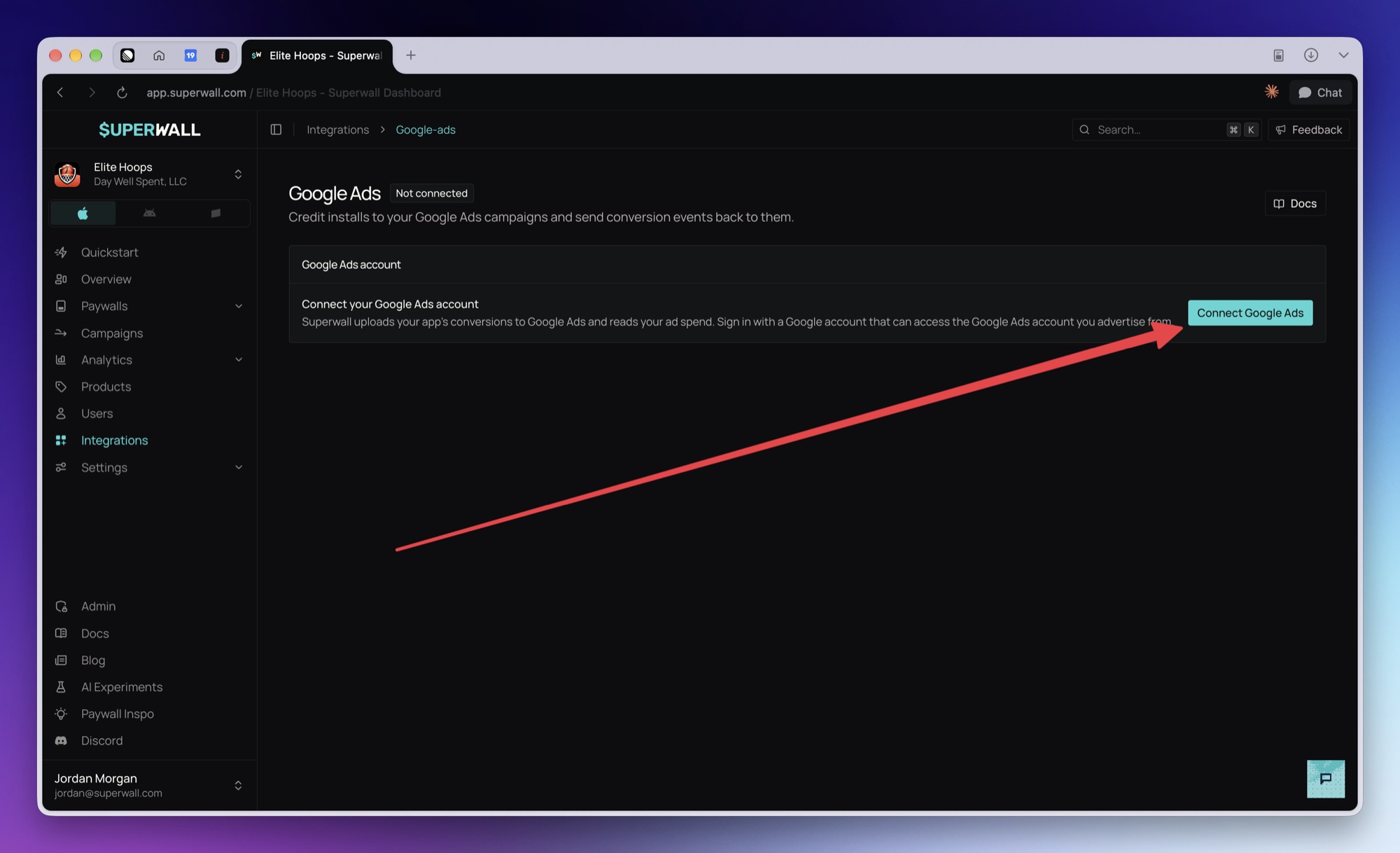
In your app's dashboard, go to Integrations, find Performance marketing, and click the Google Ads card.
- 2
Connect your Google account
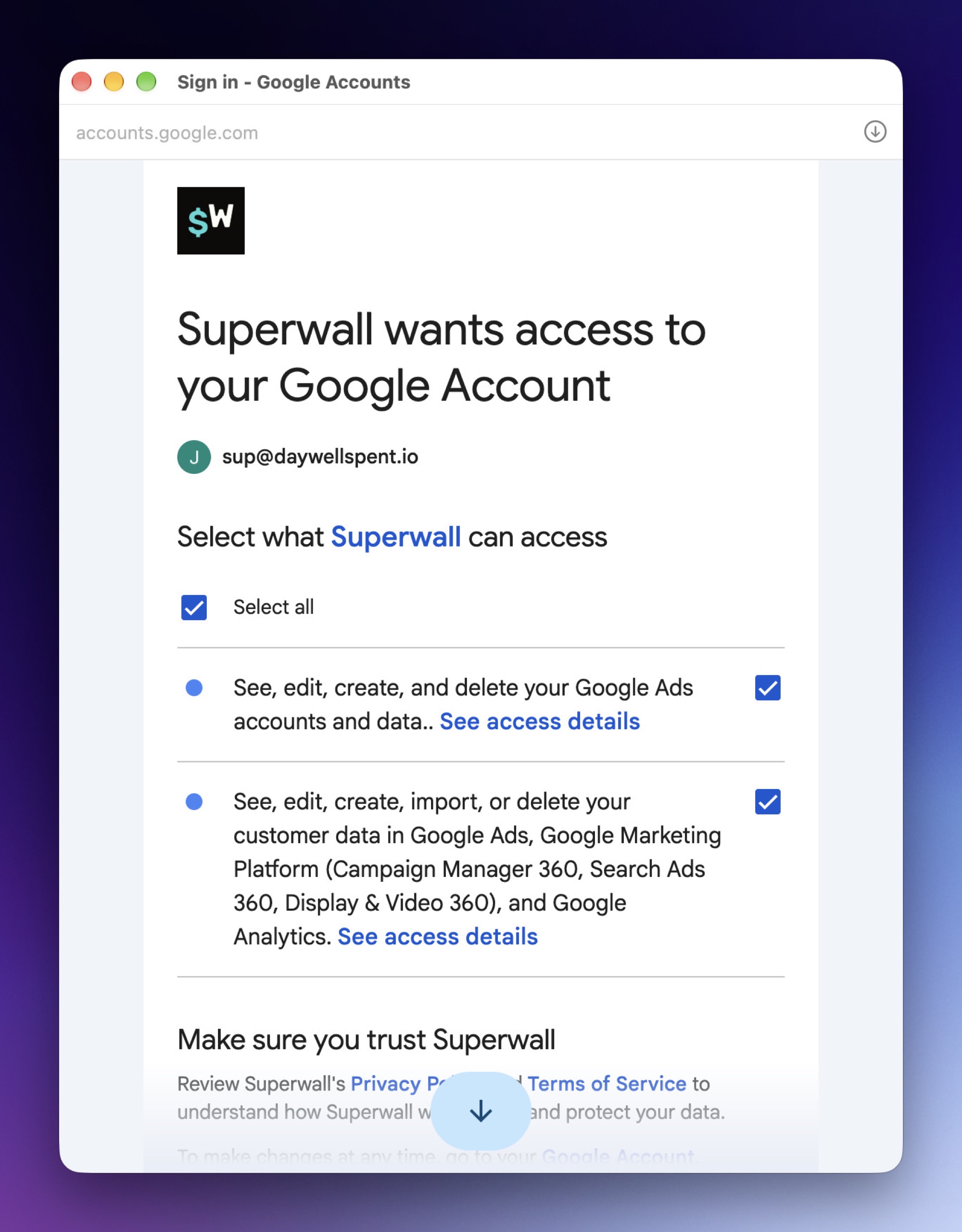
Click Connect Google Ads and sign in with the Google account that can reach your Google Ads account. Leave every permission checked: Superwall needs both access to Google Ads (to read your accounts, conversion actions, and spend) and to Google's Data Manager (to upload conversions). Once connected, the page header shows the Google account you connected with.
- 3
Choose the Google Ads account
Pick the account your campaigns run in from Google Ads account. The list includes every account your Google login can reach, and the client accounts directly under any manager account it can reach, shown with the manager they're reached through. Manager accounts themselves can't be chosen. Conversions are uploaded to this account and spend is read from it.
The Conversions and Ad links cards appear once you choose an account. Choosing a different account later clears your conversion mappings.
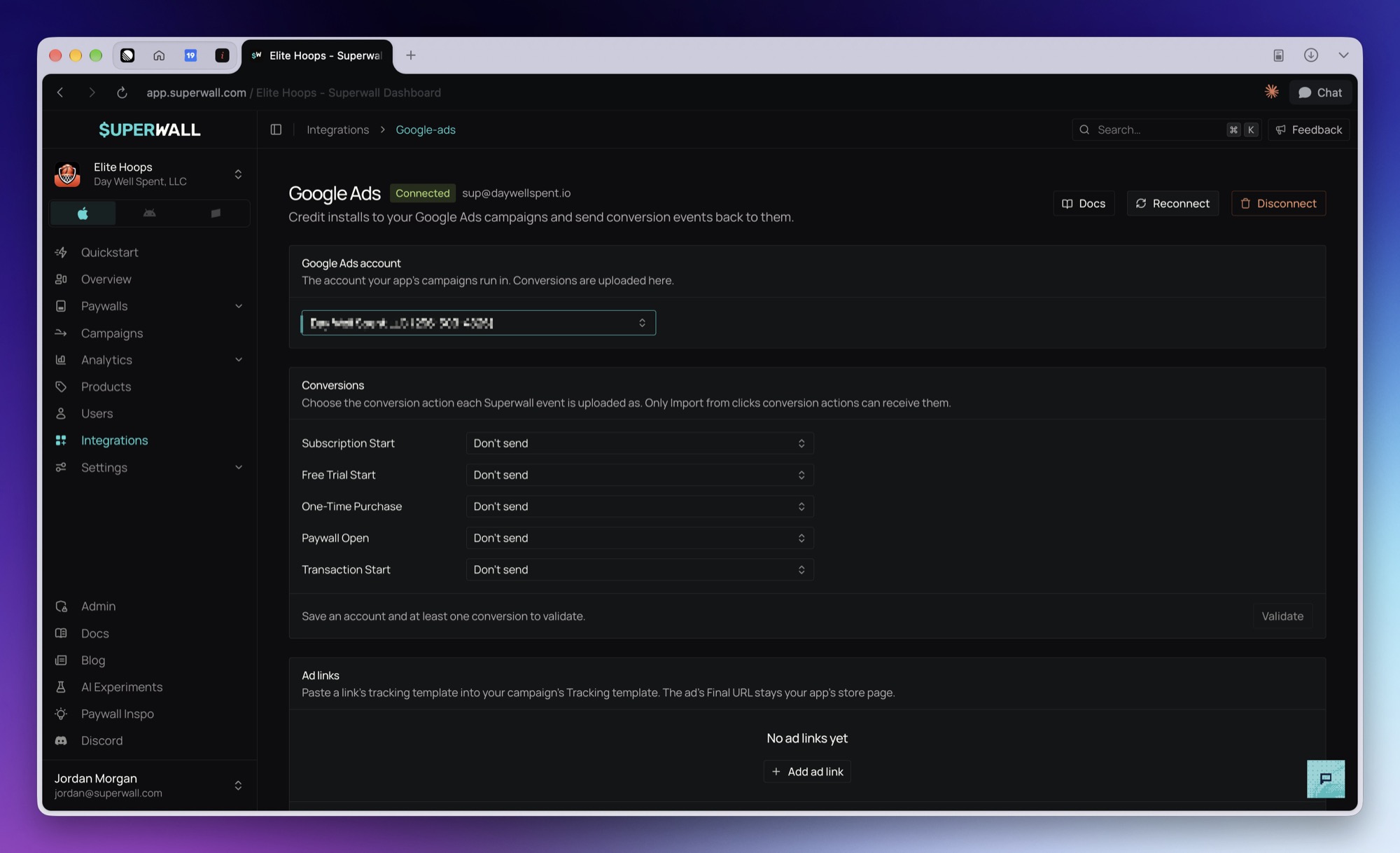
Superwall never sends your Google credentials back to your browser. The page only shows whether Google Ads is connected, and as which Google account.
Step 3: Map events to conversion actions
Under Conversions, choose the conversion action each Superwall event is uploaded as, or leave it at Don't send. Only Import from clicks actions can be chosen; other actions in the account are listed but unavailable. If the account has none yet, the card links to Google Ads so you can create one, then Refresh the list.
The conversion actions you created in Step 1 appear in these dropdowns by name.
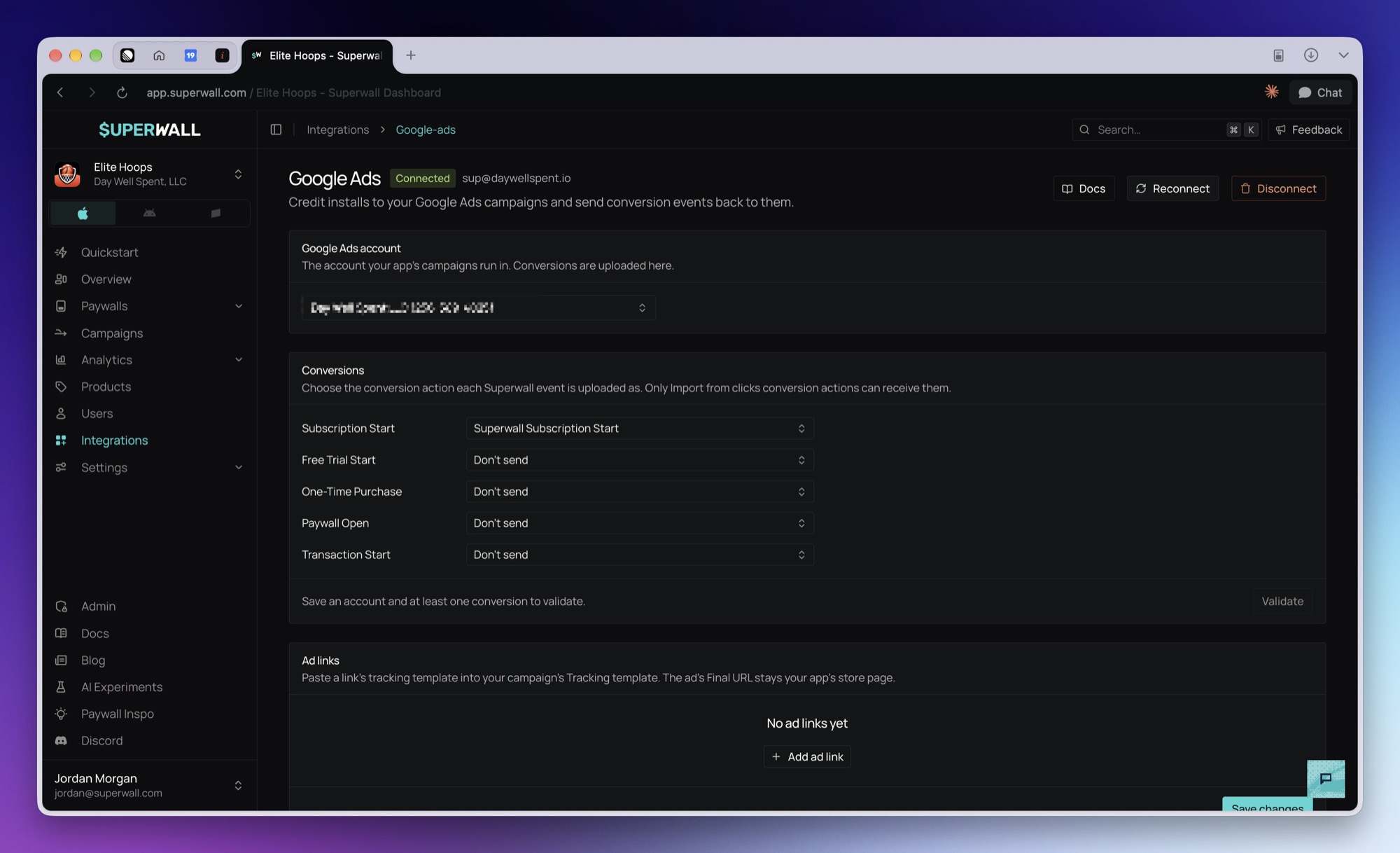
| Dashboard label | Superwall event | When it's sent | Value sent |
|---|---|---|---|
| Subscription Start | subscription_start | A paid subscription starts, or a free trial converts to paid | Yes |
| Free Trial Start | freeTrial_start | A free trial starts | No |
| One-Time Purchase | nonRecurringProduct_purchase | A non-renewing purchase | Yes |
| Paywall Open | paywall_open | A paywall is shown | No |
| Transaction Start | transaction_start | A purchase begins | Yes |
Transaction abandon is not offered for Google Ads. Google treats every uploaded event as a conversion to optimize toward, so it would bid for people who abandon checkout.
A trial converting to paid is uploaded to the Subscription Start action with the purchase's value, so Google Ads sees revenue when the trial starts paying, not just when the trial starts. Ordinary renewals are never sent. Sandbox purchases are never sent.
Click Save changes at the bottom of the Ad links card. It saves the account, your mappings, and your ad links together. Then click Validate at the bottom of the Conversions card. Validate checks each saved mapping with Google without recording a conversion. When Google accepts them all, it says so. Otherwise it shows Google's reason for the first mapping Google rejected. It checks what's saved, so save first if you've just changed a mapping.
Step 4: Create your ad links
Google Ads doesn't allow an ad's Final URL to redirect to another domain, so Superwall's link doesn't go in the Final URL. Your ad's Final URL stays your App Store page, and the Superwall link goes in the campaign's tracking template. When someone taps the ad, they go straight to the App Store while Google calls the tracking template in the background (parallel tracking), which records the click in Superwall.
- 1
Add a link
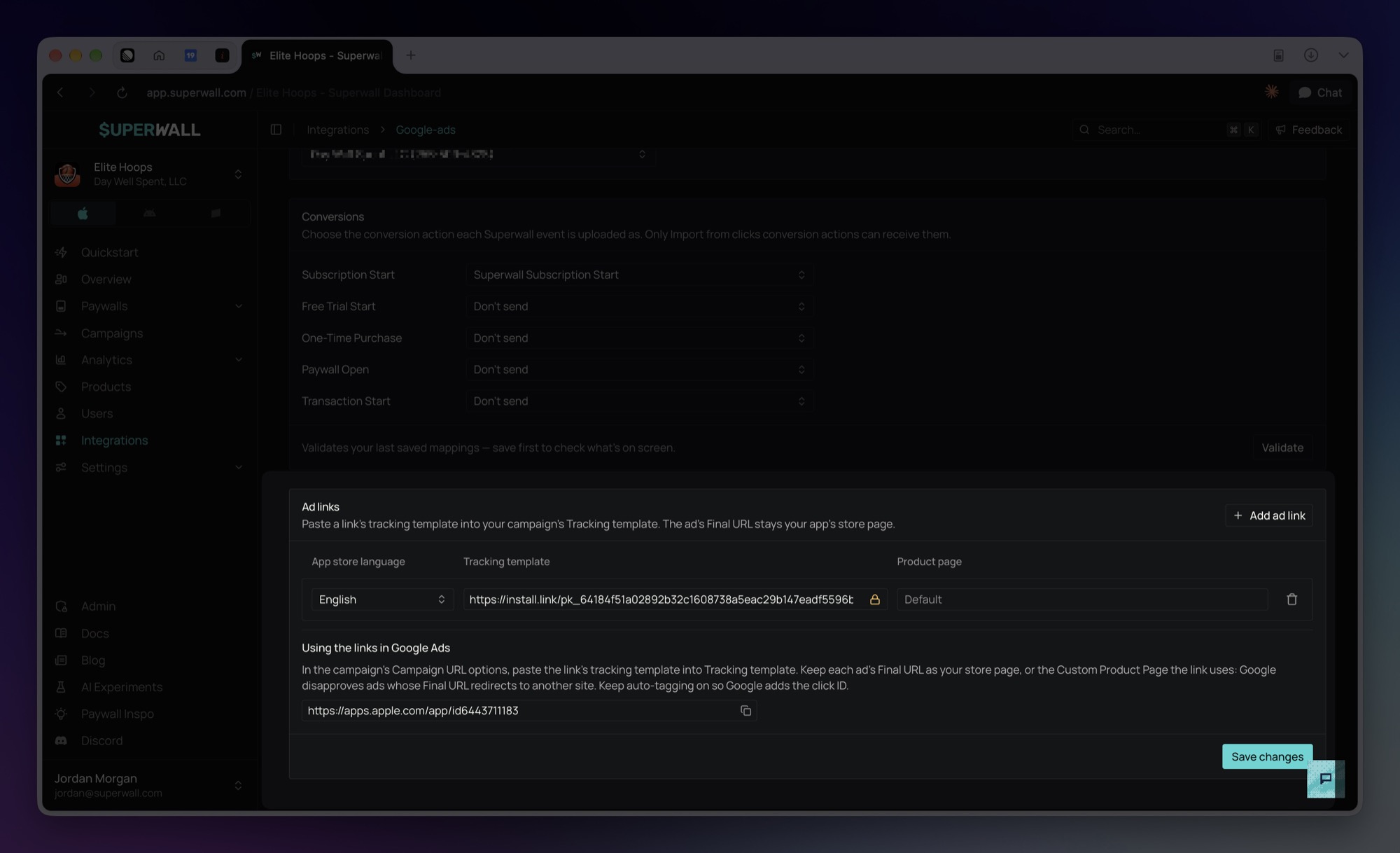
Under Ad links, click Add ad link. The first row is set to English; later rows ask you to pick an App Store language. The Product page column reads Default, meaning your app's default App Store listing. If your ads use a Custom Product Page, click that cell and add
?ppid=<id>to the prefilled URL. The App Store language is fixed once a row is saved. - 2
Save to activate
Click Save changes. A link only starts working once it's saved, and shows a padlock instead of a copy button until then.
- 3
Copy the tracking template
Click the copy button beside the URL in the Tracking template column.
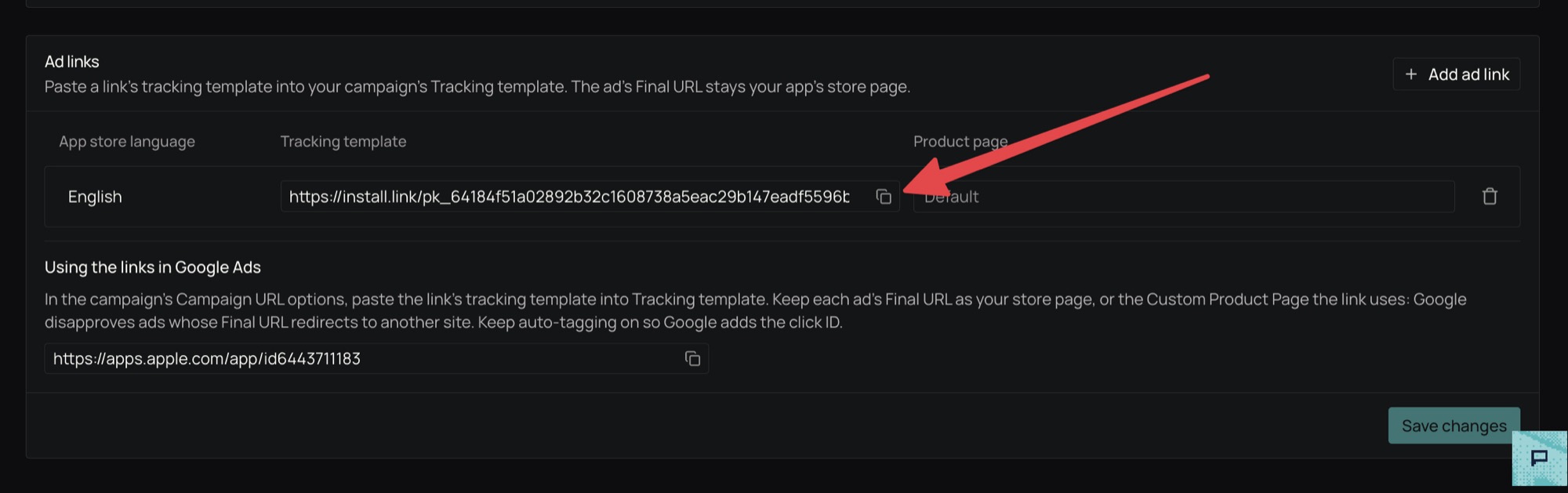
The tracking template ends with Google's placeholders, which Google fills in on each click:
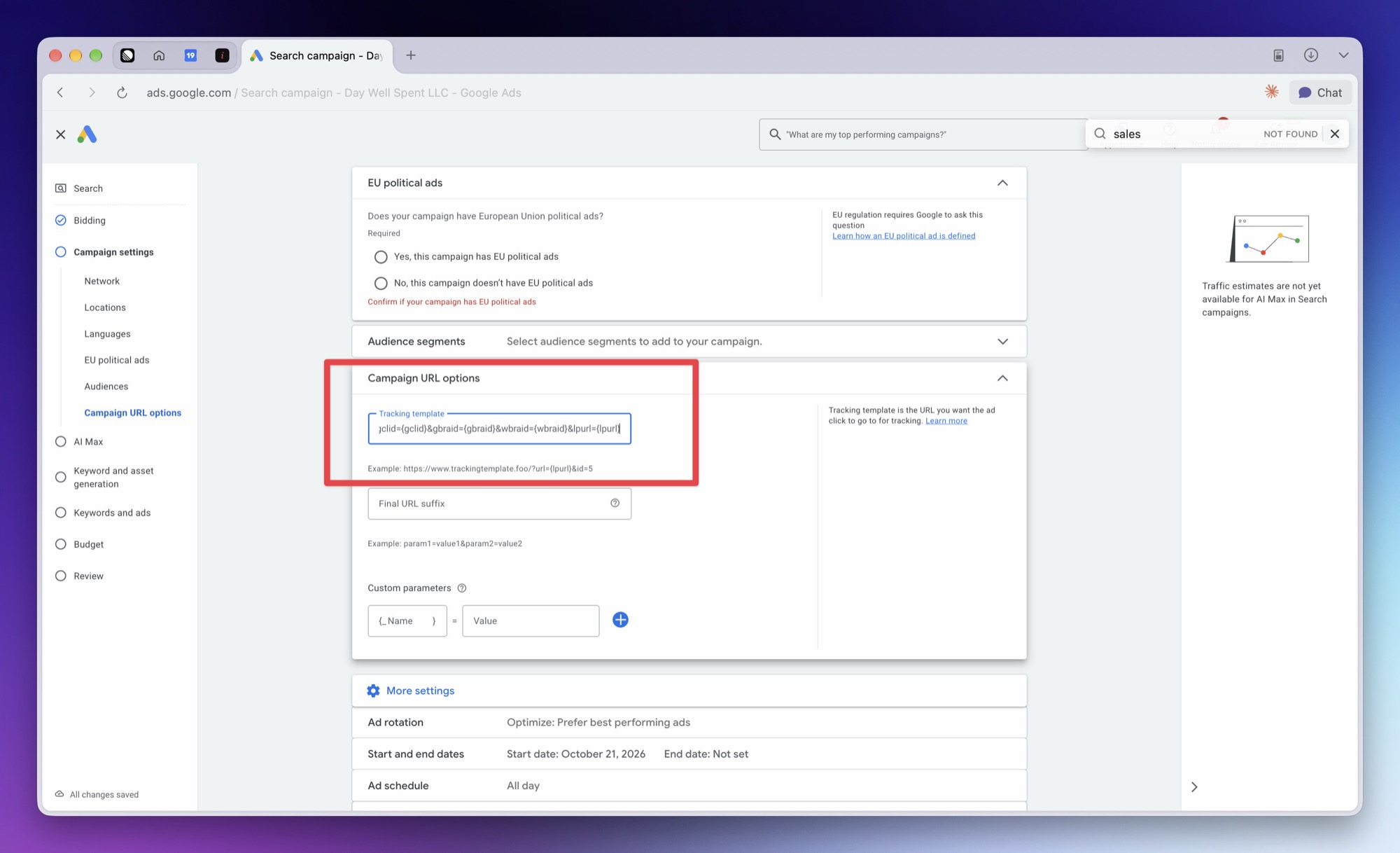
…&campaignid={campaignid}&adgroupid={adgroupid}&adid={creative}&keyword={keyword}&network={network}&device={device}&gclid={gclid}&gbraid={gbraid}&wbraid={wbraid}&lpurl={lpurl}Don't edit them.
{lpurl}is your ad's Final URL.
Deleting a link stops recording clicks for campaigns using its tracking template. Keep links in place while campaigns are running.
Superwall starts matching installs once Google Ads is fully set up: connected, an account chosen, at least one event mapped to a conversion action, and an ad link saved. Until then, SuperwallKit 4.18.0 and later doesn't match installs unless another ad network is set up for the app.
Step 5: Set up your campaign
Superwall ad links are website links, the same as for Meta. That means you'll run a Search, Demand Gen, Display, or Video campaign that sends people to your App Store page, not an App campaign, even though the goal is installs.
- 1
Create a campaign
In Google Ads, create a new campaign. Under What's your campaign objective?, choose Sales. Don't choose App promotion: it creates an App campaign.
- 2
Choose the conversion goals
Below the objectives, Use these conversion goals to improve Sales lists the goals the campaign bids toward. Keep the goal that holds your Superwall conversion action, usually Purchases for Subscription Start. Click its actions count to check that your Superwall action is listed. Remove the other goals from the campaign with their ⋮ menu, then click Continue.
Google lists a Superwall action as inactive until Superwall uploads its first conversion to it.
- 3
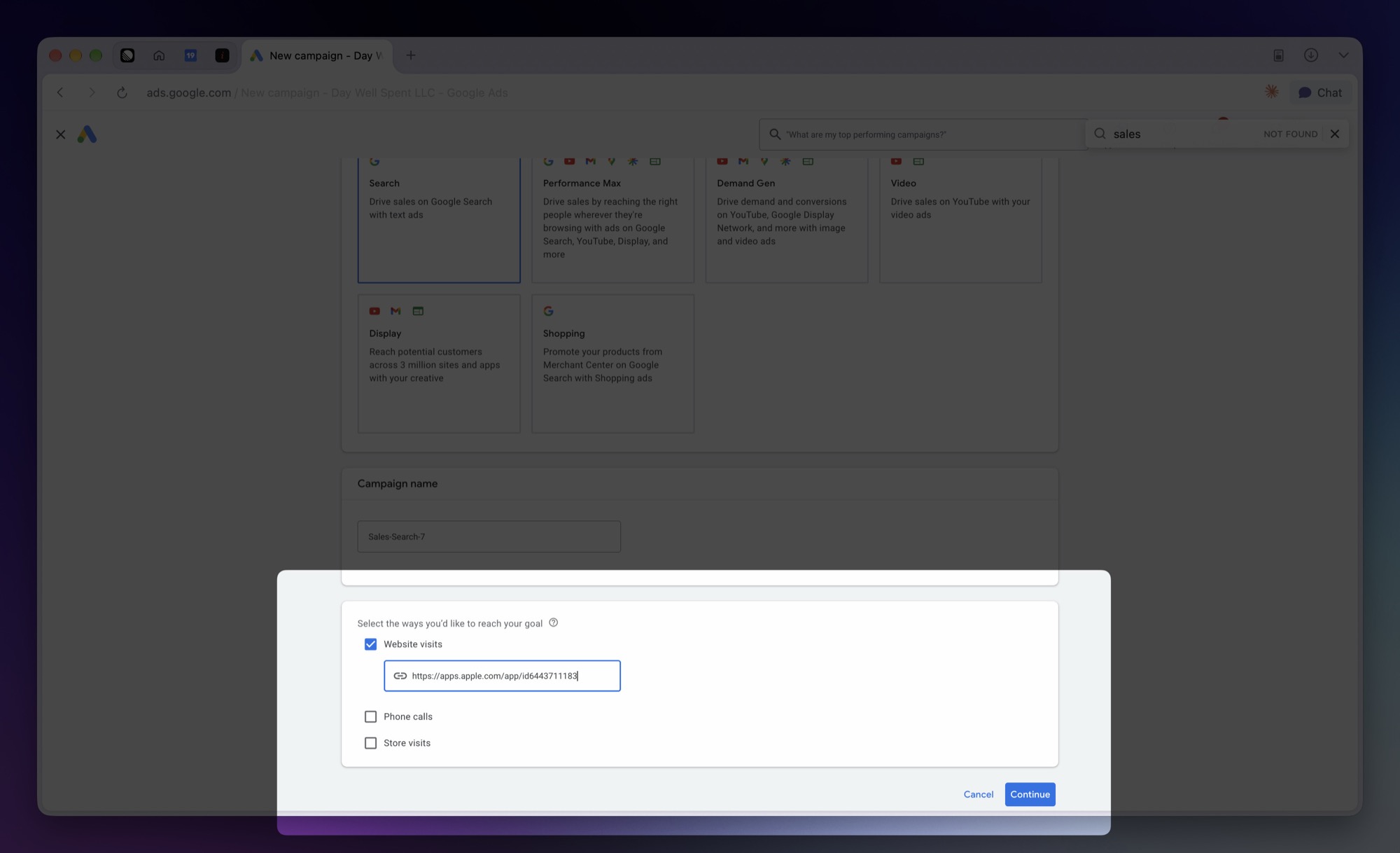
Choose the campaign type
Choose one of the campaign types above. Search is the most common choice. Under Select the ways you'd like to reach your goal, check only Website visits and enter your App Store page URL, the one shown under Using the links in Google Ads on the Superwall page, or your Custom Product Page URL.
- 4
Paste the tracking template
In Campaign settings, expand Campaign URL options and paste the tracking template into Tracking template. Use the template for the link whose App Store language and product page match the ads in that campaign. Leave Final URL suffix empty.
- 5
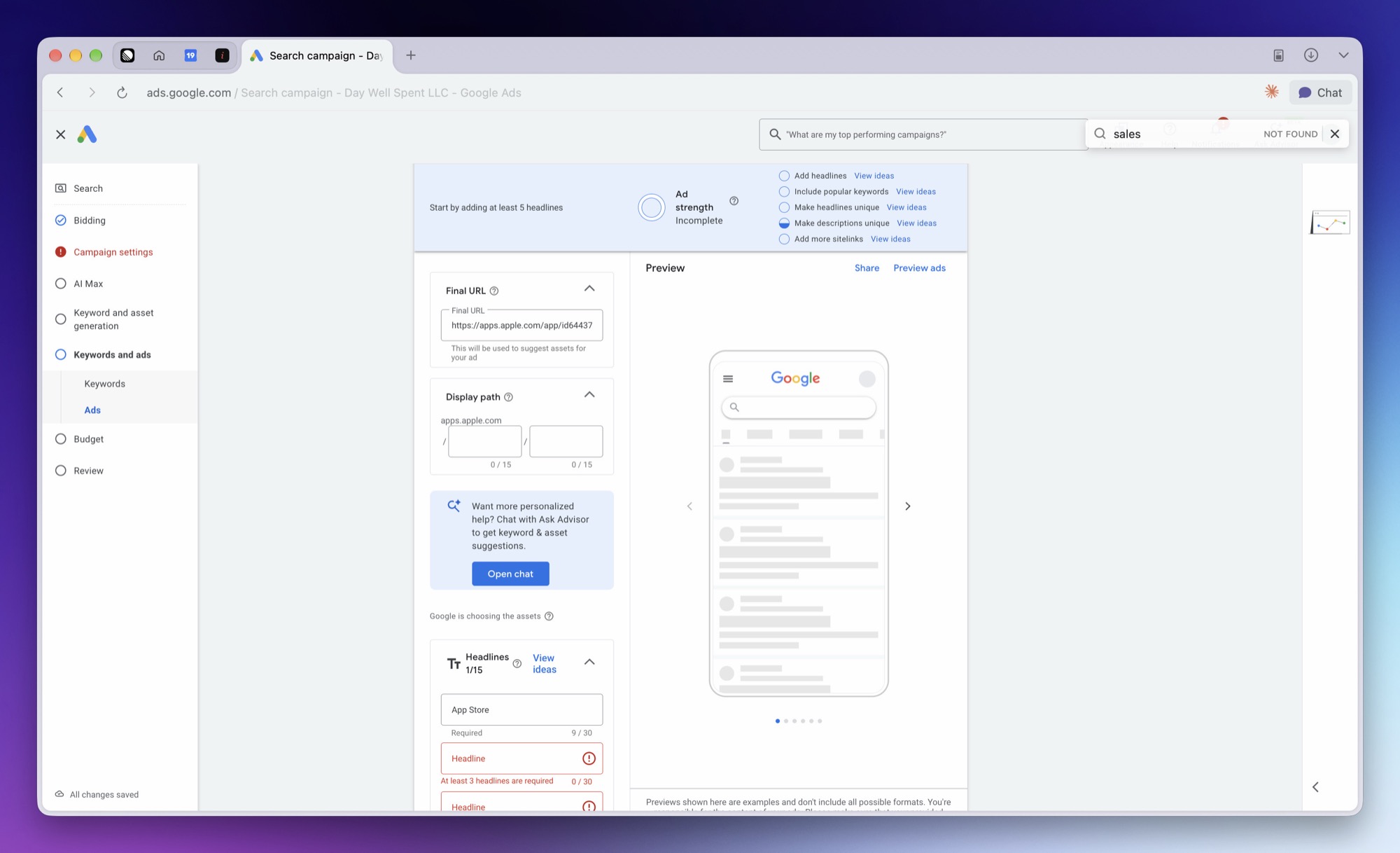
Set the Final URL to your App Store page
In Keywords and ads, scroll past the Keywords card to the Ads card. Set the ad's Final URL to your App Store page, the same one shown under Using the links in Google Ads on the Superwall page, or the Custom Product Page URL if the link uses one. The Final URL under Get keyword suggestions in the Keywords card only helps Google suggest keywords.
Keep auto-tagging on: it adds the click ID (gclid, gbraid, or wbraid) to every click. Without it, conversions can only be matched through email address, phone number, or address.
App campaigns aren't supported: they have no tracking template, so Superwall can't attribute their installs. Their spend still appears in Ad Spend.
Verify it's working
- Validate reports every mapping as accepted.
- Once ads run, attributed users appear in Superwall with
acquisition_user attributes set and anattribution_matchevent in their event stream. - Uploaded conversions appear under Goals > Conversions in Google Ads, which can take up to 72 hours.
- The Advertising charts populate after spend syncs from Google Ads, which happens daily.
How conversions are matched
Each conversion carries these identifiers when Superwall has them:
| Signal | What's sent |
|---|---|
| Click ID | One click ID from the ad click that led to the install: gclid, or else gbraid, or else wbraid |
| Click session attributes | Google's gad_source and gad_campaignid click parameters and the click time, which help Google match clicks that arrive without a click ID |
| Email address | The email user attribute, hashed with SHA-256 |
| Phone number | The phoneNumber user attribute, hashed with SHA-256. Include the country code |
| Address | First and last name (hashed with SHA-256), postal code, and country. Sent only when all four are known. country must be a two-letter code, like US. If you don't set it, Superwall uses the country of the purchase or the device |
| Consent | The user's ad consent, described below |
Set the email, phone, and address signals as user attributes. For the name, set firstName and lastName, or a full name:
Superwall.shared.setUserAttributes([
  "email": "someone@example.com",
  "phoneNumber": "+1 555-123-4567",
  "firstName": "Jane",
  "lastName": "Appleseed",
  "postalCode": "94103",
  "country": "US"
])
Superwall also reads phone_number / phone, first_name, last_name, fullName / full_name, postal_code / zip / zipCode, and countryCode / country_code.
Raw email addresses, phone numbers, and names are never sent. Google matches conversions on them through enhanced conversions for leads, which must be turned on as described in Requirements.
A conversion with no click ID, no click session attributes, and no email address, phone number, or address is not sent, because Google has nothing to match it on. Unlike Meta, events from users who didn't come through your ads usually fall into this group.
Consent
SuperwallKit 4.18.0 and later reports the user's consent for ad user data and ad personalization, and Superwall sends it with each conversion. Conversions with denied consent are still sent, marked as denied, and Google decides how to use them. Earlier SDK versions report no consent, and conversions from them are sent without it.
Set consent with adConsent, on SuperwallOptions before you configure or on Superwall.shared when the user's choice changes:
let options = SuperwallOptions()
options.adConsent = AdConsent(adUserData: .granted, adPersonalization: .denied)
Superwall.configure(apiKey: "MY_API_KEY", options: options)

// Later, when the user changes their choice
Superwall.shared.adConsent = AdConsent(adUserData: .denied, adPersonalization: .denied)
On Expo, pass adConsent when you configure, or call setAdConsent().
Both values default to granted. If you never set adConsent, the SDK uses the consent stored by an IAB TCF consent banner when GDPR applies. When eventTrackingBehavior is .none, both are denied. If App Tracking Transparency is denied or restricted, personalization is denied unless you set adConsent yourself.
If you have users in the EEA, the UK, or Switzerland and don't use a TCF consent banner, set
adConsent from your own consent flow.
Google can take up to 72 hours to show uploaded conversions, particularly those matched by
gbraid or wbraid.
How attribution works
Attribution works as described for Meta Ads: a match runs once per install, within 7 days of the click, with no ATT prompt or IDFA, and unmatched installs show as Organic.
A matched Google Ads install sets these user attributes. Attributes without a value are omitted.
| Attribute | Value |
|---|---|
acquisition_source | google_ads |
acquisition_network | Same as acquisition_source |
acquisition_channel | Always paid |
acquisition_campaign_id | The Google Ads campaign ID, from the tracking template |
acquisition_ad_set_id | The ad group ID, from the tracking template |
acquisition_ad_id | The ad ID, from the tracking template |
acquisition_keyword | The keyword that matched the search, for Search campaigns |
acquisition_device | The device type Google reports: m for mobile, t for tablet, or c for computer |
acquisition_link_id | The Superwall ad link ID |
acquisition_click_id | Superwall's ID for the matched click. This isn't the gclid |
acquisition_matched_at | When the match happened |
acquisition_app_store_language | The link's App Store language, like english |
acquisition_product_page_id | The Custom Product Page ID, when the link uses one |
Google doesn't pass campaign names in the URL, so these attributes carry campaign IDs only. In charts, the Acquisition Campaign breakdown shows each campaign's name once its spend has synced.
Charts
Once you save a Google Ads account, Superwall pulls campaign spend from it daily, converted to USD, starting from the date you last connected Google Ads. Earlier spend is not imported, and the first spend appears after the next daily sync. Spend from every campaign in the account counts, including campaigns for other apps. It feeds the same Advertising charts as Meta: Ad Spend, ROAS, CPM, CPT, CPP, Blended CPT, and Blended CPI. Break down by Acquisition Network to compare Google Ads with other networks.
Reconnecting and disconnecting
The page header shows whether Google Ads is connected, with two controls beside it.
Reconnect runs the Google sign-in again. Use it if Google's access expires or is revoked; the page asks you to reconnect when that happens, and conversions aren't uploaded until you do. Reconnecting with the same Google account keeps your account choice and mappings. Reconnecting with a different Google account clears them, since that account may not reach the one you chose.
Disconnect clears the connection, the chosen account, and your conversion mappings, and stops uploading conversions for this app. It asks for confirmation first. Your ad links keep working and recording clicks, but on SuperwallKit 4.18.0 and later, new installs stop being matched unless another ad network is set up for the app. Superwall's access to your Google account is removed once no other app is still connected with it.
Troubleshooting
Installs aren't being attributed
- The app must ship SuperwallKit 4.16.0 or later, and the install must be new. Delete and reinstall the app to test.
- The app must be opened for the first time within 7 days of the ad click.
- Google Ads must be fully set up: connected, an account chosen, at least one event mapped, and an ad link saved.
- The campaign's tracking template must be the one copied from Superwall, the ad's Final URL must be your App Store page, and the campaign must not be an App campaign.
SuperwallOptions.eventTrackingBehaviormust not be set to.none.
A conversion action isn't selectable
Only Import from clicks conversion actions can receive uploaded conversions. Create one as described in Step 1 and refresh the list.
My Google Ads account isn't listed
The list shows active accounts the connected Google login can reach, and the client accounts directly under a manager account it can reach. Client accounts further down aren't listed. Sign in with a login that has access to the account, or to its direct manager account, using Reconnect. If the list fails to load, try again: Google may be rate-limiting requests.
If Google lists an account that Superwall can't read, the page shows its customer ID and says why. An account that isn't active in Google Ads, for example one that was cancelled, needs to be re-enabled. Google can take a few minutes to make a re-enabled account available.
Validate says to turn on enhanced conversions for leads
Turn on Enhanced conversions for leads and accept the customer data terms, as described in Requirements, then click Validate again. Google can take up to an hour to apply the setting, so Validate may keep failing for a while after you turn it on.
Conversions aren't showing in Google Ads
- Give it up to 72 hours.
- Check that Validate accepts every mapping.
- Check that auto-tagging is on and the campaign's tracking template is set, so clicks carry a click ID.
- Check that enhanced conversions for leads is on and the customer data terms are accepted. Without them, Google rejects the uploads.
- Set
email,phoneNumber, and address user attributes so conversions without a click ID can still be matched. - Google limits how it uses conversions sent with denied consent. If you have users in the EEA, the UK, or Switzerland, check that
adConsentreflects their choice, as described in Consent.
How is this guide?