Retention Campaigns
A/B test Apple retention messages with retention campaigns. Choose which subscribers see which message, split traffic between messages, and compare save rates.
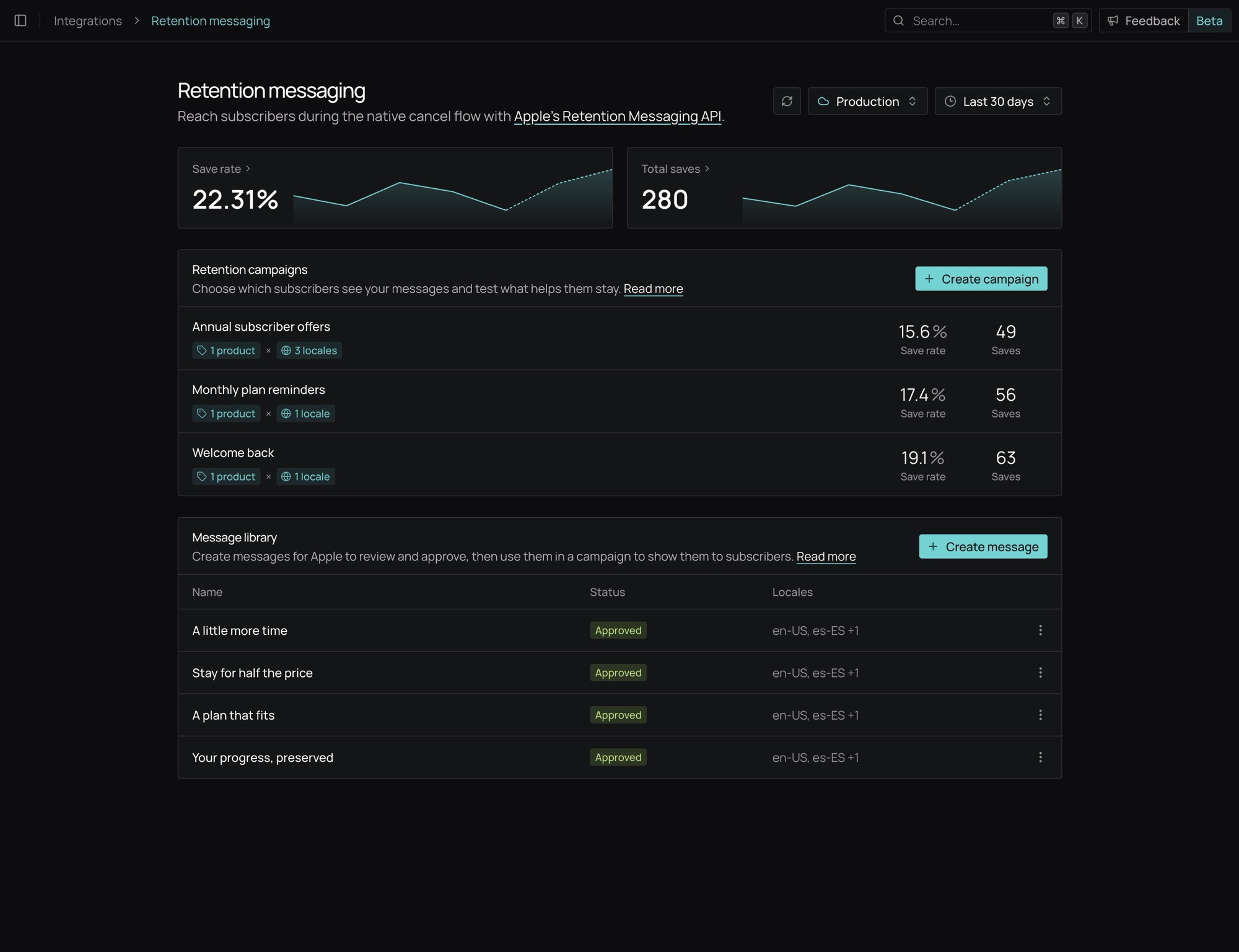
Retention campaigns let you test which Apple retention messages keep subscribers from canceling. Each campaign covers a set of products and locales. Inside a campaign, you group subscribers into audiences, give each audience one or more messages, and split traffic between those messages. The Results tab shows how many subscribers each message saved.
Retention campaigns are rolling out. If you don't see Retention campaigns on the Retention messaging page, contact Superwall Support.
Retention campaigns are separate from your Superwall campaigns. They live on the Retention messaging page, don't use the Superwall SDK, and only control the message Apple shows in the App Store's cancellation flow.
How it works
- A subscriber opens their subscription details in the App Store.
- Apple calls your Superwall callback URL with the subscription's product, the subscriber's locale and the subscription's original transaction ID.
- Superwall finds the campaign whose placements include that product and locale.
- Superwall checks the campaign's live audiences from top to bottom and uses the first one whose filters match. If no audience matches, it uses the campaign's Fallback message.
- Superwall picks one of the audience's messages based on its split and returns it to Apple.
- When the subscriber taps Cancel Subscription, Apple shows that message on the cancellation screen.
Superwall assigns each subscription to a message from its original transaction ID, so the same subscription gets the same message every time. If you change an audience's split, some subscriptions can move to a different message.
Requirements
- Retention messaging set up for your app, including access from Apple and the callback URL. See Apple Retention Messaging.
- An App Store Connect API key in Integrations → Revenue tracking. Superwall uses it to check your products, subscription groups and promotional offers.
- Messages in your Message library that you've submitted to Apple. Apple only shows messages it has approved.
Create a campaign
- Open Integrations → Retention messaging and choose Production or Sandbox. Campaigns, messages and results are separate for each environment.
- Under Retention campaigns, click Create campaign.
- Enter a Reference name.
- Under Placements, choose Products and Locales. A placement is a product being canceled plus the subscriber's locale. Each selected product uses every selected locale. Locales must be exact Apple locales, such as
en-US. - Choose a Fallback message. Apple shows it when no audience matches or all audiences are paused.
- Create the campaign.
A new campaign has only its Fallback. Superwall sends the Fallback message to Apple as the default message for each placement, so Apple can show it even when it can't reach Superwall in time.
Placement rules
- Each product and locale pair belongs to one campaign per environment. Pairs that another campaign or a legacy configuration already uses show Used by and its name.
- Once Apple has a Fallback message for a placement, you can't remove that placement from the campaign. You can still add new ones.
- If Apple doesn't have a placement's Fallback message yet, the campaign shows a warning that placements need attention. Click Open placements, then Sync defaults.
Add audiences
Audiences decide which subscribers in a campaign see which messages.
- Open the campaign. In the sidebar, click Add audience next to Audiences.
- On the Filters tab, choose the products and locales this audience matches, then click Save changes. Audiences can only filter on products and locales within the campaign's placements. Leave a filter empty to match all of the campaign's products or locales.
- Add messages on the messages tab. See Add messages and set the split.
- Click Set live when the audience is ready. New audiences start paused, and Set live is available once the audience has at least one message.
Audiences are evaluated from top to bottom. Drag them to change the order. Fallback always runs last and can't be removed, reordered or filtered.
To stop showing an audience's messages, click Pause. Paused audiences are skipped, and subscribers they would have matched fall through to the next audience or to Fallback.
Add messages and set the split
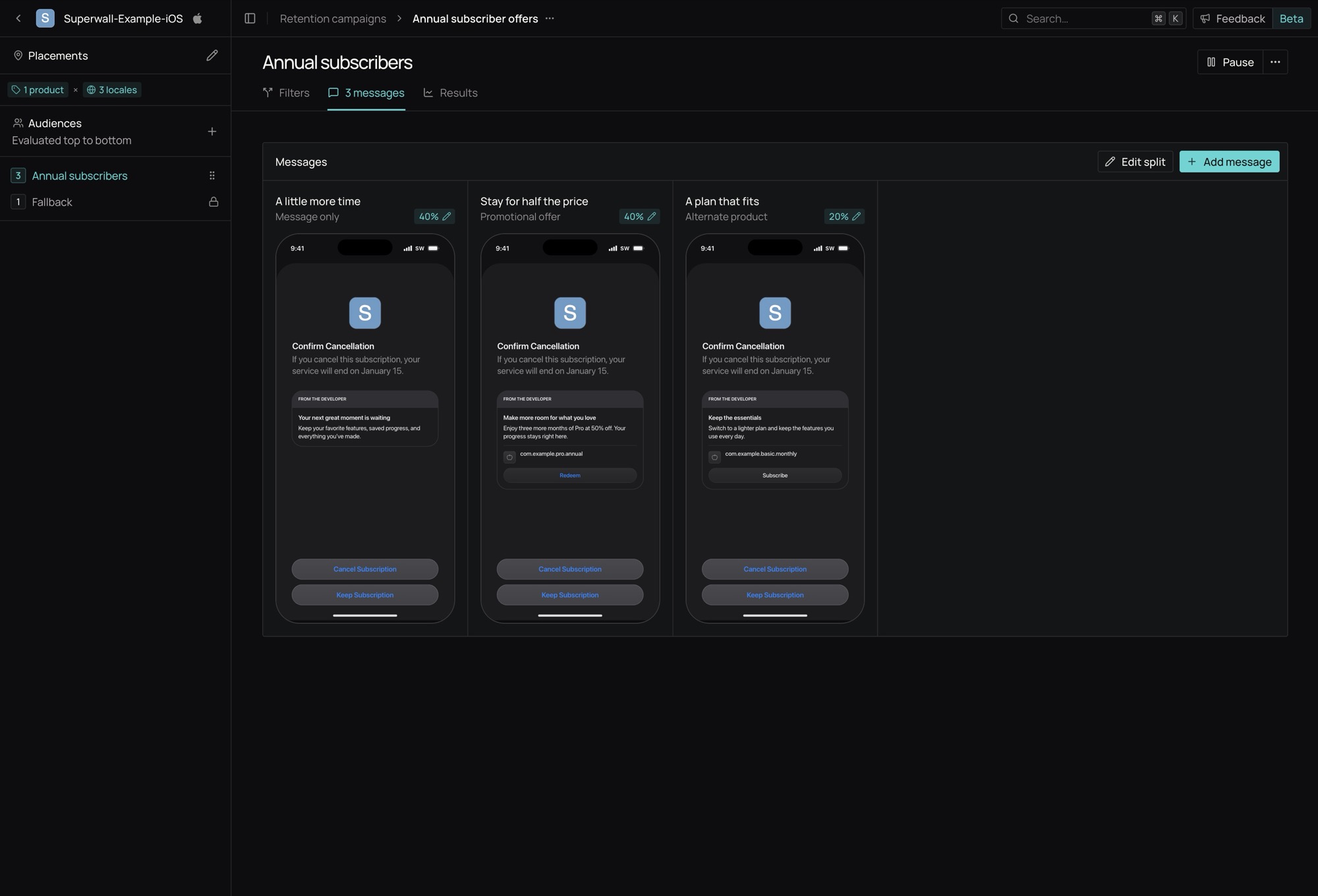
- On the audience's messages tab, click Add message.
- Choose a Message from your Message library and enter a Reference name.
- Choose a Message type:
- Message only: Apple shows the message.
- Alternate product: Apple shows the message with an option to switch to another product. Choose a product in the same subscription group.
- Promotional offer: Apple shows the message with a promotional offer. Choose a product in the same subscription group and enter the Offer ID of a promotional offer configured for that product in App Store Connect.
- The first message gets 100% of the audience, and messages you add after it start at 0%. Click Edit split to set the share of subscribers each message gets. Percentages must be whole numbers that total 100%.
You can add a message once it's been submitted to Apple for every locale the audience covers. Apple only shows messages it has approved, so check that the message's status is Approved before you set the audience live. Messages with images can't be used as an Alternate product or Promotional offer.
You can't edit or delete a message while a campaign uses it. To test new copy, create a new message in the Message library and add it to the audience.
Read the results
Each audience, and Fallback, has a Results tab that compares that audience's messages:
- Messages sent: responses Superwall sent to Apple with this message. Only the last response per subscription per UTC day counts, so this isn't a count of unique subscribers. Apple doesn't confirm that a message was displayed.
- Saves: messages sent where the subscriber didn't cancel within 24 hours.
- Save rate: saves divided by messages sent.
- Pending: messages sent whose 24-hour window is still open. These count as saves until the window closes.
Results cover the audience's whole lifetime. The Results tab doesn't calculate statistical significance.
The Retention campaigns list on the Retention messaging page shows each campaign's save rate and saves for the selected date range. For more detail, the Retention Messaging Save Rate and Retention Messaging Saves charts can be broken down by Retention Campaign, Retention Audience, Retention Variant and Retention Selection.
Limits
- Campaigns can't be deleted. To stop a campaign's audiences, pause them. Subscribers then see the campaign's Fallback message.
- Audiences can only filter on products and locales.
- Each product and locale pair can belong to only one campaign or legacy configuration per environment.
Apps set up before retention campaigns
If your app used Default messages and Real-time configurations before retention campaigns, Superwall Support can move them into a campaign. Your existing messages keep their Apple identifiers and appear in the Message library.
Once retention campaigns are on for your app, you can't create new default messages or real-time configurations. Their Create buttons show Deprecated. Existing ones keep working. A campaign can't use a product and locale pair that a default message or real-time configuration already uses, so ask Superwall Support to move them into a campaign.
Run an A/B test
The Create campaign dialog doesn't have A/B test options. You set up a test inside an audience after you create the campaign:
- Create a campaign with your products, locales and a Fallback message.
- Add an audience and choose its filters.
- Add two or more messages to the audience.
- Click Edit split to divide traffic between the messages, for example 50% and 50%.
- Click Set live.
- Compare the messages on the audience's Results tab.
How is this guide?
Apple Retention Messaging
Set up Apple's Retention Messaging API in Superwall, create retention messages for Apple to approve, and choose which subscribers see them.
Meta Conversion API
Send subscription lifecycle events from Superwall to Meta's server-side Conversion API. Use this integration to report subscriptions, renewals, cancellations, refunds, and other revenue events to your Meta Pixel.