Customer Center
Give users a native screen to manage subscriptions, restore purchases, request refunds, and contact support.
The Customer Center is a self-service screen for managing purchases. Present it in whichever way fits your app:
// Works from UIKit and SwiftUI alike. Presents over your
// top-most view controller, so there's nothing to wire up.
Superwall.shared.presentCustomerCenter()
// Or present the view controller yourself, which lets you
// push it onto a navigation stack you own.
let customerCenter = CustomerCenterViewController()
present(customerCenter, animated: true)// Or use the modifier to present it as a sheet.
struct SettingsView: View {
@State private var showsCustomerCenter = false
var body: some View {
Button("Manage Subscription") {
showsCustomerCenter = true
}
.presentSuperwallCustomerCenter(isPresented: $showsCustomerCenter)
}
}Users can view their subscriptions and purchases, restore purchases, cancel or manage a subscription, request a refund, change plans, contact support, and open any subscription for its details. It works for App Store purchases and web checkout purchases alike, and every string ships localized in 41 locales.
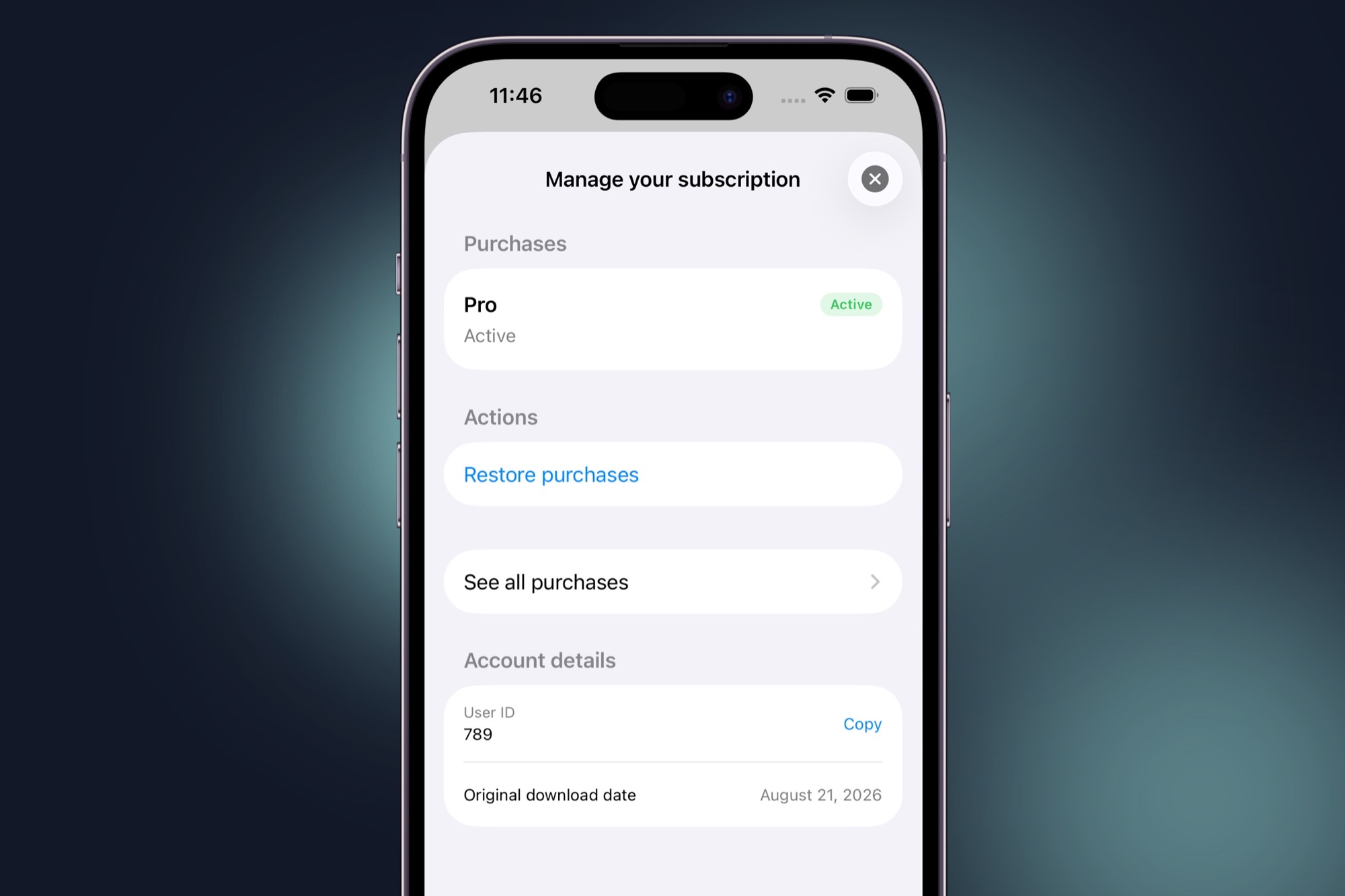
The Customer Center requires iOS 15+ and SDK version 4.18.0 or later. Native macOS support requires macOS 12+ and SDK 4.19.0 or later. On Mac, use CustomerCenterView, CustomerCenterViewController (an NSHostingController), or presentCustomerCenter() with an NSViewController presenter. Appearance colors accept NSColor. Subscription management opens the App Store subscriptions page; refunds and the native change-plan view require macOS 14+. See Native macOS Support.
It works with zero configuration. The management screen lists each subscription as a row that opens its own detail screen, alongside Restore purchases and account details. An active entitlement with no transaction behind it also opens a detail screen. One-time purchases appear as cards without one. Change plan, Request a refund, and Cancel subscription (with a cancellation survey) each act on one subscription, so they live on that subscription's screen rather than the management screen. The only row that needs configuration is Contact support, which stays hidden until you set a support email.
Presenting the Customer Center
From anywhere
Call presentCustomerCenter on the shared instance. It presents over the top-most view controller:
Superwall.shared.presentCustomerCenter()You can pass a configuration, a presenting view controller, a delegate, and a dismiss handler:
Superwall.shared.presentCustomerCenter(
  configuration: nil,      // overrides SuperwallOptions.customerCenter for this presentation
  from: nil,               // presents from the top-most view controller when nil
  delegate: myDelegate,    // retained for the duration of the presentation
  onDismiss: {
    print("Customer Center dismissed")
  }
)
Only one Customer Center can be presented at a time. Calling presentCustomerCenter while one is already on screen does nothing. To dismiss it programmatically:
Superwall.shared.dismissCustomerCenter()From SwiftUI
The presentSuperwallCustomerCenter modifier presents it as a sheet, and takes an optional configuration and dismiss handler:
.presentSuperwallCustomerCenter(
  isPresented: $showsCustomerCenter,
  configuration: nil,   // overrides SuperwallOptions.customerCenter for this presentation
  onDismiss: {
    print("Customer Center dismissed")
  }
)
Or embed CustomerCenterView directly in your own navigation stack. Pass usesExistingNavigation so it renders into your stack instead of wrapping itself in its own:
NavigationStack {
  CustomerCenterView(navigationOptions: .init(usesExistingNavigation: true))
}
From UIKit
CustomerCenterViewController gives you direct control. Present it modally:
let customerCenter = CustomerCenterViewController(delegate: myDelegate)
present(customerCenter, animated: true)
Or push it onto your own navigation controller, which is what you want when the Customer Center is a row in your settings screen:
let customerCenter = CustomerCenterViewController(
  presentationStyle: .pushed,
  delegate: myDelegate
)
navigationController?.pushViewController(customerCenter, animated: true)
A pushed Customer Center renders into your navigation bar and leaves it alone: your title, your back button, your appearance, your swipe-to-go-back. It adds no close button, since your stack already provides the way back. Its own screen, the detail for a subscription, is pushed onto your stack as a further view controller, so it behaves like any other screen you pushed yourself.
From Objective-C
[Superwall.sharedInstance presentCustomerCenterWithConfiguration:nil
                                                            from:nil
                                                        delegate:myDelegate
                                                       onDismiss:nil];
Customizing the Customer Center
Configuration lives in code via SuperwallOptions. Set it before calling configure:
let options = SuperwallOptions()

let cancelSurvey = CustomerCenterConfiguration.FeedbackSurvey(
  id: "cancel_survey",
  title: "Why are you cancelling?",
  options: [
    .init(id: "too_expensive", title: "Too expensive"),
    .init(id: "dont_use", title: "Don't use it enough"),
    .init(id: "bought_by_mistake", title: "Bought by mistake")
  ]
)

options.customerCenter = CustomerCenterConfiguration(
  managementScreen: .init(
    paths: [
      .init(id: "restore", type: .restore),
      .init(id: "change_plan", type: .changePlan()),
      .init(id: "refund", type: .refund()),
      .init(id: "manage_subscription", type: .manageSubscription, survey: cancelSurvey),
      .init(id: "faq", type: .url(URL(string: "https://mycompany.com/faq")!, title: "FAQ", openMethod: .inApp)),
      .init(id: "contact_support", type: .contactSupport)
    ]
  ),
  noPurchasesScreen: .init(
    paths: [.init(id: "restore", type: .restore)]
  ),
  support: .init(email: "support@mycompany.com")
)

Superwall.configure(apiKey: "MY_API_KEY", options: options)
You can also pass a CustomerCenterConfiguration directly to any presentation call to override the options value for that presentation only. The resolution order is: the per-call argument, otherwise SuperwallOptions.customerCenter, which itself starts out as CustomerCenterConfiguration.default.
A configuration you supply replaces the default rather than merging with it, so the screen shows exactly what you list and nothing else. Start from CustomerCenterConfiguration.default and adjust it if you'd rather keep the defaults.
There are two screens to configure. The management screen shows when the user has at least one subscription or purchase, and the no purchases screen shows when they have none. Each screen has an optional title, an optional subtitle, and an ordered list of paths. Leave a title as nil to use the localized default.
Paths
A path is an action row. Every path is optional and reorderable, and each has a stable id reported as path_id in events. Delegate callbacks receive the CustomerCenterAction rather than the path id.
| Path type | What it does |
|---|---|
.restore | Restores purchases, with a progress overlay and a result alert. |
.manageSubscription | Opens Apple's manage subscriptions sheet for App Store subscriptions, or your web management page for web subscriptions. The default row is labeled "Cancel subscription". |
.refund(window:) | Opens Apple's refund request sheet. Pass window (seconds since purchase) to only offer refunds within a time limit. |
.changePlan(productIds:) | Opens Apple's subscription store for the subscription's group so the user can switch plans. Pass productIds to offer a subset of the group. Requires iOS 17+. |
.contactSupport | Opens a pre-filled support email. Hidden unless support.email is set. |
.url(_:title:openMethod:) | Opens any URL, either .inApp (Safari view) or .external (leaves the app). title is required: every other path type has a localized default name, and a URL has none. |
.custom(identifier:) | Does nothing itself. Handle it yourself in the delegate or the onCustomerCenterAction modifier. |
.refund, .changePlan, and .manageSubscription act on a single subscription, so they appear on a subscription's detail screen rather than the management screen. Paths only appear when they make sense for the user's purchases, and you don't have to gate any of this yourself. .refund and .changePlan show only for App Store subscriptions, never for family-shared ones, and .changePlan is hidden below iOS 17. .refund is additionally hidden during a free trial, on an already-refunded purchase, and for free products. .manageSubscription for an App Store subscription shows only while it's active and set to renew.
When no path applies to a purchase, its detail screen shows a line of text instead of an action list. A subscription the same user bought through your Android app reads "Manage this subscription through Google Play." One that's still active through any other store the SDK can't manage reads "Manage this subscription where you bought it." Anything else reads "There's nothing to manage for this purchase."
Surveys
Attach a FeedbackSurvey to any path and it's shown before the action runs, except when the path resolves to a web management page, where the survey is skipped. The default configuration attaches a cancellation survey to the manage subscription path:
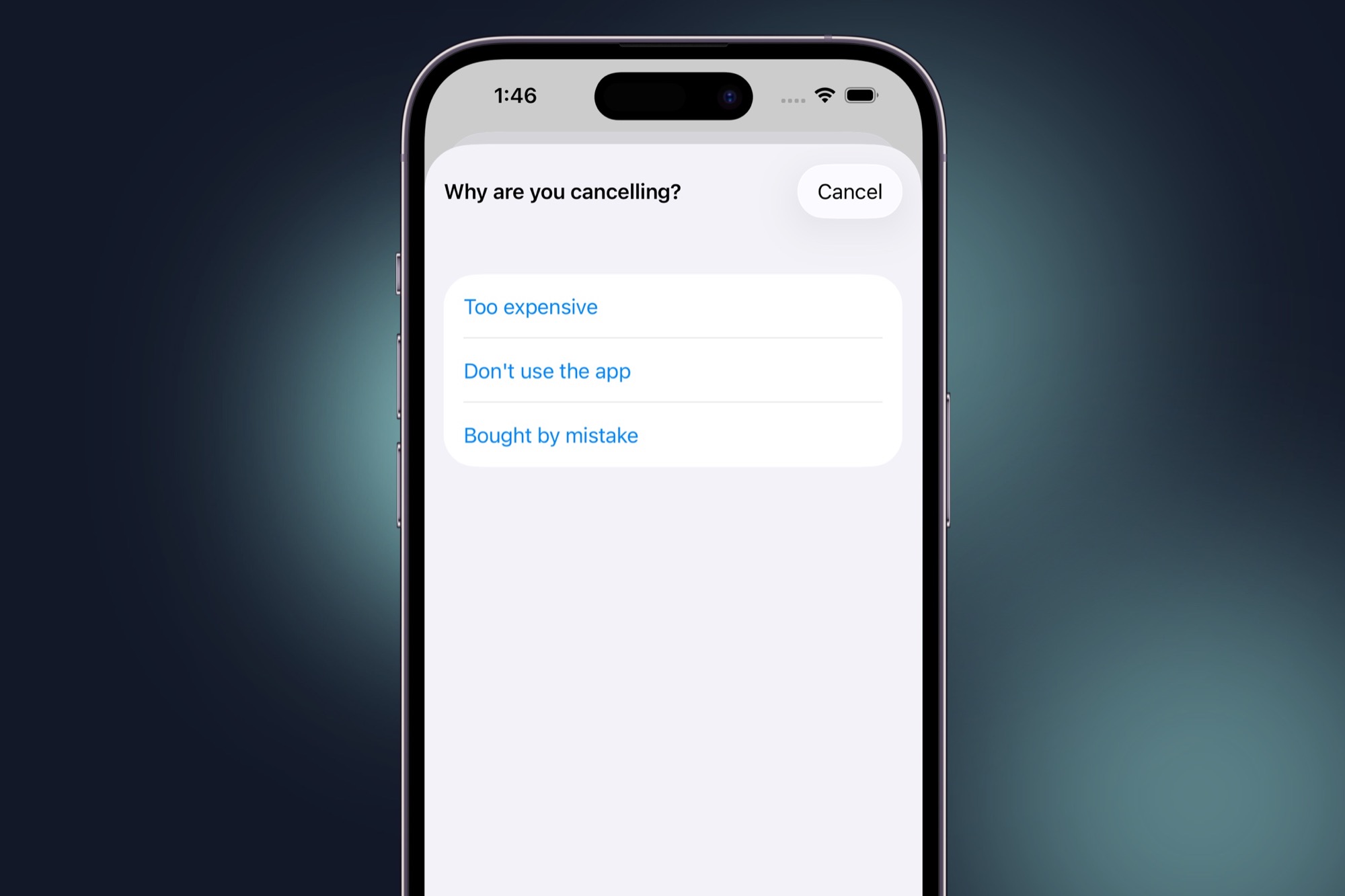
Survey answers are reported through the customerCenter_surveyResponse event, the delegate, and the onCustomerCenterSurveyResponse modifier, so you can act on them however you like. The built-in option ids (too_expensive, dont_use, bought_by_mistake) come pre-localized; custom options use the titles you provide.
Support options
support controls the contact path and a few related behaviors:
options.customerCenter.support = .init(
  email: "support@mycompany.com",   // enables the Contact support path
  latestAppVersion: nil,            // set to control the update banner yourself
  shouldWarnToUpdate: true,         // shows an update banner for outdated installs
  checksAppStoreForUpdates: true,   // looks up the published version automatically
  webManagementURL: nil             // overrides the web subscription management page
)
The support email opens the user's mail app with a message pre-filled with diagnostics: their user ID, app version, OS version, device model, SDK version, active entitlements, and whether they're in the sandbox. If no mail app is available, the Customer Center shows the address so the user can still reach you.
Prompting users to update
The Customer Center can show a banner asking the user to update your app, which is useful when someone contacts support about a bug you've already fixed. By default it looks your app up on the App Store, compares against the installed version, and shows the banner only when the installed version is older. The lookup result is cached for 24 hours, and the check is skipped entirely on TestFlight, sandbox, and simulator builds, whose versions are normally ahead of the App Store.
Set latestAppVersion to skip the lookup and control the version yourself:
options.customerCenter.support = .init(
  email: "support@mycompany.com",
  latestAppVersion: "2.1.0"
)
If you ship a release using phased release, the lookup sees the new version as soon as it goes live, so the banner can appear for users your rollout hasn't reached yet. Phased-release builds can be downloaded manually at any time, so tapping Update will get them the new version, which may drive adoption faster than your rollout schedule intends. To keep the banner on your own schedule, set latestAppVersion, or set checksAppStoreForUpdates to false.
Appearance
By default the Customer Center uses system colors and matches light and dark mode automatically. Set an accent color with a light and dark hex pair to tint the screen's controls:
options.customerCenter.appearance = .init(
  accent: .init(light: "#0A84FF", dark: "#64B5FF")
)
Other options
options.customerCenter.showsAccountDetails = true             // user ID and original download date
options.customerCenter.warnsAboutDuplicateSubscriptions = true // App Store + web double-subscription banner
Web checkout purchases
Subscriptions purchased through web checkout appear in the Customer Center alongside App Store purchases, labeled with the store they came from: Stripe and Paddle purchases show a "Web" badge, and Superwall-store purchases show "Superwall". For all of them, the manage subscription path sends the user to their web management page instead of Apple's sheet. The SDK derives that page automatically for Superwall-hosted checkouts; set support.webManagementURL to point somewhere else. If no management page can be resolved, the row stays visible and tells the customer to use the link in their emailed receipt.
When the user is actively subscribed both on the web and through the App Store, the Customer Center shows a banner warning them they may be paying twice, so they can cancel one. Disable this with warnsAboutDuplicateSubscriptions = false.
Reacting to what users do
The delegate
Implement CustomerCenterDelegate (or SWKCustomerCenterDelegate from Objective-C) to observe and gate Customer Center behavior. Every method has a default implementation, so implement only what you need:
final class MyCustomerCenterDelegate: CustomerCenterDelegate {
  func customerCenter(shouldRestorePurchases resume: @escaping (Bool) -> Void) {
    // Gate restores, e.g. require sign-in first. Call resume(false) to cancel.
    resume(true)
  }

  func customerCenter(didSelect action: CustomerCenterAction, for purchase: SubscriptionTransaction?) {
    if case .custom(let identifier) = action {
      // Handle your .custom paths here.
      print("Custom path tapped: \(identifier)")
    }
  }

  func customerCenter(didCompleteSurvey surveyId: String, optionId: String, for action: CustomerCenterAction) {
    print("Survey \(surveyId) answered with \(optionId)")
  }

  func customerCenter(didCompleteRefundRequestFor productId: String, status: CustomerCenterRefundStatus) {
    print("Refund request for \(productId): \(status)")
  }

  func customerCenterDidDismiss() {
    print("Customer Center dismissed")
  }
}
The Customer Center does not retain your delegate. Keep a strong reference to it yourself, or pass it to Superwall.shared.presentCustomerCenter(delegate:), which retains it while the Customer Center is presented.
SwiftUI modifiers
In SwiftUI, use modifiers instead of a delegate. Attach them to the view that presents the Customer Center, or to an embedded CustomerCenterView:
CustomerCenterView()
  .onCustomerCenterShouldRestore { resume in resume(true) }
  .onCustomerCenterAction { action, purchase in print(action) }
  .onCustomerCenterSurveyResponse { surveyId, optionId, action in print(surveyId, optionId) }
  .onCustomerCenterRefundRequest { productId, status in print(productId, status) }
  .onCustomerCenterDismiss { print("dismissed") }
Events
The Customer Center tracks five SuperwallEvent cases. Observe them via the Superwall delegate to forward them to your analytics, and see them in your Superwall dashboard like any other event:
| Event | Fires when | Parameters |
|---|---|---|
customerCenter_open | The Customer Center is presented. | screen (management or no_purchases), presentation (sheet, pushed, or embedded) |
customerCenter_close | The Customer Center is dismissed. | |
customerCenter_action | The user taps a path. | action, path_id, product_id, plus url or custom_identifier when relevant |
customerCenter_surveyResponse | The user answers a survey. | survey_id, option_id, action, path_id, product_id |
customerCenter_refundRequest | A refund request finishes. | product_id, status (success, user_cancelled, or error) |
Localization
All Customer Center strings ship localized in 41 locales, including regional variants such as en_GB, pt_BR, and zh_Hant. The locale follows the device, or SuperwallOptions.localeIdentifier when you've set it, including dates. Any titles you set in the configuration are used verbatim, so localize custom titles yourself.
Limitations
- Requires iOS 15+, and the change plan path requires iOS 17+. On native macOS (SDK 4.19.0+), requires macOS 12+, with refunds and change-plan views available on macOS 14+.
- A purchase whose product has no display name is titled with the entitlement it unlocks, or left untitled. It is never titled with the product identifier. Today that applies to every web purchase, because the product catalog does not return a name yet. An App Store product has one once it's localized in App Store Connect. Until then StoreKit reports an empty name, which is handled the same way.
- Promotional and win-back offers are not yet supported as a path type.
- The Customer Center is configured in code today. Remote configuration from the Superwall dashboard is coming.
FAQ
How is this guide?