Game Controller Input
Enable game controller support for Unity paywalls.
Unity games often need paywalls that work with touch and controller input. Superwall supports controller-triggered paywall actions when both the SDK and paywall template are configured for it.
Enable Controller Support in the SDK
Set IsGameControllerEnabled when configuring Superwall.
using System.Collections.Generic;
using Superwall;

var options = new SuperwallOptions
{
    IsGameControllerEnabled = true,
    Logging = new Logging
    {
        Level = LogLevel.Debug,
        Scopes = new List<LogScope> { LogScope.GameControllerManager }
    }
};

Superwall.Configure("MY_PUBLIC_API_KEY", options: options);
Enable Controller Support on the Paywall
In the paywall editor, open the paywall settings and set Game Controller Support to ENABLED.
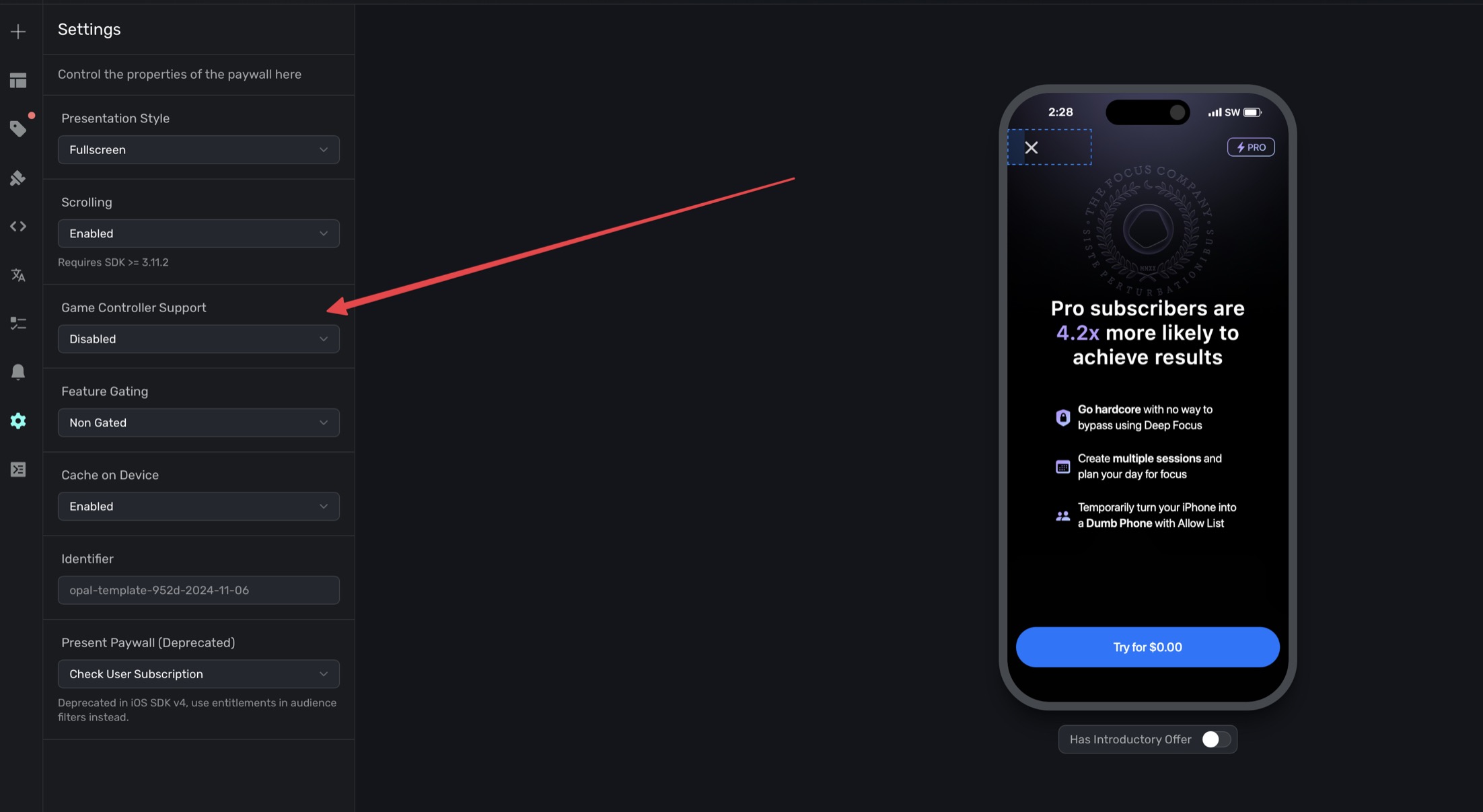
After this setting is enabled, click behavior controls can map an action to one of these controller buttons:
abxyl1l2r1r2menuoptions
Test on Device
Controller support depends on the native iOS or Android runtime. The Unity Editor only logs SDK method calls, so test with a controller connected to a real device, simulator, or emulator that supports controller input.
If touch input works but controller input does not, verify both settings:
IsGameControllerEnabled in Unity and Game Controller Support in the paywall editor.
How is this guide?