Managed Payments
Sell on the web with Stripe as merchant of record for Stripe web checkout payments.
Managed Payments lets you sell on the web with Stripe as the merchant of record for Stripe web checkout purchases. When it is enabled, Superwall processes eligible Stripe checkout sessions through Stripe Connect, with Stripe acting as merchant of record and handling tax calculation and compliance for those payments.
Use Managed Payments when you want your existing Superwall web checkout flow, products, paywalls, campaigns, redemption links and membership management to stay the same, but you want Stripe to own the merchant-of-record responsibilities for eligible Stripe payments.
Managed Payments is account and Stripe-account dependent. If you do not see the Managed Payments controls, or if Superwall says eligibility cannot be checked for your account, contact Superwall before launching with this payment mode.
Before you start
Complete the standard Web Checkout setup first:
- Create a Web Checkout app.
- Connect Stripe by installing the Superwall Stripe app and saving your live or sandbox keys in Stripe Setup.
- Create or import the Stripe products you want to sell in Superwall.
- Make sure each Stripe product has the correct product tax code in Stripe.
- Keep access to the connected Stripe account handy. Stripe may ask you to accept required Stripe Connect terms before Managed Payments can be enabled.
Managed Payments applies when Superwall creates a Stripe Checkout session, which is the hosted Stripe checkout flow used by Superwall's external checkout and embedded checkout destinations. This does not refer to visual elements in the Superwall paywall editor. If you use a custom Stripe Elements or Payment Element integration instead of a Stripe Checkout session, Managed Payments will not apply to that payment.
Enable Managed Payments
Here, current environment means the live or sandbox configuration you're editing.
- 1
Open Stripe Configuration
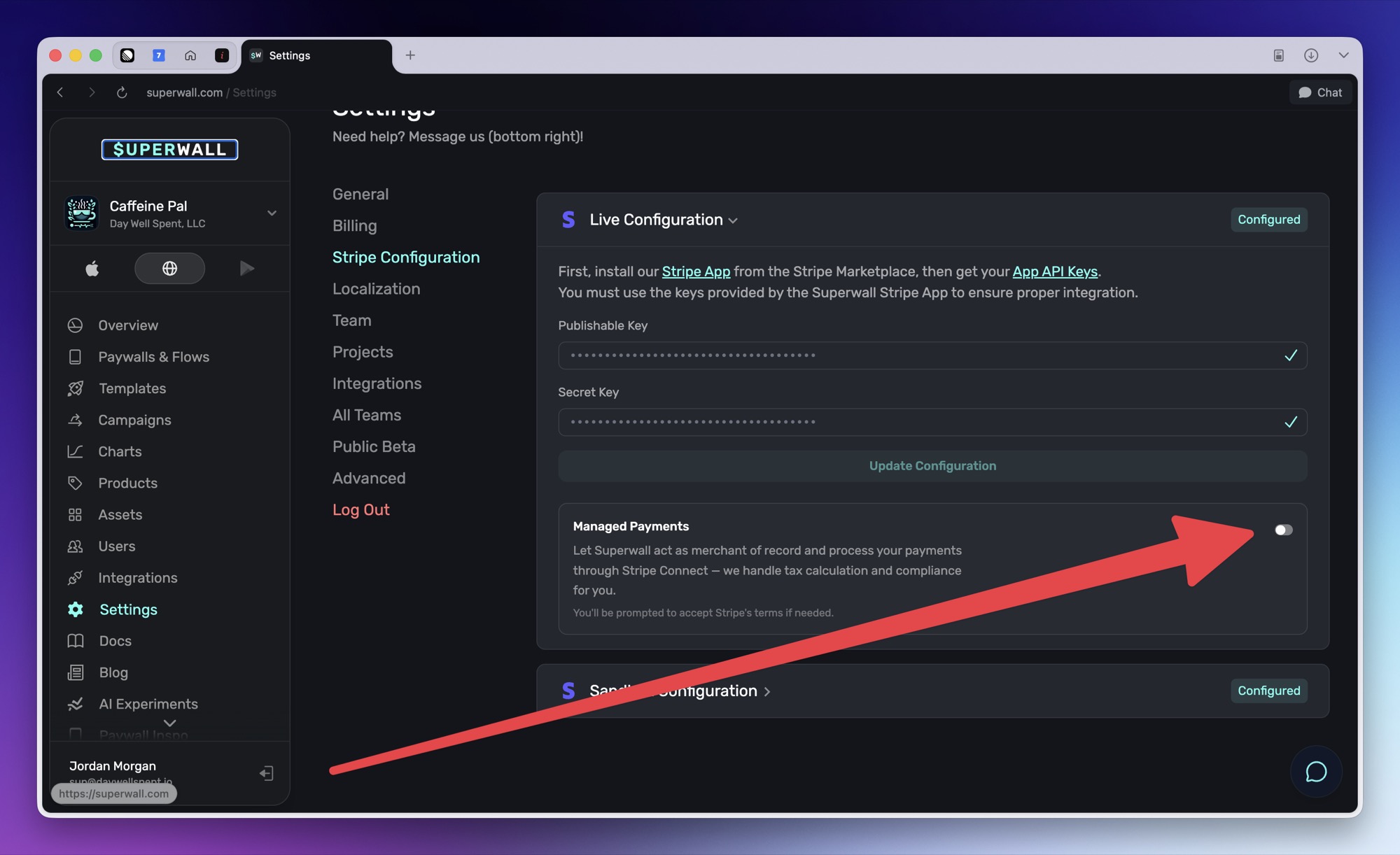
In your Web Checkout app, open Settings and select Stripe Configuration.
- 2
Confirm your Stripe keys are configured
Managed Payments is disabled until the current environment has a valid publishable key and restricted key. Configure live keys for production purchases and sandbox keys for test purchases.
- 3
Turn on Managed Payments
In the Managed Payments card, turn on the Managed Payments switch. Superwall checks any available product eligibility information for the current environment, then checks whether the connected Stripe account can use Managed Payments.
- 4
Accept Stripe terms if prompted
If Stripe requires terms acceptance, Superwall opens the Superwall Stripe app page for the current environment. Accept the required Stripe Connect terms, return to Superwall and turn the switch on again.
- 5
Review product eligibility
If Superwall finds one or more ineligible products, Managed Payments stays off and an error identifies the affected products, including any reasons Stripe returns. Fix the reported issues in Stripe, then turn on Managed Payments again. Missing or ineligible product tax codes are examples of issues Stripe can report.
After setup is complete, the Stripe configuration shows Configured for the current environment, and the Managed Payments card shows Enabled.
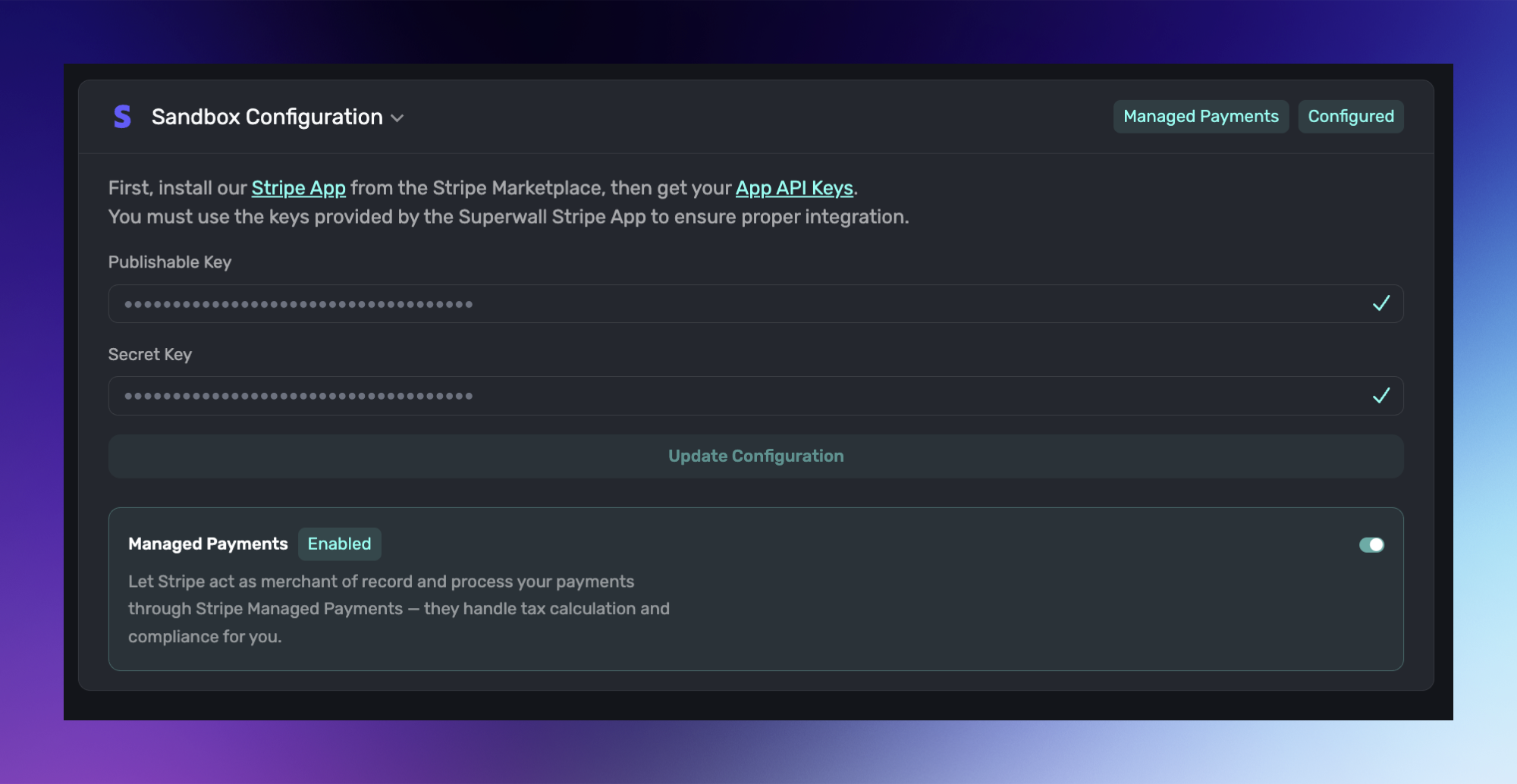
The Managed Payments switch controls the Web Checkout app's default payment mode. The live and sandbox Stripe cards each validate their own Stripe account and products, but the default itself is app-wide. Before launch, verify the live Stripe configuration even if you first tested the switch with sandbox keys.
Product eligibility
When you turn on Managed Payments, Superwall attempts to check active products in the current environment. Any ineligible products returned by Stripe block enablement. Superwall then checks whether the connected Stripe account can use Managed Payments.
If Stripe reports one or more ineligible products, the switch remains off and Superwall identifies the affected products, including any reasons Stripe provides. Correct the reported issues in Stripe, then return to Superwall and turn on Managed Payments again.
In the new dashboard at app.superwall.com, a Product eligibility section appears beneath the Managed Payments control after the current environment is configured. When Stripe returns product data, the section shows the returned products as Eligible or Ineligible and includes any ineligibility reasons Stripe provides. Otherwise, the section explains that checks are unavailable, no active products were found or eligibility could not be loaded. The old dashboard at superwall.com doesn't show this section; it requests an eligibility result when you turn on Managed Payments and reports any ineligible products in an error.
Override the default on a paywall
By default, Stripe checkout paywalls follow the Web Checkout app's Managed Payments setting. Some iOS and Android paywalls can override that default when they use Stripe products.
The paywall-level Managed Payments setting appears only when all of these are true:
- The paywall belongs to an iOS or Android app.
- The paywall has at least one Stripe web checkout product.
- Paywall-level Managed Payments controls are enabled for the account.
In the paywall editor, open Products to find the override beneath the selected products.
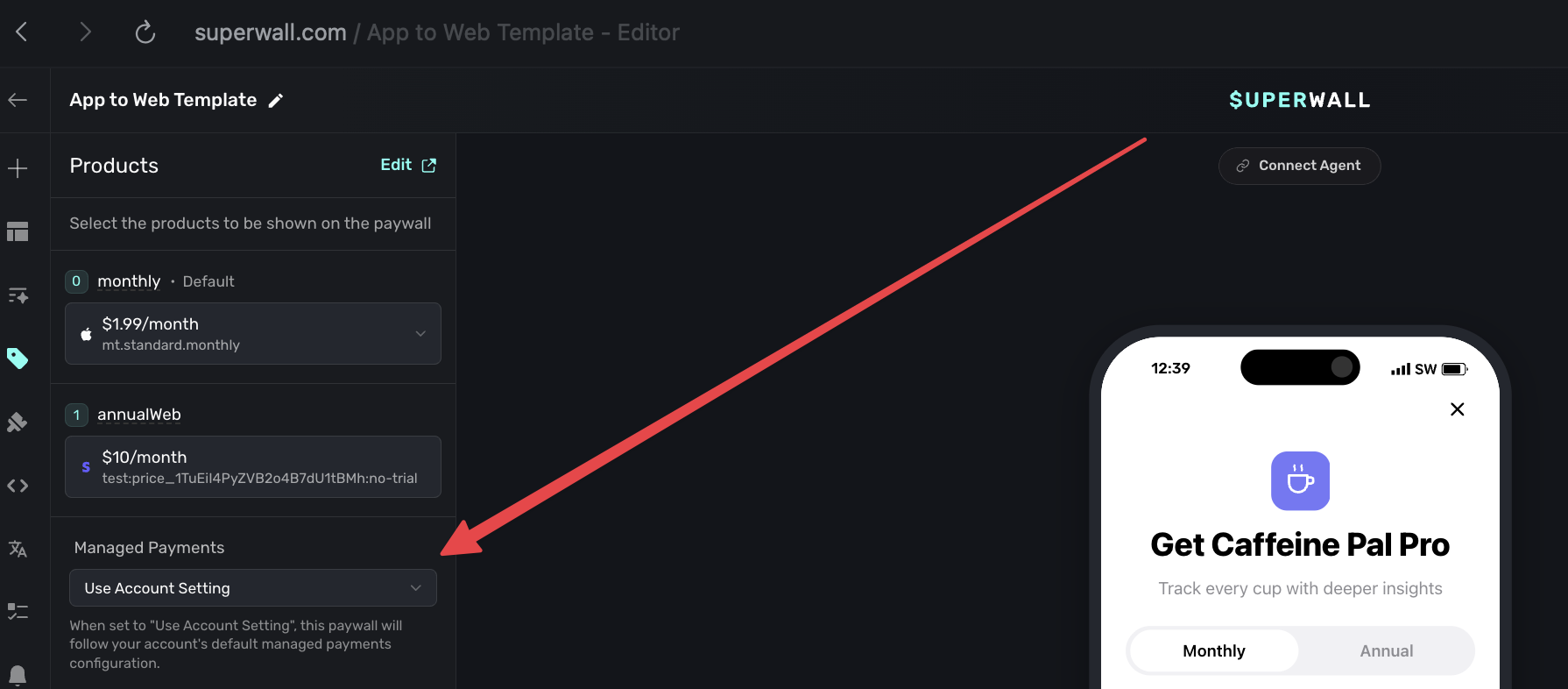
| Option | Checkout behavior |
|---|---|
| Use Account Setting | Follow the Web Checkout app's Managed Payments default. |
| Use Managed Payments | Use Managed Payments for this paywall's eligible Stripe checkout sessions, even if the app default is off. |
| Use Default Payments | Use the default Stripe payment flow for this paywall, even if the app default is on. |
Use the override when you want to test Managed Payments on a single paywall, exclude a specific paywall from Managed Payments or migrate traffic gradually.
What happens at checkout
When a customer starts checkout, Superwall resolves the paywall override first. If the paywall is set to Use Account Setting, or if the paywall has no override, Superwall uses the Web Checkout app's Managed Payments default.
If the resolved value is Managed Payments, Superwall creates the Stripe Checkout session with Managed Payments enabled. Superwall also records whether Managed Payments was used, plus the paywall override value, on checkout and transaction analytics events so reporting can distinguish managed and default Stripe payments.
If checkout uses a Stripe Elements or Payment Element path instead of a Stripe Checkout session, Managed Payments is not applied to that payment. Embedded checkout session fallback keeps Managed Payments enabled when the resolved setting is Managed Payments.
If the controls are missing
Managed Payments has more than one availability gate:
- The app-level Managed Payments card can be enabled or hidden by Superwall for an account.
- The paywall-level override is enabled separately, so an account can have the Stripe Configuration toggle without seeing the paywall dropdown.
- Stripe can still block enablement until the connected account accepts the required terms or becomes eligible for the Managed Payments preview.
- Product eligibility details can be unavailable even when the app-level switch is visible.
If the Stripe Configuration card, product eligibility list or paywall override is missing, contact Superwall with the app name, current environment and the paywall you are trying to configure.
How is this guide?