Web-Only Checkout
Use web checkout without a mobile app for web apps, websites, or any non-App-Store product.
You can use Superwall's web checkout links without an iOS or Android app. It's suitable for things like a web app, SaaS products, or any scenario where you want to handle the post-purchase flow yourself.
All that's required is creating a web app in Superwall. Then, for its post-purchase behavior use Redirect mode instead of Redeem mode:
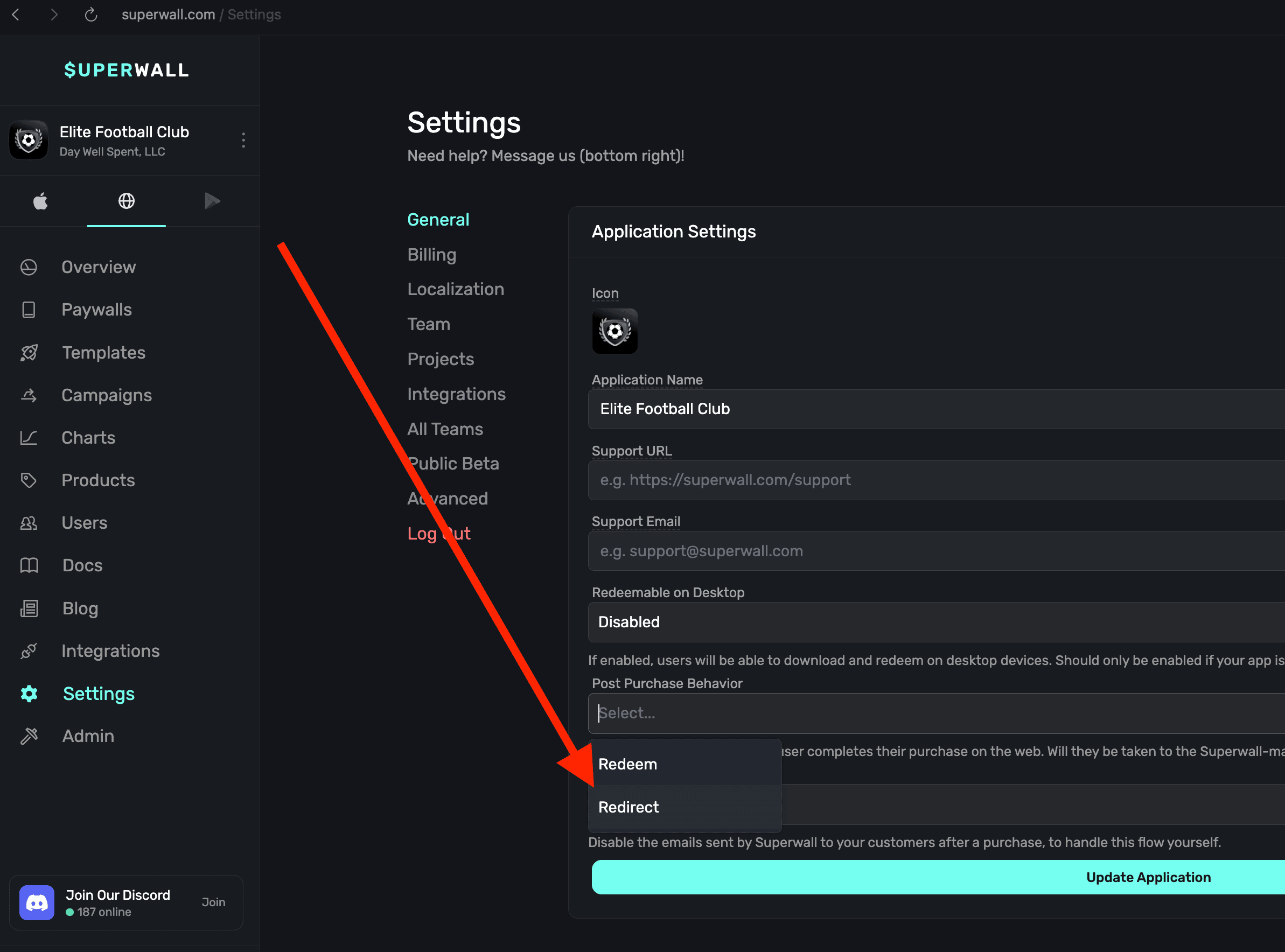
After a user completes checkout from a paywall, they get redirected to your URL with purchase data as query parameters:
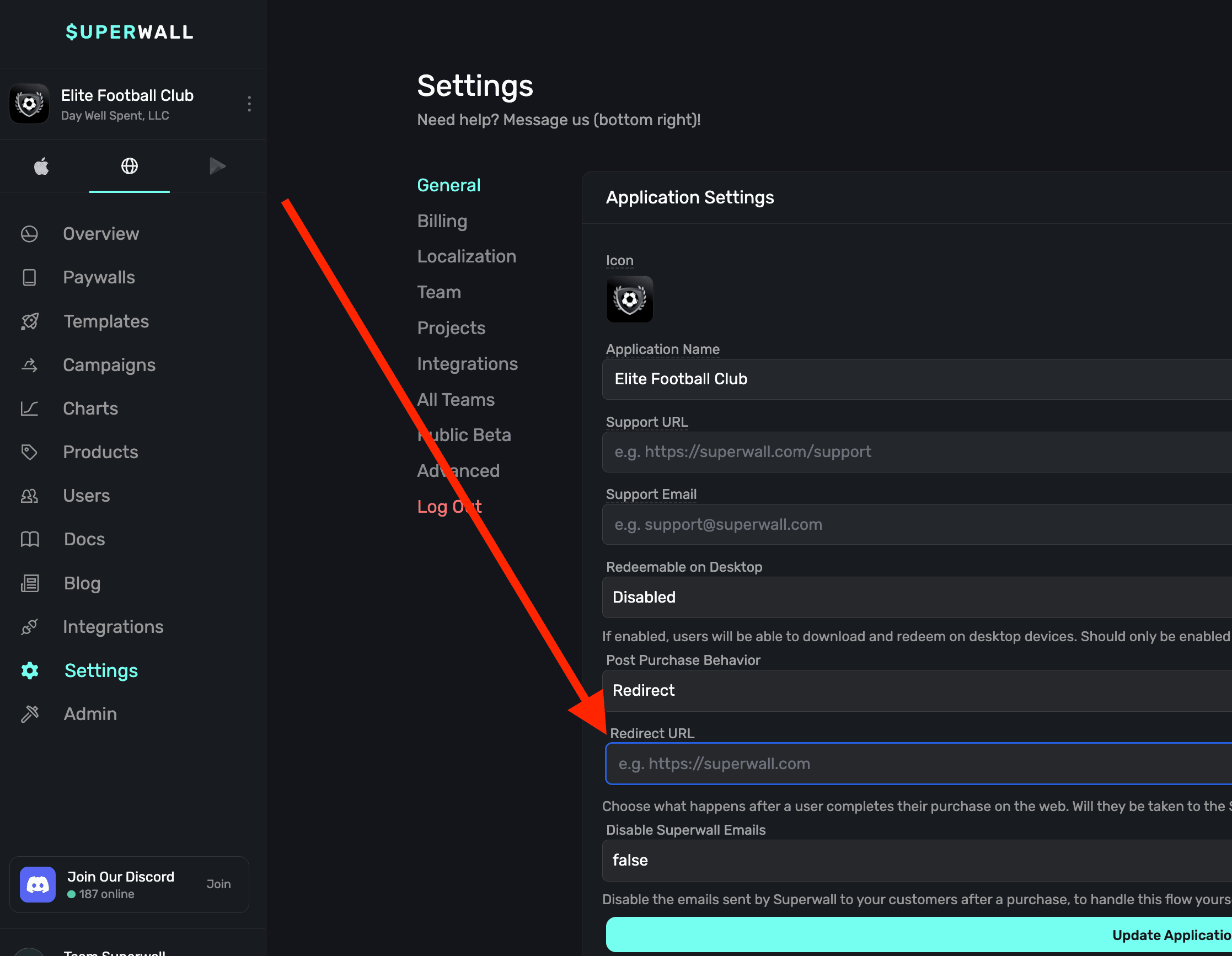
For example, if your redirect URL is https://amazingwebproduct.com/welcome, then after a successful purchase the redirect URL would be the following:
https://amazingwebproduct.com/welcome?
  app_user_id=user_123&
  email=user@example.com&
  stripe_subscription_id=sub_1234567890
Setup
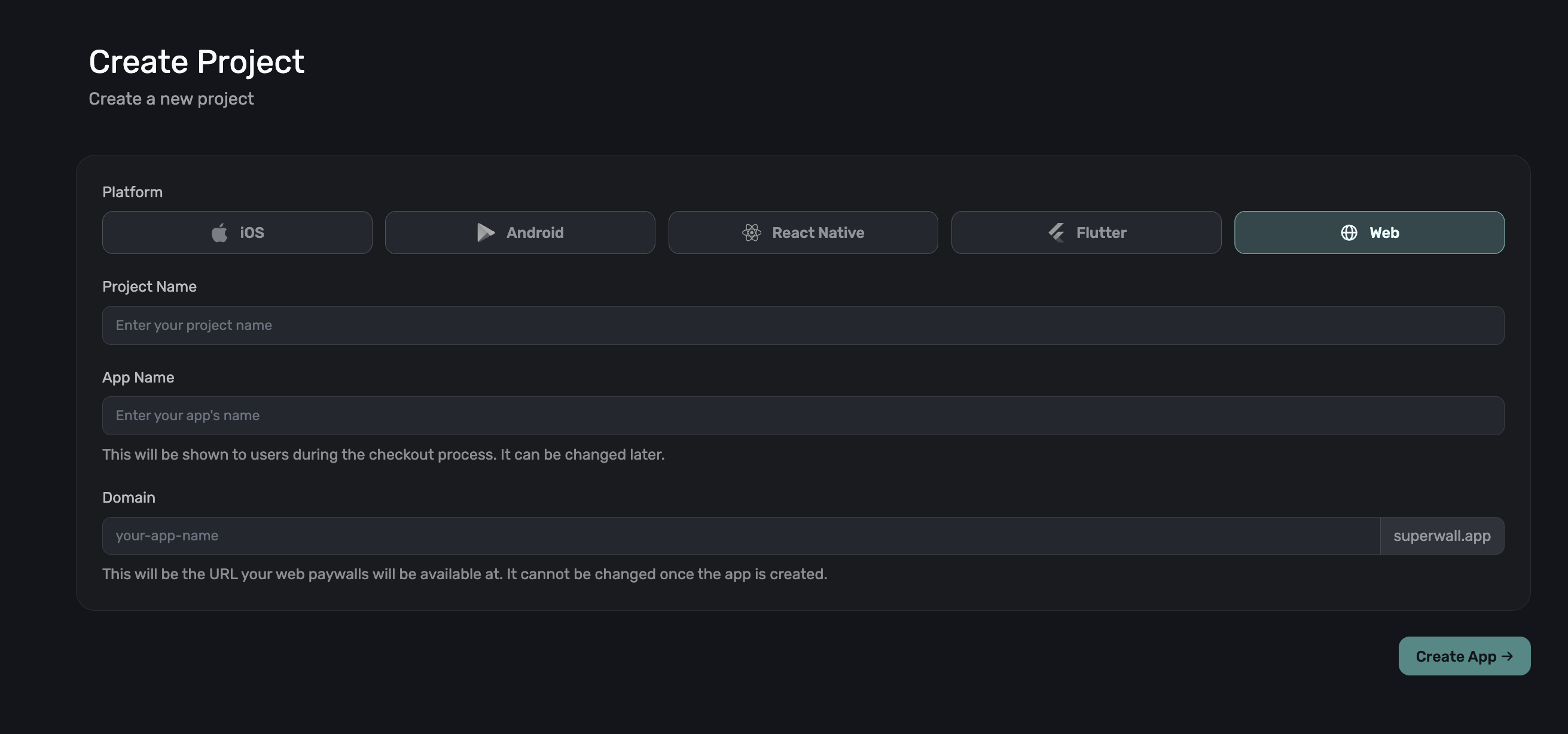
1. Create a Superwall Web App
Create a new app in Superwall for your web product in a new or existing project. Follow the steps in Creating an App.
2. Configure Your Payment Provider
Set up Stripe by following the Stripe Setup guide.
You can skip any iOS/Android related configuration sections since you won't be using a mobile app.
3. Enable Redirect Mode
In your app's settings under Post-Purchase Behavior, select Redirect and enter your custom URL.
Your URL will receive the following query parameters after checkout:
| Parameter | Description |
|---|---|
app_user_id | The user's identifier (if you set one) |
email | User's email from checkout |
stripe_subscription_id | The Stripe subscription ID, or the Stripe Checkout session ID for one-time purchases |
| Custom parameters | Any placement parameters you set |
Example redirect:
https://amazingwebproduct.com/welcome?
  app_user_id=user_123&
  email=user@example.com&
  stripe_subscription_id=sub_1234567890
4. Handle the Redirect
When users land on your redirect URL, use the query parameters to:
- Verify the purchase with your backend.
- Create or update the user's account.
- Grant access to your product.
- Show a success or onboarding page.
What's Next
- Creating Products to add products to your checkout.
- Creating Campaigns to show paywalls via web checkout links. Remember, you use these URLs in any way you wish, but the checkout link itself is derived from two things:
- The web paywall domain you created for the web app (found in Settings -> General).
- And, the placement which is housed in a campaign.
How is this guide?