Show paywalls based on where your users came from with Appstack and Superwall
Use ad campaign data to show personalized paywalls and increase subscription revenue

With the rising cost of user acquisition, you've likely asked yourself how to squeeze more ROAS out of every dollar spent on ads. You spend hours optimizing creatives, doing ASO, and refining onboarding. But, once the user lands in your app, they often see the exact same generic paywall as everyone else.
With the recent introduction of the enhanced app campaign (EAC) protocol by Appstack, apps can now customize users' post-install experiences using Superwall's capabilities. In this short guide, I'll show you how.
A New Way to Do Paywall Experimentation
As of today, most apps show paywalls based on different filters:
- Device properties like days since install, app version, etc.
- User properties, such as paywall view count or user ID.
- Event parameters like placements or occurrences.
- Subscription status, such as auto-renewal disabled or unsubscribed users.
For the first time, apps running paid ads now have the ability to show a paywall depending on five different user parameters:
- Ad network (Meta Ads, TikTok Ads, Google Ads, etc.).
- Ad campaign name.
- Ad set name.
- Ad name.
- Keyword.
This translates to new testing opportunities, such as:
- Showing a trial-offer-only paywall for campaigns optimizing for trial starts.
- Customizing the design for gender-targeted campaigns.
- Showing higher pricing for users coming from high-intent keywords.
How to Make It Work
Apps relying on Appstack's infrastructure to run enhanced app campaigns can easily integrate with Superwall with almost no extra effort to launch new paywall experiments.
To make it work, you only need to add a single line of code before your
first Superwall.register call to pass Appstack's parameters as
user attributes. That's it, there's no need to repeat it for every
placement:
Superwall.shared.setUserAttributes(AppstackAttributionSdk.shared.getAttributionParams() ?? [:])

// Now, your placements will attach those user attributes, making
// Them available for use in campaign filters.
Superwall.shared.register(placement: "onboarding_paywall")
Once the implementation is live, apps can use Superwall's filters to match users against Appstack's parameters. Then, you can select from the available options when creating a new campaign.
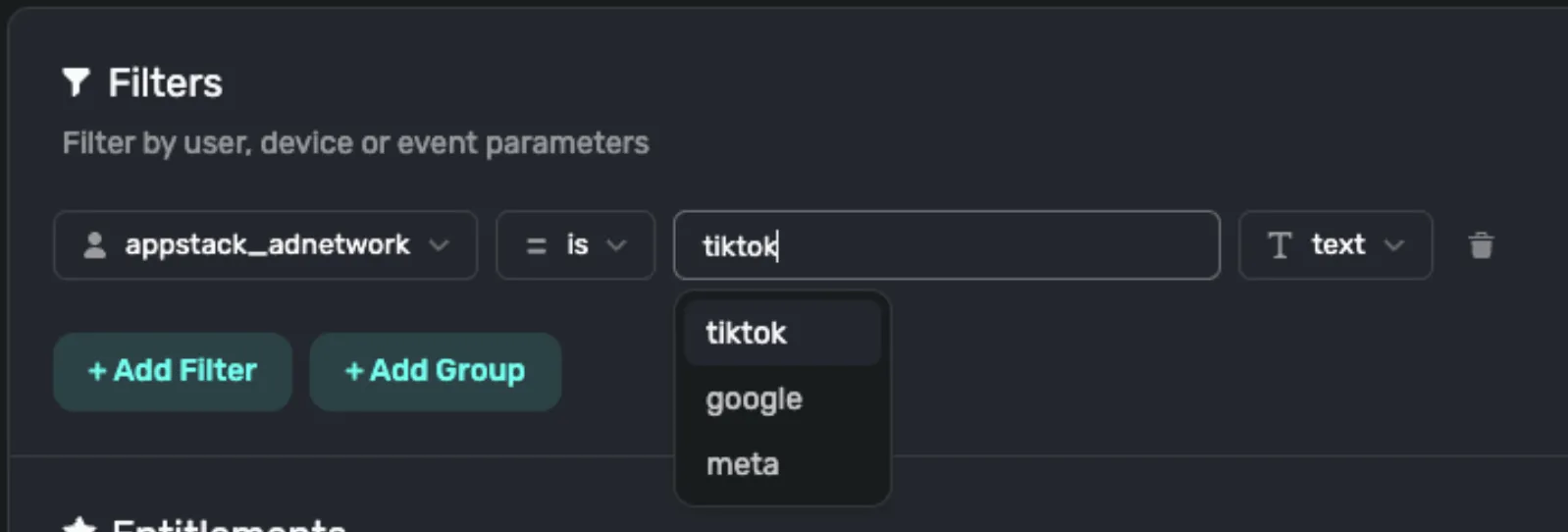
If you want to test it before doing a release in production, here is a list of steps you can follow that should help you:
- Uninstall your testing build from your testing device.
- Connect to your Appstack console and configure one of the integrations you will want to use on the integration page. Then, copy one of the links at the bottom of the integration page.
- Paste that link either in your browser, or on your simulator or testing device browser.
- If you see an error similar to "Safari cannot open the page because the address is invalid" on your simulator browser after pasting and opening the link, it's expected! That's just a block done by Apple to avoid directing to the App Store in the simulator.
-
Reinstall and rebuild your application on your testing device, open it, and
trigger the code where you configured the
getAttributionParams()method. - You should now see the Appstack user attributes on your Superwall dashboard for use as a campaign filter.
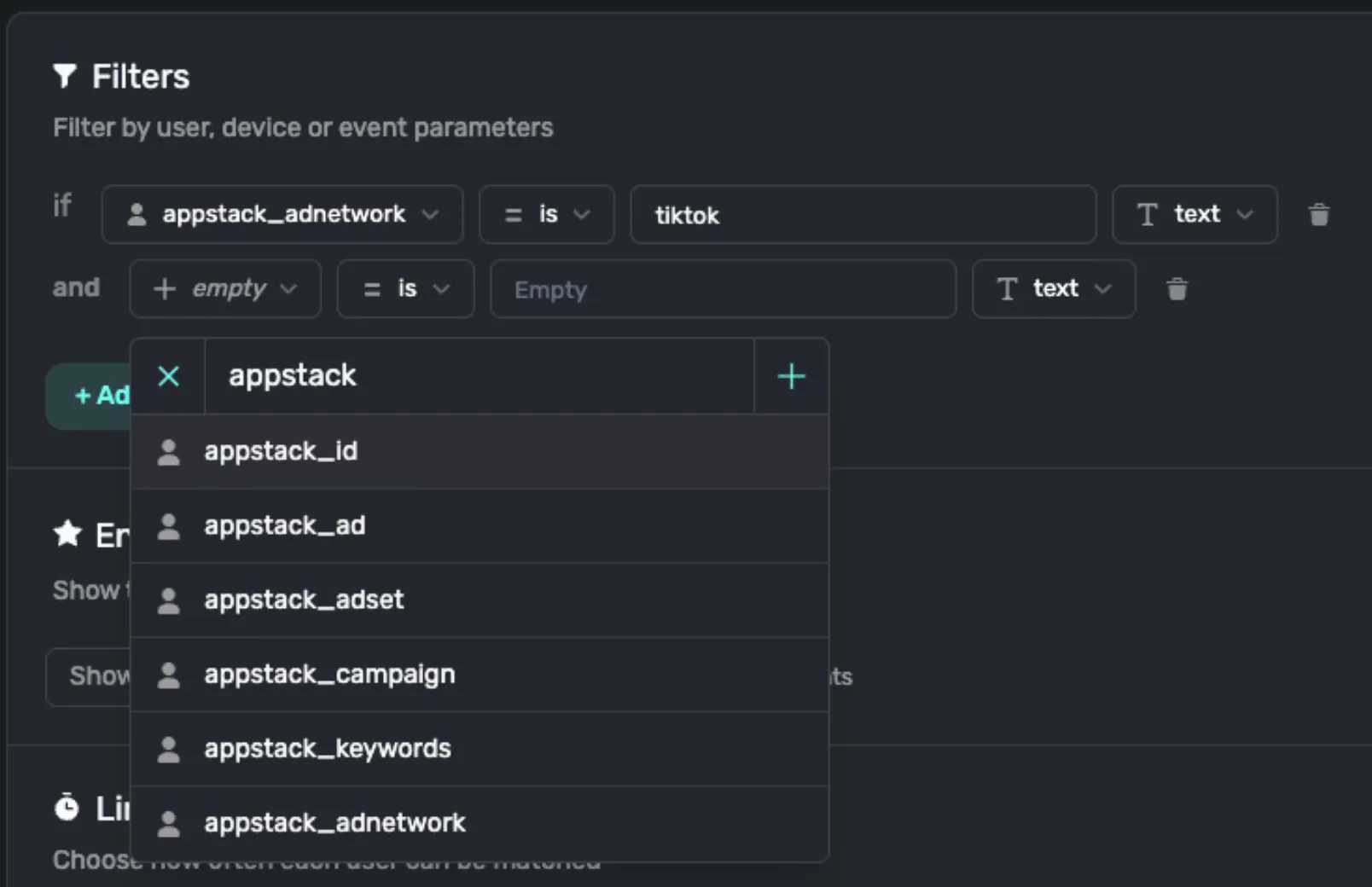
So, again, once the implementation is live, apps can use Superwall's interface to search for the Appstack parameters and select from the available options when creating a new campaign. As mentioned above, there are several Appstack properties you can use to create the perfect targeting.
Wrapping Up
Combining the granularity of Appstack's attribution with the flexibility of Superwall's platform allows you to maintain the narrative from the first ad engagement all the way to the purchase. The Appstack x Superwall integration is live and ready to help you unlock higher ROAS.
To start using it, book a meeting or send an email to [email protected].