Webhooks
Trigger chats from external systems and send agent turn events to your own endpoints.
Webhooks connect a chat to other systems. Create a webhook from the chat you want to connect, then manage all of your webhook configurations from Settings -> Webhooks.
When you create a webhook from an existing chat, Superwall Agents preselects that chat for the webhook under the hood:
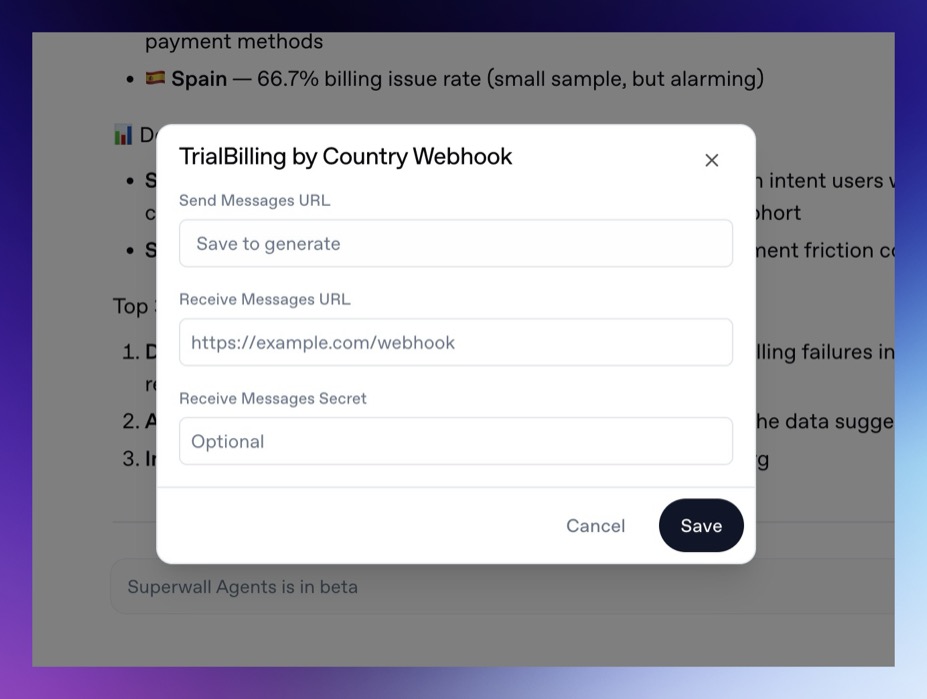
When you create one from Settings -> Webhooks, you can choose any of your previous chats to associate the webhook to.
Use incoming webhooks to send a message into a chat from an external service. Use outgoing webhooks to receive events as the agent works.
Incoming webhooks
An incoming webhook sends a new message to a chat.
Use it when an external system should trigger analysis:
- A data pipeline finishes an experiment export.
- A campaign metric crosses a threshold.
- A support issue references a billing or paywall problem.
- A deployment finishes and needs a Superwall integration check.
- A scheduled external job wants the agent to summarize new data.
Example request:
curl -X POST "$INCOMING_WEBHOOK_URL" \
  -H "Content-Type: application/json" \
  -d '{
    "text": "Analyze this experiment export and recommend the next three tests.",
    "attachments": [
      { "url": "https://example.com/experiment-results.csv" }
    ]
  }'
The text field is required. Attachments are optional.
Incoming webhook turns are unattended. The agent cannot ask follow-up questions or show forms during those turns, so include the organization, project, time range, and expected output in the webhook message.
Outgoing webhooks
An outgoing webhook sends chat events to your endpoint. Configure it when another system should receive agent progress or results.
Outgoing events include:
turn_startmessagetool_resultturn_end
Example event shape:
{
  "id": "evt_...",
  "type": "turn_end",
  "chatId": "chat_...",
  "turnId": "turn_...",
  "source": "user",
  "timestamp": 1760000000000,
  "turn": {
    "status": "success",
    "durationMs": 42000
  }
}
If you configure a secret, Superwall Agents sends it in the X-Superwall-Webhook-Secret header.
Create a webhook from a chat
- Open the chat you want to connect.
- Click the webhook control in the chat header.
- Copy the incoming URL if another service should send messages into the chat.
- Add an outgoing URL if your service should receive chat events.
- Optionally add an outgoing secret.
- Save the webhook.
Creating the webhook from the chat keeps the configuration attached to the right conversation from the start.
Manage webhooks from settings
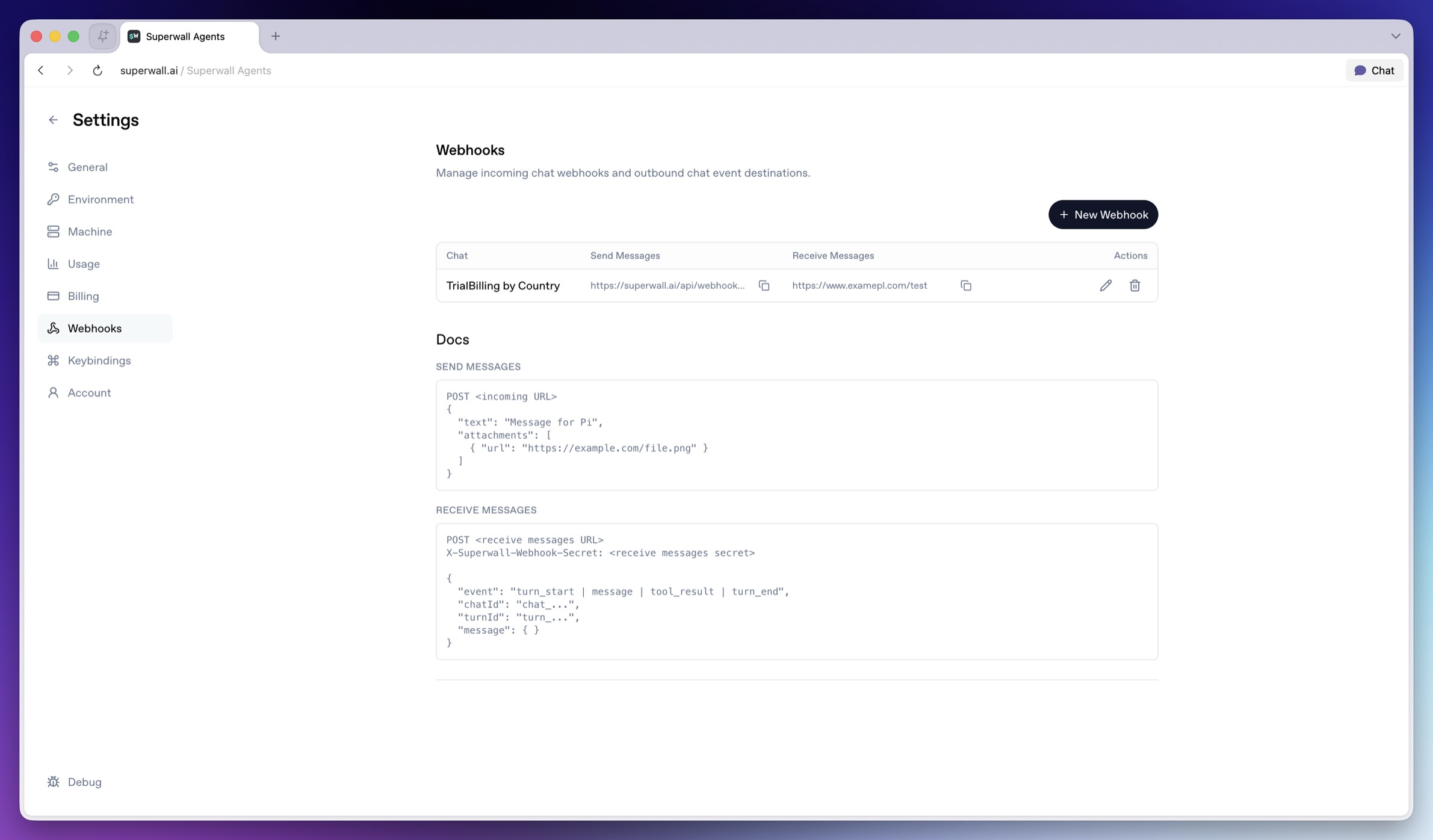
Open Settings -> Webhooks when you want to review or edit every webhook in one place. From there, you can create a webhook for any eligible chat, copy URLs, edit outgoing settings, or delete a webhook.
Useful patterns
Experiment export pipeline
Send an incoming webhook when an export is ready:
{
  "text": "Analyze the attached experiment export. Create a readout with charts, conclusion, and next experiments.",
  "attachments": [
    { "url": "https://example.com/exports/onboarding-experiment.csv" }
  ]
}
Incident or anomaly triage
Send a webhook when a metric falls outside an expected range:
{
  "text": "Paywall conversion dropped below the alert threshold for the onboarding campaign. Investigate likely causes and recommend next steps."
}
Internal reporting
Use outgoing webhooks to send completed agent messages or turn-end events into your reporting pipeline.
Billing
Incoming webhooks require an active Superwall Agents subscription when they run through the hosted control plane.
How is this guide?