Superwall Agents
Workspace Tour
Learn what every primary Superwall Agents control does before moving into deeper workflows.
Superwall Agents starts with one simple action: send a prompt. The rest of the workspace adds context, tools, files, schedules, and account settings around that prompt.
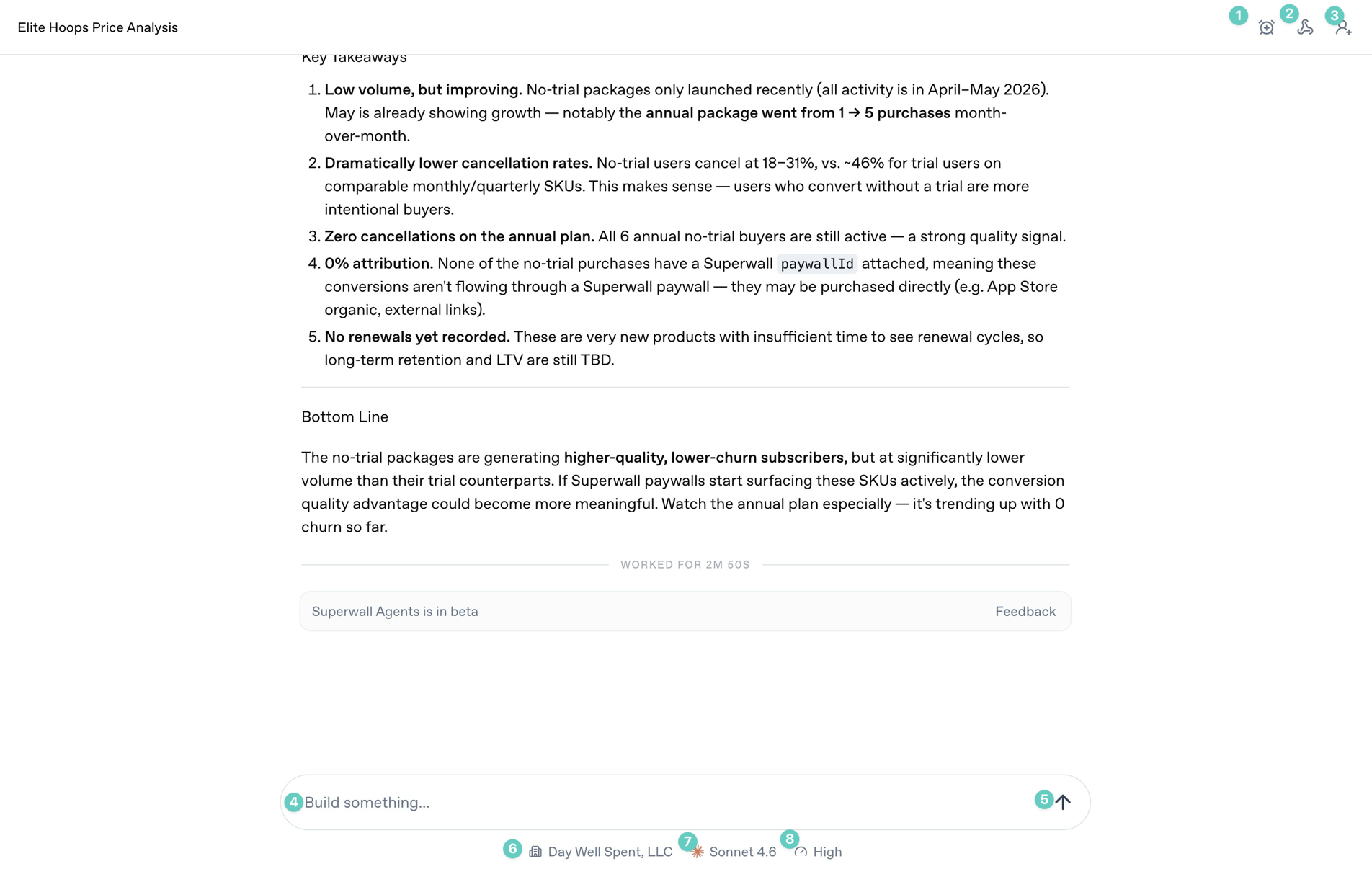
Start screen
The annotated controls above are the ones you will use most often during a chat:
- Automations: Use this to automate tasks and prompts, and to schedule or edit existing automations.
- Webhooks: Open the webhook settings for the current chat so external systems can trigger it or receive updates from it.
- Share: Share the current conversation when you want someone else to review the transcript or output.
- Prompt box: Type the work you want the agent to do. Use it for analysis, implementation checks, reports, or experiment ideas.
- Send arrow: Start the next turn. If the agent is already working, this control changes state so you can stop or steer the turn.
- Organization selector: Choose which Superwall organization the agent should use for the conversation.
- Model selector: Choose the model for this chat. Use stronger models for ambiguous analysis and debugging.
- Reasoning selector: Choose how much reasoning effort the model should use. Higher effort is useful for experiment analysis, architecture work, and multi-step debugging.
Sidebar
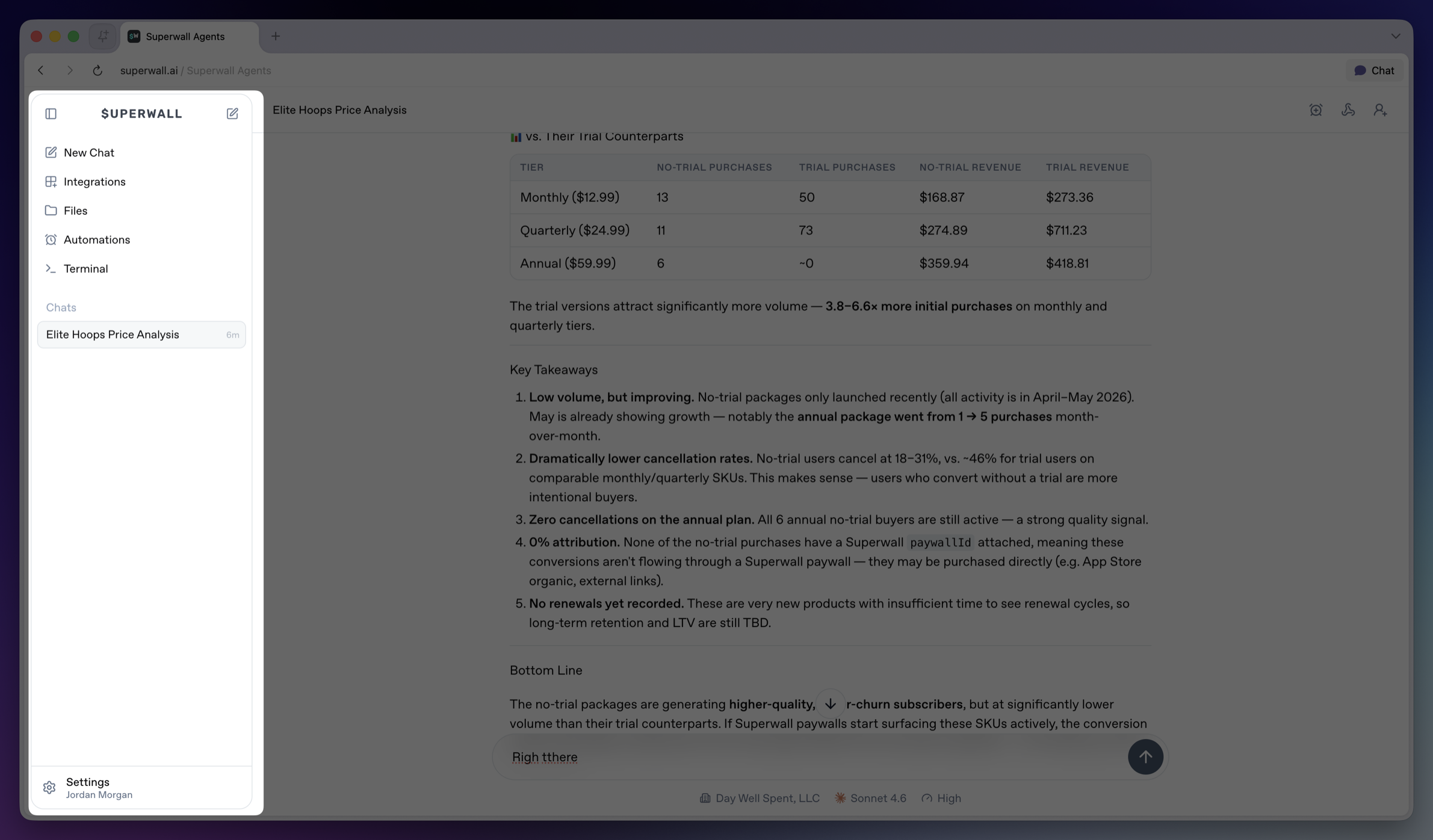
The sidebar is the main navigation for the workspace.
- Collapse sidebar: Hides the sidebar on desktop. Use the matching expand control to bring it back.
- Top New Chat icon: Returns to the new chat screen.
- New Chat: Opens the new chat screen and makes it the active sidebar item.
- Integrations: Opens account and tool connections, including GitHub, Slack, and Skills. See Integrations.
- Files: Opens the file browser for the active hosted machine. See Files.
- Automations: Opens scheduled prompts for chats. See Automations.
- Terminal: Opens a terminal connected to the active hosted machine. See Terminal.
- Chats: Shows saved chats for the active workspace. Select a row to reopen a chat.
- Settings: Opens account, model defaults, environment variables, machines, usage, billing, webhooks, keybindings, and account controls. See Settings.
How is this guide?