Pinned Charts
Pin any chart to your app's Overview page so the numbers you check most are there when you open the dashboard.
Pinned charts put the charts you check most on your app's Overview page, below the metric cards. Pick any chart from the Charts page, set its filters and size, and it shows up on the Overview every time you open the app.
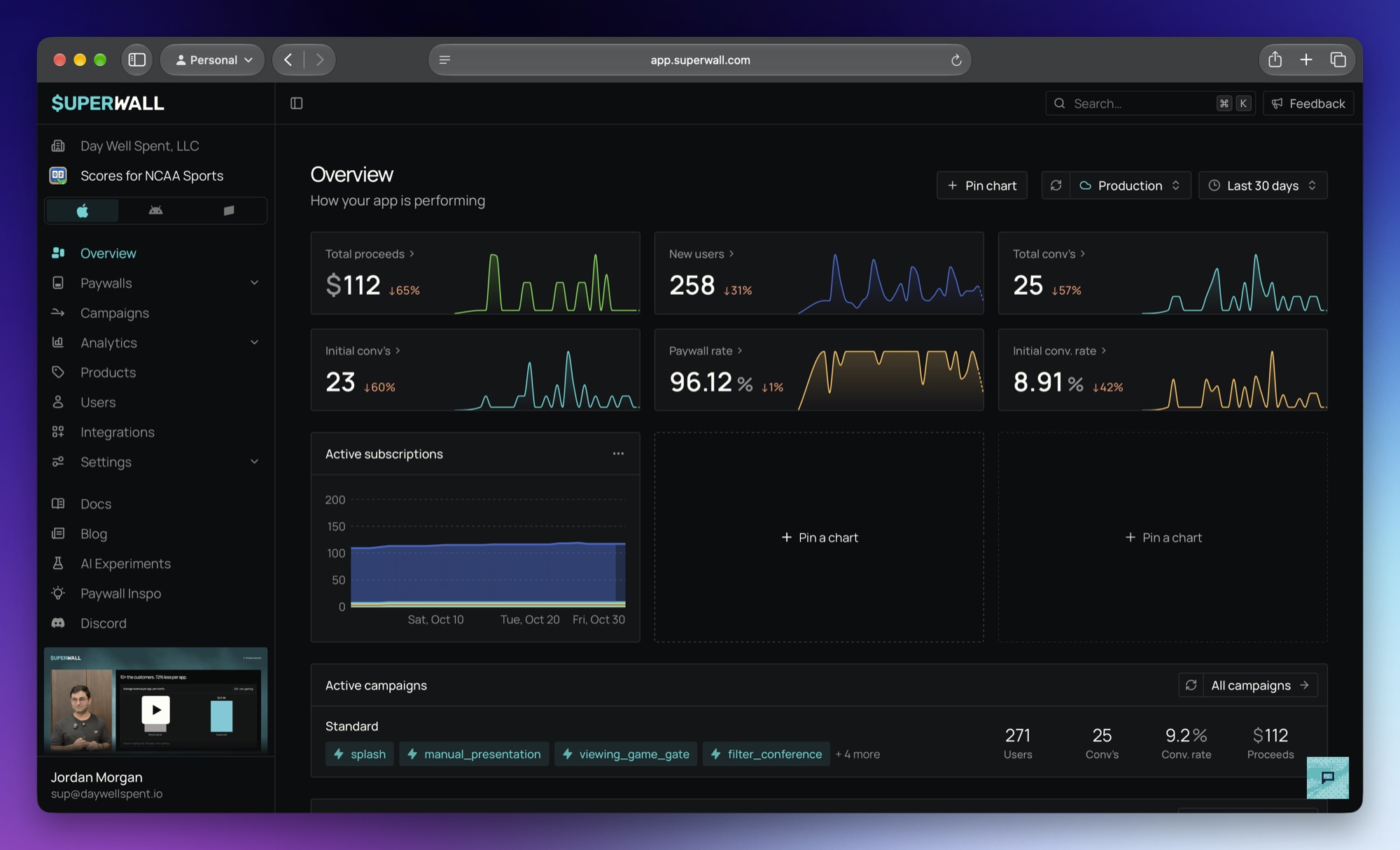
A few things to know first:
- Pins are yours. Only you see the charts you pin. Everyone on your team has their own set.
- Pins are per app. Each app's Overview has its own pinned charts.
- Pins stay current. A pinned chart re-runs every time you open the Overview, so it always shows the latest data.
Pinned charts are in the new dashboard at app.superwall.com. If you've switched back to the old dashboard, you won't see them.
Pin a chart
- Open your app's Overview page.
- Click Pin chart at the top of the page.
- In Or choose from default charts, pick a chart. These are the same charts as the Charts page.
- Set the chart's filters, breakdown, interval, and chart type. These work the same as on the Charts page.
- Set Width (1 to 3 columns) and Height (1 to 3 rows).
- Optionally, change the colors, line, fill, or date range. See Style a chart and Choose a date range.
- Click Pin chart.
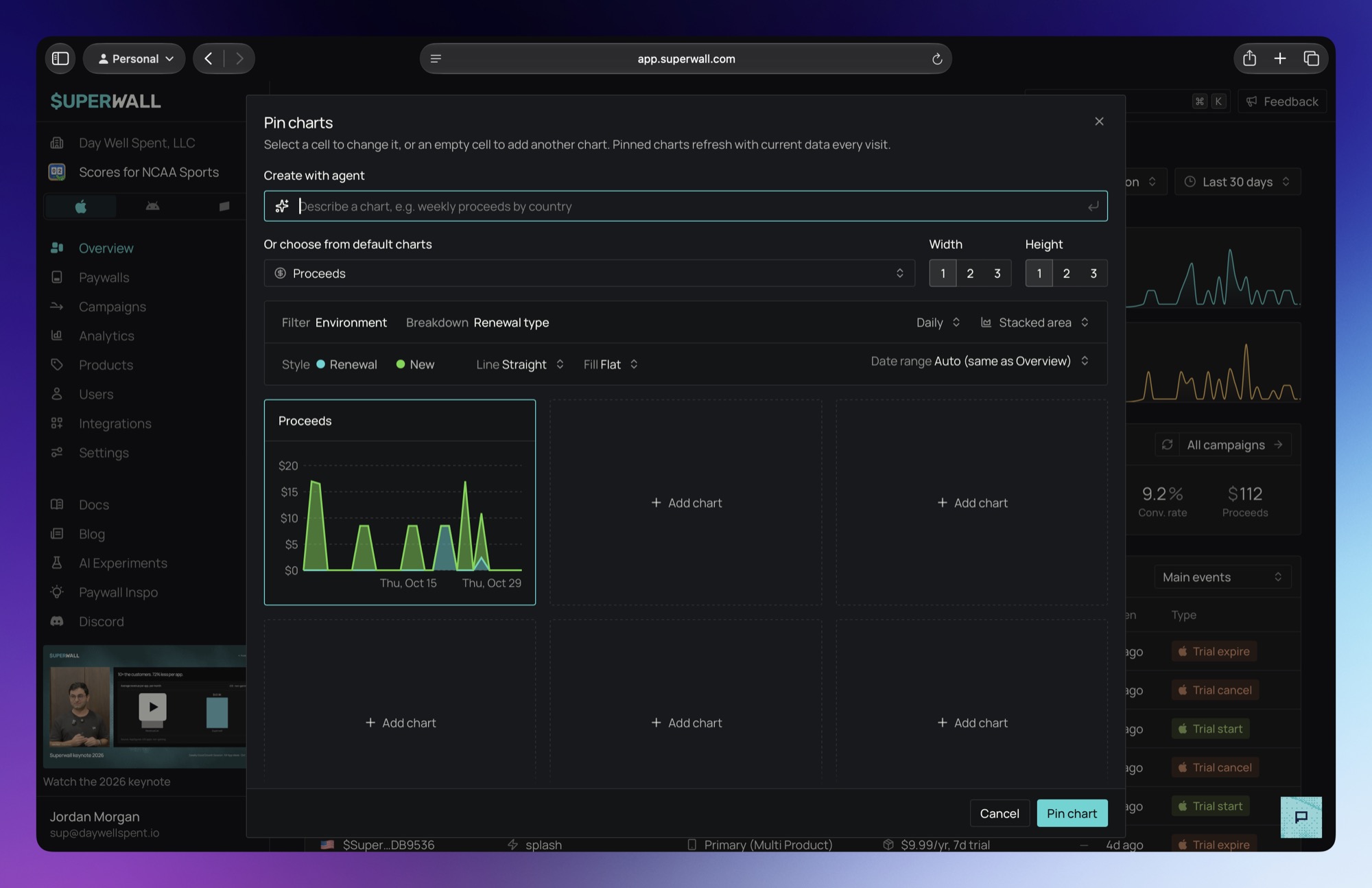
The dialog shows a live preview of your pinned charts, laid out as they'll appear on the Overview. On phones, every pinned chart takes the full width. The chart you're editing is outlined. To pin more than one chart at once, click Add chart in any empty cell of the preview, then set up that chart too. Everything is saved together. With more than one new chart, the button reads Pin 2 charts, Pin 3 charts, and so on.
A pinned chart doesn't have a title field. It's named after the chart you picked. When the chart uses a set interval, the card shows it beside the title, such as Proceeds Daily.
On wider screens, once you have pinned charts, hover the empty spaces between them on the Overview to see Pin a chart. Click it to pin a new chart in that spot.
Style a chart
The Style row in the dialog changes how the selected chart looks. These settings only affect that pinned chart, not the Charts page.
- Colors: Each series in the chart is listed with its color. Click one to choose from 10 colors.
- Line: For line and area charts, choose Straight or Smooth.
- Fill: For area charts, choose Flat or Gradient. A gradient fades downward, like the Overview's metric cards.
Choose a date range
By default, a pinned chart's Date range is Auto (same as Overview). It follows the date picker at the top of the Overview, the same as the metric cards.
You can also give a chart its own rolling window, so it always shows the same span no matter what the Overview shows:
- Last 24 hours
- Today
- Yesterday
- Last 7 days
- Last 30 days
- Last 90 days
- Last 180 days
- Last 365 days
- Year to date
A chart with its own window shows that window beside its title, along with a lock icon whose tooltip reads Defined date range. For example, Proceeds Daily for last 30 days.
Custom date ranges aren't offered. A pinned chart re-runs every time you open the Overview, so a fixed range would never show new data.
Subscription Retention charts only offer Last 30, 90, 180, and 365 days. On Auto, if the Overview uses a preset range other than those, the chart keeps its own saved window and names it beside its title. A custom Overview range still applies.
While a chart follows an Overview range longer than a week, the dialog doesn't offer an Hourly interval. An hourly chart that's already pinned picks a suitable interval for longer ranges.
The Overview's environment picker doesn't change pinned charts. Each pinned chart keeps the filters you gave it when you pinned it. New pinned charts use Production data unless you change the chart's environment filter.
Edit, move, or unpin a chart
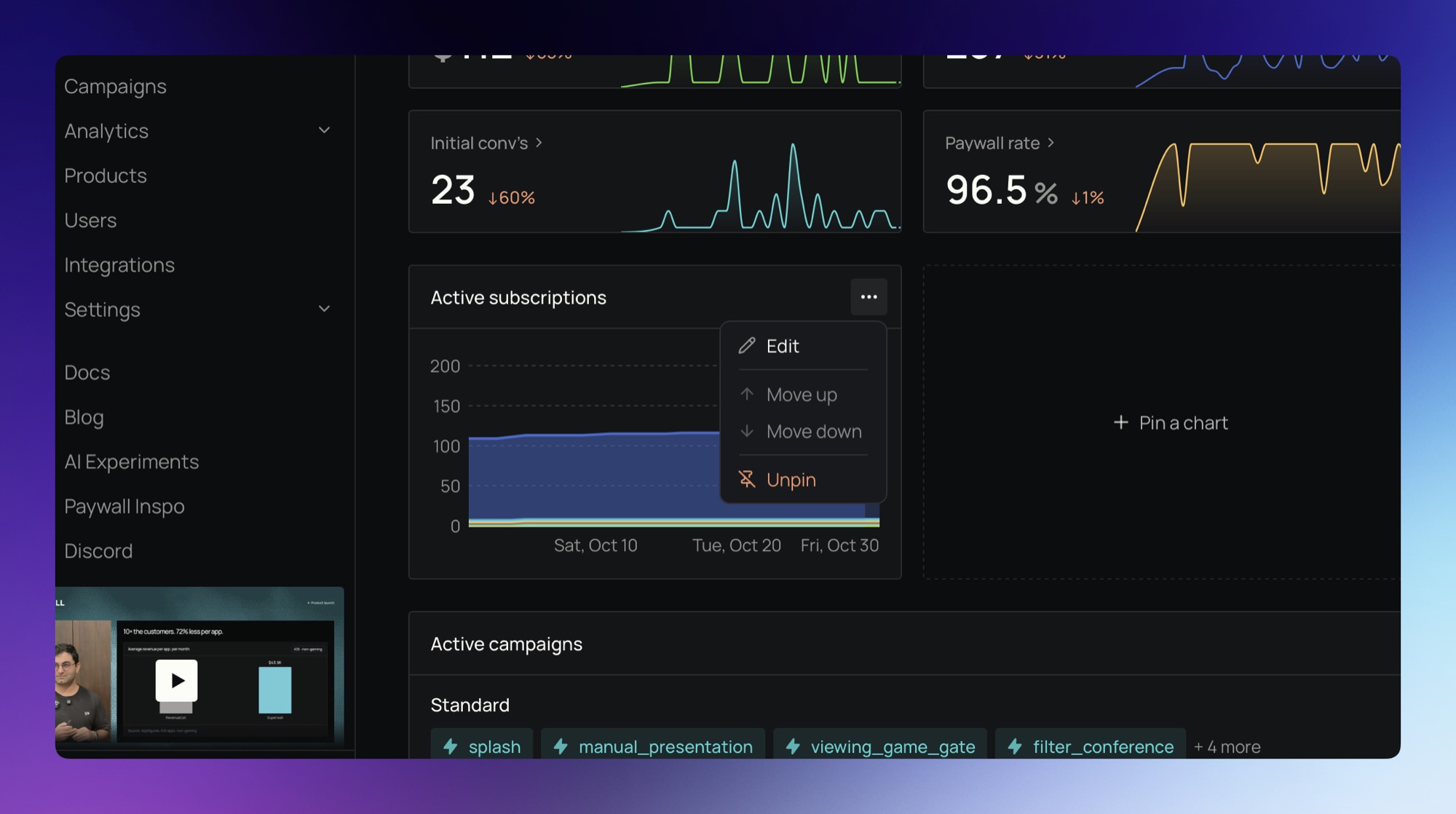
Each pinned chart has a ... menu in its top-right corner:
| Action | What it does |
|---|---|
| Edit | Opens the dialog with that chart selected, so you can change it. |
| Move up / Move down | Moves the chart one spot earlier or later in your pinned charts. Move up is off for the first chart, and Move down for the last. |
| Unpin | Asks Unpin this chart?, then removes the chart from your Overview when you click Unpin chart. |
Rearrange charts in the dialog
You can also change your whole layout at once in the dialog:
- Move a chart: Hover a chart in the preview and click an arrow on one of its edges. The chart swaps with the one next to it, or moves into the empty space there.
- Remove a chart: Hover a chart and click the trash icon in its top-right corner.
- Edit a different chart: Click any chart in the preview to select it.
Nothing changes on your Overview until you save the dialog. When you've changed, moved, or removed a pinned chart, added a chart in between pinned ones, or opened the dialog with Edit, the button reads Save changes. Click Cancel to throw away every change you made in the dialog, including removed charts.
Charts pack together on the Overview, so a small chart can fill a gap that a larger one left.
If the app no longer offers a pinned chart's chart type, you can't change its chart, filters, or date range. You can still resize, restyle, move, or unpin it, and it keeps its saved query.
Create a chart with the agent
When the dashboard agent, Superwall AI, is available, the dialog shows a Create with agent box for the selected cell. Describe the chart you want, such as "weekly proceeds by country", and the agent builds it in that cell. While it works, the box shows what the agent is doing. Click Stop to end it and keep the cell's current chart.
When the agent is done, the chart loads into the preview. Type in Refine this chart… to change it, for example "make it weekly" or "only iOS".
Nothing is pinned until you save the dialog. Closing the dialog, or removing the cell, ends that cell's agent task.
If you chat with Superwall AI in its side panel, it can also pin a chart for you directly. That chart is saved right away, and you'll see Chart pinned to Overview.
SQL charts
When the Charts page can't show what you asked for, such as a breakdown by a user attribute, the agent writes a SQL query instead. This becomes a SQL chart:
- It has no chart picker or filters. You can change its size, date range, and Chart type: Stacked area, Line, Stacked bar, Bar, Table, or Number. A query with no x-axis column can only be a table or a number.
- Only the agent can change its query. Select the chart and describe the change in Refine this chart….
- It's named by the agent that wrote it.
SQL charts need access to every project in your organization. If your project access is limited to specific projects, you can't pin, preview, or edit one, and SQL charts you pinned earlier stop loading. You can still unpin them.
Limits
| Limit | Value |
|---|---|
| Pinned charts, per person, per app | 24 |
| SQL charts, per person, per app | 6 |
| Rows a SQL chart can return | 10,000 |
| Time a SQL chart's query can run | 30 seconds |
A SQL chart that goes over the row or time limit can't be pinned. The limits apply every time the chart runs, so a pinned SQL chart can stop loading over a longer date range. If that happens, give it a shorter window. The SQL chart limit exists because each SQL chart runs a query every time you open the Overview.
Annotations on pinned charts
Pinned charts with a date axis draw your app's chart annotations, the same as the Charts page. You can't add or edit annotations from a pinned chart. Use the Charts page for that.
Troubleshooting
| What you see | What to do |
|---|---|
| Couldn’t load this chart | The chart's query failed. Click Try again on the card, or unpin it. The rest of the Overview keeps working. |
| Couldn’t draw this chart | A SQL chart's query now returns more than one row per point. Unpin it and ask the agent for an aggregated version. |
| No data in this window | The chart has no data for its date range. Try a longer range. |
| Couldn’t load pinned charts | Your pins are still saved. Click Try again in a moment. |
| You can pin up to 24 charts to this Overview. Unpin one first. | Shown when you save the dialog. You've hit the limit. Unpin a chart, then try again. The same applies to the 6 SQL chart limit. |
| The agent couldn’t finish this chart., or another error under Create with agent | Try describing the chart again, or pick one from Or choose from default charts. |
| The agent’s chart can’t be shown here | The agent built a chart the dialog can't use. Describe it a different way, or pick one from Or choose from default charts. |
Related
How is this guide?