Chart Annotations
Mark releases, campaigns, and incidents on your app's charts from the dashboard or the Superwall API.
Chart annotations mark what happened on your app's timeline, such as a release, an App Store feature, a marketing campaign, or an outage. Every time-series chart for the app draws them, so you can see a change in a metric next to the event that might explain it.
Annotations belong to the app, not to one chart or one person. Everyone who can see the app sees the same annotations.
An annotation is one of two kinds:
| Kind | What it marks | How it's drawn |
|---|---|---|
| Point | One moment, such as a release. | A dashed vertical line. |
| Range | A span of time, such as a sale or an App Store feature. | A faint shaded band. |
Each annotation keeps the same color on every chart.
Annotations on charts
Annotations are drawn in Dashboard v2. Enable New Dashboard Experience from
Settings > Public Beta, then open your charts at app.superwall.com. The
API works whichever dashboard you use.
Annotations appear on:
- The Charts page, where you can also add, edit, and delete them.
- Charts pinned to the app's Overview.
- The Results chart of a campaign.
Overview pins and campaign results only display annotations. To change one, use the Charts page.
Charts without a date axis, such as a breakdown by country, a retention-period chart, or a Totals view, don't draw annotations.
Where an annotation lands
Charts group data into UTC buckets, such as hours or days. An annotation is drawn in the bucket that contains its moment. For example, a release at 2
PM UTC is drawn on the 2 PM bucket of an hourly chart and on that day's bucket of a daily chart. A range covers every bucket it touches.Hover a bucket to see its annotations. Their labels are listed at the top of the chart's tooltip, each marked in its color: a short dashed line for a point, a small square for a range.
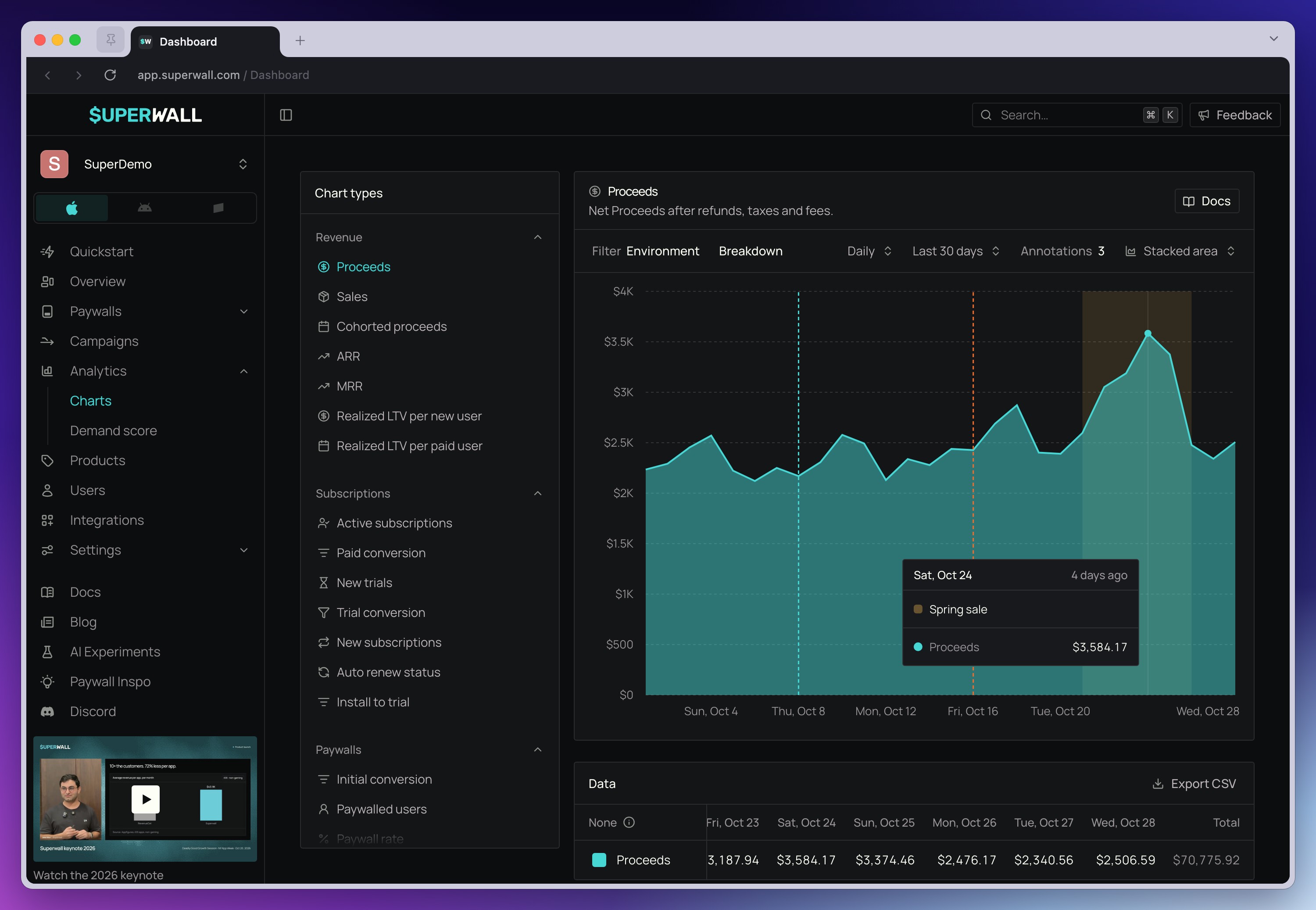
Annotations never get in the way of the chart. You can still drag across the chart to zoom into a date range.
The Annotations control
The chart toolbar has an Annotations control, just before the chart type. It shows how many annotations the current chart draws, or Hidden if you've turned them off.
Click it to open the list of annotations. In view lists the ones in the chart's current date range, and All lists every annotation for the app. Both are newest first, and each row shows the annotation's label and when it happened, in your time zone.
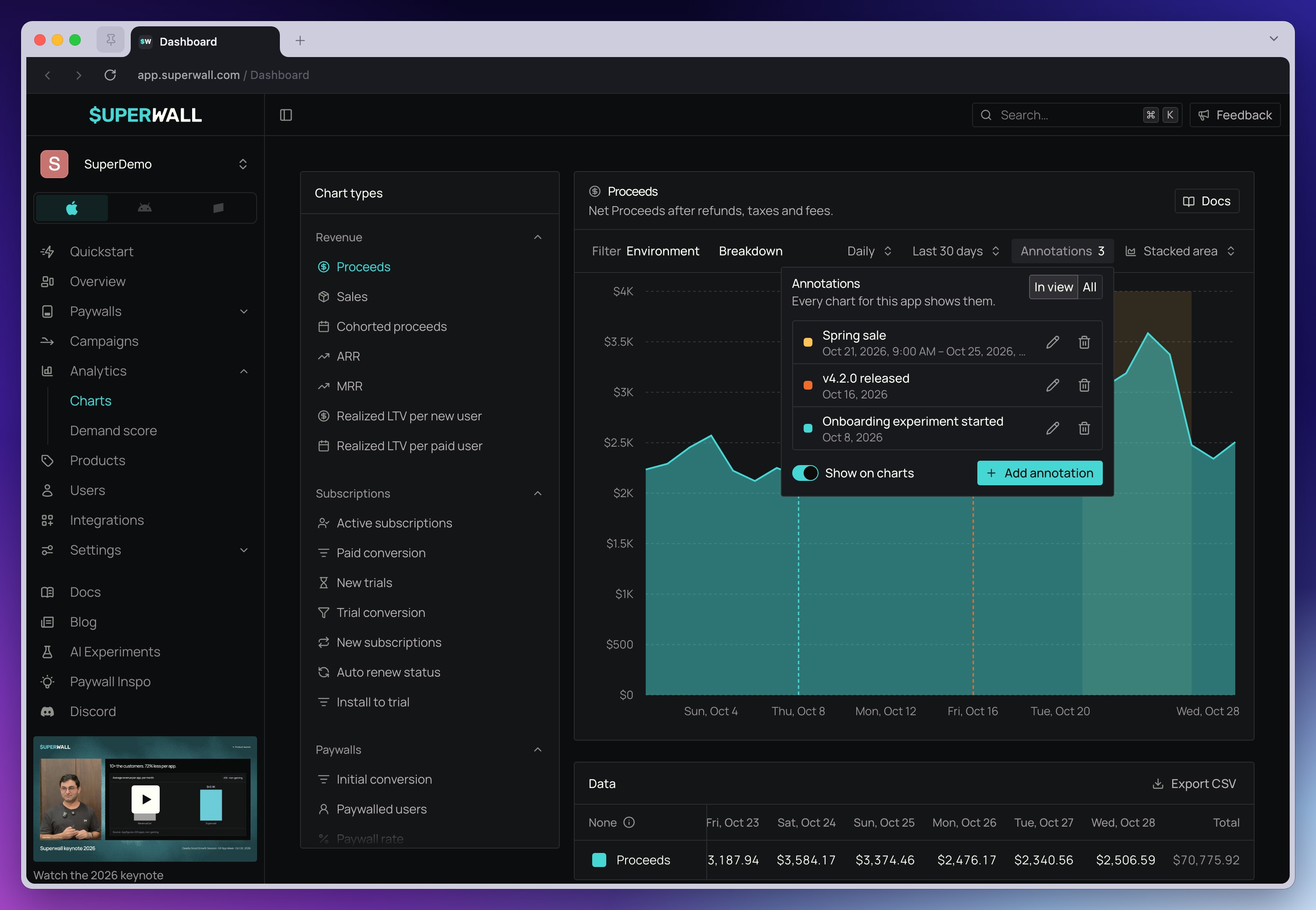
Show or hide annotations
Use the Show on charts switch in the Annotations control to hide or show annotations. This setting only affects you, is saved in your current browser, and applies to every chart that draws annotations, including Overview pins and campaign results. It's on by default.
Add, edit, and delete annotations
You need permission to write annotations. Owners, Admins, and Editors can add, edit, and delete them. Readers and Analysts, and members with the project Viewer role, can see annotations but don't get add, edit, or delete controls. See Access Controls.
Add an annotation
There are two ways to add an annotation on the Charts page:
- From the chart: Click a point on the chart, without dragging. A small Add annotation popover opens for that bucket. Type a label and click Add annotation to add a point there, or click More options to open the full form. Clicking next to an existing annotation opens that annotation instead; see Edit or delete an annotation.
- From the Annotations control: Open Annotations and click Add annotation.
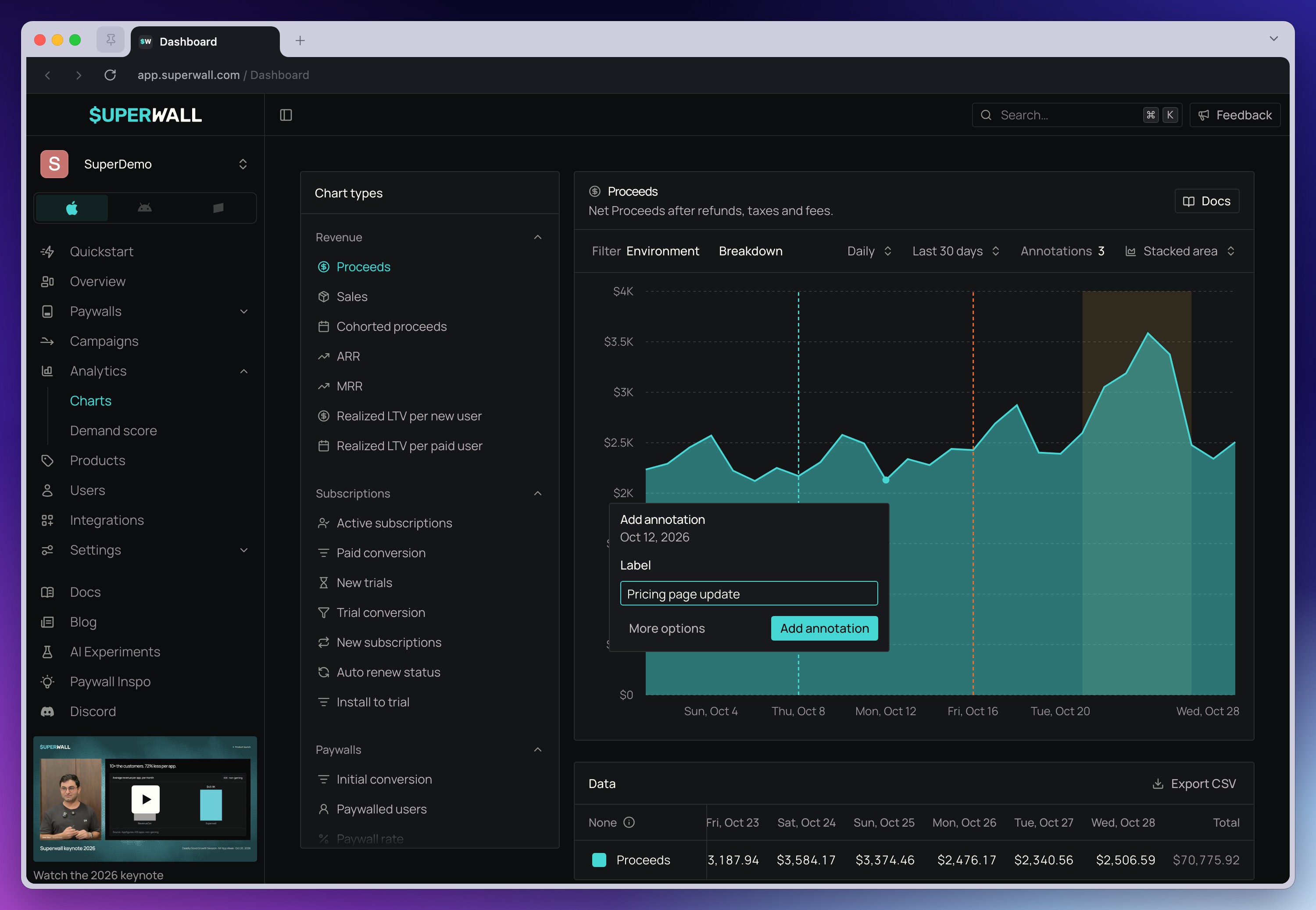
Clicking the chart only opens the popover when annotations are shown and the chart has a date axis.
The full form has these fields:
| Field | What to enter |
|---|---|
| Label | What happened, shown on the chart. Required, up to 191 characters. |
| Description | Optional detail, up to 2,000 characters. |
| Type | Point for one moment, or Range for a span of time. |
| When / Start and End | The moment for a point, or the start and end for a range. A range must end after it starts. |
Enter times in your own time zone. The form shows which time zone it's using, and Superwall saves each time as an exact moment, so everyone sees the annotation in the same place on the chart, whatever their time zone.
Edit or delete an annotation
There are two ways to edit an annotation:
- From the chart: Click next to it. For a point, click anywhere in its bucket or right on its line. For a range, click in the bucket where it starts or where it ends. A small Edit annotation popover opens with its label. Change the label and click Save changes, or click More options to edit everything else. To add a new annotation there instead, click Add new. If several annotations are that close, the popover lists them so you can pick one.
- From the Annotations control: Open Annotations and use the edit action on an annotation's row.
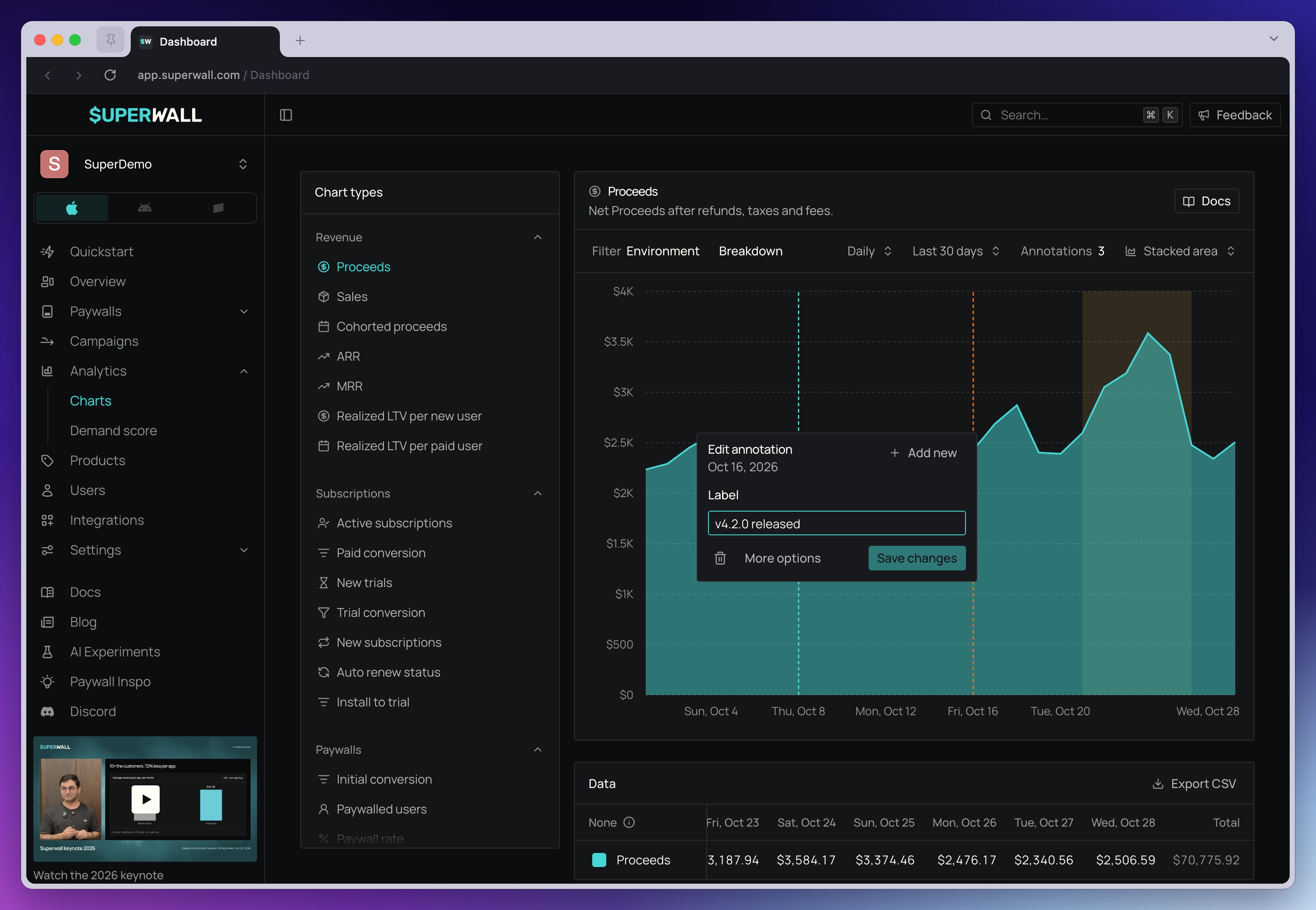
Clicking inside a range, away from its start and end, still adds a new annotation, so you can mark something that happened during it.
To delete an annotation, use Delete annotation in the edit form, the delete icon next to More options in the chart's Edit annotation popover, or the delete action on its row in Annotations.
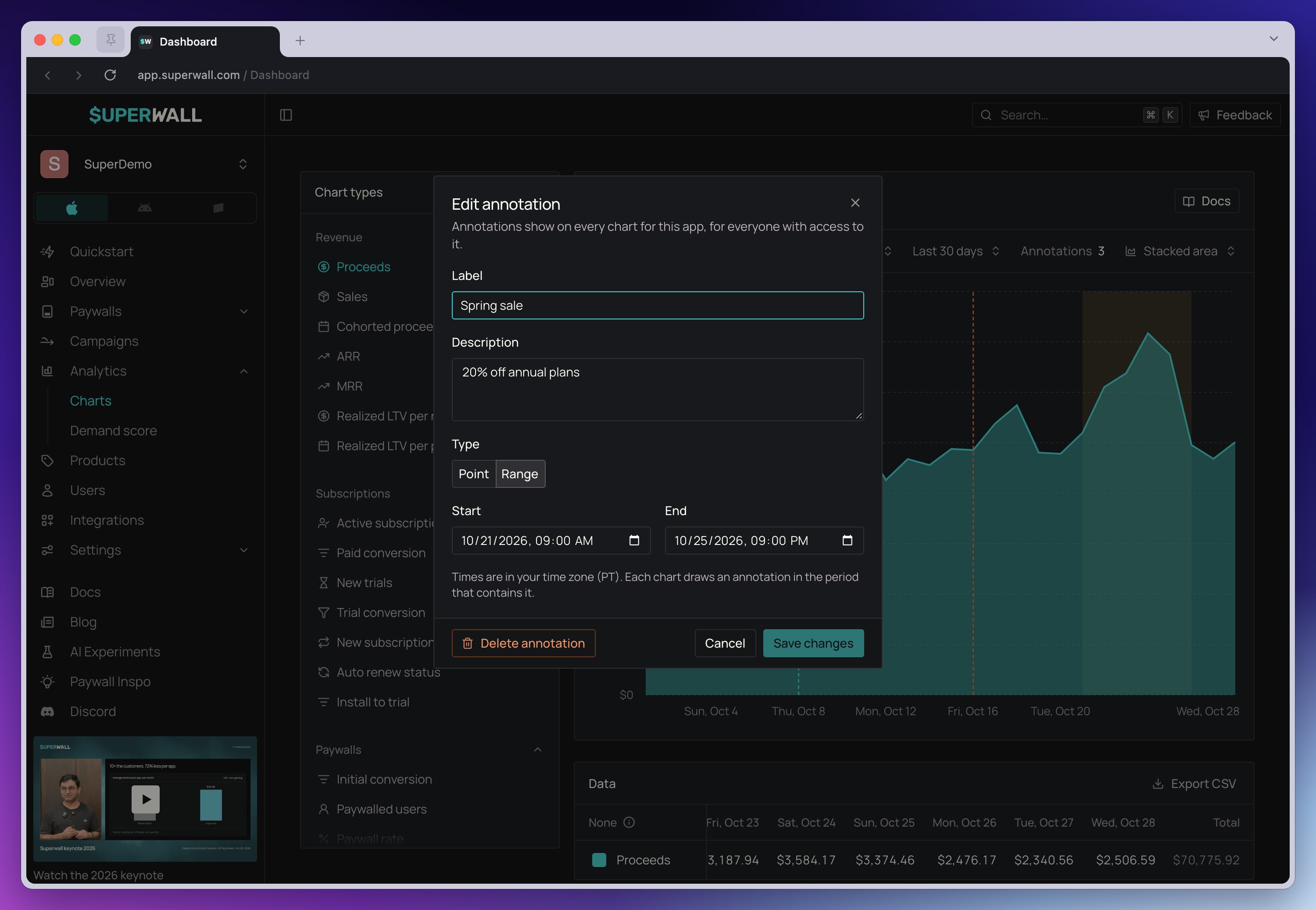
Deleting asks you to confirm, then removes the annotation from every chart for the app. This is permanent and can't be undone. Every create, update, and delete is recorded in the organization's Audit Log with before and after values, so a deleted annotation's contents remain in the log.
Manage annotations with the API
Use the Superwall API to add annotations from scripts or CI, for example to mark every release automatically. The full reference, with request and response schemas, is at api.superwall.com/docs.
Authentication
- Open Settings > API Keys in the Superwall dashboard.
- Create an organization API key, or edit an existing one.
- Give the key the
charts:writescope to create, update, or delete annotations. Addcharts:readif it also needs to list or retrieve them. - Copy the token when Superwall shows it.
API keys created before chart annotations were released don't have the charts:write scope.
Requests to create, update, or delete annotations with those keys return 403. Edit the key to
add charts:write, or create a new key with it.
Pass the token as a bearer token:
Authorization: Bearer YOUR_SECRET_TOKENEndpoints
The base URL is https://api.superwall.com.
| Operation | Method and path | Scope |
|---|---|---|
| List | GET /v2/applications/{application_id}/chart_annotations | charts:read |
| Create | POST /v2/applications/{application_id}/chart_annotations | charts:write |
| Retrieve | GET /v2/applications/{application_id}/chart_annotations/{chart_annotation_id} | charts:read |
| Update | PATCH /v2/applications/{application_id}/chart_annotations/{chart_annotation_id} | charts:write |
| Delete | DELETE /v2/applications/{application_id}/chart_annotations/{chart_annotation_id} | charts:write |
An application ID outside your organization, or an annotation ID that belongs to a different application, returns 404.
Timestamps
start_at and end_at are exact moments. Send them as ISO 8601 timestamps with a timezone, either Z or an offset such as +02:00. Superwall rejects these with 400:
- Date-only values, such as
2026-10-28. - Values without a timezone, such as
2026-10-28T14:00:00. - Dates that don't exist, such as
2026-02-30T00:00:00Z. - Years before 2000 or after 9999.
Responses always return timestamps in UTC with milliseconds. For example, if you send 2026-10-28T16:00:00+02:00, the response returns 2026-10-28T14:00:00.000Z.
Create an annotation
Send label and start_at to create a point. Add end_at to create a range.
Prop
Type
curl https://api.superwall.com/v2/applications/$APP_ID/chart_annotations \
  --request POST \
  --header "Authorization: Bearer $SUPERWALL_API_KEY" \
  --header "Content-Type: application/json" \
  --data '{
    "label": "Summer sale",
    "description": "20% off annual plans",
    "start_at": "2026-07-01T00:00:00Z",
    "end_at": "2026-07-08T00:00:00Z"
  }'
The response is the annotation. id and application_id are returned as strings:
{
  "object": "chart_annotation",
  "id": "42",
  "application_id": "123",
  "label": "Summer sale",
  "description": "20% off annual plans",
  "start_at": "2026-07-01T00:00:00.000Z",
  "end_at": "2026-07-08T00:00:00.000Z",
  "created_at": "2026-06-30T18:12:05.000Z",
  "updated_at": "2026-06-30T18:12:05.000Z"
}
An application can hold up to 1,000 annotations. Creating one beyond that returns 400. Delete an annotation first to make room.
List annotations
List returns the application's annotations ordered by start_at. Use from and to to limit it to a window:
Prop
Type
The window is inclusive and returns every annotation that overlaps it: a point at or between from and to, or a range that starts at or before to and ends at or after from.
In a query string, a literal + is decoded as a space, so an offset like +02:00 is rejected.
Encode it as %2B, for example from=2026-10-01T00:00:00%2B02:00, or use UTC timestamps
ending in Z.
curl --get https://api.superwall.com/v2/applications/$APP_ID/chart_annotations \
  --header "Authorization: Bearer $SUPERWALL_API_KEY" \
  --data-urlencode "from=2026-10-01T00:00:00Z" \
  --data-urlencode "to=2026-10-31T23:59:59Z"
The response includes a top-level can_write field that says whether the caller can create, update, and delete annotations. Use it to hide write controls in your own tools:
{
  "object": "list",
  "data": [
    {
      "object": "chart_annotation",
      "id": "43",
      "application_id": "123",
      "label": "v4.2.0 released",
      "description": null,
      "start_at": "2026-10-28T14:00:00.000Z",
      "end_at": null,
      "created_at": "2026-10-28T14:00:03.000Z",
      "updated_at": "2026-10-28T14:00:03.000Z"
    }
  ],
  "can_write": true
}
Update an annotation
PATCH changes only the fields you send and keeps the rest:
- Omit a field to keep its current value.
- Send
description: nullto remove the description. - Send
end_at: nullto turn a range into a point.
The result must still end after it starts. If you move only start_at or only end_at, Superwall checks the combined result and returns 400 if it would end at or before its start.
curl https://api.superwall.com/v2/applications/$APP_ID/chart_annotations/$ANNOTATION_ID \
  --request PATCH \
  --header "Authorization: Bearer $SUPERWALL_API_KEY" \
  --header "Content-Type: application/json" \
  --data '{"end_at": "2026-07-10T00:00:00Z"}'
Delete an annotation
DELETE removes the annotation from every chart. This is permanent. The change is recorded in the Audit Log.
curl https://api.superwall.com/v2/applications/$APP_ID/chart_annotations/$ANNOTATION_ID \
  --request DELETE \
  --header "Authorization: Bearer $SUPERWALL_API_KEY"
{
"object": "chart_annotation",
"id": "42",
"deleted": true
}Mark releases from CI
Add a step to your release pipeline that creates a point annotation when a build ships. Store the API key as a CI secret, and generate start_at in UTC with date -u +%Y-%m-%dT%H:%M:%SZ:
curl https://api.superwall.com/v2/applications/$APP_ID/chart_annotations \
  --request POST \
  --header "Authorization: Bearer $SUPERWALL_API_KEY" \
  --header "Content-Type: application/json" \
  --data "{\"label\":\"v$VERSION released\",\"start_at\":\"$(date -u +%Y-%m-%dT%H:%M:%SZ)\"}"
The key only needs the charts:write scope. Restrict it to the project the app belongs to.
Troubleshooting
| Status | What to check |
|---|---|
400 | A timestamp is missing its timezone or isn't a real date, end_at isn't after start_at, to is before from, the label is empty or too long, or the application already has 1,000 annotations. |
401 | The request is missing a bearer token, or the token is invalid or revoked. |
403 | The API key doesn't have the scope the operation needs: charts:read to list or retrieve, charts:write to create, update, or delete. |
404 | The application isn't in your organization, or the annotation belongs to a different application. |
Related
How is this guide?